
Modern web monitoring and alert system with customizable GUI for tracking website changes

Project description
Web Alert 🔔
A beautiful, easy-to-use desktop application that watches websites for you and plays a sound when something changes. Perfect for tracking price drops, news updates, stock availability, or any website content you care about!
✨ Key Features
🎯 Easy to Use
- Beautiful Dashboard - Clean, modern interface that anyone can use
- Multiple Monitors - Watch as many websites as you want at the same time
- One-Click Control - Start, stop, or remove monitors with a single click
- Remembers Everything - Your monitors stay saved even after you close the app
🔍 Smart Monitoring
- Whole Page or Specific Parts - Watch entire pages or just the parts you care about
- Three Detection Modes - Choose how to detect changes (simple text, full page, or fast)
- Custom Schedules - Set how often each website should be checked (every minute, hour, etc.)
- Real-Time Status - See exactly what's happening with each monitor
🎨 Personalization
- Light & Dark Themes - Choose the look that suits you best
- Custom Alert Sounds - Use the built-in sound or upload your own
- Your Settings Saved - Theme and preferences saved automatically
- Configuration History - Quickly reuse previous monitoring setups
📊 Activity Tracking
- Individual Logs - Each monitor has its own activity history
- Export Logs - Save logs to review later
- Add Notes - Keep track of why you're monitoring each site
- Statistics - See how many changes detected and alerts played
📥 Installation
Super Easy Installation (Recommended)
Just one command! Open a terminal/command prompt and type:
pip install web-alert
That's it! The app and all its requirements install automatically. ✨
First Time Using Python?
If you don't have Python yet:
-
Install Python:
- Visit python.org
- Download Python 3.10 or newer
- ⚠️ Important: During installation, check "Add Python to PATH"
-
Install Web Alert:
pip install web-alert
For Developers
Want to modify the code? Clone the repository:
git clone https://github.com/Almas-Ali/web-alert.git
cd web-alert

# Using uv (recommended)
uv sync
uv run main.py

# Or with pip
pip install -e .
python main.py
🚀 Getting Started
Starting the Application
After installation, simply run:
web-alert
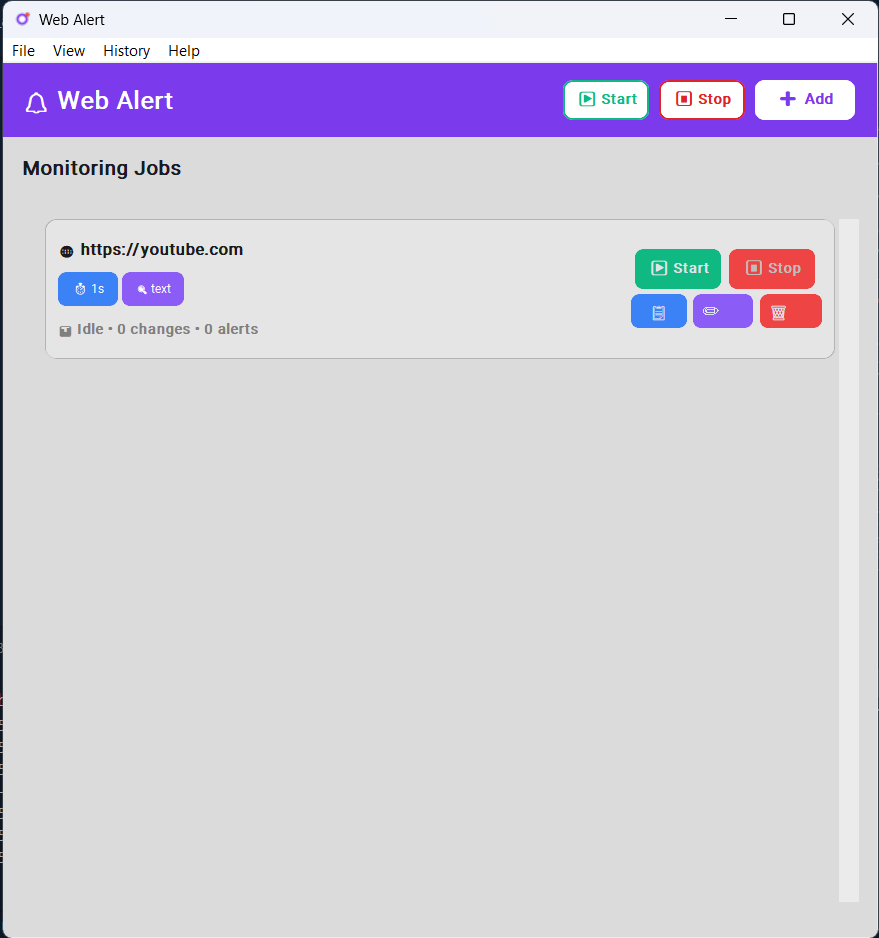
The dashboard will open with a beautiful purple header and a clean interface.
That's it! No need to navigate to any folder or run Python directly. The web-alert command works from anywhere! 🎉
Your First Monitor in 3 Steps
Step 1: Add a Website to Monitor
- Click the "+ Add" button in the top right
- A window opens - enter the website URL (e.g.,
https://example.com/product) - Leave other settings as default for now
- Click "Add Job"
Step 2: Start Monitoring
- Click the green "▶ Start" button next to your website
- The status will change to "Running" (in green)
- You'll see when it was last checked
Step 3: Get Alerted
- When the website changes, you'll hear an alert sound
- Check the "Logs" to see what changed and when
That's it! 🎉
Understanding the Dashboard
Top Buttons:
- ▶ Start - Start monitoring all websites at once
- ⏸ Stop - Stop all monitoring
- + Add - Add a new website to monitor
For Each Website:
- Green "Start" button - Begin checking this website
- Red "Stop" button - Pause checking (appears when running)
- Blue "Logs" button - View activity history and add notes
- Gray "Remove" button - Delete this monitor
Menu Bar:
- File → Quick access to add/start/stop operations
- View → Change between Light, Dark, or System theme
- History → See and reuse previous monitoring setups
Using History (Save Time!)
Previously monitored something? Load it again instantly:
- While Adding: Click "📜 Load from History" button
- From Menu: Go to History → View All History
- Click "Add as Job" - All settings restored automatically!
Every website you monitor is saved automatically. No need to remember settings!
⚙️ Configuration Options (Optional)
These are optional - the defaults work great! But if you want more control:
Detection Modes
Choose how to detect changes (default is "text" - recommended for most users):
-
Text Mode ⭐ (Recommended)
- Watches the actual words on the page
- Ignores design changes, ads, and timestamps
- Perfect for: prices, availability, news articles
-
HTML Mode
- Watches everything including page structure
- Detects even tiny changes
- Perfect for: complete page monitoring
-
Hash Mode
- Super fast checking
- Detects any change at all
- Perfect for: frequent checks, simple pages
Check Interval
How often to check the website:
- Quick checks: 5-10 seconds (careful - don't overload websites!)
- Normal: 60 seconds (1 minute) - good default
- Relaxed: 300 seconds (5 minutes) or more
Tip: Start with 60 seconds and adjust based on how often the site changes.
CSS Selectors (Advanced)
Want to watch just part of a page? Use CSS selectors:
- Leave empty - Watch the whole page (easiest!)
#price- Watch the price element.stock-status- Watch stock availabilityh1.title- Watch the page title
Don't know CSS? No problem! Just leave it empty to watch everything.
Custom Alert Sounds
Don't like the default beep?
- Click "Browse" next to Alert Sound
- Pick your own WAV sound file
- Or leave default for the built-in alert
🎨 Themes
Change the app's appearance to match your preference:
- Click View in the menu bar
- Choose Theme:
- ☀️ Light - Bright, clean look
- 🌙 Dark - Easy on the eyes
- 💻 System - Matches your computer's theme
Your choice is saved automatically!
📂 Where Things Are Saved
All your data is stored locally on your computer:
- Monitoring settings: Saved in
web_alert_store.db - Activity logs: Saved with each monitor
- Theme preference: Remembered automatically
- Alert sound: Stored in
sounds/folder
Nothing is sent to the internet - everything stays on your computer!
💡 What Can I Use This For?
Here are some real-world examples:
Shopping & Deals
- 🛒 Track product availability: Know the moment that sold-out item is back in stock
- 💰 Watch prices: Get notified when your favorite product goes on sale
- 🎁 Monitor deals: Catch limited-time offers before they expire
Career & Education
- 💼 Job postings: Be the first to apply when a new position opens
- 📚 University admissions: Know when results or announcements are posted
- 🏫 Course registration: Get alerts when spots open up
News & Information
- 📰 Breaking news: Track updates on topics you care about
- 🏛️ Government updates: Monitor official documents or announcements
- 🏆 Sports scores: Track game results or league standings
Personal Projects
- 🎮 Game servers: Check if your favorite server is online
- 📱 App updates: Know when a new version is released
- 🌐 Website changes: Track updates to any webpage you're interested in
The possibilities are endless! If it's on the web, you can monitor it.
- Total changes detected
- Total alerts played
- Active URL being monitored
Use Cases
- Price Monitoring: Track price changes on e-commerce sites
- News Updates: Get alerted when news sites publish new articles
- Product Availability: Monitor "Out of Stock" to "In Stock" changes
- Content Updates: Track blog posts or website content changes
- API Status Pages: Monitor service status dashboards
- Competition Tracking: Watch competitor website updates
💭 Helpful Tips
For Best Results:
- ⏱️ Start with 60 seconds - Don't check too often or websites might block you
- 🎯 Watch specific parts - Use CSS selectors to avoid false alarms from ads
- 🔊 Test your alert - Click "Test Sound" before you start monitoring
- 💾 Use History - Save configs for websites you check often
- 📝 Use Text mode - Ignores changing ads and timestamps
Being a Good Internet Citizen:
- Don't set intervals too short (under 30 seconds)
- Respect websites by not overloading them
- Some websites might block frequent checks
📋 System Requirements
To run this app, you need:
- Operating System: Windows (7, 10, or 11)
- Python: Version 3.8 or newer
- Internet: Active connection to check websites
- Sound: Speakers or headphones for alerts
🆘 Common Issues & Solutions
"I'm not hearing any alerts!"
Solutions:
- ✅ Make sure your computer sound is turned on
- ✅ Click the "Test Sound" button to check if it works
- ✅ Try using the default alert (leave sound path empty)
- ✅ Check if your speakers/headphones are connected
"It keeps alerting but nothing changed!"
Solutions:
- ✅ Switch to Text Mode (ignores ads and animations)
- ✅ Use a CSS selector to watch just the part you care about
- ✅ Some websites have timestamps that change constantly
"It's not detecting any changes!"
Solutions:
- ✅ Check if the website opens in your web browser
- ✅ Try increasing the check interval (60 seconds)
- ✅ Make sure your CSS selector is correct (or leave it empty)
- ✅ Try switching to HTML Mode for more sensitive detection
"The app won't start!"
Solutions:
- ✅ Make sure Python is installed correctly
- ✅ Run
uv syncagain to install dependencies - ✅ Check if your antivirus is blocking it
"I get an error about Python not found"
Solutions:
- ✅ Reinstall Python from python.org
- ✅ During installation, check "Add Python to PATH"
- ✅ Restart your computer after installing
Still Having Problems?
Open an issue on GitHub with:
- What you were trying to do
- The exact error message
- Screenshots if possible
🤝 Want to Help Improve This App?
Found a bug? Have an idea for a new feature? Contributions are welcome!
- Report bugs: Open an issue on GitHub
- Suggest features: Tell us what you'd like to see
- Improve code: Submit a pull request
- Share feedback: Let us know how you're using it!
📄 License
MIT License - Free to use, modify, and share!
⚠️ Important Reminder
Be Respectful:
- Don't check websites too frequently (use 30+ second intervals)
- Respect website terms of service
- Excessive requests may get you blocked
- Use this tool responsibly!
👨💻 About
Created with ❤️ for anyone who needs to track website changes without constantly refreshing their browser.
Made possible by: Python, CustomTkinter, and coffee ☕
Ready to Start?
- Install:
pip install web-alert - Run:
web-alert - Add your first monitor
- Sit back and let it watch for you! 🎉
Installation troubleshooting? Check the Common Issues section above.


Download files
Download the file for your platform. If you're not sure which to choose, learn more about installing packages.
Source Distribution
Built Distribution
Filter files by name, interpreter, ABI, and platform.
If you're not sure about the file name format, learn more about wheel file names.
Copy a direct link to the current filters
File details
Details for the file web_alert-1.0.2.tar.gz.
File metadata
- Download URL: web_alert-1.0.2.tar.gz
- Upload date:
- Size: 37.2 kB
- Tags: Source
- Uploaded using Trusted Publishing? No
- Uploaded via: twine/6.2.0 CPython/3.9.25
File hashes
| Algorithm | Hash digest | |
|---|---|---|
| SHA256 |
8bf55075814f0401f8ef6ffadd3b9264d290337706ccf94a4fc165ee344bade4
|
|
| MD5 |
0a0ba769072a90ab146ac1c11b1d517b
|
|
| BLAKE2b-256 |
58ff7e970e1153be26fe688668fc35054fcdddc94edf8c72cbce5ea9b65b40ab
|
File details
Details for the file web_alert-1.0.2-py3-none-any.whl.
File metadata
- Download URL: web_alert-1.0.2-py3-none-any.whl
- Upload date:
- Size: 36.4 kB
- Tags: Python 3
- Uploaded using Trusted Publishing? No
- Uploaded via: twine/6.2.0 CPython/3.9.25
File hashes
| Algorithm | Hash digest | |
|---|---|---|
| SHA256 |
a4a98e02e30d335172b22f37ee53ef57249643633b84abdd1fd5cd752abd84ac
|
|
| MD5 |
13f2c6b016e70fc3e7531ff7855010dc
|
|
| BLAKE2b-256 |
8cce7ae8bed5feb19a1157737e63c11c34d4b7b671ae879f0f23701c5c90f52b
|






