
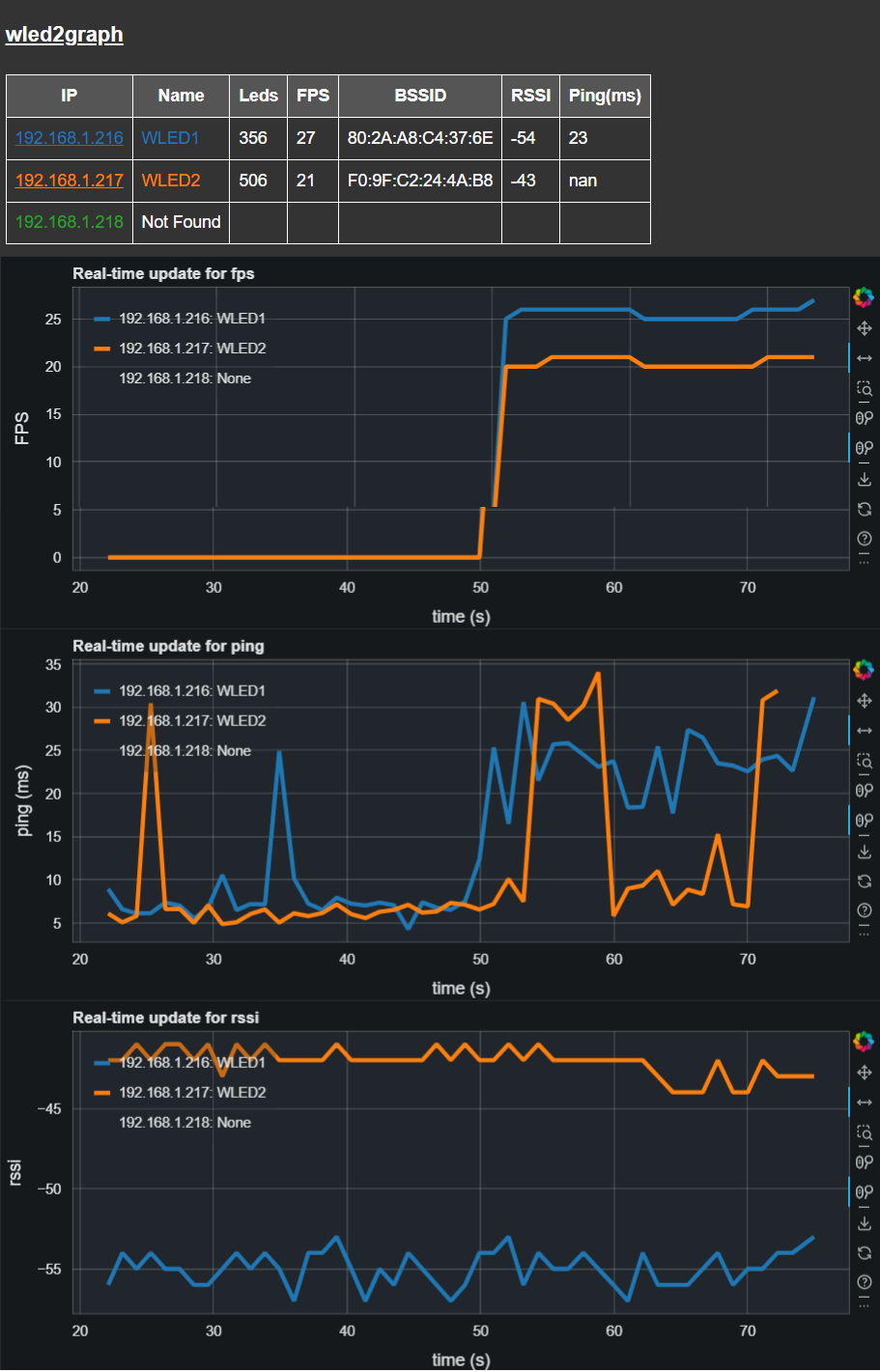
wled2graph supports a table and graphs of FPS and other data from multiple WLED endpoints in real-time via a browser interface

Project description
wled2graph
wled2graph is a Python program designed to visualize Frames Per Second (FPS) data and other from WLED endpoints on a network in real-time using a Bokeh graph server. It sets up a polling loop, defaulting to every 5 seconds, to fetch the current JSON state from each specified WLED endpoint
Note that the Bokeh server is hosted on port 5006 by default. You can access the graph by navigating to http://localhost:5006 in your web browser.
The browser window should be spawned on wled2graph launch, however, wled2graph is not closed on closure of the browser.
You can navigate again to the same URL to re-open the graph, as long as the application is left running.
Features
- Real-time FPS, BSSID, RSSI and Ping Visualization: Continuously polls WLED endpoints and updates the graph with current FPS values.
- IP address hyperlink to WLED UI: Just click through direct to the WLED UI for the selected WLED endpoint.
- Configurable Polling Frequency: Allows customization of the polling interval to suit network and performance needs.
- Scalable: Can monitor multiple WLED endpoints simultaneously.
- Customizable Data Points Rollover: Supports setting a maximum number of data points to display on the graph, after which old data points are rolled off.
Installation from PyPi
pip install wled2graph
wled2graph is executed from the command line and requires a list of IP addresses corresponding to the WLED endpoints you wish to monitor.
wled2graph -w <WLED_IPs> [-t <time_period>] [-r <rollover>]
-w, --wleds: A comma-separated list of IP addresses for the WLED endpoints.
-t, --time-period: (Optional) The time period in seconds for polling the WLEDs. Default is 5 seconds.
-r, --rollover: (Optional) The number of data points to keep in the graph before rolling over. Default is 20000.
-m, --remote: allow remote access to server on port 5006, default is False
Example
To start monitoring two WLED endpoints with a polling interval of 10 seconds:
wled2graph -w 192.168.1.100,192.168.1.101 -t 10
To start monitoring five WLED endpoints with a polling interval of 1 seconds and a data point rollover of 30:
wled2graph -w "192.168.1.216, 192.168.1.217, 192.168.1.220, 192.168.1.229, 192.168.1.230" -t 1 -r 30
How to develop on wled2graph
Source code is hosted at https://github.com/bigredfrog/wled2graph
Prerequisites
Before you begin, ensure you have met the following requirements:
-
Python 3.9 or higher
-
uv package management is present, which can be installed with
pip install uv
-
Clone the repository to your local machine:
git clone https://github.com/bigredfrog/wled2graph.git
cd wled2graph
-
Install the project dependencies and test launch in a venv using uv:
uv run wled2graph
This will create a virtual environment and install the necessary Python libraries.
Development Usage
wled2graph is executed from the command line and requires a list of IP addresses corresponding to the WLED endpoints you wish to monitor.
uv run wled2graph -w <WLED_IPs> [-t <time_period>] [-r <rollover>]
-w, --wleds: A comma-separated list of IP addresses for the WLED endpoints.
-t, --time-period: (Optional) The time period in seconds for polling the WLEDs. Default is 5 seconds.
-r, --rollover: (Optional) The number of data points to keep in the graph before rolling over. Default is 20000.
Example
To start monitoring two WLED endpoints with a polling interval of 10 seconds:
uv run wled2graph -w 192.168.1.100,192.168.1.101 -t 10
To start monitoring five WLED endpoints with a polling interval of 1 seconds and a data point rollover of 30:
uv run wled2graph -w "192.168.1.216, 192.168.1.217, 192.168.1.220, 192.168.1.229, 192.168.1.230" -t 1 -r 30
VSCode support
wled2graph incluses a .vscode/launch.json
Set the Python Interpreter for the project in VSCode
Press Ctrl + Shift + P (or Cmd + Shift + P on macOS) and select "Python: Select Interpreter". Browse to the virtual environment path from the uv created venv and select the python executable inside it.
Edit the "args" options in launch.json
add your IP address of interest or other launch options
Launch from the debugpy Run and Debug drop down
wled2graph should run in the virtual environment against your selected args
Contributing
I just don't know if this has legs right now...
License
This project is licensed under the MIT License - see the LICENSE.md file for details.
https://github.com/bigredfrog/wled2graph/blob/master/license.md
Release history Release notifications | RSS feed


Download files
Download the file for your platform. If you're not sure which to choose, learn more about installing packages.
Source Distribution
Built Distribution
Filter files by name, interpreter, ABI, and platform.
If you're not sure about the file name format, learn more about wheel file names.
Copy a direct link to the current filters
File details
Details for the file wled2graph-0.1.5.tar.gz.
File metadata
- Download URL: wled2graph-0.1.5.tar.gz
- Upload date:
- Size: 9.5 kB
- Tags: Source
- Uploaded using Trusted Publishing? No
- Uploaded via: uv/0.5.5
File hashes
| Algorithm | Hash digest | |
|---|---|---|
| SHA256 |
0f9344ac304cb586842e5eeca7d6fc47dd3e97a61d6543bb4b8fe6736772fce6
|
|
| MD5 |
1bc096e9f1284def199d1e84a7e18765
|
|
| BLAKE2b-256 |
306576fcbd94665fb467dd0b3a1915534620c4af60c22150287dde0bb9148ba5
|
File details
Details for the file wled2graph-0.1.5-py3-none-any.whl.
File metadata
- Download URL: wled2graph-0.1.5-py3-none-any.whl
- Upload date:
- Size: 10.0 kB
- Tags: Python 3
- Uploaded using Trusted Publishing? No
- Uploaded via: uv/0.5.5
File hashes
| Algorithm | Hash digest | |
|---|---|---|
| SHA256 |
cda751737478108eccdb2d67f975aa56fc35af2372295023f60808da2542e92b
|
|
| MD5 |
5a6d73895f536d8417db1718f5c0a70e
|
|
| BLAKE2b-256 |
69947ae1654b08eb32348b6728a35cc290979f9e6263a727a47ad0806adbafbc
|






