
XeFM — a dual-pane file manager for the desktop and the terminal
XeFM — short for Xenolith File Manager — is a keyboard-driven dual-pane file manager that runs as a native desktop application on Windows and macOS, and in the terminal on Windows, macOS, and Linux. SSH servers, S3 buckets and archives open like any folder, and almost everything is yours to change in Python: install ready-made extensions, write your own, or ask an AI coding agent to write one with the XeFM skill.
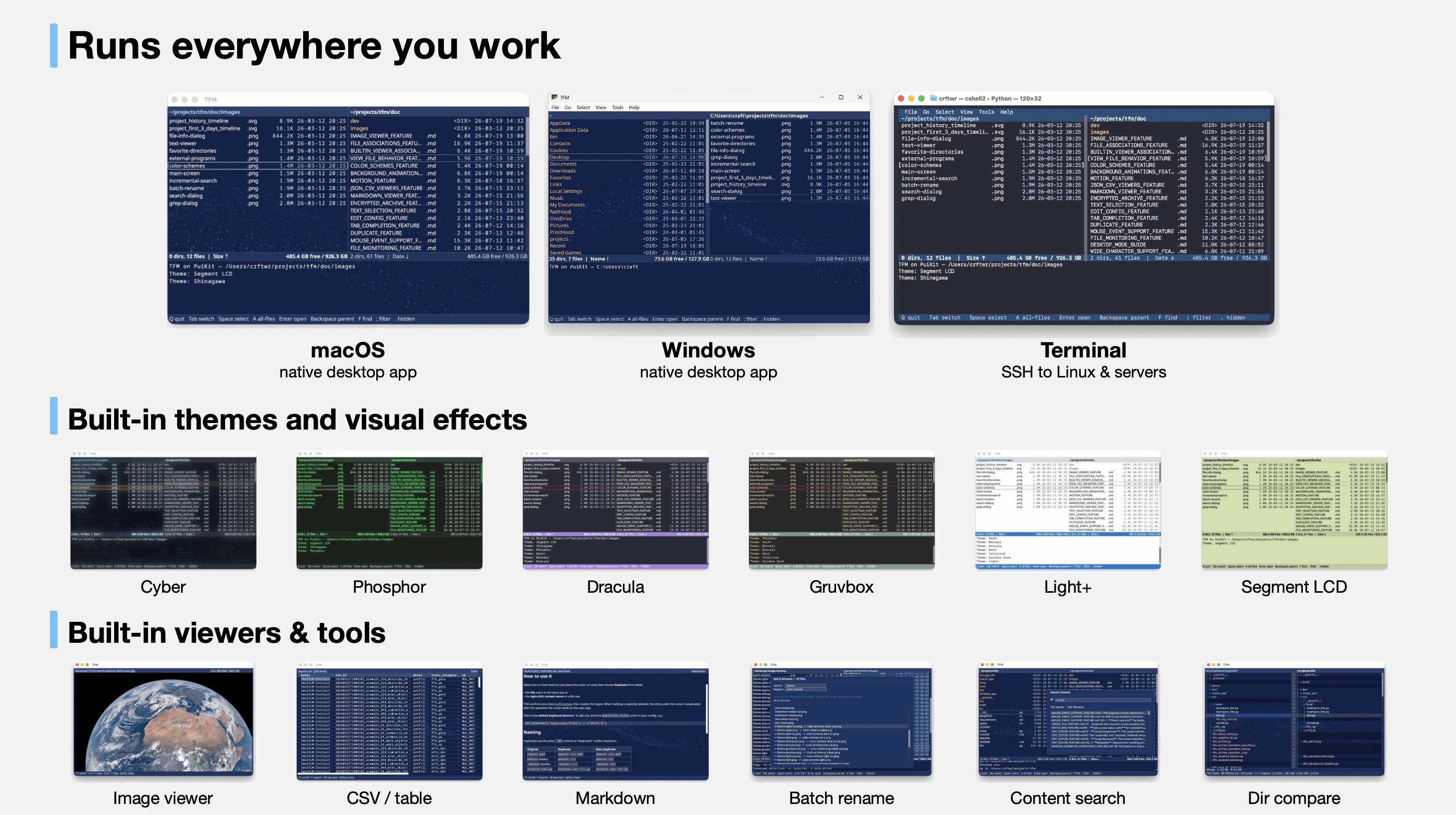
| GUI (macOS) | TUI |
|---|---|
|
https://github.com/user-attachments/assets/f121401d-990b-445d-aa79-526d34e4a44e |
 |
Key Features
- Cross-platform - Native desktop app on Windows and macOS; terminal (TUI) app on Windows, macOS, and Linux
- Dual-pane interface with independent navigation and cross-pane operations
- Archive browsing - Navigate ZIP, TAR, and compressed archives as virtual directories
- SFTP support - Browse and manage remote servers via SSH with optimized performance
- AWS S3 support for cloud storage operations
- Connect to Server - Find file servers on the network, browse their shares, and mount one from inside XeFM, with no Finder or Explorer detour (macOS and Windows)
- Advanced search with real-time filtering, background processing, and multi-selection bulk operations
- OS index search - Search Spotlight (macOS) or Windows Search from the search dialog and work with the hits as a file list (details)
- Favorites & tags - Bookmark directories and files; read and write the tags your system already keeps, so tags set in Finder show up in XeFM and back (details)
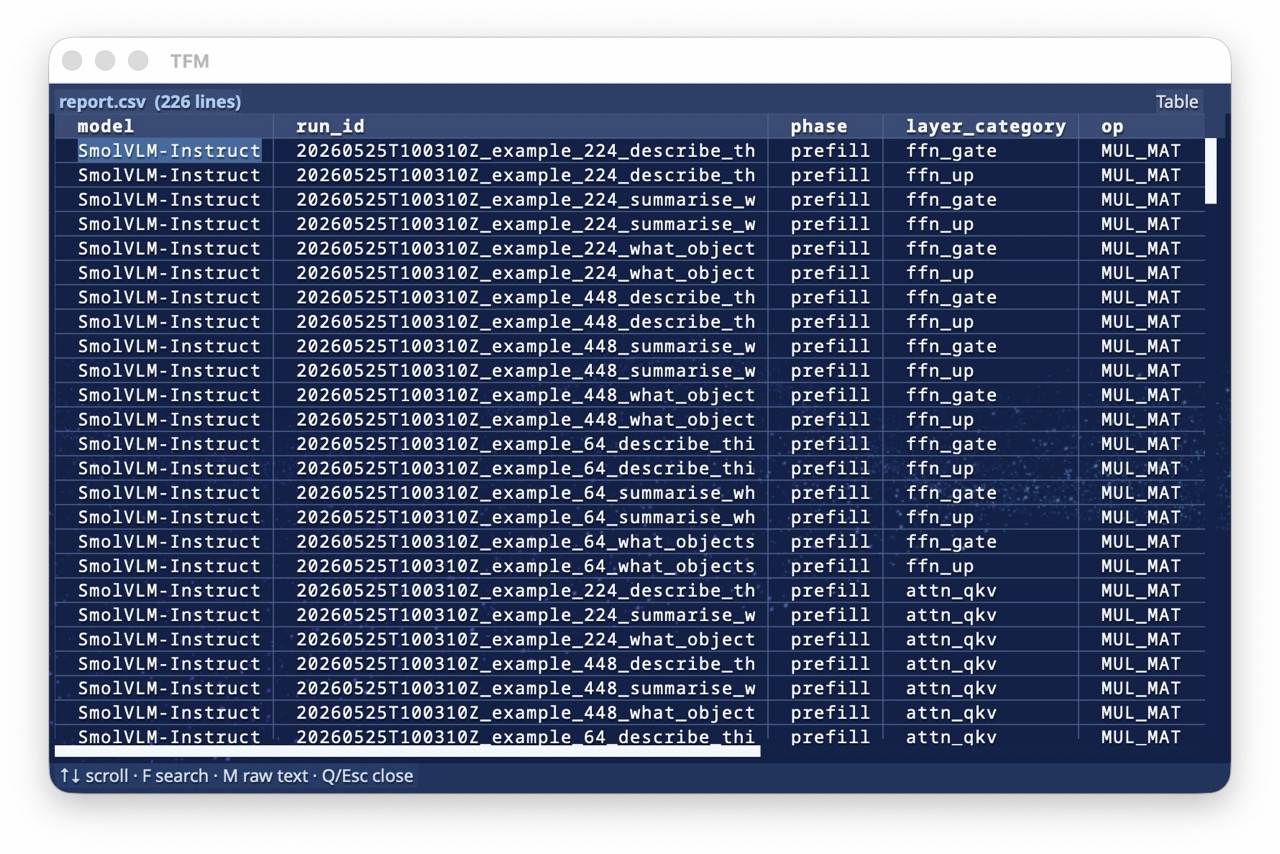
- Rich built-in viewers - Syntax-highlighted text, images, Markdown, JSON, and CSV/TSV
- Compare & sync - Side-by-side text diff down to the exact characters that changed; recursive directory compare, and a one-step sync (update or mirror) with the whole plan shown before anything is written (diff, sync)
- Find similar files - Find duplicates, and images, videos and audio that are the same media resized, re-encoded or retagged (details)
- Built-in terminal - In the desktop app, the subshell and terminal programs (
vim,less, a REPL) run inside the XeFM window as sessions that keep running behind the panes; Screens… switches between them and the file manager (details) - AI agent sessions - Open Claude Code, Codex, GitHub Copilot CLI or Antigravity CLI beside the file manager: it sees the panes and the selection, searches anywhere XeFM can go, and asks you before it copies, moves or trashes a file (details)
- xefmctl - Ask XeFM and drive it from a shell it started: read and move the panes, search anywhere XeFM can go, open the viewer or a diff (details)
- Themes & visual effects - Fifteen built-in themes; desktop mode adds moving 3D pictures behind the panes (video), GPU background animations, CRT/phosphor screen effects, and text-reveal animations
- Four keymap presets - AFX style (one letter, one command), Orthodox (function keys), OS native (Finder's or Explorer's keys) or Vim style, chosen at first launch (details)
- Customizable - Fully configurable key bindings, settings, and external program launchers; a command palette finds every action by name
- Extensions - Install packages that add actions, themes, filters, syntax highlighting and more — browse the list — or let an AI agent write one with the XeFM skill
Quick Start
Installation
Pick the install that matches how you want to run XeFM:
| Get it from | Gives you | |
|---|---|---|
| Desktop app — Windows | the Microsoft Store | A real installed application, signed by Microsoft: one click, automatic updates, no SmartScreen prompt. No Python needed. |
| Desktop app — macOS | the latest release, or Homebrew: brew install --cask crftwr/tap/xefm |
A real installed application: own icon, Dock entry, own file permissions. No Python needed. |
| Terminal app — Windows, macOS, Linux | PyPI | The xefm command in any terminal, including over SSH. Needs Python 3.11+. |
| Terminal app — macOS, Linux | Homebrew: brew install crftwr/tap/xefm |
The same xefm command, managed by Homebrew. Use PyPI instead if you want to add Python libraries of your own. |
The desktop and terminal apps coexist and share their settings in ~/.xefm/ —
installing both is a perfectly normal setup.
Desktop app (Windows, macOS)
The desktop packages bundle their own Python, so there is nothing else to install.
Windows — install from the
Microsoft Store, or run
winget install --id 9PK2X44W810V --source msstore: XeFM lands in the Start
menu, updates automatically, and uninstalls from Settings → Apps. An unsigned
portable zip also ships with every
release; it needs
unblocking once.
macOS — download XeFM-<version>-macos.dmg from the
latest release, drag
XeFM to Applications, and launch it from Launchpad or Spotlight. It is
signed with the author's Apple Developer ID. Or let Homebrew install and
upgrade it:
brew install --cask crftwr/tap/xefm
Full install details, including Gatekeeper notes, are in the Desktop Mode Guide.
Use the package, not
xefm --backend gui— that path is for developing XeFM, not for using it: the Dock / taskbar icon and, on macOS, the file permissions get attributed to Python / your terminal instead of to XeFM. See Why notxefm --backend gui?.
Terminal app (Windows, macOS, Linux)
XeFM is on PyPI. Install it as a tool and run it — no checkout and no virtualenv to manage:
pipx install xefm     # or:  uv tool install xefm,  or:  pip install xefm
xefm
pipx and uv keep XeFM in
its own environment while putting the xefm command on your PATH; uvx xefm
tries it once without installing anything. Python 3.11+ is the only
prerequisite — the install for SSH sessions, remote servers, and
terminal-centric workflows.
On macOS and Linux, Homebrew can install the terminal app instead:
brew install crftwr/tap/xefm
If your config.py imports a library XeFM doesn't ship, or you want a Pillow
plugin such as pillow-heif, list it in ~/.xefm/requirements.txt and run
xefm deps sync (or Tools → Advanced → Sync Python Packages). That works the same for
every install, the desktop apps included, and survives upgrades. See
Extra Python Libraries.
Upgrade with the same tool you installed with (pipx upgrade xefm,
uv tool upgrade xefm, pip install --upgrade xefm, or brew upgrade xefm) — they are not
interchangeable. Details and fixes for common install errors are in the
User Guide.
From source
Working on XeFM itself? Use a checkout instead:
git clone https://github.com/crftwr/xefm.git
cd xefm
make venv        # creates .venv with every dependency
make run         # launch XeFM through it, no activation needed
make help lists the rest — editable install, PuiKit co-development, and the
macOS / Windows app bundles.
Essential Controls
The first launch asks which of four keymap presets you want: AFX style, Orthodox, OS native or Vim style. Tools → Advanced → Keymap… switches later. These work in all of them:
- Navigate: the arrow keys move the cursor,
Enteropens,Backspacegoes to the parent directory, andTabswitches panes - Help:
F1opens the help dialog with every key of your preset, organized by category — no need to memorize - Everything else: the menu bar (
F10) and the command palette (Tools → Command Palette…) list every command with its key - Remote paths: open
ssh://hostname/pathors3://bucket/pathlike any directory
The Keymap Presets page lists every key of all four side by side.
Documentation
User Documentation
- Complete User Guide - Comprehensive guide covering all features, configuration, and usage
- Configuration - Complete configuration reference and customization guide
- Desktop Mode - Native Windows / macOS desktop app setup and options
- Keymap Presets - The four keymaps, and every key of each side by side
- Color Schemes & Visual Effects - Themes, themeable GPU background scenes, and screen effects
- Image Viewer, Markdown Viewer & JSON / CSV Viewers - Built-in viewers
- Diff Viewer & Batch Rename - File / directory diffs and regex-based multi-file renaming
- SFTP Support - Remote server access via SSH with file operations and search
- AWS S3 Support - Cloud storage integration and S3 bucket management
- Connect to Server - Mount SMB / WebDAV shares, and disconnect or eject volumes, without leaving XeFM
- Archives - Create, extract, and browse archives as directories
- Migemo Search - Japanese matching from typed romaji in incremental search
- Search Animation - Advanced search features and visual feedback
- Folder Tabs, Quick View & Command Palette - Several places per pane, a live preview in the other pane, and every action by name
- Searching the OS Index & File Lists - Spotlight / Windows Search results, or any tool's list of paths, as a pane
- Find Similar Files - Identical files and similar images, videos and audio
- Terminal, AI Agent Sessions & xefmctl - Terminal sessions and screens, an AI agent beside the file manager, and XeFM from the shell
- Extension Packages - Install, upgrade and write extensions
- The XeFM Skill for AI Agents - Let an AI coding agent edit your configuration and write extensions
Every feature guide is listed at the end of the User Guide. Recipes and community extensions are collected on the XeFM wiki.
Developer Documentation
- Project Structure - Repository layout and where things live
- Path Polymorphism System - Storage-agnostic architecture and extensibility
- Navigation System - Core navigation implementation
- External Programs - Program integration system
Archive Virtual Directory Browsing
Press Enter on an archive file (.zip, .tar, .tar.gz, .tgz, .tar.bz2,
.tar.xz) to browse it as if it were a regular directory — no extraction
needed. Navigate nested directories, view files, search by name or content, and
copy files out as from any directory; Backspace leaves the archive.
File → Create Archive… and File → Extract Archive… make and unpack
one. See the
Archive Feature Guide.
Built-in File Viewers
Press Enter on a file to view it. XeFM picks the right viewer
for the file type: syntax-highlighted text (20+ formats, line numbers, wrapping,
in-file search), images with zoom / pan (inline in iTerm2 / kitty / sixel
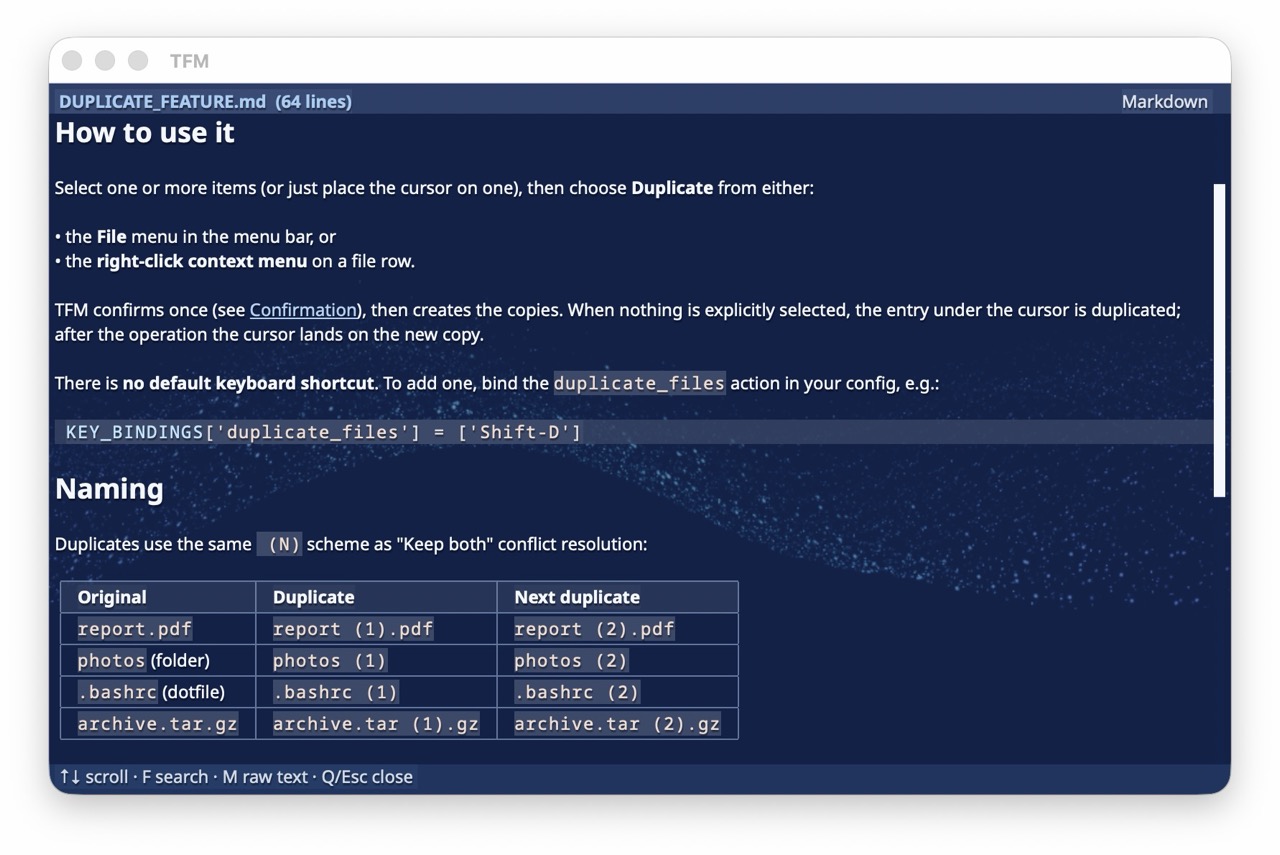
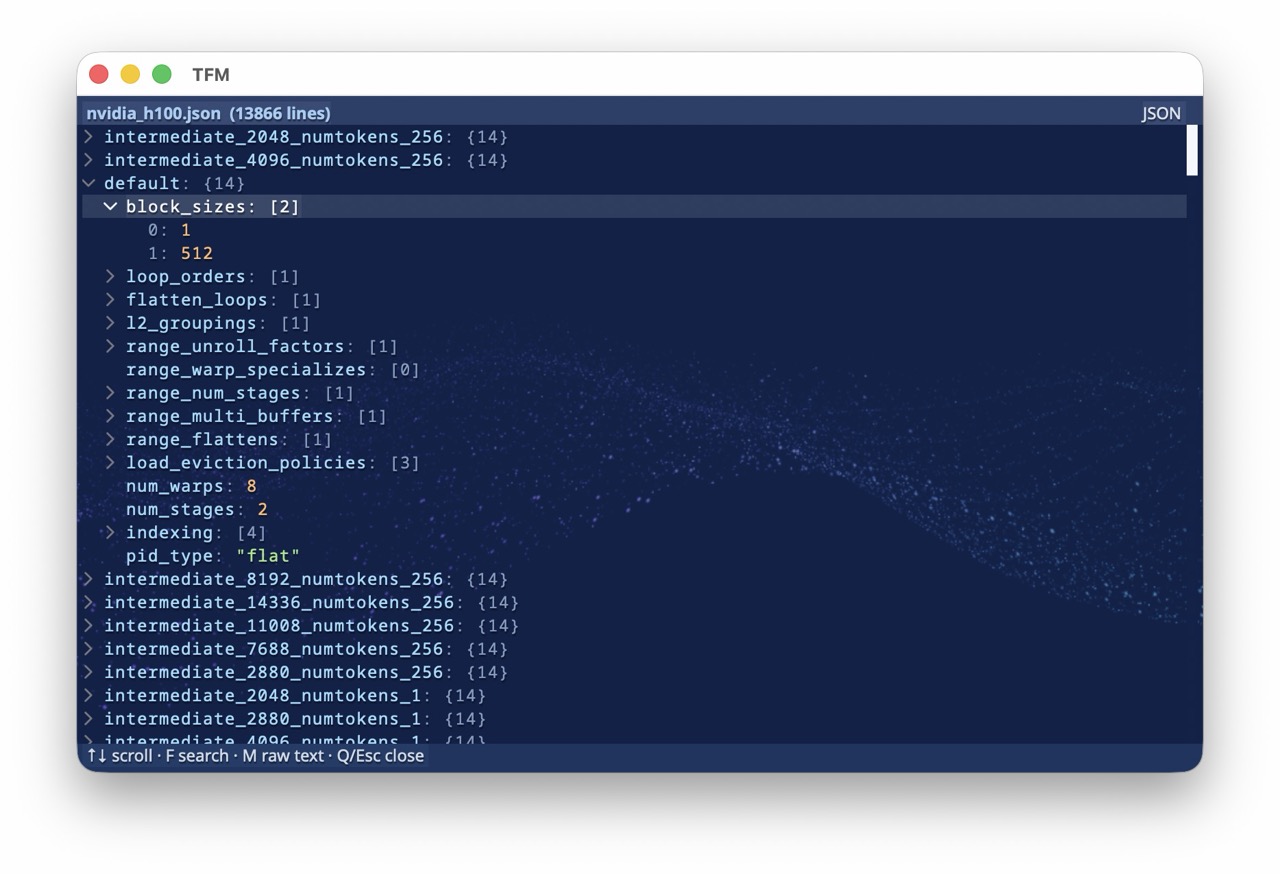
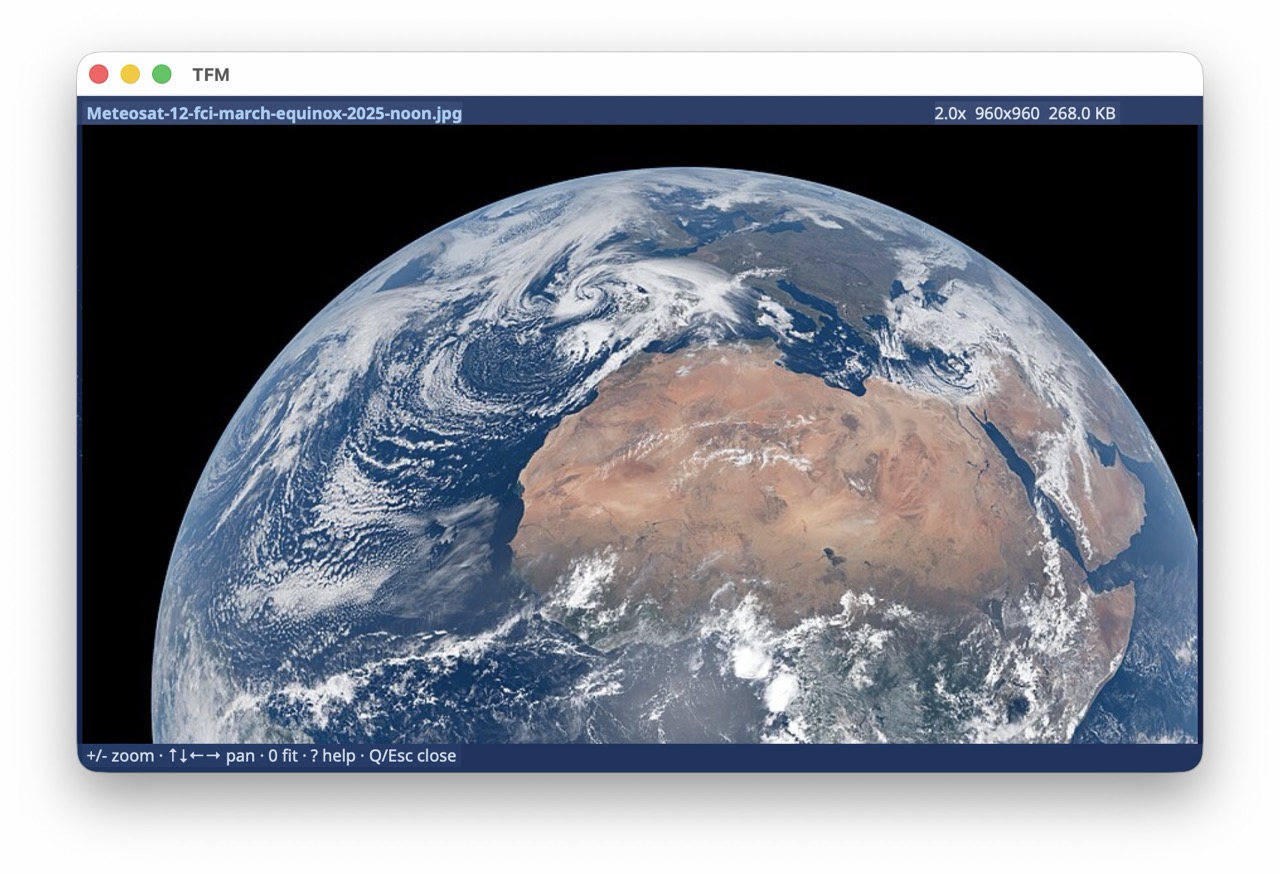
terminals and in desktop mode), and rendered views for Markdown, JSON, and
CSV/TSV, each with a key to switch to the raw text. All viewers work on local files, inside
archives, and on remote SFTP / S3 paths without extraction or download.
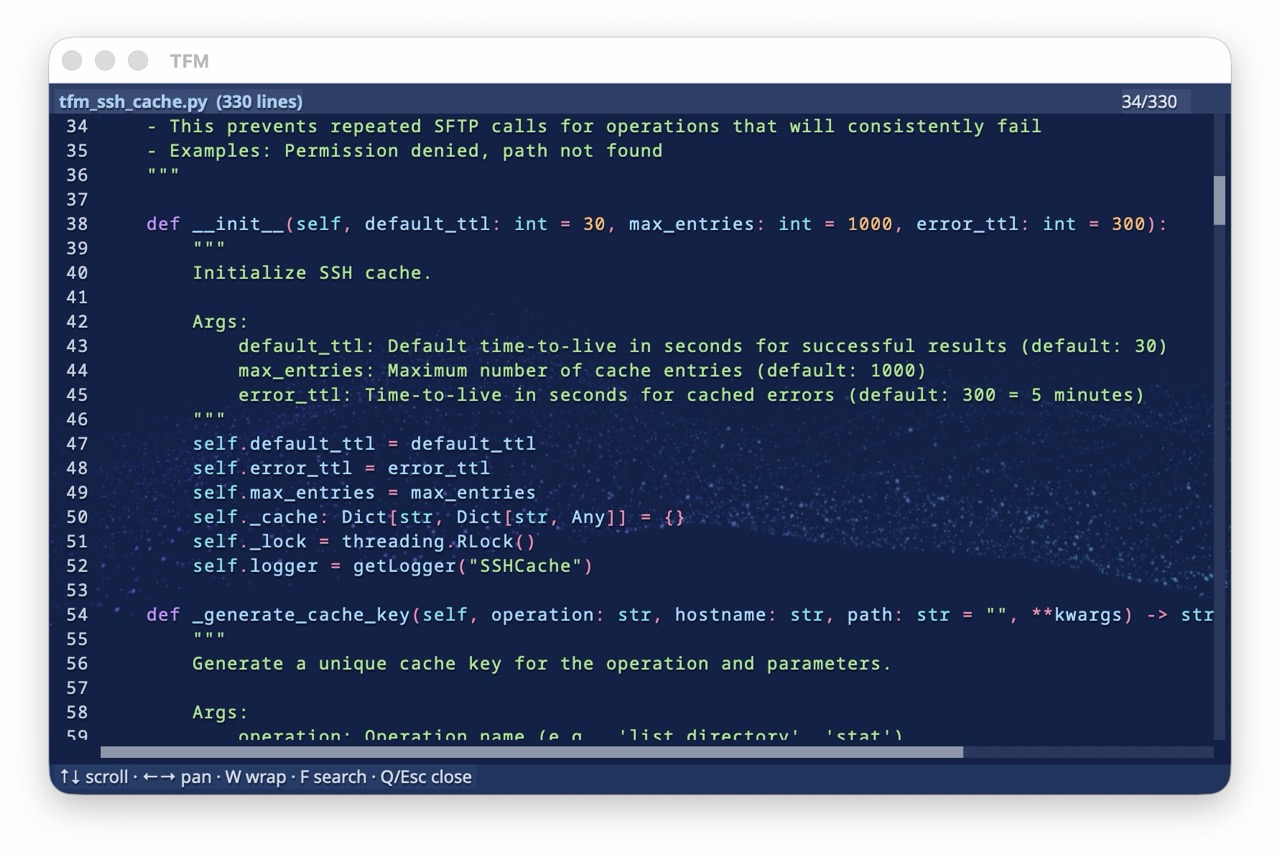
| Markdown | JSON / JSONL | CSV / TSV |
|---|---|---|
 |
 |
 |
| Rendered headings, lists, code, and links | Collapsible, syntax-colored tree (.json, .jsonl, .ndjson) |
Column-aligned table grid (.csv, .tsv) |
Themes & Visual Effects
XeFM ships fifteen built-in themes. Pick one from the View → Theme menu — your choice is remembered across restarts. Define your own in ~/.xefm/config.py and they appear in the picker alongside the built-ins.
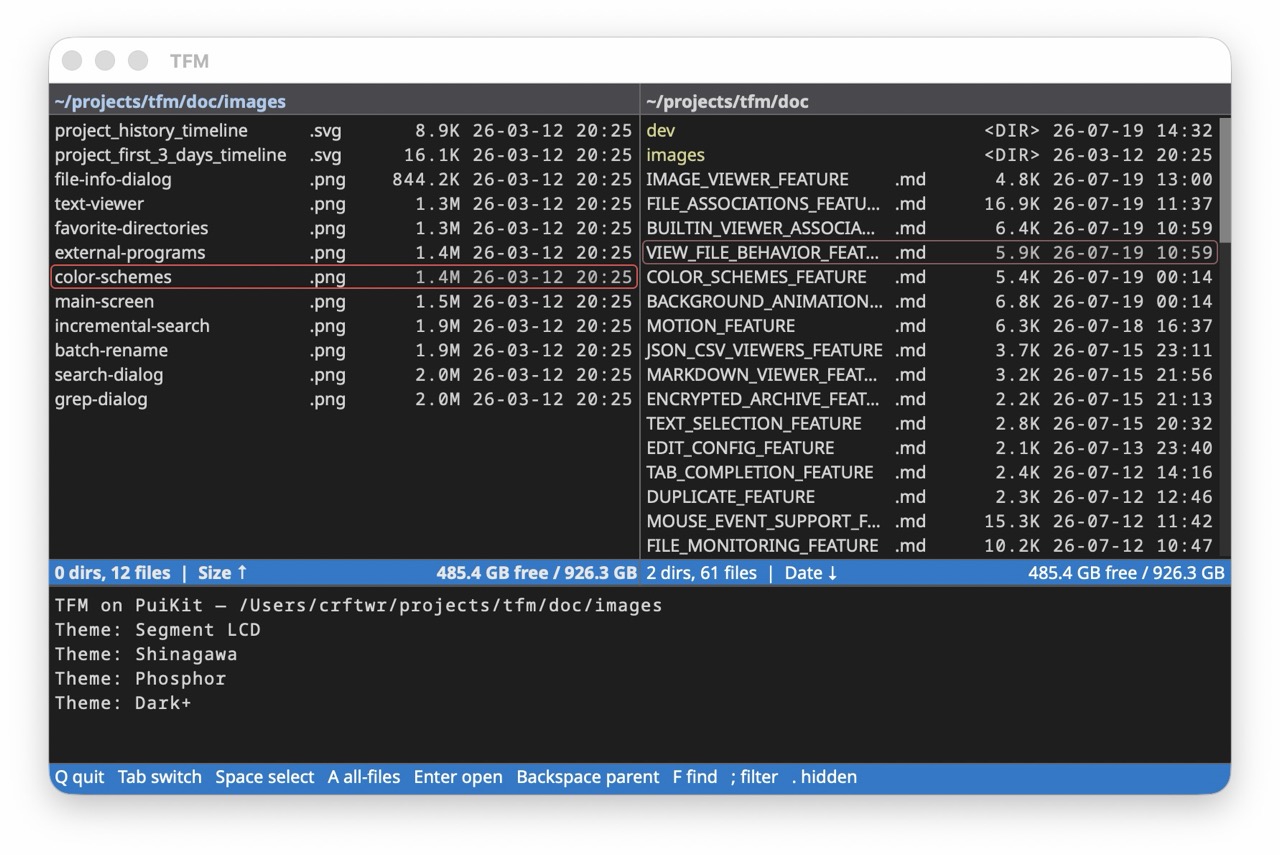 Dark+ |
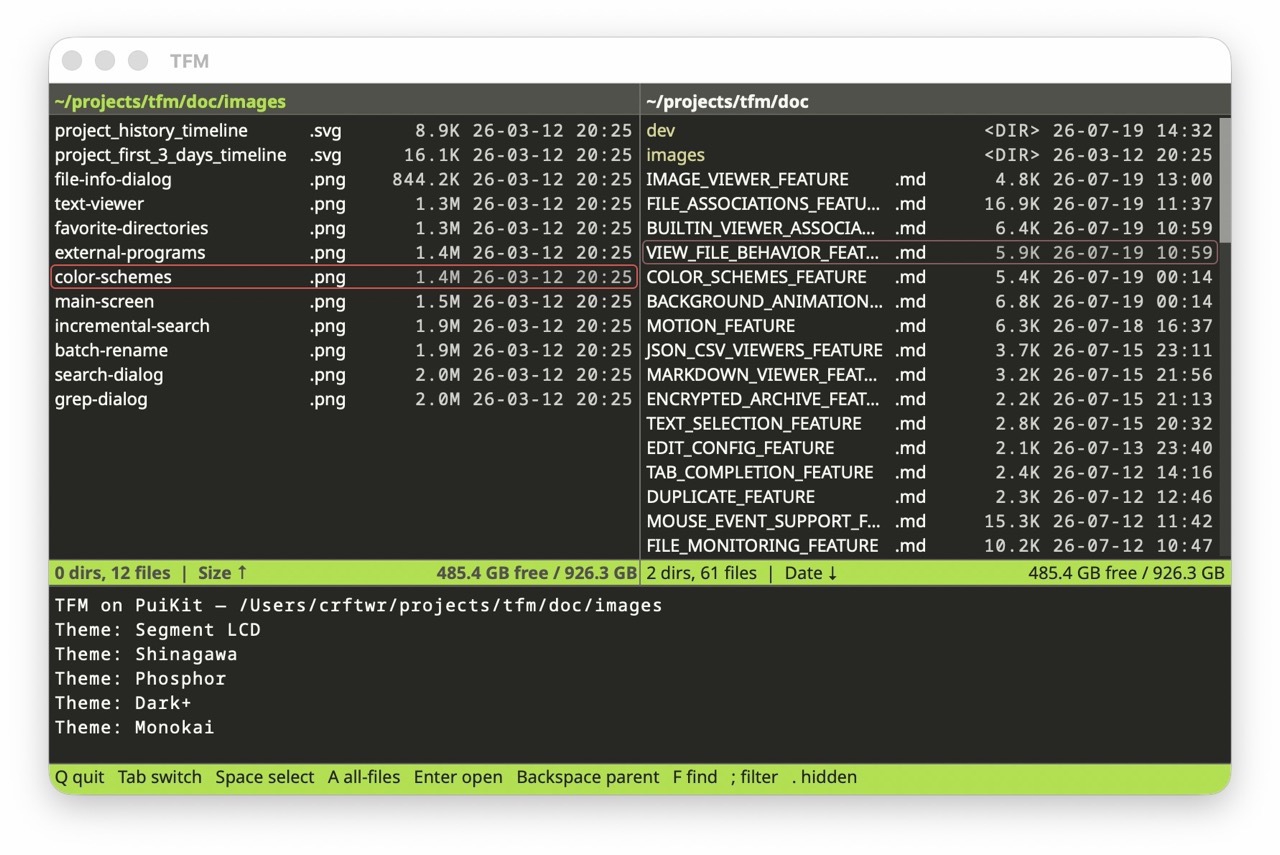 Monokai |
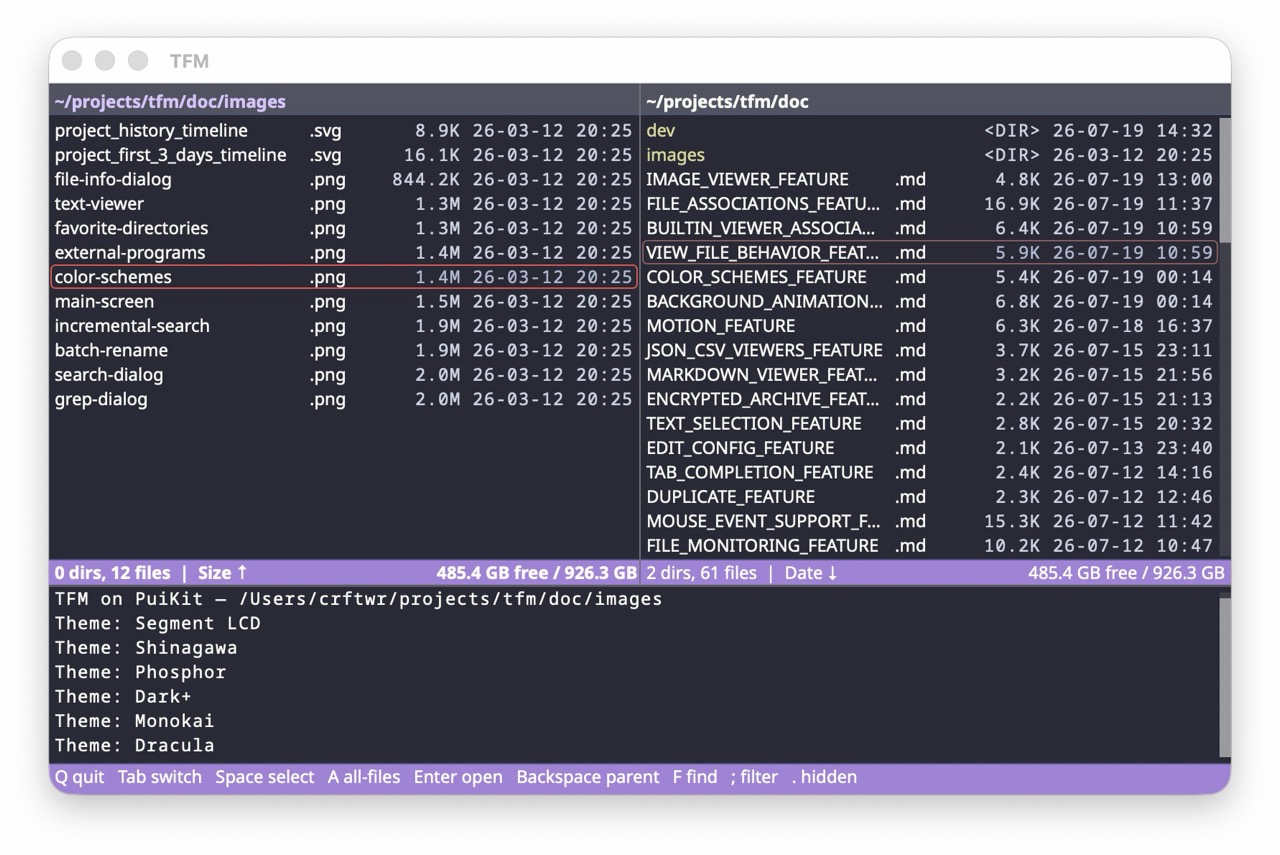 Dracula |
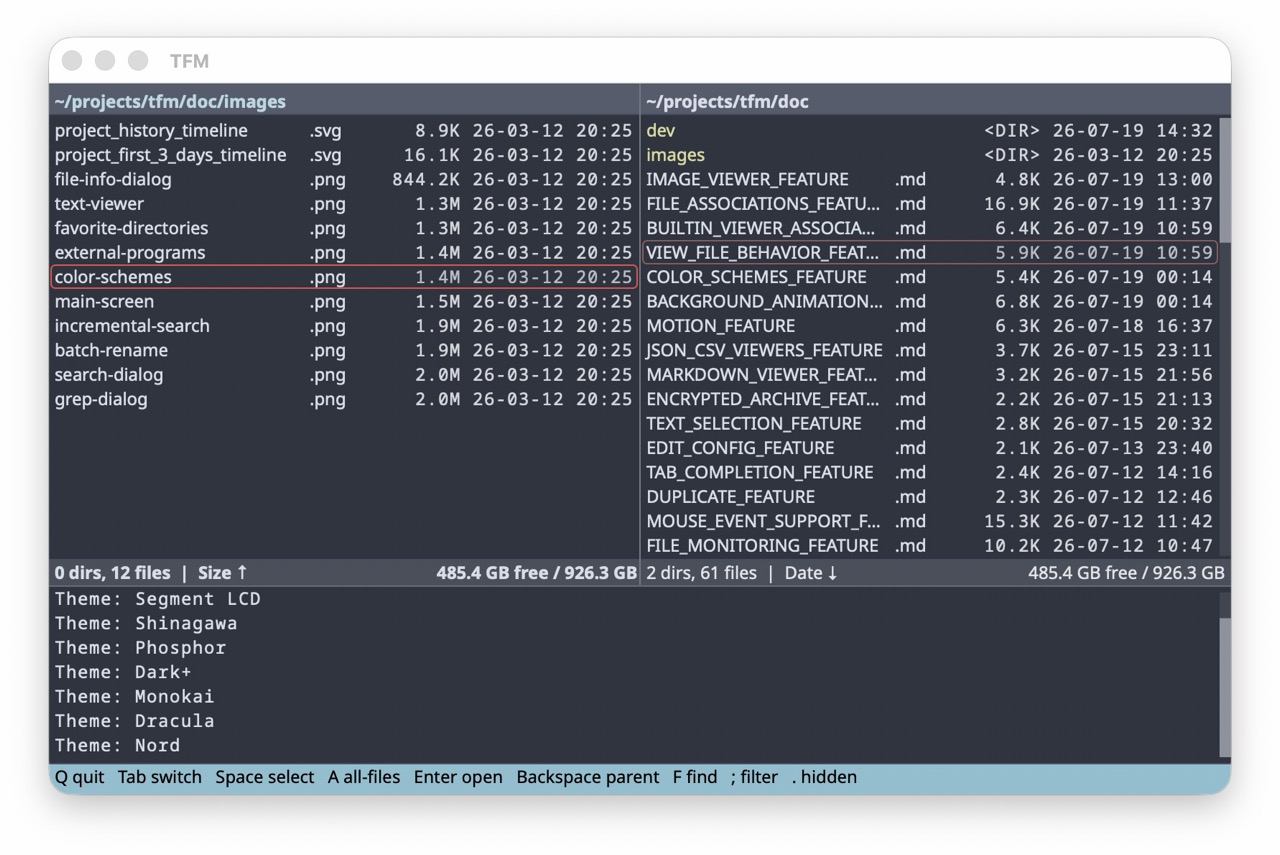 Nord |
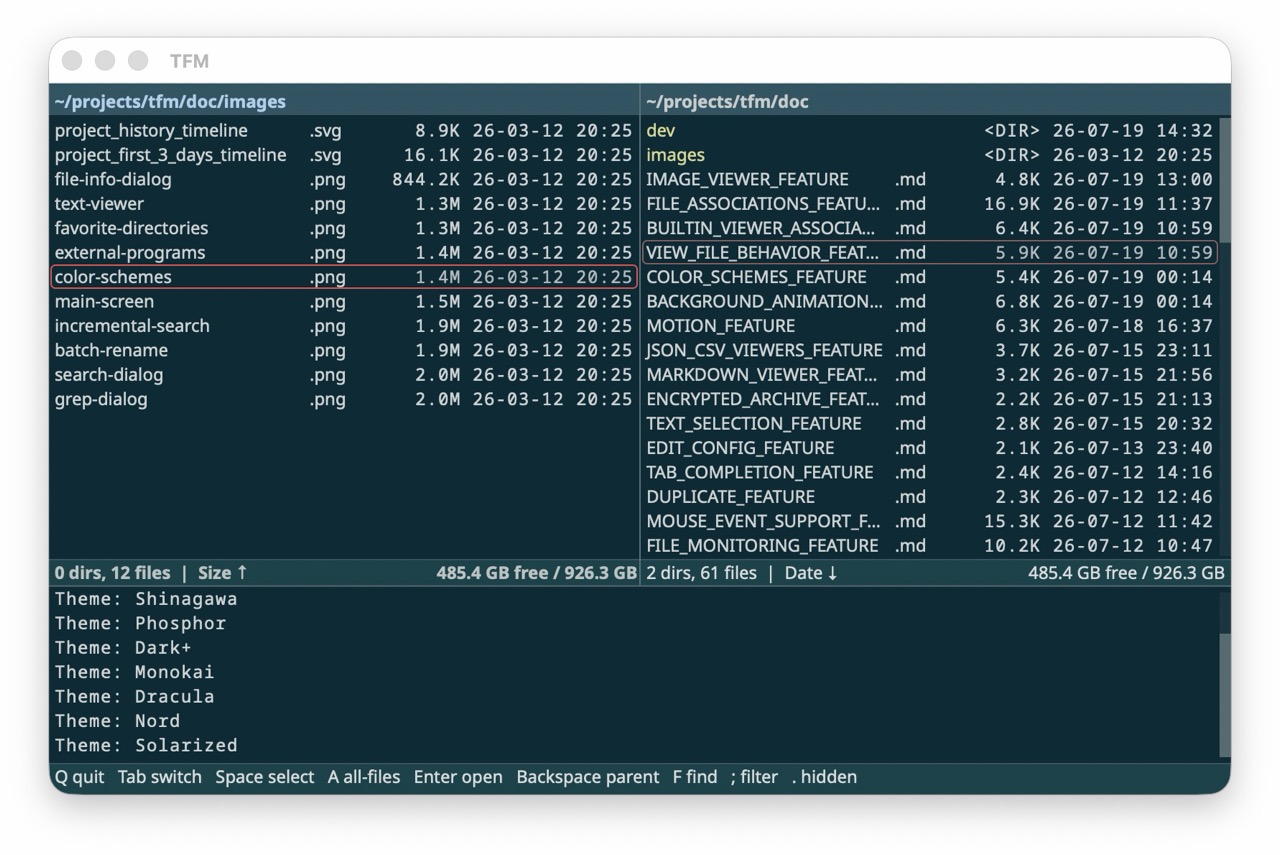 Solarized |
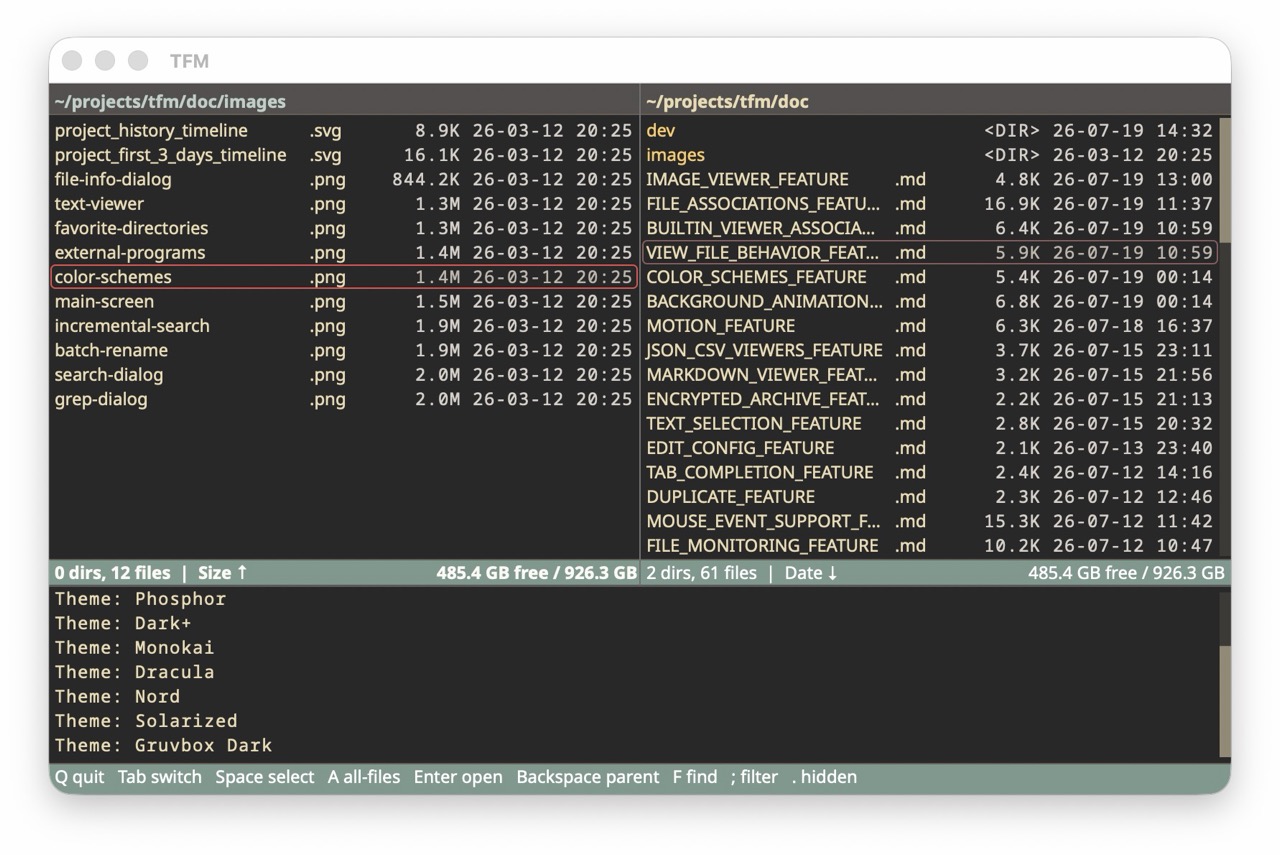 Gruvbox Dark |
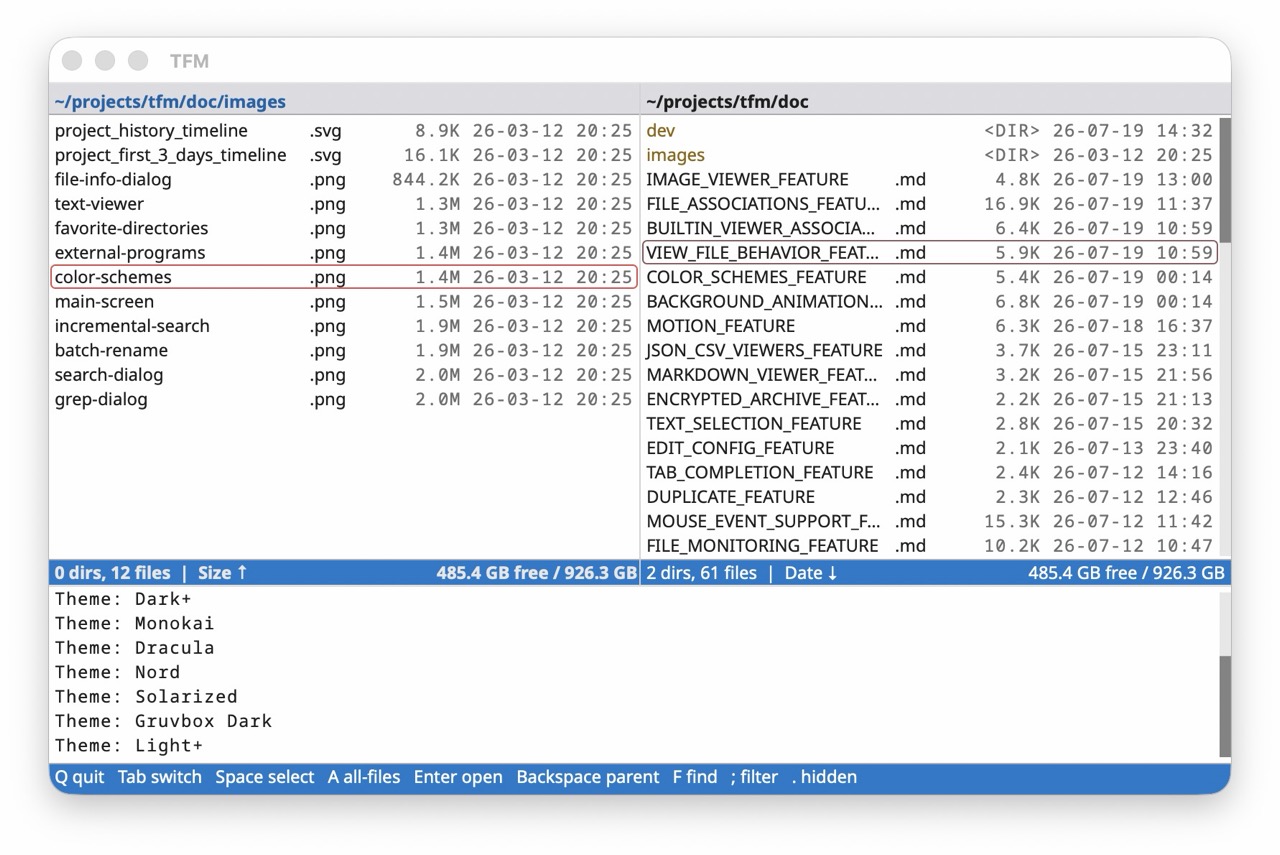 Light+ |
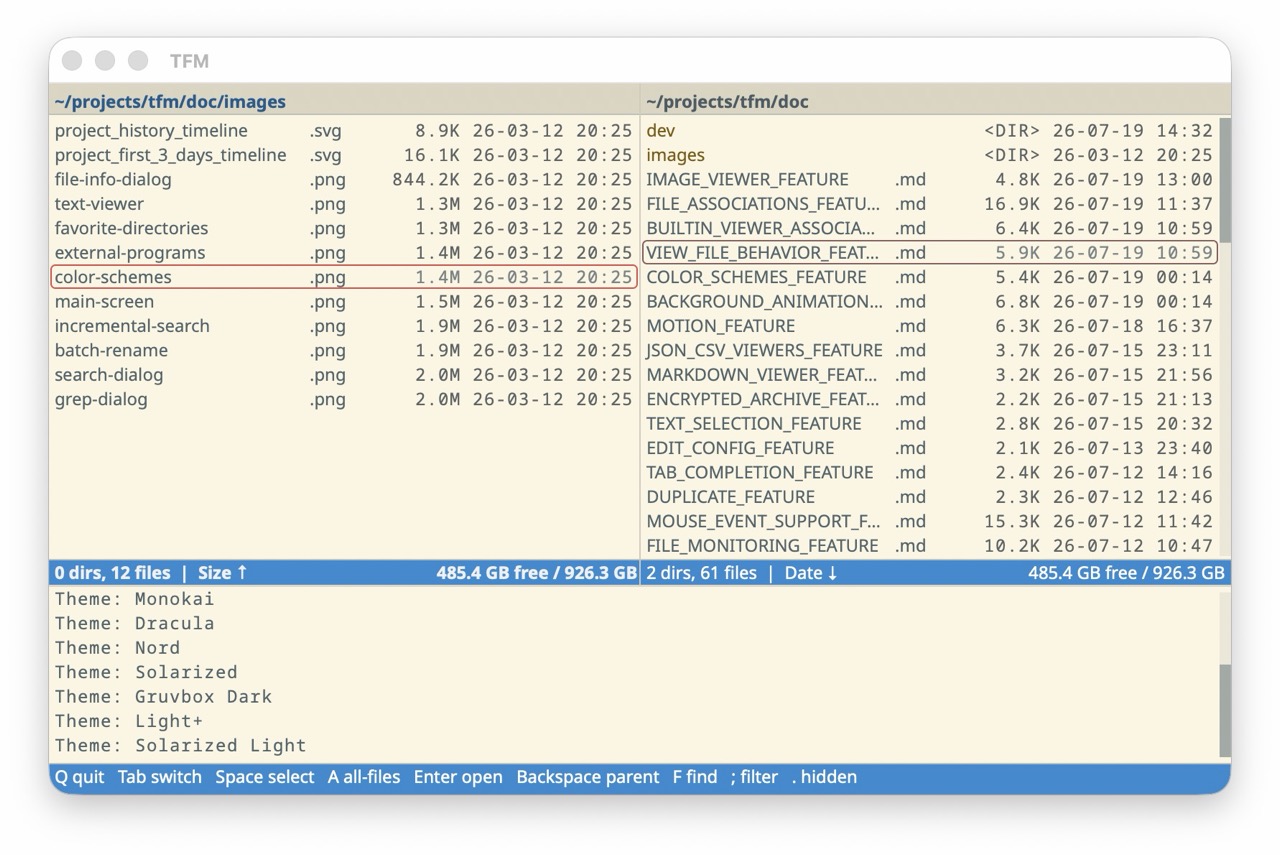 Solarized Light |
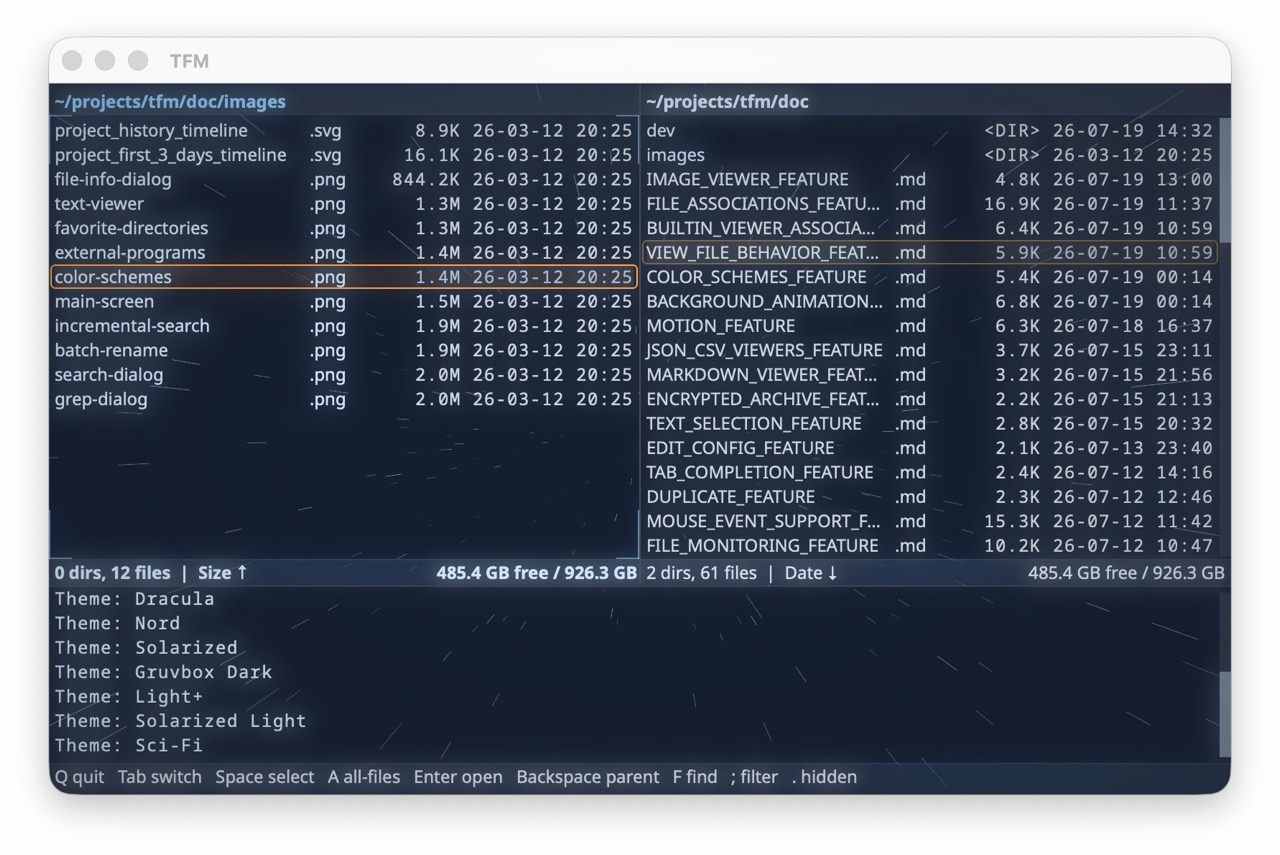 Sci-Fi |
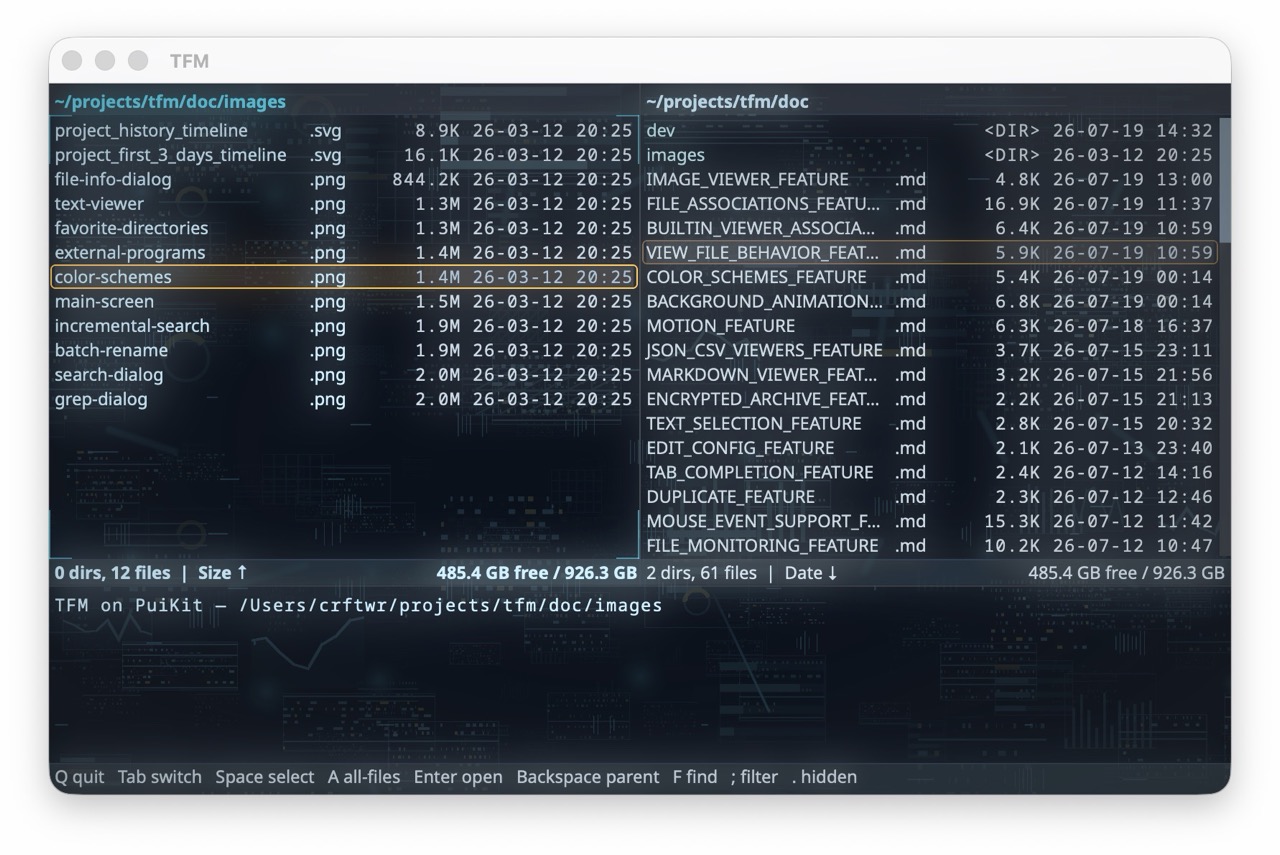 Cyber |
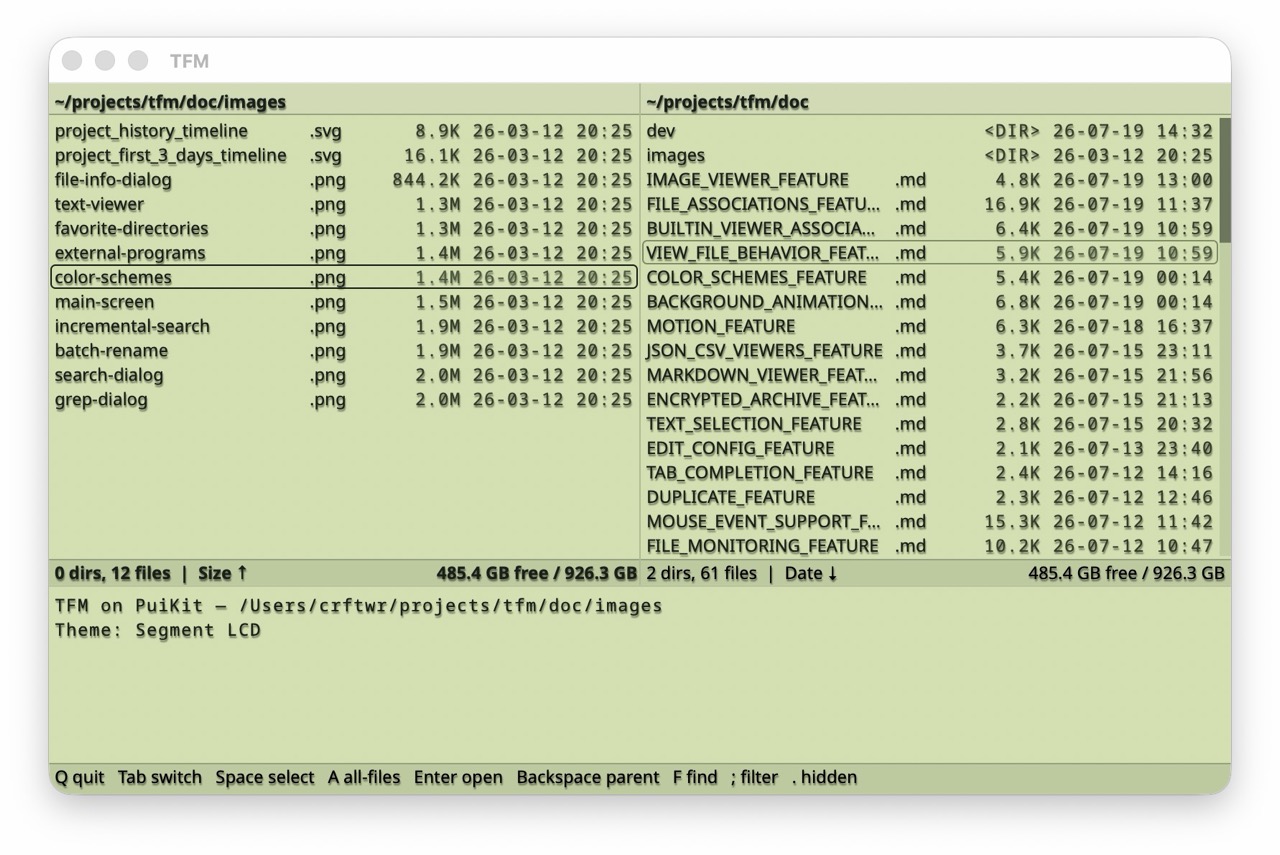 Segment LCD |
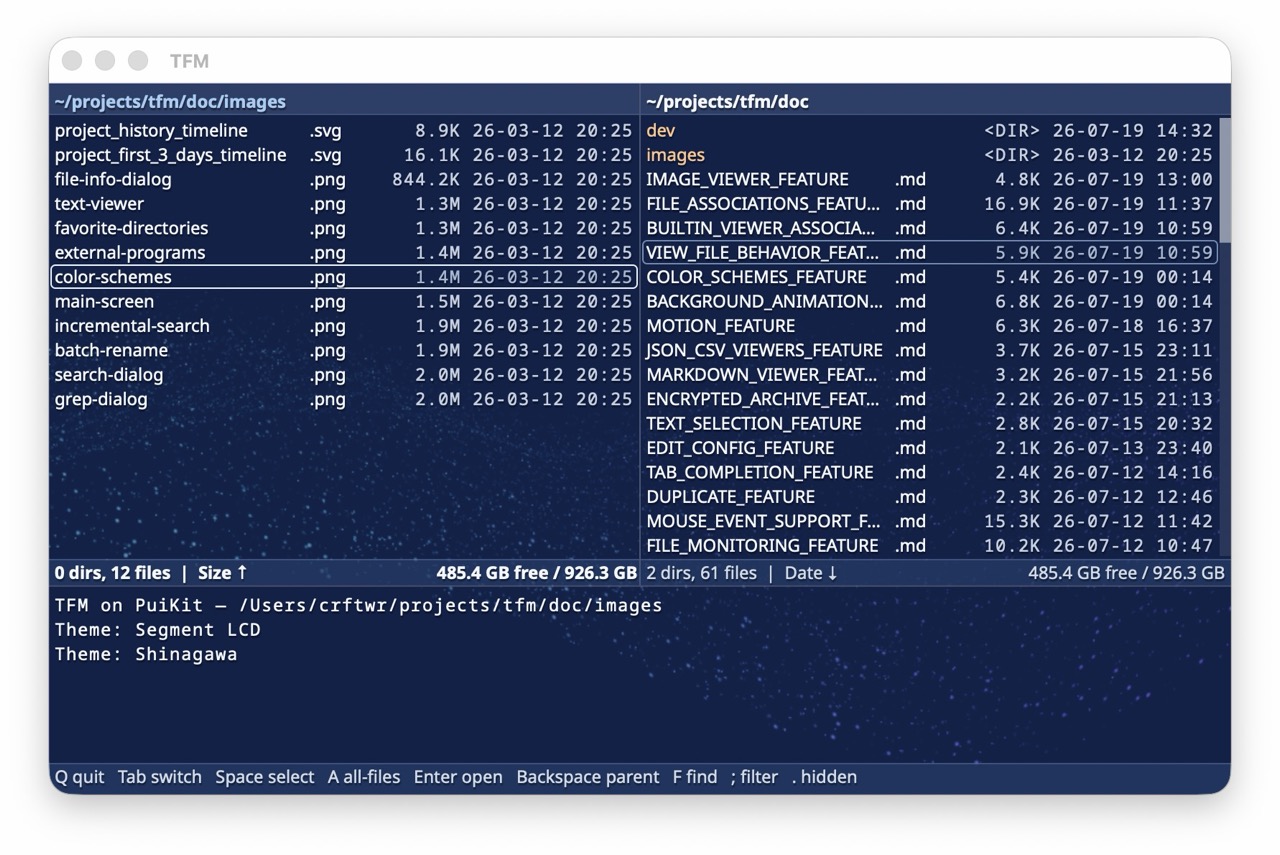 Shinagawa |
Four more, Earth, Blocks, Crystal and Pelagic, put a slowly moving 3D picture behind the panes: the planet from orbit, a field of dark metal columns, a macro study of crystals in black rock, and open water full of jellyfish, seen from below. The picture is drawn by the desktop app; a terminal shows their palette alone. Watch the first three on YouTube:

In desktop mode a theme can also carry visual effects the GPU renders behind
and over the interface: background animations (starfield, rain, hologram,
…), CRT / phosphor screen post-effects, text-reveal animations, and translucent
surfaces. Effects are pure theme data — a custom theme can mix and match them,
and terminal mode ignores them. See
Color Schemes & Visual Effects.
Built-in Terminal & Screens
The desktop app has a terminal of its own. Tools → Subshell Here opens your
shell in it, in the active pane's directory, and so does every program marked
'terminal': True (vim, less, a REPL). Each one is a terminal session
on a screen of its own, and it keeps running while you go back to the panes.
Tools → Screens… switches between the file manager and your sessions. A
viewer you opened stays open while you visit a terminal, so you can compare the
two by switching back and forth.
In the terminal app, XeFM hands its own terminal to the shell or program and waits until it exits. See Terminal.
Sub-shell Mode
The subshell's environment describes the current panes and selection
(XEFM_LEFT_DIR, XEFM_THIS_DIR, XEFM_LEFT_SELECTED, …); type exit to
return to XeFM. The full variable list is in the
User Guide.
In the subshell, or any shell XeFM started, xefmctl asks XeFM about the panes
as they are now and acts on them:
xefmctl pane selected           # the items selected in the active pane
xefmctl pane cd ~/src           # point the active pane at a folder
xefmctl find-files '*.md' .     # search anywhere XeFM can go, SSH and S3 included
xefmctl view README.md          # open a file in XeFM's viewer
xefmctl help lists every command. See xefmctl.
AI Agent Sessions
Tools → AI Agent Here opens an AI coding agent beside the file manager.
Claude Code, Codex, GitHub Copilot CLI and Antigravity CLI are set up out of
the box, each offered once its program is installed. The agent knows it runs
inside XeFM: it sees the panes and the selection, searches anywhere XeFM can
go, and shows you what it found in XeFM. Every copy, move or trash it asks for
waits for your OK, and it may not delete anything for good.
Tools → Ask AI Agent… starts one with a request you type, or one you saved
in AGENT_PROMPTS. In the desktop app the agent runs in a terminal session of
its own; the terminal app hands it the terminal. See
AI Agent Sessions.
Command Line Options
These apply to the terminal install and to source checkouts (where every command
also works as python3 -m xefm …); the desktop packages take no arguments.
xefm                                    # terminal mode (the default)
xefm --left /path/a --right /path/b     # startup directories
xefm --backend gui                      # desktop window — development path only
The full flag set is --backend {tui,curses,gui,macos,windows}, --left DIR,
--right DIR, --version, and --help. Backend details are in the
Desktop Mode Guide.
Configuration
XeFM is highly configurable through ~/.xefm/config.py — themes and visual
effects, key bindings, external programs and file associations, favorite
directories, and behavior settings. Open it with Tools → Edit Configuration…
in the menu bar, or edit the file directly. See the
Configuration Feature Guide.
Extensions
Extension packages add actions, event hooks, themes, sort orders, filters,
picture formats, locations or syntax highlighting without touching
config.py, and install, upgrade and uninstall as one unit:
xefm ext install github:crftwr/xefm-extensions/compute-hash
xefm ext list
In the desktop apps, use Tools → Advanced → Install Extension… instead. The wiki's Extensions page lists what is available — the official packages in crftwr/xefm-extensions, from hashes and line counts to presigned S3 links and a classic blue theme, and the community's. To write your own, see Extension Packages — or give an AI coding agent the XeFM skill and ask it for the feature. The extension API is a Preview, so the format may still change.
Troubleshooting
- "Windows protected your PC" when launching the portable
XeFM.exe— the zip is not code-signed; click More info → Run anyway, or unblock the zip before extracting. The Microsoft Store install is signed and never shows this prompt - "XeFM cannot be opened because the developer cannot be verified" on macOS — right-click
XeFM.appin Applications and choose Open, then confirm once - Install problems (
command not found,externally-managed-environment, upgrade errors) — see Installation troubleshooting
More in the User Guide and the Desktop Mode Guide.
Contact & Support
- GitHub Issues: Report bugs or request features
- GitHub Discussions: Ask questions and show what you have built
- Wiki: Recipes and community extensions
- Microsoft Store: XeFM on the Store — the Windows desktop app
- PyPI: pypi.org/project/xefm — released versions (
pipx install xefm) - Author's X (Twitter): @crftwr
License
MIT License - see LICENSE file for details.
1 maintainer

Metadata
1 maintainer
Release files for xefm 1.17.1
For a detailed explanation of source distributions (sdists) and built distributions (wheels), please see the package formats documentation.
Source distribution (sdist)
| File | Size | Uploaded | Provenance | Actions |
|---|---|---|---|---|
| xefm-1.17.1.tar.gz | 4.8 MB | Without provenance | Details for xefm-1.17.1.tar.gz |
Built distribution (wheel)
| File | Interpreter | ABI | Platform | Actions Reset |
|---|---|---|---|---|
| xefm-1.17.1-py3-none-any.whl | Python 3 | none | any | Details for xefm-1.17.1-py3-none-any.whl |
Total release size: 9.6 MB
Release files / xefm-1.17.1.tar.gz
| Download URL | xefm-1.17.1.tar.gz |
|---|---|
| Size | 4.8 MB |
| Tags | Source |
|
SHA-256 checksum How to use checksums |
95020e2c1edba933d07b76d2c5f42992ae4e91c008d8c57bc88237a7d5021656
|
|
BLAKE2b-256 checksum How to use checksums |
da85b2d64f7c025e06c5b3dee586aff1bcadb94688efbd4927a918e4de5ea6ee
|
| Upload date | |
|
Uploaded using Trusted Publishing? What is trusted publishing? |
No |
| Uploaded via |
twine/7.0.0 CPython/3.15.2
|
Release files / xefm-1.17.1-py3-none-any.whl
| Download URL | xefm-1.17.1-py3-none-any.whl |
|---|---|
| Size | 4.8 MB |
| Tags | Python 3 |
|
SHA-256 checksum How to use checksums |
a6b3fd25015dff34ba8c42f708a006bbef8ffa4dd508af453186af055b56dd2e
|
|
BLAKE2b-256 checksum How to use checksums |
e69fade88eb5592760ec88360e729785bce881cba8a7341d8809fbf5faa1a793
|
| Upload date | |
|
Uploaded using Trusted Publishing? What is trusted publishing? |
No |
| Uploaded via |
twine/7.0.0 CPython/3.15.2
|
Security for xefm 1.17.1
Provenance
Provenance describes where a file came from. On PyPI, provenance is shared via attestations, which provide a verifiable record of the build or publishing details. View details, limitations and caveats.
No provenance found
None of the files in this release were uploaded with provenance metadata.
A note on package security
PyPI is a repository for distributing packages, not a service for auditing them. While third-party security researchers and our staff do their best to detect and remove malicious packages, PyPI cannot guarantee the quality, security or suitability of any given package.
To learn more about protecting yourself from malicious actors, visit our package security documentation.














