





Turn Python data into polished, presentation-ready Gantt charts — no Excel required, no GUI needed.
Built on openpyxl. Zero heavy dependencies.

Contents
Getting started: Features · Installation · Quick Start · Command-Line Usage · AI-Assisted Planning · Themes · Data Structure
Going further: Advanced Usage · Development · Requirements · Contributing · License
Features
- Polished charts out of the box — pick one of eight ready-made colour themes, or generate a matching palette from your brand colour
- No Excel needed to create them — charts are plain
.xlsxfiles anyone can open, filter, and edit in Excel - Simple to use — describe your project as sections and tasks, get a presentation-ready chart; even directly from the command line:
xlsx-gantt chart.json -o gantt.xlsx - Shows what matters — progress bars per task, milestones, who's responsible for what, and automatic time-estimate totals
- Your language, your logo — day and week labels are fully configurable, and your logo can sit in the chart header
- A natural fit for AI-assisted planning — the whole plan is plain dicts or a JSON file, so an LLM or coding agent can draft it, revise it, and regenerate the chart in one step; describe the project in prose, let the model produce the JSON, and run
xlsx-gantt plan.json -o gantt.xlsx(example) - Lightweight — just openpyxl and Pillow; no pandas, no matplotlib, no Java bridge
Installation
pip install xlsx-gantt
This includes everything — all logo image formats (PNG, JPEG, BMP, GIF, TIFF) work out of the box.
Quick Start
Describe the project plan in a JSON file, say chart.json. Dates are ISO
strings (YYYY-MM-DD):
{
  "project_name": "Website Redesign",
  "start_date": "2026-03-02",
  "end_date": "2026-04-12",
  "resource_names": ["Alice", "Bob"],
  "sections": [
    {
      "name": "Design",
      "tasks": [
        {
          "name": "Research",
          "time_estimate": 3,
          "progress": 80,
          "ranges": [
            {"start": "2026-03-02", "end": "2026-03-06", "color": "0070C0"}
          ],
          "annotations": {"Alice": "R", "Bob": "S"}
        }
      ]
    }
  ]
}
Turn it into a chart from the command line, with no Python code:
xlsx-gantt chart.json -o gantt.xlsx --theme ocean
…or load the same file from Python:
from xlsx_gantt import GanttChart, GanttTheme

chart = GanttChart.from_json("chart.json", style=GanttTheme.get("ocean"))
chart.generate_excel("gantt.xlsx")
From Python data
You can also build the plan in Python as plain dicts. The JSON file above uses
the same structure, with datetime objects in place of the date strings:
from datetime import datetime
from xlsx_gantt import GanttChart, GanttTheme

sections = [
    {
        "name": "Design",
        "tasks": [
            {
                "name": "Requirements gathering",
                "time_estimate": 3,
                "progress": 100,
                "ranges": [
                    {"start": datetime(2026, 1, 5), "end": datetime(2026, 1, 9), "color": "0070C0"},
                ],
                "annotations": {"Alice": "R", "Bob": "S"},
            },
            {
                "name": "Architecture review",
                "time_estimate": 2,
                "progress": 80,
                "ranges": [
                    {"start": datetime(2026, 1, 12), "end": datetime(2026, 1, 14), "color": "0070C0"},
                ],
                "annotations": {"Alice": "R", "Bob": "R"},
            },
        ],
    },
    {
        "name": "Development",
        "tasks": [
            {
                "name": "Backend",
                "time_estimate": 10,
                "progress": 50,
                "ranges": [
                    {"start": datetime(2026, 1, 19), "end": datetime(2026, 2, 6), "color": "00B050"},
                ],
                "annotations": {"Alice": "S", "Bob": "R"},
            },
            {
                "name": "Frontend",
                "time_estimate": 8,
                "progress": 20,
                "ranges": [
                    {"start": datetime(2026, 1, 26), "end": datetime(2026, 2, 13), "color": "00B050"},
                ],
                "annotations": {"Alice": "R", "Bob": "S"},
            },
        ],
    },
    {
        "name": "Milestones",
        "tasks": [
            {
                "name": "Beta release",
                "time_estimate": None,
                "progress": None,
                "ranges": [
                    {"start": datetime(2026, 2, 9), "end": datetime(2026, 2, 9), "color": "FF0000"},
                ],
            },
        ],
    },
]

style = GanttTheme.get("ocean")

chart = GanttChart(
    sections=sections,
    start_date=datetime(2026, 1, 5),    # Monday
    end_date=datetime(2026, 2, 15),     # Sunday
    project_name="My Project",
    resource_names=["Alice", "Bob"],
    style=style,
    logo_path="logo.png",               # optional
)

# Save to disk
chart.generate_excel("gantt_chart.xlsx")

# — or — get raw bytes (no file written)
xlsx_bytes = chart.generate_excel_bytes()
print("Done!")
Command-Line Usage
Installing the package also installs an xlsx-gantt command that builds a
chart from a JSON file — no Python required:
xlsx-gantt chart.json -o gantt.xlsx [--theme ocean | --color 2E86C1] [--logo logo.png] [--week-start sunday]
The input is a JSON file like the one in the Quick Start.
| Option | What it does |
|---|---|
-o, --output |
Output .xlsx path (default gantt.xlsx) |
--theme NAME |
One of the built-in themes |
--color RRGGBB |
Build a theme from your own colour, like GanttTheme.from_color(); can't be combined with --theme |
--logo PATH |
Logo image for the top-left corner (PNG, JPEG, BMP, GIF, TIFF) |
--week-start DAY |
First day of the week for the week bands (default monday) |
Bar colours are set per range in the JSON ("color": "RRGGBB"); bars
without one use the theme's bar colour. Invalid input is reported on stderr
with exit code 1.
The CLI is a thin wrapper around GanttChart.from_json(), so the same JSON
file can be loaded from Python too.
AI-Assisted Planning
The plan is plain JSON, so an AI assistant can write it for you. Describe the
project in your own words, save the reply as plan.json, and run the CLI.
The prompt (works in any chat assistant or coding agent):
Create a project plan as JSON for the xlsx-gantt tool. Use this structure:

{"project_name": str, "start_date": "YYYY-MM-DD", "end_date": "YYYY-MM-DD",
 "resource_names": [str],
 "sections": [{"name": str, "tasks": [{
   "name": str, "time_estimate": working days or null, "progress": 0-100 or null,
   "ranges": [{"start": "YYYY-MM-DD", "end": "YYYY-MM-DD", "color": "RRGGBB"}],
   "annotations": {resource name: "R" (responsible) or "S" (support)}}]}]}

Dates are inclusive. A range where start equals end is a milestone; give
milestones null estimate and progress. Use one colour per section, and start
and end tasks on weekdays. Reply with the JSON only.

The project: we're building online ordering for a small bakery chain. The
team is Maya (design), Leo (development) and Priya (marketing). We started
Monday 13 April 2026 and go live Friday 22 May 2026. Cover discovery,
design, build, testing and launch, with milestones for design sign-off and
go-live. We're two weeks in: discovery and wireframes are done, and visual
design is about half finished.
The result: Claude replied with this plan. One command turns it into a chart, here with the bakery's logo and brand colour:
xlsx-gantt plan.json -o bakery.xlsx --color A0522D --logo bakery-logo.png

To change the plan, keep the conversation going ("move user testing a week
later and add a security review"), save the new JSON, and run the command
again. Coding agents such as Claude Code can edit plan.json and run the CLI
themselves.
Both files are in the repository, so from a clone you can rebuild this exact chart:
xlsx-gantt examples/bakery-plan.json -o bakery.xlsx --color A0522D --logo examples/bakery-logo.png
Themes
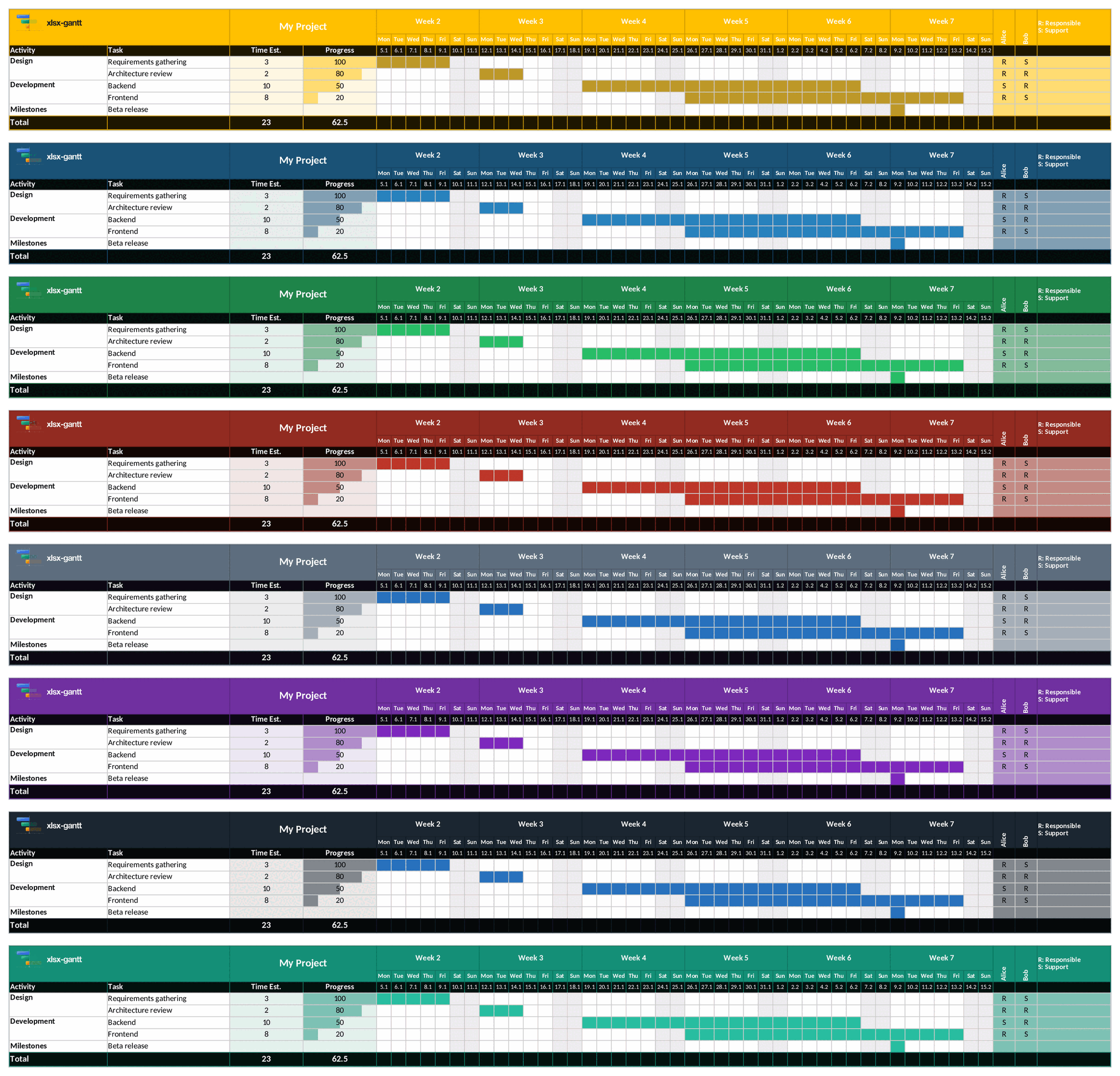
Eight built-in themes are available:
| Name | Description | Base colour |
|---|---|---|
amber |
Warm corporate orange | FFC000 |
ocean |
Deep professional blue | 1A5276 |
forest |
Environmental green | 1E8449 |
crimson |
Bold, high-impact red | 922B21 |
slate |
Minimal neutral gray | 5D6D7E |
royal_purple |
Original default palette | 7030A0 |
midnight |
Modern near-black | 1B2631 |
teal |
Fresh blue-green | 148F77 |
The same chart in every theme, in the order listed above:
from xlsx_gantt import GanttTheme

# By static method
style = GanttTheme.ocean()

# By name (case-insensitive; spaces and hyphens treated as underscores)
style = GanttTheme.get("royal_purple")

# Generated from any base hex colour
style = GanttTheme.from_color("#2E86C1")

# List all available theme names
print(GanttTheme.list_themes())
Data Structure
Sections (dict form)
{
    "name": str,       # section label (merged across all its task rows in column A)
    "tasks": [ ... ]   # list of task dicts (see below)
}
Tasks (dict form)
{
    "name": str,                      # task label
    "time_estimate": float | None,    # hours / days / any unit; summed in the Total row
    "progress": float | None,         # 0–100 %; rendered as a solid DataBar
    "ranges": [                       # one or more coloured bars on the timeline
        {
            "start": datetime,        # inclusive start date
            "end":   datetime,        # inclusive end date (start == end → milestone)
            "color": "RRGGBB",        # 6-digit hex, no '#'; falls back to theme bar colour
        },
        ...
    ],
    "annotations": {                  # optional resource role markers
        "Alice": "R",                 # R = Responsible
        "Bob":   "S",                 # S = Support
    },
}
Note:
time_estimate,progress,ranges, andannotationsare all optional. Omitting them or passingNoneis handled gracefully.
Advanced Usage
Everything below is optional — the sections above cover the common cases.
Typed Dataclass API
Instead of plain dicts you can use the typed Section, Task, and DateRange
dataclasses. Both forms are fully interchangeable and may be freely mixed in the
same sections list.
from datetime import datetime
from xlsx_gantt import GanttChart, GanttTheme, Section, Task, DateRange

sections = [
    Section(
        name="Design",
        tasks=[
            Task(
                name="Requirements gathering",
                time_estimate=3,
                progress=100,
                ranges=[
                    DateRange(
                        start=datetime(2026, 1, 5),
                        end=datetime(2026, 1, 9),
                        color="0070C0",
                    )
                ],
                annotations={"Alice": "R", "Bob": "S"},
            ),
        ],
    ),
]

chart = GanttChart(
    sections=sections,
    start_date=datetime(2026, 1, 5),
    end_date=datetime(2026, 2, 15),
    project_name="My Project",
    resource_names=["Alice", "Bob"],
    style=GanttTheme.get("ocean"),
)
chart.generate_excel("gantt_chart.xlsx")
Mixing dicts and dataclasses
from xlsx_gantt import Section, Task

# Dict section alongside dataclass section — both work
sections = [
    {"name": "Phase 1", "tasks": [{"name": "Kickoff", "progress": 100}]},
    Section(name="Phase 2", tasks=[Task(name="Development", time_estimate=10)]),
]
to_dict / from_dict
Each dataclass provides to_dict() (serialize back to the dict API) and
from_dict() (construct from a raw dict, returning None for invalid input):
from xlsx_gantt import Section, Task, DateRange
from datetime import datetime

dr = DateRange(start=datetime(2026, 1, 5), end=datetime(2026, 1, 9), color="0070C0")
print(dr.to_dict())
# {'start': datetime(2026, 1, 5, 0, 0), 'end': datetime(2026, 1, 9, 0, 0), 'color': '0070C0'}

task = Task.from_dict({"name": "Research", "time_estimate": 3, "progress": 80})
print(task.name)  # Research
In-Memory Output
generate_excel_bytes() returns the raw .xlsx bytes without writing to disk.
Useful for streaming from a web server or attaching to an e-mail:
chart = GanttChart(sections=sections, ...)

# Flask / Django example
xlsx_bytes = chart.generate_excel_bytes()

response = HttpResponse(
    xlsx_bytes,
    content_type="application/vnd.openxmlformats-officedocument.spreadsheetml.sheet",
)
response["Content-Disposition"] = 'attachment; filename="gantt.xlsx"'
Custom Styles
Pass a GanttStyle dataclass instance to override any visual property:
from xlsx_gantt import GanttChart, GanttStyle

style = GanttStyle(
    header_bg        = "2C3E50",
    header_fg        = "FFFFFF",
    bar_color        = "E74C3C",
    row_bg_even      = "F2F3F4",
    section_name_bg  = "D5D8DC",
    annotation_r_bg  = "C8FFCC",   # green tint for "R: Responsible"
    annotation_s_bg  = "FFE4B5",   # amber tint for "S: Support"
    col_label_bg     = "FFC000",
    col_label_fg     = "000000",
)

chart = GanttChart(sections=..., style=style, ...)
Key GanttStyle fields
| Field | Default | Description |
|---|---|---|
header_bg |
"7030A0" |
Background for header rows (rows 1–2) |
header_fg |
"FFFFFF" |
Text colour for header rows |
bar_color |
"9966CC" |
Default Gantt bar fill |
progress_bar_color |
"7030A0" |
Solid DataBar fill colour |
weekend_bg |
"EFEFEF" |
Column fill for Sat/Sun |
row_bg_even |
None |
Even data-row background (None = white) |
row_bg_odd |
None |
Odd data-row background (None = white) |
section_name_bg |
None |
First row of each section |
col_label_bg |
"FFC000" |
Row 3 — Activity / Task / date numbers |
annotation_r_bg |
None |
Background for "R" annotation cells (annotation_a_bg still accepted) |
annotation_s_bg |
None |
Background for "S" annotation cells |
total_row_bg |
None |
Total row background (None → header_bg) |
day_names |
("Mon", …, "Sun") |
Day abbreviations for row 2 (Mon-first) — set your own for other locales |
week_label_format |
"Week {week}" |
Row-1 week band label; {week} and {year} placeholders |
week_start |
0 |
First day of the week band: 0 = Monday … 6 = Sunday. Monday uses ISO week numbers; other days count the week containing 1 January as week 1 |
logo_scale |
0.7 |
Logo size as a fraction of the A1:B2 area |
font_name |
"Calibri" |
Font used throughout the sheet |
col_width_task |
25.0 |
Task column width (Excel units) |
col_width_date |
3.0 |
Width of each day column |
All fields and their defaults are documented in the GanttStyle dataclass docstring.
Colour Utilities
The package also exports the colour helpers used internally by the theme engine:
from xlsx_gantt import contrast_text, darken, lighten, rotate_hue

# Pick white or black for maximum WCAG contrast against a background
text = contrast_text("1A5276")   # → "FFFFFF"

# Blend a colour toward black or white
darker  = darken("FFC000", 0.4)
lighter = lighten("FFC000", 0.6)

# Rotate the hue by a given number of degrees (0–360)
comp = rotate_hue("1A5276", 180)
For Power Users
- In-memory output —
generate_excel_bytes()returns raw.xlsxbytes without touching the file system; drop it straight into a Flask/Django response, e-mail it, or cache it in Redis - Theme engine —
GanttTheme.from_color("#2E86C1")derives a complete WCAG-contrast-checked palette from any hex colour; the colour helpersdarken,lighten,rotate_hue, andcontrast_textare exported for your own theme logic - Typed dataclass API —
Section,Task, andDateRangedataclasses give you IDE auto-completion and type checking; plain dicts still work and can be freely mixed in the same list - Multiple bars per row — paint several independent date ranges on a single task row, each with its own hex colour; any range where
start == endrenders as a milestone - Solid progress DataBars — gradient-free Excel 2010 DataBar conditional formatting, injected via
x14extension XML post-processing - Fine-grained styling — every colour, font, column width, and row height is a
GanttStylefield; section names merge vertically, headers freeze, and label columns get auto-filters - Locale control —
GanttStyle.day_namesandweek_label_format(with{week}/{year}placeholders) replace the default English labels, andweek_start=6starts each week band on Sunday - Production-safe error handling — malformed sections, tasks, ranges, and annotations are silently skipped; no unhandled exceptions in live environments
Development
Development install
git clone https://github.com/trondegil/xlsx-gantt.git
cd xlsx-gantt
pip install -e ".[dev]"
Project Structure
xlsx-gantt/
├── xlsx_gantt/                # Library package
│   ├── __init__.py            # Public re-exports
│   ├── style.py               # GanttStyle configuration dataclass
│   ├── models.py              # Section, Task, DateRange input dataclasses
│   ├── chart.py               # GanttChart builder
│   ├── themes.py              # GanttTheme + colour utilities
│   ├── cli.py                 # xlsx-gantt command-line interface
│   ├── py.typed               # PEP 561 marker
│   └── _xlsx_patch.py         # Internal: solid DataBar XML post-processor
├── examples/
│   ├── bakery-logo.png        # Logo used in the README example
│   └── bakery-plan.json       # AI-written plan from the README
├── tests/
│   ├── __init__.py
│   ├── test_malformed_input.py
│   ├── test_new_features.py
│   ├── test_readme_example.py
│   ├── test_cli_color.py
│   ├── test_examples.py
│   ├── test_v020.py
│   └── test_week_start.py
├── pyproject.toml
├── requirements.txt
├── requirements-dev.txt
├── CHANGELOG.md
├── LICENSE
└── README.md
Running the Tests
pip install -r requirements-dev.txt
pytest
The test suite covers:
- Valid input (dict API and dataclass API)
- In-memory output (
generate_excel_bytes) - Mixed dict + dataclass inputs
to_dict/from_dictround-tripspatch_solid_databarswith both file paths andBytesIO- Malformed sections, tasks, ranges, and annotations
- Edge-case chart configurations (empty date ranges,
Nonefields, reversed dates, etc.)
Requirements
| Package | Version | Notes |
|---|---|---|
| Python | ≥ 3.10 | |
| openpyxl | ≥ 3.1.0 | Required |
| Pillow | ≥ 10.0.0 | Required |
Contributing
Contributions are welcome! Here is the recommended workflow:
-
Fork the repository and create a feature branch:
git checkout -b feature/my-improvement
-
Install the project in editable mode with dev dependencies:
pip install -e ".[dev]"
-
Make your changes. Keep the following guidelines in mind:
- Follow the existing code style (PEP 8, type hints, docstrings).
- Add or update tests in
tests/for any changed behaviour. - All colour values must be 6-digit hex strings without a leading
#.
-
Run the test suite and make sure all tests pass:
pytest
-
Commit with a clear, descriptive message:
git commit -m "feat: add X / fix Y"
-
Open a pull request against the
mainbranch describing what you changed and why.
Reporting issues
Please open a GitHub Issue and include:
- Python version (
python --version) - openpyxl version (
pip show openpyxl) - A minimal reproducible example or the full traceback.
License
This project is licensed under the MIT License — see the LICENSE file for the full text.
Dependency licences
1 maintainer

Metadata
1 maintainer
Release files for xlsx-gantt 0.4.0
For a detailed explanation of source distributions (sdists) and built distributions (wheels), please see the package formats documentation.
Source distribution (sdist)
| File | Size | Uploaded | Provenance | |
|---|---|---|---|---|
| xlsx_gantt-0.4.0.tar.gz | 49.1 kB | With provenance | Details |
Built distribution (wheel)
| File | Interpreter | ABI | Platform | Reset |
|---|---|---|---|---|
| xlsx_gantt-0.4.0-py3-none-any.whl | Python 3 | none | any | Details |
Total release size: 81.7 kB
Release files / xlsx_gantt-0.4.0.tar.gz
| Download URL | xlsx_gantt-0.4.0.tar.gz |
|---|---|
| Size | 49.1 kB |
| Tags | Source |
|
SHA-256 checksum How to use checksums |
4c966291fb0c563ad856412ee5637589e8957e54da636fe4f0f9cc160bc77821
|
|
BLAKE2b-256 checksum How to use checksums |
c301c1a9e95a02dc204aeb8ed6e97b15f48a5fc5f733d42c1ee841e111e1bece
|
| Upload date | |
|
Uploaded using Trusted Publishing? What is trusted publishing? |
Yes |
| Uploaded via |
twine/7.0.0 CPython/3.13.16
|
Provenance
Provenance describes where a file came from. On PyPI, provenance is shared via attestations, which provide a verifiable record of the build or publishing details. View details, limitations and caveats.


PyPI Publish Attestation
PyPI verified that this artifact, at this checksum, originated from the publisher listed below.
Signed by GitHub Actions, verified by PyPI on Oct 22, 2026.
Transparency logRelease files / xlsx_gantt-0.4.0-py3-none-any.whl
| Download URL | xlsx_gantt-0.4.0-py3-none-any.whl |
|---|---|
| Size | 32.6 kB |
| Tags | Python 3 |
|
SHA-256 checksum How to use checksums |
8c6cd9de895fa24f4ed5983e37d86334e9cf9f01b4ea7628363c3d8795c44c41
|
|
BLAKE2b-256 checksum How to use checksums |
7eeb3a6dcb2388bb5db9812d29e6dd669bf2cfe02c7bc727cd79a6e68aa90a36
|
| Upload date | |
|
Uploaded using Trusted Publishing? What is trusted publishing? |
Yes |
| Uploaded via |
twine/7.0.0 CPython/3.13.16
|
Provenance
Provenance describes where a file came from. On PyPI, provenance is shared via attestations, which provide a verifiable record of the build or publishing details. View details, limitations and caveats.
PyPI Publish Attestation
PyPI verified that this artifact, at this checksum, originated from the publisher listed below.
Signed by GitHub Actions, verified by PyPI on Oct 22, 2026.
Transparency logSecurity for xlsx-gantt 0.4.0
Provenance
Provenance describes where a file came from. On PyPI, provenance is shared via attestations, which provide a verifiable record of the build or publishing details. View details, limitations and caveats.
Full provenance
All 2 files in this release have been uploaded with provenance metadata.
Attestation for xlsx_gantt-0.4.0.tar.gz
PyPI Publish Attestation
PyPI verified that this artifact, at this checksum, originated from the publisher listed below.
Signed by GitHub Actions, verified by PyPI on Oct 22, 2026.
Transparency logA note on package security
PyPI is a repository for distributing packages, not a service for auditing them. While third-party security researchers and our staff do their best to detect and remove malicious packages, PyPI cannot guarantee the quality, security or suitability of any given package.















