
xlwings_utils

Project description

Introduction
This module provides some useful functions to be used in xlwings (lite).
Installation
Just add xlwings-utils to the requirements.txt tab.
In the script, add
ìmport xlwings_utils as xwu
[!NOTE]
The GitHub repository can be found on https://github.com/salabim/xlwings_utils .
General
It is recommended to put
import xlwings_utils as xwu
at the top of a xlwings lite script.
If an application runs under xlwings, xwu.xlwings will be True. False, if not.
Dropbox support
The xlwings lite system does not provide access to the local file system. With this module, files can be copied between Dropbox and the local pyodide file system, making it possible to indirectly use the local file system.
It is only possible, as of now, to use full-access Dropbox apps.
The easiest way to use the Dropbox functionality is to add the credentials to the environment variables. Add REFRESH_TOKEN, APP_KEY and APP_SECRET with their corresponding values to the environment variables.
Then, it is possible to list all files in a specified folder with the function list_dropbox.
It is also possible to get the folders and to access all underlying folders.
The function read_dropbox can be used to read a Dropbox file's contents (bytes).
The function write_dropbox can be used to write contents (bytes) to a Dropbox file.
The functions list_local, read_local and write_local offer similar functionality for the local file system (on pyodide).
So, a way to access a file on the system's drive (mapped to Dropbox) as a local file is:
contents = xwu.read_dropbox('/downloads/file1.xls')
xwu.write_local('file1.xlsx')
df = pandas.read_excel"file1.xlsx")
...
And the other direction:
contents = xwu.read_local('file1.gif')
xwu.write_dropbox('/downloads/file1.gif')
Block support
The module contains a useful 2-dimensional data structure: block.
This can be useful to manipulate a range without accessing the range directly, which is expensive in terms of memory and execution time.
The advantage over an ordinary list of lists is that a block is index one-based, in line with range and addressing is done with a row, column tuple.
So, my_block(lol)[row, col] is roughly equivalent to lol[row-1][col-1]
A block stores the values internally as a dictionary and will only convert these to a list of lists when using block.value.
Converting the value of a range (usually a list of lists, but can also be a list or scalar) to a block can be done with
my_block = xwu.block.from_value(range.value)
The dimensions (number of rows and number of columns) are automatically set.
Setting of an individual item (one-based, like range) can be done like
my_block[row, column] = x
And, likewise, reading an individual item can be done like
x = my_block[row, column]
It is not allowed t,o read or write outside the block dimensions.
It is also possible to define an empty block, like
block = xwu.block(number_of_rows, number_columns)
The dimensions can be queried or redefined with block.number_of_rows and
block.number_of_columns.
To assign a block to range, use
range.value = block.value
The property block.highest_used_row_number returns the row number of the highest non-None cell.
The property block.highest_used_column_number returns the column_number of the highest non-None cell.
The method block.minimized() returns a block that has the dimensions of (highest_used_row_number, highest_used_column_number).
Particularly if we process an unknown number of lines, we can do something like:
this_block = xwu.block(number_of_rows=10000, number_of_columns=2)
for row in range(1, 10001):
	this_block[row,1]= ...
	this_block[row,2]= ...
	if ...: # end condition
	    break
sheet.range(10,1).value = this_block.minimized().value
In this case, only the really processed rows are copied to the sheet.
Looking up in a block
With blocks, it is easy to use a sheet as an input for a project / scenario.
Something like
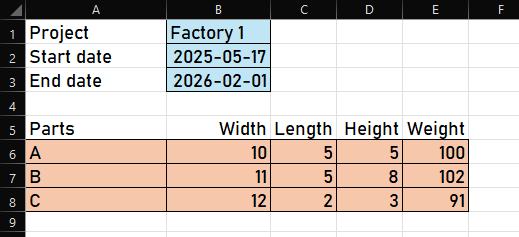
Of course, we could access the various input fields with absolute ranges, but if something changes later (like adding a row), all references would have to be updated.
If we read the project sheet (partly) into a block, lookup methods are available to access 'fields' easily and future-proof.
Let's see how this works with the above sheet. The corresponding block (bl) looks like
  |   1                2                3                4                5
--+-------------------------------------------------------------------------------
1 |   Project          Factory1
2 |   Start date       2025-05-17
3 |   End date         2026-02-01
4 |
5 |   Parts            Width            Length           Height           Weight
6 |   A                10               5                5                100
7 |   B                11               5                8                102
8 |   C                12               2                3                91
9 |
Now we can do
project = bl.lookup("Project")
start_date = bl.lookup("Start date")
end_date = bl.lookup("End date")
row1 = bl.lookup_row("Parts")
parts=[]
for row2 in range(row1 + 1, bl.highest_used_row_number + 1):
    if not (part_name := bl.hlookup("Part",row1=row1, row2=row2)):
        # stop when a 'blank' part_name is found
        break
    width = bl.hlookup("Width",row1=row1, row2=row2)
    length = bl.hlookup("Length",row1=row1, row2=row2)
    height = bl.hlookup("HeightL",row1=row1, row2=row2)
    weight = bl.hlookup("Weight",row1=row1, row2=row2)
    parts.append(Part(part_name, width, length, height, weight))
First we do a couple of lookups, which are vertical lookups, to scan column 1 for the given labels and return the corresponding values from column 2.
Then, there's lookup_row, which also scans column1 for the given label (Parts), but returns the corresponding row (5). It is then stored in row1.
And then we just read the following rows (with hlookup) and access the required values.
Filling a block from other sources
The advantage of using a block instead of accessing these sources is, that they are one-based, just like in Excel.
It is possible to make a block from a xlrd worksheet with block.from_xlrd_sheet.
It is possible to make a block from a pandas dataframe with block.from_dataframe. Make sure that, if the dataframe is created by reading from an Excel sheet, headers=None should be specified, e.g. df = pd.read_excel(filename, header=None).
It is possible to make a block from an openpyxl worksheet with block.from_openpyxl_sheet.
Writing a block to an openpyxl sheet
In order to write (append) to an openpyxl sheet, use: block.to_openpyxl_sheet.
It is possible to make a block from a text file with block.from_file.
Writing a block to an openpyxl sheet
Capture stdout support
The module has support for capturing stdout and -later- using showing the captured output on a sheet.
This is rather important as printing in xlwings lite to the UI pane is rather slow.
In order to capture stdout output, it is required to first issue
capture = xwu.Capture()
By this, capture is automatically enabled and print is disabled. Alternatively, it is possible to use
capture = xwu.Capture(enabled=False)
to disable the capture. And with
capture = xwu.Capture(include_print=True)
the stdout output is captured and printed.
Capturing van be enabled and disabled at any time with capture.enbaled = True and capture.enabled = False.
And including print likewise with capture.include_print.
Alternatively, a context manager is provided:
with capture:
    """
    code with print statements
    """
Note that stopping the capture, leaves the captured output in place, so it can be extended later.
In either case, the captured output can be then copied to a sheet, like
sheet.range(4,5).value = capture.value
Upon reading the value, the capture buffer will be emptied.
If you don't want the buffer to be emptied after accessing the value, use capture.value_keep.
The capture buffer can also be retrieved as a string with capture.str and capture.str_keep.
Clearing the captured stdout buffer can be done at any time with capture.clear().
Contact info
You can contact Ruud van der Ham, the core developer, via ruud@salabim.org .
Badges






Release history Release notifications | RSS feed


Download files
Download the file for your platform. If you're not sure which to choose, learn more about installing packages.
Source Distribution
Built Distribution
Filter files by name, interpreter, ABI, and platform.
If you're not sure about the file name format, learn more about wheel file names.
Copy a direct link to the current filters
File details
Details for the file xlwings_utils-25.0.0.post6.tar.gz.
File metadata
- Download URL: xlwings_utils-25.0.0.post6.tar.gz
- Upload date:
- Size: 14.2 kB
- Tags: Source
- Uploaded using Trusted Publishing? No
- Uploaded via: twine/6.1.0 CPython/3.13.0
File hashes
| Algorithm | Hash digest | |
|---|---|---|
| SHA256 |
f4525c76a4f8d4960b1e1324d4cfa44730fe9ac38703f820700a66825eabf83c
|
|
| MD5 |
f44998dc578c701c715646c7f2cdd555
|
|
| BLAKE2b-256 |
a41283a89a6be73f649b5c48619094c1cadb6ab4169a932ddc47ea970ea1a0b1
|
File details
Details for the file xlwings_utils-25.0.0.post6-py3-none-any.whl.
File metadata
- Download URL: xlwings_utils-25.0.0.post6-py3-none-any.whl
- Upload date:
- Size: 9.4 kB
- Tags: Python 3
- Uploaded using Trusted Publishing? No
- Uploaded via: twine/6.1.0 CPython/3.13.0
File hashes
| Algorithm | Hash digest | |
|---|---|---|
| SHA256 |
c99c5bcb7810df1334640ba8e538a1d67bae3d9ee0cfe6e58d621fad29619c90
|
|
| MD5 |
65e78e0193af1a8db62425237160d39d
|
|
| BLAKE2b-256 |
027813f1f2c626a41a82af45f46ffe90195fdad4ddc5ce51e1ec25fce956f93b
|






