
This release is a pre-release and may not be stable for production use.
Python library to control XY Screens and See Max projector screens and lifts








Introduction
This Python library lets you control XY Screens and See Max projector screens and lifts over the serial and RS-485 interface.
This Python library was first implemented for XY Screens. After I was informed that the See Max devices use a very similar protocol, support for these devices has been added.
XY Screens and See Max are OEM manufacturers of projector screens and lifts. Their devices are sold around the world under various brand names.
Features
- Position control: move the screen/lift to any position along the way
- Program device address on devices that support this
- Use multiple devices on the same RS-485 interface
- Synchronous and asynchronous methods
- Uses callbacks for asynchronous methods
About position control
The XY Screens and See Max projector screens and lifts do not provide any positional feedback. The state of the screen is thus always an assumed one. The screen position is calculated based on the time the cover has moved and the configured up and down durations. This results in a potential error margin. Every time the screen reaches its maximum up or down position any potential position error is reset. If the screen is controlled outside the library, for instance with the remote control, the screen position and state will no longer represent the actual state.
Hardware
RS-485 to USB adapter
Use an RS-485 to USB adapter where position 5 of the RJ25 connector is connected to D+ and position 6 to D-.

I use this cheap USB RS-485 controller which you can find on AliExpress (affiliate link)
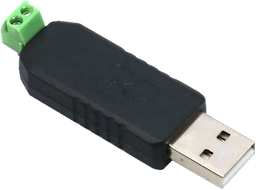
See the documentation of your specific projector screen or lift on how to wire yours correctly.
Serial to USB adapter
If your projector screen or lift has a serial port exposed use a Serial to USB adapter to connect the projector screen or lift.
See the documentation of your specific projector screen or lift on how to wire yours correctly.
Serial/RS-485 to Ethernet/WiFi bridge
You can also use a Serial/RS-485 to Ethernet/WiFi bridge which is useful when the projector screen or lift is not close to your Home Assistant server. You can build your own bridge using esp-link or buy an off-the-shelf product like the CDEBYTE NA111-E.
Connect the D+ and D- lines of your projector screen or lift to the corresponding terminals of the bridge. See the documentation of your specific projector screen or lift on how to wire yours correctly.
Configure the bridge for 2400 baud, 8 bits, no parity and one stop bit to match the projector screen or lift protocol.
Use socket://<ip address>:<port> or rfc2217://<ip address>:<port> as the URL to connect to the
Serial/RS-485 to Ethernet/WiFi bridge depending on which protocol the bridge supports.
ESPHome Serial Proxy
You can connect a MAX485 transceiver module to an ESP32 and install ESPHome Serial Proxy on the ESP.
Use esphome://<ip address>:<port>/?port_name=<port name> as the URL to connect to the ESPHome Serial Proxy.
Supported protocol
If your device follows the following protocol it is supported by this Python library:
2400 baud 8N1
Up command: 0xFF 0xXX 0xXX 0xXX 0xDD
Down command: 0xFF 0xXX 0xXX 0xXX 0xEE
Stop command: 0xFF 0xXX 0xXX 0xXX 0xCC
Where 0xXX 0xXX 0xXX is the three byte address of the device.
For XY Screens devices the default address is 0xAA 0xEE 0xEE, while for See Max devices
the default address is 0xEE 0xEE 0xEE.
Supported projector screens and lifts
The following projector screen is known to work:
- iVisions Electro M Series
The following projector screens and lifts are not tested but use the same protocol according to the documentation:
XY Screens:
- iVisions Electro L/XL/Pro/HD Series
- iVisions PL Series projector lift
- Elite Screens
- KIMEX
- DELUXX
- Telon
See Max:
- ScreenPro
- Monoprice
- Grandview
- Dragonfly
- WS Screens
- Cirrus Screens
- Lumien
- Celexon
Installation
You can install the Python XY Screens library using the Python package manager pip:
pip3 install xyscreens
xyscreens CLI
You can use the Python XY Screens library directly from the command line to move your screen up or down, or to stop the screen using the following syntax:
Move the screen down: python3 -m xyscreens <URL> <address> down <duration>
Stop the screen: python3 -m xyscreens <URL> <address> stop
Move the screen up: python3 -m xyscreens <URL> <address> up <duration>
Where <address> is the six character hexadecimal (three bytes) address of the device.
<duration> is the optional time in seconds to move the screen up or down. When given the process
will wait until the screen is up or down and show the progress.
For XY Screens devices the default address is AAEEEE, while for See Max devices the
default address is EEEEEE. If you have reprogrammed the device address, use the appropriate
address.
Programming the device address
Some See Max projector screens and lifts which use the RS-485 interface seem to allow programming the device address. This way multiple devices can be connected to the same RS-485 interface. Each device should have a unique address.
python3 -m xyscreens <URL> <address> program
Where <address> is the three byte address to be programmed.
⚠️ Only run this command with one device connected to the RS-485 bus.
Testing all commands
To test the supported commands of a projector screen you can test each command from 0x00 to
0xFF and see how the device responds.
python3 -m xyscreens <URL> <address> test_commands
⚠️ Only run this command with one device connected to the RS-485 bus.
Troubleshooting
You can add the --debug flag to any CLI command to get more details on what's going on. Like so:
python3 -m xyscreens <URL> <address> down <duration> --debug
Contribution and appreciation
Do you enjoy using this Python library? You can contribute or show your appreciation, in the following ways.
Contribute your projector screen brand and model
Is your projector screen supported by this Python library but not listed under Supported projector screens and lifts? Let me know your projector screen brand and model so I can improve the overview of supported projector screens and lifts.
Star this GitHub page
Help other projector screen users find this Python library by starring this GitHub page. Click ⭐ Star on the top right of the GitHub page.
Support my work
Please consider supporting my work through one of the following platforms. Your contribution is greatly appreciated and keeps me motivated:
Hire me
If you're in need of a freelance Python developer for your project please contact me. You can find my email address on my GitHub profile.
1 maintainer

Release files for xyscreens 1.1.2rc1
For a detailed explanation of source distributions (sdists) and built distributions (wheels), please see the package formats documentation.
Source distribution (sdist)
| File | Size | Uploaded | |
|---|---|---|---|
| xyscreens-1.1.2rc1.tar.gz | 95.1 kB | Details |
Built distribution (wheel)
| File | Interpreter | ABI | Platform | Reset |
|---|---|---|---|---|
| xyscreens-1.1.2rc1-py3-none-any.whl | Python 3 | none | any | Details |
Total release size: 110.5 kB
Release files / xyscreens-1.1.2rc1.tar.gz
| Download URL | xyscreens-1.1.2rc1.tar.gz |
|---|---|
| Size | 95.1 kB |
| Tags | Source |
|
SHA-256 checksum How to use checksums |
0d108e568356a80fa958ffb07fc142f97433d5cb6bd39429604c9437644a5125
|
|
BLAKE2b-256 checksum How to use checksums |
ddd43f427b8db7ae7c1bb244e75b40a5122267d5e4968ac62cac6abd8631b308
|
| Upload date | |
|
Uploaded using Trusted Publishing? What is trusted publishing? |
Yes |
| Uploaded via |
twine/7.0.0 CPython/3.13.14
|
Provenance
Provenance describes where a file came from. On PyPI, provenance is shared via attestations, which provide a verifiable record of the build or publishing details. View details, limitations and caveats.


PyPI Publish Attestation
PyPI verified that this artifact, at this checksum, originated from the publisher listed below.
Signed by GitHub Actions, verified by PyPI on Sep 22, 2026.
Transparency logRelease files / xyscreens-1.1.2rc1-py3-none-any.whl
| Download URL | xyscreens-1.1.2rc1-py3-none-any.whl |
|---|---|
| Size | 15.4 kB |
| Tags | Python 3 |
|
SHA-256 checksum How to use checksums |
0dec69167b0376e8537982aa43d16daee4b47d749128de3c6ab854615e3661a1
|
|
BLAKE2b-256 checksum How to use checksums |
818789434c037e355f1da389748cff75f209cb752ce5ef04d724721c20dfee3f
|
| Upload date | |
|
Uploaded using Trusted Publishing? What is trusted publishing? |
Yes |
| Uploaded via |
twine/7.0.0 CPython/3.13.14
|
Provenance
Provenance describes where a file came from. On PyPI, provenance is shared via attestations, which provide a verifiable record of the build or publishing details. View details, limitations and caveats.
PyPI Publish Attestation
PyPI verified that this artifact, at this checksum, originated from the publisher listed below.
Signed by GitHub Actions, verified by PyPI on Sep 22, 2026.
Transparency log













