
ActionDraw
Your whole plan. One canvas.
ActionDraw is a desktop app for turning ideas into plans you can act on. Organize projects in a mindmap, open a branch to focus on the next steps, and use visual canvases, notes, priorities, and reminders to carry the work forward. Save your work in an encrypted project file.
Quick start
Requires Python 3.10+. Installation includes PySide6 (Qt) and the other required dependencies.
pip install actiondraw
actiondraw
To run the standalone priority plot:
priorityplot
Mindmap walkthrough · Keyboard shortcuts · Other tools · Development
Plan a project with the mindmap
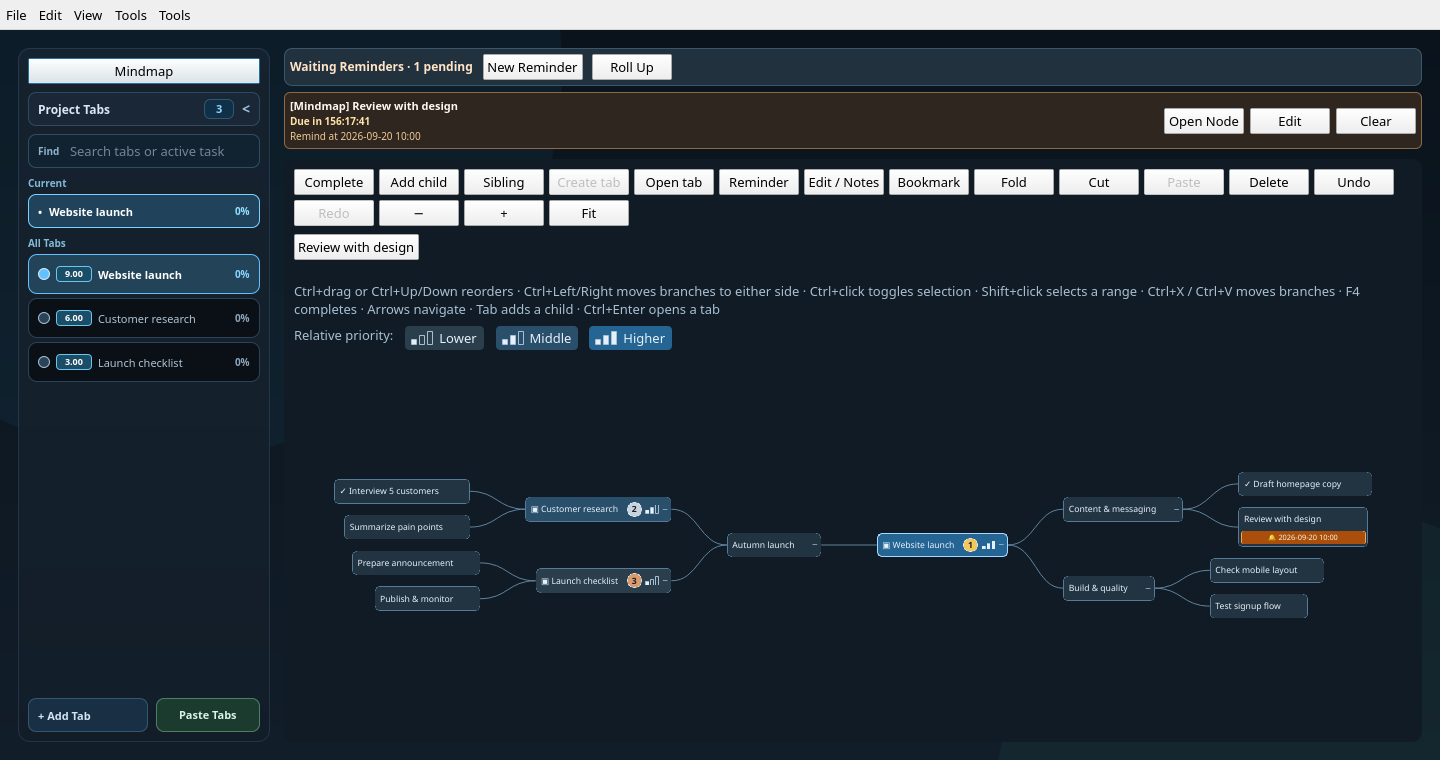
The screenshots use a fictional Autumn launch project. Each project tab is also a node in the map, so you can organize the big picture and open the work behind it from the same place.
1. Lay out the whole project
Choose Mindmap above the sidebar tabs to open the full project map. Start with tabs such as Website launch, Customer research, and Launch checklist, then select a node and choose Add child to break it into smaller steps. Use Sibling for another step at the same level.
In the overview above, the website branch contains content and quality checks, while research and the launch checklist sit on the left. Drag a node onto another node to nest it, or onto its top or bottom edge to reorder it. Use the right-click menu to place a branch on the left or right. Scroll to zoom, drag the background to pan, and choose Fit to see the whole map.
Blue shades and one, two, or three filled bars show lower, middle, or higher relative priority for tabs included in the priority plot. Numbered badges mark the top three; hover over a node for its score. The scale compares all included project tabs, so folding or focusing a branch does not change its priority. Tied scores share a level; a single task or all-equal scores use the middle level. Notes and excluded tabs have no priority indicator.
2. Open a branch and focus on the next steps
Click a tab node to open it. Tabs with children open their own mindmap branch; use Canvas to switch to that tab's diagram. The tab's Mindmap control opens or starts its branch, while the sidebar Mindmap returns to the full project map. Alt+Left returns to the previous view.
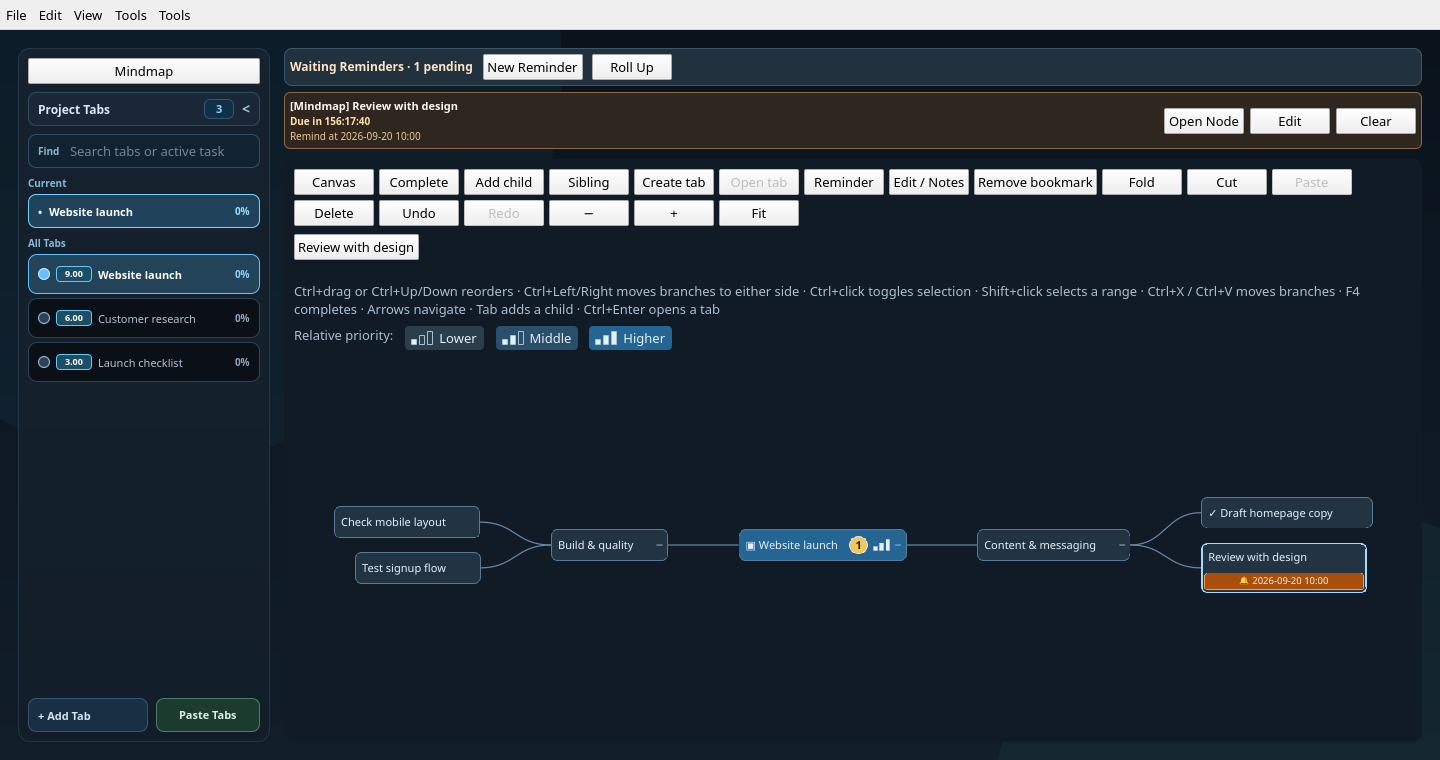
Here, Website launch is the branch root. The finished homepage draft has a check mark, and Review with design has a reminder. Both the full map and this focused view edit the same nodes and share undo/redo.
Select a thought and choose Create tab when it needs its own workspace. Use Bookmark to keep a frequently visited node within reach; its button appears above the map.
3. Keep context and reminders beside the work
Select a node and choose Edit / Notes (or press F2) to capture decisions, questions, and what it will take to finish. In this example, the design review has an agenda and a clear completion condition.
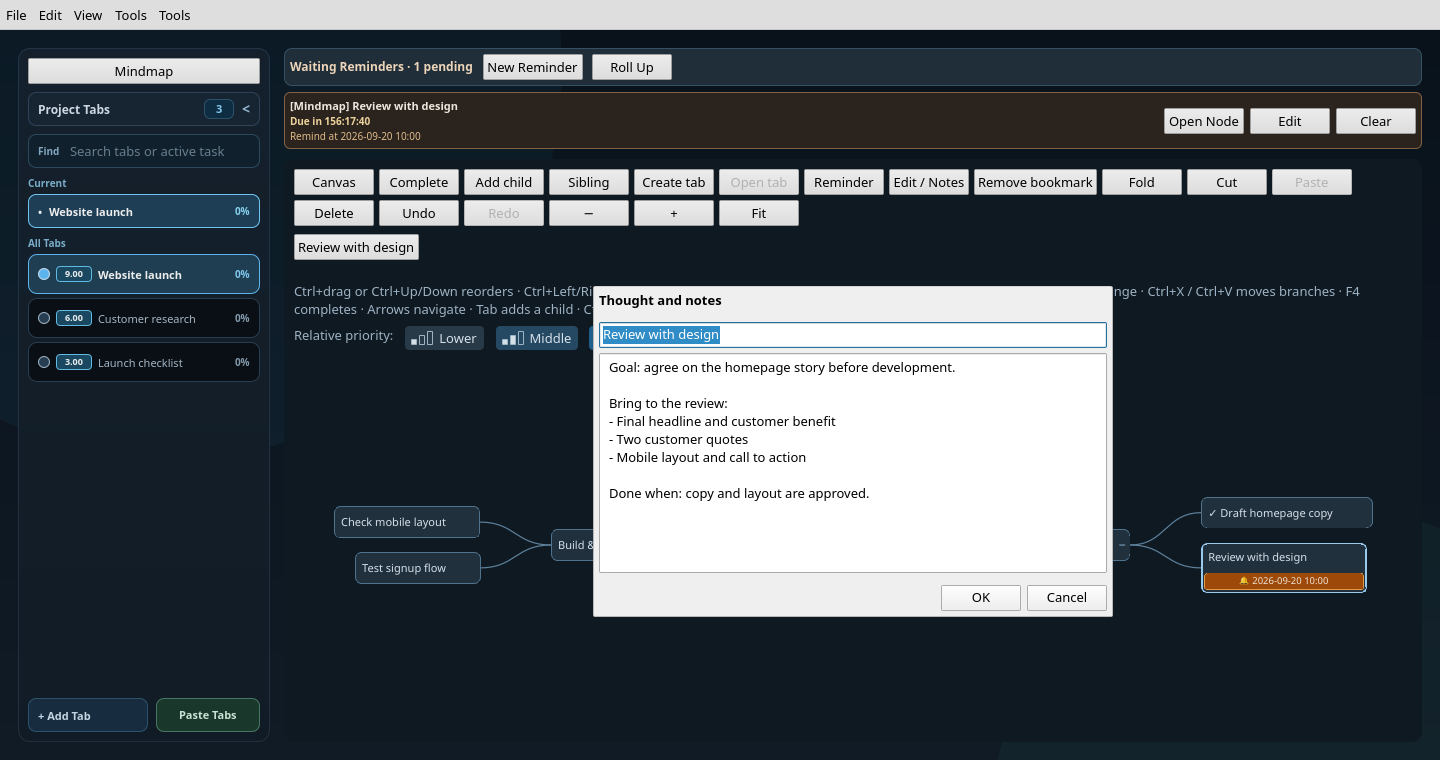
Choose Reminder for a selected node to set a date and time, with optional notifications. An orange bell and date appear beneath its title. Every node supports a reminder, including tab nodes and the project root.
Waiting Reminders stays visible above both the canvas and mindmap. Choose Open Node to reveal the relevant node, even inside a folded branch. The right-click menu lets you update or clear its reminder.
Use Complete or F4 to mark selected nodes with a ✓. If all selected nodes are complete, the same action clears the marks. Completing a node does not complete its descendants or canvas tasks. Completion marks, notes, and the map are saved with the project.
Completing or deleting a node cancels its reminder; undo restores it. Reminders that have already fired stay cleared through undo/redo. Use Renew in the due alert to schedule another one.
4. Reorganize as the plan changes
Ctrl+click toggles nodes in the selection without opening tabs. Shift+click selects a range, and Shift+arrow keys extend the selection. To move several branches, select them, press Ctrl+X, select a destination, and press Ctrl+V. The move preserves descendants and tab links and can be undone with Ctrl+Z.
Cut branches stay dimmed until pasted; Escape cancels the cut. Clicking a tab while a cut is pending selects it as the destination. Cut selections are local to the current project. Deleting a project tab keeps its map node as a thought.
With no cut pending, Ctrl+V adds clipboard text beneath the selected node. Plain text uses one node per non-empty line and indentation for nesting; OPML outlines retain their hierarchy.
Mindmap shortcuts
These shortcuts apply while the mindmap has focus, outside dialogs and menus.
| Action | Shortcut |
|---|---|
| Select a nearby visible node | Arrow keys |
| Extend the selection | Shift + arrow keys |
| Add a child / sibling | Tab / Enter |
| Open the selected tab | Ctrl + Enter |
| Edit title and notes | F2 |
| Fold or unfold | Space |
| Toggle completion | F4 |
| Move a node up / down | Ctrl + Up / Down |
| Place a branch left / right | Ctrl + Left / Right |
| Cut branches / paste branches or clipboard outlines | Ctrl + X / Ctrl + V |
| Cancel a pending cut | Escape |
| Undo / redo | Ctrl + Z / Ctrl + Y |
| Return to the previous view | Alt + Left |
Beyond the mindmap
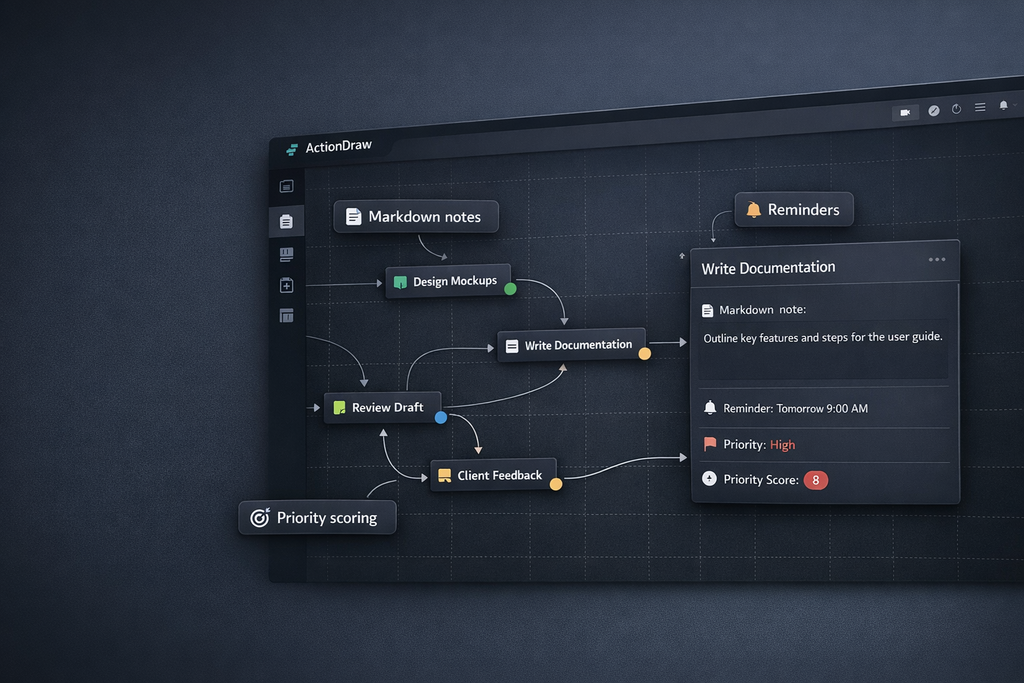
- Visual task diagrams — arrange boxes, databases, servers, clouds, and sticky notes; connect them with arrows that follow the nodes.
- Markdown notes — open a rich Markdown editor from a canvas node.
- Time tracking and reminders — track work and schedule follow-ups.
- Priority scoring — compare tasks by impact and effort in the integrated priority plot.
- Obstacles and wishes — use dedicated shapes for blockers and goals.
- Free drawing and images — sketch on the canvas and paste external graphics.
- Action Paint — sketch a scene, arrange numbered actions, then add them as a connected task chain in the diagram or as nodes in a tab's mindmap.
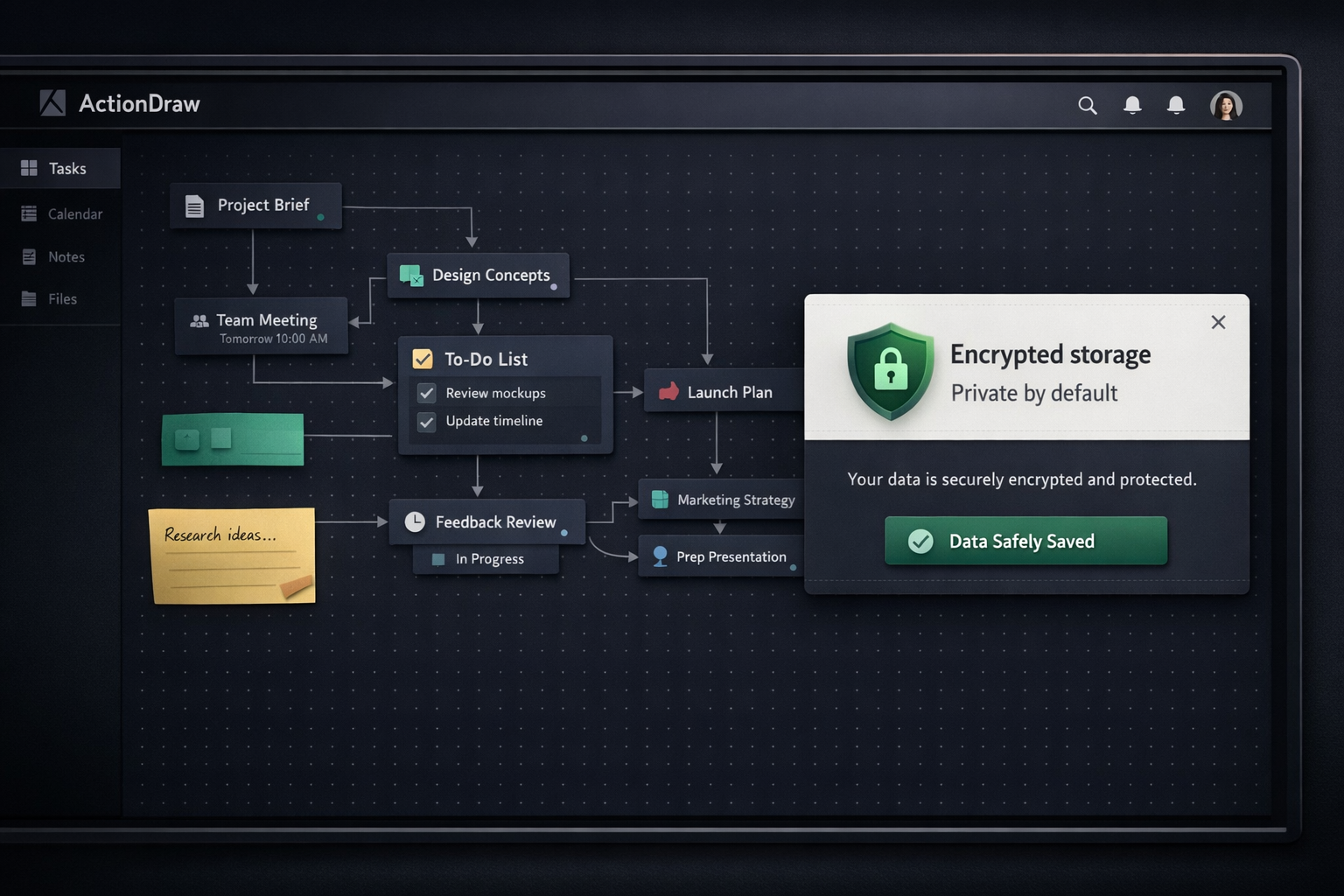
- Encrypted storage — protect project data with Argon2id key derivation, with optional YubiKey challenge-response.
Configure ntfy under Tools > Notification Settings... for notifications.
PROGRESS_NTFY_TOPIC, PROGRESS_NTFY_SERVER, and PROGRESS_NTFY_TOKEN also work
as environment-variable fallbacks.
Run from source
git clone https://github.com/oyvinrog/progress.git
cd progress
python -m venv .venv
source .venv/bin/activate  # Windows: .venv\Scripts\activate
pip install -e ".[dev]"
actiondraw
Run the tests with python -m pytest.
The mindmap screenshots are captures of the actual QML interface with fictional sample data. Regenerate all three from a source checkout with:
python tools/capture_mindmap_screenshots.py
The script uses Qt's offscreen software renderer and writes PNGs to assets/.
It does not load or save project files.
Links and license
The mindmap reuses the MIT-licensed PyPlane core, bundled with its license and source revision.
1 maintainer

Release files for actiondraw 0.1.41
For a detailed explanation of source distributions (sdists) and built distributions (wheels), please see the package formats documentation.
Source distribution (sdist)
| File | Size | Uploaded | |
|---|---|---|---|
| actiondraw-0.1.41.tar.gz | 292.0 kB | Details |
Built distribution (wheel)
| File | Interpreter | ABI | Platform | Reset |
|---|---|---|---|---|
| actiondraw-0.1.41-py3-none-any.whl | Python 3 | none | any | Details |
Total release size: 515.7 kB
Release files / actiondraw-0.1.41.tar.gz
| Download URL | actiondraw-0.1.41.tar.gz |
|---|---|
| Size | 292.0 kB |
| Tags | Source |
|
SHA-256 checksum How to use checksums |
6033ed9f2d644dff3820847eb085bfbeaf1bd769bdcac8380944604856e9eef1
|
|
BLAKE2b-256 checksum How to use checksums |
5f4cb70d2ec183fd3e31d9eaf28cda586133dc223f9ff8fb8b068ab9ae5ba73a
|
| Upload date | |
|
Uploaded using Trusted Publishing? What is trusted publishing? |
No |
| Uploaded via |
twine/7.0.0 CPython/3.13.14
|
Release files / actiondraw-0.1.41-py3-none-any.whl
| Download URL | actiondraw-0.1.41-py3-none-any.whl |
|---|---|
| Size | 223.8 kB |
| Tags | Python 3 |
|
SHA-256 checksum How to use checksums |
d72d09c65465442fa22c568a83be77e1ddef32eadf3dd761dd2e80605c7f7294
|
|
BLAKE2b-256 checksum How to use checksums |
e0292d76f57d796dcae5a2f06f5048f3e2c6039116cbf7661c40131f3fe3347d
|
| Upload date | |
|
Uploaded using Trusted Publishing? What is trusted publishing? |
No |
| Uploaded via |
twine/7.0.0 CPython/3.13.14
|














