
AgentStreamDeck
A physical dashboard for your AI coding agents. Monitor OpenCode, Claude Code, Codex CLI, GitHub Copilot, Gemini CLI and Cursor CLI on an Elgato Stream Deck. See who is working or needs you, press a key to return to that window, and let Jelly bring your spare buttons to life.









⭐ Find this useful? Star AgentStreamDeck on GitHub to help more developers discover it.
☕ Support Ryan’s projects on Buy Me a Coffee. Any amount, one-time or monthly, helps fund development, hardware testing and videos. Thank you for supporting this hobby.


Get started · Watch the video · All features · CLI reference · UI options · Visual gallery · Documentation
Watch AgentStreamDeck on a real Stream Deck
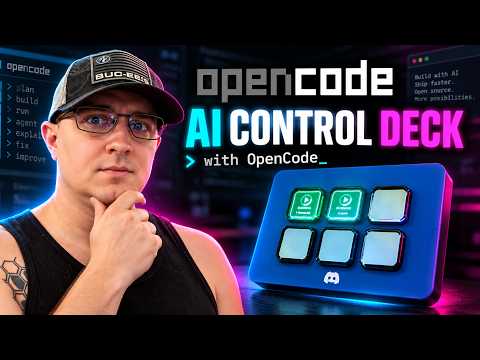
▶ Watch the YouTube demo: AI coding-agent status and one-touch window switching. This is the original OpenCode hardware walkthrough, recorded before later Jelly and customization additions. The source-rendered hero above and full animation gallery show the broader current feature set. The thumbnail opens YouTube; GitHub README pages do not play embedded YouTube iframes.
Keep your attention on the work
Running several coding agents means several windows to check. AgentStreamDeck gives each session a physical key with its project label, agent icon and live status.
- Know where you're needed. Animated status keys distinguish work in progress, idle sessions and supported input requests.
- Get back with one press. Focus the session's Windows window; minimized windows are maximized and brought forward.
- Keep your usual workflow. Launch your CLI or editor normally after installing its integration. No special launcher, Elgato plugin or MCP server required.
- Give spare keys some personality. Jelly plays on unused buttons, celebrates holidays and reacts to your local weather.
The hero above uses the actual renderers on a simulated deck. The video demo shows the OpenCode workflow on hardware.
Get started
1. Check your setup
| You'll need | Supported setup |
|---|---|
| Stream Deck | Mini (6 keys), Original/MK.2 (15), or XL (32); one device per broker |
| Python | 3.11 or newer |
| Node.js | 20 or newer for hook adapters |
| Desktop | Windows for USB control and window focus; Linux supports the broker and device rendering, but not desktop focus |
Plug in your deck and quit the Elgato Stream Deck app from the system tray so AgentStreamDeck can use it.
2. Install and start
python -m pip install --upgrade agentstreamdeck
python -m ocdeck install
The second command registers and starts the background broker for your user, including startup at login. It also installs the OpenCode plugin if opencode is on PATH. No repository checkout is needed. The commands use python -m so a missing Scripts folder on PATH won't get in your way.
3. Connect your agent
For Claude Code, run this from a project you want to monitor:
cd C:\Projects\MyApp
python -m ocdeck harness-install claude
claude
For another agent, choose its profile below. Repeat hook installation for each project you want to monitor. Existing unrelated hooks are preserved. OpenCode uses its global plugin, so just launch opencode after step 2; if it wasn't on PATH during setup, run the install command again once it is.
| Agent | Project hook profile | What it can report |
|---|---|---|
| OpenCode | Global plugin; no project profile needed | Activity, permission requests and structured questions |
| Claude Code | claude |
Activity, identified questions; permission counts may be unknown |
| Codex CLI | codex |
Activity and observed approval state; counts unknown |
| GitHub Copilot CLI | copilot-cli |
Activity only |
| Copilot in VS Code | copilot-vscode |
Activity only; preview integration |
| Gemini CLI | gemini |
Activity and recognized permission notifications |
| Cursor CLI | cursor |
Activity only; Cursor desktop isn't included |
For example, use python -m ocdeck harness-install codex, then review and trust the hooks in Codex using /hooks. Agent-specific setup and coverage explains prerequisites and limitations.
4. Try a key
Start an agent in the configured project, send it a task and watch its key change. Press the key to return to that session. Use a separate OS window for each monitored session; several tabs in one terminal window can make focus ambiguous.
python -m ocdeck status
Need more detail? Installation guide · Troubleshooting · Remote and WSL setups
Supported agents
Follow the dedicated setup guide for OpenCode, Claude Code, Codex CLI, Copilot CLI, Copilot in VS Code, Gemini CLI, or Cursor CLI. Each includes install commands, exact shipped hook mappings, verification and removal.
The integrations above share the same deck, but their event coverage differs. These are the default visual signals:
| Key | Meaning |
|---|---|
| Green moving ring | Agent reports work in progress |
| Amber breathing glow | Agent reports idle |
| Red attention indicator | Identified input request or observed approval state |
Amber LINK ? |
Connection or state is unknown |
Activity-only integrations can still look busy while waiting for approval. A green key doesn't guarantee that no input is needed. Input counts appear only when the integration supplies enough information.
A normal tap on an agent key requests window focus. Optional deck controls add a separate hold menu for launching sessions and explicitly accepting or rejecting supported native permission requests. Windows can restrict foreground activation; the status output includes the last focus result for diagnosis.
Launch and review from the deck
On this feature branch: hold and release a key to choose a saved repository and agent, then launch a dedicated window in the right folder. Hold a session key to review a specific pending permission and press ACCEPT or REJECT. Native decisions are supported for Claude Code and the OpenCode server plugin; other harnesses offer terminal focus.
Everything is configurable from the CLI, including named folders, harness choices, custom BAT launchers, arguments and interaction timing. The controls are opt-in and preserve ordinary taps and Jelly interactions.
Step-by-step tutorials · Feature guide and animated preview · CLI commands
Make it yours
The physical deck is the UI; preferences are configured through the CLI and JSON. See every UI control, every appearance field and default, and all CLI arguments.
Choose recognizable agent logos, project labels, layouts, color palettes and animation styles. Apply a preset across the deck or give individual keys their own look.

python -m ocdeck appearance --preset neon --layout harness
Restart the broker after saving appearance changes. You can preview changes before saving, export a favorite look, or turn animation off. Sound alerts and Windows notifications are optional and off by default.
Appearance gallery and settings · Configuration, alerts and maintenance
Want your Mini beside your screen? The 3D-printable side monitor mount includes separate STL parts, a reinforced wing, a 5° locking hinge, and printing instructions.
Meet Jelly

Jelly makes a home on your spare buttons. He stretches, dances, naps and changes mood with the rhythm of your coding sessions. Tap him for a wobble, cheer or little “Boop!” His thoughts and personality run offline using session activity metadata, without reading your prompts or source code.

With two free keys, Jelly can point to a steaming coffee cup and ask “Coffee?” at a random interval of 1–3 hours. Tap Jelly five times within one minute to start the same routine early when two keys are free. The invitation lasts 60 seconds; pressing Jelly or the cup opens Ryan's Buy Me a Coffee page and dismisses it. The preview speeds up the wait. Agent controls always take priority.
Prefer a quieter deck? Set "jelly": {"coffee": false} to disable coffee invitations or "jelly": {"enabled": false} to turn Jelly off. Merge these preferences into your existing configuration and restart the broker.
Jelly's personality and behavior · Complete Jelly settings · Every action, mood and hop · Tap and coffee interactions
A little world on your spare keys

Fireworks for July Fourth. A Thanksgiving feast. Christmas lights across the deck. A floating Halloween ghost. Holi colors, snow days and a sunhat when it gets hot. 75 configurable scenes, including 50 additional seasonal and festival experiences, bring Jelly into the world around you.
Jelly picks up a rake and gathers leaves, lifts a mug for a sip, opens gifts, waters plants, and plays with a ball. Rain falls in quick individual drops and splashes on each key, snow drifts and settles, and autumn leaves flutter down, land sideways and fade. Lanterns glow, and tiny acorns sit beside Jelly at a believable scale. Layered pixel scenery and object-specific motion keep the little world readable without crowding your companion. See the animated artwork gallery and Jelly using the props.
The broker can discover approximate location and retrieve current weather. Jelly shares temperature updates and wears the right outfit while your agent buttons keep their jobs. Hold Jelly for setup guidance, then hold again to open the instructions. Every scene, costume, effect and caption can be configured or disabled.
ocdeck world configure --country US --timezone America/New_York --units F
ocdeck world configure --no-weather --no-auto-location
The second command keeps the world offline. Restart the broker after changes. Set up holidays, weather and your locale · Explore all 75 scenes · UI/UX and contributor design contract
Stay up to date
When an update is available, Jelly settles down with rainbow colors, a red exclamation point, a green upgrade arrow and “Update available” beneath him. He moves at most once every 30 seconds so you can read it.

Press the marked Jelly to install the detected update and restart the broker. Checking for updates never installs anything by itself. You can also update with:
python -m pip install --upgrade agentstreamdeck
A running broker with upgrade monitoring automatically restarts after the new package finishes installing. Use the same Python environment as the broker. First-time setup still needs python -m ocdeck install; older installations may need one restart to enable monitoring. Upgrade details and opt-outs
Release notes · Upgrading from AgentDeck
Explore every feature
| What you want to do | What AgentStreamDeck provides | Full documentation |
|---|---|---|
| Monitor several AI coding sessions | Live running, idle, input and unknown state; automatic slot cleanup and overflow handling | Status and slots |
| Switch back to the right session | One-touch Windows terminal/editor focus, including minimized windows | Window switching |
| Use your existing coding tools | Global OpenCode plugin and six project hook profiles, with honest per-agent coverage | Integration hub |
| Choose the information on each key | Harness icons, project labels, aliases, custom text, status and input badges | UI guide |
| Personalize the whole deck or one key | Three layouts, six themes, five presets, borders, backgrounds and logo sizes | Appearance reference |
| Tune motion and readability | Breathe/glow/steady effects, scrolling/shimmer, font size, alignment, speed and brightness | Animated gallery |
| Share your configuration | Versioned visual import/export, dry-run diff and preview GIF generation | Appearance import/export |
| Hear when you are needed | Optional Windows sounds and request-specific desktop notifications | Alert settings |
| Give unused keys personality | Offline Jelly companion with actions, moods, thoughts and touch reactions | Jelly guide |
| Customize Jelly’s behavior | Four personalities, fourteen hop styles, movement frequency and optional persistence | Jelly settings |
| Take a coffee break | Timed or five-tap invitation with a steaming cup on a second free key | Coffee interactions |
| Keep the package current | Visible update notice, press-to-install and verified restart after pip upgrades | Update guide |
| Start automatically at login | Per-user Windows task or Linux systemd service | Startup controls |
| Use Mini, Original/MK.2 or XL | Automatic 6/15/32-key capacity, serial selection and reconnect handling | Hardware guide |
| Mount a Mini beside your monitor | Multi-part printable holder, reinforced wing and five-degree locking hinge | STLs and assembly |
| Diagnose an issue | Doctor checks, physical-input telemetry, structured logs and scrubbed reports | Diagnostics |
| Understand the local data boundary | Metadata-only hooks, loopback authentication and offline companion | Privacy and offline operation |
| Remove only what was installed | Hook receipts, config-preserving removal, preview and retained backups | Uninstall |
| Extend the project | API, architecture, source map, adapter contracts and test guides | Developer documentation |
More ways to make it yours


Browse layouts, themes, harness logos, labels, typography, borders, brightness and mixed-key examples. Each gallery links to the settings that produce it. These are renderer demonstrations; physical USB speed depends on your deck and active keys.
Documentation shortcuts
- Start here: first run, practical tutorials, FAQ, troubleshooting.
- Complete references: all commands and flags, broker JSON and environment, appearance settings, Jelly settings.
- Advanced workflows: local-model and compatibility launchers, WSL/SSH/container boundaries, local HTTP API.
- Browse everything: documentation index, feature hub, integration hub, media gallery.
Need a hand?
python -m ocdeck doctor --no-device --json
python -m ocdeck report --output agentstreamdeck-report.zip --lines 200
Start with the troubleshooting guide. On Windows, configuration and logs live under %USERPROFILE%\.opencode-deck unless you've set OCDECK_HOME; the main log is broker.log. Review diagnostic reports before sharing them in a GitHub issue.
The controller runs locally. Online update checks can be disabled with "check_updates": false. Configuration and removal instructions cover alerts, startup, backups and uninstalling integrations.
Build with us
Adapter improvements, bug reports and hardware testing are welcome. See CONTRIBUTING.md for development setup, the architecture for the internals, and the documentation index for deeper guides.
CI tests Windows and Ubuntu with Python 3.11/3.13, including package installation and upgrade behavior. USB hardware and interactive window focus also need real desktop testing; verification details distinguish that from automated coverage.
Licensed under Apache 2.0. Agent names and logos belong to their respective owners; see third-party notices.
1 maintainer

Metadata
1 maintainer
Release files for agentstreamdeck 3.0.13
For a detailed explanation of source distributions (sdists) and built distributions (wheels), please see the package formats documentation.
Source distribution (sdist)
| File | Size | Uploaded | |
|---|---|---|---|
| agentstreamdeck-3.0.13.tar.gz | 317.5 kB | Details |
Built distribution (wheel)
| File | Interpreter | ABI | Platform | Reset |
|---|---|---|---|---|
| agentstreamdeck-3.0.13-py3-none-any.whl | Python 3 | none | any | Details |
Total release size: 620.9 kB
Release files / agentstreamdeck-3.0.13.tar.gz
| Download URL | agentstreamdeck-3.0.13.tar.gz |
|---|---|
| Size | 317.5 kB |
| Tags | Source |
|
SHA-256 checksum How to use checksums |
5eec6a2f8d51a3b3f84410ef5c4d4c391467d9d91a0c630ab1b98424cc7a355f
|
|
BLAKE2b-256 checksum How to use checksums |
2ad90d40e2940de826c074bdb0dee464376833b21e3e887188d928a76468c175
|
| Upload date | |
|
Uploaded using Trusted Publishing? What is trusted publishing? |
Yes |
| Uploaded via |
twine/7.0.0 CPython/3.13.14
|
Provenance
Provenance describes where a file came from. On PyPI, provenance is shared via attestations, which provide a verifiable record of the build or publishing details. View details, limitations and caveats.


PyPI Publish Attestation
PyPI verified that this artifact, at this checksum, originated from the publisher listed below.
Signed by GitHub Actions, verified by PyPI on Sep 15, 2026.
Transparency logRelease files / agentstreamdeck-3.0.13-py3-none-any.whl
| Download URL | agentstreamdeck-3.0.13-py3-none-any.whl |
|---|---|
| Size | 303.4 kB |
| Tags | Python 3 |
|
SHA-256 checksum How to use checksums |
4167de4bc806ac5dbf47734fd2b84b26db4d967aca3f4e56661b3092fdfaead3
|
|
BLAKE2b-256 checksum How to use checksums |
624cdcb48de7cf6e7dc5362b0ef0a505fb008f2891e26eb7663ceabea301adee
|
| Upload date | |
|
Uploaded using Trusted Publishing? What is trusted publishing? |
Yes |
| Uploaded via |
twine/7.0.0 CPython/3.13.14
|
Provenance
Provenance describes where a file came from. On PyPI, provenance is shared via attestations, which provide a verifiable record of the build or publishing details. View details, limitations and caveats.
PyPI Publish Attestation
PyPI verified that this artifact, at this checksum, originated from the publisher listed below.
Signed by GitHub Actions, verified by PyPI on Sep 15, 2026.
Transparency log













