
     _____            .__                            __
    /  _  \    _____  |__|   ____    ____    ____  _/  |_
   /  /_\  \  /     \ |  |  / ___\ _/ __ \  /    \ \   __\
  /    |    \|  Y Y  \|  | / /_/  >\  ___/ |   |  \ |  |
  \____|__  /|__|_|  /|__| \___  /  \___  >|___|  / |__|
          \/       \/     /_____/       \/      \/

     complete remote control for a real Amiga, by AI or manually
            tuned for slow Amigas and slow networks

Amigent connects your PC or Mac to your real Amiga over the home network.
Set up in three steps
1. On the Amiga: copy amigentd
over (amigentd.000 on a 68000) and start it with amigentd SETUP in a Shell.
2. On the PC or Mac: paste this into your AI agent:
Install Amigent for me: run "pipx install amigent", then amigent-setup,
register the MCP server "amigent" with the command amigent-server, and
run amigent-viewer --install.
3. Ask for something: "Open the remote desktop", or "Install the newest HippoPlayer from Aminet".
The details, and the way without an AI agent, are under Installation.
What it does
Once connected, you can:
- let an AI agent do the work, for example Claude Code or Codex: install software, update programs, change settings, copy files, click through programs. Just tell it what you want.
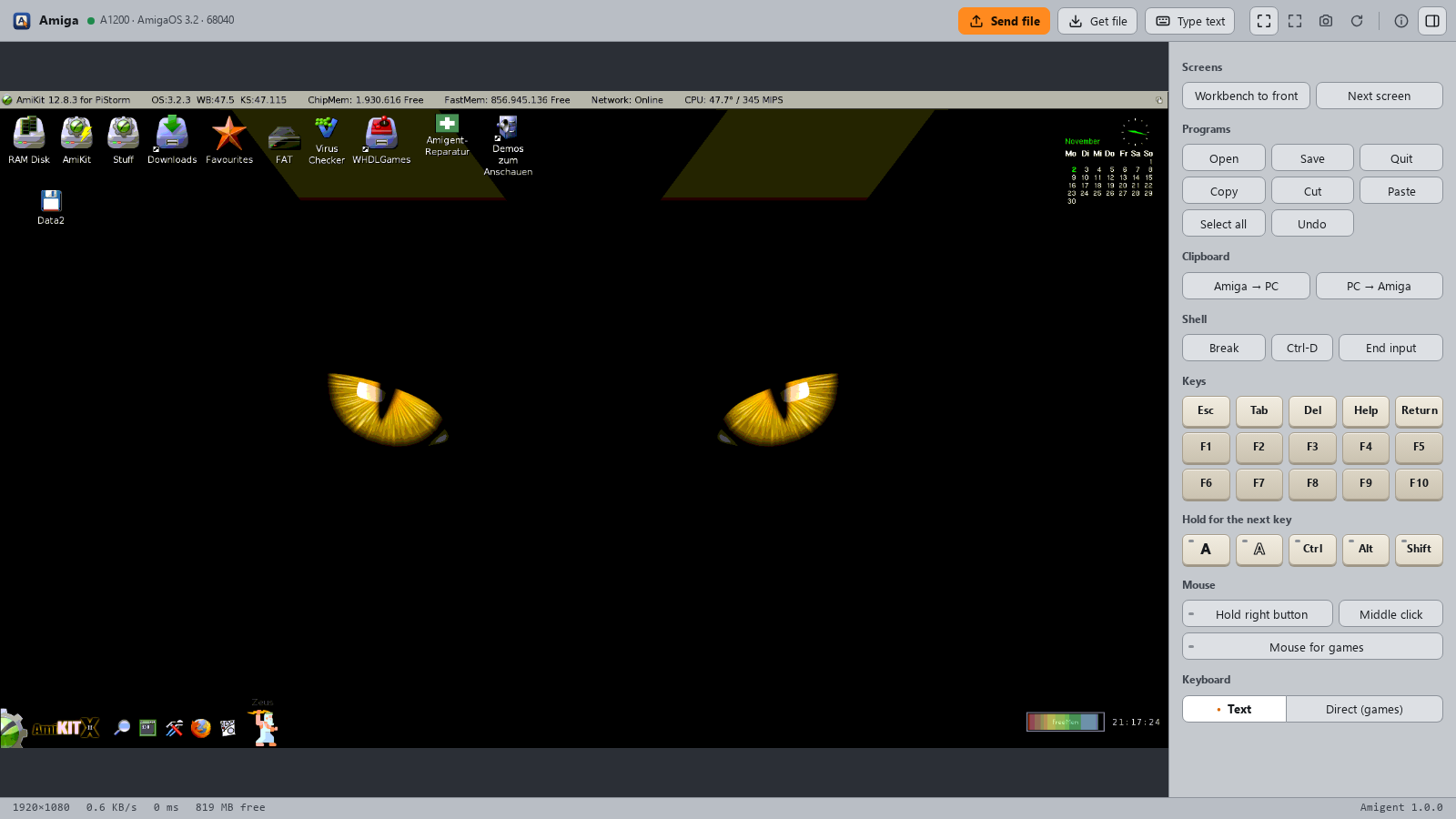
- use the Amiga yourself from your computer, as a remote desktop like TeamViewer or VNC: a window with the live screen, your own mouse and keyboard, file transfer and a shared clipboard.
- and both of these quickly, even on a slow machine. Amigent is tuned for slow Amigas and slow networks: a 7 MHz 68000 sends its whole screen in under a second, and over a plipbox a click shows its result in a fraction of a second. How it stays fast.
Both at the same time: you see every click the agent makes and can take over at any moment.
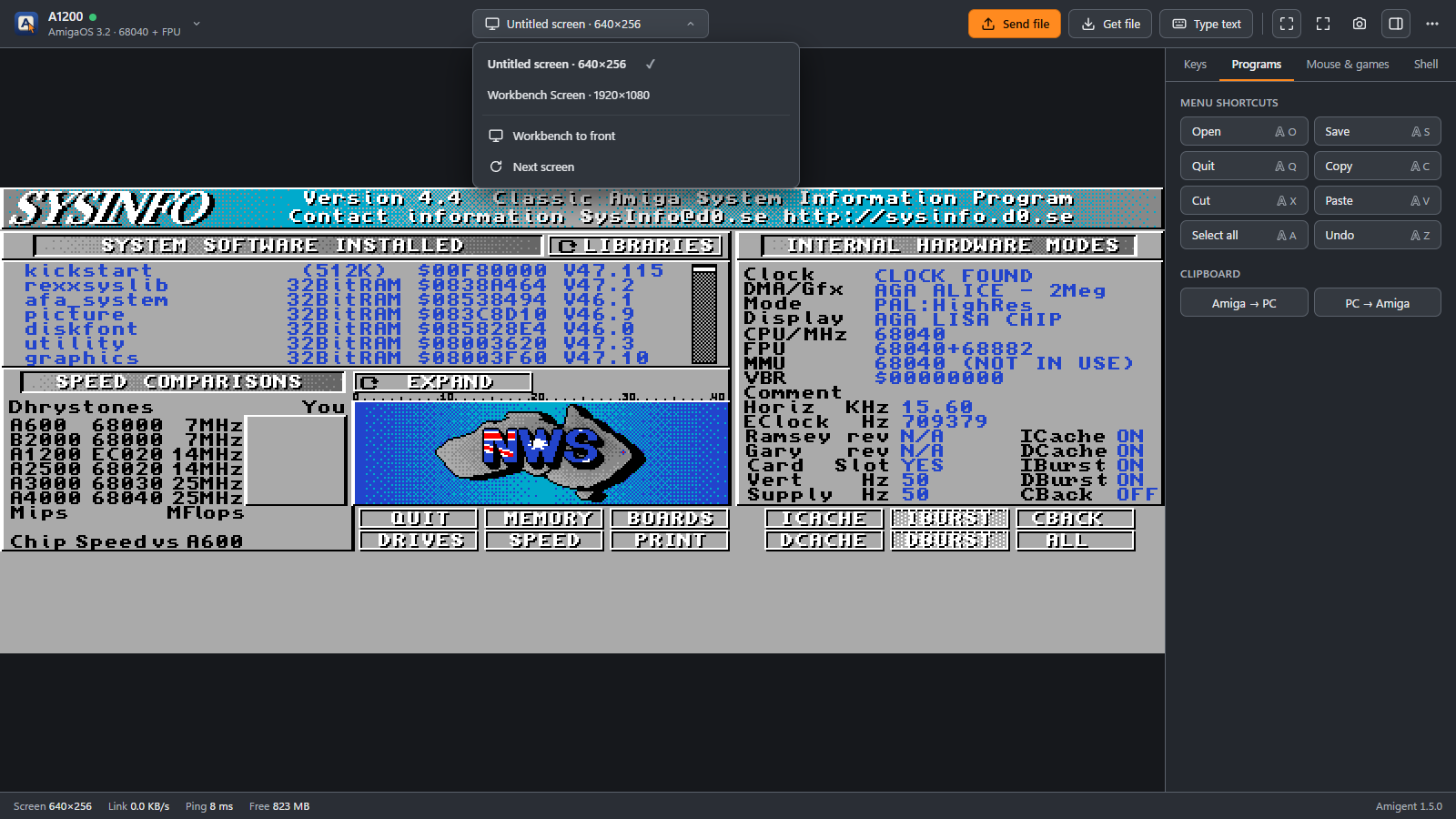
Programs that open their own screen, such as SysInfo on the chipset next to a graphics-card Workbench, show up as they are. The list at the top brings any screen to the front, from the PC.
How it fits together
flowchart LR
    subgraph PC["PC or Mac"]
        agent["AI agent<br/>(Claude Code, Codex, ...)"] -- MCP --> server["amigent-server"]
        you["you"] --> viewer["remote desktop<br/>amigent-viewer"]
    end
    subgraph Amiga["Amiga"]
        daemon["amigentd"] --> os["screen, mouse and keys,<br/>files, Shell, ARexx"]
        daemon --> monitor["amigent-monitor<br/>(what the agent does)"]
    end
    server -- "home network<br/>key, TLS" --> daemon
    viewer -- "home network" --> daemon
One small program on the Amiga, amigentd, does what the PC asks: it sends
the screen, moves the mouse, types, runs commands and copies files. On the PC,
amigent-server gives an AI agent its tools, and the remote desktop shows the
screen to you. Both can work at once.
Installation
On the Amiga
1. Copy amigentd to the Amiga (amigentd.000 on a
68000), or unpack the archive from the
releases.
2. Start it with amigentd SETUP in a Shell, or double-click its icon.
On the PC or Mac
3. Paste this into your AI agent:
Install Amigent for me: run "pipx install amigent" (if pipx or Python 3.10
or newer is missing, install them first: Windows winget, macOS Homebrew,
Linux the package manager). Then run amigent-setup; it finds my Amiga on
the network by itself. Register the MCP server "amigent" with the command
amigent-server, and run amigent-viewer --install so the remote desktop
shows up as a program. Tell me if you need to be restarted.
The agent sets up the Amiga over the network; from then on amigentd starts with it.
Windows: Amigent appears in the Start menu. For an encrypted connection
openssl is needed, which comes with Git for Windows.
macOS: Amigent appears in ~/Applications. On its first start, allow it
access to the local network, or it cannot reach the Amiga. Cmd is the right
Amiga key.
Linux: there is no program entry; start the remote desktop with
amigent-viewer.
Without an AI agent: see the manual installation.
Updating
Amigent has two halves, amigentd on the Amiga and the program on your PC or Mac. Update both; either order works.
Paste this into your AI agent:
Update Amigent for me, both halves: run "pipx upgrade amigent" on this
computer, then "amigent-setup --update" for the amigentd on my Amiga.
Then tell me to restart you, so you get the new tools.
Or in a terminal:
pipx upgrade amigent
amigent-setup --update
Then restart your AI app and the remote desktop, so they run the new version.
Updated the Amiga first, at the Amiga? Unpack the new archive from the
releases or Aminet and
double-click Amigent-Update in its drawer. Then give your agent the same
prompt as above, or run pipx upgrade amigent on the PC and restart the AI app. From 1.3.0 on, the PC notices a newer
amigentd and says so, in the agent's answers and in the remote desktop.
Key, encryption and the start line stay as they are. One side alone keeps working as before; the new features need both.
What you need
- An Amiga with AmigaOS 2.04 or newer, any CPU from the 68000 on, a network connection (a plipbox on the parallel port is enough) and a TCP/IP stack such as Roadshow.
- A PC or Mac with Windows, macOS or Linux and Python 3.10 or newer.
What you can ask for
"Check which programs on the Amiga are outdated."
"Install the game from my Downloads folder and add it to the Games menu."
"Copy the demo to the Amiga and start it."
"Open the remote desktop."
"Install the newest HippoPlayer from Aminet, so I can take it back if it doesn't work."
"Build my program, run it on the Amiga and show me its debug output."
"The Amiga froze. What was it?"
"Which AHI driver is really loaded?"
"Find out whether my program leaks memory."
"Windows stutter when I drag them. Find out what holds things up."
Made for slow machines and slow wires
Most of the work in Amigent went into making a slow Amiga on a slow network feel quick, for the AI agent and for you at the mouse:
- The screen travels as the Amiga keeps it. Chipset screens go out as bitplanes, graphics-card screens as small palette tiles, and only the tiles that changed, often as the difference to what you already have.
- Your input comes first. Mouse moves, clicks and keys are carried out even while a picture is still on its way, and the area around the pointer is sent before the rest.
- The Amiga keeps its time. While nothing happens, Amigent asks rarely and costs the Amiga only a few percent of its CPU.
- Files go in one go. Whole folders travel in a single stream, and files that are already there stay where they are.
- Text where text is enough. The AI agent reads what programs write on the screen as text, a few hundred bytes, and takes a picture only of the part where it needs one. It waits on the Amiga itself for a window or a line of text instead of looking again and again.
- Packed when the Amiga is fast. With an accelerator behind a slow network, replies, files and screen tiles travel packed; a slow CPU on a fast network stays unpacked. Amigent measures both and decides.
Measured with a 640×256 Workbench screen:
| Amiga | whole screen | unchanged screen | CPU while watching |
|---|---|---|---|
| 68000, 7 MHz | 0.6–1.0 s | 80–95 ms | under 10 % |
| A1200, 68020 at 14 MHz | 0.1 s | 15 ms | 2–3 % |
On a 1920×1080 graphics-card screen over a plipbox (about 50 KB/s):
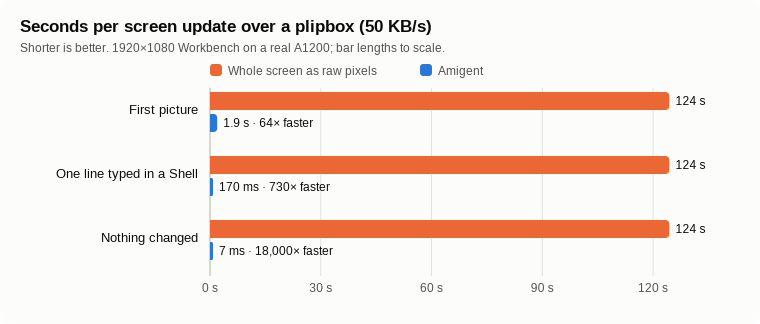
The orange bars are what moving the whole screen as raw 24-bit pixels costs on that wire, every time; the blue ones are Amigent, measured on a real A1200. All numbers, how they were taken and how to repeat them are in docs/PERFORMANCE.md.
Good to know
- New address after a restart? Amigent finds the Amiga again by itself. It takes only the one that proves to be yours.
- Several Amigas?
amigent-fleetshows them side by side with a preview. - Watching from the Amiga?
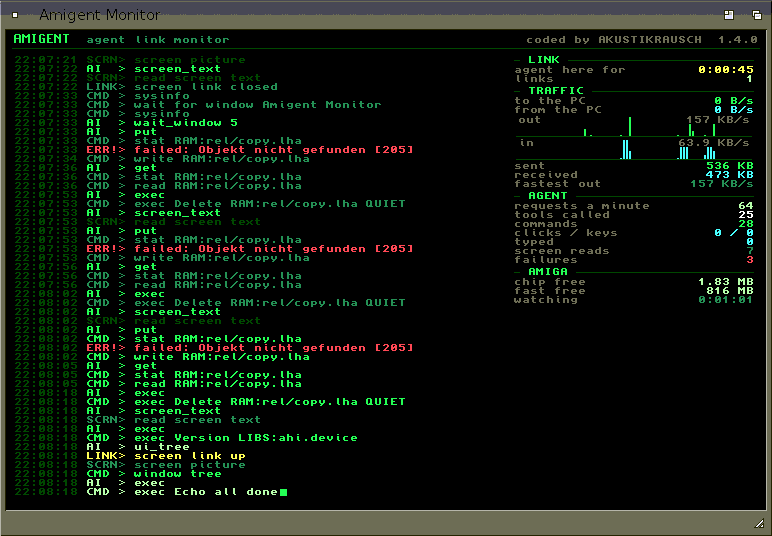
amigent-monitorin the Amigent folder opens a window there that lists, line by line, what the agent is doing. - Trying out software? The agent can record an installation and take it back completely, and fetch programs from Aminet straight from the PC.
- Developing for the Amiga? The agent builds and runs your program and reads its kprintf and Enforcer output, and keeps a copy of a growing log on the PC that survives a crash.
- A hang, a stutter, a guru? The agent tells what a task waits for, who holds a lock, how much CPU each task takes, and what a guru code means.
- Running a test or a benchmark? Pause the picture in the remote desktop
(or
PAUSEby ARexx) gives the Amiga's CPU back to it for a while; mouse, keys and files keep working. - After a big OS update,
amigent-repairputs back what the update removed. - Safe at home. A key keeps other computers on the network out, and the connection can be encrypted. Don't open the Amiga to the internet.
More in the guide and the FAQ.
License
MIT, see LICENSE. By Andreas Wendorf (Akustikrausch). Changes are in the changelog.
1 maintainer

Metadata
1 maintainer
Release files for amigent 1.4.0
For a detailed explanation of source distributions (sdists) and built distributions (wheels), please see the package formats documentation.
Source distribution (sdist)
| File | Size | Uploaded | Provenance | Actions |
|---|---|---|---|---|
| amigent-1.4.0.tar.gz | 849.1 kB | With provenance | Details for amigent-1.4.0.tar.gz |
Built distribution (wheel)
| File | Interpreter | ABI | Platform | Actions Reset |
|---|---|---|---|---|
| amigent-1.4.0-py3-none-any.whl | Python 3 | none | any | Details for amigent-1.4.0-py3-none-any.whl |
Total release size: 1.7 MB
Release files / amigent-1.4.0.tar.gz
| Download URL | amigent-1.4.0.tar.gz |
|---|---|
| Size | 849.1 kB |
| Tags | Source |
|
SHA-256 checksum How to use checksums |
a60ae2bc19e192ee02be5fb13ef90c43dc7bdfd0c2ede86177564d6d398a9206
|
|
BLAKE2b-256 checksum How to use checksums |
b8090b138c7b7f7573cdcb7cc8b79a67b2d43034488d5b911aa7887e6b56a66d
|
| Upload date | |
|
Uploaded using Trusted Publishing? What is trusted publishing? |
Yes |
| Uploaded via |
twine/7.0.0 CPython/3.13.16
|
Provenance
Provenance describes where a file came from. On PyPI, provenance is shared via attestations, which provide a verifiable record of the build or publishing details. View details, limitations and caveats.


PyPI Publish Attestation
PyPI verified that this artifact, at this checksum, originated from the publisher listed below.
Signed by GitHub Actions, verified by PyPI on Nov 18, 2026.
Transparency logRelease files / amigent-1.4.0-py3-none-any.whl
| Download URL | amigent-1.4.0-py3-none-any.whl |
|---|---|
| Size | 825.0 kB |
| Tags | Python 3 |
|
SHA-256 checksum How to use checksums |
b8a15dde31516b458814c56aaad96b717f2490496ca9ddbd7bf04db62e375c43
|
|
BLAKE2b-256 checksum How to use checksums |
ef641c9f282a11d55bdd1b8969ed331b4ba4dc3c1b29a5f624ad02915d0b0800
|
| Upload date | |
|
Uploaded using Trusted Publishing? What is trusted publishing? |
Yes |
| Uploaded via |
twine/7.0.0 CPython/3.13.16
|
Provenance
Provenance describes where a file came from. On PyPI, provenance is shared via attestations, which provide a verifiable record of the build or publishing details. View details, limitations and caveats.
PyPI Publish Attestation
PyPI verified that this artifact, at this checksum, originated from the publisher listed below.
Signed by GitHub Actions, verified by PyPI on Nov 18, 2026.
Transparency logSecurity for amigent 1.4.0
Provenance
Provenance describes where a file came from. On PyPI, provenance is shared via attestations, which provide a verifiable record of the build or publishing details. View details, limitations and caveats.
Full provenance
Both files in this release have been uploaded with provenance metadata.
Attestation for amigent-1.4.0.tar.gz
PyPI Publish Attestation
PyPI verified that this artifact, at this checksum, originated from the publisher listed below.
Signed by GitHub Actions, verified by PyPI on Nov 18, 2026.
Transparency logA note on package security
PyPI is a repository for distributing packages, not a service for auditing them. While third-party security researchers and our staff do their best to detect and remove malicious packages, PyPI cannot guarantee the quality, security or suitability of any given package.
To learn more about protecting yourself from malicious actors, visit our package security documentation.














