
A Python library and CLI tool for converting images and videos into ASCII art.

Project description
ASCII Art Python 🎨 - Convert Images & Videos to Terminal Graphics




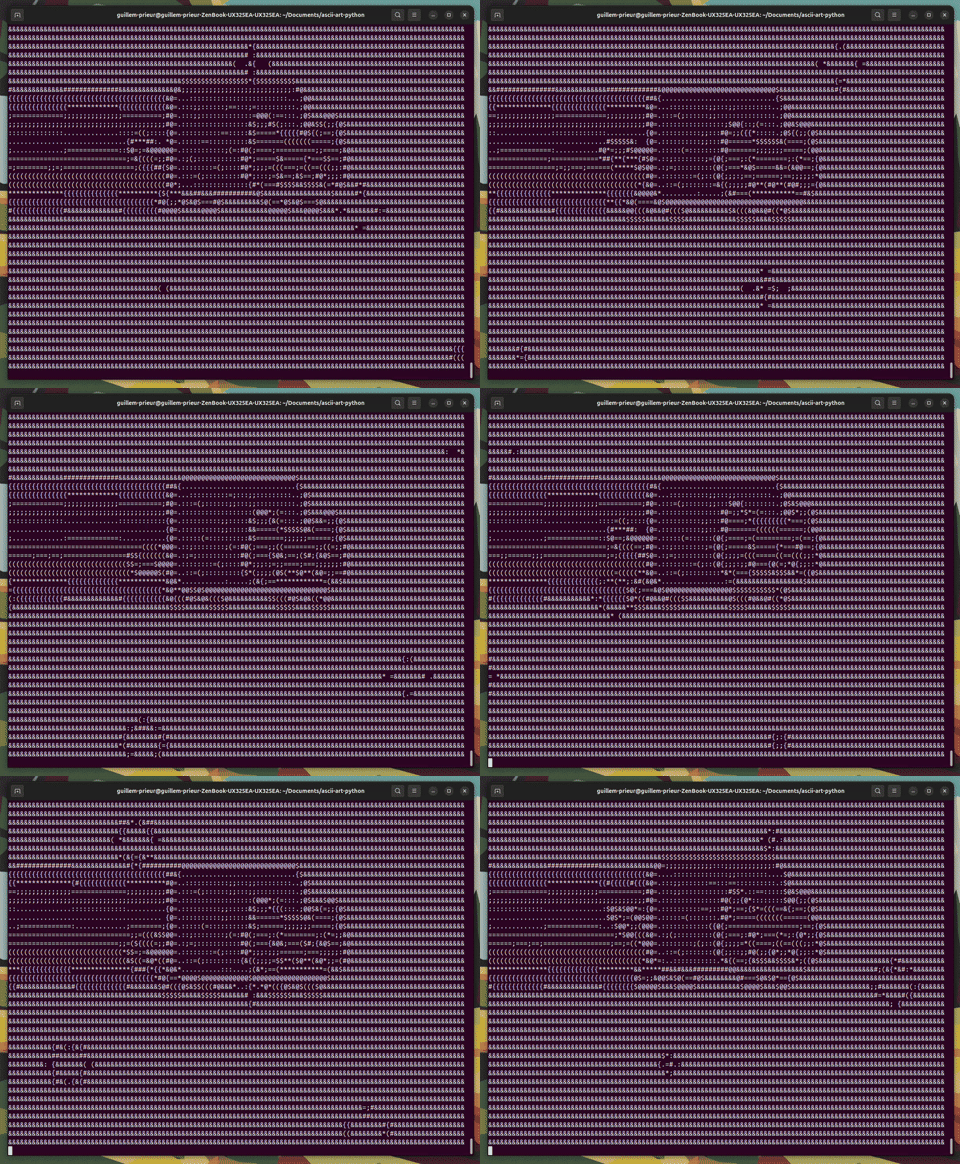
This module provides advanced tools for converting classic images and videos into ASCII Art. It allows exporting the results as text files, new images, or new videos (with or without audio), and even playing videos directly in your terminal.
👀 Examples
@@@@@@@@@@@@@@@@@@@@@@@@@@$&#{{{{{{{{{{{#&$@@@@@@@@@@@@@@@@@@@@@@@@@@@
@@@@@@@@@@@@@@@@@@@@@&{*********{{{{{{{{{{{{{*{#@@@@@@@@@@@@@@@@@@@@@@
@@@@@@@@@@@@@@@@@@@#**********{{{{{{{{{{{{{{{{{{{{$@@@@@@@@@@@@@@@@@@@
@@@@@@@@@@@@@@@@@@#***{$@@@${*{{{{{{{{{{{{{{{{{{{{{&@@@@@@@@@@@@@@@@@@
@@@@@@@@@@@@@@@@@@{***&@@@@@&*{{{{{{{{{{{{{{{{{{{{{{@@@@@@@@@@@@@@@@@@
@@@@@@@@@@@@@@@@@@{***{$@@@${{{{{{{{{{{{{{{{{{{{{{{{@@@@@@@@@@@@@@@@@@
@@@@@@@@@@@@@@@@@@{***{****{{{{{{{{{{{{{{{{{{{{{{{{{@@@@@@@@@@@@@@@@@@
@@@@@@@@@@@@@@@@@@{*************{{{{{{{{{{{{{{{{{{{{@@@@@@@@@@@@@@@@@@
@@@@@@@@@@@@@@@@@@@@@@@@@@@@@@@@@@@#{{{{{{{{{{{{{{{{@@@@@@@@@@@@@@@@@@
@@@@@@@@&#{{{{{{{{{{{{#############{{{{{{{{{{{{{{{{{@@;.:::.::=#@@@@@@
@@@@${********{{{{{{{{{{{{{{{{{{{{{{{{{{{{{{{{{{{{{{@@;.::::::::.=@@@@
@@@{********{{{{{{{{{{{{{{{{{{{{{{{{{{{{{{{{{{{{{{{{@@;.::::::::::.#@@
@$********{{{{{{{{{{{{{{{{{{{{{{{{{{{{{{{{{{{{{{{{{{@@;.::::::::::::#@
@{******{{{{{{{{{{{{{{{{{{{{{{{{{{{{{{{{{{{{{{{{{{{{@@;:::::::::::::;@
&*****{{{{{{{{{{{{{{{{{{{{{{{{{{{{{{{{{{{{{{{{{{{{{&@$:::::::::::::::{
{***{{{{{{{{{{{{{{{{{{{{{{{{{{{{{{{{{{{{{{{{{{{{{{$@@=.::::::::::::::=
{*{{{{{{{{{{{{{{{{{{{{{{{{{{{{{{{{{{{{{{{{{{{{{#$@@@=.::::::::::::::::
{{{{{{{{{{{{{{{{{{{{{#$@@@@@@@@@@@@@@@@@@@@@@@@@@$=.::::::::::::::::::
{{{{{{{{{{{{{{{{{{#@@@@&*=;;;;;;;;;;;;;;;;;;;;:..:::::::::::::::::::::
{{{{{{{{{{{{{{{{{$@@#:........:::::::::::::::::::::::::::::::::::::::;
#*{{{{{{{{{{{{{{$@@:........:::::::::::::::::::::::::::::::::::::::::(
${{{{{{{{{{{{{{{@@=.......:::::::::::::::::::::::::::::::::::::::::::&
@#*{{{{{{{{{{{{{@$:.....::::::::::::::::::::::::::::::::::::::::::::*@
@@{{{{{{{{{{{{{{@$:...:::::::::::::::::::::::::::::::::::::::::::::(@@
@@@#*{{{{{{{{{{{@$:..:::::::::::::::::::::::::::::::::::::::::::::&@@@
@@@@@#{{{{{{{{{{@$:.:::::::::::::::.:::::::::::::::::::::::::::($@@@@@
@@@@@@@@@$$$$$$@@$:.:::::::::::::.=@@@@@@@@@@@@@@@@@@@@@@@@@@@@@@@@@@@
@@@@@@@@@@@@@@@@@$:.:::::::::::::::================*@@@@@@@@@@@@@@@@@@
@@@@@@@@@@@@@@@@@$:::::::::::::::::::::::::::::::::=@@@@@@@@@@@@@@@@@@
@@@@@@@@@@@@@@@@@$:::::::::::::::::::::::::({(:::::=@@@@@@@@@@@@@@@@@@
@@@@@@@@@@@@@@@@@$:::::::::::::::::::::::(@@@@@(:::=@@@@@@@@@@@@@@@@@@
@@@@@@@@@@@@@@@@@@;.:::::::::::::::::::::*@@@@@*:::=@@@@@@@@@@@@@@@@@@
@@@@@@@@@@@@@@@@@@$::::::::::::::::::::::::*#*:::::#@@@@@@@@@@@@@@@@@@
@@@@@@@@@@@@@@@@@@@@#:.::::::::::::::::::::::::::(@@@@@@@@@@@@@@@@@@@@
@@@@@@@@@@@@@@@@@@@@@@@$*;::::::::::::::::::;(#@@@@@@@@@@@@@@@@@@@@@@@
🔧 Features
- 3 Unique rendering modes: Density (
new_skool), Edges (old_skool), and Hybrid (full_mode). - Image to ASCII conversion.
- Video to ASCII animation with sound extraction.
- Play video directly in the terminal.
- Export to
.txt,.png,.mp4, or.avi.
📦 Installation
You can install the module via pip:
pip install ascii-art-python
🚀 Basic Usage
To use the module, import it as follows:
import ascii_art_python as aap
🎨 The 3 Rendering Modes
- The module is split into three main rendering modes. You can access the
ImageandVideoclasses from any of these modes depending on the artistic style you want: aap.new_skool: The classic density-based ASCII art mapping pixel brightness to a gradient of characters.aap.old_skool: An edge-detection based ASCII style using Canny/Sobel filters to draw contours with line characters (-,/,\,|).aap.full_mode: A hybrid approach combining edge-detection for sharp contours and density-based characters for shading.
📚 API Reference
1. Enumerations (Enums)
These enumerations are used to define the export format or quality. They are located in the base module.
aap.ascii_base.ExportType : Defines the file type when exporting an image or a video.
-
aap.ascii_base.ExportType.IMAGE_FILE(0): Exports as classic media (PNG image or MP4/AVI video). -
aap.ascii_base.ExportType.TEXT_FILE(1): Exports as a plain text file (.txt or .vid.txt).
aap.ascii_base.VideoAscii.ExportQuality : Defines the video compression quality (and the codec used) during export.
-
aap.ascii_base.VideoAscii.ExportQuality.LOW(0): Low quality (mp4v codec, .mp4 format). -
aap.ascii_base.VideoAscii.ExportQuality.HIGH(1): High quality (FFV1 codec, .avi format).
2. Class Image
Manages the conversion and manipulation of a still image into ASCII art. Available in new_skool, old_skool, and full_mode.
Constructors
Image(image: PIL.Image.Image, max_size: int = 100_000, grid: list[str] = None)- Description: Initializes an instance from an image object of the PIL/Pillow library.
- Parameters:
image: The source image (Pillow).max_size: The maximum size (number of pixels/characters) for the generated ASCII image.grid: The list of characters to use (from darkest to lightest). If None, uses the default grid. (Note: Thegridparameter is not used inold_skoolmode).
Image.from_path(path: str, max_size: int = 10_000, grid: list[str] = None) -> Image- Description: Convenient class method to instantiate directly from a file path.
Image.from_string(content: str, font_size: int) -> Image- Description: Convenient class method to instantiate directly from a character string.
Methods
to_list() -> list[str]- Description: Converts the image into a list of strings (one string per line).
to_image() -> PIL.Image.Image- Description: Generates and returns a new Pillow image where the ASCII has been drawn using a specific font (KreativeSquare.ttf by default).
export(filename: str = "mika_export", mode: ExportType = 0) -> None- Description: Exports the generated image to the disk.
- Parameters:
filename: The target file name (without extension).mode: If ExportType.IMAGE_FILE, saves a .png. IfExportType.TEXT_FILE, saves a .txt.
3. Class VideoAscii
Manages the conversion of a complete video into an ASCII animation. Available in new_skool, old_skool, and full_mode.
Constructor
VideoAscii(path: str, fps: int = 10, frame_size: int = 12_000)- Description: Prepares a video for ASCII processing.
- Parameters:
path: Path to the source video.frame_size: Maximum size of each processed frame.fps: Target frames per second for the ASCII render (maximum framerate).
Properties
- fps -> float: Retrieves the native FPS of the source video.
- size -> tuple[int, int]: Retrieves the dimensions (width, height) of the exported ASCII video.
Methods
export(filename: str = "mika_export", export_type: ExportType = 0, quality: ExportQuality = 0, sound: bool = False)- Description: Exports the processed video.
- Parameters:
filename: The target file name (without extension).export_type: IfIMAGE_FILE, generates a video. IfTEXT_FILE, generates a custom animated text file (.vid.txt).quality: Determines the generated video codec if the export is a video file.sound: If True, extracts audio from the source and adds it to the final exported video.
print_in_terminal() -> None- Description: Plays the source video as an ASCII animation directly in the terminal console, respecting the framerate limit (max_fps).
Static Methods
VideoAscii.print_from_txt(txt: str)(Accessible viaaap.ascii_base.Video.print_from_txt)- Description: Reads and displays in the terminal the content of a .vid.txt file previously generated by the export(export_type=ExportType.TEXT_FILE) method.
VideoAscii.transfer_audio(source_video_path: str, target_video_path: str, output_path: str)(Accessible viaaap.ascii_base.Video.transfer_audio)- Description: Extracts audio from
source_video_pathand applies it totarget_video_pathto generateoutput_path.
- Description: Extracts audio from
💡 Usage Examples
Example 1: Convert and Export an Image (Full Mode)
import ascii_art_python as aap

# Create an object from a local file using the hybrid "full_mode"
my_image = aap.full_mode.Image.from_path("my_image.jpg", max_size=50_000)

# Display ASCII in the console
print(my_image)

# Export the ASCII image in text format (.txt)
my_image.export("text_result", mode=aap.ascii_base.ExportType.TEXT_FILE)

# Export the ASCII image as a new readable image (.png)
my_image.export("image_result", mode=aap.ascii_base.ExportType.IMAGE_FILE)
Example 2: Play a Video in the Terminal (Old Skool Mode)
import ascii_art_python as aap

# Using "old_skool" for edge-detected contours
my_video = aap.old_skool.Video("my_video.mp4", frame_size=8_000, fps=15)

# Play the animation live in the terminal
my_video.print_in_terminal()
Example 3: Convert a Video with Sound (New Skool Mode)
import ascii_art_python as aap

# Using classic "new_skool" density
my_video = aap.new_skool.Video("my_video.mp4", frame_size=15_000, fps=24)

# Export the video with sound in MP4 format (Low Quality by default)
my_video.export(
    filename="final_ascii_video",
    export_type=aap.ascii_base.ExportType.IMAGE_FILE,
    sound=True
)
Example 4: Convert a text and print it in the Terminal (New Skool Mode)
import ascii_art_python as aap

my_message = aap.new_skool.Image.from_string(
    content="Hello, World!",
    font_size=15
)

print(my_message)
⚠️ Troubleshooting
Important Note Regarding OpenCV Dependencies
This project uses opencv-python-headless for background image processing.
Please be aware that installing both opencv-python (the standard version with GUI features) and opencv-python-headless in the same Python environment will cause conflicts. Doing so may break OpenCV's display capabilities (such as cv2.imshow()) in your other projects.
To avoid any issues, it is highly recommended to:
- Use a Virtual Environment: Always install this project inside an isolated virtual environment (using
venv,conda, or Docker). - Check Existing Packages: If you are installing globally and already have
opencv-pythoninstalled, please remove it first (pip uninstall opencv-python) before installing this project's requirements.
Release history Release notifications | RSS feed


Download files
Download the file for your platform. If you're not sure which to choose, learn more about installing packages.
Source Distribution
Built Distribution
Filter files by name, interpreter, ABI, and platform.
If you're not sure about the file name format, learn more about wheel file names.
Copy a direct link to the current filters
File details
Details for the file ascii_art_python-1.0.0.tar.gz.
File metadata
- Download URL: ascii_art_python-1.0.0.tar.gz
- Upload date:
- Size: 298.3 kB
- Tags: Source
- Uploaded using Trusted Publishing? No
- Uploaded via: twine/6.2.0 CPython/3.13.12
File hashes
| Algorithm | Hash digest | |
|---|---|---|
| SHA256 |
b4445d4df6273dc98acbbf785661558edef713cf859115119dd2e74097a4b0bf
|
|
| MD5 |
6db24df4e5098f63c415320fc468f097
|
|
| BLAKE2b-256 |
2ef94b775d5f75ec51fe0630f99d7af0b4ca33117a08812fa5a136a74bcc83ad
|
File details
Details for the file ascii_art_python-1.0.0-py3-none-any.whl.
File metadata
- Download URL: ascii_art_python-1.0.0-py3-none-any.whl
- Upload date:
- Size: 295.6 kB
- Tags: Python 3
- Uploaded using Trusted Publishing? No
- Uploaded via: twine/6.2.0 CPython/3.13.12
File hashes
| Algorithm | Hash digest | |
|---|---|---|
| SHA256 |
92a4a0ddb34e2d38b3ef0cafb1c2d67731094d4ce8617e725633dd2d386ab3d3
|
|
| MD5 |
8aca0262b1dd589fbfd231fa99e37797
|
|
| BLAKE2b-256 |
05fbd1dc160467d3d9c4dbfb50c3f3f33696a026cfa92ab49e2defb605b364f6
|






