
Manage command options in Python and create QWidgets for them.

Project description
auto-options-python
Mange command options in python and create QWidgets for them.
Introduction
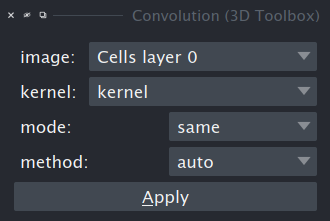
Autooptions allows to create options for operations in napari, in a simple way. Autooptions automatically saves and loads non transient options. It can create a dialog from the options, in which the user can change the values of the options. It updates combo-boxes containing layers of a given type when layers of that type are added or removed in napari. The user can provide callbacks that are called when the value of an option changes.
The option types currently supported are:
- Image
- FFT (specific to 3D-toolbox)
- Labels
- Points
- Int
- Float
- Choice
- String
- Boolean
The layer types (FFT, Labels, Points and Image) and Choice will be represented via combo-boxes in the dialog. Boolean is using a checkbox and the others are using input fields.
The code to create the options-dialog in .1.1 is:
 import napari
 from autooptions.options import Options
 from autooptions.widget import OptionsWidget

 viewer = napari.Viewer()
 options = Options("3D Toolbox", "Convolution")
 options.addImage()
 options.addImage(name="kernel")
 options.addChoice("mode", choices=["same", "valid", "full"])
 options.addChoice("method", choices=["auto", "direct", "fft"])
 options.load()
 widget = OptionsWidget(viewer, options, layout_type="vertical")
 widget.addApplyButton(None)
 viewer.window.add_dock_widget(widget, name=options.optionsName)
Accessing the values of options
You can access the user input of the widgets via the options name:
    print(options.value("image"))
    print(options.value("method"))
The shortcut getImageLayer, allows to directly retrieve the layer selected in the widget, without retrieving the name first and then the layer.
kernelLayer = widget.getImageLayer("kernel")
Callbacks
You can register callbacks for options and for buttons. The callback of an option is called when the user input for the option changed. For the predifined buttons apply and ok the values are automatically copied from the widget into the option, before the user registered callback is called.
 options = Options("3D Toolbox", "Convolution")
 options.addImage(callback, callback=self.onInputImageChanged)
 self.widget = OptionsWidget(self.viewer, self.options, client=self)
 widget.addApplyButton(self.handleApplyButtonPressed)
Accessing widgets
You can access a widget, for example to check that only valid values can be entered:
    def onInputChanged(self, value):
        if not value.isnumeric():
            self.widget.widgets["size xy"][1].setText(str(self.options.value("size xy")))
Optional options
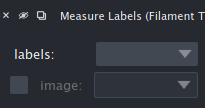
You can create optional options :) These are displayed with a checkbox to activate/deactivate them. When deactivated the option will be ignored. This allows to avoid the usage of special values in options that indicate for example that the user doesn't want to enter a value for the option in which case a default or on the fly calculated value is used.
options = Options("Filament Toolbox", "measure_labels")
options.addLabels()
options.addImage(optional=[True, False])
[True, False] indicates that the option is optional and by default deactivated. The value of a deactivated option will be None.
Layouts
Currently the vertical and the grid layout are supportet. If no layout is specified the grid layout is used. See Fig.1.1 for a vertical layout.
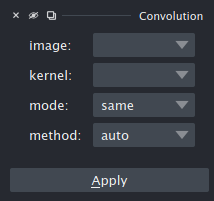
import napari
from autooptions.options import Options
from autooptions.widget import OptionsWidget

viewer = napari.Viewer()
options = Options("3D Toolbox", "Convolution")
options.addImage()
options.addImage(name="kernel")
options.addChoice("mode", choices=["same", "valid", "full"])
options.addChoice("method", choices=["auto", "direct", "fft"])
options.load()
widget = OptionsWidget(viewer, options, layout_type="grid")
widget.addApplyButton(None)
viewer.window.add_dock_widget(widget, name=options.optionsName)
Release history Release notifications | RSS feed


Download files
Download the file for your platform. If you're not sure which to choose, learn more about installing packages.
Source Distribution
Built Distribution
Filter files by name, interpreter, ABI, and platform.
If you're not sure about the file name format, learn more about wheel file names.
Copy a direct link to the current filters
File details
Details for the file auto_options_python-1.1.2.tar.gz.
File metadata
- Download URL: auto_options_python-1.1.2.tar.gz
- Upload date:
- Size: 31.1 kB
- Tags: Source
- Uploaded using Trusted Publishing? No
- Uploaded via: twine/6.2.0 CPython/3.14.5
File hashes
| Algorithm | Hash digest | |
|---|---|---|
| SHA256 |
e1752c0cc37676921e968776d6ff5f308b6fcf6f69dc2e3506082c2bcc7762cc
|
|
| MD5 |
8a8c69514c75d75379bae770124466f8
|
|
| BLAKE2b-256 |
f9fbb732306c6c27f012681587873bf7f4a389187cae52d84f9f222cfa630abd
|
File details
Details for the file auto_options_python-1.1.2-py3-none-any.whl.
File metadata
- Download URL: auto_options_python-1.1.2-py3-none-any.whl
- Upload date:
- Size: 27.3 kB
- Tags: Python 3
- Uploaded using Trusted Publishing? No
- Uploaded via: twine/6.2.0 CPython/3.14.5
File hashes
| Algorithm | Hash digest | |
|---|---|---|
| SHA256 |
f201fa58c3e68a1d08355ee13aeda78790870ea84573c5cdcae3577c846d1152
|
|
| MD5 |
f5e562dc4ba29af0eff774c1236f3c84
|
|
| BLAKE2b-256 |
6168821b6e0f57c298b03c8c3ae308c10b1bf03921c12600488d4d02a3e39850
|






