
Secure Microsoft identity platform authentication helpers built on MSAL for Python.






🚀 Quick path: Set up a Microsoft Entra app → Install azauthlib → Configure a connection → Use it in Python.
🔒 Security first: Keep access tokens, client secrets, passwords, and private keys out of source code and issue reports.
🧭 Table of contents
- 🔐 What azauthlib does
- ✅ Before you start
- ✨ Features
- 📦 Installation
- 🖥️ Desktop application
- 📸 Desktop walkthrough with screenshots
- 🐍 Use your saved connection in Python
- 👤 Public-client authentication
- 📱 Device-code authentication
- 🤖 Client-credentials authentication
- 📜 Certificate authentication
- ⚙️ Configuration
- 🔄 Upgrading from 1.4.0b1
- 🛡️ Token-cache security
- 🚨 Error handling
- 🧩 Common setup problems
- 👩💻 Development
- ⚖️ License
🔐 What azauthlib does
azauthlib helps a Python program sign in to Microsoft services and obtain an access token. A token is a temporary credential that your program sends with an API request. For example, a script can sign you in and use Microsoft Graph to read your own user profile. A background job can instead authenticate as an application using a client secret or certificate.
The library wraps Microsoft's MSAL authentication library and adds local connection profiles, credential storage and encrypted token-cache persistence. The optional desktop application lets you enter and manage those settings through forms instead of writing configuration code.
🧰 Two ways to use azauthlib:
| Part | What you use it for |
|---|---|
| 🐍 Python library | Request tokens from your Python code, reuse cached sign-ins, and authenticate API calls. |
| 🖥️ Desktop application | Add, edit, organize and test local connection profiles; choose an active connection; manage certificate settings. |
🧭 Typical workflow: register an app in Microsoft Entra → save its settings → acquire a token with azauthlib → call the API from your code. azauthlib does not register an Entra application, grant Microsoft permissions or make Graph data requests on your behalf. You or your organization must configure those permissions, and your code or an API SDK makes the requests.
Saving a connection is optional: the Python library also accepts configuration directly or through environment variables.
✅ Before you start
You need Python 3.10 or newer, access to the Microsoft account/organization you want to use, and a Microsoft Entra app registration configured for your task. If your organization restricts app registrations or consent, ask its administrator for the correct registration and permissions. Installing azauthlib alone does not provide Microsoft service access.
📖 Key terms
These terms appear in the forms and examples:
| Term | Meaning |
|---|---|
| Connection / profile | A named set of local settings for an Entra app registration. It is not your Microsoft password. |
| Tenant / Directory ID | Identifies the Microsoft Entra directory your app belongs to. |
| Client / Application ID | Identifies the app registration. |
| Scope / permission | Describes the API access being requested or configured. Microsoft decides whether it is allowed. |
| Client secret value | A confidential credential for app-only authentication. Use the secret's value, not its identifier. |
| Certificate / private key | A credential pair for app-only authentication. Entra receives the public certificate; the private key stays local. |
🔑 Choose an authentication method
Choose the method that matches how your program will run:
| Method | Who signs in? | Typical use |
|---|---|---|
| 👤 Interactive | A user signs in through a browser. | A script or desktop tool that you run yourself. A good starting point for user-based access. |
| 📱 Device code | A user enters a short code on Microsoft's sign-in page. | A terminal/session where entering a code in a separate browser is convenient. |
| 🔐 Client secret | The application authenticates without a user. | An unattended task whose registration has the required application permissions and consent. |
| 📜 Certificate | The application authenticates using a private key. | An unattended task using certificate credentials instead of a shared client secret. |
Interactive and device-code sign-ins use delegated permissions: the app acts for a signed-in
user. Secrets and certificates use application permissions: the app acts as itself.
These permission types are not interchangeable. Start with the minimum permissions your task
needs, such as delegated User.Read for the user-profile example below.
For browser-based desktop sign-in, register the http://localhost redirect URI. Configure
public-client/device-code support where required. For app-only access, configure the required
application permissions and administrator consent. See Microsoft's
public and confidential client guidance
and permissions and consent guidance.
✨ Features
- 🔑 Interactive, silent, device-code, and client-credentials authentication.
- 🛡️ Encrypted, cross-process-safe token persistence through MSAL Extensions.
- 🔒 Client secrets stored in the operating-system credential manager.
- 📜 PFX/P12 and PEM certificate credentials, with GUI creation (90-day default), local validation and optional profile-scoped password storage. See Certificate authentication.
- 📁 Exact-path
.envloading; no upward directory search. - 🔀 Delegated and application scope handling kept separate.
- ✅ No filesystem writes or global logging configuration during import.
📦 Installation
1️⃣ Create a virtual environment
Use a virtual environment for your project so its packages are separate from other projects:
python -m venv .venv
2️⃣ Activate the environment
Activate it using the command for your terminal:
| Terminal | Activation command |
|---|---|
| Windows, MSYS2 UCRT64 | source .venv/Scripts/activate |
| Windows, PowerShell | .\.venv\Scripts\Activate.ps1 |
| macOS or Linux shell | source .venv/bin/activate |
3️⃣ Install azauthlib
Then install the library:
python -m pip install azauthlib
4️⃣ Optional: Configure your connection with the desktop app
Optional first-time setup: To configure your connections using a graphical interface, run the following command in the environment where azauthlib is installed:
azauthlib-app
The GUI is optional. You can instead configure credentials through Python or environment variables, as shown below. See Desktop application for more details.
📁 Alternative: Install from source
From a source checkout:
git clone git@github.com:doydl-technologies/azauthlib.git
cd azauthlib
python -m pip install .
Python 3.10 or newer is required.
🖥️ Desktop application
Open the application from a terminal in the environment where azauthlib is installed:
azauthlib-app
Alternatively, run python -m azauthlib.gui.launch with that environment's Python.
No Python code is needed to use the application.
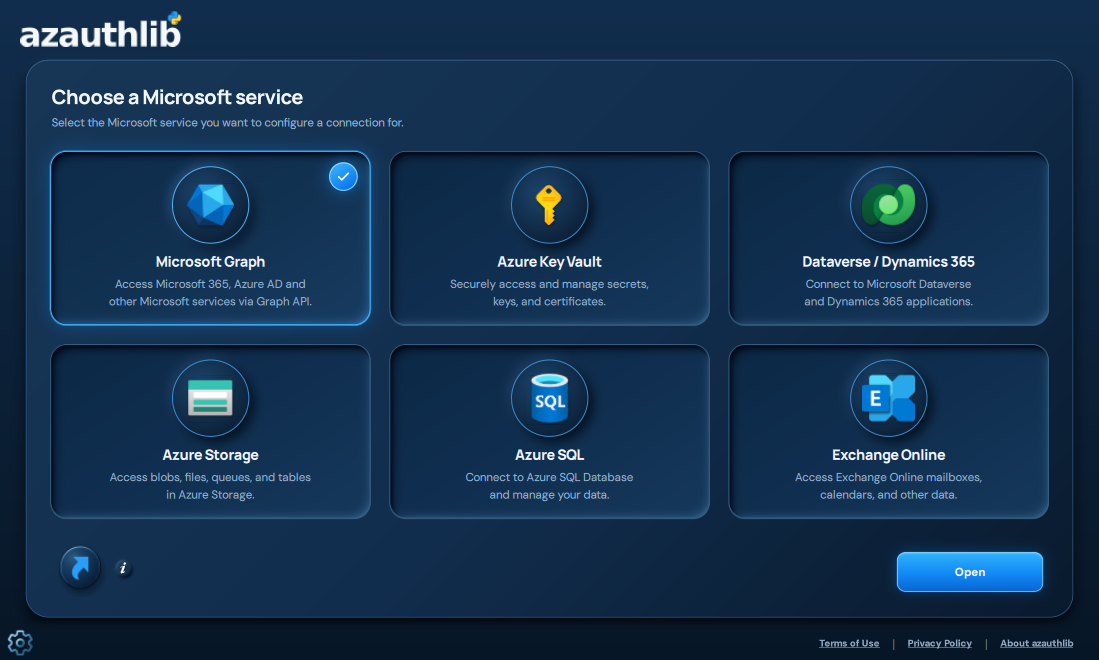
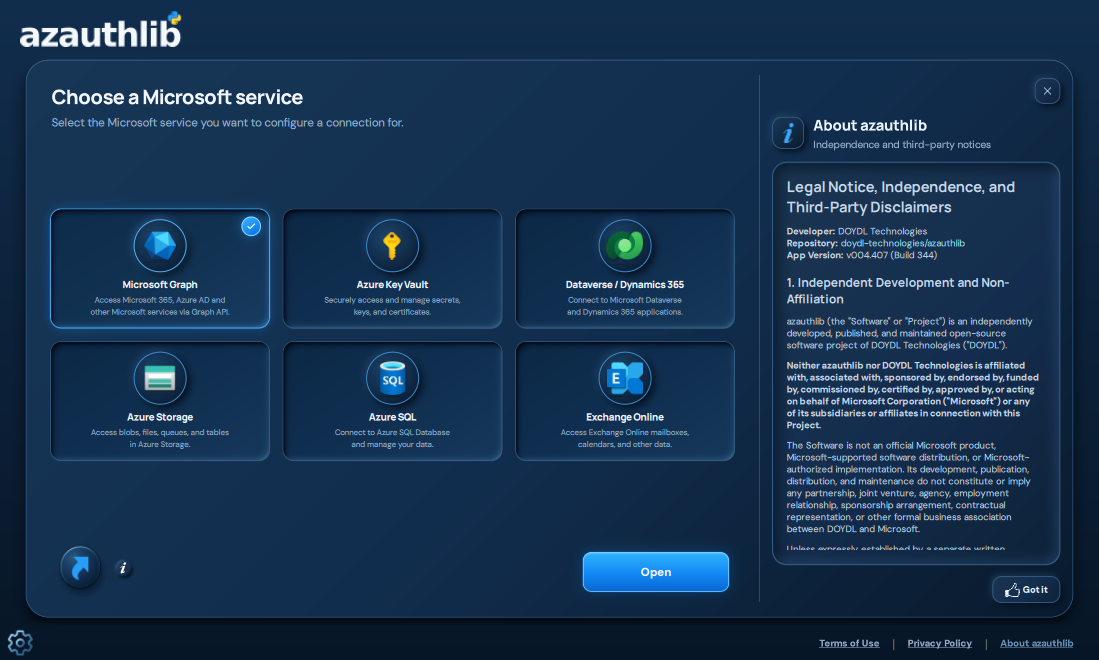
After startup, choose Microsoft Graph → Open to enter Connections. The shortcut control and its information button let you create a launcher for your user account; the current Home layout shows them near the lower-left corner:
- Windows: an
azauthlib.lnkDesktop shortcut with the application icon. - macOS: an
azauthlib.appDesktop launcher that can also be added to the Dock. - Linux: an applications-menu entry and a Desktop copy when a Desktop folder is available. The desktop environment may require approval before launching the Desktop copy.
Shortcut creation is optional and does not run during installation, import, or startup. Existing files with the same name are not overwritten. These launchers use the current Python environment, rather than bundling Python; keep that environment installed at the same location. If it moves, remove the old launcher and create another from the new environment.
See Startup preferences for optional faster repeat launches, splash-screen behavior and opening the app at login.
📥 Optional standalone desktop installation
For releases that include standalone desktop bundles, the optional setup command is:
azauthlib-install-desktop
It asks before downloading and verifies the matching platform download. On Windows,
opening the branded installer starts installation immediately, creates a Start Menu entry
and closes after completion. It does not create a Desktop shortcut or launch the app.
You can also download and open the Windows -setup.exe directly without Python.
On macOS and Linux, the graphical wizard offers an installation folder, optional shortcut
and optional launch when setup finishes. On Windows, use --wizard to open that same
options-based setup instead. The standalone app does not depend on the Python environment
used to run setup. Normal pip install does not run setup or open a prompt.
Use --terminal for terminal-only questions or --yes --shortcut for explicitly approved
unattended installation. --yes --wizard approves the download but still requires clicking
Install in the wizard.
This command is being introduced in the source checkout; previously published v5.0.0
does not include the command or standalone downloads. An unavailable desktop bundle is
reported without installing anything. The existing azauthlib-app command remains available.
See Standalone desktop setup for availability, options,
supported build targets and release requirements.
📸 Desktop walkthrough with screenshots
This walkthrough starts with a user-based Interactive connection. Follow the alternative method sections only when your task needs them. All example tenant/client IDs, profile names and certificate locations shown here are placeholders; replace them with your own settings.
📥 Optional standalone Windows installer — installation, completion and cancellation
For a release that provides a matching standalone download, open its Windows -setup.exe.
Installation starts immediately for the current user. It creates a Start Menu entry and does
not launch the app automatically or create a Desktop shortcut. See the availability note above
before expecting these downloads on a published release.
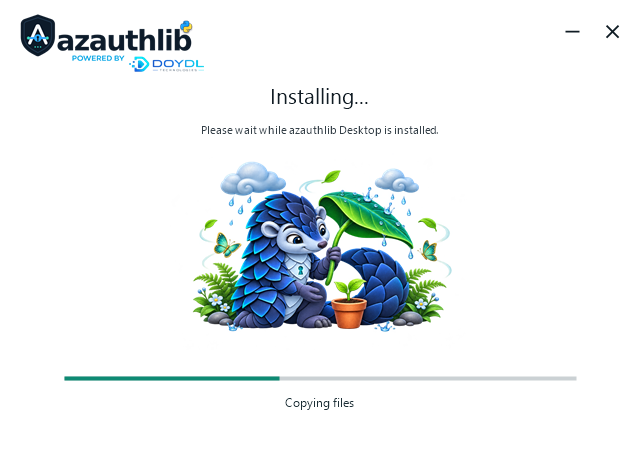
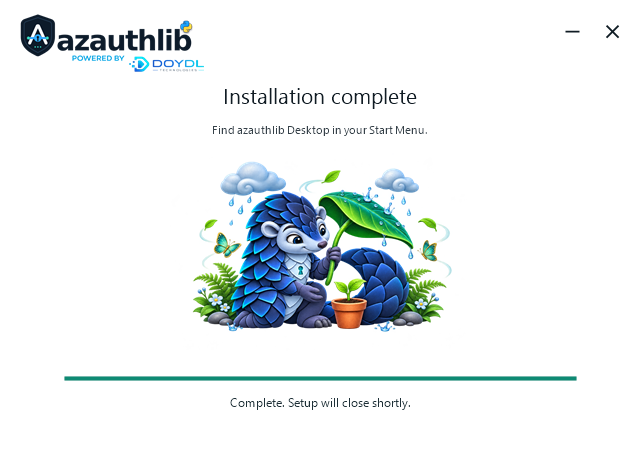
When setup completes, open azauthlib Desktop from the Start Menu.
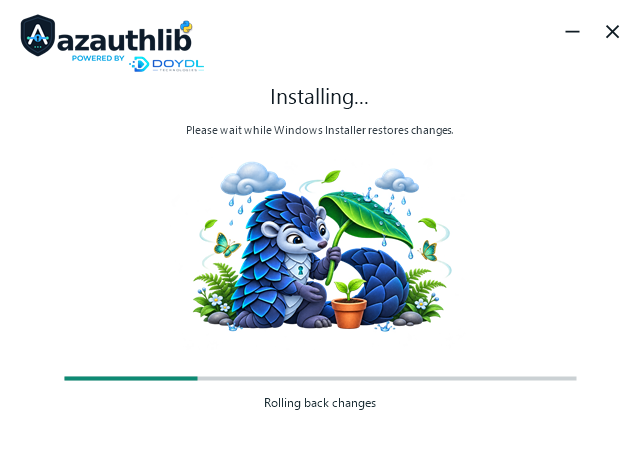
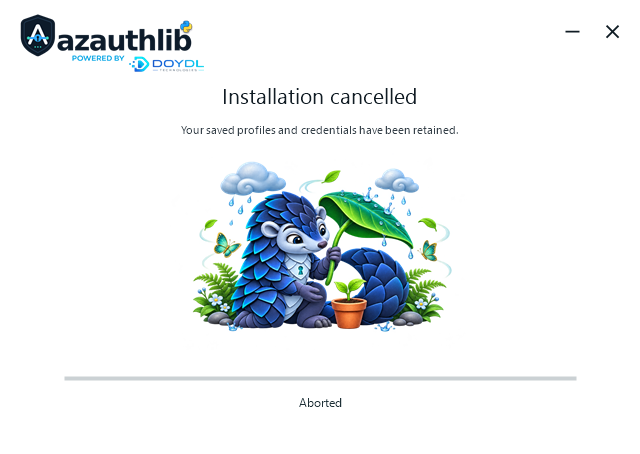
Closing setup during installation asks whether to cancel. If confirmed, wait while Windows Installer rolls back its changes; leave it running until rollback finishes.
The cancelled result shows Aborted and stays visible until closed. You can try setup again. To uninstall a completed MSI installation, turn off Open at login if enabled, close the app, and use Windows Installed apps. Saved connection data and credentials are separate from the application installation.
📸 Full desktop tutorial — create, test and use a connection (29 screenshots)
1️⃣ Start the application
Run azauthlib-app in your Python environment, or open the installed standalone application.
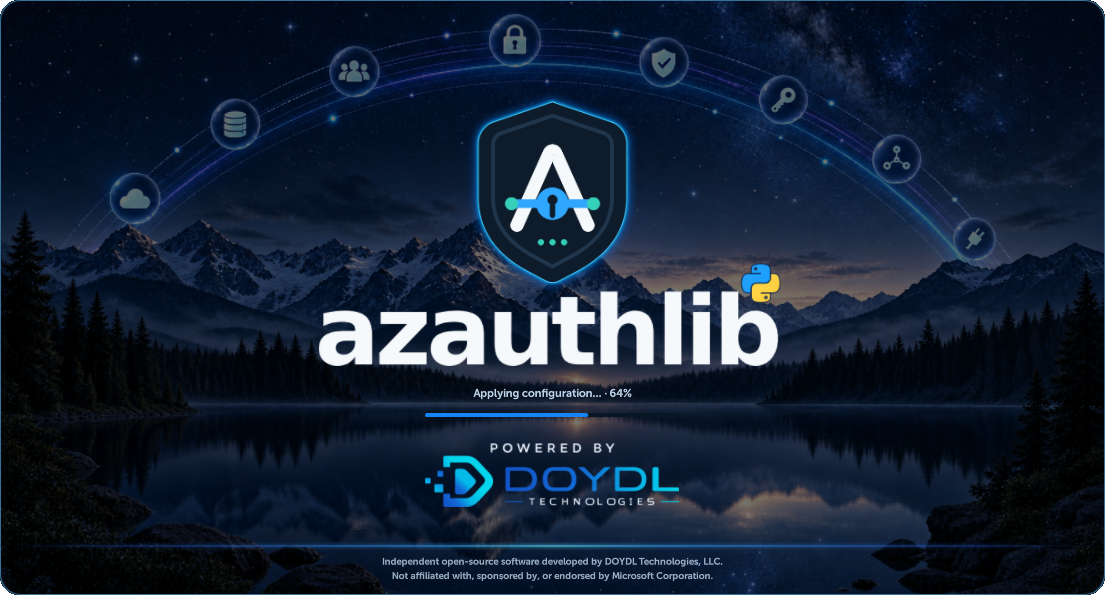
The splash screen prepares the interface; it does not sign you in to Microsoft.
Select Microsoft Graph, then choose Open. The other Microsoft service cards are previews; selecting them does not enable their Connections pages.
2️⃣ Add your first connection
Connections lists saved profiles on the left and shows the selected profile's details on the right. Viewing a profile and setting it active are different actions. A fresh installation may show an empty state instead of the example profiles below.
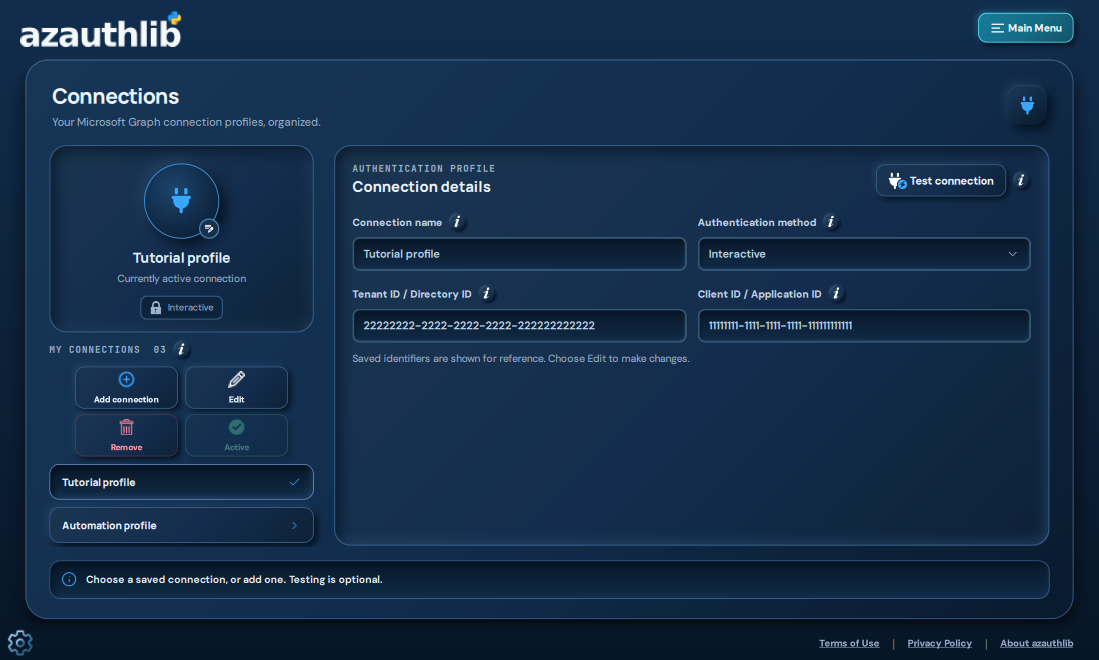
The information button beside Authentication method explains the sign-in choices. For your first user-based connection, choose Interactive.
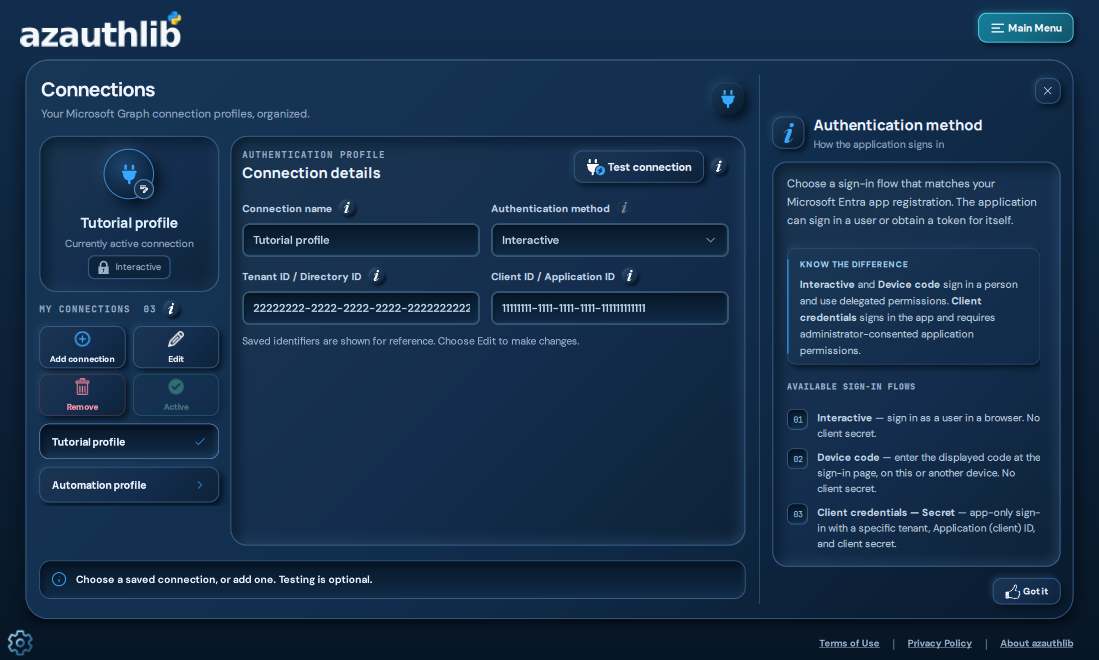
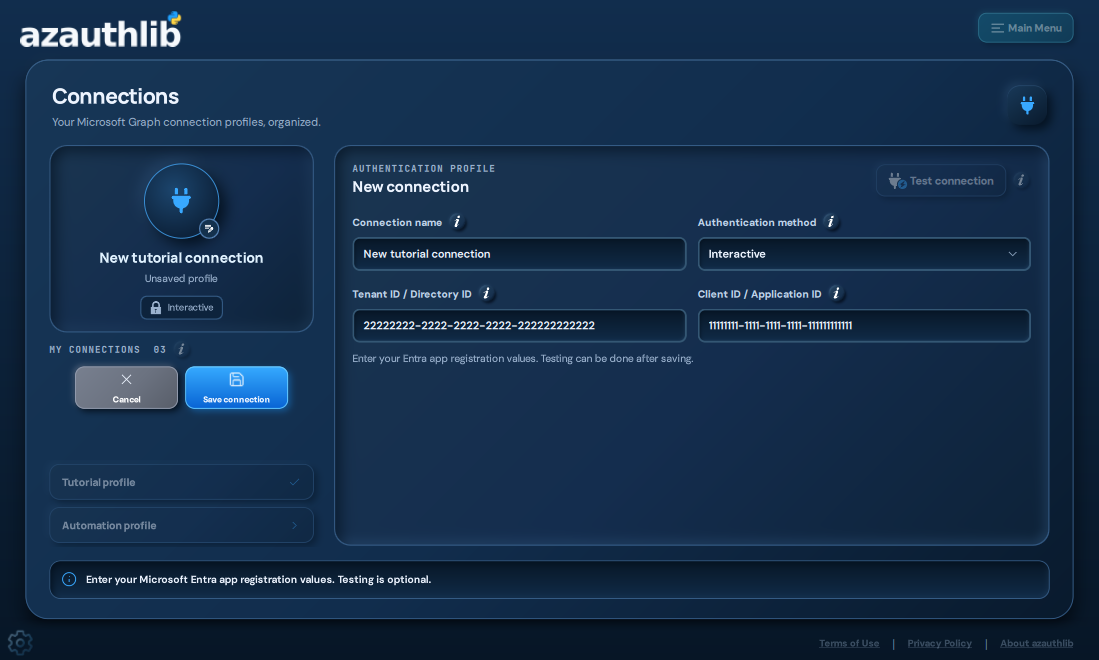
Choose Add connection. Give it a recognizable name, such as Work account, enter your
Tenant/Directory ID and Client/Application ID, and select Interactive. Choose Save
connection. Creating or editing a local profile does not change the Entra app registration.
Testing is optional and is available after the settings have been saved.
3️⃣ Choose another authentication method when needed
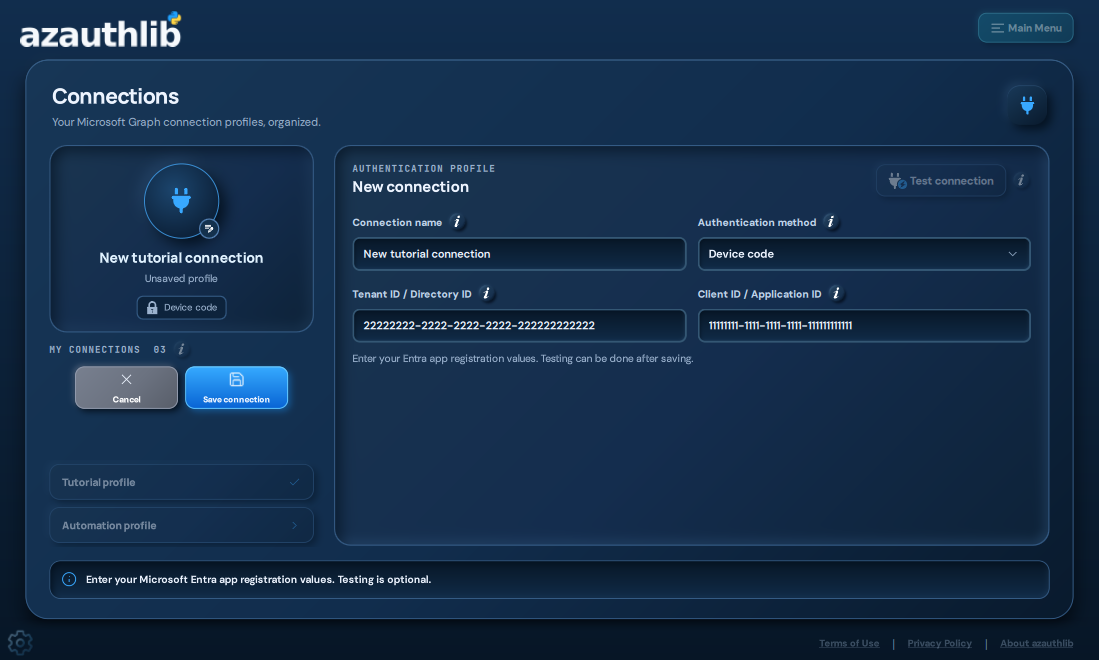
📱 Device code: use the same registration identifiers with a registration configured for public-client/device-code authentication. A test or your Python code will later provide a short code to enter on Microsoft's sign-in page.
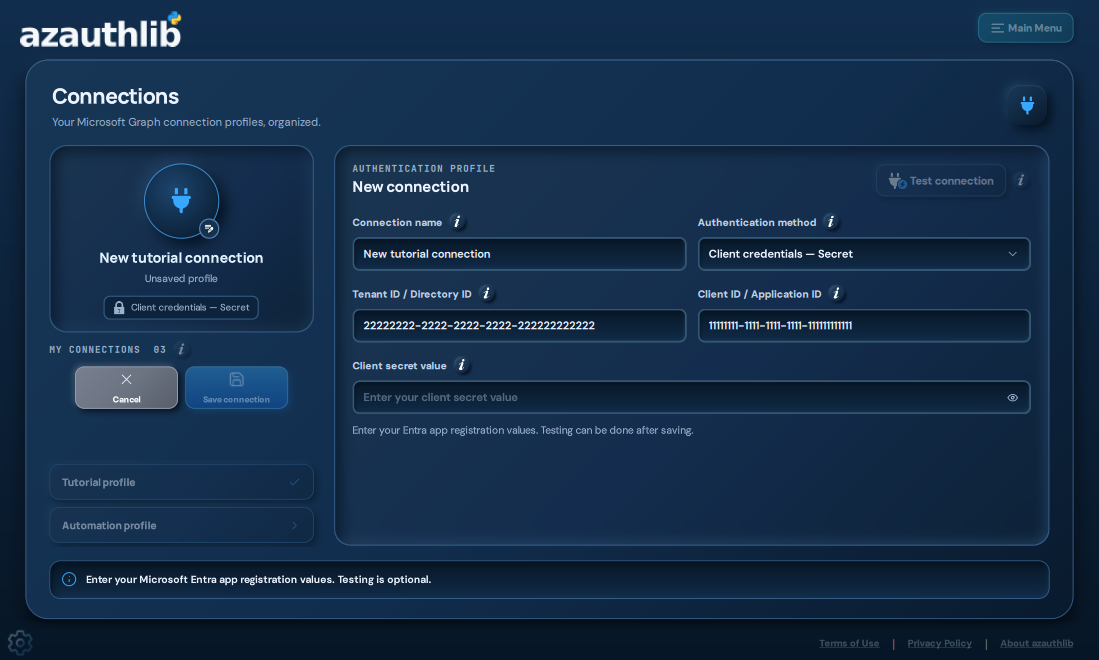
🔐 Client secret: use an application registration configured for app-only access. Supply the client secret's value, not the secret ID. Saving stores the secret in the operating-system credential manager; it is not written into the public profile settings. No user browser sign-in is expected for this method. Application permissions and administrator consent must already be configured for the work the app will perform.
📜 PFX/P12 certificate: choose the certificate method and the PFX/P12 format, then browse to the local bundle containing the private key and certificate.
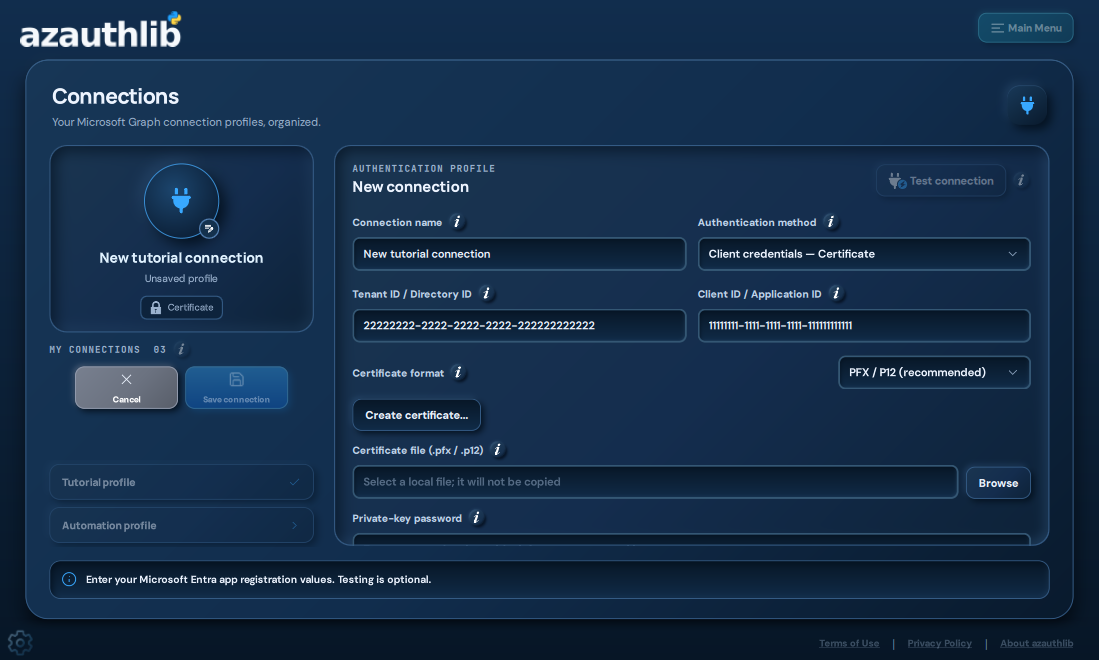
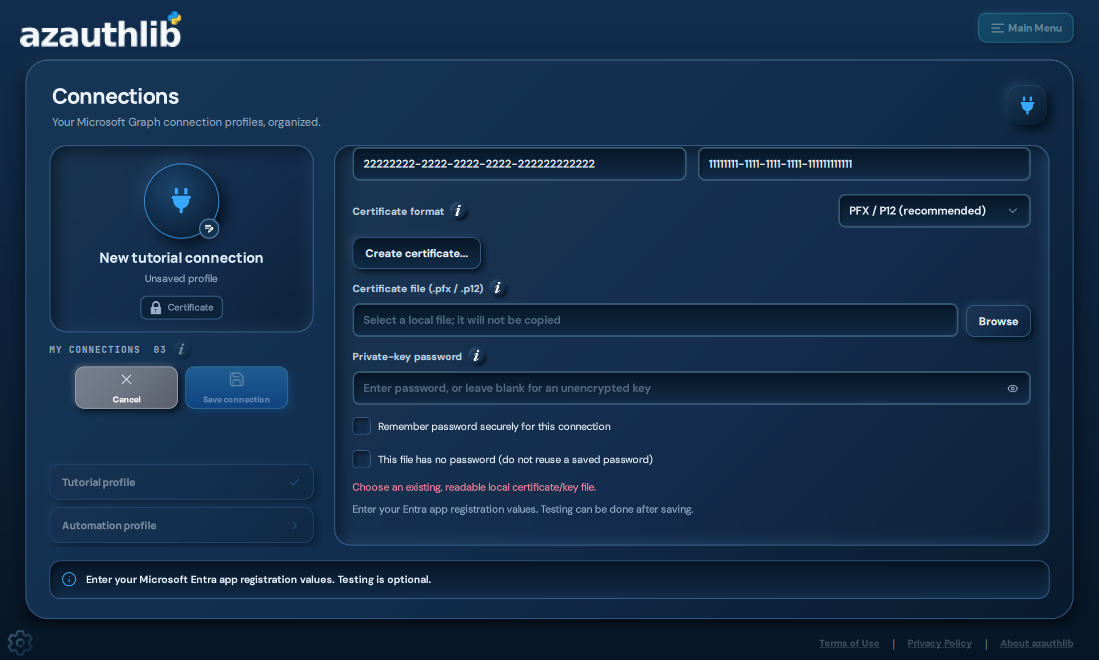
Scroll within the form to supply the private-key password, optionally remember it for this connection, or explicitly indicate that the imported key has no password. Validate the files locally and save. An encrypted key needs its password again later if it has not been remembered.
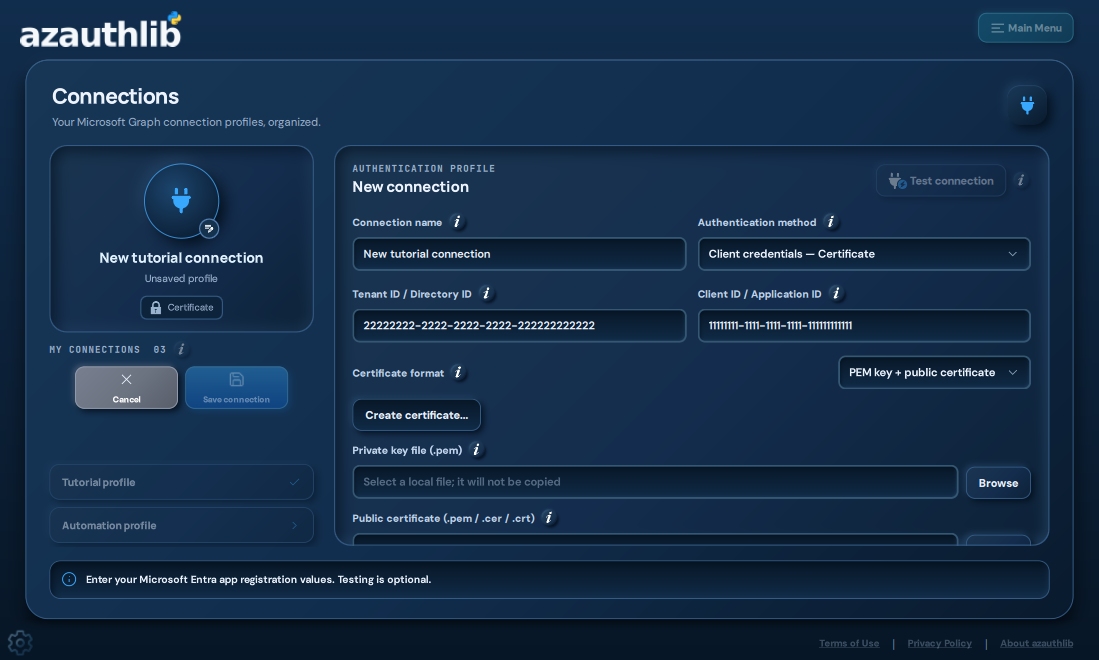
📜 PEM certificate: choose the PEM format and select both the private-key file and its matching public certificate. The certificate may be PEM or DER as described in the form.
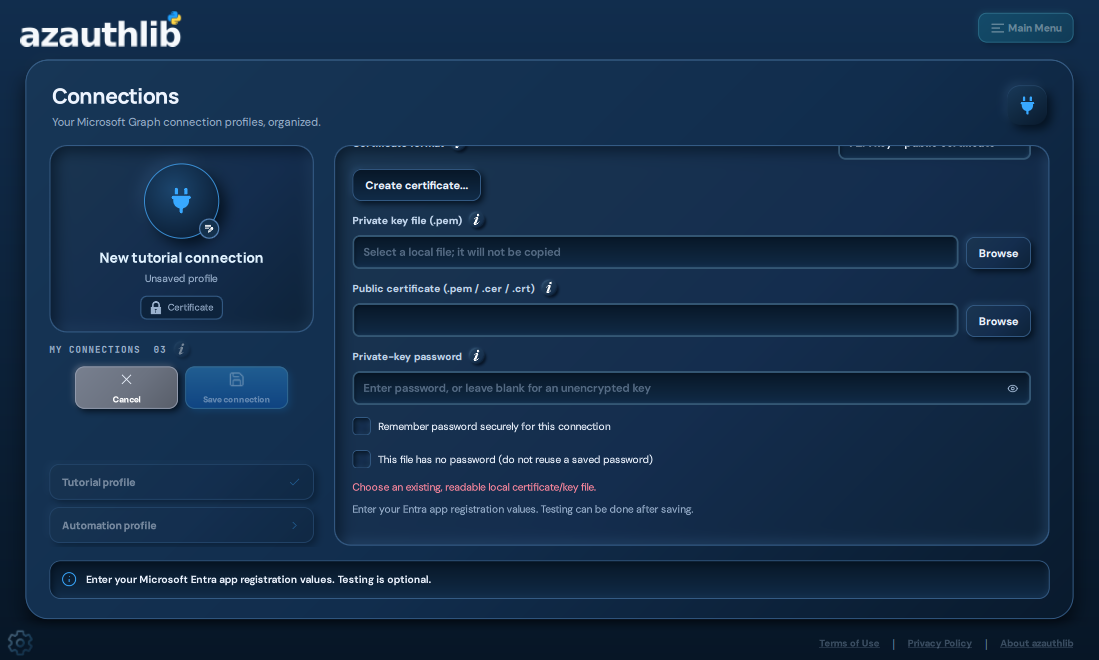
The lower fields provide password handling and local validation. File validation checks the credential files; a separate connection test checks authentication with Microsoft.
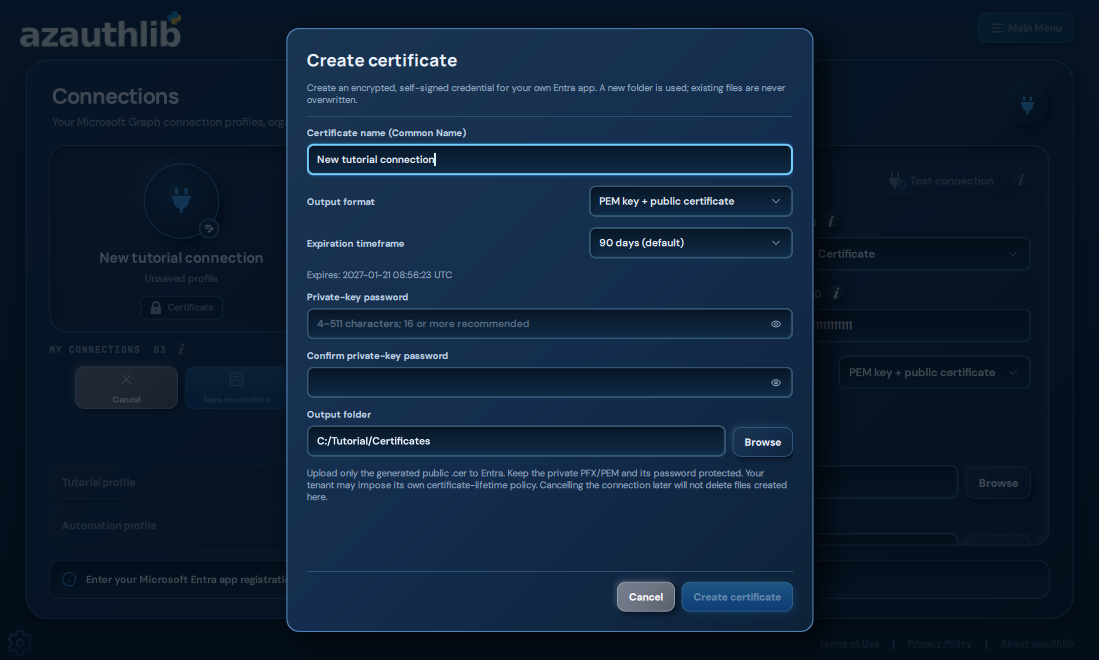
If you need a new certificate, choose Create certificate. Enter its name, format, validity, password and output folder. The app creates files locally in a new subfolder. Upload only the public certificate to the Entra registration; keep the private key/PFX and password local. The default validity is 90 days. Cancelling an unsaved connection does not delete certificate files already created. See Certificate authentication for validation, storage, Python examples and renewal.
4️⃣ Test the saved connection
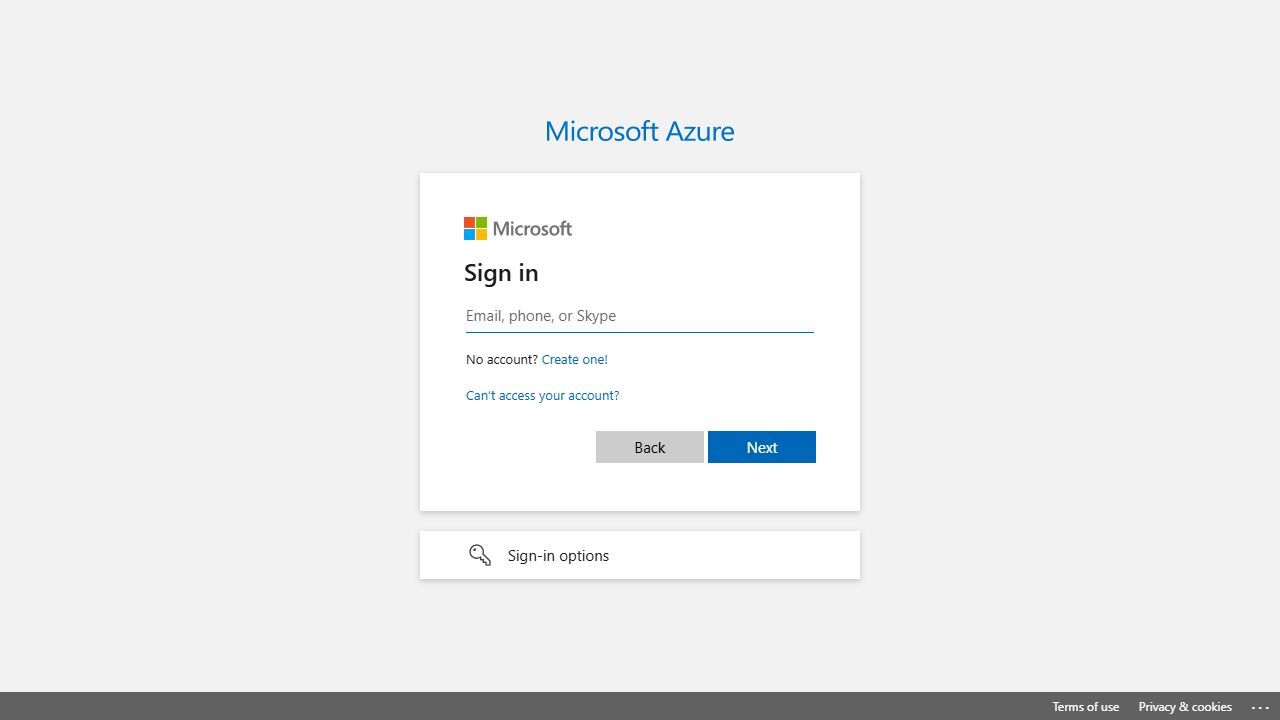
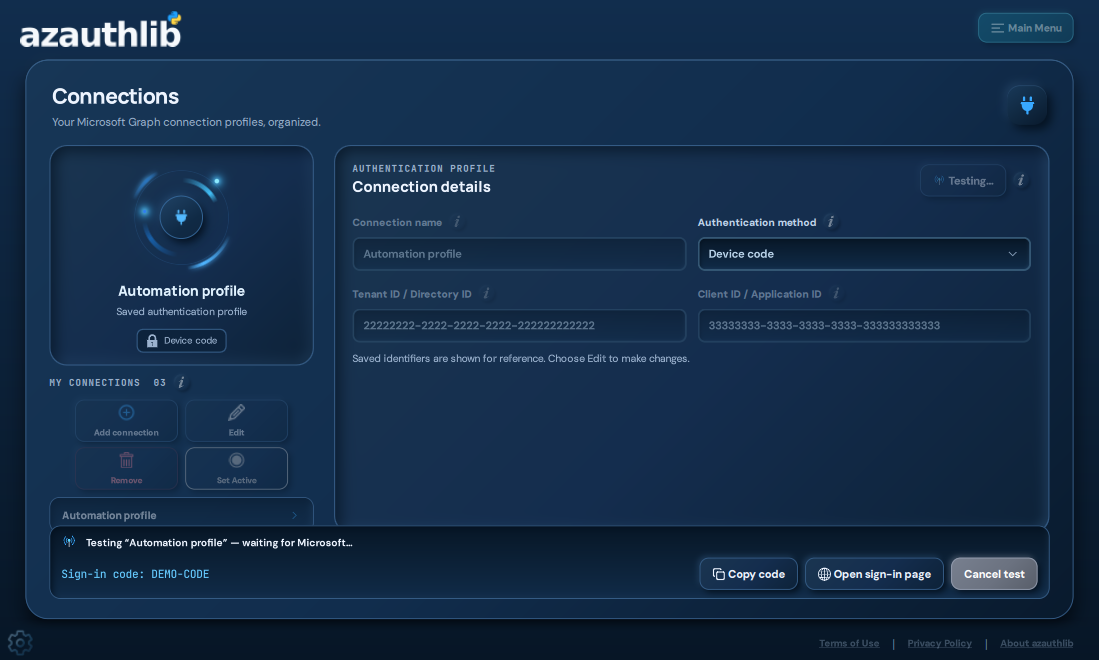
Select the saved profile and choose Test connection. The status area shows progress and provides Cancel test. For Interactive and Device code, be ready to complete Microsoft sign-in. The app sends credentials through the selected MSAL flow; you enter your Microsoft account password on Microsoft's sign-in page, not into the connection form.
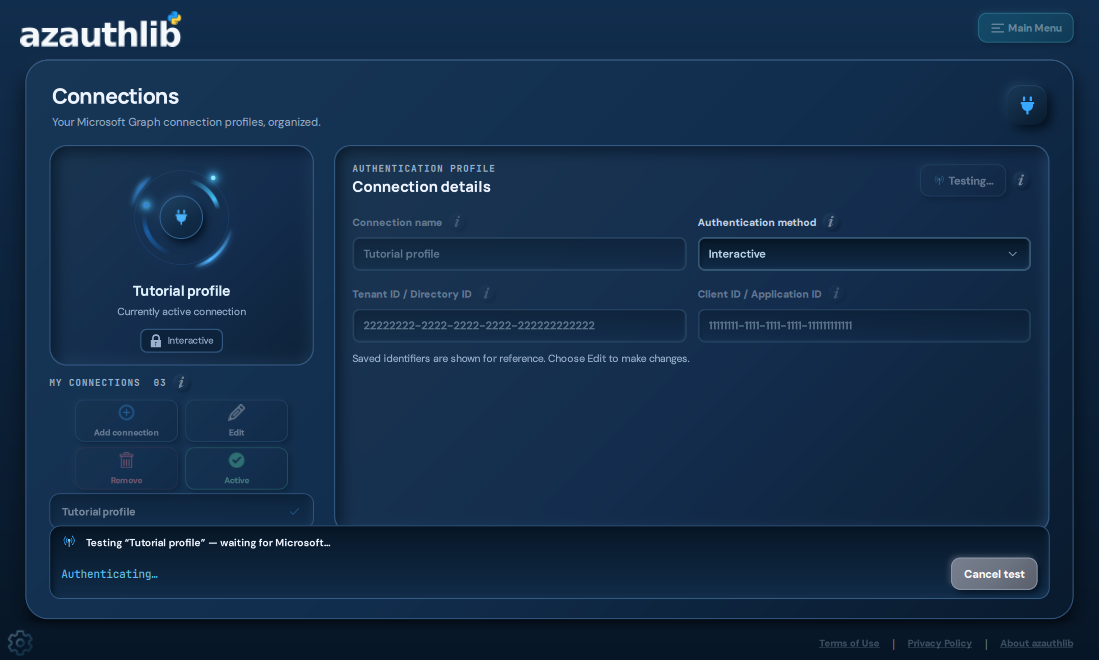
An Interactive test opens the browser. Sign in with an account allowed by the registration and complete any required multifactor authentication or consent. This generic browser reference illustrates the handoff; your organization's sign-in branding may differ.
A Device code test displays a short-lived code. Choose Copy code and Open sign-in page, enter that code, then complete sign-in and return to azauthlib. Use the code from your own current test, not the demonstration text in the screenshot.

A successful test records a passed outcome. It confirms that the authentication attempt worked; it does not prove access to every Microsoft Graph operation. The GUI uses a temporary token cache for tests, so your Python script may still request sign-in on its first run.
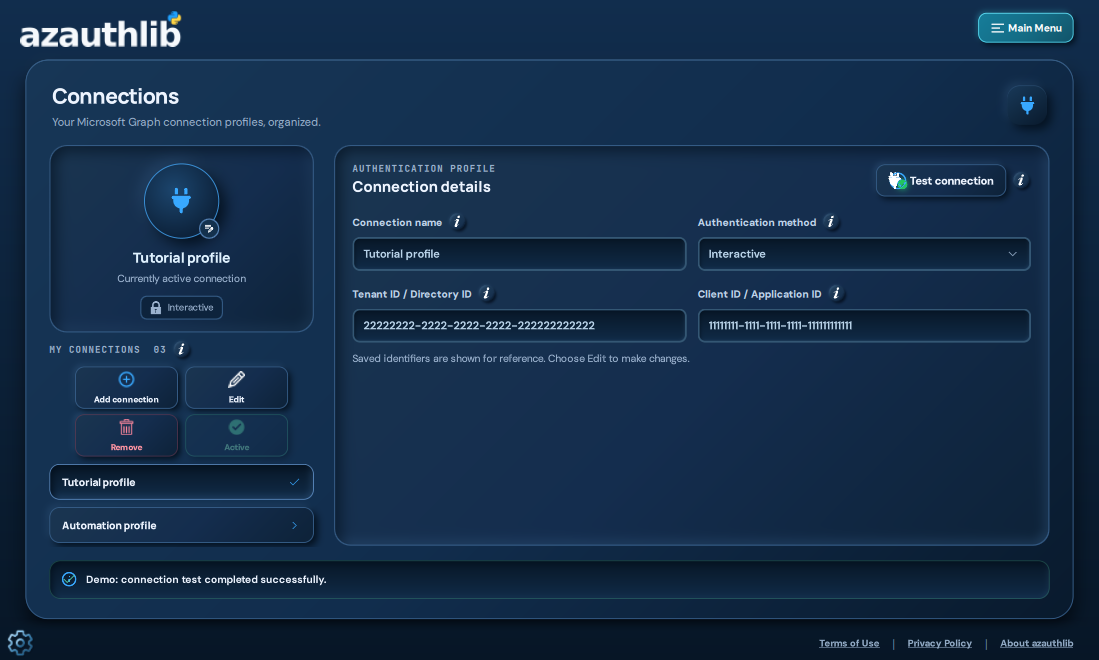
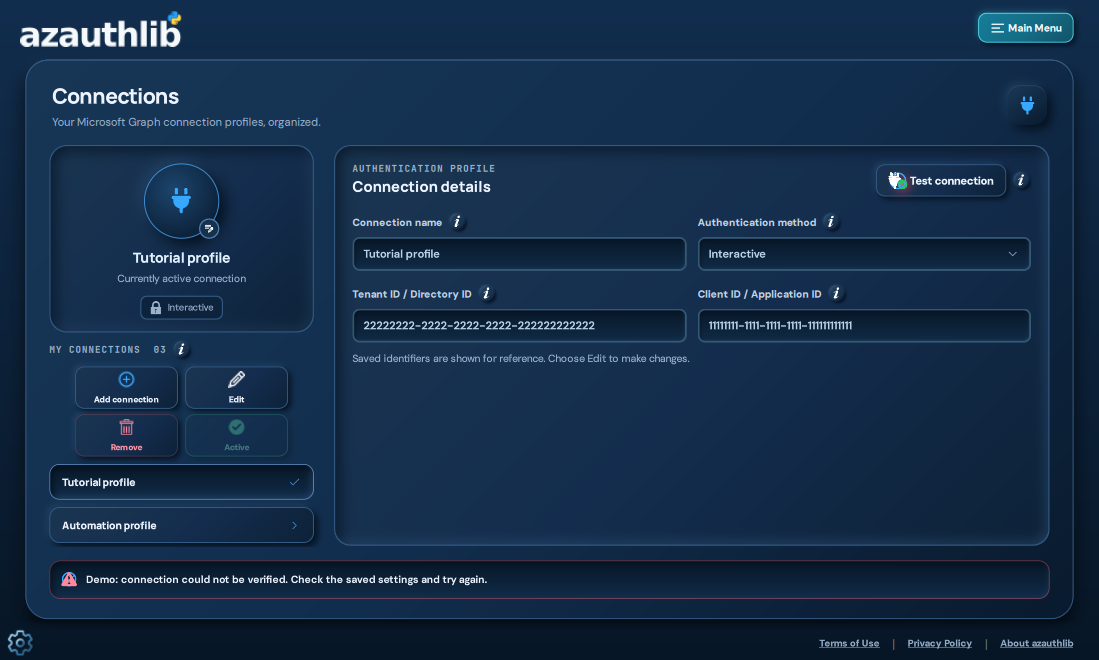
For a failed test, read the status message and check the identifiers, permissions/consent,
credential expiry, certificate files and network access. An Interactive registration also needs
the desktop http://localhost redirect URI. Correct the saved settings and try again.
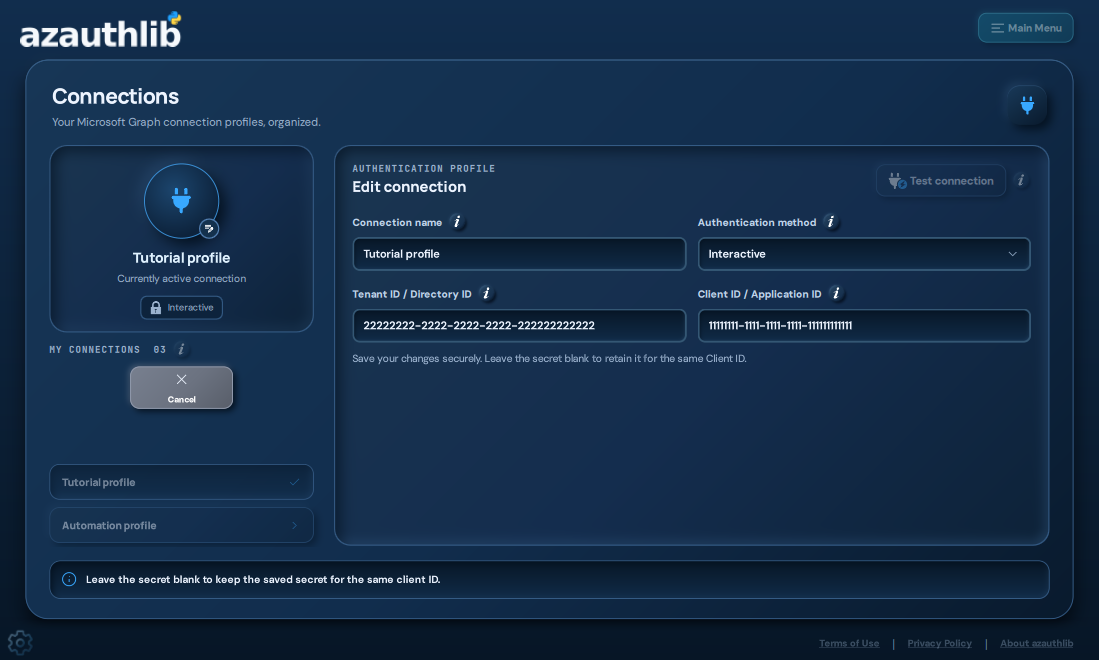
5️⃣ Manage saved connections
Choose Edit to change the selected profile. Save the changes when finished. Changing credentials resets its recorded test status; changing only the name does not.
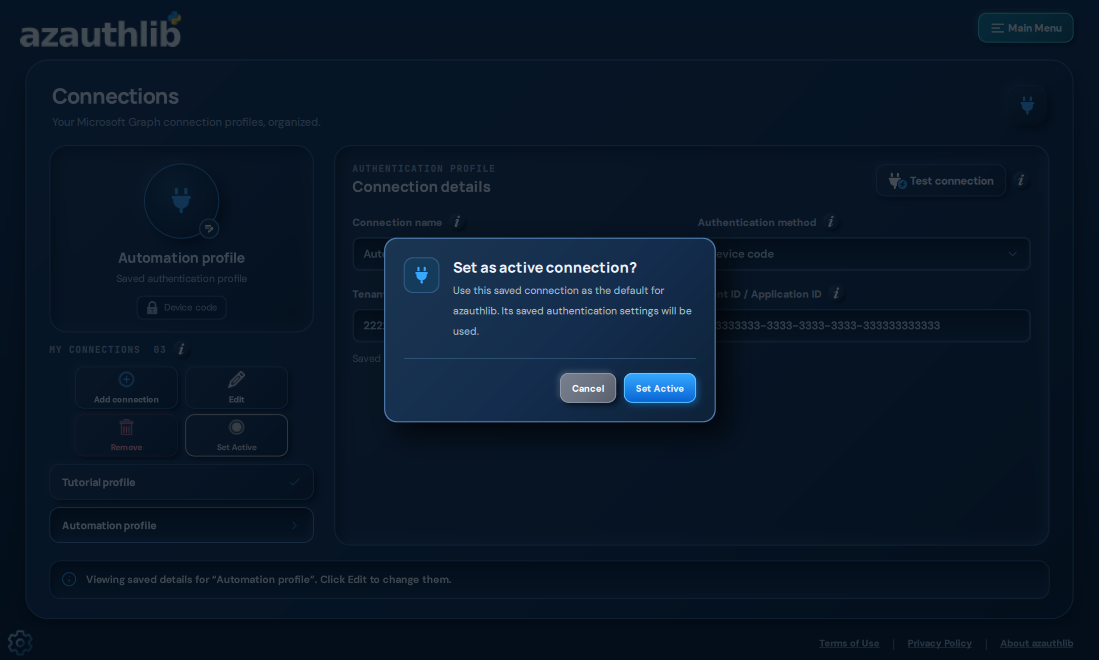
Select a profile and choose Set Active, then confirm, to make it the default for code that
does not explicitly select a profile. Use Authentication(profile="Work account") in code
when an application must keep using a particular connection regardless of the GUI's active one.
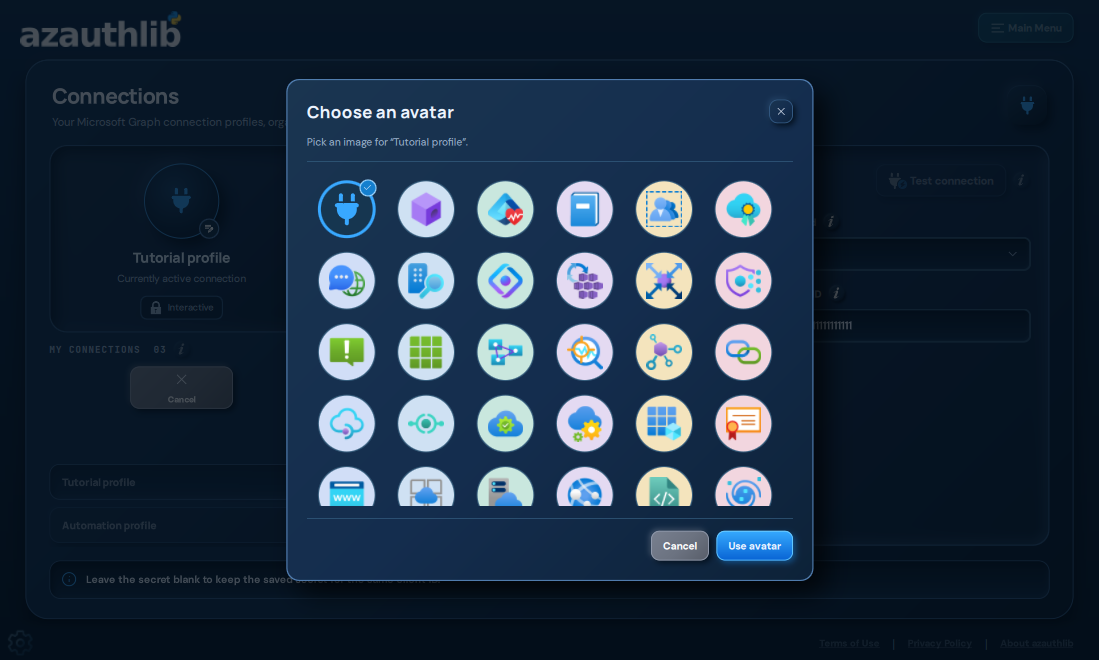
The avatar control on the connection summary opens the picker. Choose an image and select Use avatar to make profiles easier to distinguish.
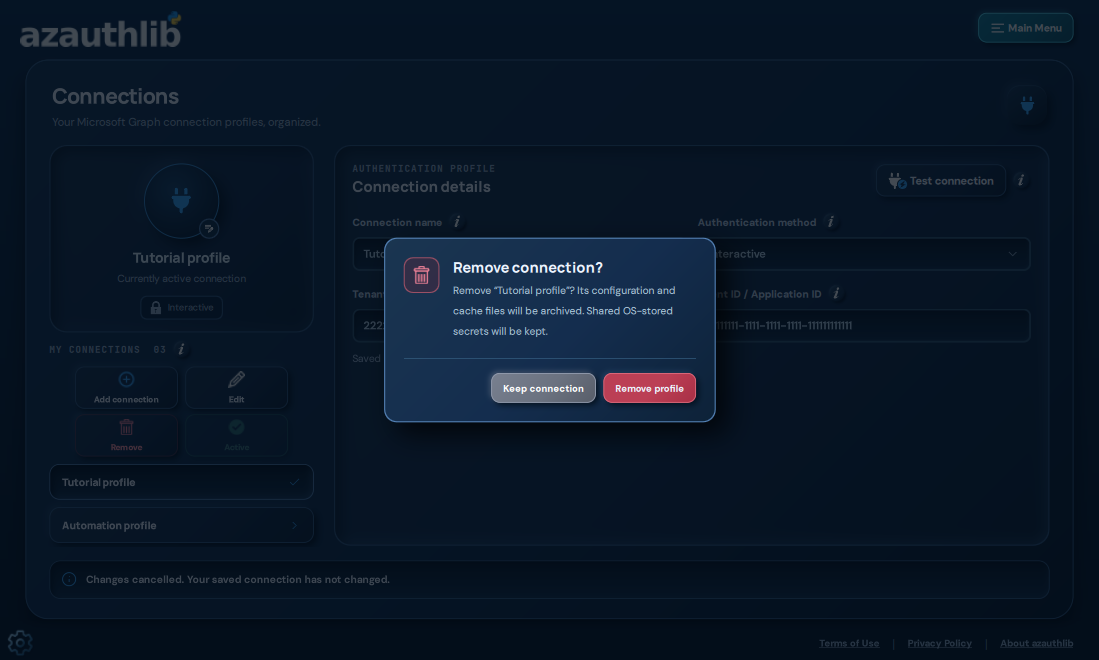
Remove asks for confirmation before removing the local profile. Known local configuration and cache files are archived; this does not delete the Entra app registration, revoke Microsoft permissions or erase shared client secrets from the operating-system keyring.
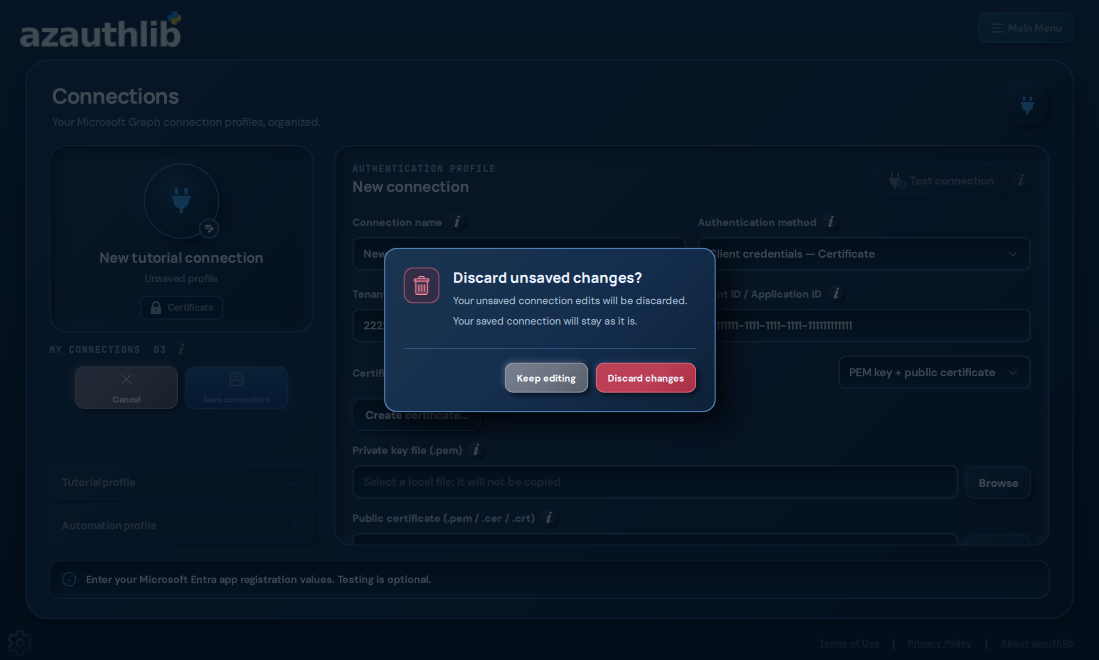
If you leave an editor with unsaved changes, choose whether to keep editing or discard the draft. Discarding a draft keeps the saved connection as it was.
6️⃣ Adjust preferences
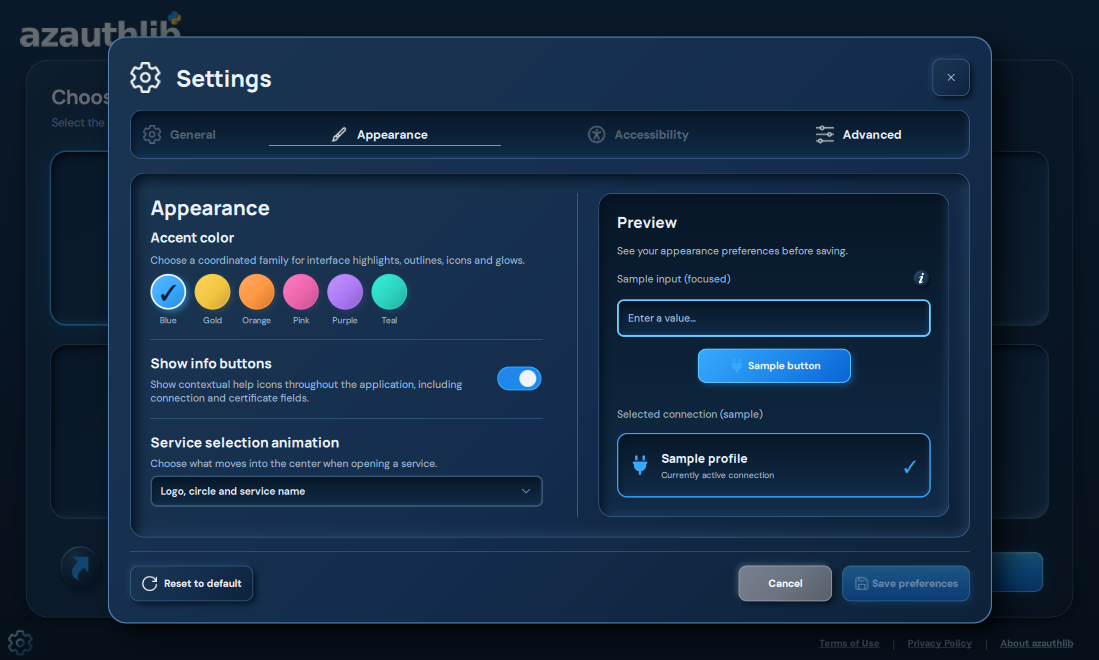
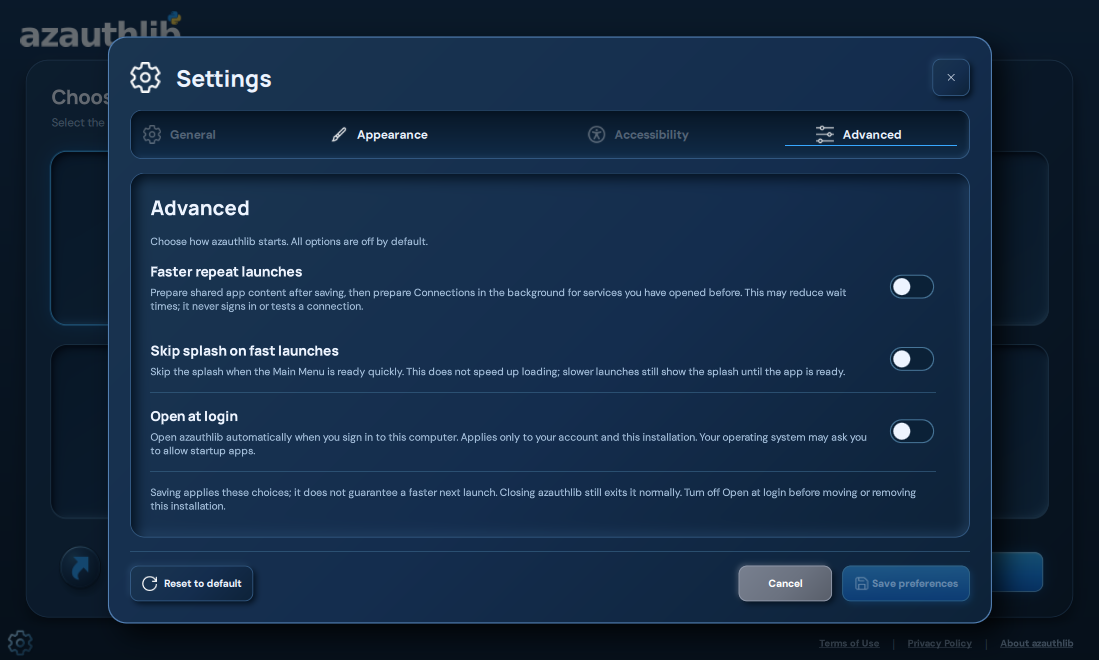
Open the gear control to view Settings. Appearance includes the accent color, information buttons and service-selection animation. The preview lets you inspect a draft before choosing Save preferences. Cancel discards preference drafts.
Advanced offers optional faster repeat launches, skipping the splash on fast launches and opening the app at login. They are independent, opt-in settings. Opening at login starts the application, not a Microsoft sign-in or background authentication job. General and Accessibility are currently unavailable. See Startup preferences for details.
7️⃣ Use help, shortcuts and policy drawers
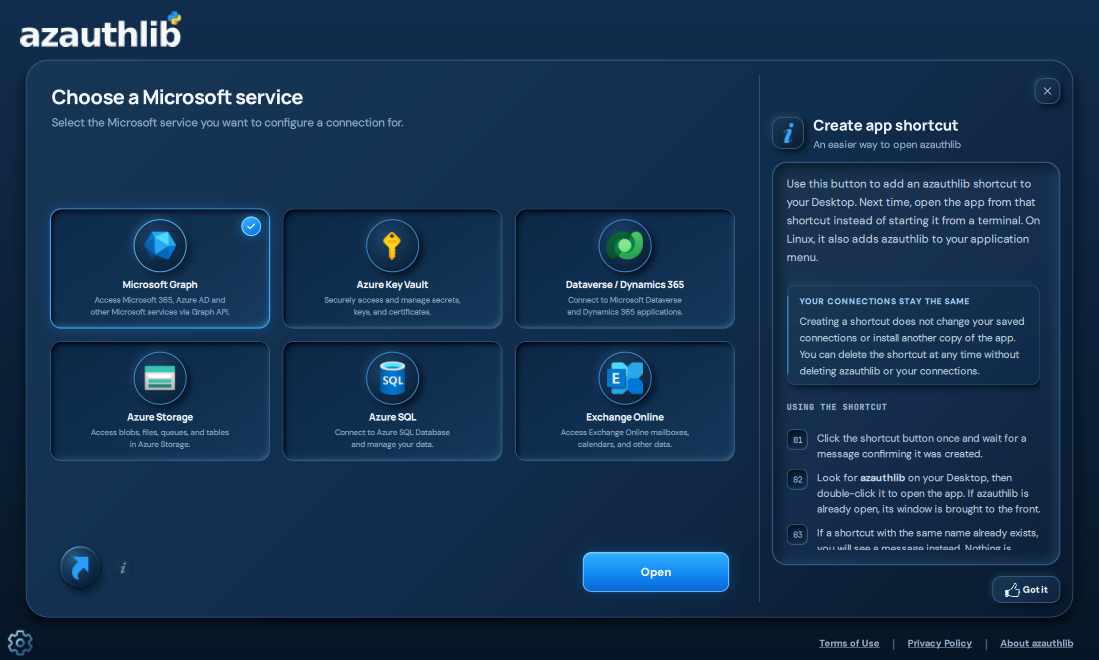
The shortcut information drawer explains the local launcher. A shortcut created from the Python-based app depends on that Python environment remaining installed. The standalone Windows MSI's Start Menu entry launches its bundled runtime instead.
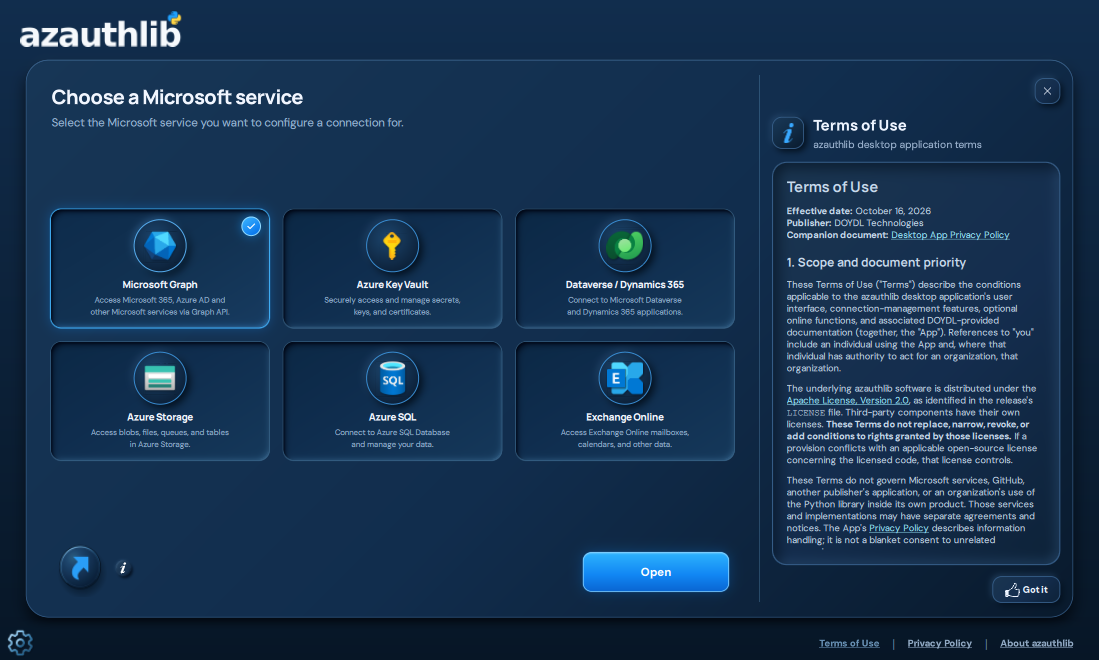
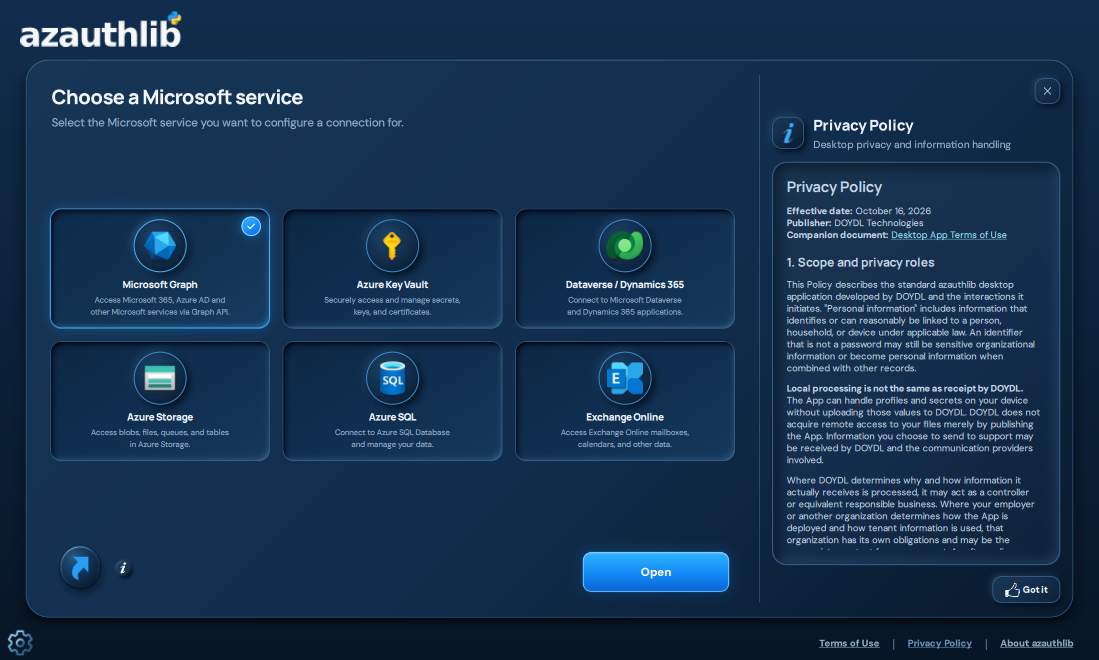
The footer opens Terms of Use, Privacy Policy and About azauthlib. These drawers push the workspace aside. Close a drawer with its close control, Got it, or Escape.
Your connection is now ready to load from Python using the example below. The desktop application does not need to remain open while your script uses its saved profile.
🐍 Use your saved connection in Python
This example uses an Interactive profile named Work account, configured with delegated
User.Read permission. Replace the profile name if you chose another one. The first run may
open the browser; later runs attempt to reuse a cached sign-in.
import requests

from azauthlib import Authentication, InteractionRequiredError

auth = Authentication(profile="Work account", scopes=["User.Read"])
auth.Build.Default()

try:
    auth.Silent()
except InteractionRequiredError:
    auth.Interactive()

response = requests.get(
    "https://graph.microsoft.com/v1.0/me",
    headers={"Authorization": f"Bearer {auth.access_token}"},
    timeout=30,
)
response.raise_for_status()
print(response.json().get("displayName", "Signed in"))
A profile does not hard-code which authentication method your program calls: explicitly call the method that matches the profile's credential type and your intended sign-in experience. For setup entirely in Python, the following examples avoid needing the desktop at all.
👤 Public-client authentication
from azauthlib import Authentication, InteractionRequiredError

auth = Authentication(scopes=["User.Read"])
auth.Build.WithEntry(
    client_id="00000000-0000-0000-0000-000000000000",
    tenant_id="organizations",
)

try:
    result = auth.Silent()
except InteractionRequiredError:
    result = auth.Interactive()

print(result["token_source"])
# Use auth.access_token only where an Authorization header is required.
Silent authentication does not unexpectedly launch a browser. Pass
fallback_to_interactive=True if that behavior is explicitly desired.
📱 Device-code authentication
from azauthlib import Authentication

auth = Authentication(scopes=["Files.Read"])
auth.Build.WithEntry(client_id="...", tenant_id="organizations")
result = auth.DeviceCodeFlow(webbrowser_enabled=True)
MSAL controls polling and expiration. The method blocks until authentication completes or fails.
🤖 Client-credentials authentication
Microsoft requires the /.default resource scope for client credentials:
import os

from azauthlib import Authentication

auth = Authentication()
auth.Build.WithEntry(
    client_id=os.environ["CLIENT_ID"],
    tenant_id=os.environ["TENANT_ID"],
    client_secret=os.environ["CLIENT_SECRET"],
)
result = auth.ClientCredentials()
# Default scope: https://graph.microsoft.com/.default
Set these environment variables before running the example; see Configuration. Certificate authentication is also available for app-only access.
⚙️ Configuration
🌱 Environment variables
Environment variables are supported:
export CLIENT_ID="..."
export TENANT_ID="..."
export CLIENT_SECRET="..." # confidential clients only
from azauthlib import Authentication

auth = Authentication(scopes=["User.Read"])
auth.Build.WithOSEnv()
WithOSEnv() treats mapping values strictly as environment-variable names. Use WithEntry() for
literal values. Choose the authentication call afterward: Silent() / Interactive() or
DeviceCodeFlow() for a user, or ClientCredentials() when using a secret/certificate.
The optional configuration application stores the client ID and tenant ID in azauthlib's platform
configuration directory. Client secrets go to the operating-system keyring, never the .env file:
azauthlib-app
🗂️ Saved connection profiles
The application supports named profiles for multiple Microsoft Entra app registrations. After the splash screen, choose Microsoft Graph on the Home page to open the Connections Manager. Add, edit, optionally test, remove, and set the active connection there. Other service cards are previews and cannot continue yet. Information buttons open a contextual-help shelf that pushes the workspace aside. It explains profiles, authentication methods, connection testing, and where to find your Entra app registration's Tenant/Directory ID, Client/Application ID, and client secret. The active info button is dimmed and disabled while its topic is open. Close the shelf with its close button, Got it, or Escape, or select another topic.
🧪 Connection-test history
The Test connection icon is blue for untested saved credentials, green for the last successful test, and red for the last failed test. Changing credentials resets the indicator; renaming a connection does not. Canceling a retest preserves the previous completed result. This is test history, not a guarantee that authentication or every Microsoft Graph operation will work now. History stores only outcomes and signed, opaque credential fingerprints, with its signing key in the OS credential manager. Tests do not persist tokens or client secrets. When history storage is unavailable, results are kept for the current session only.
🔐 Profile storage and isolation
The Default profile uses .env and msal-cache.bin directly in the current configuration
and cache directories. Every additional profile receives its own public configuration file
and encrypted MSAL token cache; client secrets
remain in the operating-system keyring. Create and select profiles in the configuration app, or
manage the active profile in Python:
from azauthlib import Authentication, create_profile, select_profile
from azauthlib.credentials import save_configuration

profile = create_profile("Accounting")
save_configuration(
    profile=profile,
    client_id="00000000-0000-0000-0000-000000000000",
    tenant_id="organizations",
    auth_method="interactive",
)
select_profile("Accounting")

# Explicit profile selection is recommended when several applications share a process.
auth = Authentication(profile="Accounting", scopes=["User.Read"])
auth.Build.Default()
Passing profile= avoids depending on whichever profile is currently selected in the GUI.
🔄 Upgrading from 1.4.0b1
On Windows, the default configuration and cache directories no longer include the additional vendor directory. Existing settings are not automatically migrated. To upgrade safely:
- Close azauthlib and any applications using its token cache.
- Back up the existing configuration and cache directories. The previous Windows configuration
directory is normally
%LOCALAPPDATA%\DOYDL Technologies\azauthlib; its cache is normally theCachesubdirectory. Keep these backups private because they contain authentication data. - Install the update, run
azauthlib-app, and recreate the required connections using the saved tenant ID, client ID, and authentication method. The new configuration directory is normally%LOCALAPPDATA%\azauthlib, with its cache in theCachesubdirectory. Do not delete the old files until the new connections have been verified. - Test each connection and sign in again where required. Client secrets remain in the operating system's keyring, keyed by client ID. If a secret cannot be retrieved, enter it again through the application; never put it in a public configuration file.
macOS and Linux keep their platform-specific configuration/cache roots. The Default profile uses the existing root-level files there; additional profiles use separate files. An explicitly supplied environment-file or token-cache path remains under the caller's control.
New authentication instances use the active profile unless profile= is supplied. Select an
explicit profile for applications that must not follow desktop selection changes. After all
profiles have been removed, create a profile before constructing an authentication instance.
Removing a profile archives its known local files; it does not revoke issued tokens or erase
shared client secrets from the keyring.
🛡️ Token-cache security
Encrypted persistence is the default and fails closed when the OS encryption provider is unavailable. On Linux, ensure an appropriate Secret Service/LibSecret backend is configured.
Plaintext fallback requires an explicit opt-in:
auth = Authentication(allow_plaintext_cache=True)
🚨 Error handling
Authentication methods return the successful MSAL result dictionary. Failures raise:
- 🔑
AuthenticationErrorfor identity platform or protocol errors. - 👤
InteractionRequiredErrorwhen silent authentication cannot continue. - 🛡️
TokenCacheSecurityErrorwhen secure persistence cannot be established.
Error logs include error codes and correlation IDs, not full response dictionaries or tokens.
🧩 Common setup problems
| Symptom | What to check |
|---|---|
🖥️ azauthlib-app is not found |
Activate the environment where you installed the package. Try python -m azauthlib.gui.launch using that environment's Python. |
| 💻 PowerShell cannot activate the environment | You can use .\.venv\Scripts\python.exe -m pip install azauthlib and .\.venv\Scripts\azauthlib-app.exe directly without changing execution policy. |
| 🧭 A provider's Open button is unavailable | The desktop currently supports Microsoft Graph; other provider cards are previews. |
| 👤 Interactive sign-in cannot finish | Check the tenant/account type and the registration's desktop http://localhost redirect URI. Your organization's sign-in and consent policies also apply. |
| 📱 Device-code sign-in is rejected | Check public-client/device-code configuration and whether organization policy permits that flow. Use a new code if the current one expired. |
| 🔐 A secret/certificate profile cannot authenticate | Check credential expiry, the secret value, the tenant-specific registration and the public certificate uploaded to Entra. |
| 🚫 Authentication passes but a Graph request returns 403 | Check that the token's delegated/application permission type and consent match the API operation. A successful connection test does not grant additional access. |
🤖 /me fails with an app-only connection |
Use a user sign-in for /me, or choose an app-only-supported endpoint with the appropriate application permissions. |
| 🔄 Python requests sign-in after a successful GUI test | GUI tests use a temporary token cache. Your Python session creates/reuses its own persisted authentication cache. |
| 📜 Saved certificate files cannot be found | Keep the private key and certificate at the configured local paths, or edit the connection and validate the new paths. |
| 🛡️ Secure token storage is unavailable | Check the OS credential/encryption backend. Linux needs a working Secret Service/LibSecret setup; see Token-cache security. |
| 📦 The standalone download is unavailable | The selected GitHub release must provide desktop assets for your platform. Upgrade the library and run azauthlib-install-desktop --check to check the matching download. |
For help, use the app's information drawers and the issue tracker. Include the app/library version, operating system, authentication method and sanitized error code or correlation ID. Keep access tokens, secret values, passwords and private-key files out of issue reports. Follow SECURITY.md for security reports.
👩💻 Development
python -m pip install -e ".[dev]"
ruff check .
ruff format --check .
bandit -c pyproject.toml -r src
pip-audit --skip-editable
pytest
python -m build
twine check dist/*
See CONTRIBUTING.md, SECURITY.md, and CHANGELOG.md.
The tutorial screenshot index can be opened locally after cloning the repository. Its screenshots are documentation assets, not installed runtime files.
⚖️ License
Apache License 2.0. Microsoft, Azure, Entra, and Microsoft Graph are trademarks of Microsoft and are not affiliated with or endorsed by this project.
2 maintainers


Metadata
2 maintainers
Release files for azauthlib 6.0.2
For a detailed explanation of source distributions (sdists) and built distributions (wheels), please see the package formats documentation.
Source distribution (sdist)
| File | Size | Uploaded | Provenance | Actions |
|---|---|---|---|---|
| azauthlib-6.0.2.tar.gz | 6.6 MB | Without provenance | Details for azauthlib-6.0.2.tar.gz |
Built distribution (wheel)
| File | Interpreter | ABI | Platform | Actions Reset |
|---|---|---|---|---|
| azauthlib-6.0.2-py3-none-any.whl | Python 3 | none | any | Details for azauthlib-6.0.2-py3-none-any.whl |
Total release size: 13.6 MB
Release files / azauthlib-6.0.2.tar.gz
| Download URL | azauthlib-6.0.2.tar.gz |
|---|---|
| Size | 6.6 MB |
| Tags | Source |
|
SHA-256 checksum How to use checksums |
96d727d0b05a0846211ba47f390db8479296d913a40c4e8b793a40dfaed981e8
|
|
BLAKE2b-256 checksum How to use checksums |
85f16454aad87a79ea2e4b98a128aa77043ff9c32b7c71238a3a64a38c179d26
|
| Upload date | |
|
Uploaded using Trusted Publishing? What is trusted publishing? |
No |
| Uploaded via |
twine/6.2.0 CPython/3.13.14
|
Release files / azauthlib-6.0.2-py3-none-any.whl
| Download URL | azauthlib-6.0.2-py3-none-any.whl |
|---|---|
| Size | 7.0 MB |
| Tags | Python 3 |
|
SHA-256 checksum How to use checksums |
6150898f85117361ac60ea6b9d3e39e209e20b46b1b3ca8ef921ff7fb0219775
|
|
BLAKE2b-256 checksum How to use checksums |
cd44a958ebc4fec0afa4a472726b4225af6b5300c67d201dfb0f7857ee935506
|
| Upload date | |
|
Uploaded using Trusted Publishing? What is trusted publishing? |
No |
| Uploaded via |
twine/6.2.0 CPython/3.13.14
|
Security for azauthlib 6.0.2
Provenance
Provenance describes where a file came from. On PyPI, provenance is shared via attestations, which provide a verifiable record of the build or publishing details. View details, limitations and caveats.
No provenance found
None of the files in this release were uploaded with provenance metadata.
A note on package security
PyPI is a repository for distributing packages, not a service for auditing them. While third-party security researchers and our staff do their best to detect and remove malicious packages, PyPI cannot guarantee the quality, security or suitability of any given package.
To learn more about protecting yourself from malicious actors, visit our package security documentation.














