
A unified experience for AI in your terminal.

Project description
Toad
A unified interface for AI in your terminal (release announcement).
 |
 |
 |
 |
Quickstart
Install:
curl -fsSL batrachian.ai/install | sh
Run:
toad
See Getting Started if you have any problems.
What is Toad?
Toad is an interface to coding agents, such as Claude, Gemini, Codex, OpenHand, and many more.
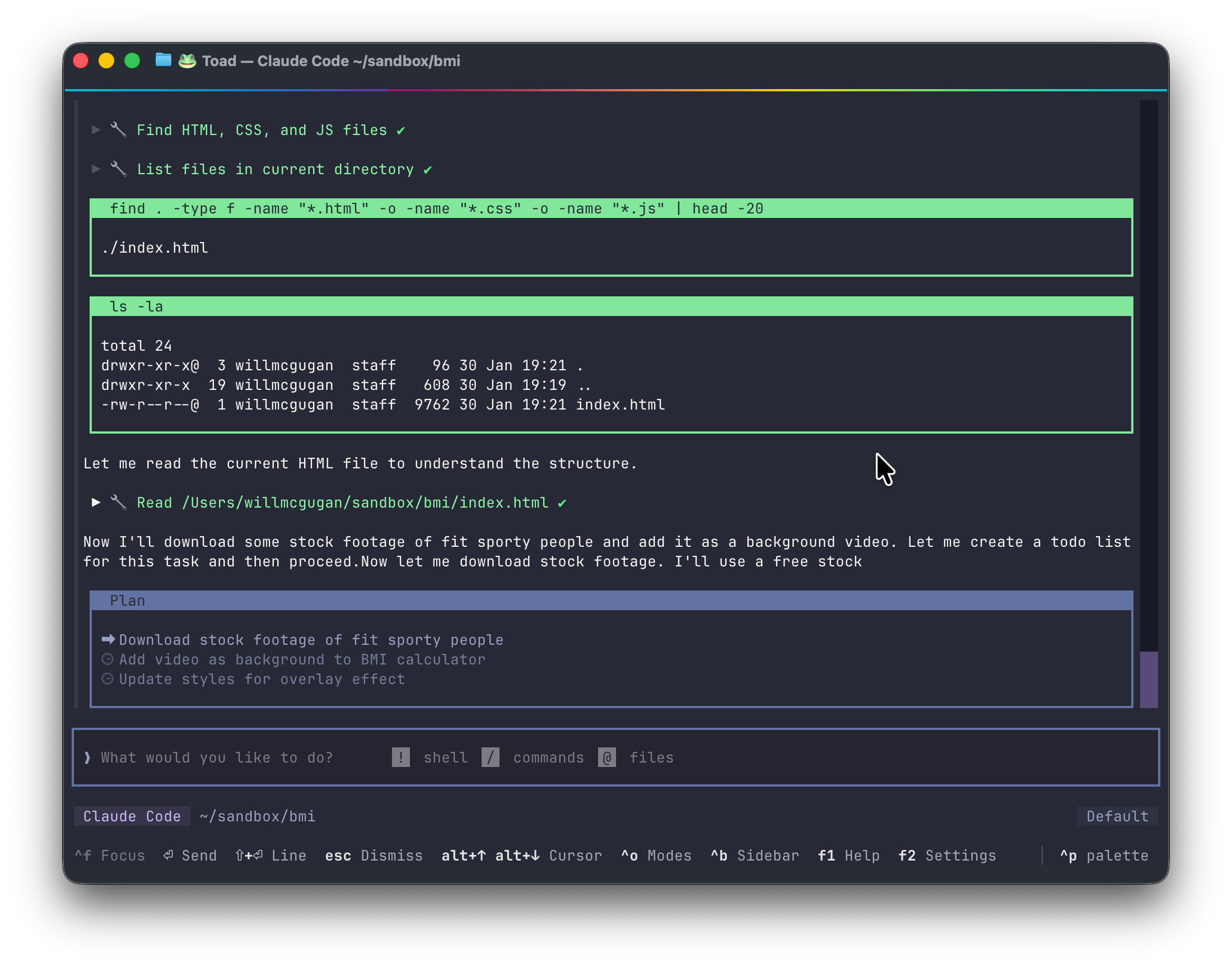
Toad blends a traditional shell based workflow and powerful agentic AI, with an intuitive Terminal User Interface.
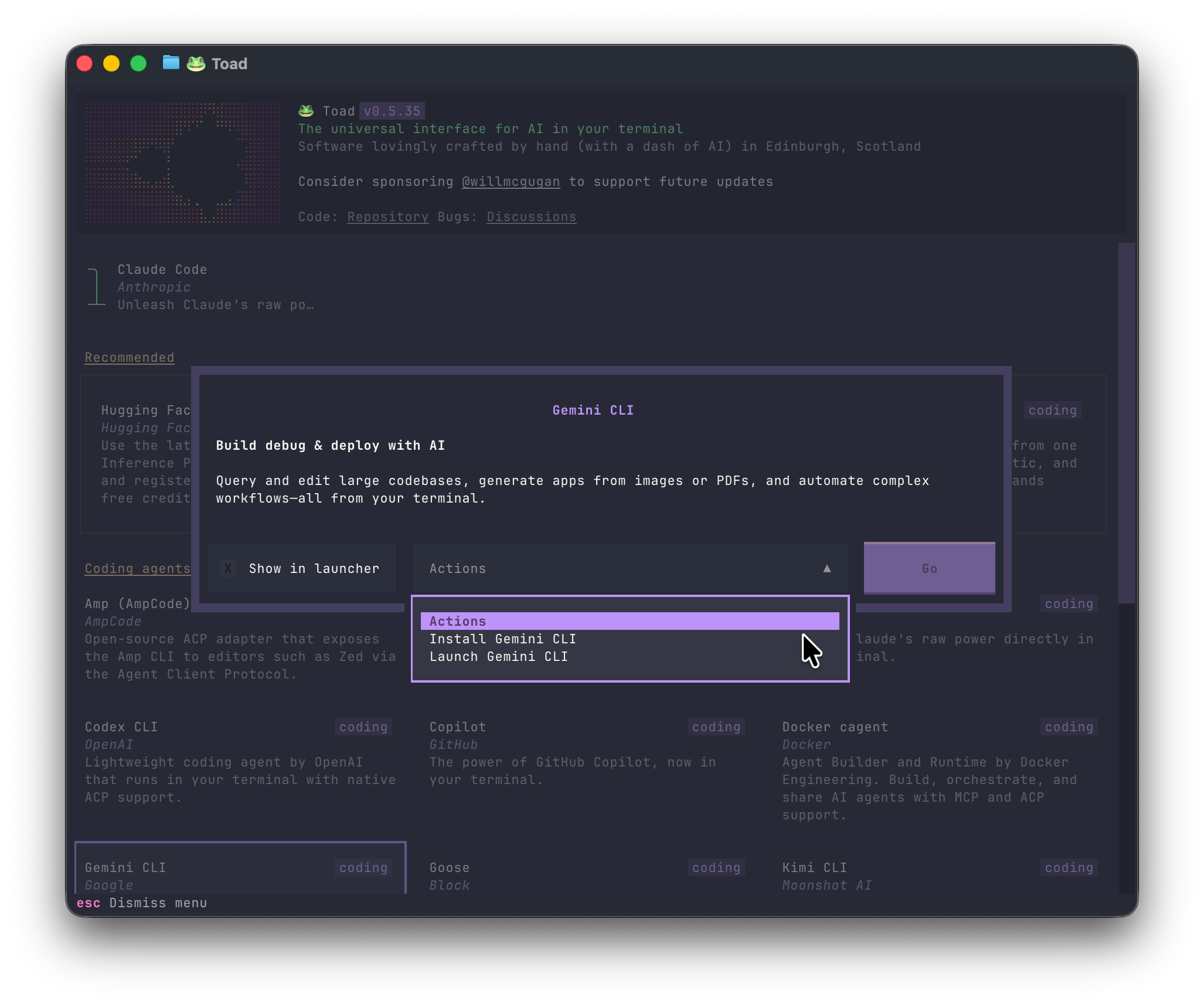
AI "App store"Find, install, and run dozens of agents directly from the Toad UI. There is a large and growing list of AI agents that work with Toad. Discover agents from big tech and smaller Open Source projects. Developers can add support for their own agents, via the Agent Client Protocol. |
|
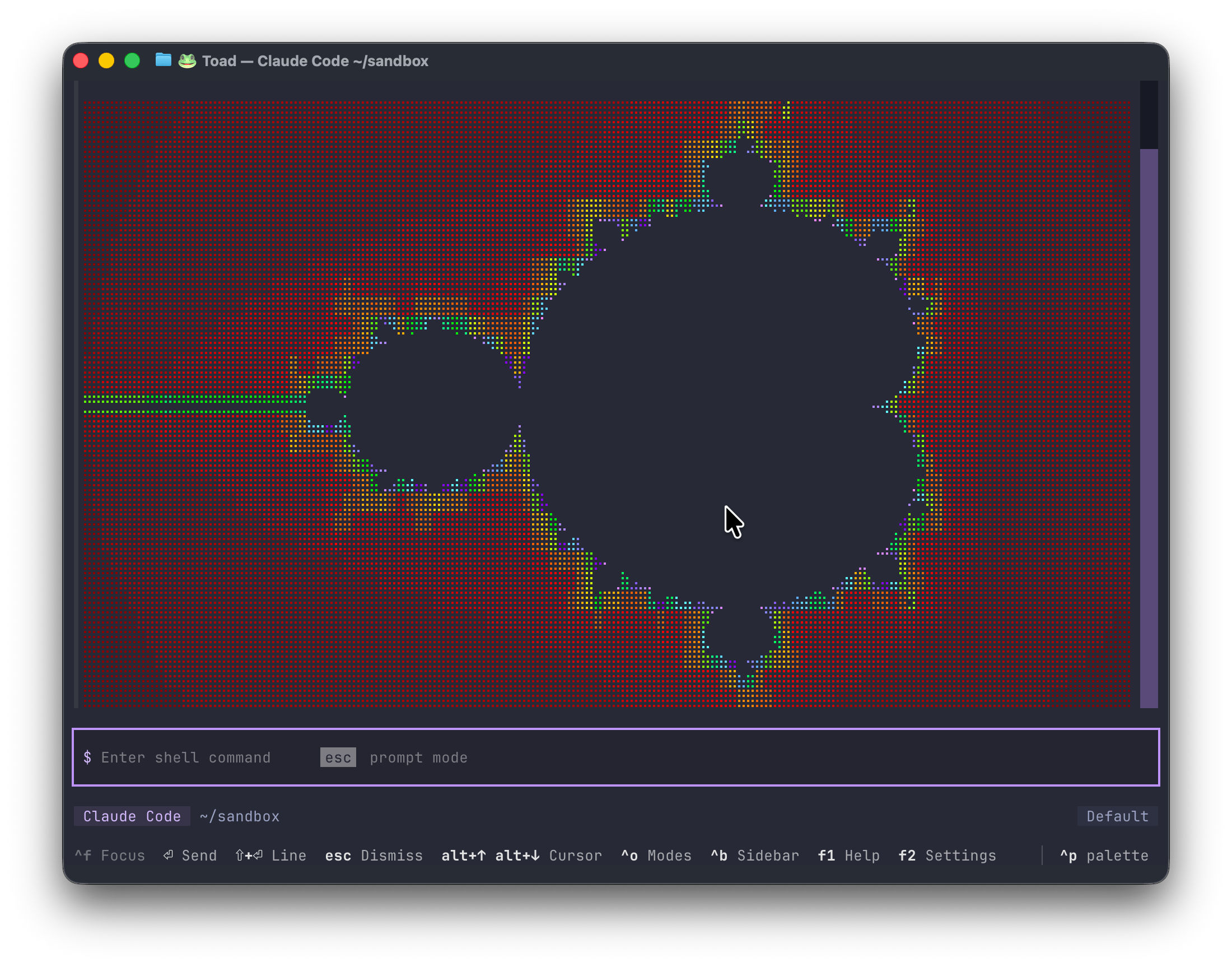
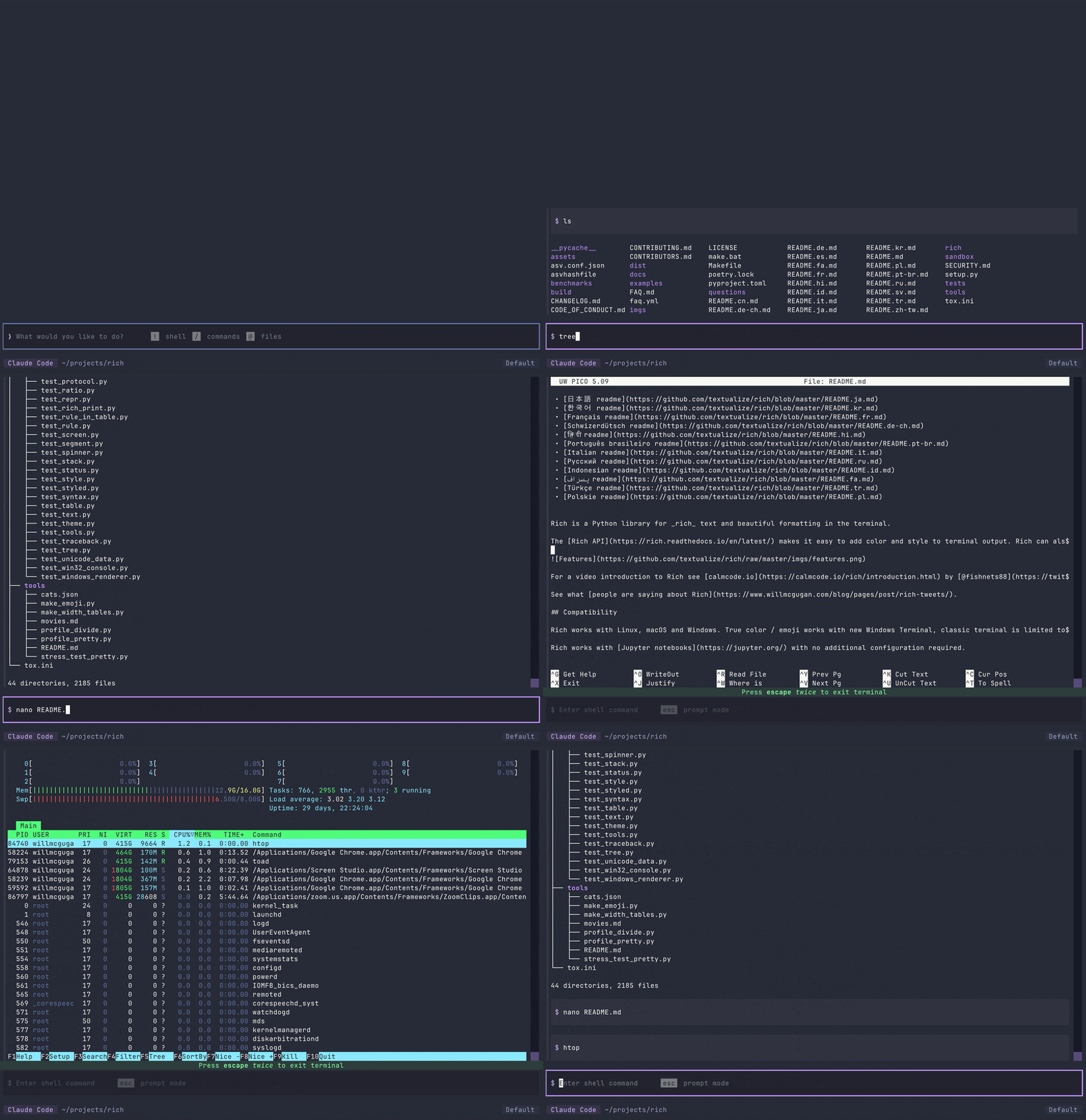
Toad ShellWhile most terminal agent interfaces can run commands (with the ! syntax), they aren't running a shell. If you change directory or set environment variables, they won't persist from one command to the next. Output that contains more than simple text will typically be garbled, and anything interactive will fail or even break the TUI entirely. Toad integrates a fully working shell with full-color output, interactive commands, and tab completion. Allowing you to interleave prompts for the agent with terminal workflows. At time of writing Toad is the only terminal UI which does this. |
 |
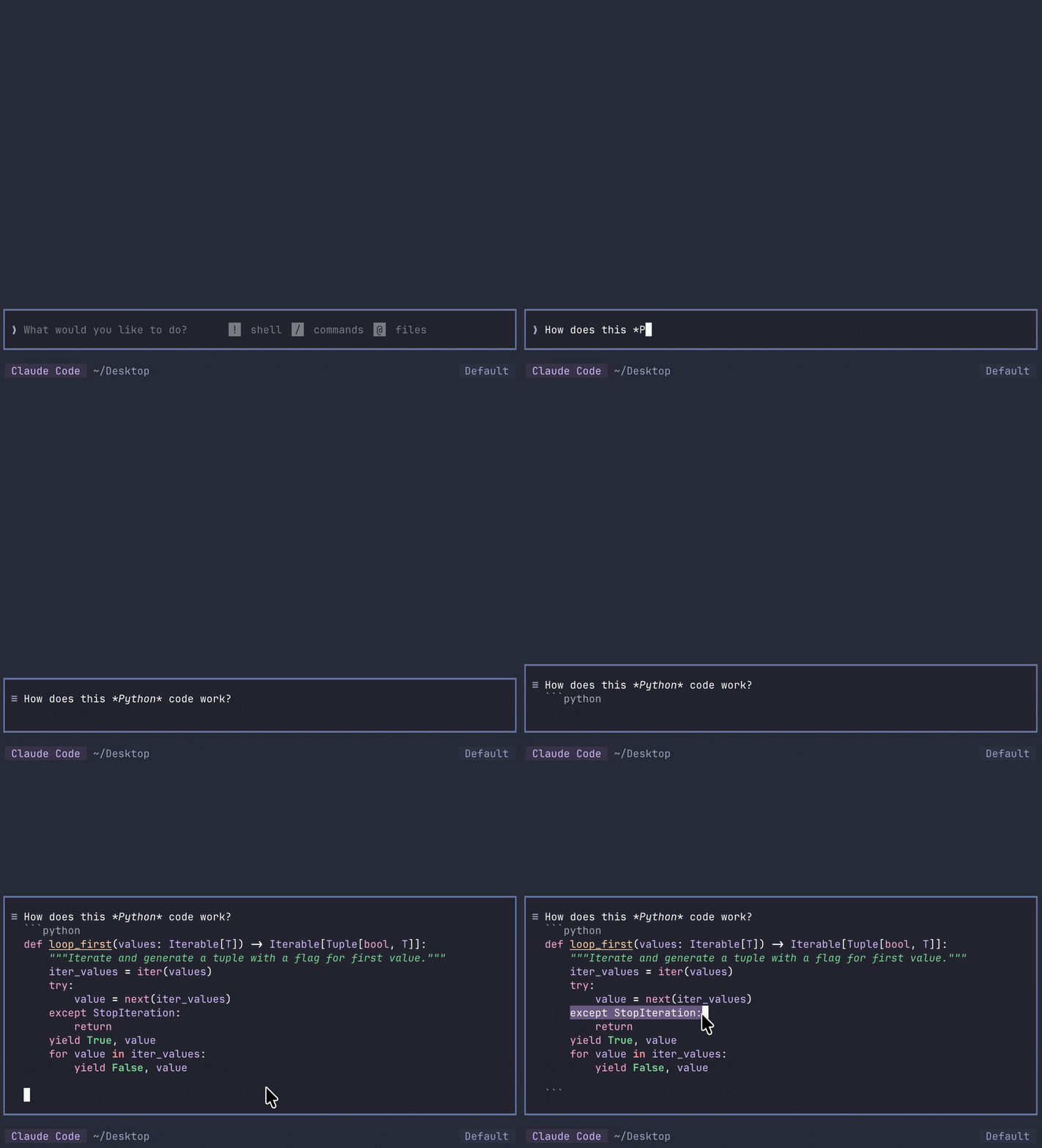
Prompt EditorToad has a nice Markdown prompt editor, with syntax highlighting for code fences. Full mouse support, cut and paste, many keybindings and shortcuts. |
|
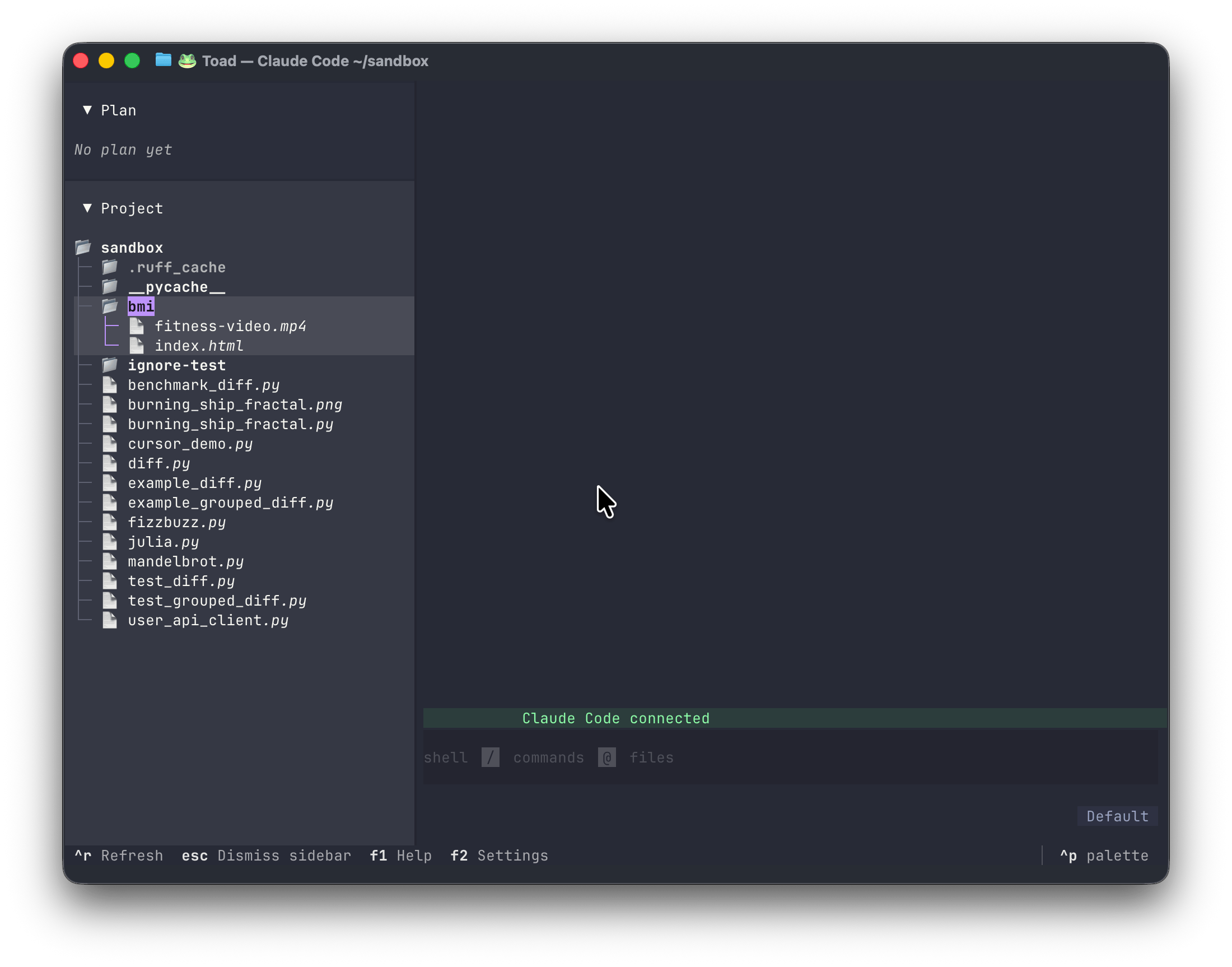
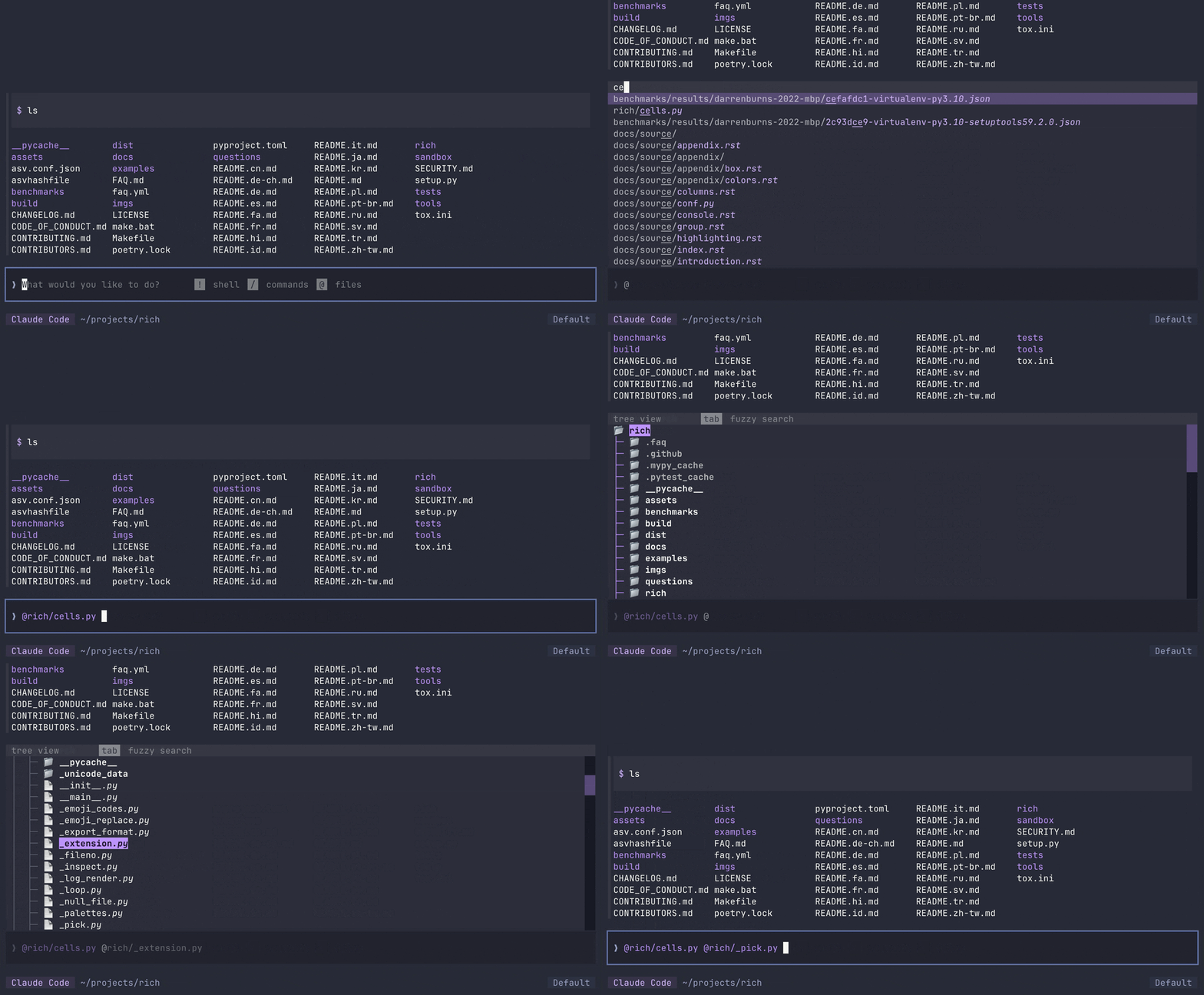
File PickerAdd a file to your prompt with @, and toad will show a fuzzy file picker. Type a few characters from the filename or folder and Toad will refine the search as you type. Hit enter to add the file to the prompt. The fuzzy picker is great when you know the file you want to mention. If you want to explore your files, you can press tab to switch to an interactive tree control. |
|
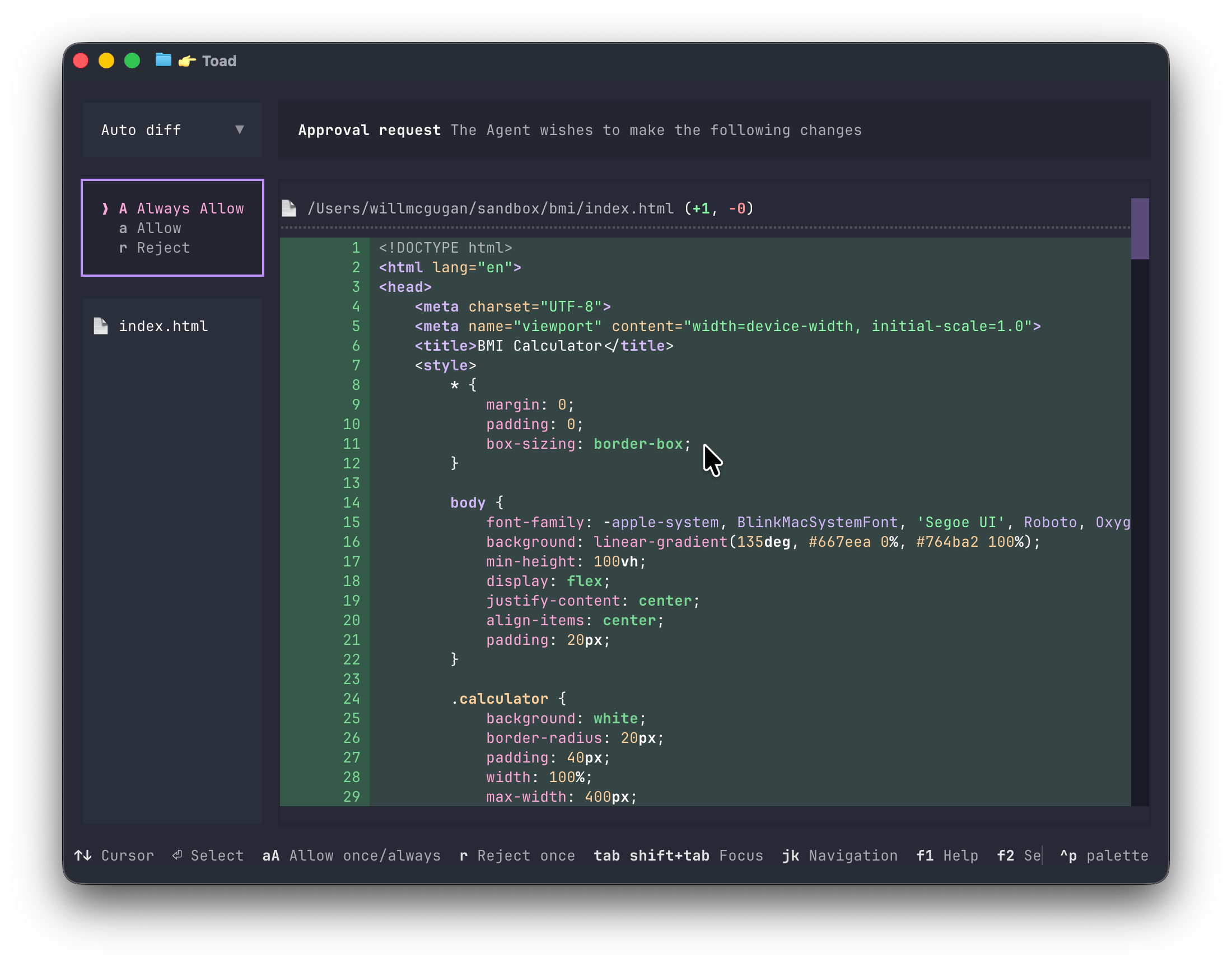
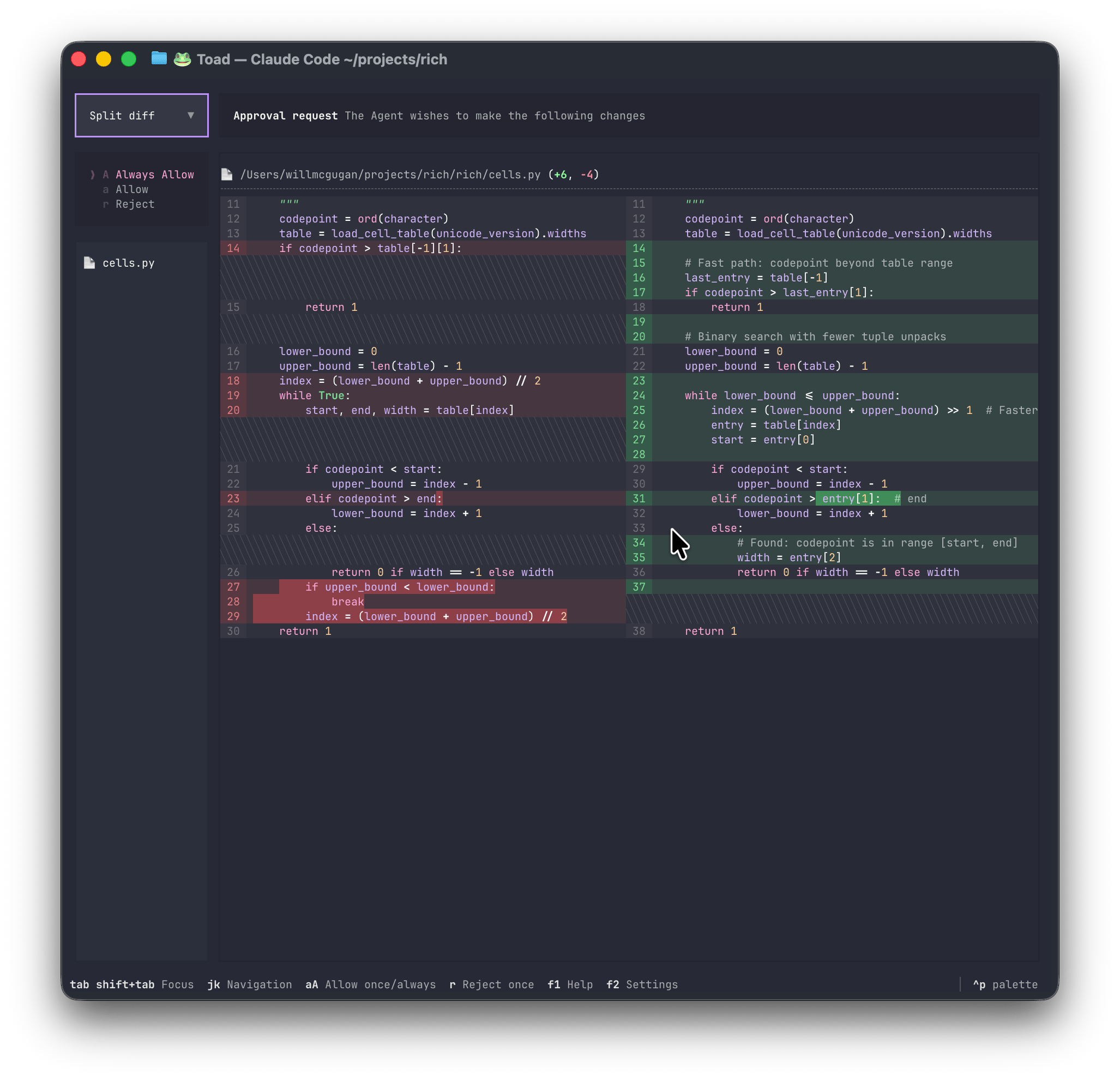
Beautiful DiffsSide-by-side or unified diffs, with syntax highlighting for most languages. |
|
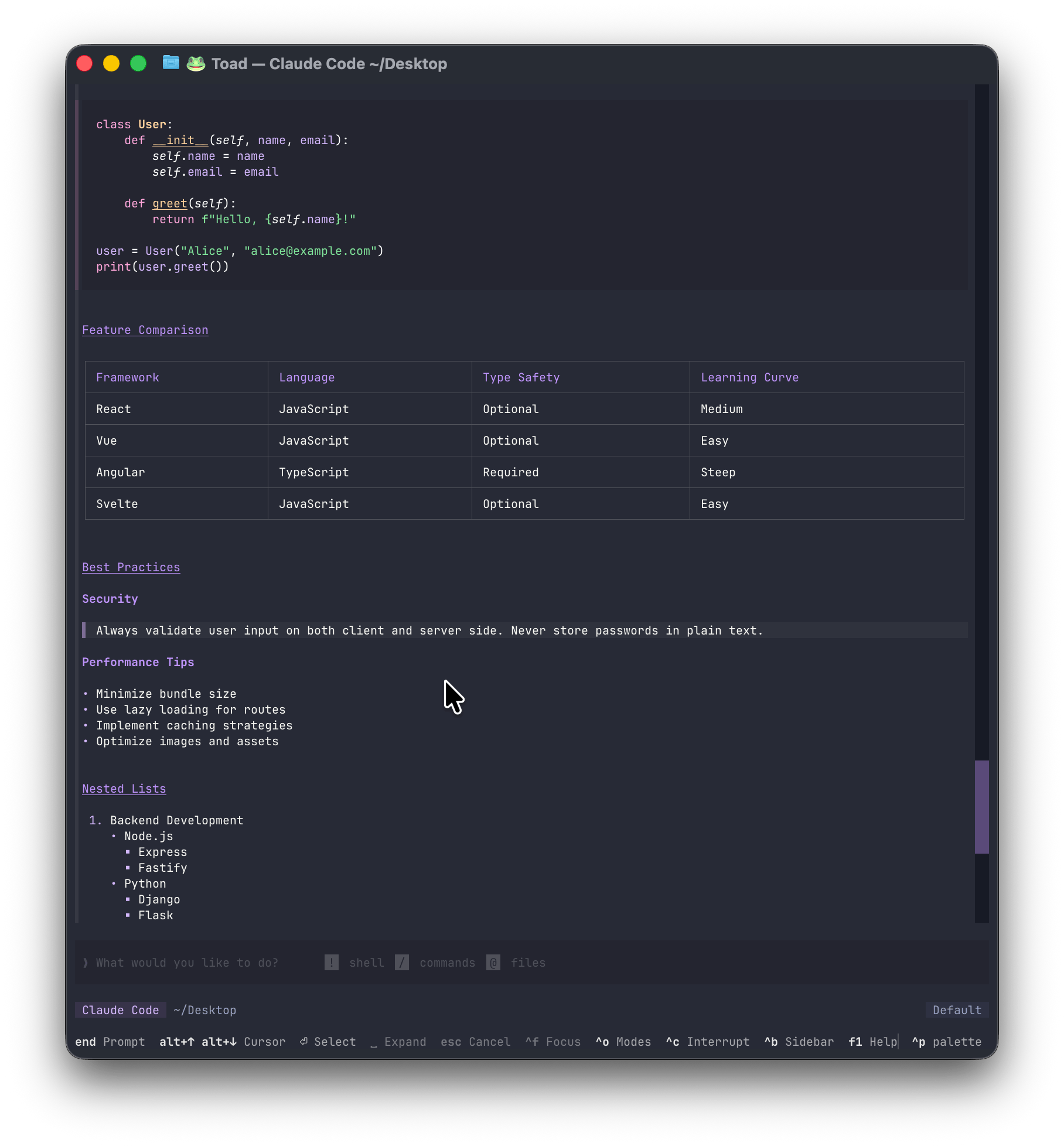
Elegant MarkdownMarkdown is the language of LLMs (AI). Toad's streaming Markdown support can display syntax highlighted code fences, elegant tables, quotes, lists, and more. |
|
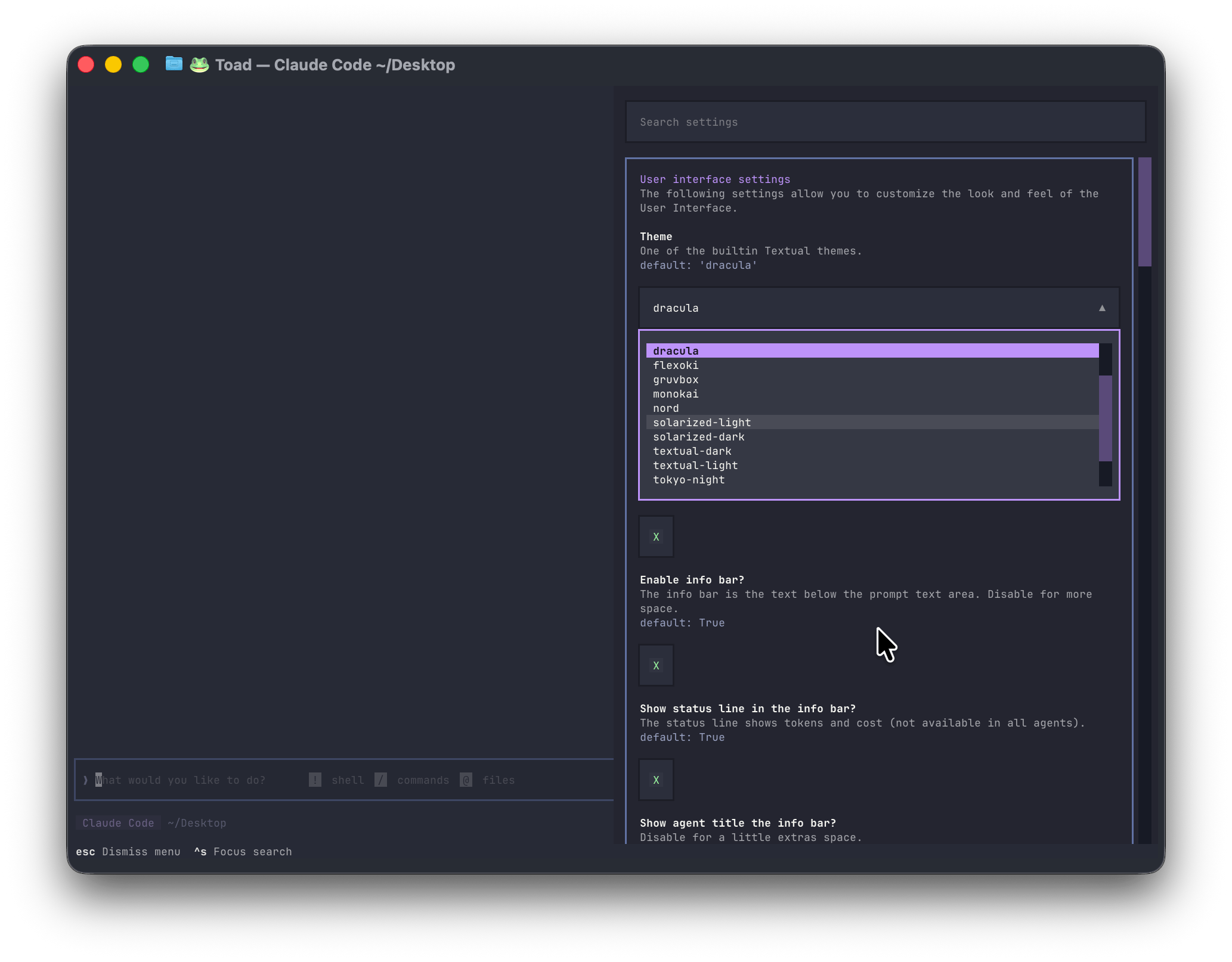
Simple SettingsAn intuitive settings system (no need to manually edit JSON files). Tune Toad to your liking. Almost everything in Toad may be tweaked. If you want to create an ultra-minimal UI with nothing more than a prompt—you can! |
|
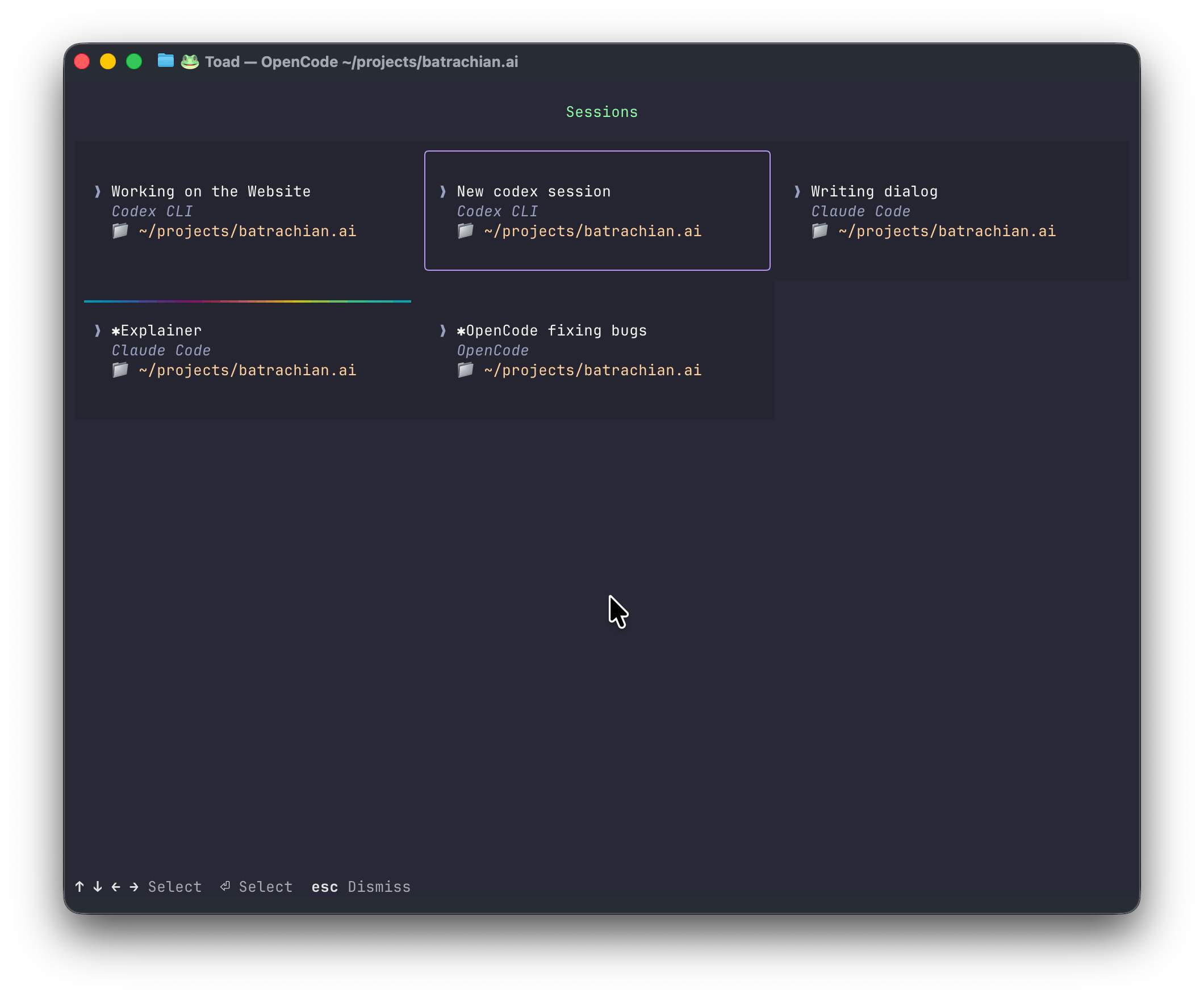
Concurrent sessionsLaunch and run multiple agents from potentially different providers. Hit ctrl+s to show the current state of all your agents in one screen. |
|
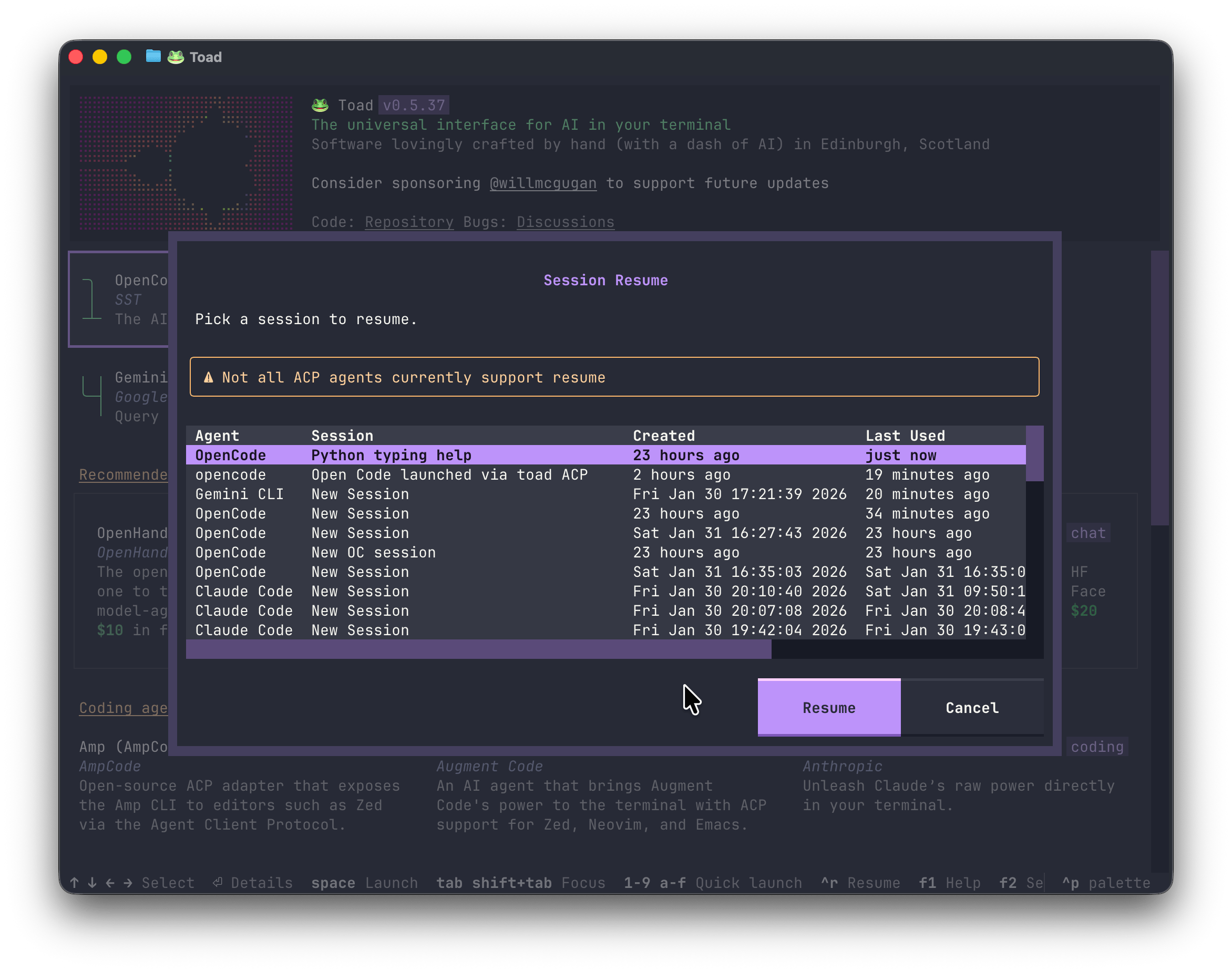
Session ResumeResume previous sessions with your agent. Hit ctrl+r to pick a previous session to resume. |
|
Video
Watch a preview of the Toad User Interface:
https://github.com/user-attachments/assets/ced36f4b-db02-4d29-8a0a-14ec64b22881
Compatibility
Toad runs on Linux and macOS. Native Windows support is currently lacking (but on the roadmap), but Toad will run quite well with WSL.
Toad is a terminal application. Any terminal will work, although if you are using the default terminal on macOS you will get a much reduced experience. I recommend Ghostty which is fully featured and has amazing performance.
Clipboard
On Linux, you may need to install xclip to enable clipboard support.
sudo apt install xclip
Getting Started
The easiest way to install Toad is by pasting the following in to your terminal:
curl -fsSL batrachian.ai/install | sh
You should now have toad installed.
If that doesn't work for any reason, then you can install with the following steps:
First install UV:
curl -LsSf https://astral.sh/uv/install.sh | sh
Then use UV to install toad:
uv tool install -U batrachian-toad --python 3.14
Toad is also available on conda-forge, and can be installed using pixi:
pixi global install batrachian-toad
Using Toad
Launch Toad with the following:
toad
You should see something like this:
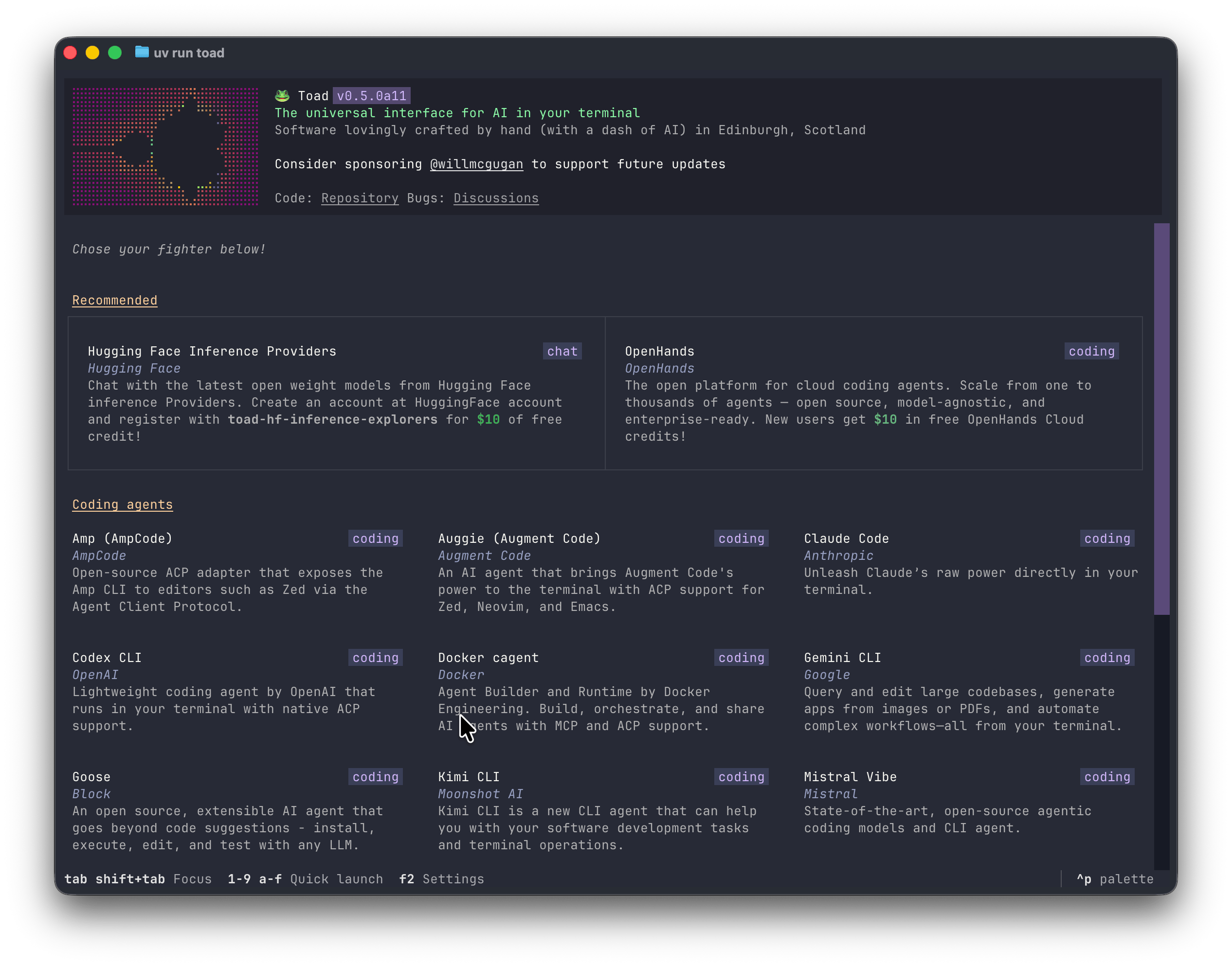
From this screen you will be able to find, install, and launch a coding agent. If you already have an agent installed, you can skip the install step. To launch an agent, select it and press space.
The footer will always display the most significant keys for the current context. To see all the keys, press F1 to display the help panel.
Toad CLI
When running Toad, the current working directory is assumed to be your project directory. To use another project directory, add the path to the command. For example:
toad ~/projects/my-awesome-app
If you want to skip the initial agent screen, add the -a switch with the name of your chosen agent.
For example:
toad -a open-hands
To see all subcommands and switches, add the --help switch:
toad --help
Web server
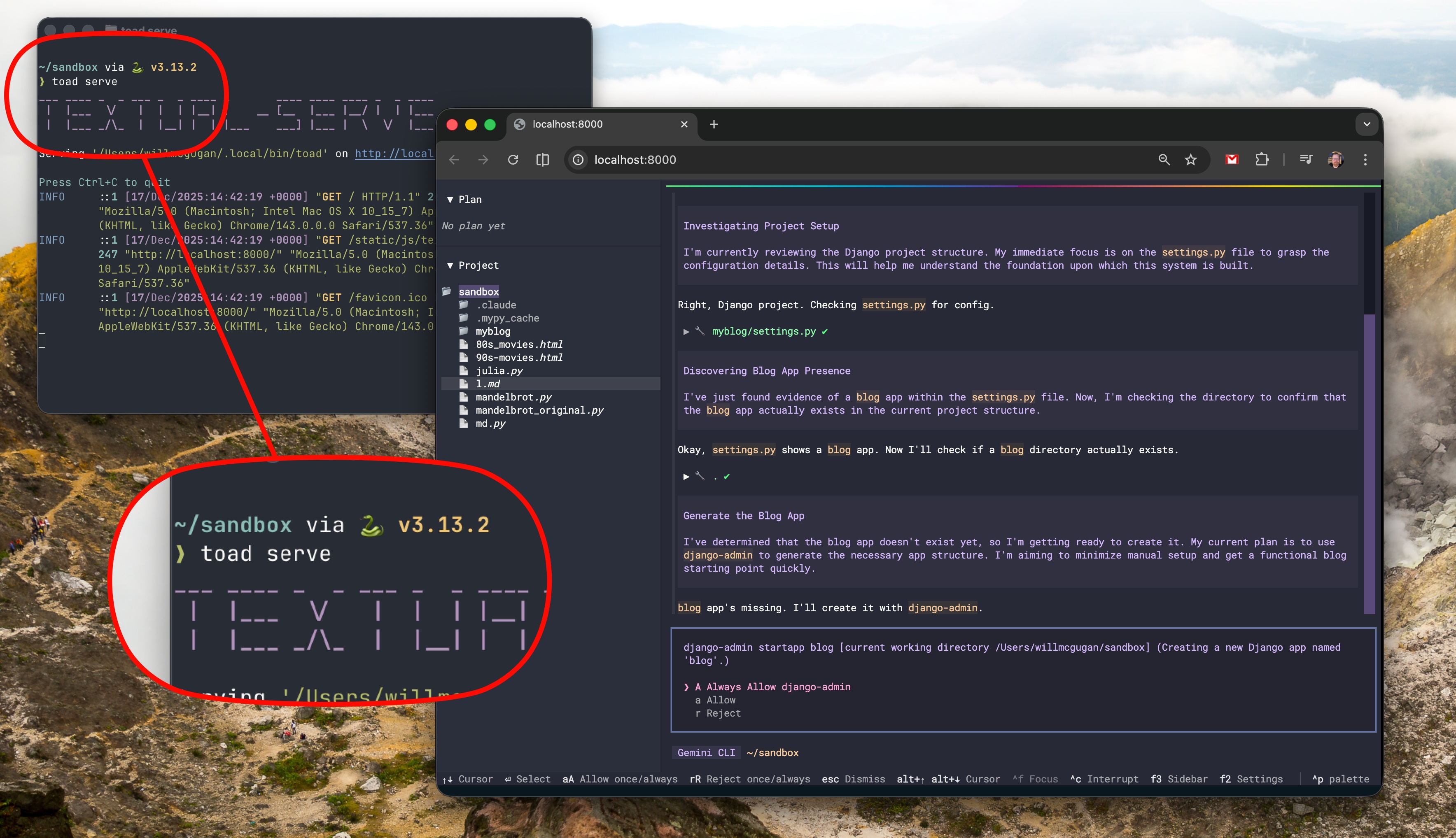
You can run Toad as a web application.
Run the following, and click the link in the terminal:
toad serve
Toad development
Toad was built by Will McGugan and is currently under active development.
To discuss Toad, see the Discussions tab, or join the #toad channel on the Textualize discord server.
Roadmap
Some planned features:
- UI for MCP servers
- Expose model selection (waiting on ACP update)
- Sessions (resume)
- Multiple agents
- Windows native support
- Builtin editor
- Sidebar (widgets)
- Git pending changes
Reporting bugs
This project is trialling a non-traditional approach to issues. Before an issue is created, there must be a post in Discussions, approved by a Toad dev (Currently @willmcgugan).
By allowing the discussions to happen in the Discussion tabs, issues can be reserved for actionable tasks with a clear description and goal.
Release history Release notifications | RSS feed


Download files
Download the file for your platform. If you're not sure which to choose, learn more about installing packages.
Source Distribution
Built Distribution
Filter files by name, interpreter, ABI, and platform.
If you're not sure about the file name format, learn more about wheel file names.
Copy a direct link to the current filters
File details
Details for the file batrachian_toad-0.6.12.tar.gz.
File metadata
- Download URL: batrachian_toad-0.6.12.tar.gz
- Upload date:
- Size: 1.8 MB
- Tags: Source
- Uploaded using Trusted Publishing? No
- Uploaded via: uv/0.9.18 {"installer":{"name":"uv","version":"0.9.18","subcommand":["publish"]},"python":null,"implementation":{"name":null,"version":null},"distro":{"name":"macOS","version":null,"id":null,"libc":null},"system":{"name":null,"release":null},"cpu":null,"openssl_version":null,"setuptools_version":null,"rustc_version":null,"ci":null}
File hashes
| Algorithm | Hash digest | |
|---|---|---|
| SHA256 |
294b5e99e7fe2b846bb01252affdbb808478859d62e6596bada60a2ffcd905c2
|
|
| MD5 |
688501e5ecb595c1888aa393ec8d024f
|
|
| BLAKE2b-256 |
50b18f33dbc9bf05ca86c7c6d0aefbb274870ed6a48a0988936bff8b862015f6
|
File details
Details for the file batrachian_toad-0.6.12-py3-none-any.whl.
File metadata
- Download URL: batrachian_toad-0.6.12-py3-none-any.whl
- Upload date:
- Size: 1.9 MB
- Tags: Python 3
- Uploaded using Trusted Publishing? No
- Uploaded via: uv/0.9.18 {"installer":{"name":"uv","version":"0.9.18","subcommand":["publish"]},"python":null,"implementation":{"name":null,"version":null},"distro":{"name":"macOS","version":null,"id":null,"libc":null},"system":{"name":null,"release":null},"cpu":null,"openssl_version":null,"setuptools_version":null,"rustc_version":null,"ci":null}
File hashes
| Algorithm | Hash digest | |
|---|---|---|
| SHA256 |
1f2389649c7fd2c74f02cbec9f2b42a939ce7810247cd8e628672f206e162ce1
|
|
| MD5 |
68070bbbabf594f00edbf1c1c7fdb44e
|
|
| BLAKE2b-256 |
145ed3462ac54ff4cc6230acf83caa6e62212e5b932dbf8a5b02bbddcf5078f1
|






