
Computer Control MCP
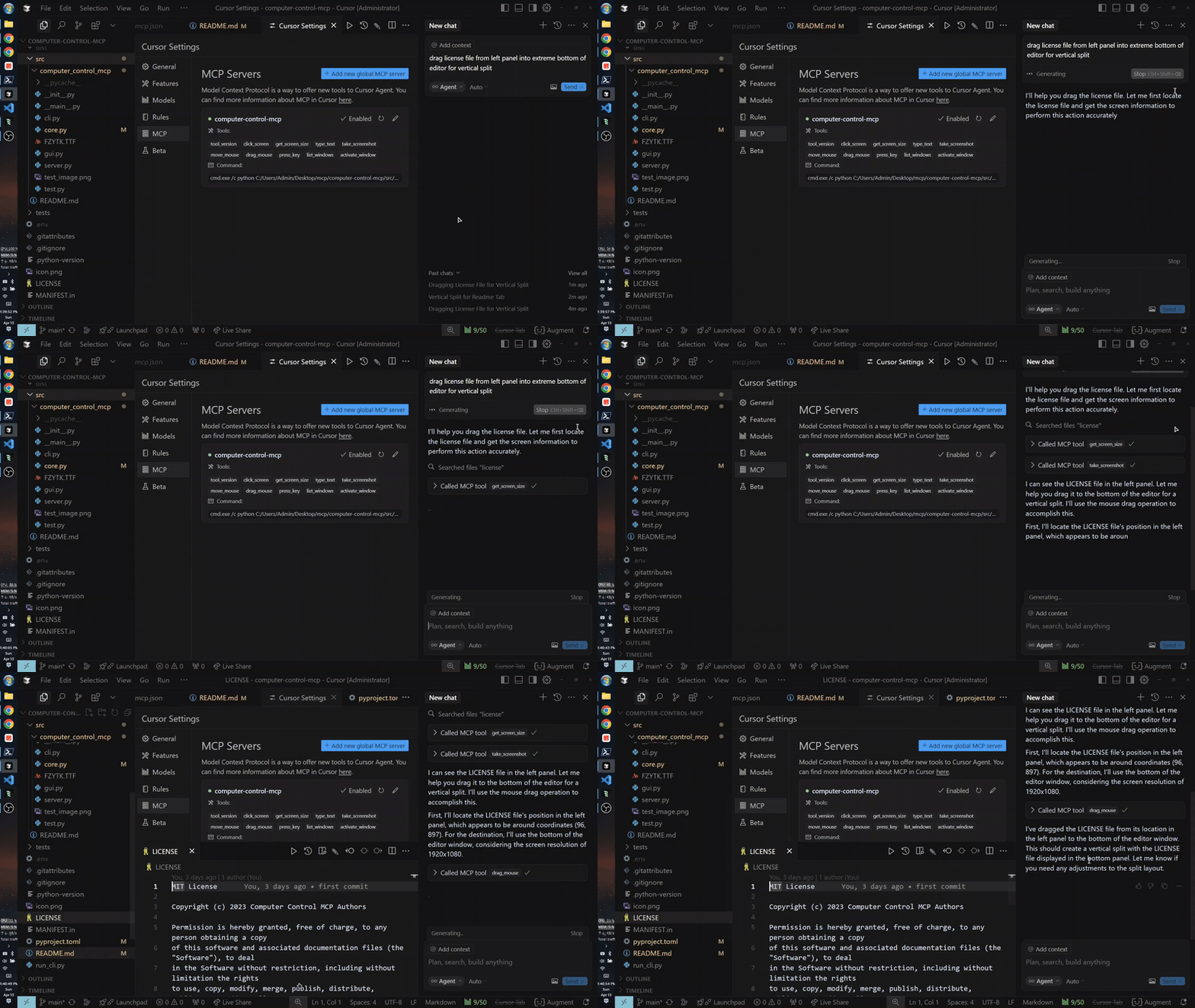
MCP server that provides computer control capabilities, like mouse, keyboard, OCR, etc. using PyAutoGUI, RapidOCR, ONNXRuntime. Similar to 'computer-use' by Anthropic. With Zero External Dependencies.


Quick Usage (MCP Setup Using uvx)
Note: Running uvx computer-control-mcp@latest for the first time will download python dependencies (around 70MB) which may take some time. Recommended to run this in a terminal before using it as MCP. Subsequent runs will be instant.
{
  "mcpServers": {
    "computer-control-mcp": {
      "command": "uvx",
      "args": ["computer-control-mcp@latest"]
    }
  }
}
OR install globally with pip:
pip install computer-control-mcp
Then run the server with:
computer-control-mcp # instead of uvx computer-control-mcp, so you can use the latest version, also you can `uv cache clean` to clear the cache and `uvx` again to use latest version.
Features
- Control mouse movements and clicks
- Type text at the current cursor position
- Take screenshots of the entire screen or specific windows with optional saving to downloads directory
- Extract text from screenshots using OCR (Optical Character Recognition)
- List and activate windows
- Press keyboard keys
- Drag and drop operations
- Enhanced screenshot capture for GPU-accelerated windows (Windows only)
Note on GPU-accelerated Windows
Traditional screenshot methods like GDI/PrintWindow fail to capture GPU-accelerated windows, resulting in black screens. This impacts games, media players, Electron apps, browsers with GPU acceleration, streaming software, and CAD tools. Use WGC through take_screenshot tool's flag or ENV variable
Configuration
Custom Screenshot Directory
By default, screenshots are saved to the OS downloads directory. You can customize this by setting the COMPUTER_CONTROL_MCP_SCREENSHOT_DIR environment variable:
{
  "mcpServers": {
    "computer-control-mcp": {
      "command": "uvx",
      "args": ["computer-control-mcp@latest"],
      "env": {
        "COMPUTER_CONTROL_MCP_SCREENSHOT_DIR": "C:\\Users\\YourName\\Pictures\\Screenshots"
      }
    }
  }
}
Or set it system-wide:
# Windows (PowerShell)
$env:COMPUTER_CONTROL_MCP_SCREENSHOT_DIR = "C:\Users\YourName\Pictures\Screenshots"

# macOS/Linux
export COMPUTER_CONTROL_MCP_SCREENSHOT_DIR="/home/yourname/Pictures/Screenshots"
If the specified directory doesn't exist, the server will fall back to the default downloads directory.
Automatic WGC for Specific Windows
You can configure the system to automatically use Windows Graphics Capture (WGC) for specific windows by setting the COMPUTER_CONTROL_MCP_WGC_PATTERNS environment variable. This variable should contain comma-separated patterns that match window titles:
{
  "mcpServers": {
    "computer-control-mcp": {
      "command": "uvx",
      "args": ["computer-control-mcp@latest"],
      "env": {
        "COMPUTER_CONTROL_MCP_WGC_PATTERNS": "obs, discord, game, steam"
      }
    }
  }
}
Or set it system-wide:
# Windows (PowerShell)
$env:COMPUTER_CONTROL_MCP_WGC_PATTERNS = "obs, discord, game, steam"

# macOS/Linux
export COMPUTER_CONTROL_MCP_WGC_PATTERNS="obs, discord, game, steam"
When this variable is set, any window whose title contains any of the specified patterns will automatically use WGC for screenshot capture, eliminating black screens for GPU-accelerated applications.
Available Tools
Mouse Control
click_screen(x: int, y: int): Click at specified screen coordinatesmove_mouse(x: int, y: int): Move mouse cursor to specified coordinatesdrag_mouse(from_x: int, from_y: int, to_x: int, to_y: int, duration: float = 0.5): Drag mouse from one position to anothermouse_down(button: str = "left"): Hold down a mouse button ('left', 'right', 'middle')mouse_up(button: str = "left"): Release a mouse button ('left', 'right', 'middle')
Keyboard Control
type_text(text: str): Type the specified text at current cursor positionkey_down(key: str): Hold down a specific keyboard key until releasedkey_up(key: str): Release a specific keyboard keypress_keys(keys: Union[str, List[Union[str, List[str]]]]): Press keyboard keys (supports single keys, sequences, and combinations)
Screen and Window Management
take_screenshot(title_pattern: str = None, use_regex: bool = False, threshold: int = 10, scale_percent_for_ocr: int = None, save_to_downloads: bool = False, use_wgc: bool = False): Capture screen or windowtake_screenshot_with_ocr(title_pattern: str = None, use_regex: bool = False, threshold: int = 10, scale_percent_for_ocr: int = None, save_to_downloads: bool = False): Extract adn return text with coordinates using OCR from screen or windowget_screen_size(): Get current screen resolutionlist_windows(): List all open windowsactivate_window(title_pattern: str, use_regex: bool = False, threshold: int = 60): Bring specified window to foregroundwait_milliseconds(milliseconds: int): Wait for a specified number of milliseconds
Testing MCP Server with mcp-caller
You can quickly test the MCP server tools without an MCP client using mcp-caller:
# List all available tools
npx mcp-caller --server-json '{"type":"stdio","command":"uvx","args":["computer-control-mcp@latest","server"]}' --list-tools

# Call a specific tool
npx mcp-caller --server-json '{"type":"stdio","command":"uvx","args":["computer-control-mcp@latest","server"]}' --tool list_windows --params-json '{}'
Development
Setting up the Development Environment
# Clone the repository
git clone https://github.com/AB498/computer-control-mcp.git
cd computer-control-mcp

# Build/Run:

# 1. Install in development mode | Meaning that your edits to source code will be reflected in the installed package.
pip install -e .

# Then Start server | This is equivalent to `uvx computer-control-mcp@latest` just the local code is used
computer-control-mcp

# -- OR --

# 2. Build after `pip install hatch` | This needs version increment in orer to reflect code changes
hatch build

# Windows
$latest = Get-ChildItem .\dist\*.whl | Sort-Object LastWriteTime -Descending | Select-Object -First 1
pip install $latest.FullName --upgrade

# Non-windows
pip install dist/*.whl --upgrade

# Run
computer-control-mcp
Running Tests
python -m pytest
API Reference
See the API Reference for detailed information about the available functions and classes.
License
MIT
For more information or help
1 maintainer

Metadata
1 maintainer
Release files for computer-control-mcp 0.3.14
For a detailed explanation of source distributions (sdists) and built distributions (wheels), please see the package formats documentation.
Source distribution (sdist)
| File | Size | Uploaded | Provenance | Actions |
|---|---|---|---|---|
| computer_control_mcp-0.3.14.tar.gz | 4.4 MB | Without provenance | Details for computer_control_mcp-0.3.14.tar.gz |
Built distribution (wheel)
| File | Interpreter | ABI | Platform | Actions Reset |
|---|---|---|---|---|
| computer_control_mcp-0.3.14-py3-none-any.whl | Python 3 | none | any | Details for computer_control_mcp-0.3.14-py3-none-any.whl |
Total release size: 6.2 MB
Release files / computer_control_mcp-0.3.14.tar.gz
| Download URL | computer_control_mcp-0.3.14.tar.gz |
|---|---|
| Size | 4.4 MB |
| Tags | Source |
|
SHA-256 checksum How to use checksums |
44b6d1400355357df41a077a2b5b8d5371cd59950acfd3d5be9dc939dba403c9
|
|
BLAKE2b-256 checksum How to use checksums |
b3558aa20306720f9fd35c55db8b7d18714dfb18491a2aa0f5334dea0db3ad39
|
| Upload date | |
|
Uploaded using Trusted Publishing? What is trusted publishing? |
No |
| Uploaded via |
uv/0.12.17 {"installer":{"name":"uv","version":"0.12.17","subcommand":["publish"]},"python":null,"implementation":{"name":null,"version":null},"distro":null,"system":{"name":null,"release":null},"cpu":null,"openssl_version":null,"setuptools_version":null,"rustc_version":null,"ci":null}
|
Release files / computer_control_mcp-0.3.14-py3-none-any.whl
| Download URL | computer_control_mcp-0.3.14-py3-none-any.whl |
|---|---|
| Size | 1.8 MB |
| Tags | Python 3 |
|
SHA-256 checksum How to use checksums |
5c2883f74c3678adb72df2fbecc052571628c9011022ee2463e18c8333f7906f
|
|
BLAKE2b-256 checksum How to use checksums |
4858a53a0922af7596d1c2bf56770b621d99621052da349c5191faa3b0d34a99
|
| Upload date | |
|
Uploaded using Trusted Publishing? What is trusted publishing? |
No |
| Uploaded via |
uv/0.12.17 {"installer":{"name":"uv","version":"0.12.17","subcommand":["publish"]},"python":null,"implementation":{"name":null,"version":null},"distro":null,"system":{"name":null,"release":null},"cpu":null,"openssl_version":null,"setuptools_version":null,"rustc_version":null,"ci":null}
|
Security for computer-control-mcp 0.3.14
Provenance
Provenance describes where a file came from. On PyPI, provenance is shared via attestations, which provide a verifiable record of the build or publishing details. View details, limitations and caveats.
No provenance found
None of the files in this release were uploaded with provenance metadata.
A note on package security
PyPI is a repository for distributing packages, not a service for auditing them. While third-party security researchers and our staff do their best to detect and remove malicious packages, PyPI cannot guarantee the quality, security or suitability of any given package.
To learn more about protecting yourself from malicious actors, visit our package security documentation.














