
CLI Tools for Amdocs ConnectX

Project description

Introduction
The ctxcli package provides Command Line Interface (CLI) tools for Amdocs ConnectX. These tools allow authorized ConnectX users to perform various operations on the system.
Installation
Before installing ctxcli, ensure that Python and pip are installed on your system.
To install ctxcli from PyPI, use the following command:
pip install ctxcli
Authentication
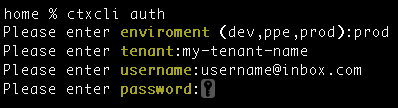
Before running any command, you need to authenticate by running the ‘auth’ command. Use the following command to authenticate:
ctxcli auth
You will be prompted to enter your tenant, environment (dev, ppe, prod), username, and password.
Commands
The ctxcli commands are divided into the following categories: Users, Tenant, and Migration.
Users
To list all the users in the system, use the following command:
ctxcli user list
Here’s an example of the output:

Tenant
To list all the sub-tenants in the system, use the following command:
ctxcli tenant list
Here’s an example of the output:

Migration
To list all the migration files in the system, use the following command:
ctxcli migration file list
Here’s an example of the output:

Business Units
To list all the business units in the system, use the following command:
ctxcli business-unit list
Here’s an example of the output:

To add users to business units, use the following command:
ctxcli business-unit add-users --file <file_path>
This command requires a CSV file that contains the necessary user information. The file can be placed in the “input” folder. You can specify the path to this CSV file using the –file argument followed by the path to your file. The CSV file should include two columns with headers:
business_unit_id: The internal ID of the Business Unit to which you want to add users. username: The username of the user you want to add to the Business Unit.
The command will read each line of the CSV file and attempt to add the specified user to the corresponding Business Unit.
Orders
The ctxcli order export command allows you to export orders to an Excel file for a specified date range.
Usage
To export orders to an Excel file, use the following command:
ctxcli order export --start-date <start_date> --end-date <end_date> --output <file_path>Arguments
–start-date <start_date>: The start date for the order export in the format YYYY-MM-DD.
–end-date <end_date>: The end date for the order export in the format YYYY-MM-DD.
–output <file_path>: The file path for the output Excel file. The file will be created if it does not exist.
License
Copyright 2024 Amdocs
Release history Release notifications | RSS feed


Download files
Download the file for your platform. If you're not sure which to choose, learn more about installing packages.
Source Distribution
File details
Details for the file ctxcli-0.1.4.tar.gz.
File metadata
- Download URL: ctxcli-0.1.4.tar.gz
- Upload date:
- Size: 11.6 kB
- Tags: Source
- Uploaded using Trusted Publishing? No
- Uploaded via: twine/5.1.0 CPython/3.9.12
File hashes
| Algorithm | Hash digest | |
|---|---|---|
| SHA256 |
e52f13718a386e6251777060264ca16fc302e92fd5d11d2f0bf6597d719cb9ab
|
|
| MD5 |
405d0af329c96d80c001eaf5a29e7471
|
|
| BLAKE2b-256 |
490de2c3bac1e3dd65cc1c670550d596963a94918df9cd3b1f5d67f0fd239f9e
|






