
Interactive CSV/Excel viewer for the terminal (Textual TUI)

Project description
DataFrame Viewer
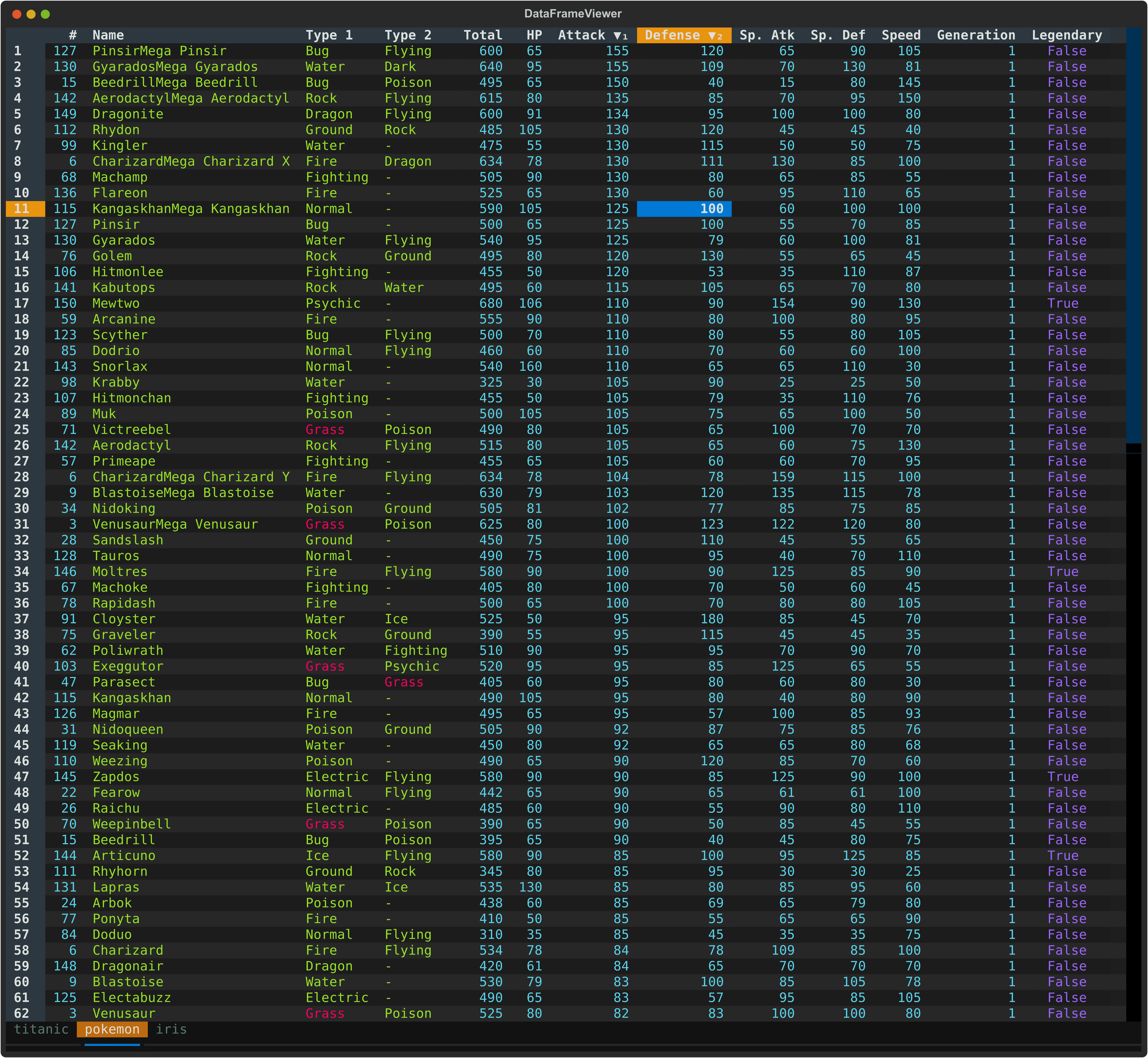
A powerful, interactive terminal-based CSV viewer built with Python, Polars, and Textual. Inspired by VisiData, this tool provides smooth keyboard navigation, data manipulation, and a clean interface for exploring CSV data directly in your terminal. Now with multi-file support for simultaneous data comparison!
Features
Core Data Viewing
- 🚀 Fast CSV Loading - Powered by Polars for efficient data handling with lazy pagination
- 🎨 Rich Terminal UI - Beautiful, color-coded columns with automatic type detection
- ⌨️ Comprehensive Keyboard Navigation - Intuitive controls for browsing, editing, and manipulating data
- 📊 Flexible Input - Read from files or stdin (pipes/redirects)
- 🔄 Smart Pagination - Lazy load rows on demand for handling large datasets
Data Manipulation
- 📝 Data Editing - Edit cells, delete rows, and remove columns
- 🔍 Search & Filter - Find values, highlight matches, and filter selected rows
- ↔️ Column/Row Reordering - Move columns and rows with simple keyboard shortcuts
- 📈 Sorting & Statistics - Multi-column sorting and frequency distribution analysis
- 💾 Save & Undo - Save filtered data back to CSV with full undo/redo support
Advanced Features
- 📌 Pin Rows/Columns - Keep important rows and columns visible while scrolling
- 🎯 Cursor Type Cycling - Switch between cell, row, and column selection modes
- 📂 Multi-File Support - Open multiple CSV files in tabs for side-by-side comparison
- 🔄 Tab Management - Seamlessly switch between open files with keyboard shortcuts
Installation
Using uv (recommended)
# Clone or download the project
cd dataframe-viewer

# Run directly with uv
uv run python main.py <csv_file>
Using pip
pip install polars textual
python main.py <csv_file>
Usage
Basic Usage - Single File
# View a CSV file
python main.py pokemon.csv

# Or with uv
uv run python main.py pokemon.csv

# Read from stdin
cat data.csv | python main.py
python main.py < data.csv
Multi-File Usage - Multiple Tabs
# Open multiple files in tabs
python main.py file1.csv file2.csv file3.csv

# Open multiple sheets in tabs in an Excel file
python main.py file.xlsx

# Or with uv
uv run python main.py file1.csv file2.csv file3.csv

# Mix files and stdin (file opens first, then read from stdin)
python main.py data1.csv < data2.csv
When multiple files are opened:
- Each file appears as a separate tab at the top
- Switch between tabs using
>(next) or<(previous) - Open additional files with
Ctrl+O - Close the current tab with
Ctrl+W - Each file maintains its own state (sort order, selections, history, etc.)
- Edits and filters are independent per file
Keyboard Shortcuts
App-Level Controls
File & Tab Management
| Key | Action |
|---|---|
Ctrl+O |
Open new CSV file in a new tab |
Ctrl+W |
Close current tab |
Ctrl+Shift+S |
Save all open tabs to Excel file |
> or b |
Move to next tab |
< |
Move to previous tab |
B |
Toggle tab bar visibility |
q |
Quit the application |
View & Settings
| Key | Action |
|---|---|
? or h |
Toggle help panel (context-sensitive) |
k |
Cycle through themes |
Table-Level Controls
Navigation
| Key | Action |
|---|---|
g |
Jump to first row |
G |
Jump to last row (loads all remaining rows) |
↑ / ↓ |
Move up/down one row |
← / → |
Move left/right one column |
PageDown / PageUp |
Scroll down/up |
| Arrow keys | Navigate the table |
Viewing & Display
| Key | Action |
|---|---|
Enter |
View full details of current row in modal |
F |
Show frequency distribution for column |
C |
Cycle cursor type: cell → row → column → cell |
# |
Toggle row labels visibility |
Data Editing
| Key | Action |
|---|---|
e |
Edit current cell (respects data type) |
d |
Delete current row |
- |
Delete current column |
Searching & Filtering
| Key | Action |
|---|---|
| (pipe) |
Search in current column (case-insensitive) |
/ (slash) |
Global search across all columns |
\ |
Search current column using cell value |
s |
Select/deselect current row |
t |
Toggle highlighting of all selected rows (invert) |
T |
Clear all selected rows |
" (quote) |
Filter to show only selected rows |
v |
Filter by selected rows (if any) or current cell value |
V |
Filter by expression (Polars expression syntax) |
Sorting
| Key | Action |
|---|---|
[ |
Sort current column ascending |
] |
Sort current column descending |
Reordering
| Key | Action |
|---|---|
Shift+↑ |
Move current row up |
Shift+↓ |
Move current row down |
Shift+← |
Move current column left |
Shift+→ |
Move current column right |
Data Management
| Key | Action |
|---|---|
f |
Freeze rows and columns |
c |
Copy current cell to clipboard |
Ctrl+S |
Save current tab to CSV/TSV file |
u |
Undo last action |
U |
Reset to original data |
Modal Interactions
In Frequency Distribution Modal (opened with F):
[/]- Sort frequency tablev- Filter main table to selected value"- Highlight rows with selected valueq/Escape- Close modal
In Row Detail Modal (opened with Enter):
v- Filter main table to selected column value"- Highlight rows with selected column valueq/Escape- Close modal
Tip: Press ? or h to open the context-sensitive help panel which displays all available shortcuts based on your current focus.
Features in Detail
1. Color-Coded Data Types
Columns are automatically styled based on their data type:
- Int64 (Integers): Cyan text, right-aligned
- Float64 (Decimals): Magenta text, right-aligned
- String: Green text, left-aligned
- Boolean: Blue text, centered
- Date/Datetime: Blue text, centered
2. Row Detail View
Press Enter on any row to open a modal showing all column values for that row. Useful for examining wide datasets where columns don't fit on screen.
In the Row Detail Modal:
- Press
vto filter the main table to show only rows with the selected column value - Press
"to highlight all rows containing the selected column value - Press
qorEscapeto close the modal
3. Search & Filtering
Column Search (|):
- Search for values in the current column
- Case-insensitive substring matching
- All matching rows are highlighted in red
- Multiple searches accumulate selections
Global Search (/):
- Search for a term across all columns simultaneously
- Cell-level highlighting in red for each matching cell
- Useful for finding a value anywhere in the dataset
- Automatically loads rows if matches extend beyond visible area
- Type-aware matching: converts values to strings before comparing
Cell-Value Search (\):
- Automatically search using the current cell's value
- Quick way to find all occurrences of a value
Row Filtering ("):
- Display only the selected (highlighted) rows
- Other rows are hidden but preserved
- Use undo (
u) to restore
4. Filter by Expression
Press f to open a powerful filter expression dialog. This allows you to write complex filter conditions using a special syntax:
Column References:
$_- Current column (based on cursor position)$1,$2, etc. - Column by 1-based index$age,$salary- Column by name
Operators:
- Comparison:
==,!=,<,>,<=,>= - Logical:
&&(AND),||(OR) - Arithmetic:
+,-,*,/,%
Examples:
$_ > 50- Current column greater than 50$salary >= 100000- Salary at least 100,000$age < 30 && $status == 'active'- Age less than 30 AND status is active$name == 'Alice' || $name == 'Bob'- Name is Alice or Bob$salary / 1000 >= 50- Salary divided by 1,000 is at least 50
See FILTER_EXPRESSION_GUIDE.md for comprehensive syntax documentation.
5. Sorting
- Press
[to sort current column ascending - Press
]to sort current column descending - Multi-column sorting supported (press multiple times on different columns)
- Press same key twice to toggle direction
- Frequency view (
F) shows value distribution with optional sorting
6. Frequency Distribution
Press F to see how many times each value appears in the current column. The modal shows:
- Value
- Count
- Percentage of total
- Total row at the bottom
In the Frequency Table:
- Press
[and]to sort by any column (value, count, or percentage) - Press
vto filter the main table to show only rows with the selected value - Press
"to highlight all rows containing the selected value - Press
qorEscapeto close the frequency table
This is useful for:
- Understanding value distributions
- Quickly filtering to specific values
- Identifying rare or common values
- Finding the most/least frequent entries
7. Data Editing
Edit Cell (e):
- Opens modal for editing current cell
- Validates input based on column data type
- Shows column name and type
- Integer, number, and text inputs available
Delete Row (d):
- Delete single row at cursor
- Or delete all selected rows at once
- Deleted rows are marked internally but kept for undo
Delete Column (-):
- Removes the entire column from view and dataframe
- Cannot be undone directly (use undo feature)
8. Column & Row Reordering
Move Columns: Shift+← and Shift+→
- Swaps adjacent columns
- Reorder is preserved when saving
Move Rows: Shift+↑ and Shift+↓
- Swaps adjacent rows
- Visual reordering without affecting data
9. Pin Rows and Columns
Press f to open the pin dialog:
- Enter number of fixed rows: keeps top rows visible while scrolling
- Enter two numbers:
<rows> <columns>(space-separated) - Example:
2 3pins top 2 rows and left 3 columns
10. Save to CSV
Press Ctrl+S to save:
- Save filtered, edited, or sorted data back to CSV
- Choose filename in modal dialog
- Confirm if file already exists
- Automatic .tsv or .csv detection
11. Undo/Redo
Press u to undo:
- Reverts last action with full state restoration
- Works for edits, deletions, sorts, searches, etc.
- Shows description of reverted action
12. Cursor Type Cycling
Press C to cycle through selection modes:
- Cell mode: Highlight individual cell (and its row/column headers)
- Row mode: Highlight entire row
- Column mode: Highlight entire column
Visual feedback shows which mode is active.
13. Clipboard Operations
Press c to copy:
- Copies current cell value to system clipboard
- Works on macOS (
pbcopy) and Linux (xclip) - Shows confirmation notification
Data Type Support
- Int64, Int32, UInt32: Integer values
- Float64, Float32: Decimal numbers (shown with 4 significant figures)
- String: Text data
- Boolean: True/False values
- Date: ISO date format (YYYY-MM-DD)
- Datetime: ISO datetime format
- Null values: Displayed as
-
Examples
Single File Examples
# View Pokemon dataset
python main.py pokemon.csv

# View Titanic dataset with analysis
python main.py titanic.csv

# Filter and view specific columns
cut -d',' -f1,2,3 pokemon.csv | python main.py

# View with grep filter (then use | search in viewer)
grep "Fire" pokemon.csv | python main.py

# Chain with other commands
cat data.csv | sort -t',' -k2 | python main.py
Multi-File Examples
# Compare two versions of a dataset
python main.py pokemon_v1.csv pokemon_v2.csv

# Side-by-side analysis of related files
python main.py sales_2022.csv sales_2023.csv forecast_2024.csv

# Cross-reference datasets
python main.py customers.csv orders.csv products.csv

# Start with one file, open others using Ctrl+O
python main.py initial_data.csv
# Then press Ctrl+O to open more files interactively
Advanced Workflows
# Start with a filtered file, compare with original
grep "status=active" data.csv > filtered.csv
python main.py data.csv filtered.csv
# Now compare the full dataset with the filtered version in separate tabs

# Multi-step analysis
# 1. Open multiple related CSVs
# 2. Use Ctrl+O to open additional files as you discover relationships
# 3. Each tab maintains independent sort/filter/search state
# 4. Use Ctrl+W to close tabs when done analyzing
Performance
- Lazy loading: Only loads visible rows + 10 rows ahead
- Efficient sorting: Uses Polars' optimized sort algorithms
- Smooth scrolling: No lag when paging through large files
- Memory efficient: Handles datasets larger than RAM
Tested with:
- 10,000+ row CSV files
- Wide datasets (100+ columns)
- Various data types and sizes
Dependencies
- polars: Fast DataFrame library for CSV processing
- textual: Terminal UI framework
- rich: Rich text and formatting in the terminal
Architecture Overview
Single-Table Design
The core of the application is built around the DataFrameTable widget:
- Self-contained: Each table instance maintains its own complete state (13 independent variables)
- Fully autonomous: All operations (editing, sorting, filtering, searching) are handled within the table
- Event-driven: Each table owns and handles its keyboard events
- Backward compatible: Works identically in single-file mode
Multi-Table Design
The DataFrameApp coordinates multiple independent DataFrameTable instances:
- Tab-based interface: Uses Textual's
TabbedContentfor tab management - Independent state: Each tab has completely separate state (sort order, selections, history)
- Seamless switching: Switch between files without losing context or state
- File management: Open/close files dynamically without restarting the application
State Isolation
Each DataFrameTable instance owns:
- DataFrame (
self.df) - Sorted columns (
self.sorted_columns) - Selected rows (
self.selected_rows) - Edit history (
self.histories) - Cursor state (position, type)
- Search/filter state
- And 8 more internal state variables
This ensures perfect isolation between tabs with zero cross-contamination.
Requirements
- Python 3.11+
- POSIX-compatible terminal (macOS, Linux, WSL)
- Terminal supporting ANSI escape sequences and mouse events
Acknowledgments
Release history Release notifications | RSS feed


Download files
Download the file for your platform. If you're not sure which to choose, learn more about installing packages.
Source Distribution
Built Distribution
Filter files by name, interpreter, ABI, and platform.
If you're not sure about the file name format, learn more about wheel file names.
Copy a direct link to the current filters
File details
Details for the file dataframe_textual-0.1.0.tar.gz.
File metadata
- Download URL: dataframe_textual-0.1.0.tar.gz
- Upload date:
- Size: 1.1 MB
- Tags: Source
- Uploaded using Trusted Publishing? No
- Uploaded via: uv/0.9.0
File hashes
| Algorithm | Hash digest | |
|---|---|---|
| SHA256 |
4646ae6bee299b1e3b1f55ff6910564195356e270ca061eb7ce38c14d6dd1e3e
|
|
| MD5 |
6a61fbd362e1747bf46624897bc8ce01
|
|
| BLAKE2b-256 |
cb95741668982957021086fa226fab5db4a5d240dd9d9aa1bd17763c0783c3ea
|
File details
Details for the file dataframe_textual-0.1.0-py3-none-any.whl.
File metadata
- Download URL: dataframe_textual-0.1.0-py3-none-any.whl
- Upload date:
- Size: 34.6 kB
- Tags: Python 3
- Uploaded using Trusted Publishing? No
- Uploaded via: uv/0.9.0
File hashes
| Algorithm | Hash digest | |
|---|---|---|
| SHA256 |
ecf0ac1d606f0b146d61f23111e0aefe88751bd713bf897aff2607a86e02f946
|
|
| MD5 |
0cd08065091076e52038c203c1183f24
|
|
| BLAKE2b-256 |
ea8f6a03014e22c9f63316c6ad0f3c8817a7d984e0bf62aebfd6c15bc967fa08
|






