
Interactive CSV/Excel viewer for the terminal (Textual TUI)

Project description
DataFrame Textual
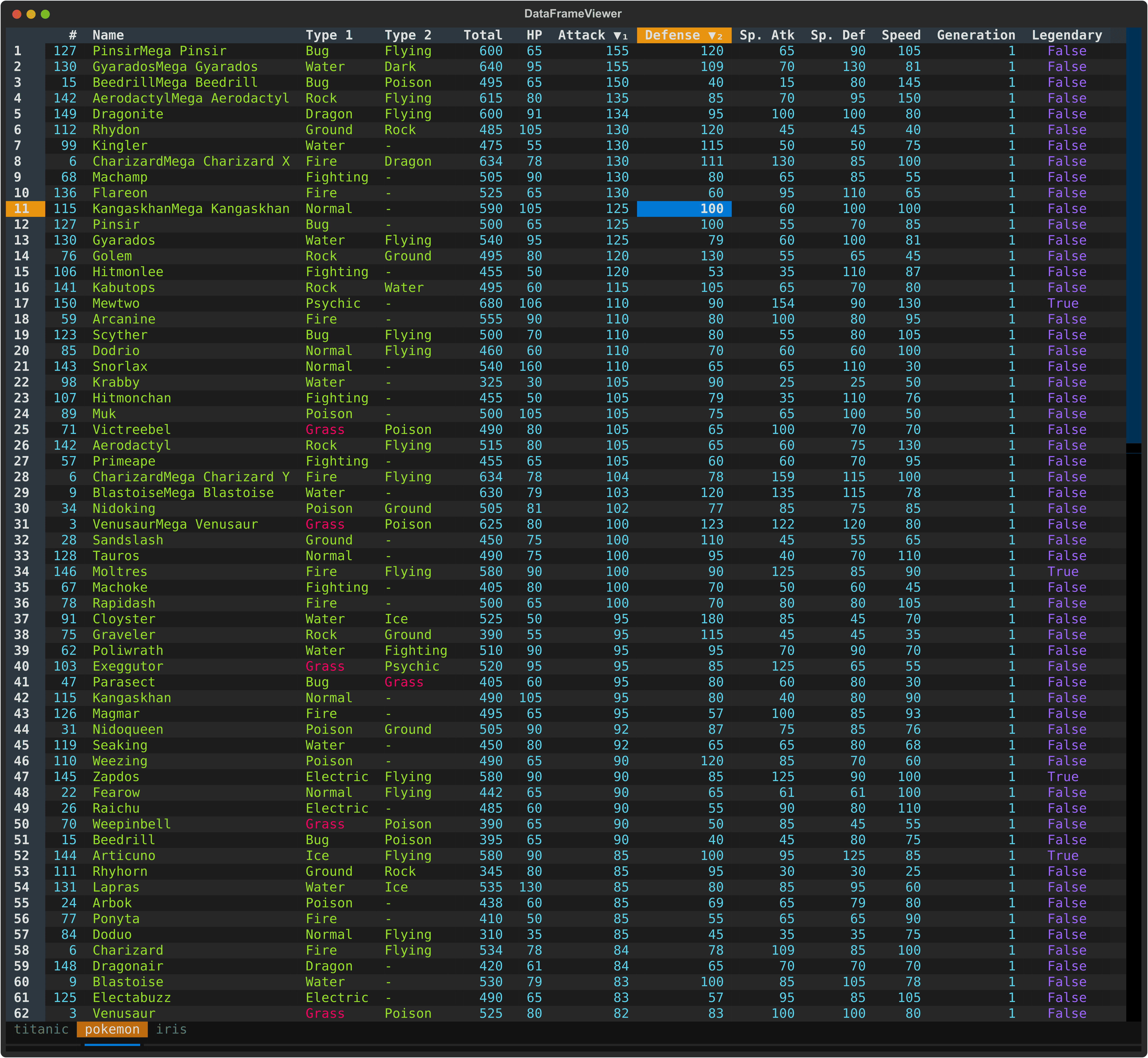
A powerful, interactive terminal-based viewer/editor for CSV/TSV/Excel/Parquet/JSON/NDJSON built with Python, Polars, and Textual. Inspired by VisiData, this tool provides smooth keyboard navigation, data manipulation, and a clean interface for exploring tabular data directly in terminal with multi-tab support for multiple files!
Features
Core Data Viewing
- 🚀 Fast Loading - Powered by Polars for efficient data handling
- 🎨 Rich Terminal UI - Beautiful, color-coded columns with automatic type detection
- ⌨️ Comprehensive Keyboard Navigation - Intuitive controls for browsing, editing, and manipulating data
- 📊 Flexible Input - Read from files or stdin (pipes/redirects)
- 🔄 Smart Pagination - Lazy load rows on demand for handling large datasets
Data Manipulation
- 📝 Data Editing - Edit cells, delete rows, and remove columns
- 🔍 Search & Filter - Find values, highlight matches, and filter selected rows
- ↔️ Column/Row Reordering - Move columns and rows with simple keyboard shortcuts
- 📈 Sorting & Statistics - Multi-column sorting and frequency distribution analysis
- 💾 Save & Undo - Save edits back to file with full undo/redo support
Advanced Features
- 📂 Multi-File Support - Open multiple files in tabs for side-by-side comparison
- 🔄 Tab Management - Seamlessly switch between open files with keyboard shortcuts
- 📌 Freeze Rows/Columns - Keep important rows and columns visible while scrolling
- 🎯 Cursor Type Cycling - Switch between cell, row, and column selection modes
Installation
Using pip
# Install from PyPI
pip install dataframe-textual

# With Excel support (fastexcel, xlsxwriter)
pip install dataframe-textual[excel]
Then run:
dataframe-textual <csv_file>
Using uv
# Quick run using uvx without installation
uvx https://github.com/need47/dataframe-textual.git <csvfile>

# Clone or download the project
cd dataframe-textual

# Run directly with uv
uv run main.py <csv_file>
Development installation
# Clone the repository
git clone https://github.com/need47/dataframe-textual.git
cd dataframe-textual

# Install from local source
pip install -e .

# Or with development dependencies
pip install -e ".[excel,dev]"
Usage
Basic Usage - Single File
# After pip install dataframe-textual
dataframe-textual pokemon.csv

# Or if running from source
python main.py pokemon.csv

# Or with uv
uv run python main.py pokemon.csv

# Read from stdin (auto-detects format; defaults to TSV if not recognized)
cat data.tsv | dataframe-textual
dataframe-textual < data.tsv
Multi-File Usage - Multiple Tabs
# Open multiple files in tabs
dataframe-textual file1.csv file2.csv file3.csv

# Open multiple sheets in tabs in an Excel file
dataframe-textual file.xlsx

# Mix files and stdin (read from stdin, then open file)
dataframe-textual data1.tsv < data2.tsv
When multiple files are opened:
- Each file appears as a separate tab at the top
- Switch between tabs using
>(next) or<(previous) - Open additional files with
Ctrl+O - Close the current tab with
Ctrl+W - Each file maintains its own state (edits, sort order, selections, history, etc.)
Keyboard Shortcuts
App-Level Controls
File & Tab Management
| Key | Action |
|---|---|
Ctrl+O |
Open file in a new tab |
Ctrl+W |
Close current tab |
Ctrl+Shift+S |
Save all open tabs to Excel file |
> or b |
Move to next tab |
< |
Move to previous tab |
B |
Toggle tab bar visibility |
q |
Quit the application |
View & Settings
| Key | Action |
|---|---|
Ctrl+H |
Toggle help panel |
k |
Cycle through themes |
Table-Level Controls
Navigation
| Key | Action |
|---|---|
g |
Jump to first row |
G |
Jump to last row (loads all remaining rows) |
↑ / ↓ |
Move up/down one row |
← / → |
Move left/right one column |
Home / End |
Jump to first/last column in current row |
Ctrl + Home / Ctrl + End |
Jump to top/bottom in current page |
PageDown / PageUp |
Scroll down/up one page |
Viewing & Display
| Key | Action |
|---|---|
Enter |
View full details of current row in modal |
F |
Show frequency distribution for column |
s |
Show statistics for current column |
S |
Show statistics for entire dataframe |
K |
Cycle cursor type: cell → row → column → cell |
~ |
Toggle row labels |
Data Editing
| Key | Action |
|---|---|
Double-click |
Edit cell or rename column header |
X |
Clear current cell (set to NULL) |
e |
Edit current cell (respects data type) |
E |
Edit entire column with expression |
a |
Add empty column after current |
A |
Add column with name and value/expression |
- (minus) |
Delete current column |
x |
Delete current row |
d |
Duplicate current column (appends '_copy' suffix) |
D |
Duplicate current row |
h |
Hide current column |
H |
Show all hidden columns |
Searching & Filtering
| Key | Action |
|---|---|
\ |
Search in current column using cursor value and select rows |
| (pipe) |
Search in current column with expression and select rows |
/ |
Find in current column with cursor value and highlight matches |
? |
Find in current column with expression and highlight matches |
n |
Go to next match |
N |
Go to previous match |
{ |
Go to previous selected row |
} |
Go to next selected row |
' |
Select/deselect current row |
t |
Toggle selected rows (invert) |
T |
Clear all selected rows and/or matches |
" (quote) |
Filter to selected rows only |
v |
View only rows by selected rows and/or matches or cursor value |
V |
View only rows by expression |
Find & Replace
| Key | Action |
|---|---|
f |
Find across all columns with cursor value |
Ctrl+F |
Find across all columns with expression |
r |
Find and replace in current column (interactive or replace all) |
R |
Find and replace across all columns (interactive or replace all) |
Sorting
| Key | Action |
|---|---|
[ |
Sort current column ascending |
] |
Sort current column descending |
Reordering
| Key | Action |
|---|---|
Shift+↑ |
Move current row up |
Shift+↓ |
Move current row down |
Shift+← |
Move current column left |
Shift+→ |
Move current column right |
Type Conversion
| Key | Action |
|---|---|
# |
Cast current column to integer (Int64) |
% |
Cast current column to float (Float64) |
! |
Cast current column to boolean |
$ |
Cast current column to string |
@ |
Make URLs in current column clickable with Ctrl/Cmd + click |
Data Management
| Key | Action |
|---|---|
z |
Freeze rows and columns |
, |
Toggle thousand separator for numeric display |
c |
Copy current cell to clipboard |
Ctrl+C |
Copy column to clipboard |
Ctrl+R |
Copy row to clipboard (tab-separated) |
Ctrl+S |
Save current tab to file |
u |
Undo last action |
U |
Reset to original data |
Features in Detail
1. Color-Coded Data Types
Columns are automatically styled based on their data type:
- integer: Cyan text, right-aligned
- float: Magenta text, right-aligned
- string: Green text, left-aligned
- boolean: Blue text, centered
- temporal: Yellow text, centered
2. Row Detail View
Press Enter on any row to open a modal showing all column values for that row.
Useful for examining wide datasets where columns don't fit on screen.
In the Row Detail Modal:
- Press
vto view the main table to show only rows with the selected column value - Press
"to filter all rows containing the selected column value - Press
qorEscapeto close the modal
3. Search & Filtering
The application provides multiple search modes for different use cases:
Search Operations - Direct value/expression matching in current column:
|- Column Expression Search: Opens dialog to search current column with custom expression\- Column Cursor Search: Instantly search current column using the cursor value
Find Operations - Find by value/expression:
/- Column Find: Find cursor value within current column?- Column Expression Find: Open dialog to search current column with expressionf- Global Find: Find cursor value across all columnsCtrl+f- Global Expression Find: Open dialog to search all columns with expression
Selection & Filtering:
'- Toggle Row Selection: Select/deselect current row (marks it for filtering)t- Invert Selections: Flip selection state of all rows at onceT- Clear Selections: Remove all row selections and matches"- Filter Selected: Display only the selected rows and remove othersv- View by Value: Filter/view rows by selected rows or cursor value (others hidden but preserved)V- View by Expression: Filter/view rows using custom Polars expression (others hidden but preserved)
Advanced Matching Options:
When searching or finding, you can use checkboxes in the dialog to enable:
- Match Nocase: Ignore case differences (e.g., "john", "John", "JOHN" all match)
- Match Whole: Match complete value, not partial substrings or words (e.g., "cat" won't match in "catfish")
These options work with plain text searches. Use Polars regex patterns in expressions for more control:
- Case-insensitive matching in expressions: Use
(?i)prefix in regex (e.g.,(?i)john) - Word boundaries in expressions: Use
\bin regex (e.g.,\bjohn\bmatches whole word)
Quick Tips:
- Search results highlight matching rows/cells in red
- Multiple searches accumulate selections - each new search adds to the selections
- Type-aware matching automatically converts values. Resort to string comparison if conversion fails
- Use
uto undo any search or filter
3b. Find & Replace
The application provides powerful find and replace functionality for both single-column and global replacements.
Replace Operations:
r- Column Replace: Replace values in the current columnR- Global Replace: Replace values across all columns
How It Works:
When you press r or R, a dialog opens where you can enter:
- Find term: The value or expression to search for
- Replace term: What to replace matches with
- Matching options:
- Match Nocase: Ignore case differences when matching (unchecked by default)
- Match Whole: Match complete words only, not partial words (unchecked by default)
- Replace option:
- Choose "Replace All" to replace all matches at once (with confirmation)
- Otherwise, review and confirm each match individually
Replace All (r or R → Choose "Replace All"):
- Shows a confirmation dialog with the number of matches and replacements
- Replaces all matches with a single operation
- Full undo support with
u - Useful for bulk replacements when you're confident about the change
Replace Interactive (r or R → Choose "Replace Interactive"):
- Shows each match one at a time with a preview of the replacement
- For each match, press:
Enteror press theYesbutton - Replace this occurrence and move to next- Press the
Skipbutton - Skip this occurrence and move to next Escapeor press theNobutton - Cancel remaining replacements (but keep already-made replacements)
- Displays progress:
Occurrence X of Y(Y = total matches, X = current) - Shows the value that will be replaced and what it will become
- Useful for careful replacements where you want to review each change
Search Term Types:
- Plain text: Exact string match (e.g., "John" finds "John")
- Use Match Nocase checkbox to match regardless of case (e.g., find "john", "John", "JOHN")
- Use Match Whole checkbox to match complete words only (e.g., find "cat" but not in "catfish")
- NULL: Replace null/missing values (type
NULL) - Expression: Polars expressions for complex matching (e.g.,
$_ > 50for column replace) - Regex patterns: Use Polars regex syntax for advanced matching
- Case-insensitive: Use
(?i)prefix (e.g.,(?i)john) - Whole word: Use
\bboundary markers (e.g.,\bjohn\b)
- Case-insensitive: Use
Examples:
Find: "John"
Replace: "Jane"
→ All occurrences of "John" become "Jane"

Find: "john"
Replace: "jane"
Match Nocase: ✓ (checked)
→ "John", "JOHN", "john" all become "jane"

Find: "cat"
Replace: "dog"
Match Whole: ✓ (checked)
→ "cat" becomes "dog", but "catfish" is not matched

Find: "NULL"
Replace: "Unknown"
→ All null/missing values become "Unknown"

Find: "(?i)active"        # Case-insensitive
Replace: "inactive"
→ "Active", "ACTIVE", "active" all become "inactive"
For Global Replace (R):
- Searches and replaces across all columns simultaneously
- Each column can have different matching behavior (string matching for text, numeric for numbers)
- Preview shows which columns contain matches before replacement
- Useful for standardizing values across multiple columns
Features:
- Full history support: Use
u(undo) to revert any replacement - Visual feedback: Matching cells are highlighted before you choose replacement mode
- Safe operations: Requires confirmation before replacing
- Progress tracking: Shows how many replacements have been made during interactive mode
- Type-aware: Respects column data types when matching and replacing
- Flexible matching: Support for case-insensitive and whole-word matching
Tips:
- Use interactive mode for one-time replacements to be absolutely sure
- Use "Replace All" for routine replacements (e.g., fixing typos, standardizing formats)
- Use Match Nocase for matching variations of names or titles
- Use Match Whole to avoid unintended partial replacements
- Use
uimmediately if you accidentally replace something wrong - For complex replacements, use Polars expressions or regex patterns in the find term
- Test with a small dataset first before large replacements
4. Polars Expressions
Complex values or filters can be specified via Polars expressions, with the following adaptions for convenience:
Column References:
$_- Current column (based on cursor position)$1,$2, etc. - Column by 1-based index$age,$salary- Column by name (use actual column names)
Row References:
$#- Current row index (1-based)
Basic Comparisons:
$_ > 50- Current column greater than 50$salary >= 100000- Salary at least 100,000$age < 30- Age less than 30$status == 'active'- Status exactly matches 'active'$name != 'Unknown'- Name is not 'Unknown'
Logical Operators:
&- AND|- OR~- NOT
Practical Examples:
($age < 30) & ($status == 'active')- Age less than 30 AND status is active($name == 'Alice') | ($name == 'Bob')- Name is Alice or Bob$salary / 1000 >= 50- Salary divided by 1,000 is at least 50($department == 'Sales') & ($bonus > 5000)- Sales department with bonus over 5,000($score >= 80) & ($score <= 90)- Score between 80 and 90~($status == 'inactive')- Status is not inactive$revenue > $expenses- Revenue exceeds expenses
String Matching:
$name.str.contains("John")- Name contains "John" (case-sensitive)$name.str.contains("(?i)john")- Name contains "john" (case-insensitive)$email.str.ends_with("@company.com")- Email ends with domain$code.str.starts_with("ABC")- Code starts with "ABC"$age.cast(pl.String).str.starts_with("7")- Age (cast to string first) starts with "7"
Number Operations:
$age * 2 > 100- Double age greater than 100($salary + $bonus) > 150000- Total compensation over 150,000$percentage >= 50- Percentage at least 50%
Null Handling:
$column.is_null()- Find null/missing values$column.is_not_null()- Find non-null valuesNULL- a value to represent null for convenience
Tips:
- Use column names that match exactly (case-sensitive)
- Use parentheses to clarify complex expressions:
($a & $b) | ($c & $d)
5. Sorting
- Press
[to sort current column ascending - Press
]to sort current column descending - Multi-column sorting supported (press multiple times on different columns)
- Press same key twice to remove the column from sorting
6. Frequency Distribution
Press F to see how many times each value appears in the current column. The modal shows:
- Value
- Count
- Percentage
- Histogram
- Total row at the bottom
In the Frequency Table:
- Press
[and]to sort by any column (value, count, or percentage) - Press
vto filter the main table to show only rows with the selected value - Press
"to highlight all rows containing the selected value - Press
qorEscapeto close the frequency table
This is useful for:
- Understanding value distributions
- Quickly filtering to specific values
- Identifying rare or common values
- Finding the most/least frequent entries
7. Column & Dataframe Statistics
Press s to see summary statistics for the current column, or press S for statistics across the entire dataframe.
Column Statistics (s):
- Shows calculated statistics using Polars'
describe()method - Displays: count, null count, mean, median, std, min, max, etc.
- Values are color-coded according to their data type
- Statistics label column has no styling for clarity
Dataframe Statistics (S):
- Shows statistics for all numeric and applicable columns simultaneously
- Data columns are color-coded by their data type (integer, float, string, etc.)
In the Statistics Modal:
- Press
qorEscapeto close the statistics table - Use arrow keys to navigate
- Useful for quick data validation and summary reviews
This is useful for:
- Understanding data distributions and characteristics
- Identifying outliers and anomalies
- Data quality assessment
- Quick statistical summaries without external tools
- Comparing statistics across columns
8. Data Editing
Edit Cell (e or Double-click):
- Opens modal for editing current cell
- Validates input based on column data type
Rename Column Header (Double-click column header):
- Quick rename by double-clicking the column header
Delete Row (x):
- Delete all selected rows (if any) at once
- Or delete single row at cursor
Delete Column (-):
- Removes the entire column from view and dataframe
9. Hide & Show Columns
Hide Column (h):
- Temporarily hides the current column from display
- Column data is preserved in the dataframe
- Hidden columns are included in saves
Show Hidden Columns (H):
- Restores all previously hidden columns to the display
- Returns table to full column view
This is useful for:
- Focusing on specific columns without deleting data
- Temporarily removing cluttered or unnecessary columns
10. Duplicate Column
Press d to duplicate the current column:
- Creates a new column immediately after the current column
- New column has '_copy' suffix (e.g., 'price' → 'price_copy')
- Duplicate preserves all data from original column
- New column is inserted into the dataframe
This is useful for:
- Creating backup copies of columns before transformation
- Working with alternative versions of column data
- Comparing original vs. processed column values side-by-side
11. Duplicate Row
Press D to duplicate the current row:
- Creates a new row immediately after the current row
- Duplicate preserves all data from original row
- New row is inserted into the dataframe
This is useful for:
- Creating variations of existing data records
- Batch adding similar rows with modifications
12. Column & Row Reordering
Move Columns: Shift+← and Shift+→
- Swaps adjacent columns
- Reorder is preserved when saving
Move Rows: Shift+↑ and Shift+↓
- Swaps adjacent rows
- Reorder is preserved when saving
13. Freeze Rows and Columns
Press z to open the dialog:
- Enter number of fixed rows and/or columns to keep top rows/columns visible while scrolling
13.5. Thousand Separator Toggle
Press , to toggle thousand separator formatting for numeric data:
- Applies to integer and float columns
- Formats large numbers with commas for readability (e.g.,
1000000→1,000,000) - Works across all numeric columns in the table
- Toggle on/off as needed for different viewing preferences
- Display-only: does not modify underlying data in the dataframe
- State persists during the session
14. Save File
Press Ctrl+S to save:
- Save filtered, edited, or sorted data back to file
- Choose filename in modal dialog
- Confirm if file already exists
15. Undo/Redo
Press u to undo:
- Reverts last action with full state restoration
- Works for edits, deletions, sorts, searches, etc.
- Shows description of reverted action
Press U to revert to when data was initially loaded
16. Column Type Conversion
Press the type conversion keys to instantly cast the current column to a different data type:
Type Conversion Shortcuts:
#- Cast to integer%- Cast to float!- Cast to boolean$- Cast to string
Features:
- Instant conversion with visual feedback
- Full undo support - press
uto revert - Leverage Polars' robust type casting
Note: Type conversion attempts to preserve data where possible. Conversions may lose data (e.g., float to int rounding).
17. Cursor Type Cycling
Press K to cycle through selection modes:
- Cell mode: Highlight individual cell (and its row/column headers)
- Row mode: Highlight entire row
- Column mode: Highlight entire column
18. URL Handling
Press @ to make URLs in the current column clickable:
- Ctrl/Cmd + click on URLs to open them in your default browser
- Scans all cells in the current column for URLs starting with
http://orhttps:// - Applies link styling to make them clickable and dataframe remains unchanged
19. Clipboard Operations
Copies value to system clipboard with pbcopy on macOS and xclip on Linux
Press Ctrl+C to copy:
- Press
cto copy cursor value - Press
Ctrl+Cto copy column values - Press
Ctrl+Rto copy row values (delimited by tab)
Examples
Single File Examples
# View Pokemon dataset
dataframe-textual pokemon.csv

# View Titanic dataset with analysis
dataframe-textual titanic.csv

# Filter and view specific columns
cut -d',' -f1,2,3 pokemon.csv | dataframe-textual -f csv

# View with grep filter (then use | search in viewer)
grep "Fire" pokemon.tsv | dataframe-textual

# Chain with other commands
cat data.tsv | sort -t',' -k2 | dataframe-textual
Multi-File/Tab Examples
# Open multiple sheets as tabs in a single Excel
dataframe-textual sales.xlsx

# Open multiple files as tabs
dataframe-textual pokemon.csv titanic.csv

# Start with one file, then open others using Ctrl+O
dataframe-textual initial_data.csv
Dependencies
- polars: Fast DataFrame library for data loading/processing
- textual: Terminal UI framework
- fastexcel: Read Excel files
- xlsxwriter: Write Excel files
Requirements
- Python 3.11+
- POSIX-compatible terminal (macOS, Linux, WSL)
- Terminal supporting ANSI escape sequences and mouse events
Acknowledgments
Release history Release notifications | RSS feed


Download files
Download the file for your platform. If you're not sure which to choose, learn more about installing packages.
Source Distribution
Built Distribution
Filter files by name, interpreter, ABI, and platform.
If you're not sure about the file name format, learn more about wheel file names.
Copy a direct link to the current filters
File details
Details for the file dataframe_textual-1.0.0.tar.gz.
File metadata
- Download URL: dataframe_textual-1.0.0.tar.gz
- Upload date:
- Size: 1.1 MB
- Tags: Source
- Uploaded using Trusted Publishing? No
- Uploaded via: uv/0.9.7
File hashes
| Algorithm | Hash digest | |
|---|---|---|
| SHA256 |
31d4f5e84a6522f1829b1eafb02afb618f929389f5a0ef96d17a165792e288e6
|
|
| MD5 |
ddc4e5b95c5415fd2d061acb8e99087a
|
|
| BLAKE2b-256 |
f2817988249a2ce85a7fc0dcface5d2950f22a8847cb008e7e928c1181802538
|
File details
Details for the file dataframe_textual-1.0.0-py3-none-any.whl.
File metadata
- Download URL: dataframe_textual-1.0.0-py3-none-any.whl
- Upload date:
- Size: 52.4 kB
- Tags: Python 3
- Uploaded using Trusted Publishing? No
- Uploaded via: uv/0.9.7
File hashes
| Algorithm | Hash digest | |
|---|---|---|
| SHA256 |
d591aa84afd0b827d6be68a326760c27fee9574f6e4d65dee93087bbfec3909d
|
|
| MD5 |
7f1f3e0f5476cfa47a28f7279aa0eac8
|
|
| BLAKE2b-256 |
360c5c70376a7fa09ddbb0d3944584675f5d7d293aa74fded1bfcea9885f859e
|






