
Flowa — lightweight pipeline orchestration

Project description

A lightweight pipeline orchestration tool inspired by Apache Airflow. Define workflows in YAML, run them from the CLI, schedule them with cron, and monitor everything through a REST API and web UI.

Features
- DAG-based execution — topological sort with cycle detection
- Parallel steps — independent steps run concurrently via thread pool
- Retry & timeout — configurable per step
- Continue on error — mark steps as non-blocking for their dependents
- Cron scheduling — schedule pipelines by day/time/interval
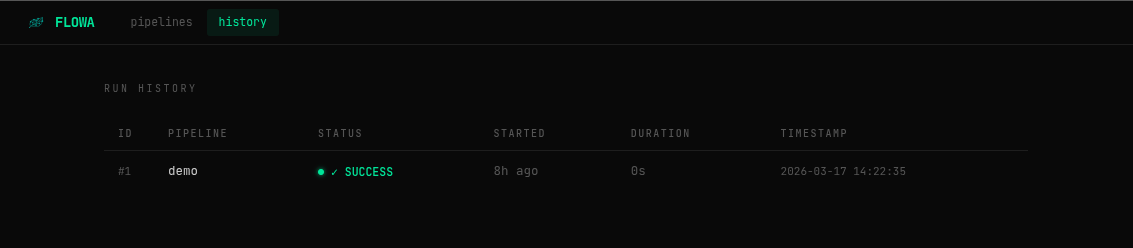
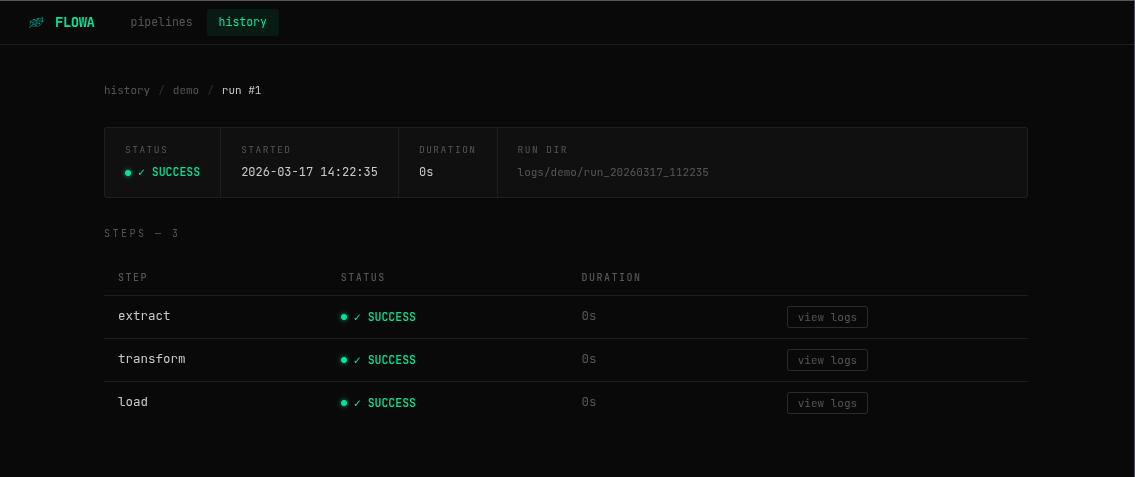
- SQLite history — every run and step is recorded automatically
- REST API — trigger, stop and query pipelines programmatically
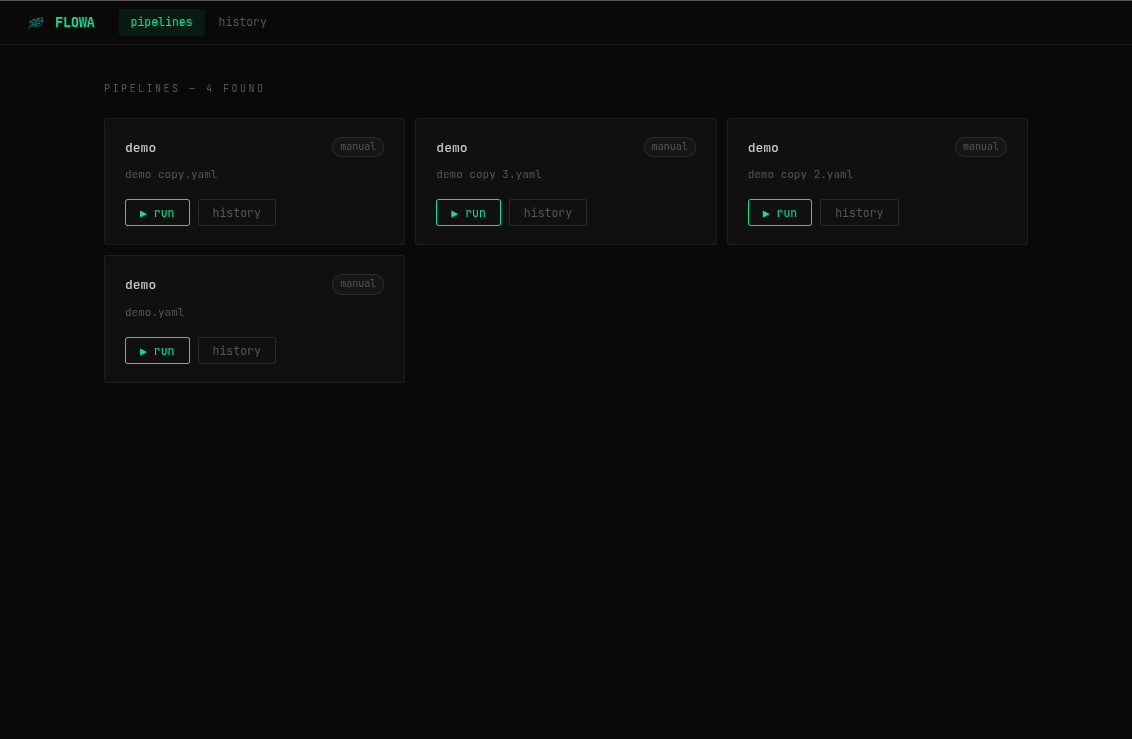
- Web UI — built-in dashboard to manage and monitor pipelines
- Script support — run
.py,.shand.batfiles natively - Working directory — set per-step
working_dirfor scripts that rely on relative paths - Workspaces — group pipelines by team or domain directly in the YAML
- Microsoft Teams notifications — send success/failure alerts to Teams channels via webhook
- Stop running pipelines — cancel an active run from the UI or API
- Auto-reload — pipeline changes are picked up automatically without restarting the server
What's New
v0.1.6
- Workspaces — add
workspace: NAMEto any pipeline YAML to group pipelines in the UI under a collapsible section - Microsoft Teams integration — add
teams_chat: <WEBHOOK_URL>to send Adaptive Card notifications on pipeline success/failure - Stop runs — new
POST /runs/{id}/stopendpoint and ⏹ stop button in the UI - Dependency tree on cards — pipelines with
depends_onshow a visual tree on the pipeline card - Run button fix — trigger now uses the filename (not the internal
name:) to locate the pipeline, preventing "not found" errors - Encoding fix — scripts with special characters, emojis or non-ASCII output no longer cause runner errors
- Exit code detection — flowa now reliably detects success/failure from the process exit code regardless of whether the script calls
sys.exit() - Auto-reload — editing a
.yamlfile is picked up on the next scheduled tick without restarting the server
v0.1.5
- Dashboard view — new home page in the web UI with stat cards, 7-day bar chart and success rate donut
- New
GET /statsendpoint — powers the dashboard .shand.batsupport — shell/batch scripts auto-detected by extensionworking_dirper step — run scripts from the correct directory- Exit code in log file — every step log ends with
[flowa] exit code: X - New project structure —
flowa initcreatesflowa-core/withpipelines/,logs/anddata/
v0.1.4
- Initial public release
Installation
pip install flowa-core
Or with uv:
uv tool install flowa-core
Requirements: Python 3.11+
Getting Started
Step 1 — Install
pip install flowa-core
Step 2 — Initialize your project
flowa init
This creates the flowa-core/ directory structure and a ready-to-use etl.yaml template:
my-project/
└── flowa-core/
    ├── pipelines/
    │   └── etl.yaml    ← edit this to match your scripts
    ├── logs/
    └── data/
Step 3 — Run a pipeline manually
flowa run flowa-core/pipelines/etl.yaml
Step 4 — Start the server
flowa server
# → API + scheduler + web UI at http://127.0.0.1:8000
Open http://127.0.0.1:8000 to see the dashboard, monitor runs, and trigger pipelines.
Pipeline YAML Reference
name: my_pipeline          # required — display name
workspace: Finance         # optional — groups pipelines in the UI
max_parallel: 4            # max concurrent steps (default: 4)
use_uv: false              # run python steps via uv (default: false)
teams_chat: https://...    # optional — Teams webhook URL for notifications

schedule:                  # optional
  days: All Days           # All Days | Mon,Tue,Wed,Thu,Fri | ["Mon", "Fri"]
  start: "09:00"
  end:   "18:00"
  interval_minutes: 60

steps:
  - name: step_name           # required, must be unique within the pipeline
    run: command or script    # required — see examples below
    depends_on: other_step    # optional — string or list
    retries: 0                # optional, default 0
    timeout_seconds: 60       # optional, no limit by default
    continue_on_error: false  # optional, default false
    working_dir: /path/to/dir # optional, working directory for this step
    use_uv: false             # optional, overrides pipeline-level use_uv
Workspaces
Add workspace to group related pipelines together in the UI. Pipelines with the same workspace are shown under a collapsible dropdown:
# finance/etl.yaml
name: ETL Finance
workspace: Finance
steps:
  - name: extract
    run: scripts/extract.py
# finance/report.yaml
name: Monthly Report
workspace: Finance
steps:
  - name: generate
    run: scripts/report.py
Pipelines without a workspace field appear ungrouped.
Teams Notifications
Add teams_chat with a Teams incoming webhook URL to receive Adaptive Card notifications when the pipeline finishes:
name: ETL Finance
teams_chat: https://your-org.webhook.office.com/webhookb2/...

steps:
  - name: extract
    run: scripts/extract.py
Flowa sends a success card (✅) or failure card (❌) automatically after each run. The card includes the pipeline name, host, timestamp, duration and last error details (if any).
To use different channels per team, just set a different webhook URL in each pipeline YAML.
Running scripts
Flowa detects the file extension and picks the right interpreter automatically:
steps:
  - name: extract
    run: scripts/extract.py       # python scripts/extract.py
    working_dir: /my/project

  - name: transform
    run: scripts/transform.sh     # bash scripts/transform.sh
    depends_on: extract

  - name: load
    run: scripts/load.bat         # cmd /c scripts/load.bat  (Windows)
    depends_on: transform
depends_on
Accepts a single step name or a list:
depends_on: extract
# or
depends_on: [extract, validate]
Pipelines with depends_on show a dependency tree on their card in the UI.
Step status values
| Status | Description |
|---|---|
SUCCESS |
Step completed with exit code 0 |
FAILED |
Step failed after all retries |
FAILED (ignored) |
Step failed but continue_on_error: true |
SKIPPED |
Step skipped because a dependency hard-failed |
CLI Reference
flowa init                          # create flowa-core/ structure and etl.yaml template
flowa run <pipeline.yaml>           # run a pipeline manually
flowa start                         # start only the scheduler (blocking)
flowa server                        # start API + web UI + scheduler
flowa history                       # show recent runs
flowa history <pipeline_name>       # filter by pipeline
flowa logs <run_id>                 # show steps for a run
flowa server options
flowa server --host 0.0.0.0 --port 8080
flowa server --no-scheduler
REST API
| Method | Endpoint | Description |
|---|---|---|
GET |
/pipelines |
List available pipelines |
POST |
/pipelines/{name}/run |
Trigger a pipeline (async) |
GET |
/runs |
Execution history |
GET |
/runs/{id} |
Run detail with steps |
POST |
/runs/{id}/stop |
Stop an active run |
GET |
/runs/{id}/steps/{step}/logs |
Step log content |
GET |
/stats |
Dashboard statistics (totals, daily, per-pipeline) |
GET |
/health |
Health check |
Interactive docs available at http://localhost:8000/docs.
Trigger a pipeline:
curl -X POST http://localhost:8000/pipelines/etl/run
# {"run_id": 42, "status": "RUNNING", ...}
Stop a running pipeline:
curl -X POST http://localhost:8000/runs/42/stop
Check run status:
curl http://localhost:8000/runs/42
Configuration
All settings are controlled via environment variables:
| Variable | Default | Description |
|---|---|---|
FLOWA_PIPELINES_DIR |
flowa-core/pipelines |
Directory scanned by the scheduler |
FLOWA_LOGS_DIR |
flowa-core/logs |
Where step log files are written |
FLOWA_DB_PATH |
flowa-core/data/flowa.db |
SQLite database file path |
FLOWA_LOG_LEVEL |
INFO |
Log level (DEBUG, INFO, WARNING, ERROR) |
Project Layout
my-project/
├── flowa-core/
│   ├── pipelines/
│   │   ├── etl.yaml
│   │   └── reporting.yaml
│   ├── logs/           ← step logs written here automatically
│   └── data/
│       └── flowa.db    ← SQLite database, created automatically
└── scripts/
    ├── extract.py
    ├── transform.sh
    └── load.py
License
MIT
Release history Release notifications | RSS feed


Download files
Download the file for your platform. If you're not sure which to choose, learn more about installing packages.
Source Distribution
Built Distribution
Filter files by name, interpreter, ABI, and platform.
If you're not sure about the file name format, learn more about wheel file names.
Copy a direct link to the current filters
File details
Details for the file flowa_core-0.2.0.tar.gz.
File metadata
- Download URL: flowa_core-0.2.0.tar.gz
- Upload date:
- Size: 1.5 MB
- Tags: Source
- Uploaded using Trusted Publishing? No
- Uploaded via: twine/6.2.0 CPython/3.12.9
File hashes
| Algorithm | Hash digest | |
|---|---|---|
| SHA256 |
3d65c187f573fdd82b413aef967a9c64bf96382e342ef40c4d4e6bb94ef221b8
|
|
| MD5 |
589b1b1acbca1d92364cc938833161a9
|
|
| BLAKE2b-256 |
05b1ec78d25b5bb9bb0ba43944fd4dca2103e42fbb1f9fa8d5f26b0e736c8866
|
File details
Details for the file flowa_core-0.2.0-py3-none-any.whl.
File metadata
- Download URL: flowa_core-0.2.0-py3-none-any.whl
- Upload date:
- Size: 1.5 MB
- Tags: Python 3
- Uploaded using Trusted Publishing? No
- Uploaded via: twine/6.2.0 CPython/3.12.9
File hashes
| Algorithm | Hash digest | |
|---|---|---|
| SHA256 |
b38bf4eab1cec124bfd78e310a3ed62589244ecd5bcf0ab7594e9d444c696dc8
|
|
| MD5 |
ba08de93c4f6a2faa25f30e23179a934
|
|
| BLAKE2b-256 |
a0ad08f960c651ed1e774f4f0754984b72fc3026f8c954ffa92710b4c31d67d2
|






