
Flowa — lightweight pipeline orchestration

Project description

A lightweight pipeline orchestration tool inspired by Apache Airflow. Define workflows in YAML, run them from the CLI, schedule them with cron, and monitor everything through a REST API and web UI.

Features
- DAG-based execution — topological sort with cycle detection
- Parallel steps — independent steps run concurrently via thread pool
- Retry & timeout — configurable per step
- Continue on error — mark steps as non-blocking for their dependents
- Cron scheduling — schedule pipelines by day/time/interval
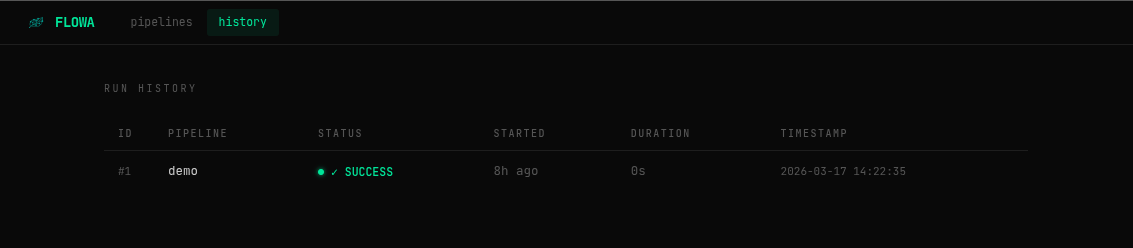
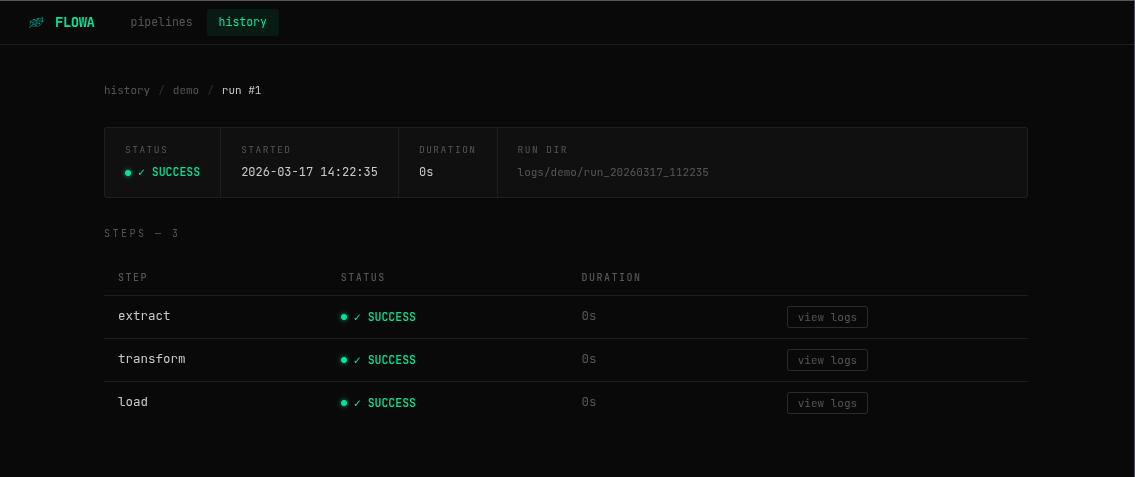
- SQLite history — every run and step is recorded automatically
- REST API — trigger, stop and query pipelines programmatically
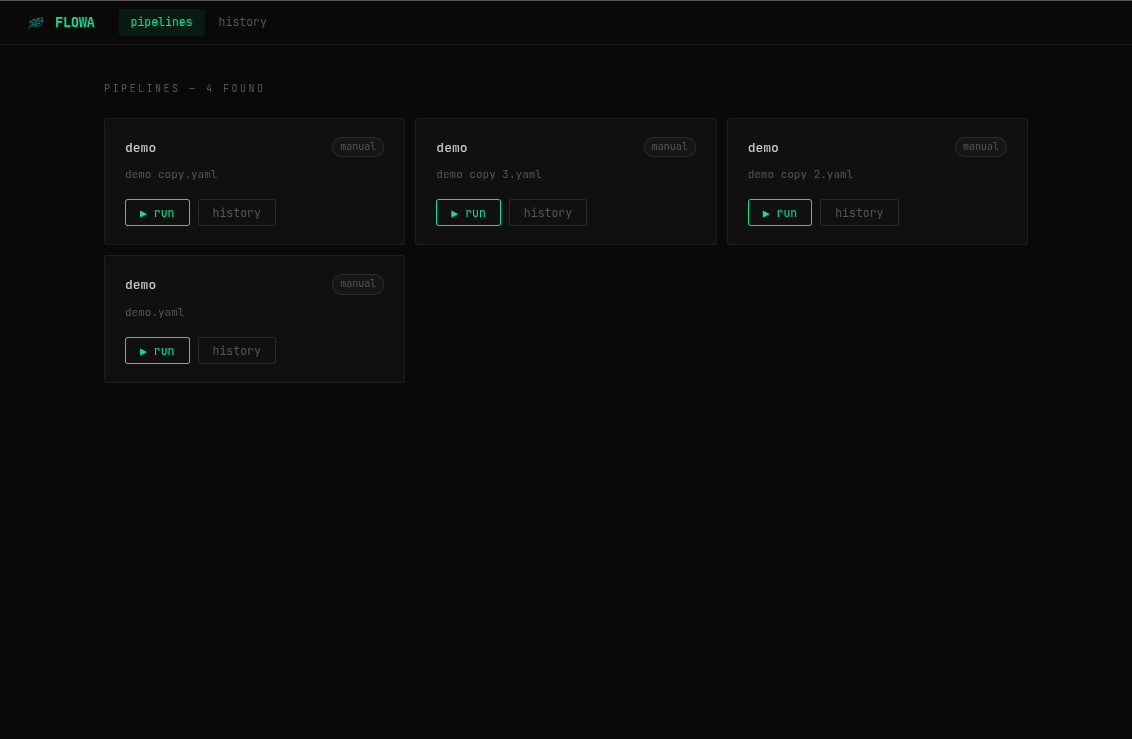
- Web UI — built-in dashboard to manage and monitor pipelines
- Hardware monitor — live CPU/RAM/disk charts plus a per-script CPU & memory consumption log
- Script support — run
.py,.shand.batfiles natively - Workspaces — group pipelines by team or domain directly in the YAML
- Microsoft Teams notifications — Adaptive Card alerts with optional AI error analysis
- AI error analysis — automatic error diagnosis via Groq, Claude, Gemini or OpenAI
- Stop running pipelines — cancel an active run from the UI or API
- Auto-reload — pipeline changes are picked up without restarting the server
What's New
v0.2.2
- Hardware monitor tab — new
monitortab in the web UI with live CPU (overall + per-core), RAM and disk usage, ~5 min history charts, and a resource consumption log showing how much CPU/RAM each pipeline step used - System processes box — live list of the top system processes by CPU/memory, with the flowa server process itself pinned at the top
- Smooth, flicker-free auto-refresh on the monitor tab (in-place DOM patching instead of a full re-render)
- Browser tab favicon
v0.2.1
- AI error analysis — on failure, flowa sends the step log to an LLM (Groq, Claude, Gemini or OpenAI) and includes the diagnosis in the Teams notification
- Multi-provider AI config —
flowa-core/config.yamlcentralizes all API keys and provider settings - Teams customization —
flowa teams-initgeneratesflowa-core/teams_config.pywith all card options (images, colors, icons, timeouts) ready to edit - Leaf background animation — subtle animated leaves in the web UI
- Enhanced UI animations — card entrance, hover effects, glow on status dots, button feedback
globalsyntax fix — fixed a silent SyntaxError inteams_notifier.pythat prevented notifications from being sent
v0.1.6 — v0.2.0
- Workspaces, Teams integration, stop runs, dependency tree on cards, encoding fix, exit code detection, auto-reload
Installation
Option 1 — pip (recommended)
pip install flowa-core
Option 2 — uv
# Install uv first (if you don't have it)
curl -LsSf https://astral.sh/uv/install.sh | sh

# Install flowa as an isolated tool
uv tool install flowa-core
Option 3 — development / editable install
Use this if you cloned the repo and want changes to reflect immediately:
git clone https://github.com/gustavosegre/flowa.git
cd flowa
pip install -e .
Requirements: Python 3.11+
Getting Started — Step by Step
Step 1 — Install
pip install flowa-core
Verify the installation:
flowa --help
Step 2 — Initialize your project
Navigate to your project folder and run:
cd my-project
flowa init
This creates the full project structure:
my-project/
└── flowa-core/
    ├── pipelines/
    │   └── etl.yaml        ← example pipeline, edit or replace
    ├── logs/               ← step logs are written here automatically
    ├── data/
    │   └── flowa.db        ← SQLite database, created on first run
    └── config.yaml         ← global config (AI keys, etc.)
Step 3 — Create your pipeline
Edit flowa-core/pipelines/etl.yaml or create a new .yaml file in the same directory.
A minimal pipeline looks like this:
name: hello_world

steps:
  - name: say_hello
    run: python scripts/hello.py
See the Complete Pipeline Reference below for all available options.
Step 4 — Run manually (test before scheduling)
flowa run flowa-core/pipelines/etl.yaml
This runs the pipeline in the foreground and prints the result to the terminal. Use this to validate your pipeline before turning on the scheduler.
Step 5 — Start the server
flowa server
This starts:
- The REST API (FastAPI)
- The web UI dashboard
- The background scheduler (picks up all
.yamlfiles inflowa-core/pipelines/)
Open http://127.0.0.1:8000 in your browser.
# Custom host and port
flowa server --host 0.0.0.0 --port 8080

# Disable the scheduler (API + UI only)
flowa server --no-scheduler
Step 6 — (Optional) Set up Teams notifications
flowa teams-init
This generates flowa-core/teams_config.py with all customization options. Then add the webhook URL to your pipeline YAML:
teams_chat: https://your-org.webhook.office.com/webhookb2/...
See Teams Notifications for details.
Step 7 — (Optional) Enable AI error analysis
Edit flowa-core/config.yaml and set your provider and API key:
ai:
  provider: groq
  analyze_errors: true

  groq:
    api_key: "gsk_..."
When a pipeline fails, flowa will automatically send the error log to the AI and include the diagnosis in the Teams notification card.
Complete Pipeline YAML Reference
Below is a fully annotated example covering every available option:
# ─────────────────────────────────────────────────────────────
# PIPELINE IDENTITY
# ─────────────────────────────────────────────────────────────

# Required. The display name shown in the UI and history.
# Does not need to match the filename.
name: finance_etl

# Optional. Groups this pipeline under a collapsible section in the UI.
# All pipelines with the same workspace value are grouped together.
# Pipelines without workspace appear ungrouped.
workspace: Finance

# ─────────────────────────────────────────────────────────────
# NOTIFICATIONS
# ─────────────────────────────────────────────────────────────

# Optional. Microsoft Teams webhook URL.
# Flowa sends an Adaptive Card on success (✅) and failure (❌).
# If flowa-core/config.yaml has an AI provider configured,
# failures also include an automatic error diagnosis.
# Each pipeline can notify a different channel.
teams_chat: https://your-org.webhook.office.com/webhookb2/...

# ─────────────────────────────────────────────────────────────
# EXECUTION SETTINGS
# ─────────────────────────────────────────────────────────────

# Optional. Maximum number of steps running at the same time.
# Steps without dependencies run in parallel up to this limit.
# Default: 4
max_parallel: 3

# Optional. Run Python steps using `uv run` instead of the system Python.
# Useful when uv manages your project's virtual environment.
# Can be overridden per step. Default: false
use_uv: false

# ─────────────────────────────────────────────────────────────
# SCHEDULE
# ─────────────────────────────────────────────────────────────

# Optional. Remove this block entirely if you only want manual/API runs.
schedule:
  # Which days to run. Options:
  #   "All Days"                    → every day of the week
  #   "Mon,Wed,Fri"                 → specific days (comma-separated)
  #   ["Mon", "Tue", "Wed"]        → list format also accepted
  #   "Mon-Fri"                     → range (Monday through Friday)
  days: Mon,Tue,Wed,Thu,Fri

  # Time window: the pipeline runs repeatedly between start and end.
  start: "08:00"
  end: "18:00"

  # How often to run within the time window (in minutes).
  # Example: start=08:00, end=18:00, interval_minutes=60
  #   → runs at 08:00, 09:00, 10:00, ... 18:00
  interval_minutes: 60

# ─────────────────────────────────────────────────────────────
# STEPS
# ─────────────────────────────────────────────────────────────

steps:

  # ── Step 1: basic Python script ──────────────────────────
  - name: extract          # Required. Unique name within this pipeline.
    run: python scripts/extract.py   # Required. Command to execute.

    # Optional. Directory to run the command from.
    # Use this when your script uses relative file paths.
    working_dir: /my-project

    # Optional. Number of times to retry if the step fails.
    # Total attempts = retries + 1. Default: 0 (no retry).
    retries: 2

    # Optional. Kill the step if it runs longer than this (in seconds).
    # Default: no limit.
    timeout_seconds: 120

  # ── Step 2: depends on step 1 ────────────────────────────
  - name: validate
    run: python scripts/validate.py

    # Optional. This step waits for 'extract' to succeed before starting.
    # Accepts a single name (string) or multiple names (list).
    depends_on: extract
    # depends_on: [extract, other_step]   ← list form

    retries: 1
    timeout_seconds: 60

  # ── Step 3: continue even if it fails ────────────────────
  - name: send_report
    run: python scripts/report.py
    depends_on: validate

    # Optional. If true, downstream steps are NOT blocked when this step fails.
    # The step status is recorded as "FAILED (ignored)" instead of "FAILED".
    # Default: false
    continue_on_error: true

  # ── Step 4: shell script (.sh) ───────────────────────────
  - name: cleanup
    # Flowa detects the extension and runs with the correct interpreter:
    #   .py  → python <script>
    #   .sh  → bash <script>
    #   .bat → cmd /c <script>   (Windows)
    run: scripts/cleanup.sh
    depends_on: [validate, send_report]
    timeout_seconds: 30

  # ── Step 5: run with uv ──────────────────────────────────
  - name: heavy_transform
    run: python scripts/transform.py

    # Optional. Overrides the pipeline-level use_uv for this step only.
    # When true, runs as: uv run python scripts/transform.py
    use_uv: true
    depends_on: extract
    retries: 3
    timeout_seconds: 600
Teams Notifications
Setup
1. Get a webhook URL from Microsoft Teams:
- In Teams, go to a channel →
...→Connectors→Incoming Webhook - Or use Power Automate / Workflows to create a webhook trigger
2. Add the URL to your pipeline:
name: my_pipeline
teams_chat: https://your-org.webhook.office.com/webhookb2/...
3. (Optional) Customize the card appearance:
flowa teams-init
This creates flowa-core/teams_config.py. Edit it to change images, colors, icons and more:
# flowa-core/teams_config.py

APP_NAME = "My Company ETL"         # Name shown on the card header
HOSTNAME = "prod-server-01"         # Machine identifier (default: system hostname)

ICON_SUCESSO = "✅"                 # Icon on success title
ICON_ERRO    = "❌"                 # Icon on failure title
ICON_IA      = "🤖"                # Icon on AI analysis section

IMG_SUCESSO = "https://..."         # Image shown on success cards
IMG_ERRO    = "https://..."         # Image shown on failure cards
IMG_TAMANHO = "Large"               # Small | Medium | Large | ExtraLarge
IMG_ESTILO  = "Person"              # Default (rectangle) | Person (circle)

COR_SUCESSO = "good"                # good | accent | dark | light | default
COR_ERRO    = "attention"           # attention | warning | dark | default

EXIBIR_DETALHES   = True           # Show the error log excerpt in the card
EXIBIR_ANALISE_IA = True           # Show AI analysis section (if configured)
MAX_TRACEBACK_CHARS = 700          # Max characters of log shown in the card

SSL_VERIFY    = False              # Set True if your network validates SSL
TEAMS_TIMEOUT = 10                 # Seconds before giving up on the request
Using different channels per team
Each pipeline can notify a different channel. Just set a different teams_chat URL:
# finance_etl.yaml
name: Finance ETL
teams_chat: https://...webhook-finance...

# ops_monitor.yaml
name: Ops Monitor
teams_chat: https://...webhook-ops...
AI Error Analysis
When a pipeline fails and teams_chat is configured, flowa can automatically send the error log to an LLM and include the diagnosis in the Teams notification.
Setup
Edit flowa-core/config.yaml (created by flowa init):
ai:
  # Which provider to use. Options: groq | claude | gemini | openai | none
  provider: groq

  # Set false to disable analysis without changing the provider.
  analyze_errors: true

  groq:
    api_key: "gsk_..."
    model: "llama-3.3-70b-versatile"   # default model
    max_tokens: 500
    timeout: 30

  claude:
    api_key: "sk-ant-..."
    model: "claude-haiku-4-5-20251001"
    max_tokens: 500
    timeout: 30

  gemini:
    api_key: "AIza..."
    model: "gemini-1.5-flash"
    max_tokens: 500
    timeout: 30

  openai:
    api_key: "sk-..."
    model: "gpt-4o-mini"
    max_tokens: 500
    timeout: 30
Only configure the provider you want to use. The others are ignored.
What the AI receives
When a step fails, flowa reads the step's log file and sends the last 3000 characters to the LLM with this context:
"You are a senior Python engineer. Analyze the pipeline failure below and return: 1. Probable cause, 2. How to fix it, 3. Suspicious line, 4. Fix example."
The response is included in the Teams card under the "👾 Análise automática (IA)" section.
Workspaces
Add workspace to any pipeline to group it in the UI. Flowa automatically collects all pipelines with the same workspace into a collapsible section:
# etl_vendas.yaml
name: ETL Vendas
workspace: Comercial

# etl_estoque.yaml
name: ETL Estoque
workspace: Comercial

# folha_pagamento.yaml
name: Folha de Pagamento
workspace: RH
Result in the UI: two collapsible groups — Comercial (2 pipelines) and RH (1 pipeline). Pipelines without workspace appear below the groups.
CLI Reference
flowa init                          # Create flowa-core/ structure + config templates
flowa teams-init                    # Generate flowa-core/teams_config.py for customization
flowa run <pipeline.yaml>           # Run a pipeline manually (foreground)
flowa start                         # Start the scheduler only (blocking, no API)
flowa server                        # Start API + web UI + scheduler
flowa history                       # Show recent runs (all pipelines)
flowa history <pipeline_name>       # Filter history by pipeline name
flowa logs <run_id>                 # Show step results for a specific run
flowa server options
| Flag | Default | Description |
|---|---|---|
--host |
127.0.0.1 |
Bind address |
--port |
8000 |
Port |
--no-scheduler |
off | Disable the background scheduler (API + UI only) |
REST API
| Method | Endpoint | Description |
|---|---|---|
GET |
/pipelines |
List all pipelines with last run status |
POST |
/pipelines/{name}/run |
Trigger a pipeline (async, returns run_id) |
GET |
/runs |
Execution history (filter with ?pipeline=name&limit=20) |
GET |
/runs/{id} |
Run detail with all steps |
POST |
/runs/{id}/stop |
Stop an active run |
GET |
/runs/{id}/steps/{step}/logs |
Full log content of a step |
GET |
/stats |
Dashboard statistics (totals, daily, per-pipeline) |
GET |
/system |
Live hardware snapshot (CPU, RAM, disk, network, active step usage) |
GET |
/system/history |
Rolling ~5 min history of hardware snapshots, for charting |
GET |
/system/processes |
Resource consumption log of recently finished steps (?limit=30) |
GET |
/health |
Health check |
Interactive docs: http://localhost:8000/docs
Examples:
# Trigger a pipeline (use the yaml filename without extension)
curl -X POST http://localhost:8000/pipelines/finance_etl/run
# → {"run_id": 42, "pipeline_name": "Finance ETL", "status": "RUNNING"}

# Check run status
curl http://localhost:8000/runs/42

# Stop a running pipeline
curl -X POST http://localhost:8000/runs/42/stop

# Get step log
curl http://localhost:8000/runs/42/steps/extract/logs

# List last 5 runs of a specific pipeline
curl "http://localhost:8000/runs?pipeline=finance_etl&limit=5"
Environment Variables
All paths and behavior can be overridden via environment variables:
| Variable | Default | Description |
|---|---|---|
FLOWA_PIPELINES_DIR |
flowa-core/pipelines |
Directory scanned for .yaml files |
FLOWA_LOGS_DIR |
flowa-core/logs |
Where step log files are stored |
FLOWA_DB_PATH |
flowa-core/data/flowa.db |
SQLite database path |
FLOWA_CONFIG_PATH |
flowa-core/config.yaml |
Global config file path |
FLOWA_LOG_LEVEL |
INFO |
Log verbosity (DEBUG, INFO, WARNING, ERROR) |
FLOWA_DISK_PATH |
/ (or drive root on Windows) |
Disk/partition whose usage is shown in the monitor tab |
Project Layout
my-project/
├── flowa-core/
│   ├── pipelines/
│   │   ├── finance_etl.yaml       ← your pipeline definitions
│   │   └── ops_monitor.yaml
│   ├── logs/
│   │   └── finance_etl/
│   │       └── run_20250618_090000/
│   │           ├── extract.log    ← one log file per step per run
│   │           └── transform.log
│   ├── data/
│   │   └── flowa.db               ← SQLite, created automatically
│   ├── config.yaml                ← AI provider keys and settings
│   └── teams_config.py            ← Teams card customization (optional)
└── scripts/
    ├── extract.py
    ├── transform.py
    └── cleanup.sh
Step Status Reference
| Status | Meaning |
|---|---|
SUCCESS |
Step exited with code 0 |
FAILED |
Step failed after all retries — downstream steps are skipped |
FAILED (ignored) |
Step failed but continue_on_error: true — downstream continues |
SKIPPED |
A required dependency failed, so this step never ran |
RUNNING |
Step is currently executing |
STOPPED |
Run was cancelled via the UI or API |
License
MIT
Release history Release notifications | RSS feed


Download files
Download the file for your platform. If you're not sure which to choose, learn more about installing packages.
Source Distribution
Built Distribution
Filter files by name, interpreter, ABI, and platform.
If you're not sure about the file name format, learn more about wheel file names.
Copy a direct link to the current filters
File details
Details for the file flowa_core-0.2.2.tar.gz.
File metadata
- Download URL: flowa_core-0.2.2.tar.gz
- Upload date:
- Size: 1.5 MB
- Tags: Source
- Uploaded using Trusted Publishing? No
- Uploaded via: twine/6.2.0 CPython/3.14.4
File hashes
| Algorithm | Hash digest | |
|---|---|---|
| SHA256 |
90df9db06498fd6a94619a5f7e802769fe18134909333dee58a26ef25733c28a
|
|
| MD5 |
925d02f7feb2c63111d13446855b143c
|
|
| BLAKE2b-256 |
cbfa7c6666df081997bbd449f96856af09c0d69117e4b36f7c66b6796fb27054
|
File details
Details for the file flowa_core-0.2.2-py3-none-any.whl.
File metadata
- Download URL: flowa_core-0.2.2-py3-none-any.whl
- Upload date:
- Size: 1.5 MB
- Tags: Python 3
- Uploaded using Trusted Publishing? No
- Uploaded via: twine/6.2.0 CPython/3.14.4
File hashes
| Algorithm | Hash digest | |
|---|---|---|
| SHA256 |
7348540f101d6e08e0f124df64d7a418f930a5b0ecf7cd701d807404aab8bf06
|
|
| MD5 |
2238c5fbecd3d53caa280800f894f759
|
|
| BLAKE2b-256 |
048818f629a48b64f31bb068352777f72efa845f3fb35b987db8547c3e9851b2
|






