
Create AWS Palace FEM Models from GDSII layout files
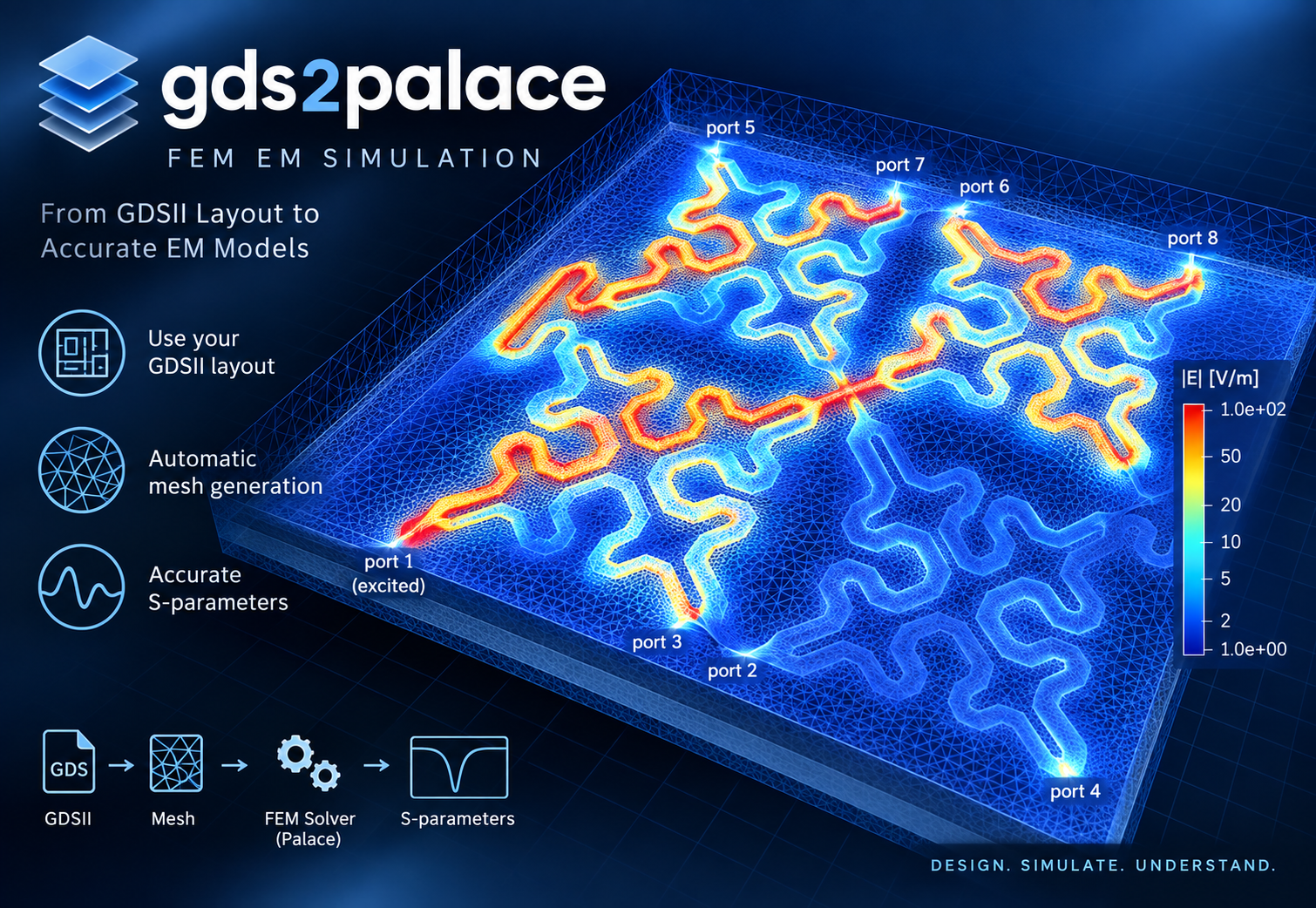
The files provided here enable RFIC FEM simulation using AWS Palace from GDSII layouts created in IHP SG13G2 RFIC technology.
Palace, is an open-source, parallel finite element code for full-wave 3D electromagnetic simulations. It can be scaled from single computer to large high performance simulation clusters and cloud-based computing.
https://awslabs.github.io/palace/stable/
In addition to AWS Palace, gds2palace can also generate models for Elmer FEM, as an additional workflow option for EM (S-parameter) simulation as well as steady-state thermal simulation. See CHANGES.md for this and other recent additions.
The gds2palace workflow in this repository is pre-configured for GDSII layout files in the IHP SG13G2 Open PDK. Special thanks to IHP and the public funded German project FMD-QNC (16ME0831) https://www.elektronikforschung.de/projekte/fmd-qnc for financial support, which has contributed to this work.
Install
pip install gds2palace
Full documentation, installation guide, and usage walkthrough: https://github.com/VolkerMuehlhaus/gds2palace_ihp_sg13g2
Recent changes
22-23 September-2026
settings['filled_metals'] is a new option for Palace, used for volume meshing of conductors instead of placing a surface impedance onto the side walls. This gives more accurate conductor loss at low frequency, where the skin depth is no longer small compared to conductor cross section.
Note that the new volume meshing option is not the recommended default for Palace: volume meshing requires more RAM and simulation time, and will become inaccurate at higher frequencies, unless you really mesh into skin effect. See the new inductor_L6n2_filledmetals_passivation3D example for a comparison of conductor volume mesh against surface-impedance modeling at several mesh sizes, checked against measurement.
settings['adaptive_mesh_conformal'] is a new experimental option (default False) to use conformal AMR mesh refinement instead of Palace's default nonconformal (hanging-node) refinement. From the testcases tried so far, this gave good convergence behaviour, with agressive increase in mesh cell count. For the D-band balun mesh convergence testcase, with only 2 iterations, this reached a similar result as the default non-conformal AMR after 4 iterations, with simulation time cut in half.
Bugfixes
combine_extend_snp.py now handles a Palace run that was interrupted before finishing (e.g. terminated by setupEM's new memory-limit kill switch, or OOM-killed by the OS): a blank/truncated trailing CSV line, or Palace's own "NULL" placeholder for an excitation it never got to solve, previously either crashed with an IndexError or got silently written into the Touchstone output where it only surfaced later as an unhandled parse error in scikit-rf. Affected S-parameters are now written as 0.0 dB / 0 deg instead, with a stdout warning and a comment line in the output Touchstone file listing exactly which parameters are unreliable, so a partial run degrades visibly instead of crashing or silently producing bad data.
18-September-2026
Detect a multi-chiplet stackup (one shared interposer referenced by several chiplet dies) from the Reference graph via detect_chiplet_groups(), and scope metal/dielectric z-range checks to each chiplet so same-height elements from different chiplets no longer get cross-linked or wrongly registered into each other's dielectric.
Added find_z_overlap_pairs()/find_z_overlaps() (overlapping same-scope dielectrics) and find_missing_chiplet_boundaries()/find_missing_chiplet_boundary_warnings() (a chiplet branch point or chiplet root Dielectric missing an explicit Boundary=, required once a stackup branches into chiplets).
Bugfixes
Fixed a crash previewing a brand-new empty stackup, and a missing .sNp extension on _dc/_deembedded output when the model name itself contains a literal . (e.g. a dimension like do82.41).
Fixed a metal sitting exactly at its own reference dielectric's top edge (ReferenceEdge="Top" Zmin="0") falling into the wrong, often shared dielectric instead - also fixes Interposer_Backside being dropped from metals_inside.
12-14-September-2026
Added an example (more_examples/EM_temperature_coefficient) for temperature-dependent conductivity in the XML stackup, to simulate loss vs. temperature. The corresponding .py simulation model loops over temperature and must be run from command line (not setupEM).
Added two reserved stackup materials that need no <Materials> entry: PEC (ideal conductor, on conductor/via/sheet Layers) and AIR (built-in default dielectric, overridable).
Bugfixes
Fixed inductor synthesis spiral polygon vertices not landing exactly on the grid in the inductor synthesis example.
read_gds() now silently repairs self-intersecting GDSII "keyhole" polygons instead of failing much later with an opaque assert dielectric_tags_unchanged deep inside meshing.
Detect and fix overlap of lumped ports with metals on the same layer. Port wins now, this fixes the previous Palace/MFEM error ("a non-periodic face cannot have multiple boundary elements").
Full history: CHANGES.md
Note: the gds2palace PyPI package itself only requires:
- gdspy>1.6.0
- gmsh
- numpy
- shapely>=2.0
(Other Python modules mentioned above are only needed to run the example/model scripts in this repository, not to use the installed package.)
1 maintainer

Release files for gds2palace 0.6.0
For a detailed explanation of source distributions (sdists) and built distributions (wheels), please see the package formats documentation.
Source distribution (sdist)
| File | Size | Uploaded | |
|---|---|---|---|
| gds2palace-0.6.0.tar.gz | 93.4 kB | Details |
Built distribution (wheel)
| File | Interpreter | ABI | Platform | Reset |
|---|---|---|---|---|
| gds2palace-0.6.0-py3-none-any.whl | Python 3 | none | any | Details |
Total release size: 183.2 kB
Release files / gds2palace-0.6.0.tar.gz
| Download URL | gds2palace-0.6.0.tar.gz |
|---|---|
| Size | 93.4 kB |
| Tags | Source |
|
SHA-256 checksum How to use checksums |
7d690696da74ab9a42936d59f1da4fed87fc3d7efc3b1f3e3cdb8cb9dce35bed
|
|
BLAKE2b-256 checksum How to use checksums |
57315919566269621b3e575a46a813419c989828f2f4360b45fc79f2b9c1ead7
|
| Upload date | |
|
Uploaded using Trusted Publishing? What is trusted publishing? |
No |
| Uploaded via |
twine/7.0.0 CPython/3.13.14
|
Release files / gds2palace-0.6.0-py3-none-any.whl
| Download URL | gds2palace-0.6.0-py3-none-any.whl |
|---|---|
| Size | 89.8 kB |
| Tags | Python 3 |
|
SHA-256 checksum How to use checksums |
9b59063897900b1eef553c0003bd6afaa562551bb7e54ec0982aff063622e01c
|
|
BLAKE2b-256 checksum How to use checksums |
8f64c7cd2fddeb449deb5d211d7e1bd1b0acce959449d40f0480e06e2dc251cc
|
| Upload date | |
|
Uploaded using Trusted Publishing? What is trusted publishing? |
No |
| Uploaded via |
twine/7.0.0 CPython/3.13.14
|














