
CLI that renders git tree visualizations as SVG from JSONL input.
Verified details
These details have been verified by PyPIProject links
GitHub Statistics
Maintainers

Project description
gitsvg
CLI that renders git tree visualizations as SVG from JSONL input.








Installation
pip install gitsvg
Or with uv:
uv tool install gitsvg
Releases are published to PyPI via trusted publishing with PEP 740 digital attestations.
Quick start
A .gitsvg.jsonl file is a list of operations, one JSON object per line, applied top-to-bottom to build a diagram. Render it with:
gitsvg render diagram.gitsvg.jsonl -o diagram.svg
Validate without rendering:
gitsvg validate diagram.gitsvg.jsonl
Diagrams
The examples/ folder ships self-contained input files demonstrating the format. The first seven examples cover the diagram operations; the Theming section below covers visual customization. Each subsection shows the rendered output and the source it came from.
Example 1: Linear history
A single branch with a few commits. The minimum viable diagram.
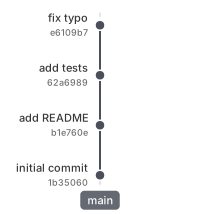
{"op": "branch", "name": "main", "label_side": "before"}
{"op": "commit", "branch": "main", "id": "c1", "msg": "initial commit", "hash": "auto"}
{"op": "commit", "branch": "main", "id": "c2", "msg": "add README", "hash": "auto"}
{"op": "commit", "branch": "main", "id": "c3", "msg": "add tests", "hash": "auto"}
{"op": "commit", "branch": "main", "id": "c4", "msg": "fix typo", "hash": "auto"}
Example 2: Branch and merge
A feature branch forks off main, accumulates a couple of commits, then merges back.
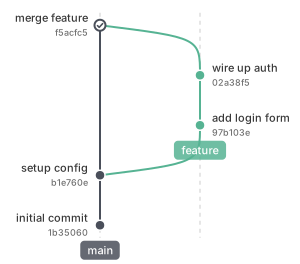
{"op": "branch", "name": "main", "label_side": "before"}
{"op": "commit", "branch": "main", "id": "c1", "msg": "initial commit", "hash": "auto"}
{"op": "commit", "branch": "main", "id": "c2", "msg": "setup config", "hash": "auto"}
{"op": "branch", "name": "feature", "from_branch": "main"}
{"op": "commit", "branch": "feature", "id": "f1", "msg": "add login form", "hash": "auto"}
{"op": "commit", "branch": "feature", "id": "f2", "msg": "wire up auth", "hash": "auto"}
{"op": "merge", "from": "feature", "into": "main", "as": "m1", "msg": "merge feature", "hash": "auto"}
Example 3: Multiple branches with lane reuse
Two concurrent branches share lanes 1 and 2; after both merge, a later feature-b reclaims the now-free lane 1 instead of starting a new one. Lane assignment is automatic and geometry-driven.
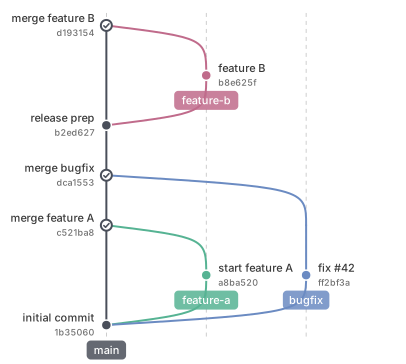
{"op": "branch", "name": "main", "label_side": "before"}
{"op": "commit", "branch": "main", "id": "c1", "msg": "initial commit", "hash": "auto"}
{"op": "branch", "name": "feature-a", "from_branch": "main"}
{"op": "commit", "branch": "feature-a", "id": "a1", "msg": "start feature A", "hash": "auto"}
{"op": "branch", "name": "bugfix", "from_branch": "main"}
{"op": "commit", "branch": "bugfix", "id": "x1", "msg": "fix #42", "hash": "auto"}
{"op": "merge", "from": "feature-a", "into": "main", "as": "m1", "msg": "merge feature A", "hash": "auto"}
{"op": "merge", "from": "bugfix", "into": "main", "as": "m2", "msg": "merge bugfix", "hash": "auto"}
{"op": "commit", "branch": "main", "id": "c2", "msg": "release prep", "hash": "auto"}
{"op": "branch", "name": "feature-b", "from_branch": "main"}
{"op": "commit", "branch": "feature-b", "id": "b1", "msg": "feature B", "hash": "auto"}
{"op": "merge", "from": "feature-b", "into": "main", "as": "m3", "msg": "merge feature B", "hash": "auto"}
Example 4: Highlighting a commit
The highlight op marks an existing commit with an enlarged dot and a bold label — useful for drawing attention to a release or a key milestone.
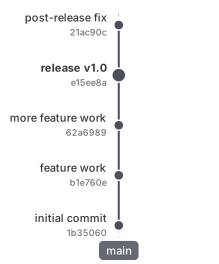
{"op": "branch", "name": "main", "label_side": "before"}
{"op": "commit", "branch": "main", "id": "c1", "msg": "initial commit", "hash": "auto"}
{"op": "commit", "branch": "main", "id": "c2", "msg": "feature work", "hash": "auto"}
{"op": "commit", "branch": "main", "id": "c3", "msg": "more feature work", "hash": "auto"}
{"op": "commit", "branch": "main", "id": "v1", "msg": "release v1.0", "hash": "auto"}
{"op": "commit", "branch": "main", "id": "c4", "msg": "post-release fix", "hash": "auto"}
{"op": "highlight", "commit": "v1"}
Example 5: Remove and rebuild (rebase pattern)
A feature branch is removed and re-declared on top of a more recent main commit, with the same commit IDs as before. This is the rebase-style "move my work onto the new tip" pattern, expressed as primitives.
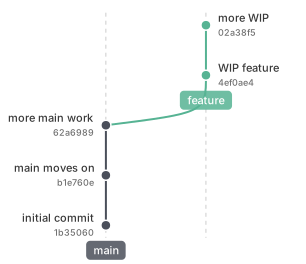
{"op": "branch", "name": "main", "label_side": "before"}
{"op": "commit", "branch": "main", "id": "c1", "msg": "initial commit", "hash": "auto"}
{"op": "branch", "name": "feature", "from_branch": "main"}
{"op": "commit", "branch": "feature", "id": "f1", "msg": "WIP feature", "hash": "auto"}
{"op": "commit", "branch": "feature", "id": "f2", "msg": "more WIP", "hash": "auto"}
{"op": "commit", "branch": "main", "id": "c2", "msg": "main moves on", "hash": "auto"}
{"op": "commit", "branch": "main", "id": "c3", "msg": "more main work", "hash": "auto"}
{"op": "remove", "branches": ["feature"]}
{"op": "branch", "name": "feature", "from_branch": "main"}
{"op": "commit", "branch": "feature", "id": "f1", "msg": "WIP feature", "hash": "auto"}
{"op": "commit", "branch": "feature", "id": "f2", "msg": "more WIP", "hash": "auto"}
Example 6: Import and squash
The import op replays another file as a prelude — here it picks up the rebased state from Example 5. A single new commit then squashes f1 and f2 into one via replaces:.
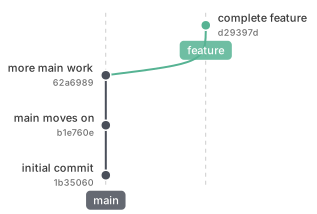
{"op": "import", "path": "05_remove_rebuild.gitsvg.jsonl"}
{"op": "commit", "branch": "feature", "replaces": ["f1", "f2"], "id": "f_squash", "msg": "complete feature", "hash": "auto"}
Example 7: Open pull request
The pull_request op declares a pending merge between two branches. Both endpoints live-track the current branch tips: as commits accumulate on either side, the dashed arc advances. The optional title renders as a pill anchored at the source-tip commit. The typical lifecycle closes the PR with remove and then runs a real merge; this example stops before either, so the open PR remains visible in the final state.
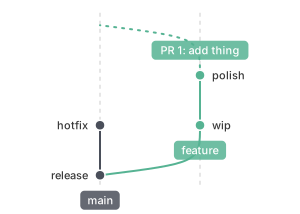
{"op": "branch", "name": "main", "label_side": "before"}
{"op": "commit", "branch": "main", "id": "m1", "msg": "release"}
{"op": "branch", "name": "feature", "from_branch": "main"}
{"op": "commit", "branch": "feature", "id": "f1", "msg": "wip"}
{"op": "pull_request", "id": "pr1", "from": "feature", "into": "main", "title": "PR 1: add thing"}
{"op": "commit", "branch": "feature", "id": "f2", "msg": "polish"}
{"op": "commit", "branch": "main", "id": "m2", "msg": "hotfix"}
Theming
The theme op customizes the diagram's presentational surface — spacings, sizes, fonts, the branch-color palette, the SVG background, the orientation, and more. Each op only overrides the fields it lists; a name (default, muted, dark, compact) selects a built-in theme to base resolution on.
Example 8: Recolored palette
Here we import Example 3 unchanged and apply a saturated palette with thicker strokes, larger labels, and a warm background.
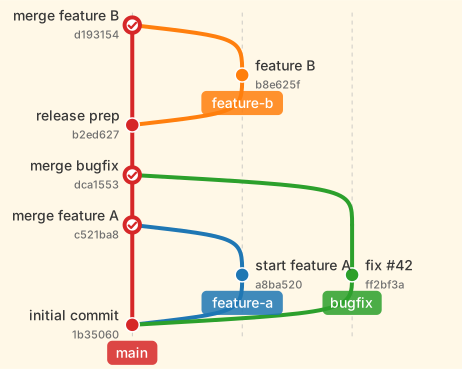
{"op": "import", "path": "03_multi_branch.gitsvg.jsonl"}
{"op": "theme", "background_color": "#fff8e7", "branch_spacing": 110, "branch_line_width": 4, "label_font_size": 14, "branch_label_font_size": 14, "hash_font_size": 11, "commit_radius": 7, "highlight_radius": 9, "branch_name_pill_offset_commit_axis_in_rows": -0.56, "colors": {"main": "#d62728", "branch1": "#1f77b4", "branch2": "#2ca02c", "branch3": "#ff7f0e", "branch4": "#9467bd"}}
Example 9: Horizontal orientation
A theme.orientation of lr flips the diagram left-to-right: the commit axis grows rightward and branches stack downward. The same input renders identically in bt (default, bottom-to-top), tb (top-to-bottom), and rl (right-to-left); pill placement, margin defaults, and label-side mapping all adjust per orientation. Accepted values include the canonical short codes (bt, tb, lr, rl) and common aliases (Mermaid's TD, CSS's ltr / rtl, long forms like bottom_to_top, and top_down / bottom_up).
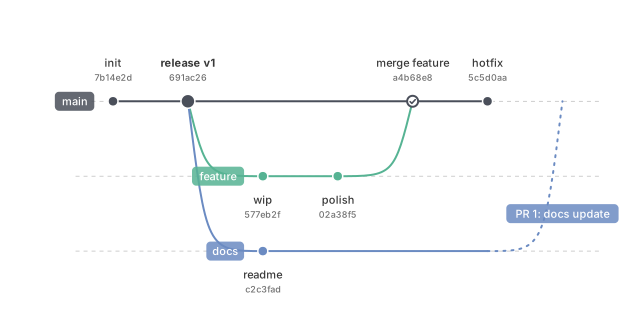
{"op": "branch", "name": "main", "label_side": "before"}
{"op": "commit", "branch": "main", "id": "m1", "msg": "init", "hash": "auto"}
{"op": "commit", "branch": "main", "id": "m2", "msg": "release v1", "hash": "auto", "highlight": true}
{"op": "branch", "name": "feature", "from_branch": "main"}
{"op": "commit", "branch": "feature", "id": "f1", "msg": "wip", "hash": "auto"}
{"op": "commit", "branch": "feature", "id": "f2", "msg": "polish", "hash": "auto"}
{"op": "branch", "name": "docs", "from_branch": "main"}
{"op": "commit", "branch": "docs", "id": "d1", "msg": "readme", "hash": "auto"}
{"op": "merge", "into": "main", "from": "feature", "msg": "merge feature", "hash": "auto"}
{"op": "commit", "branch": "main", "id": "m3", "msg": "hotfix", "hash": "auto"}
{"op": "pull_request", "id": "pr1", "from": "docs", "into": "main", "title": "PR 1: docs update"}
{"op": "theme", "orientation": "lr"}
Example 11: Unique commit rows
By default (commit_row_mode: shared) commits on different branches may share a row, which keeps diagrams compact. Setting theme.commit_row_mode to unique gives every commit its own row, assigned in authoring order — so reading along the commit axis recovers the exact order events were declared, even when work on several branches interleaves. Useful for storytelling diagrams where the sequence of events is the point.
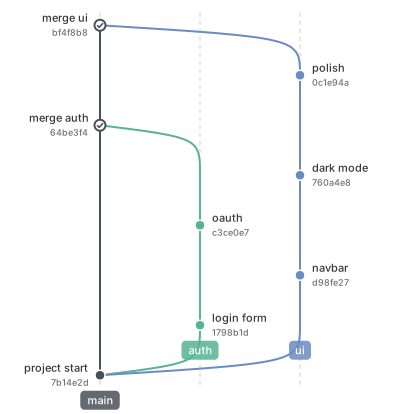
{"op": "branch", "name": "main", "label_side": "before"}
{"op": "commit", "branch": "main", "id": "m1", "msg": "project start", "hash": "auto"}
{"op": "branch", "name": "auth", "from_branch": "main"}
{"op": "commit", "branch": "auth", "id": "a1", "msg": "login form", "hash": "auto"}
{"op": "branch", "name": "ui", "from_branch": "main"}
{"op": "commit", "branch": "ui", "id": "u1", "msg": "navbar", "hash": "auto"}
{"op": "commit", "branch": "auth", "id": "a2", "msg": "oauth", "hash": "auto"}
{"op": "commit", "branch": "ui", "id": "u2", "msg": "dark mode", "hash": "auto"}
{"op": "merge", "from": "auth", "into": "main", "as": "m2", "msg": "merge auth", "hash": "auto"}
{"op": "commit", "branch": "ui", "id": "u3", "msg": "polish", "hash": "auto"}
{"op": "merge", "from": "ui", "into": "main", "as": "m3", "msg": "merge ui", "hash": "auto"}
{"op": "theme", "commit_row_mode": "unique"}
Example 12: Auto lane change
By default a branch keeps its lane for its whole life, so once an inner branch merges its lane sits empty while outer branches stay stranded. Setting theme.auto_lane_change to true compacts the graph the way real git tools do: as each lower lane frees up, the surviving branches migrate inward, so the live branches always occupy the lowest lanes. The shift is drawn as a short connector in the branch line's own style — here feat-b slides into the lane feat-a vacates, and feat-c follows into feat-b's.
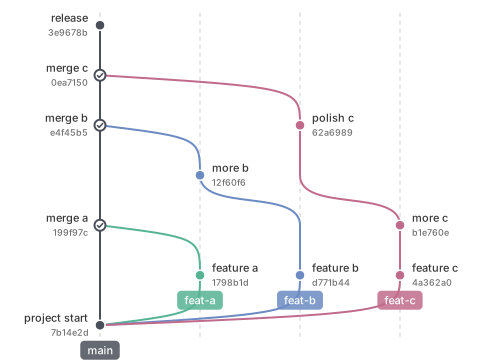
{"op": "branch", "name": "main", "label_side": "before"}
{"op": "commit", "branch": "main", "id": "m1", "msg": "project start", "hash": "auto"}
{"op": "branch", "name": "feat-a", "from_branch": "main"}
{"op": "commit", "branch": "feat-a", "id": "a1", "msg": "feature a", "hash": "auto"}
{"op": "branch", "name": "feat-b", "from_branch": "main"}
{"op": "commit", "branch": "feat-b", "id": "b1", "msg": "feature b", "hash": "auto"}
{"op": "branch", "name": "feat-c", "from_branch": "main"}
{"op": "commit", "branch": "feat-c", "id": "c1", "msg": "feature c", "hash": "auto"}
{"op": "merge", "from": "feat-a", "into": "main", "as": "ma", "msg": "merge a", "hash": "auto"}
{"op": "commit", "branch": "feat-b", "id": "b2", "msg": "more b", "hash": "auto", "gap": 1}
{"op": "commit", "branch": "feat-c", "id": "c2", "msg": "more c", "hash": "auto"}
{"op": "merge", "from": "feat-b", "into": "main", "as": "mb", "msg": "merge b", "hash": "auto"}
{"op": "commit", "branch": "feat-c", "id": "c3", "msg": "polish c", "hash": "auto", "gap": 1}
{"op": "merge", "from": "feat-c", "into": "main", "as": "mc", "msg": "merge c", "hash": "auto"}
{"op": "commit", "branch": "main", "id": "m2", "msg": "release", "hash": "auto"}
{"op": "theme", "auto_lane_change": true}
Named themes
Beyond default, gitsvg ships four built-in themes:
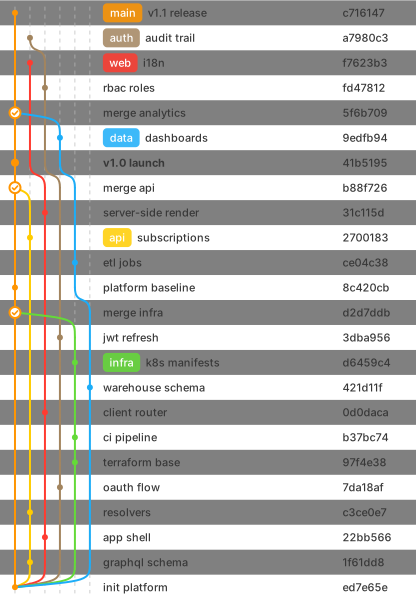
muted— the pre-refresh default look: a softer, grayer branch palette with plain circle merge dots.dark— One Dark-inspired palette on a#282c34canvas.compact— ~30 % denser spacing with smaller fonts.gui— a desktop-git-GUI look: table layout (graph left, message and hash columns right, branch names as tip pills), auto lane change, tight spacing, and a system-color branch palette.
Selecting one is a single field on a theme op:
{"op": "import", "path": "03_multi_branch.gitsvg.jsonl"}
{"op": "theme", "name": "dark"}
The shipped preview below tiles the refreshed default next to the muted, dark, and compact themes on a shared input file, with the table-layout gui theme shown beneath on its own richer diagram:
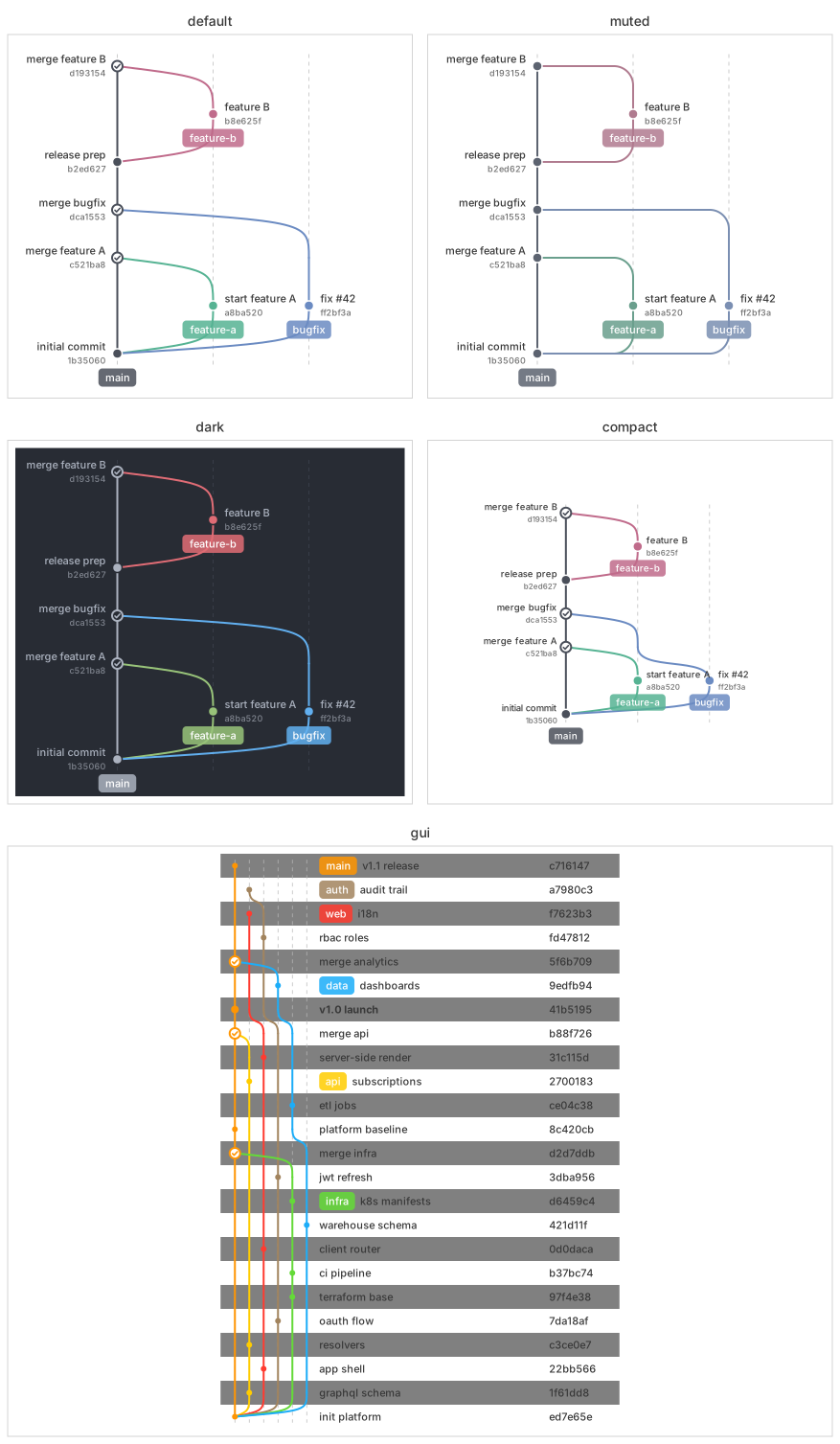
The gui theme is best seen at full size. Its shipped example (examples/13_gui_table.gitsvg.jsonl) renders a multi-branch history the way a desktop git client would — the graph on the left, a per-commit table on the right, and each branch's name as a colored pill at the commit its ref points to:
Selecting a named theme also wipes any theme: field overrides and branch.color overrides accumulated earlier — useful for "use exactly this theme." To layer a chosen theme on top of those overrides instead (e.g. when importing a diagram that already carries its own theming), pass keep_prior_overrides: true on the same op.
CLI reference
| Command | Purpose |
|---|---|
gitsvg render <input> -o <output> |
Render a .gitsvg.jsonl file to SVG. Pass a directory at both ends to recursively walk the input tree and write mirrored .svg outputs under the output directory. --small=N selects minification level 0-3; bare --small is level 2 (lossless structural compression). |
gitsvg state <input> |
Emit a JSON snapshot of the diagram (branches, commits with their parent chain, open pull requests) — a structural description of the resolved graph. Stdout by default; pass -o <file> to write to a file, or pass a directory pair to recursively walk and emit one <stem>.state.json per input. Output format may change before 1.0; pin a gitsvg version when caching the schema. |
gitsvg layout <input> |
Emit a JSON view of the resolved layout (grid extent, lane assignments, commit positions, arcs, open pull-request geometry) — what the renderer consumes, useful for debugging visual placement. Same invocation matrix as state (stdout by default, -o <file> for a file, directory pair for recursive walking with <stem>.layout.json outputs). Output format may change before 1.0; pin a gitsvg version when caching the schema. |
gitsvg validate <input> |
Run the full validation pipeline; report errors with file:line: [code] field: message. Add --json for a structured report. |
gitsvg schema |
Index of all input operations. gitsvg schema <op> prints the JSON Schema for one operation (e.g. gitsvg schema theme for the theme op's field schema); --list-ops prints a bare op list. |
gitsvg theme |
Index of the built-in named themes with one-line descriptions. gitsvg theme <name> prints a named theme's resolved field values; --list-names prints a bare name list. |
gitsvg errors |
Index of all validation error codes. gitsvg errors <code> prints the long-form catalog entry; --list-codes prints a bare code list. |
gitsvg schema and gitsvg errors are designed for agents and tooling: an LLM-based agent producing input can fetch the schema for a single op and the catalog entry for any error it hits, without reading the rest of the documentation.
Integrations
Keep diagram source under version control and render it where you need it:
- gitsvg-action — a GitHub Action to render, validate, or drift-check
.gitsvg.jsonldiagrams in CI (uses: bertpl/gitsvg-action@v1). - mkdocs-gitsvg — a MkDocs plugin that renders
```gitsvgfenced blocks to inline SVG at build time (in active development).
License
MIT.
Project details
Verified details
These details have been verified by PyPIProject links
GitHub Statistics
Maintainers
Release history Release notifications | RSS feed


Download files
Download the file for your platform. If you're not sure which to choose, learn more about installing packages.
Source Distribution
Built Distribution
Filter files by name, interpreter, ABI, and platform.
If you're not sure about the file name format, learn more about wheel file names.
Copy a direct link to the current filters
File details
Details for the file gitsvg-0.3.3.tar.gz.
File metadata
- Download URL: gitsvg-0.3.3.tar.gz
- Upload date:
- Size: 154.0 kB
- Tags: Source
- Uploaded using Trusted Publishing? Yes
- Uploaded via: twine/6.1.0 CPython/3.13.13
File hashes
| Algorithm | Hash digest | |
|---|---|---|
| SHA256 |
85b9048f69b6b0d1cd1092feb4fda3a4f37bfd416a4c396acf8303c268cdce35
|
|
| MD5 |
8c28702396dd664db181529fee3aa6c9
|
|
| BLAKE2b-256 |
2f299747fe445edf8bd56abe8c6c2f861b4f1005f4bd52677c45d42a70c632bd
|
Provenance
The following attestation bundles were made for gitsvg-0.3.3.tar.gz:
Publisher:
release_tag.yml on bertpl/gitsvg
-
Statement:
-
Statement type:
https://in-toto.io/Statement/v1 -
Predicate type:
https://docs.pypi.org/attestations/publish/v1 -
Subject name:
gitsvg-0.3.3.tar.gz -
Subject digest:
85b9048f69b6b0d1cd1092feb4fda3a4f37bfd416a4c396acf8303c268cdce35 - Sigstore transparency entry: 1789649505
- Sigstore integration time:
-
Permalink:
bertpl/gitsvg@93804de72ace60480899cec2635d13543cf36c46 -
Branch / Tag:
refs/tags/v0.3.3 - Owner: https://github.com/bertpl
-
Access:
public
-
Token Issuer:
https://token.actions.githubusercontent.com -
Runner Environment:
github-hosted -
Publication workflow:
release_tag.yml@93804de72ace60480899cec2635d13543cf36c46 -
Trigger Event:
push
-
Statement type:
File details
Details for the file gitsvg-0.3.3-py3-none-any.whl.
File metadata
- Download URL: gitsvg-0.3.3-py3-none-any.whl
- Upload date:
- Size: 229.5 kB
- Tags: Python 3
- Uploaded using Trusted Publishing? Yes
- Uploaded via: twine/6.1.0 CPython/3.13.13
File hashes
| Algorithm | Hash digest | |
|---|---|---|
| SHA256 |
413fb327e574c3ecdde5cb4ef16614804d2fa227ad32958343a3b219aeefe6cd
|
|
| MD5 |
4fa7a4a85c0bfdf99a021498059797f2
|
|
| BLAKE2b-256 |
1264aa7c10a5d4e1b579265bdede9df246ccfc6b5dbd5b5cea2644f6d7bd6d11
|
Provenance
The following attestation bundles were made for gitsvg-0.3.3-py3-none-any.whl:
Publisher:
release_tag.yml on bertpl/gitsvg
-
Statement:
-
Statement type:
https://in-toto.io/Statement/v1 -
Predicate type:
https://docs.pypi.org/attestations/publish/v1 -
Subject name:
gitsvg-0.3.3-py3-none-any.whl -
Subject digest:
413fb327e574c3ecdde5cb4ef16614804d2fa227ad32958343a3b219aeefe6cd - Sigstore transparency entry: 1789649541
- Sigstore integration time:
-
Permalink:
bertpl/gitsvg@93804de72ace60480899cec2635d13543cf36c46 -
Branch / Tag:
refs/tags/v0.3.3 - Owner: https://github.com/bertpl
-
Access:
public
-
Token Issuer:
https://token.actions.githubusercontent.com -
Runner Environment:
github-hosted -
Publication workflow:
release_tag.yml@93804de72ace60480899cec2635d13543cf36c46 -
Trigger Event:
push
-
Statement type:






