Image acquisition & data visualization library with Python maintained by the official GenICam committee
Project description
.. image:: https://img.shields.io/pypi/v/harvesters.svg
:target: https://pypi.org/project/harvesters
.. image:: https://readthedocs.org/projects/harvesters/badge/?version=latest
:target: https://harvesters.readthedocs.io/en/latest/?badge=latest
.. image:: https://img.shields.io/pypi/pyversions/harvesters.svg
----
*Even though we just wanted to research image processing algorithms, why did we have to change our image acquisition library every time we change the camera that we use for the research?
- Anonymous*
----
.. contents:: Table of Contents
:depth: 1
###############
About Harvester
###############
Harvester was created to be a public and friendly image acquisition library for all people who those want to learn computer/machine vision. Technically speaking, Harvester is a Python library which is responsible for the following tasks:
* Image acquisition
* Device manipulation
* Image data visualization (optional)
Harvester consumes image acquisition libraries, so-called GenTL Producers. If you have an officially certified GenTL Producer and GenICam compliant machine vision cameras, then Harvester supply you the acquired image data as `numpy <http://www.numpy.org>`_ array to make your image processing task productive.
You can freely use, modify, distribute Harvester under `Apache License-2.0 <https://www.apache.org/licenses/LICENSE-2.0>`_ without worrying about the use of your software: personal, internal or commercial.
Currently, Harvester is being developed and maintained by the motivated volunteer contributors from all over the world.
***********************
Where is the name from?
***********************
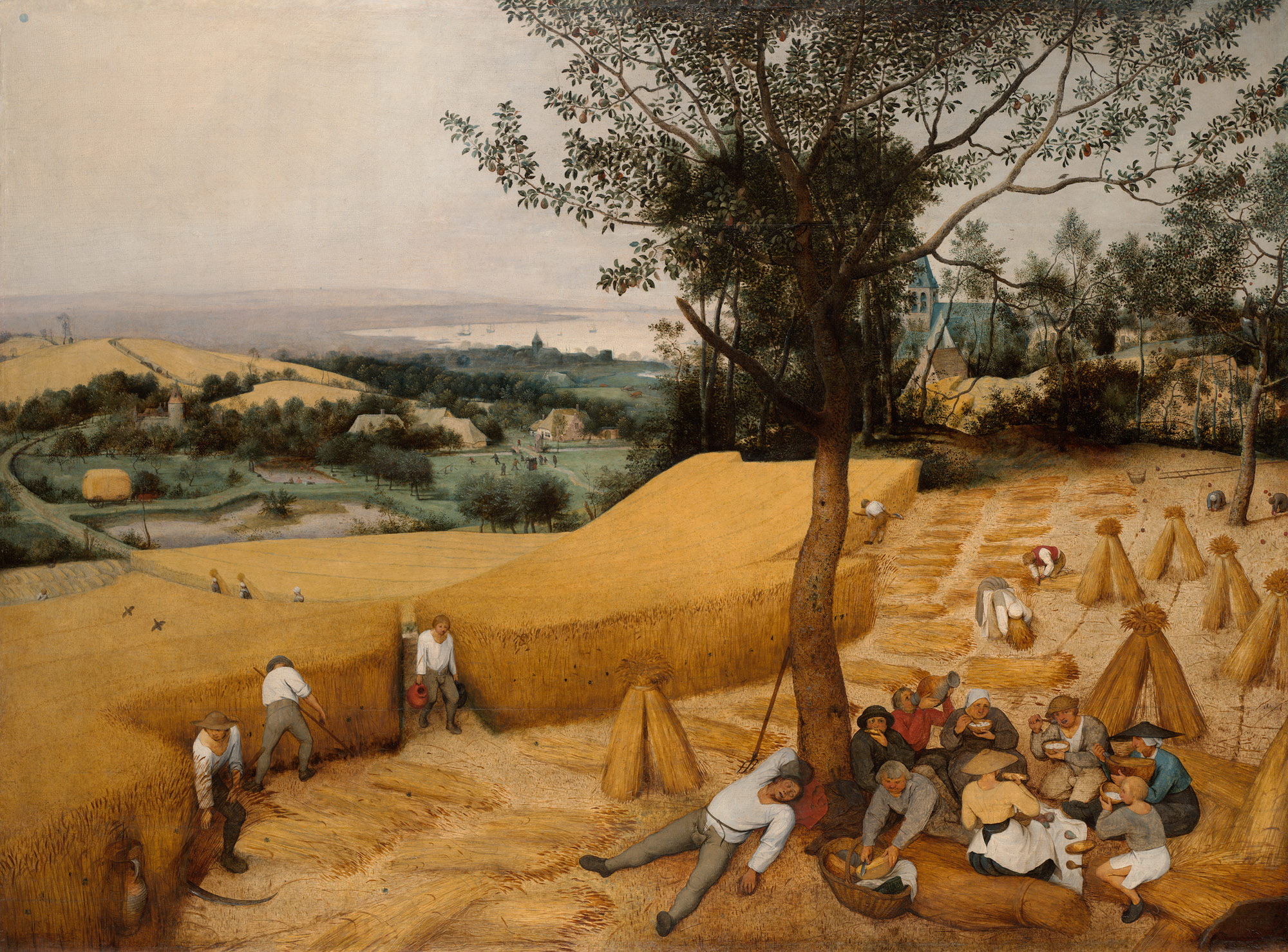
Harvester's name was coming from the great Flemish painter, Pieter Bruegel the Elder's painting so-called "The Harvesters". Harvesters harvest a crop every season that has been fully grown and the harvested crop is passed to the consumers. On the other hand, image acquisition libraries acquire images as their crop and the images are passed to the following processes. We found the similarity between them and decided to name our library Harvester.
Apart from anything else, we love its peaceful and friendly name. We hope you also like it ;-)
.. figure:: https://user-images.githubusercontent.com/8652625/40595190-1e16e90e-626e-11e8-9dc7-207d691c6d6d.jpg
:align: center
:alt: The Harvesters
:scale: 55 %
Pieter Bruegel the Elder, The Harvesters, 1565, (c) 2000–2018 The Metropolitan Museum of Art
################
Asking questions
################
We have prepared a chat room in Gitter. Please don't hesitate to drop your message when you get a question regarding Harvester!
https://gitter.im/genicam-harvester/chatroom
##############
External links
##############
* `GitHub <https://github.com/genicam/harvesters>`_: This is the main repository of Harvester
* `PyPI <https://pypi.org/project/harvesters/>`_: This is the package distribution page of Harvester which is located in PyPI
* `Read the Docs <https://harvesters.readthedocs.io/en/latest/>`_: You can find the API reference of Harvester Core and Harvester GUI
######################
Friendly collaborators
######################
So far, Harvester has tested GenTL Producers and GenICam compliant devices from the following companies and they gave Harvester opportunities to improve its quality:
.. list-table::
:header-rows: 1
:align: center
- - Company Name
- GigE Vision
- USB3 Vision
- Devices
- - `Active Silicon <https://www.activesilicon.com/>`_
- \-
- \-
- N/A
- - `Adimec <https://www.adimec.com/>`_
- N/A
- N/A
- \-
- - `Allied Vision <https://www.alliedvision.com/en/digital-industrial-camera-solutions.html>`_
- \-
- \-
- \-
- - `Autometion Technology <https://www.automationtechnology.de/cms/en/>`_
- N/A
- N/A
- Tested
- - `Basler <https://www.baslerweb.com/>`_
- N/A
- N/A
- \-
- - `Baumer Optronic <https://www.baumer.com/se/en/>`_
- Tested
- Tested
- Tested
- - `DAHENG VISION <http://en.daheng-image.com/main.html>`_
- \-
- Tested
- Tested
- - `Euresys <https://www.euresys.com/Homepage>`_
- \-
- \-
- N/A
- - `FLIR <https://www.flir.com>`_
- N/A
- N/A
- Tested
- - `Gardasoft <http://www.gardasoft.com>`_
- N/A
- N/A
- Tested
- - `JAI <https://www.jai.com>`_
- \-
- Tested
- \-
- - `Lucid Vision Labs <https://thinklucid.com>`_
- \-
- N/A
- \-
- - `MATRIX VISION <https://www.matrix-vision.com/home-en.html>`_
- Tested
- Tested
- \-
- - `OMRON SENTECH <https://sentech.co.jp/en/>`_
- \-
- Tested
- Tested
- - `PCO <https://www.pco-imaging.com/>`_
- \-
- \-
- \-
- - `Roboception <https://roboception.com/en/>`_
- N/A
- N/A
- Tested
- - `SICK <https://www.sick.com/ag/en/>`_
- \-
- N/A
- \-
- - `Silicon Software <https://silicon.software/>`_
- \-
- \-
- N/A
- - `STEMMER IMAGING <https://www.stemmer-imaging.com/en/>`_
- Tested
- Tested
- N/A
- - `Vieworks <http://www.vieworks.com/eng/main.html>`_
- \-
- \-
- \-
- - `XIMEA <https://www.ximea.com/>`_
- \-
- \-
- \-
Please don't hesitate to tell us if you have tested Harvester with your GenTL Producer or GenICam compliant device. We will add your company/organization name to the list.
*************************
Certified GenTL Producers
*************************
As of today, we have tested Harvester with the following GenTL Producers and it definitely is the shortest way to get one from the following list to get Harvester working with tangible machine vision cameras:
.. list-table::
:header-rows: 1
:align: center
- - Company Name
- SDK Name
- Camera Manufacture Free
- - Baumer Optronic
- `Baumer GAPI SDK <https://www.baumer.com/ae/en/product-overview/image-processing-identification/software/baumer-gapi-sdk/c/14174>`_
- No
- - DAHENG VISION
- `MER Galaxy View <http://en.daheng-image.com/products_list/&pmcId=a1dda1e7-5d40-4538-9572-f4234be49c9c.html>`_
- No
- - JAI
- `JAI SDK <https://www.jai.com/support-software/jai-software>`_
- Yes
- - Matrix Vision
- `mvIMPACT_Acquire <http://static.matrix-vision.com/mvIMPACT_Acquire/>`_
- Yes
- - OMRON SENTECH
- `StCamUSBPack <https://sentech.co.jp/data/#cnt2nd>`_
- No
- - STEMMER IMAGING
- `Common Vision Blox <https://www.commonvisionblox.com/en/cvb-download/>`_
- Yes
You might be able to directly download one at their website but please note that perhaps some of them could require you to register your information to get one. In addition, some GenTL Producers might block you to connect to other competitors' camera.
###########
Terminology
###########
Before start talking about the detail, let's take a look at some important terminologies that frequently appear in this document. These terminologies are listed as follows:
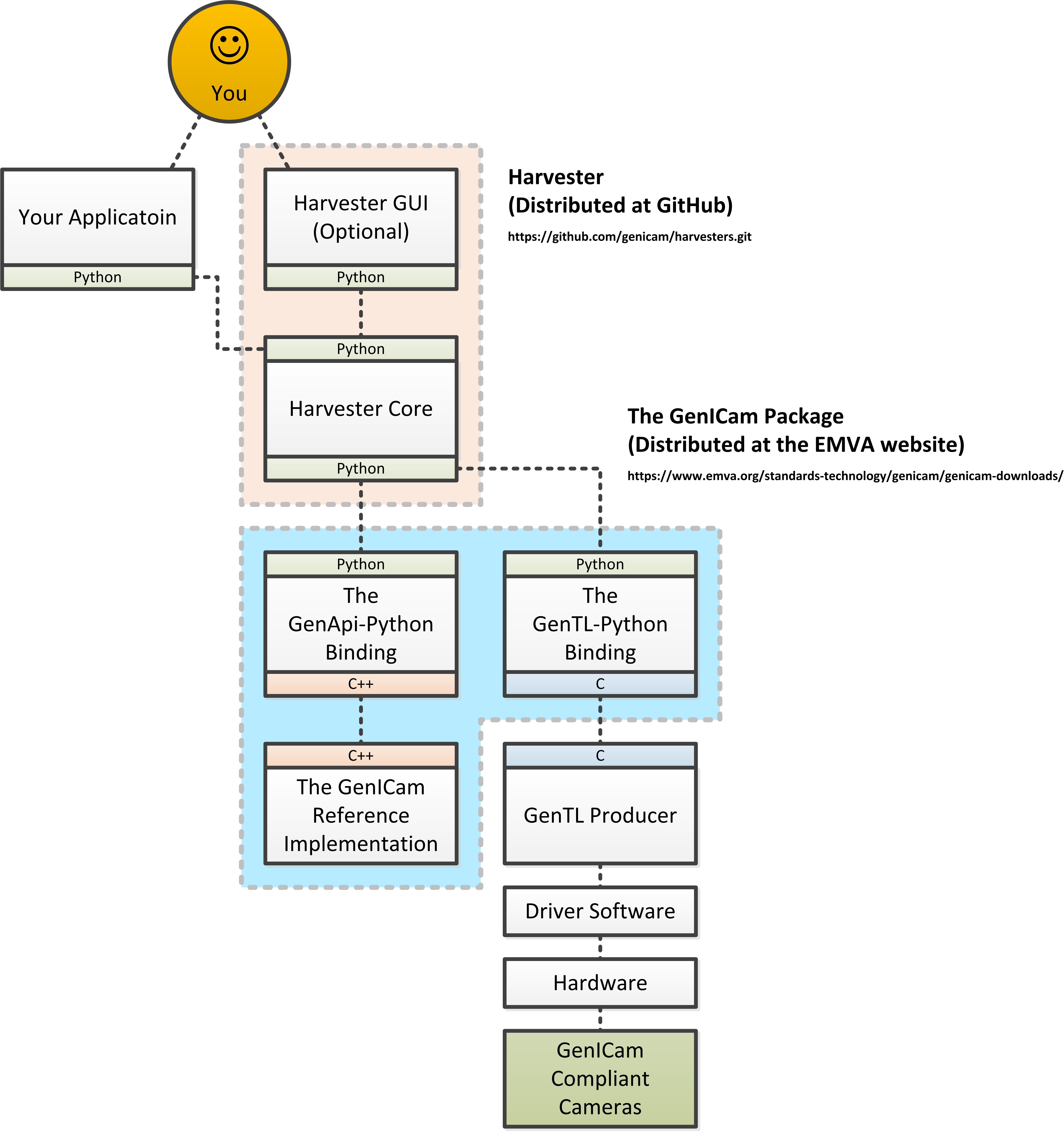
* **The GenApi-Python Binding**: A Python module that communicates with the GenICam reference implementation.
* **A GenTL Producer**: A library that has C interface and offers consumers a way to communicate with cameras over physical transport layer dependent technology hiding the detail from the consumer.
* **The GenTL-Python Binding**: A Python module that communicates with GenTL Producers.
* **Harvester**: A Python module that consists of Harvester Core and Harvester GUI.
* **Harvester Core**: A part of Harvester that works as an image acquisition engine.
* **Harvester GUI**: A part of Harvester that works as a graphical user interface of Harvester Core.
* **A GenICam compliant device**: It's typically a camera. Just involving the GenICam reference implementation, it offers consumers a way to dynamically configure/control the target devices.
The following diagram shows the hierarchy and relationship of the relevant modules:
.. figure:: https://user-images.githubusercontent.com/8652625/44316633-926cf100-a467-11e8-92c6-ac69ad3c8129.png
:align: center
:alt: Module hierarchy
:scale: 40 %
###########################
How does Harvester help us?
###########################
Harvester mainly consists of the following two Python modules:
* **Harvester Core**: An image acquisition engine
* **Harvester GUI**: Graphical user interface between users & Harvester Core
In this section, we will learn what Harvester offers us through these components.
**************
Harvester Core
**************
Harvester Core is an image acquisition engine. No GUI. You can use it as an image acquisition library which acquires images from GenTL Producers through the GenTL-Python Binding and control the target device (it's typically a camera) through the GenApi-Python Binding.
Harvester Core works as a minimalistic front-end for image acquisition. Just importing it from your Python script, you should immediately be able to set images on your table.
You'll be able to download the these language binding runtime libraries from the `EMVA website <https://www.emva.org/standards-technology/genicam/genicam-downloads/>`_, however, it's not available as of May 2018, because they have not officially released yet. Fortunately they are in the final reviewing process so hopefully they'll be release by the end of 2018.
If you don't have to visualize acquired images at high frame rate, the combination of Harvester Core and `Matplotlib <https://matplotlib.org>`_ might be ideal for that purpose.
Tasks Harvester Core does for you
=================================
The main features of Harvester Core are listed as follows:
* Image acquisition over GenTL Producers
* Multiple loading of GenTL Producers in a single Python script
* GenICam feature node manipulation of the target device
Note that the second item implies you can involve multiple types of transport layers in your Python script. Each transport layer has own advantages and disadvantages and you should choose appropriate transport layers following your application's requirement. You just need to acquire images for some purposes and the GenTL Producers deliver the images somehow. It truly is the great benefit of encapsulation by the GenTL Standard!
On the other hand, Harvester Core could be considered as a simplified version of the GenTL-Python Binding; actually Harvester Core hides it in its back and shows only intuitive interfaces to its clients. Harvester Core just offers you a relationship between you and a device. Nothing more. We say it again, just you and a device. If you need to manipulate more relevant GenTL modules or have to achieve something over a hardcore way, then you should directly work with the GenTL-Python Binding.
Pixel formats that Harvester Core supports
==========================================
Currently Harvester Core supports the following pixel formats that are defined by the Pixel Format Naming Convention:
``Mono8``, ``Mono10``, ``Mono12``, ``Mono16``, ``RGB8``, ``RGBa8``, ``BayerRG8``, ``BayerGR8``, ``BayerBG8``, ``BayerGB8``, ``BayerRG16``, ``BayerGR16``, ``BayerBG16``, ``BayerGB16``
*************
Harvester GUI
*************
Harvester GUI works on the top of Harvester Core and offers you high-performance image data visualization on the fly. It involves VisPy for controlling OpenGL functionality and PyQt for providing GUI.
Tasks Harvester GUI does for you
================================
The main features of Harvester GUI are listed as follows:
* Image data visualization of the acquired images
* Image magnification using a mouse wheel or a trackpad
* Image dragging using a mouse or a trackpad
* An arbitrary selection of image displaying point in the data path (Not implemented yet)
Unlike Harvester Core, Harvester GUI limits the number of GenTL Producers to load just one. This is just a limitation to not make the GUI complicated. In general, the user should know which GenTL Producer should be loaded to control his target device. It's not necessary to load multiple GenTL Producers for this use case. However, this is just an idea in an early stage. We might support multiple loading on even Harvester GUI in the future.
Pixel formats that Harvester GUI supports
=========================================
Currently Harvester GUI supports the following pixel formats that are defined by the Pixel Format Naming Convention:
``Mono8``, ``Mono10``, ``Mono12``, ``Mono16``, ``RGB8``, ``RGBa8``, ``BayerRG8``, ``BayerGR8``, ``BayerBG8``, ``BayerGB8``, ``BayerRG16``, ``BayerGR16``, ``BayerBG16``, ``BayerGB16``
Note that Harvester GUI has not yet supported demosaicing.
###########
Screenshots
###########
In this section, we see some useful windows which Harvester offers you.
****************************
Image data visualizer window
****************************
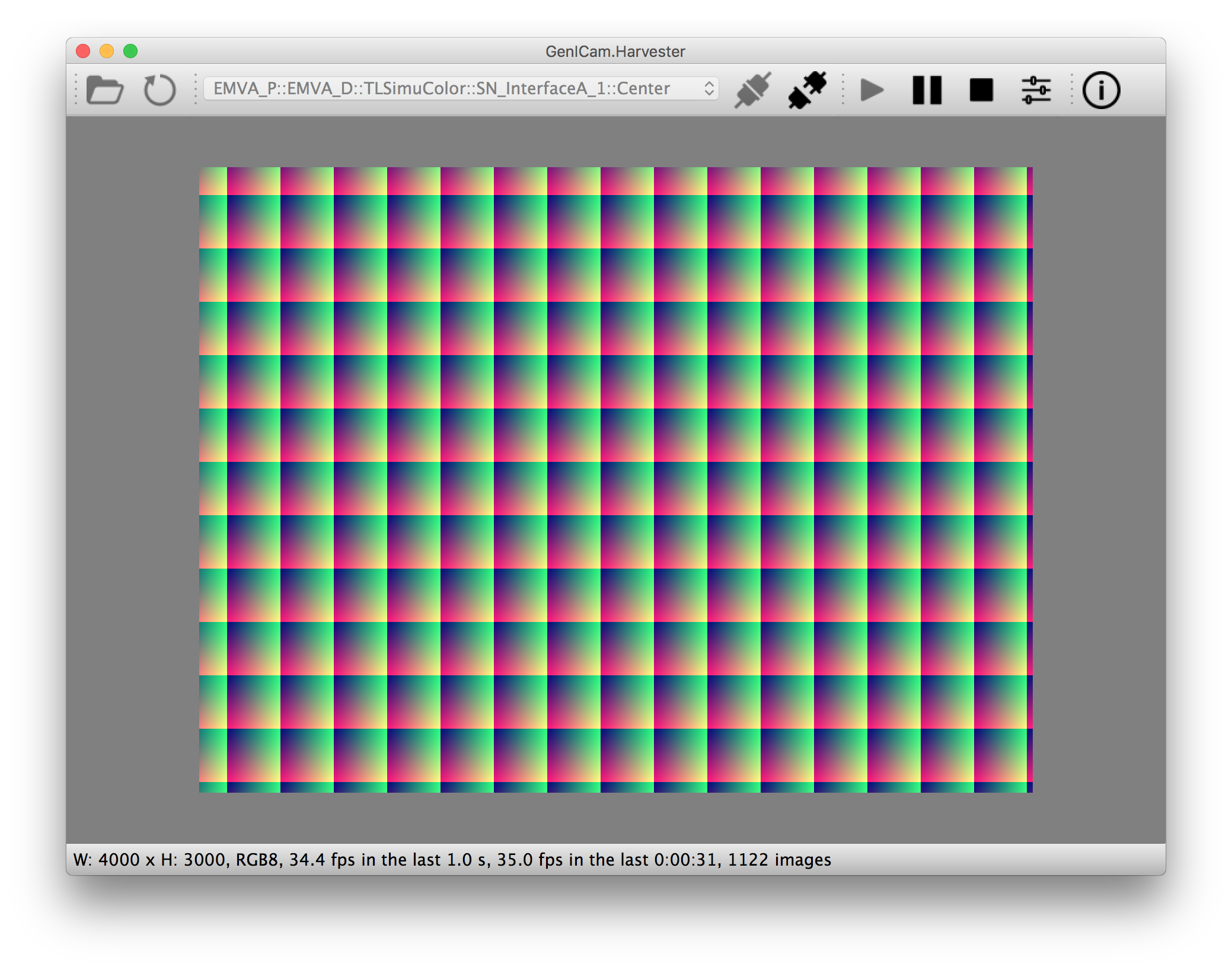
The image data visualizer window (below) offers you a visualization of the acquired images. In this screenshot, Harvester is acquiring a 4000 x 3000 pixel of RGB8 image at 30 fps; it means it's acquiring images at 8.6 Gbps. It's quite fast isn't it?
.. image:: https://user-images.githubusercontent.com/8652625/43035346-c84fe404-8d28-11e8-815f-2df66cbbc6d0.png
:align: center
:alt: Image data visualizer
:scale: 40 %
***************************
Attribute controller window
***************************
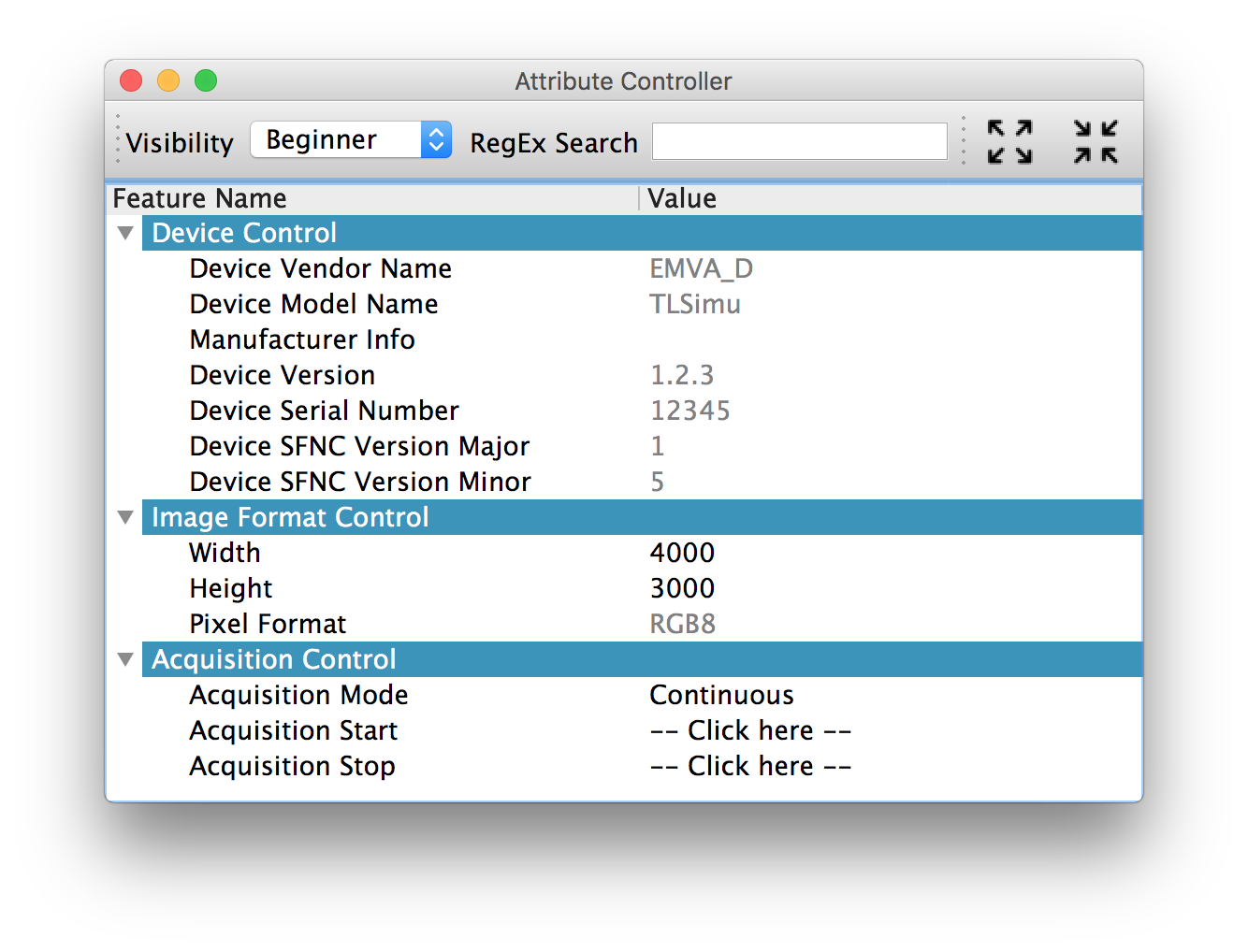
The attribute controller window (below) offers you to manipulate GenICam feature nodes of the target device. Changing exposure time, triggering the target device for image acquisition, storing a set of camera configuration so-called User Set, etc, you can manually control the target device anytime when you want to. It supports visibility filter feature and regular expression feature. These features are useful in a case where you need to display only the features you are interested.
.. image:: https://user-images.githubusercontent.com/8652625/43035351-d35a2936-8d28-11e8-83d5-7b6efa6e2ad8.png
:align: center
:alt: Attribute Controller
:scale: 40 %
*************************
Harvester Core on IPython
*************************
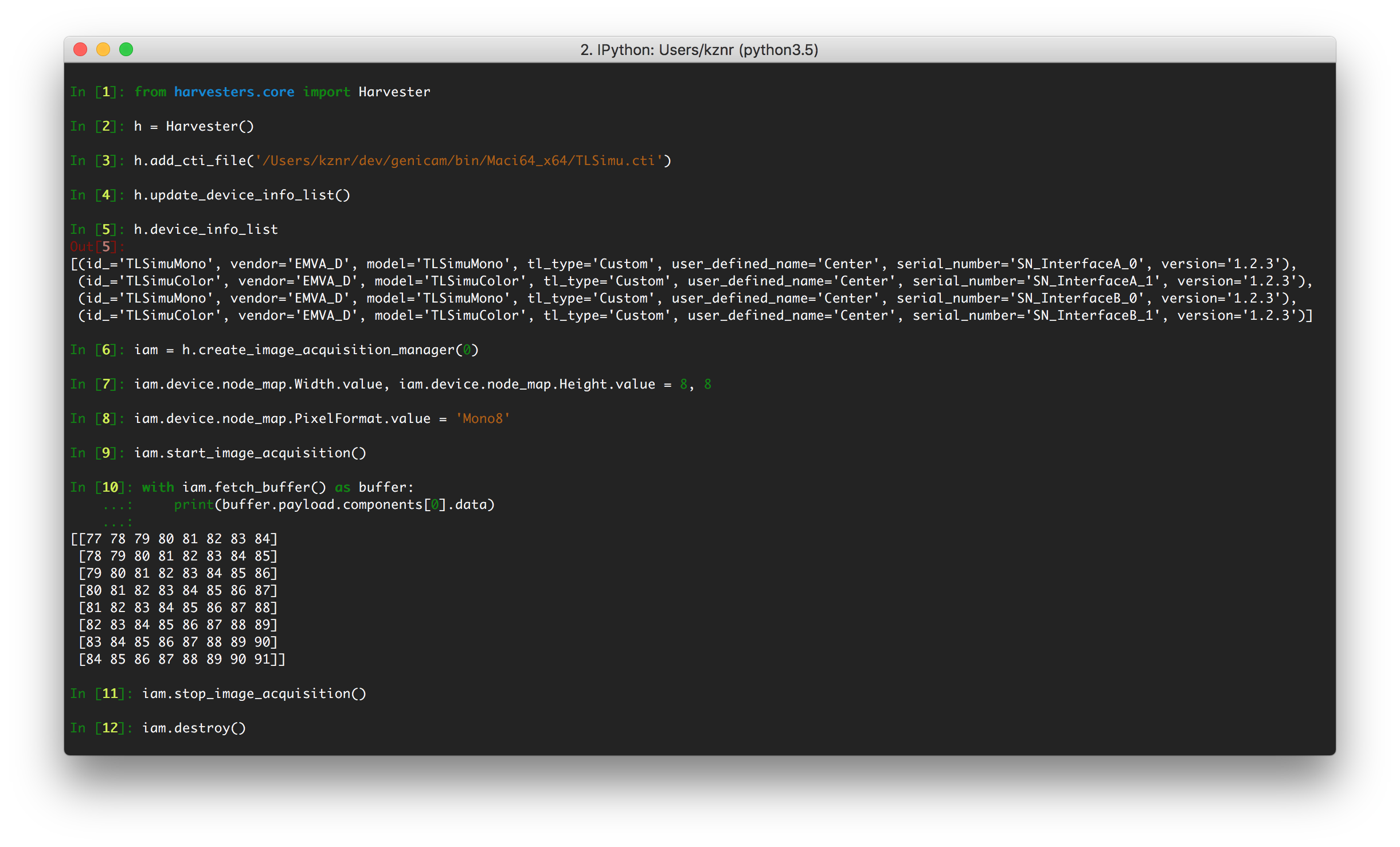
The following screenshot shows Harvester Core is running on IPython. Harvester Core returns the latest image data at the moment as a Numpy array every time its user call the ``get_image()`` method. Once you get an image you should be able to immediately start image processing. If you're running on Jupyter notebook, you should be able to visualize the image data using Matplotlib. This step should be helpful to check what's going on your trial in the image processing flow.
.. image:: https://user-images.githubusercontent.com/8652625/44210625-f52d6680-a1a1-11e8-909c-b799997f2dd4.png
:align: center
:alt: Harvester on IPython
:scale: 40 %
.. code-block:: python
In [1]: from harvesters.core import Harvester
In [2]: h = Harvester()
In [3]: h.add_cti_file('/Users/kznr/dev/genicam/bin/Maci64_x64/TLSimu.cti')
In [4]: h.update_device_info_list()
In [5]: h.device_info_list
Out[5]:
[(id_='TLSimuMono', vendor='EMVA_D', model='TLSimuMono', tl_type='Custom', user_defined_name='Center', serial_number='SN_InterfaceA_0', version='1.2.3'),
(id_='TLSimuColor', vendor='EMVA_D', model='TLSimuColor', tl_type='Custom', user_defined_name='Center', serial_number='SN_InterfaceA_1', version='1.2.3'),
(id_='TLSimuMono', vendor='EMVA_D', model='TLSimuMono', tl_type='Custom', user_defined_name='Center', serial_number='SN_InterfaceB_0', version='1.2.3'),
(id_='TLSimuColor', vendor='EMVA_D', model='TLSimuColor', tl_type='Custom', user_defined_name='Center', serial_number='SN_InterfaceB_1', version='1.2.3')]
In [6]: iam = h.create_image_acquisition_manager(0)
In [7]: iam.device.node_map.Width.value, iam.device.node_map.Height.value = 8, 8
In [8]: iam.device.node_map.PixelFormat.value = 'Mono8'
In [9]: iam.start_image_acquisition()
In [10]: with iam.fetch_buffer() as buffer:
...: print(buffer.payload.components[0].data)
...:
[[77 78 79 80 81 82 83 84]
[78 79 80 81 82 83 84 85]
[79 80 81 82 83 84 85 86]
[80 81 82 83 84 85 86 87]
[81 82 83 84 85 86 87 88]
[82 83 84 85 86 87 88 89]
[83 84 85 86 87 88 89 90]
[84 85 86 87 88 89 90 91]]
In [11]: iam.stop_image_acquisition()
In [12]: iam.destroy()
############
Requirements
############
*******************
System requirements
*******************
The following software modules are required to get Harvester working:
* Python 3.4 or later
In addition, you will need the following items to let Harvester make something meaningful:
* Officially certified GenTL Producers
* GenICam compliant machine vision cameras
***************************
Supported operating systems
***************************
Harvester has been tested with the following operating systems:
* macOS 10.13
* Ubuntu 14.04
* Red Hat Enterprise Linux Workstation 7.4
* Windows 7
####################
Installing Harvester
####################
In this section, we will learn how to instruct procedures to get Harvester work.
********
Overview
********
In short, you may think which tools are required to get Harvester work. The answer is listed as follows:
* The Python Bindings for GenApi & GenTL
* The GenICam reference implementation
* A certified GenTL Producer
* A GenICam compliant machine vision camera
The first two items will be able to downloaded from the EMVA website in the future. Regarding the 3rd item, you should be able to get proprietary product from software vendors who sell image acquisition library. Regarding the 4th item, you should be able to purchase from machine vision camera manufactures all over the world.
********************
Installing Harvester
********************
You can install Harvester via PyPI invoking the following command; note that
the package name is ``harvesters`` but not ``harvester``:
.. code-block:: shell
$ pip install harvesters
For people who those have already installed it:
.. code-block:: shell
$ pip install --upgrade harvesters
These commands will automatically install the required modules such as ``numpy`` if any of them has not yet installed on your environment. The official Python Bindings should be also covered by the installation process but it's not available as of August 2018.
Getting back to the original topic, you could install the latest development version it using ``setup.py`` cloning Harvester from GitHub:
.. code-block:: shell
$ git clone https://github.com/genicam/harvesters.git && cd harvesters && python setup.py install
If you want to use Harvester GUI, then please install the following modules in advance because ``PyQt`` is provided under LGPL which may not be ideal for your purpose without having reasonable consideration:
.. code-block:: shell
$ pip install PyQt5 vispy
In the future, we might support other GUI frameworks which are more or less open and free.
******************************
Installing the Python Bindings
******************************
Harvester requires the GenApi-Python Binding and the GenTL-Python Binding. As of July 2018, it's not officially distributed yet by EMVA; so we are working so hard to make it by the end of year 2018. Having that fact, as of today, the only way to get those is building them by yourself.
The source code can be downloaded from the following URL using Subversion:
.. code-block:: shell
$ svn co https://genicam.mvtec.com/svn/genicam/branches/_dev_teli_kazunari_1881_20180812/
Note that you need to be a member of EMVA to download a working copy from their repository. To learn about the detail please visit the following EMVA website:
https://www.emva.org/about-emva/membership/
To build the library, please read the ``README`` file which is located at the following directory in the source package:
``genicam/source/Bindings/README.rst``
Reading that file, you should be able to learn everything you need to build the Python Bindings by yourself.
In the end, Python Wheels for the Python Bindings will be distributed at PyPI to allow people installing the Bindings over the ``pip`` command but it's not been available yet. Until it turns available, you may go on a way to manually create a symlink to bridge your target Python interpreter and the built/provided binaries.
The Python Bindings should be packed as ``genicam2``. So on Windows, to create a symlink ``genicam2`` in your target Python interpreter, please invoke the following command:
.. code-block:: shell
$ mklink /D path/to/target/site-packages/genicam2 path/to/source/genicam/bin/Win64_x64
Or, on Linux or macOS, you can do the same invoking the following command; please replace ``Linux64_x64`` with ``Maci64_x64``:
.. code-block:: shell
$ ln –s path/to/source/genicam/bin/Linux64_x64 path/to/target/site-packages/genicam2
************************************
Remarks regaring the Python Bindings
************************************
Please remind that you need to be careful when you choose a Python version (especially Anaconda Python, maybe?) because some distributions have different directory structure or linking symbols. It simply breaks the Python Bindings. We have started collecting some results from our experiences and have listed them in the "System Configuration Matrix" section in the ``README`` file. We hope it helps you to save your time.
###############
Using Harvester
###############
********************
Using Harvester Core
********************
First, let's import Harvester:
.. code-block:: python
from harvesters.core import Harvester
Then instantiate a Harvester object; we're going to use ``h`` that stands for
Harvester as its identifier.
.. code-block:: python
h = Harvester()
And load a CTI file; loading a CTI file, you can communicate with the GenTL
Producer:
.. code-block:: python
h.add_cti_file('path/to/gentl_producer.cti')
Note that you can add **one or more CTI files** on a single Harvester Core object. To add another CTI file, just repeat calling ``add_cti_file`` method passing another target CTI file:
.. code-block:: python
h.add_cti_file('path/to/another_gentl_producer.cti')
And the following code will let you know the CTI files that have been loaded
on the Harvester object:
.. code-block:: python
h.cti_files
In a contrary sense, you can remove a specific CTI file that you have added with the following code:
.. code-block:: python
h.remove_cti_file('path/to/gentl_producer.cti')
And now yol have to update the list of devices; it fills up your device
information list and you'll select a device to control from the list:
.. code-block:: python
h.update_device_info_list()
The following code will let you know the devices that you can control:
.. code-block:: python
h.device_info_list
Our friendly GenTL Producer, so called TLSimu, gives you the following information:
.. code-block:: python
[(unique_id='TLSimuMono', vendor='EMVA_D', model='TLSimuMono', tl_type='Custom', user_defined_name='Center', serial_number='SN_InterfaceA_0', version='1.2.3'),
(unique_id='TLSimuColor', vendor='EMVA_D', model='TLSimuColor', tl_type='Custom', user_defined_name='Center', serial_number='SN_InterfaceA_1', version='1.2.3'),
(unique_id='TLSimuMono', vendor='EMVA_D', model='TLSimuMono', tl_type='Custom', user_defined_name='Center', serial_number='SN_InterfaceB_0', version='1.2.3'),
(unique_id='TLSimuColor', vendor='EMVA_D', model='TLSimuColor', tl_type='Custom', user_defined_name='Center', serial_number='SN_InterfaceB_1', version='1.2.3')]
And you create an image acquisition manager object specifying a target device. The image acquisition manager does the image acquisition task for you. In the following example it's trying to create an manager object of the first candidate device in the device information list:
.. code-block:: python
iam = h.create_image_acquisition_manager(0)
Or equivalently:
.. code-block:: python
iam = h.create_image_acquisition_manager(list_index=0)
You can connect the same device passing more unique information to the method such as:
.. code-block:: python
mono_a = h.create_image_acquisition_manager(serial_number='SN_InterfaceA_0')
We named the manager object ``iam`` in the above example but in a practical occasion, you may name it like just ``camera``, ``mono_cam``, or ``face_detection_cam`` more specifically even though those entities don't acquire images by themselves but they transfer images that will be acquired by their image acquisition manager.
Anyway, then now we start image acquisition:
.. code-block:: python
iam.start_image_acquisition()
Once you started image acquisition, you should definitely want to get an image. An image is delivered to a buffer manager object. To fetch a buffer that has been filled up with an image, you can have 2 options; the first option is to use the ``with`` statement:
.. code-block:: python
with iam.fetch_buffer() as buffer:
# Work with the Buffer object. It consists of everything you need.
print(buffer)
# The buffer will automatically be queued.
Having that code, the fetched buffer is automatically queued once the code step out from the scope of the ``with`` statement. It's prevents you to forget queueing it by accident. The other option is to manually queue the fetched buffer by yourself:
.. code-block:: python
buffer = iam.fetch_buffer()
print(buffer)
# Don't forget to queue the buffer.
buffer.queue()
In this option, again, please do not forget that you have to queue the buffer by yourself. If you forget queueing it, then you'll lose a buffer that could be used for image acquisition. Everything is up to your design, so please choose an appropriate way for you. In addition, once you queued the buffer, the Buffer object will be obsolete. There's nothing to do with it.
Okay, then you would stop image acquisition with the following code:
.. code-block:: python
iam.stop_image_acquisition()
And the following code disconnects the connecting device from the image acquisition manager; you'll have to create an image acquisition manager object again when you have to work with a device:
.. code-block:: python
iam.destroy()
Now you can quit the program! Please not that the image acquisition manager also supports the ``with`` statement. So you may write program as follows:
.. code-block:: python
with h.create_image_acquisition_manager(0) as iam:
# Work, work, and work with the iam object.
# the iam object will automatically call the destroy method.
*******************
Using Harvester GUI
*******************
To use Harvester GUI, let's create a Python script file, naming ``harvester_gui.py``, that contains the following code:
.. code-block:: python
import sys
from PyQt5.QtWidgets import QApplication
from harvesters.frontend.pyqt5 import Harvester
if __name__ == '__main__':
app = QApplication(sys.argv)
h = Harvester()
h.show()
sys.exit(app.exec_())
Then launch ``harvester_gui.py``:
.. code-block:: shell
$ python harvester_gui.py
You will see Harvester GUI pops up.
#############
Harvester GUI
#############
*********************************************
Harvester GUI :: Image data visualizer window
*********************************************
Image data visualizer window :: Toolbar
=======================================
Most of Harvester GUI's features can be used through its toolbox. In this section, we describe each button's functionality and how to use it. Regarding shortcut keys, replace ``Ctrl`` with ``Command`` on macOS.
.. image:: https://user-images.githubusercontent.com/8652625/43035384-7d1109e0-8d29-11e8-9005-38b965a9680e.png
:align: center
:alt: Toolbar
:scale: 40 %
Selecting a CTI file
--------------------
.. image:: https://user-images.githubusercontent.com/8652625/40596073-7e1b6a82-6273-11e8-9045-68bbbd034281.png
:align: left
:alt: Open file
:scale: 40 %
This button is used to select a GenTL Producer file to load. The shortcut key is ``Ctrl+o``.
Updating the device information list
------------------------------------
.. image:: https://user-images.githubusercontent.com/8652625/40596091-9354283a-6273-11e8-8c6f-559db511339a.png
:align: left
:alt: Update
:scale: 40 %
This button is used to update the device information list; the list will be filled up with the devices that are handled by the GenTL Producer that you have loaded on Harvester GUI; sometime it might be empy if there's no device is available. The shortcut key is ``Ctrl+u``. It might be useful when you newly connect a device to your system.
Selecting a GenICam compliant device
------------------------------------
This combo box shows a list of available GenICam compliant devices. You can select a device that you want to control. The shortcut key is ``Ctrl+D``, i.e., ``Ctrl+Shift+d``.
Connecting a selected device to Harvester
-----------------------------------------
.. image:: https://user-images.githubusercontent.com/8652625/40596045-49c61d54-6273-11e8-8424-d16e923b5b3f.png
:align: left
:alt: Connect
:scale: 40 %
This button is used to connect a device which is being selected by the former combo box. The shortcut key is ``Ctrl+c``. Once you connect the device, the device is exclusively controlled.
Disconnecting the connecting device from Harvester
--------------------------------------------------
.. image:: https://user-images.githubusercontent.com/8652625/40596046-49f0fd9e-6273-11e8-83e3-7ba8aad3c4f7.png
:align: left
:alt: Disconnect
:scale: 40 %
This button is used to disconnect the connecting device from Harvester. The shortcut key is ``Ctrl+d``.
Starting image acquisition
--------------------------
.. image:: https://user-images.githubusercontent.com/8652625/40596022-34d3d486-6273-11e8-92c3-2349be5fd98f.png
:align: left
:alt: Start image acquisition
:scale: 40 %
This button is used to start image acquisition. The shortcut key is ``Ctrl+j``. The acquired images will be drawing in the following canvas pane.
Pausing/Resuming image drawing
------------------------------
.. image:: https://user-images.githubusercontent.com/8652625/40596063-6cae1aba-6273-11e8-9049-2430a042c671.png
:align: left
:alt: Pause
:scale: 40 %
This button is used to pausing/resuming drawing images on the canvas pane while it's keep acquiring images in the background. The shortcut key is ``Ctrl+k``. If you want to resume drawing images, just click the button again. You can do the same thing with the start image acquisition button (``Ctrl+j``).
Stopping image acquisition
--------------------------
.. image:: https://user-images.githubusercontent.com/8652625/40596024-35d84c86-6273-11e8-89b8-9368db740f22.png
:align: left
:alt: Stop image acquisition
:scale: 40 %
This button is used to stop image acquisition. The shortcut key is ``Ctrl+l``.
Showing the device attribute dialog
-----------------------------------
.. image:: https://user-images.githubusercontent.com/8652625/40596224-7b2cf0e2-6274-11e8-9088-bb48163968d6.png
:align: left
:alt: Device attribute
:scale: 40 %
This button is used to show the device attribute dialog. The shortcut key is ``Ctrl+a``. The device attribute dialog offers you to a way to intuitively control device attribute over a GUI.
Showing the about dialog
------------------------
.. image:: https://user-images.githubusercontent.com/8652625/40596039-449ddc36-6273-11e8-9f91-1eb7830b8e8c.png
:align: left
:alt: About
:scale: 40 %
This button is used to show the about dialog.
Image data visualizer window :: Canvas
======================================
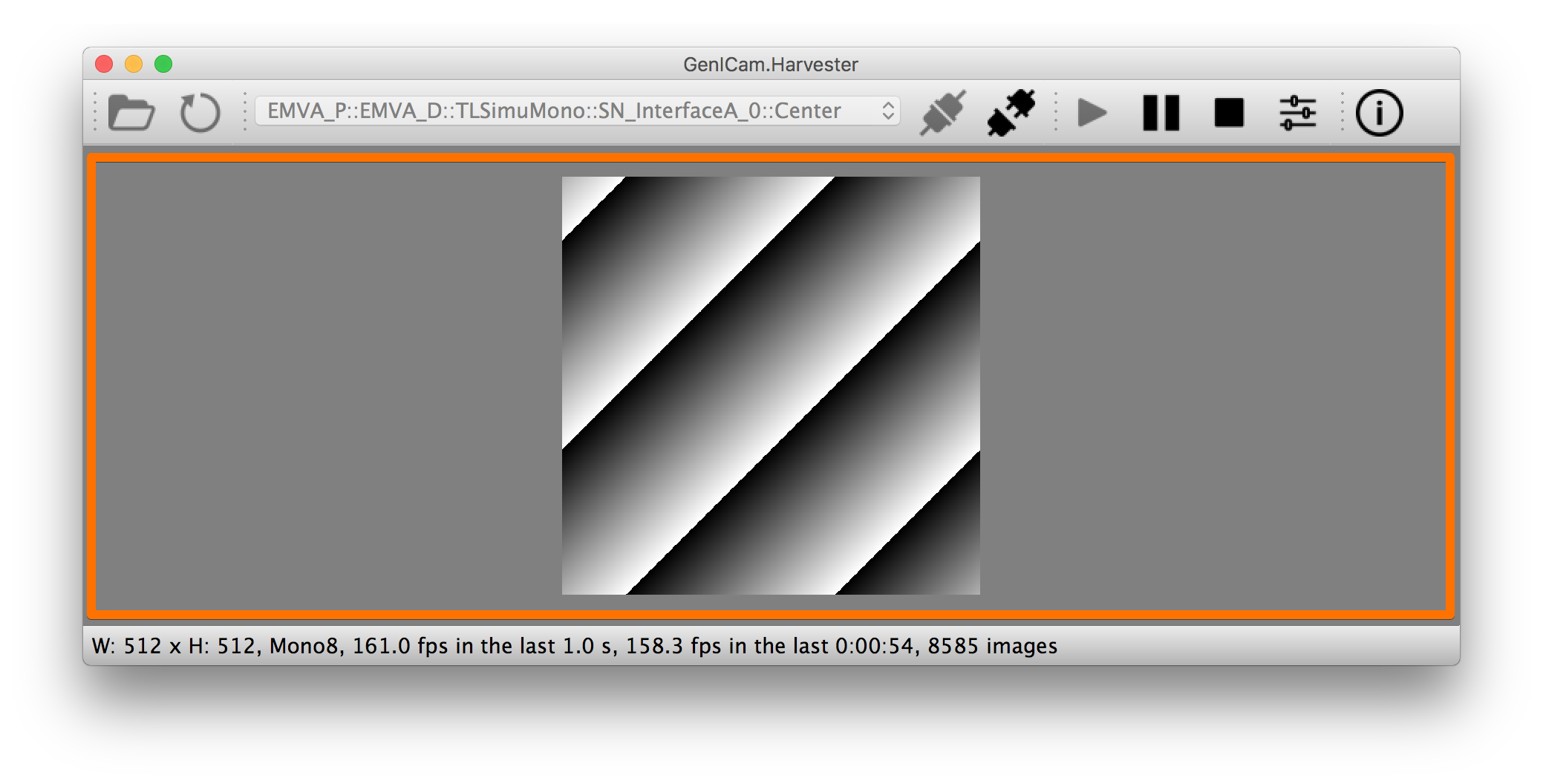
The canvas of Harvester GUI offers you not only image data visualization but also some intuitive object manipulations.
.. image:: https://user-images.githubusercontent.com/8652625/43035349-cdd9f9a0-8d28-11e8-8152-0bc488450ef6.png
:align: center
:alt: Canvas
:scale: 40 %
Zooming into the displayed image
--------------------------------
If you're using a mouse, spin the wheel to your pointing finger points at. If you are using a trackpad on a macOS, slide two fingers to the display side.
Zooming out from the displayed image
------------------------------------
If you're using a mouse, spin the wheel to your side. If you are using a trackpad on a macOS, slide two fingers to your side.
Changing the part being displayed
---------------------------------
If you're using a mouse, grab any point in the canvas and drag the pointer as if you're physically grabbing the image. The image will follow the pointer. If you are using a trackpad on a macOS, it might be useful if you assign the three finger slide for dragging.
********************************************
Harvester GUI :: Attribute controller window
********************************************
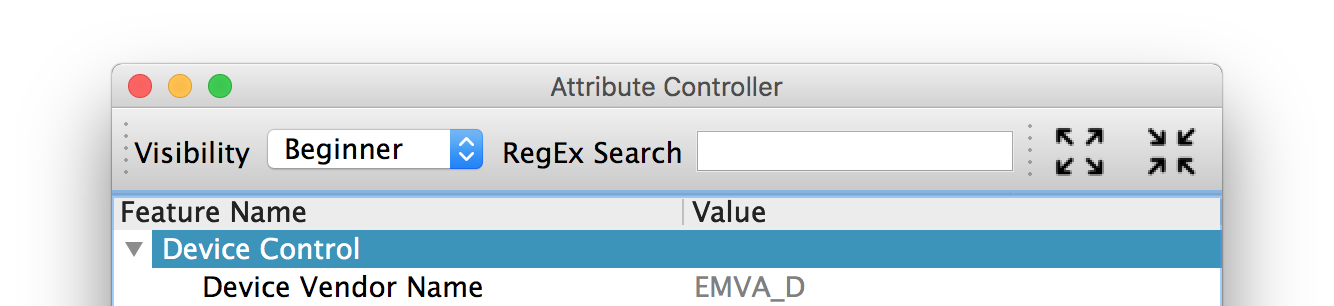
The attribute controller offers you an interface to each GenICam feature node that the the target device provides.
Attribute controller window :: Toolbar
======================================
.. image:: https://user-images.githubusercontent.com/8652625/43035353-d64c96e2-8d28-11e8-8c68-0bc4ee866d28.png
:align: center
:alt: Toolbar
:scale: 40 %
Filtering GenICam feature nodes by visibility
---------------------------------------------
This combo box offers you to apply visibility filter to the GenICam feature node tree. The shortcut key is ``Ctrl+v``
GenICam defines the following visibility levels:
* **Beginner**: Features that should be visible for all users via the GUI and API.
* **Expert**: Features that require a more in-depth knowledge of the camera functionality.
* **Guru**: Advanced features that might bring the cameras into a state where it will not work properly anymore if it is set incorrectly for the cameras current mode of operation.
* **Invisible**: Features that should be kept hidden for the GUI users but still be available via the API.
The following table shows each item in the combo box and the visibility status of each visibility level:
.. list-table::
:header-rows: 1
:align: center
- - Combo box item
- Beginner
- Expert
- Guru
- Invisible
- - Beginner
- Visible
- Invisible
- Invisible
- Invisible
- - Expert
- Visible
- Visible
- Invisible
- Invisible
- - Guru
- Visible
- Visible
- Visible
- Invisible
- - All
- Visible
- Visible
- Visible
- Visible
Filtering GenICam feature nodes by regular expression
-----------------------------------------------------
This text edit box offers you to filter GenICam feature nodes by regular expression.
Expanding the feature node tree
-------------------------------
.. image:: https://user-images.githubusercontent.com/8652625/41112454-f7471566-6ab9-11e8-93a4-d2d56c7bbd31.png
:align: left
:alt: Expand feature node tree
:scale: 40 %
This button is used to expand the feature node tree. The shortcut key is ``Ctrl+e``.
Collapsing the feature node tree
--------------------------------
.. image:: https://user-images.githubusercontent.com/8652625/41112453-f712498a-6ab9-11e8-9f9f-160c0e0d8866.png
:align: left
:alt: Collapse feature node tree
:scale: 40 %
This button is used to collapse the feature node tree. The shortcut key is ``Ctrl+c``.
################
Acknowledgements
################
*********************
Open source resources
*********************
Harvester Core uses the following open source libraries/resources:
* Pympler
| License: `Apache License, Version 2.0 <https://www.apache.org/licenses/LICENSE-2.0.html>`_
| Copyright (c) Jean Brouwers, Ludwig Haehne, Robert Schuppenies
| https://pythonhosted.org/Pympler/
| https://github.com/pympler/pympler
| https://pypi.org/project/Pympler/
* Versioneer
| License: `The Creative Commons "Public Domain Dedication" license (CC0-1.0) <https://creativecommons.org/publicdomain/zero/1.0/>`_
| Copyright (c) 2018 Brian Warner
| https://github.com/warner/python-versioneer
Harvester GUI uses the following open source libraries/resources:
* VisPy
| License: `BSD 3-Clause <https://opensource.org/licenses/BSD-3-Clause>`_
| Copyright (c) 2013-2018 VisPy developers
| http://vispy.org
| https://github.com/vispy/vispy
* PyQt5
| License: `GPLv3 <https://www.gnu.org/licenses/gpl-3.0.en.html>`_
| Copyright (c) 2018 Riverbank Computing Limited
| https://www.riverbankcomputing.com
| https://pypi.org/project/PyQt5/
* Icons8
| License: `Creative Commons Attribution-NoDerivs 3.0 Unported <https://creativecommons.org/licenses/by-nd/3.0/>`_
| Copyright (c) Icons8 LLC
| https://icons8.com
*******
Credits
*******
The initial idea about Harvester suddenly came up to a Japanese software engineer, Kazunari Kudo's head in the early April of year 2018 and he immediately decided to bring the first prototype to the International Vision Standards Meeting, IVSM in short, that was going to be held in Frankfurt am Main in the following early May. During the Frankfurt IVSM, interested engineers tried out Harvester and confirmed it really worked using commercial machine vision cameras provided by well-known machine vision camera manufacturers in the world. Having that fact, the attendees of the IVSM warmly welcomed Harvester.
The following individuals have directly or indirectly contributed to the development activity of Harvester or encouraged the developers by their thoughtful warm words; they are our respectable wonderful colleagues:
Rod Barman, Stefan Battmer, David Beek, Jan Becvar, David Bernecker, Chris Beynon, Eric Bourbonnais, George Chamberlain, Thomas Detjen, Friedrich Dierks, Dana Diezemann, Emile Dodin, Reynold Dodson, Sascha Dorenbeck, Erik Eloff, Katie Ensign, Andreas Ertl, James Falconer, Werner Feith, Maciej Gara, Andreas Gau, Sebastien Gendreau, Francois Gobeil, Werner Goeman, Jean-Paul Goglio, Markus Grebing, Eric Gross, Ioannis Hadjicharalambous, Uwe Hagmaier, Tim Handschack, Christopher Hartmann, Reinhard Heister, Gerhard Helfrich, Jochem Herrmann, Heiko Hirschmueller, Tom Hopfner, David Hoese, Karsten Ingeman Christensen, Severi Jaaskelainen, Mattias Johannesson, Mark Jones, Mattias Josefsson, Martin Kersting, Stephan Kieneke, Tom Kirchner, Lutz Koschorreck, Frank Krehl, Maarten Kuijk, Max Larin, Ralf Lay, Min Liu, Sergey Loginonvskikh, Thomas Lueck, Alain Marchand, Rocco Matano, Masahide Matsubara, Stephane Maurice, Robert McCurrach, Mike Miethig, Thies Moeller, Roman Moie, Marcel Naggatz, Hartmut Nebelung, Damian Nesbitt, Quang Nhan Nguyen, Klaus-Henning Noffz, Neerav Patel, Jan Pech, Merlin Plock, Joerg Preckwinkel, Benjamin Pussacq, Dave Reaves, Thomas Reuter, Andreas Rittinger, Ryan Robe, Nicolas P. Rougier, Matthias Schaffland, Michael Schmidt, Jan Scholze, Martin Schwarzbauer, Rupert Stelz, Madhura Suresh, Chendra Hadi Suryanto, Timo Teifel, Albert Theuwissen, Laval Tremblay, Tim Vlaar, Silvio Voitzsch, Stefan Von Weihe, Frederik Voncken, Roman Wagner, Ansger Waschki, Anne Wendel, Jean-Michel Wintgens, Manfred Wuetschner, Jang Xu, Christoph Zierl, and Juraj Zopp
:target: https://pypi.org/project/harvesters
.. image:: https://readthedocs.org/projects/harvesters/badge/?version=latest
:target: https://harvesters.readthedocs.io/en/latest/?badge=latest
.. image:: https://img.shields.io/pypi/pyversions/harvesters.svg
----
*Even though we just wanted to research image processing algorithms, why did we have to change our image acquisition library every time we change the camera that we use for the research?
- Anonymous*
----
.. contents:: Table of Contents
:depth: 1
###############
About Harvester
###############
Harvester was created to be a public and friendly image acquisition library for all people who those want to learn computer/machine vision. Technically speaking, Harvester is a Python library which is responsible for the following tasks:
* Image acquisition
* Device manipulation
* Image data visualization (optional)
Harvester consumes image acquisition libraries, so-called GenTL Producers. If you have an officially certified GenTL Producer and GenICam compliant machine vision cameras, then Harvester supply you the acquired image data as `numpy <http://www.numpy.org>`_ array to make your image processing task productive.
You can freely use, modify, distribute Harvester under `Apache License-2.0 <https://www.apache.org/licenses/LICENSE-2.0>`_ without worrying about the use of your software: personal, internal or commercial.
Currently, Harvester is being developed and maintained by the motivated volunteer contributors from all over the world.
***********************
Where is the name from?
***********************
Harvester's name was coming from the great Flemish painter, Pieter Bruegel the Elder's painting so-called "The Harvesters". Harvesters harvest a crop every season that has been fully grown and the harvested crop is passed to the consumers. On the other hand, image acquisition libraries acquire images as their crop and the images are passed to the following processes. We found the similarity between them and decided to name our library Harvester.
Apart from anything else, we love its peaceful and friendly name. We hope you also like it ;-)
.. figure:: https://user-images.githubusercontent.com/8652625/40595190-1e16e90e-626e-11e8-9dc7-207d691c6d6d.jpg
:align: center
:alt: The Harvesters
:scale: 55 %
Pieter Bruegel the Elder, The Harvesters, 1565, (c) 2000–2018 The Metropolitan Museum of Art
################
Asking questions
################
We have prepared a chat room in Gitter. Please don't hesitate to drop your message when you get a question regarding Harvester!
https://gitter.im/genicam-harvester/chatroom
##############
External links
##############
* `GitHub <https://github.com/genicam/harvesters>`_: This is the main repository of Harvester
* `PyPI <https://pypi.org/project/harvesters/>`_: This is the package distribution page of Harvester which is located in PyPI
* `Read the Docs <https://harvesters.readthedocs.io/en/latest/>`_: You can find the API reference of Harvester Core and Harvester GUI
######################
Friendly collaborators
######################
So far, Harvester has tested GenTL Producers and GenICam compliant devices from the following companies and they gave Harvester opportunities to improve its quality:
.. list-table::
:header-rows: 1
:align: center
- - Company Name
- GigE Vision
- USB3 Vision
- Devices
- - `Active Silicon <https://www.activesilicon.com/>`_
- \-
- \-
- N/A
- - `Adimec <https://www.adimec.com/>`_
- N/A
- N/A
- \-
- - `Allied Vision <https://www.alliedvision.com/en/digital-industrial-camera-solutions.html>`_
- \-
- \-
- \-
- - `Autometion Technology <https://www.automationtechnology.de/cms/en/>`_
- N/A
- N/A
- Tested
- - `Basler <https://www.baslerweb.com/>`_
- N/A
- N/A
- \-
- - `Baumer Optronic <https://www.baumer.com/se/en/>`_
- Tested
- Tested
- Tested
- - `DAHENG VISION <http://en.daheng-image.com/main.html>`_
- \-
- Tested
- Tested
- - `Euresys <https://www.euresys.com/Homepage>`_
- \-
- \-
- N/A
- - `FLIR <https://www.flir.com>`_
- N/A
- N/A
- Tested
- - `Gardasoft <http://www.gardasoft.com>`_
- N/A
- N/A
- Tested
- - `JAI <https://www.jai.com>`_
- \-
- Tested
- \-
- - `Lucid Vision Labs <https://thinklucid.com>`_
- \-
- N/A
- \-
- - `MATRIX VISION <https://www.matrix-vision.com/home-en.html>`_
- Tested
- Tested
- \-
- - `OMRON SENTECH <https://sentech.co.jp/en/>`_
- \-
- Tested
- Tested
- - `PCO <https://www.pco-imaging.com/>`_
- \-
- \-
- \-
- - `Roboception <https://roboception.com/en/>`_
- N/A
- N/A
- Tested
- - `SICK <https://www.sick.com/ag/en/>`_
- \-
- N/A
- \-
- - `Silicon Software <https://silicon.software/>`_
- \-
- \-
- N/A
- - `STEMMER IMAGING <https://www.stemmer-imaging.com/en/>`_
- Tested
- Tested
- N/A
- - `Vieworks <http://www.vieworks.com/eng/main.html>`_
- \-
- \-
- \-
- - `XIMEA <https://www.ximea.com/>`_
- \-
- \-
- \-
Please don't hesitate to tell us if you have tested Harvester with your GenTL Producer or GenICam compliant device. We will add your company/organization name to the list.
*************************
Certified GenTL Producers
*************************
As of today, we have tested Harvester with the following GenTL Producers and it definitely is the shortest way to get one from the following list to get Harvester working with tangible machine vision cameras:
.. list-table::
:header-rows: 1
:align: center
- - Company Name
- SDK Name
- Camera Manufacture Free
- - Baumer Optronic
- `Baumer GAPI SDK <https://www.baumer.com/ae/en/product-overview/image-processing-identification/software/baumer-gapi-sdk/c/14174>`_
- No
- - DAHENG VISION
- `MER Galaxy View <http://en.daheng-image.com/products_list/&pmcId=a1dda1e7-5d40-4538-9572-f4234be49c9c.html>`_
- No
- - JAI
- `JAI SDK <https://www.jai.com/support-software/jai-software>`_
- Yes
- - Matrix Vision
- `mvIMPACT_Acquire <http://static.matrix-vision.com/mvIMPACT_Acquire/>`_
- Yes
- - OMRON SENTECH
- `StCamUSBPack <https://sentech.co.jp/data/#cnt2nd>`_
- No
- - STEMMER IMAGING
- `Common Vision Blox <https://www.commonvisionblox.com/en/cvb-download/>`_
- Yes
You might be able to directly download one at their website but please note that perhaps some of them could require you to register your information to get one. In addition, some GenTL Producers might block you to connect to other competitors' camera.
###########
Terminology
###########
Before start talking about the detail, let's take a look at some important terminologies that frequently appear in this document. These terminologies are listed as follows:
* **The GenApi-Python Binding**: A Python module that communicates with the GenICam reference implementation.
* **A GenTL Producer**: A library that has C interface and offers consumers a way to communicate with cameras over physical transport layer dependent technology hiding the detail from the consumer.
* **The GenTL-Python Binding**: A Python module that communicates with GenTL Producers.
* **Harvester**: A Python module that consists of Harvester Core and Harvester GUI.
* **Harvester Core**: A part of Harvester that works as an image acquisition engine.
* **Harvester GUI**: A part of Harvester that works as a graphical user interface of Harvester Core.
* **A GenICam compliant device**: It's typically a camera. Just involving the GenICam reference implementation, it offers consumers a way to dynamically configure/control the target devices.
The following diagram shows the hierarchy and relationship of the relevant modules:
.. figure:: https://user-images.githubusercontent.com/8652625/44316633-926cf100-a467-11e8-92c6-ac69ad3c8129.png
:align: center
:alt: Module hierarchy
:scale: 40 %
###########################
How does Harvester help us?
###########################
Harvester mainly consists of the following two Python modules:
* **Harvester Core**: An image acquisition engine
* **Harvester GUI**: Graphical user interface between users & Harvester Core
In this section, we will learn what Harvester offers us through these components.
**************
Harvester Core
**************
Harvester Core is an image acquisition engine. No GUI. You can use it as an image acquisition library which acquires images from GenTL Producers through the GenTL-Python Binding and control the target device (it's typically a camera) through the GenApi-Python Binding.
Harvester Core works as a minimalistic front-end for image acquisition. Just importing it from your Python script, you should immediately be able to set images on your table.
You'll be able to download the these language binding runtime libraries from the `EMVA website <https://www.emva.org/standards-technology/genicam/genicam-downloads/>`_, however, it's not available as of May 2018, because they have not officially released yet. Fortunately they are in the final reviewing process so hopefully they'll be release by the end of 2018.
If you don't have to visualize acquired images at high frame rate, the combination of Harvester Core and `Matplotlib <https://matplotlib.org>`_ might be ideal for that purpose.
Tasks Harvester Core does for you
=================================
The main features of Harvester Core are listed as follows:
* Image acquisition over GenTL Producers
* Multiple loading of GenTL Producers in a single Python script
* GenICam feature node manipulation of the target device
Note that the second item implies you can involve multiple types of transport layers in your Python script. Each transport layer has own advantages and disadvantages and you should choose appropriate transport layers following your application's requirement. You just need to acquire images for some purposes and the GenTL Producers deliver the images somehow. It truly is the great benefit of encapsulation by the GenTL Standard!
On the other hand, Harvester Core could be considered as a simplified version of the GenTL-Python Binding; actually Harvester Core hides it in its back and shows only intuitive interfaces to its clients. Harvester Core just offers you a relationship between you and a device. Nothing more. We say it again, just you and a device. If you need to manipulate more relevant GenTL modules or have to achieve something over a hardcore way, then you should directly work with the GenTL-Python Binding.
Pixel formats that Harvester Core supports
==========================================
Currently Harvester Core supports the following pixel formats that are defined by the Pixel Format Naming Convention:
``Mono8``, ``Mono10``, ``Mono12``, ``Mono16``, ``RGB8``, ``RGBa8``, ``BayerRG8``, ``BayerGR8``, ``BayerBG8``, ``BayerGB8``, ``BayerRG16``, ``BayerGR16``, ``BayerBG16``, ``BayerGB16``
*************
Harvester GUI
*************
Harvester GUI works on the top of Harvester Core and offers you high-performance image data visualization on the fly. It involves VisPy for controlling OpenGL functionality and PyQt for providing GUI.
Tasks Harvester GUI does for you
================================
The main features of Harvester GUI are listed as follows:
* Image data visualization of the acquired images
* Image magnification using a mouse wheel or a trackpad
* Image dragging using a mouse or a trackpad
* An arbitrary selection of image displaying point in the data path (Not implemented yet)
Unlike Harvester Core, Harvester GUI limits the number of GenTL Producers to load just one. This is just a limitation to not make the GUI complicated. In general, the user should know which GenTL Producer should be loaded to control his target device. It's not necessary to load multiple GenTL Producers for this use case. However, this is just an idea in an early stage. We might support multiple loading on even Harvester GUI in the future.
Pixel formats that Harvester GUI supports
=========================================
Currently Harvester GUI supports the following pixel formats that are defined by the Pixel Format Naming Convention:
``Mono8``, ``Mono10``, ``Mono12``, ``Mono16``, ``RGB8``, ``RGBa8``, ``BayerRG8``, ``BayerGR8``, ``BayerBG8``, ``BayerGB8``, ``BayerRG16``, ``BayerGR16``, ``BayerBG16``, ``BayerGB16``
Note that Harvester GUI has not yet supported demosaicing.
###########
Screenshots
###########
In this section, we see some useful windows which Harvester offers you.
****************************
Image data visualizer window
****************************
The image data visualizer window (below) offers you a visualization of the acquired images. In this screenshot, Harvester is acquiring a 4000 x 3000 pixel of RGB8 image at 30 fps; it means it's acquiring images at 8.6 Gbps. It's quite fast isn't it?
.. image:: https://user-images.githubusercontent.com/8652625/43035346-c84fe404-8d28-11e8-815f-2df66cbbc6d0.png
:align: center
:alt: Image data visualizer
:scale: 40 %
***************************
Attribute controller window
***************************
The attribute controller window (below) offers you to manipulate GenICam feature nodes of the target device. Changing exposure time, triggering the target device for image acquisition, storing a set of camera configuration so-called User Set, etc, you can manually control the target device anytime when you want to. It supports visibility filter feature and regular expression feature. These features are useful in a case where you need to display only the features you are interested.
.. image:: https://user-images.githubusercontent.com/8652625/43035351-d35a2936-8d28-11e8-83d5-7b6efa6e2ad8.png
:align: center
:alt: Attribute Controller
:scale: 40 %
*************************
Harvester Core on IPython
*************************
The following screenshot shows Harvester Core is running on IPython. Harvester Core returns the latest image data at the moment as a Numpy array every time its user call the ``get_image()`` method. Once you get an image you should be able to immediately start image processing. If you're running on Jupyter notebook, you should be able to visualize the image data using Matplotlib. This step should be helpful to check what's going on your trial in the image processing flow.
.. image:: https://user-images.githubusercontent.com/8652625/44210625-f52d6680-a1a1-11e8-909c-b799997f2dd4.png
:align: center
:alt: Harvester on IPython
:scale: 40 %
.. code-block:: python
In [1]: from harvesters.core import Harvester
In [2]: h = Harvester()
In [3]: h.add_cti_file('/Users/kznr/dev/genicam/bin/Maci64_x64/TLSimu.cti')
In [4]: h.update_device_info_list()
In [5]: h.device_info_list
Out[5]:
[(id_='TLSimuMono', vendor='EMVA_D', model='TLSimuMono', tl_type='Custom', user_defined_name='Center', serial_number='SN_InterfaceA_0', version='1.2.3'),
(id_='TLSimuColor', vendor='EMVA_D', model='TLSimuColor', tl_type='Custom', user_defined_name='Center', serial_number='SN_InterfaceA_1', version='1.2.3'),
(id_='TLSimuMono', vendor='EMVA_D', model='TLSimuMono', tl_type='Custom', user_defined_name='Center', serial_number='SN_InterfaceB_0', version='1.2.3'),
(id_='TLSimuColor', vendor='EMVA_D', model='TLSimuColor', tl_type='Custom', user_defined_name='Center', serial_number='SN_InterfaceB_1', version='1.2.3')]
In [6]: iam = h.create_image_acquisition_manager(0)
In [7]: iam.device.node_map.Width.value, iam.device.node_map.Height.value = 8, 8
In [8]: iam.device.node_map.PixelFormat.value = 'Mono8'
In [9]: iam.start_image_acquisition()
In [10]: with iam.fetch_buffer() as buffer:
...: print(buffer.payload.components[0].data)
...:
[[77 78 79 80 81 82 83 84]
[78 79 80 81 82 83 84 85]
[79 80 81 82 83 84 85 86]
[80 81 82 83 84 85 86 87]
[81 82 83 84 85 86 87 88]
[82 83 84 85 86 87 88 89]
[83 84 85 86 87 88 89 90]
[84 85 86 87 88 89 90 91]]
In [11]: iam.stop_image_acquisition()
In [12]: iam.destroy()
############
Requirements
############
*******************
System requirements
*******************
The following software modules are required to get Harvester working:
* Python 3.4 or later
In addition, you will need the following items to let Harvester make something meaningful:
* Officially certified GenTL Producers
* GenICam compliant machine vision cameras
***************************
Supported operating systems
***************************
Harvester has been tested with the following operating systems:
* macOS 10.13
* Ubuntu 14.04
* Red Hat Enterprise Linux Workstation 7.4
* Windows 7
####################
Installing Harvester
####################
In this section, we will learn how to instruct procedures to get Harvester work.
********
Overview
********
In short, you may think which tools are required to get Harvester work. The answer is listed as follows:
* The Python Bindings for GenApi & GenTL
* The GenICam reference implementation
* A certified GenTL Producer
* A GenICam compliant machine vision camera
The first two items will be able to downloaded from the EMVA website in the future. Regarding the 3rd item, you should be able to get proprietary product from software vendors who sell image acquisition library. Regarding the 4th item, you should be able to purchase from machine vision camera manufactures all over the world.
********************
Installing Harvester
********************
You can install Harvester via PyPI invoking the following command; note that
the package name is ``harvesters`` but not ``harvester``:
.. code-block:: shell
$ pip install harvesters
For people who those have already installed it:
.. code-block:: shell
$ pip install --upgrade harvesters
These commands will automatically install the required modules such as ``numpy`` if any of them has not yet installed on your environment. The official Python Bindings should be also covered by the installation process but it's not available as of August 2018.
Getting back to the original topic, you could install the latest development version it using ``setup.py`` cloning Harvester from GitHub:
.. code-block:: shell
$ git clone https://github.com/genicam/harvesters.git && cd harvesters && python setup.py install
If you want to use Harvester GUI, then please install the following modules in advance because ``PyQt`` is provided under LGPL which may not be ideal for your purpose without having reasonable consideration:
.. code-block:: shell
$ pip install PyQt5 vispy
In the future, we might support other GUI frameworks which are more or less open and free.
******************************
Installing the Python Bindings
******************************
Harvester requires the GenApi-Python Binding and the GenTL-Python Binding. As of July 2018, it's not officially distributed yet by EMVA; so we are working so hard to make it by the end of year 2018. Having that fact, as of today, the only way to get those is building them by yourself.
The source code can be downloaded from the following URL using Subversion:
.. code-block:: shell
$ svn co https://genicam.mvtec.com/svn/genicam/branches/_dev_teli_kazunari_1881_20180812/
Note that you need to be a member of EMVA to download a working copy from their repository. To learn about the detail please visit the following EMVA website:
https://www.emva.org/about-emva/membership/
To build the library, please read the ``README`` file which is located at the following directory in the source package:
``genicam/source/Bindings/README.rst``
Reading that file, you should be able to learn everything you need to build the Python Bindings by yourself.
In the end, Python Wheels for the Python Bindings will be distributed at PyPI to allow people installing the Bindings over the ``pip`` command but it's not been available yet. Until it turns available, you may go on a way to manually create a symlink to bridge your target Python interpreter and the built/provided binaries.
The Python Bindings should be packed as ``genicam2``. So on Windows, to create a symlink ``genicam2`` in your target Python interpreter, please invoke the following command:
.. code-block:: shell
$ mklink /D path/to/target/site-packages/genicam2 path/to/source/genicam/bin/Win64_x64
Or, on Linux or macOS, you can do the same invoking the following command; please replace ``Linux64_x64`` with ``Maci64_x64``:
.. code-block:: shell
$ ln –s path/to/source/genicam/bin/Linux64_x64 path/to/target/site-packages/genicam2
************************************
Remarks regaring the Python Bindings
************************************
Please remind that you need to be careful when you choose a Python version (especially Anaconda Python, maybe?) because some distributions have different directory structure or linking symbols. It simply breaks the Python Bindings. We have started collecting some results from our experiences and have listed them in the "System Configuration Matrix" section in the ``README`` file. We hope it helps you to save your time.
###############
Using Harvester
###############
********************
Using Harvester Core
********************
First, let's import Harvester:
.. code-block:: python
from harvesters.core import Harvester
Then instantiate a Harvester object; we're going to use ``h`` that stands for
Harvester as its identifier.
.. code-block:: python
h = Harvester()
And load a CTI file; loading a CTI file, you can communicate with the GenTL
Producer:
.. code-block:: python
h.add_cti_file('path/to/gentl_producer.cti')
Note that you can add **one or more CTI files** on a single Harvester Core object. To add another CTI file, just repeat calling ``add_cti_file`` method passing another target CTI file:
.. code-block:: python
h.add_cti_file('path/to/another_gentl_producer.cti')
And the following code will let you know the CTI files that have been loaded
on the Harvester object:
.. code-block:: python
h.cti_files
In a contrary sense, you can remove a specific CTI file that you have added with the following code:
.. code-block:: python
h.remove_cti_file('path/to/gentl_producer.cti')
And now yol have to update the list of devices; it fills up your device
information list and you'll select a device to control from the list:
.. code-block:: python
h.update_device_info_list()
The following code will let you know the devices that you can control:
.. code-block:: python
h.device_info_list
Our friendly GenTL Producer, so called TLSimu, gives you the following information:
.. code-block:: python
[(unique_id='TLSimuMono', vendor='EMVA_D', model='TLSimuMono', tl_type='Custom', user_defined_name='Center', serial_number='SN_InterfaceA_0', version='1.2.3'),
(unique_id='TLSimuColor', vendor='EMVA_D', model='TLSimuColor', tl_type='Custom', user_defined_name='Center', serial_number='SN_InterfaceA_1', version='1.2.3'),
(unique_id='TLSimuMono', vendor='EMVA_D', model='TLSimuMono', tl_type='Custom', user_defined_name='Center', serial_number='SN_InterfaceB_0', version='1.2.3'),
(unique_id='TLSimuColor', vendor='EMVA_D', model='TLSimuColor', tl_type='Custom', user_defined_name='Center', serial_number='SN_InterfaceB_1', version='1.2.3')]
And you create an image acquisition manager object specifying a target device. The image acquisition manager does the image acquisition task for you. In the following example it's trying to create an manager object of the first candidate device in the device information list:
.. code-block:: python
iam = h.create_image_acquisition_manager(0)
Or equivalently:
.. code-block:: python
iam = h.create_image_acquisition_manager(list_index=0)
You can connect the same device passing more unique information to the method such as:
.. code-block:: python
mono_a = h.create_image_acquisition_manager(serial_number='SN_InterfaceA_0')
We named the manager object ``iam`` in the above example but in a practical occasion, you may name it like just ``camera``, ``mono_cam``, or ``face_detection_cam`` more specifically even though those entities don't acquire images by themselves but they transfer images that will be acquired by their image acquisition manager.
Anyway, then now we start image acquisition:
.. code-block:: python
iam.start_image_acquisition()
Once you started image acquisition, you should definitely want to get an image. An image is delivered to a buffer manager object. To fetch a buffer that has been filled up with an image, you can have 2 options; the first option is to use the ``with`` statement:
.. code-block:: python
with iam.fetch_buffer() as buffer:
# Work with the Buffer object. It consists of everything you need.
print(buffer)
# The buffer will automatically be queued.
Having that code, the fetched buffer is automatically queued once the code step out from the scope of the ``with`` statement. It's prevents you to forget queueing it by accident. The other option is to manually queue the fetched buffer by yourself:
.. code-block:: python
buffer = iam.fetch_buffer()
print(buffer)
# Don't forget to queue the buffer.
buffer.queue()
In this option, again, please do not forget that you have to queue the buffer by yourself. If you forget queueing it, then you'll lose a buffer that could be used for image acquisition. Everything is up to your design, so please choose an appropriate way for you. In addition, once you queued the buffer, the Buffer object will be obsolete. There's nothing to do with it.
Okay, then you would stop image acquisition with the following code:
.. code-block:: python
iam.stop_image_acquisition()
And the following code disconnects the connecting device from the image acquisition manager; you'll have to create an image acquisition manager object again when you have to work with a device:
.. code-block:: python
iam.destroy()
Now you can quit the program! Please not that the image acquisition manager also supports the ``with`` statement. So you may write program as follows:
.. code-block:: python
with h.create_image_acquisition_manager(0) as iam:
# Work, work, and work with the iam object.
# the iam object will automatically call the destroy method.
*******************
Using Harvester GUI
*******************
To use Harvester GUI, let's create a Python script file, naming ``harvester_gui.py``, that contains the following code:
.. code-block:: python
import sys
from PyQt5.QtWidgets import QApplication
from harvesters.frontend.pyqt5 import Harvester
if __name__ == '__main__':
app = QApplication(sys.argv)
h = Harvester()
h.show()
sys.exit(app.exec_())
Then launch ``harvester_gui.py``:
.. code-block:: shell
$ python harvester_gui.py
You will see Harvester GUI pops up.
#############
Harvester GUI
#############
*********************************************
Harvester GUI :: Image data visualizer window
*********************************************
Image data visualizer window :: Toolbar
=======================================
Most of Harvester GUI's features can be used through its toolbox. In this section, we describe each button's functionality and how to use it. Regarding shortcut keys, replace ``Ctrl`` with ``Command`` on macOS.
.. image:: https://user-images.githubusercontent.com/8652625/43035384-7d1109e0-8d29-11e8-9005-38b965a9680e.png
:align: center
:alt: Toolbar
:scale: 40 %
Selecting a CTI file
--------------------
.. image:: https://user-images.githubusercontent.com/8652625/40596073-7e1b6a82-6273-11e8-9045-68bbbd034281.png
:align: left
:alt: Open file
:scale: 40 %
This button is used to select a GenTL Producer file to load. The shortcut key is ``Ctrl+o``.
Updating the device information list
------------------------------------
.. image:: https://user-images.githubusercontent.com/8652625/40596091-9354283a-6273-11e8-8c6f-559db511339a.png
:align: left
:alt: Update
:scale: 40 %
This button is used to update the device information list; the list will be filled up with the devices that are handled by the GenTL Producer that you have loaded on Harvester GUI; sometime it might be empy if there's no device is available. The shortcut key is ``Ctrl+u``. It might be useful when you newly connect a device to your system.
Selecting a GenICam compliant device
------------------------------------
This combo box shows a list of available GenICam compliant devices. You can select a device that you want to control. The shortcut key is ``Ctrl+D``, i.e., ``Ctrl+Shift+d``.
Connecting a selected device to Harvester
-----------------------------------------
.. image:: https://user-images.githubusercontent.com/8652625/40596045-49c61d54-6273-11e8-8424-d16e923b5b3f.png
:align: left
:alt: Connect
:scale: 40 %
This button is used to connect a device which is being selected by the former combo box. The shortcut key is ``Ctrl+c``. Once you connect the device, the device is exclusively controlled.
Disconnecting the connecting device from Harvester
--------------------------------------------------
.. image:: https://user-images.githubusercontent.com/8652625/40596046-49f0fd9e-6273-11e8-83e3-7ba8aad3c4f7.png
:align: left
:alt: Disconnect
:scale: 40 %
This button is used to disconnect the connecting device from Harvester. The shortcut key is ``Ctrl+d``.
Starting image acquisition
--------------------------
.. image:: https://user-images.githubusercontent.com/8652625/40596022-34d3d486-6273-11e8-92c3-2349be5fd98f.png
:align: left
:alt: Start image acquisition
:scale: 40 %
This button is used to start image acquisition. The shortcut key is ``Ctrl+j``. The acquired images will be drawing in the following canvas pane.
Pausing/Resuming image drawing
------------------------------
.. image:: https://user-images.githubusercontent.com/8652625/40596063-6cae1aba-6273-11e8-9049-2430a042c671.png
:align: left
:alt: Pause
:scale: 40 %
This button is used to pausing/resuming drawing images on the canvas pane while it's keep acquiring images in the background. The shortcut key is ``Ctrl+k``. If you want to resume drawing images, just click the button again. You can do the same thing with the start image acquisition button (``Ctrl+j``).
Stopping image acquisition
--------------------------
.. image:: https://user-images.githubusercontent.com/8652625/40596024-35d84c86-6273-11e8-89b8-9368db740f22.png
:align: left
:alt: Stop image acquisition
:scale: 40 %
This button is used to stop image acquisition. The shortcut key is ``Ctrl+l``.
Showing the device attribute dialog
-----------------------------------
.. image:: https://user-images.githubusercontent.com/8652625/40596224-7b2cf0e2-6274-11e8-9088-bb48163968d6.png
:align: left
:alt: Device attribute
:scale: 40 %
This button is used to show the device attribute dialog. The shortcut key is ``Ctrl+a``. The device attribute dialog offers you to a way to intuitively control device attribute over a GUI.
Showing the about dialog
------------------------
.. image:: https://user-images.githubusercontent.com/8652625/40596039-449ddc36-6273-11e8-9f91-1eb7830b8e8c.png
:align: left
:alt: About
:scale: 40 %
This button is used to show the about dialog.
Image data visualizer window :: Canvas
======================================
The canvas of Harvester GUI offers you not only image data visualization but also some intuitive object manipulations.
.. image:: https://user-images.githubusercontent.com/8652625/43035349-cdd9f9a0-8d28-11e8-8152-0bc488450ef6.png
:align: center
:alt: Canvas
:scale: 40 %
Zooming into the displayed image
--------------------------------
If you're using a mouse, spin the wheel to your pointing finger points at. If you are using a trackpad on a macOS, slide two fingers to the display side.
Zooming out from the displayed image
------------------------------------
If you're using a mouse, spin the wheel to your side. If you are using a trackpad on a macOS, slide two fingers to your side.
Changing the part being displayed
---------------------------------
If you're using a mouse, grab any point in the canvas and drag the pointer as if you're physically grabbing the image. The image will follow the pointer. If you are using a trackpad on a macOS, it might be useful if you assign the three finger slide for dragging.
********************************************
Harvester GUI :: Attribute controller window
********************************************
The attribute controller offers you an interface to each GenICam feature node that the the target device provides.
Attribute controller window :: Toolbar
======================================
.. image:: https://user-images.githubusercontent.com/8652625/43035353-d64c96e2-8d28-11e8-8c68-0bc4ee866d28.png
:align: center
:alt: Toolbar
:scale: 40 %
Filtering GenICam feature nodes by visibility
---------------------------------------------
This combo box offers you to apply visibility filter to the GenICam feature node tree. The shortcut key is ``Ctrl+v``
GenICam defines the following visibility levels:
* **Beginner**: Features that should be visible for all users via the GUI and API.
* **Expert**: Features that require a more in-depth knowledge of the camera functionality.
* **Guru**: Advanced features that might bring the cameras into a state where it will not work properly anymore if it is set incorrectly for the cameras current mode of operation.
* **Invisible**: Features that should be kept hidden for the GUI users but still be available via the API.
The following table shows each item in the combo box and the visibility status of each visibility level:
.. list-table::
:header-rows: 1
:align: center
- - Combo box item
- Beginner
- Expert
- Guru
- Invisible
- - Beginner
- Visible
- Invisible
- Invisible
- Invisible
- - Expert
- Visible
- Visible
- Invisible
- Invisible
- - Guru
- Visible
- Visible
- Visible
- Invisible
- - All
- Visible
- Visible
- Visible
- Visible
Filtering GenICam feature nodes by regular expression
-----------------------------------------------------
This text edit box offers you to filter GenICam feature nodes by regular expression.
Expanding the feature node tree
-------------------------------
.. image:: https://user-images.githubusercontent.com/8652625/41112454-f7471566-6ab9-11e8-93a4-d2d56c7bbd31.png
:align: left
:alt: Expand feature node tree
:scale: 40 %
This button is used to expand the feature node tree. The shortcut key is ``Ctrl+e``.
Collapsing the feature node tree
--------------------------------
.. image:: https://user-images.githubusercontent.com/8652625/41112453-f712498a-6ab9-11e8-9f9f-160c0e0d8866.png
:align: left
:alt: Collapse feature node tree
:scale: 40 %
This button is used to collapse the feature node tree. The shortcut key is ``Ctrl+c``.
################
Acknowledgements
################
*********************
Open source resources
*********************
Harvester Core uses the following open source libraries/resources:
* Pympler
| License: `Apache License, Version 2.0 <https://www.apache.org/licenses/LICENSE-2.0.html>`_
| Copyright (c) Jean Brouwers, Ludwig Haehne, Robert Schuppenies
| https://pythonhosted.org/Pympler/
| https://github.com/pympler/pympler
| https://pypi.org/project/Pympler/
* Versioneer
| License: `The Creative Commons "Public Domain Dedication" license (CC0-1.0) <https://creativecommons.org/publicdomain/zero/1.0/>`_
| Copyright (c) 2018 Brian Warner
| https://github.com/warner/python-versioneer
Harvester GUI uses the following open source libraries/resources:
* VisPy
| License: `BSD 3-Clause <https://opensource.org/licenses/BSD-3-Clause>`_
| Copyright (c) 2013-2018 VisPy developers
| http://vispy.org
| https://github.com/vispy/vispy
* PyQt5
| License: `GPLv3 <https://www.gnu.org/licenses/gpl-3.0.en.html>`_
| Copyright (c) 2018 Riverbank Computing Limited
| https://www.riverbankcomputing.com
| https://pypi.org/project/PyQt5/
* Icons8
| License: `Creative Commons Attribution-NoDerivs 3.0 Unported <https://creativecommons.org/licenses/by-nd/3.0/>`_
| Copyright (c) Icons8 LLC
| https://icons8.com
*******
Credits
*******
The initial idea about Harvester suddenly came up to a Japanese software engineer, Kazunari Kudo's head in the early April of year 2018 and he immediately decided to bring the first prototype to the International Vision Standards Meeting, IVSM in short, that was going to be held in Frankfurt am Main in the following early May. During the Frankfurt IVSM, interested engineers tried out Harvester and confirmed it really worked using commercial machine vision cameras provided by well-known machine vision camera manufacturers in the world. Having that fact, the attendees of the IVSM warmly welcomed Harvester.
The following individuals have directly or indirectly contributed to the development activity of Harvester or encouraged the developers by their thoughtful warm words; they are our respectable wonderful colleagues:
Rod Barman, Stefan Battmer, David Beek, Jan Becvar, David Bernecker, Chris Beynon, Eric Bourbonnais, George Chamberlain, Thomas Detjen, Friedrich Dierks, Dana Diezemann, Emile Dodin, Reynold Dodson, Sascha Dorenbeck, Erik Eloff, Katie Ensign, Andreas Ertl, James Falconer, Werner Feith, Maciej Gara, Andreas Gau, Sebastien Gendreau, Francois Gobeil, Werner Goeman, Jean-Paul Goglio, Markus Grebing, Eric Gross, Ioannis Hadjicharalambous, Uwe Hagmaier, Tim Handschack, Christopher Hartmann, Reinhard Heister, Gerhard Helfrich, Jochem Herrmann, Heiko Hirschmueller, Tom Hopfner, David Hoese, Karsten Ingeman Christensen, Severi Jaaskelainen, Mattias Johannesson, Mark Jones, Mattias Josefsson, Martin Kersting, Stephan Kieneke, Tom Kirchner, Lutz Koschorreck, Frank Krehl, Maarten Kuijk, Max Larin, Ralf Lay, Min Liu, Sergey Loginonvskikh, Thomas Lueck, Alain Marchand, Rocco Matano, Masahide Matsubara, Stephane Maurice, Robert McCurrach, Mike Miethig, Thies Moeller, Roman Moie, Marcel Naggatz, Hartmut Nebelung, Damian Nesbitt, Quang Nhan Nguyen, Klaus-Henning Noffz, Neerav Patel, Jan Pech, Merlin Plock, Joerg Preckwinkel, Benjamin Pussacq, Dave Reaves, Thomas Reuter, Andreas Rittinger, Ryan Robe, Nicolas P. Rougier, Matthias Schaffland, Michael Schmidt, Jan Scholze, Martin Schwarzbauer, Rupert Stelz, Madhura Suresh, Chendra Hadi Suryanto, Timo Teifel, Albert Theuwissen, Laval Tremblay, Tim Vlaar, Silvio Voitzsch, Stefan Von Weihe, Frederik Voncken, Roman Wagner, Ansger Waschki, Anne Wendel, Jean-Michel Wintgens, Manfred Wuetschner, Jang Xu, Christoph Zierl, and Juraj Zopp
Project details
Release history Release notifications | RSS feed
Download files
Download the file for your platform. If you're not sure which to choose, learn more about installing packages.
Source Distribution
Built Distribution
Filter files by name, interpreter, ABI, and platform.
If you're not sure about the file name format, learn more about wheel file names.
Copy a direct link to the current filters
File details
Details for the file harvesters-0.post0.dev521.tar.gz.
File metadata
- Download URL: harvesters-0.post0.dev521.tar.gz
- Upload date:
- Size: 1.6 MB
- Tags: Source
- Uploaded using Trusted Publishing? No
- Uploaded via: twine/1.11.0 pkginfo/1.4.2 requests/2.18.4 setuptools/39.2.0 requests-toolbelt/0.8.0 tqdm/4.23.4 CPython/3.5.3
File hashes
| Algorithm | Hash digest | |
|---|---|---|
| SHA256 |
26d0f1dccc0d28730584c5910569232f085436cc91efb1874b310d218db7a884
|
|
| MD5 |
b60ca73883ca6ccec4bfe814e8b4f51c
|
|
| BLAKE2b-256 |
58c163137c4bb4c6b9867d3ce9ca86ff801d6dedf455998f88d4f2ae7f4b2c6f
|
File details
Details for the file harvesters-0.post0.dev521-py3-none-any.whl.
File metadata
- Download URL: harvesters-0.post0.dev521-py3-none-any.whl
- Upload date:
- Size: 1.5 MB
- Tags: Python 3
- Uploaded using Trusted Publishing? No
- Uploaded via: twine/1.11.0 pkginfo/1.4.2 requests/2.18.4 setuptools/39.2.0 requests-toolbelt/0.8.0 tqdm/4.23.4 CPython/3.5.3
File hashes
| Algorithm | Hash digest | |
|---|---|---|
| SHA256 |
85bf5e0f75f3c741fbe82d11e89bc78e27acb0f65622ad7e4c0fa7a872550621
|
|
| MD5 |
d7652e096fba0c6b1e82742ee74a4a49
|
|
| BLAKE2b-256 |
e077e73e60cfe99b4b0795a6c4196a97af0017d9f7a76bbd51759ad1eb27e68b
|