
EC2 Instance Type Browser - TUI and CLI

Project description
Instancepedia - EC2 Instance Type Browser
A Terminal User Interface (TUI) and Command-Line Interface (CLI) application for browsing AWS EC2 instance types with detailed information and free tier eligibility. Use the interactive TUI for exploration or the CLI for scripting and automation.
Features
TUI Mode (Interactive)
- 🗺️ Region Selection: Browse instance types for any AWS region you have access to
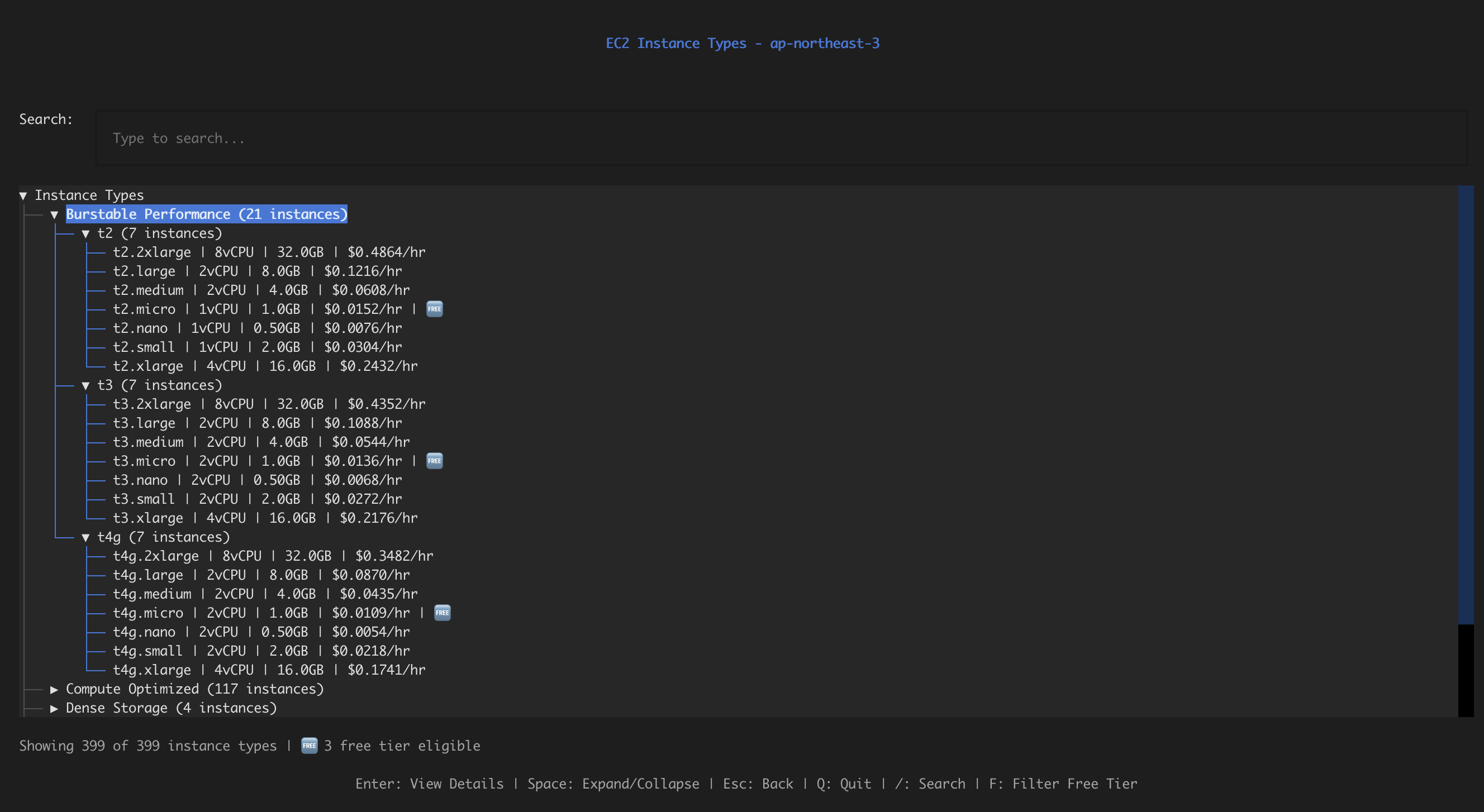
- 📋 Categorized Instance List: View all available EC2 instance types organized by family and category
- Hierarchical tree structure: Categories → Families → Instances
- Categories include: General Purpose, Compute Optimized, Memory Optimized, Burstable Performance, GPU Instances, Storage Optimized, etc.
- Instances grouped by family (e.g., m5, m6i, t2, t3) within categories
- Root node and families expand automatically when parent categories are expanded
- Expand/collapse categories and families to reduce clutter
- Expanded state is preserved during pricing updates
- 💰 Pricing Information: See on-demand and spot prices for each instance type
- Prices load in the background for all instance types
- Real-time pricing updates in the tree view (throttled to preserve expanded state)
- Batch fetching for optimal performance
- Automatic retry with exponential backoff on rate limits
- Pricing displayed directly in the instance list: instance type, vCPU, memory, and price per hour
- Smart caching with 4-hour TTL to reduce API calls and improve performance
- Cache hit statistics displayed in the header during and after pricing loads
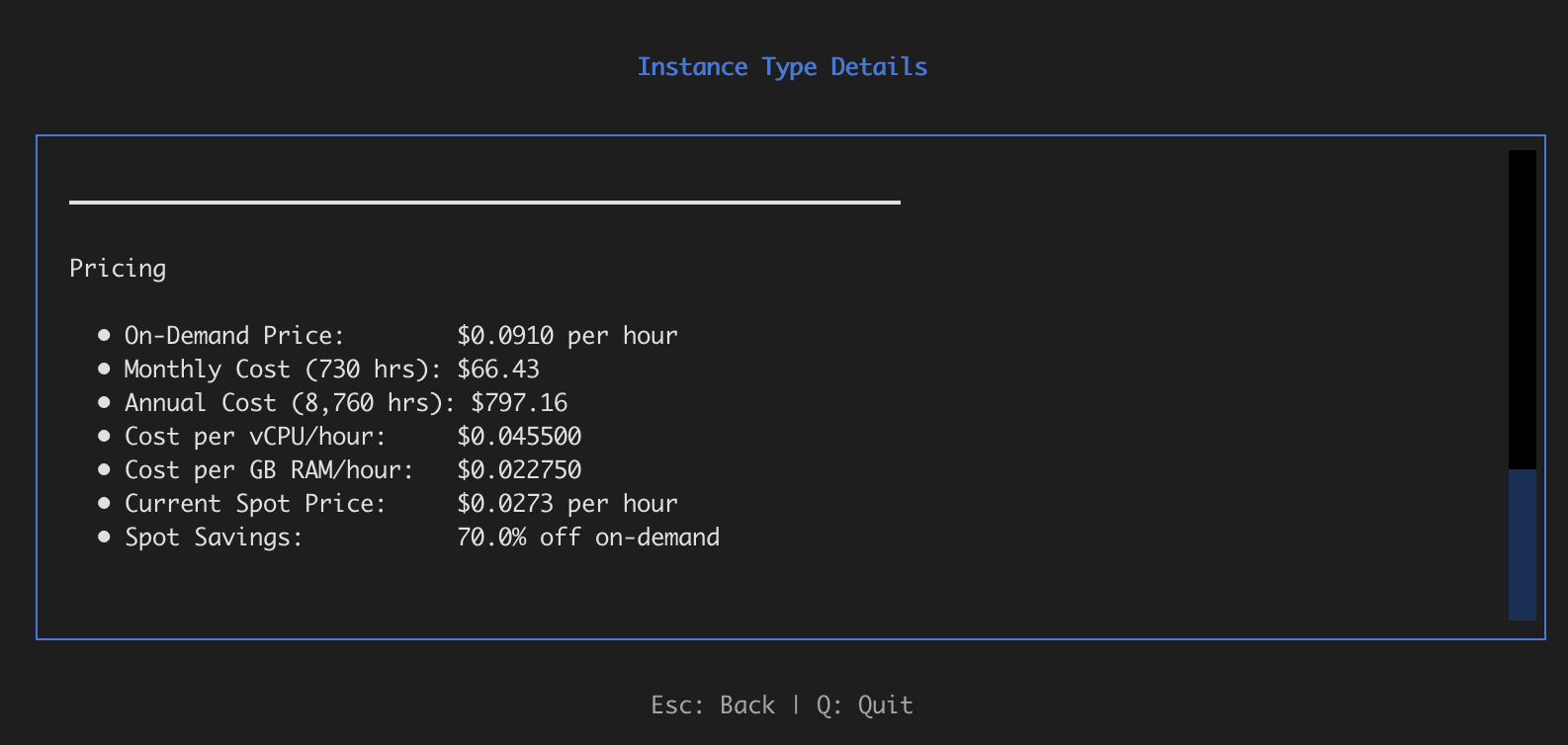
- 💵 Cost Calculator: Automatic calculation of monthly and annual costs, plus cost per vCPU and GB RAM
- 🔍 Advanced Search & Filtering: Powerful filtering capabilities
- Search by instance type name (real-time as you type)
- Advanced attribute filters: vCPU count (min/max), memory size (min/max), GPU presence, current generation, burstable performance, free tier eligibility, architecture (x86_64/ARM64), processor family (Intel/AMD/Graviton), network performance tier, price range (min/max), instance families, storage type (EBS-only/instance store), NVMe support
- Filter modal with easy-to-use interface (press 'F' to open)
- Active filter indicator in status bar
- Filters are preserved across navigation
- 📊 Flexible Sorting: Sort instances by multiple criteria
- Press 'S' to cycle through sort options
- Available sort options: Instance Type (A-Z), Price (Low-High), Price (High-Low), vCPU (Low-High), vCPU (High-Low), Memory (Low-High), Memory (High-Low)
- Current sort order displayed in status bar
- Sorting works within each instance family
- Sort order is preserved during navigation and filtering
- 🔄 Robust Error Recovery: Graceful handling of partial failures
- App continues to function even if some pricing data fails to load
- Status bar shows count of instances with missing prices
- Press 'R' to retry fetching failed pricing data
- Detailed logging of failures for troubleshooting
- Partial success scenarios handled gracefully
- Background retry with lower concurrency for reliability
- 🔀 Instance Comparison: Mark up to 2 instances and view side-by-side comparison
- Compare vCPU, memory, network, storage, pricing, and more
- Visual markers show which instances are marked for comparison
- Quick keyboard shortcuts for marking and viewing comparisons
- 📤 Export Functionality: Export filtered instance lists to files
- Press 'E' to export current view to both JSON and CSV formats
- Files saved to
~/.instancepedia/exports/with timestamp - Exports respect current filters and search terms
- Includes all instance details and pricing information
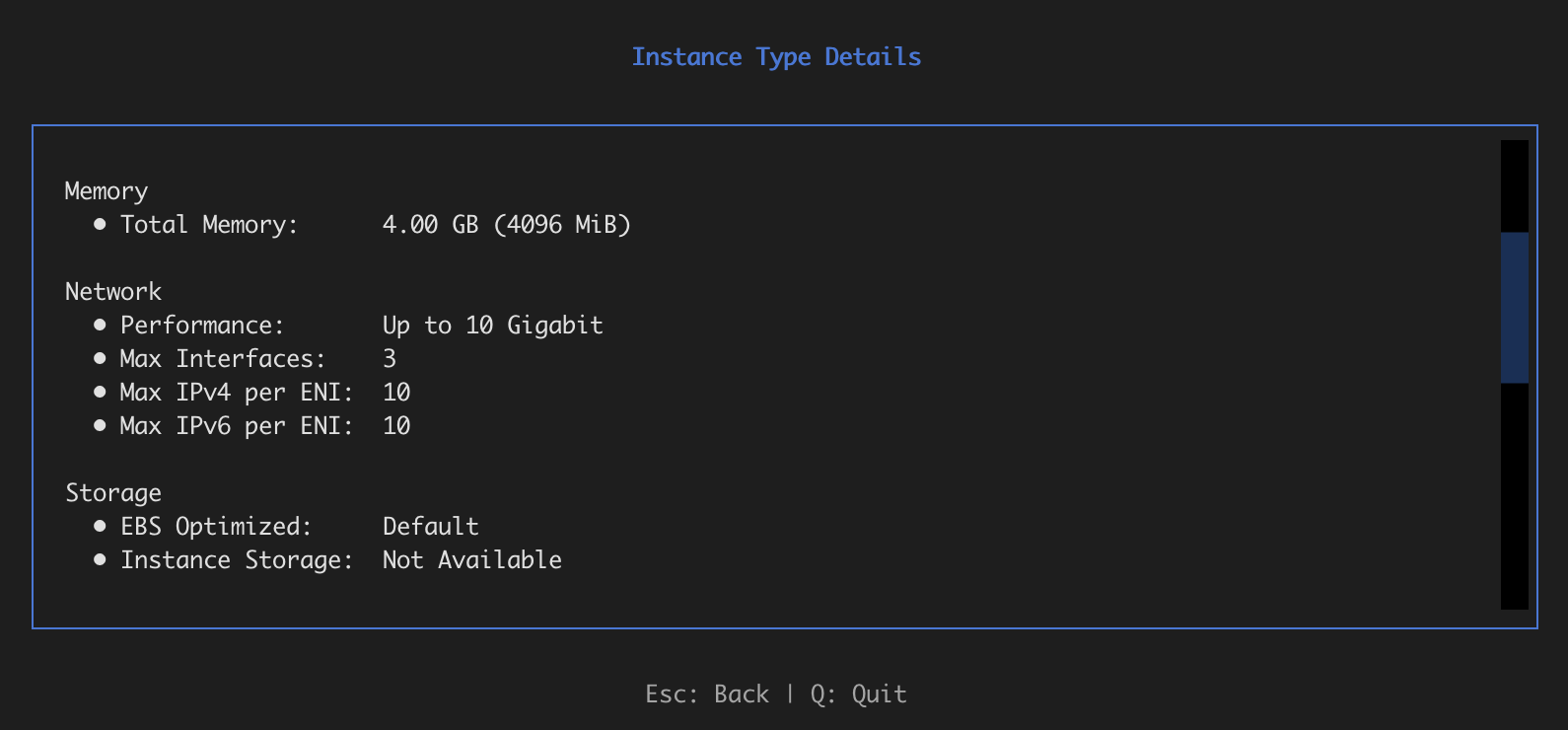
- 📊 Detailed Information: Comprehensive details for each instance type including:
- Compute specifications (vCPU, cores, threads)
- Memory information
- Network performance with baseline/peak bandwidth (e.g., "0.781-12.5 Gbps")
- Instance generation indicator (e.g., "6th gen" for m6i instances)
- Storage options (EBS, instance store)
- Architecture support
- Comprehensive pricing: On-demand, spot, savings plans (1-year, 3-year), and Reserved Instances (Standard, 1-year, 3-year)
- Reserved Instance pricing: All payment options (No Upfront, Partial Upfront, All Upfront) with effective hourly rates
- Cost analysis with monthly/annual estimates and savings percentages
- 🆓 Free Tier Indicators: Clearly marked free tier eligible instances
- ⚡ Fast Navigation: Smooth screen transitions with loading indicators
- 🐛 Debug Mode: Scrolling debug log for troubleshooting (use
--debugflag)
CLI Mode (Headless)
- 🔧 Scriptable: Perfect for automation, CI/CD pipelines, and scripting
- 📊 Multiple Output Formats: Table (human-readable), JSON (machine-readable), CSV (spreadsheet-friendly)
- 🔍 Powerful Filtering: Search, filter by family, processor family (Intel/AMD/Graviton), network performance tier, price range, storage type, NVMe support, free tier, and more
- 💰 Pricing Queries: Get comprehensive pricing information for specific instances (on-demand, spot, savings plans, Reserved Instances)
- 📈 Comparison: Compare two instance types side-by-side with detailed metrics
- 💵 Cost Calculator: Estimate costs with different usage patterns and pricing models
- 🌍 Multi-Region Comparison: Compare pricing across multiple regions
- 👨👩👧👦 Family Comparison: Compare all instances within a family (e.g., all t3.* instances)
- 🎯 Filter Presets: Built-in presets for common use cases (web-server, database, gpu-ml, etc.)
- 💾 EBS Recommendations: Volume type recommendations based on instance EBS capabilities
- 📁 File Output: Save results to files for further processing
- ⚡ Fast: No UI overhead, optimized for batch operations
- 🔇 Quiet Mode: Suppress progress messages for clean script output
- 💾 Cache Management: View cache statistics and clear cached pricing data
- 📈 Spot Price History: Analyze historical spot price trends with statistics and volatility indicators
Installation
From PyPI (Recommended)
pip install instancepedia
From Source
- Clone the repository:
git clone https://github.com/pfrederiksen/instancepedia.git
cd instancepedia
- Install dependencies:
pip install -r requirements.txt
Or install in development mode:
pip install -e .
Configure AWS Credentials
After installation, configure AWS credentials (one of the following):
- Run
aws configure - Set environment variables:
AWS_ACCESS_KEY_ID,AWS_SECRET_ACCESS_KEY - Use an AWS profile:
export AWS_PROFILE=your-profile
Shell Completions (Optional)
Enable tab completion for commands, options, and arguments.
Bash:
# Add to ~/.bashrc
source /path/to/instancepedia/scripts/completions/instancepedia.bash

# Or copy to system completions directory
sudo cp scripts/completions/instancepedia.bash /etc/bash_completion.d/instancepedia
Zsh:
# Create completions directory and copy file
mkdir -p ~/.zsh/completions
cp scripts/completions/_instancepedia ~/.zsh/completions/

# Add to ~/.zshrc (before compinit)
fpath=(~/.zsh/completions $fpath)
autoload -Uz compinit && compinit
After setup, restart your shell or run source ~/.bashrc (or source ~/.zshrc).
Usage
TUI Mode (Interactive)
After installation from PyPI, simply run:
instancepedia
Or explicitly launch TUI mode:
instancepedia --tui
Or with debug mode enabled (shows scrolling debug log):
instancepedia --tui --debug
If you installed from source (development mode), you can also run:
python3 -m src.main
Note: Pricing information loads in the background after instance types are displayed. The app uses smart caching with a 4-hour TTL, so subsequent runs are much faster:
- First run: Pricing fetches from AWS API (shows "⏳ Loading..." in tree)
- Subsequent runs: Pricing loads instantly from cache (shows cache hit statistics in header)
- Progress indicator shows how many prices have been loaded and cache hit rate
- Real-time updates as prices load (tree updates are throttled to preserve your expanded sections)
- Parallel requests and batch processing for optimal performance
- Your expanded categories and families remain open during pricing updates
CLI Mode (Headless)
The CLI mode provides command-line access to all functionality, perfect for scripting and automation.
List Instance Types
# List all instance types in a region
instancepedia list --region us-east-1

# List as JSON (for scripting)
instancepedia list --region us-east-1 --format json

# List as CSV (for spreadsheets)
instancepedia list --region us-east-1 --format csv --output instances.csv

# Filter by search term
instancepedia list --region us-east-1 --search t3

# Show only free tier instances
instancepedia list --region us-east-1 --free-tier-only

# Filter by instance family
instancepedia list --region us-east-1 --family m5

# Filter by storage type (EBS-only or instance-store)
instancepedia list --region us-east-1 --storage-type ebs-only
instancepedia list --region us-east-1 --storage-type instance-store

# Filter by NVMe support
instancepedia list --region us-east-1 --nvme required
instancepedia list --region us-east-1 --nvme supported

# Filter by processor family (Intel, AMD, or Graviton)
instancepedia list --region us-east-1 --processor-family intel
instancepedia list --region us-east-1 --processor-family amd
instancepedia list --region us-east-1 --processor-family graviton

# Filter by network performance tier
instancepedia list --region us-east-1 --network-performance high
instancepedia list --region us-east-1 --network-performance very-high

# Filter by price range
instancepedia list --region us-east-1 --min-price 0.01 --max-price 0.10
instancepedia list --region us-east-1 --max-price 0.05 --include-pricing

# Include pricing information (cached for fast subsequent runs)
instancepedia list --region us-east-1 --include-pricing
Combined Filter Examples
Filters can be combined for precise instance selection:
# Find budget-friendly compute instances
# AMD processors (cheaper than Intel), moderate network, under $0.10/hr
instancepedia list --region us-east-1 \
  --processor-family amd \
  --network-performance moderate \
  --max-price 0.10 \
  --include-pricing

# High-performance database instances
# Memory-optimized, high network, NVMe storage
instancepedia list --region us-east-1 \
  --family r6i \
  --network-performance very-high \
  --storage-type instance-store \
  --nvme required

# Cost-effective ARM development instances
# Graviton processors, burstable, small/medium sizes
instancepedia list --region us-east-1 \
  --processor-family graviton \
  --family t4g \
  --max-price 0.05 \
  --include-pricing

# GPU instances for machine learning
# All GPU families in a specific price range
instancepedia list --region us-east-1 \
  --search "g4dn\|g5\|p3\|p4" \
  --min-price 0.50 \
  --max-price 5.00 \
  --include-pricing

# Storage-optimized instances with local NVMe
instancepedia list --region us-east-1 \
  --storage-type instance-store \
  --nvme required \
  --network-performance high

# Free tier eligible for testing
instancepedia list --region us-east-1 --free-tier-only --include-pricing
Show Instance Details
# Show detailed information for a specific instance
instancepedia show t3.micro --region us-east-1

# Show with pricing
instancepedia show t3.micro --region us-east-1 --include-pricing

# Output to file
instancepedia show t3.micro --region us-east-1 --format json --output t3-micro.json
Search Instance Types
# Search for instances matching a term
instancepedia search m5 --region us-east-1

# Search with filters
instancepedia search t3 --region us-east-1 --free-tier-only
Get Pricing Information
# Get pricing for a specific instance
instancepedia pricing t3.micro --region us-east-1

# Get pricing as JSON
instancepedia pricing t3.micro --region us-east-1 --format json
Example Output (table format):
Pricing for t3.micro in us-east-1:

On-Demand: $0.0104/hr
Monthly (730 hrs): $7.59
Annual: $91.10
Spot: $0.0036/hr
Spot Savings: 65.4%
1-Year Savings Plan: $0.0070/hr
1-Year Savings: 32.7%
3-Year Savings Plan: $0.0050/hr
3-Year Savings: 51.9%

Reserved Instances (Standard, 1-Year):
  No Upfront: $0.0070/hr (32.7% savings)
  Partial Upfront: $0.0060/hr (42.3% savings) *
  All Upfront: N/A

Reserved Instances (Standard, 3-Year):
  No Upfront: $0.0050/hr (51.9% savings)
  Partial Upfront: $0.0040/hr (61.5% savings) *
  All Upfront: N/A

* Effective hourly rate (includes prorated upfront payment)
Spot Price History
# Show spot price history and trends
instancepedia spot-history t3.micro --region us-east-1

# Specify custom time period (default: 30 days)
instancepedia spot-history t3.micro --region us-east-1 --days 7
instancepedia spot-history t3.micro --region us-east-1 --days 90

# Output as JSON for analysis
instancepedia spot-history t3.micro --region us-east-1 --format json
Example Output (table format):
Spot Price History for t3.micro in us-east-1
Period: Last 30 days (215 data points)

Price Statistics:
  Current Price:   $0.0033/hr
  Minimum Price:   $0.0028/hr
  Maximum Price:   $0.0044/hr
  Average Price:   $0.0036/hr
  Median Price:    $0.0039/hr
  Price Range:     $0.0016/hr (0.0028 - 0.0044)
  Volatility:      14.7% (std dev / avg)
  Stability:       Stable

Price Trend (last 10 data points):
  ████████████████████████████████████████████ $0.0044
  ███████████████████████████████████████      $0.0041
  ████████████████████████████████████         $0.0038
  [... visualization continues ...]
The spot price history feature provides:
- Statistical Analysis: Min, max, average, median, and standard deviation
- Volatility Metrics: Percentage-based volatility with stability ratings (Very Stable, Stable, Moderate, Volatile, Highly Volatile)
- Price Trends: Visual bar chart showing recent price movements
- Data Points: Number of price changes recorded during the period
- Free API: Uses AWS EC2
describe-spot-price-historyAPI (no CloudWatch charges)
List Available Regions
# List all available regions
instancepedia regions

# List as JSON
instancepedia regions --format json
Compare Instance Types
# Compare two instance types
instancepedia compare t3.micro t3.small --region us-east-1

# Compare with pricing
instancepedia compare t3.micro t3.small --region us-east-1 --include-pricing
Example Output (table format):
+--------------------+-----------------+-----------------+
| Property           | t3.micro        | t3.small        |
+====================+=================+=================+
| Instance Type      | t3.micro        | t3.small        |
+--------------------+-----------------+-----------------+
| vCPU               | 2               | 2               |
+--------------------+-----------------+-----------------+
| Memory (GB)        | 1.0             | 2.0             |
+--------------------+-----------------+-----------------+
| Network            | Up to 5 Gigabit | Up to 5 Gigabit |
+--------------------+-----------------+-----------------+
| On-Demand Price/hr | $0.0104         | $0.0208         |
+--------------------+-----------------+-----------------+
| Free Tier Eligible | Yes 🆓           | No              |
+--------------------+-----------------+-----------------+
Manage Pricing Cache
Instancepedia automatically caches pricing data to reduce API calls and improve performance. Cache entries are stored in ~/.instancepedia/cache/ with a default TTL of 4 hours.
# View cache statistics
instancepedia cache stats

# View cache statistics as JSON
instancepedia cache stats --format json

# Clear all cached pricing data
instancepedia cache clear

# Clear cache for a specific region
instancepedia cache clear --region us-east-1

# Clear cache for a specific instance type
instancepedia cache clear --instance-type t3.micro

# Clear cache without confirmation prompt
instancepedia cache clear --force
Example Output (stats):
Cache Statistics:
  Location: /Users/username/.instancepedia/cache
  Total entries: 487
  Valid entries: 487
  Expired entries: 0
  Cache size: 89,234 bytes
  Oldest entry: 2026-01-06T10:30:15
  Newest entry: 2026-01-06T12:45:22
Benefits of Caching:
- Significantly faster pricing loads on subsequent runs
- Reduces AWS API calls and potential rate limiting
- Automatic cache expiry ensures pricing data stays reasonably current
- Cache is thread-safe and can be used from both TUI and CLI modes
- Failed pricing lookups are also cached to avoid repeated failures
Common Options
All CLI commands support these common options:
--region <region>- AWS region (default: from config or us-east-1)--profile <profile>- AWS profile name (overrides environment variable)--format <format>- Output format:table(default),json, orcsv--output <file>- Write output to file instead of stdout--quiet- Suppress progress messages (useful for scripting)--debug- Enable debug output with tracebacks
Note:
- When using
--format json, output is valid JSON that can be piped tojqor parsed by other tools - CSV format is suitable for importing into spreadsheets
- CLI commands return exit code 0 on success, 1 on error (useful for scripting)
- Progress messages are sent to stderr, so output can be redirected cleanly:
instancepedia list --region us-east-1 --format json > output.json
Examples
# Export all free tier instances to CSV
instancepedia list --region us-east-1 --free-tier-only --format csv --output free-tier.csv

# Get pricing for multiple instances (using shell loop)
for instance in t3.micro t3.small t3.medium; do
  instancepedia pricing $instance --region us-east-1 --format json
done

# Find all m5 instances with pricing
instancepedia list --region us-east-1 --family m5 --include-pricing --format json

# Compare instances across different regions
instancepedia compare t3.micro t3.small --region us-east-1 --include-pricing

# Search and filter with quiet mode (for scripts)
instancepedia search t3 --region us-east-1 --free-tier-only --format json --quiet

# Get instance details as JSON for processing
instancepedia show t3.micro --region us-east-1 --include-pricing --format json | jq '.instance.pricing'

# Calculate cost estimates for different scenarios
instancepedia cost-estimate t3.large --region us-east-1 --hours-per-month 730 --months 12
instancepedia cost-estimate t3.micro --region us-east-1 --pricing-model spot --months 6

# Compare pricing across multiple regions
instancepedia compare-regions t3.micro --regions us-east-1,us-west-2,eu-west-1,ap-southeast-1

# Compare all instances in a family
instancepedia compare-family t3 --region us-east-1 --include-pricing --sort-by price
instancepedia compare-family m6i --region us-east-1 --include-pricing --sort-by vcpu

# Use filter presets for common scenarios
instancepedia presets list
instancepedia presets apply web-server --region us-east-1 --include-pricing
instancepedia presets apply database --region us-east-1 --format json

# Analyze spot price history and trends
instancepedia spot-history t3.micro --region us-east-1 --days 30
instancepedia spot-history m5.large --region us-east-1 --days 7 --format json
Keyboard Shortcuts
Region Selector
↑↓- Navigate regionsEnter- Select regionEsc/Q- Quit
Instance List
↑↓- Navigate tree (move between categories, families, and instances)Enter- View details (on instance) or expand/collapse (on category/family)Space- Expand/collapse category or family/- Focus search inputF- Open advanced filter modal (filter by vCPU, memory, GPU, architecture, etc.)S- Cycle through sort options (Instance Type, Price, vCPU, Memory - ascending/descending)R- Retry fetching pricing for instances that failed (manual retry)C- Mark/unmark instance for comparison (max 2 instances)V- View comparison of marked instances (requires 2 marked instances)E- Export current filtered list to JSON and CSV filesEsc- Back to region selectorQ- Quit
Filter Modal
Tab/Shift+Tab- Navigate between filter inputsEnter- Apply filters (when "Apply Filters" button is focused)Esc- Cancel and close modal- Filter Options:
- vCPU Count: Min/max range filter
- Memory (GB): Min/max range filter
- Has GPU: Any / Yes / No
- Current Generation: Any / Yes / No
- Burstable Performance: Any / Yes / No
- Free Tier Eligible: Any / Yes / No
- Architecture: Any / x86_64 / ARM64
- Processor Family: Any / Intel / AMD / Graviton (ARM)
- Network Performance: Any / Low / Moderate / High / Very High
- Price Range ($/hr): Min/max hourly price filter
- Instance Families: Comma-separated list (e.g., t3, m5, c6i)
- Storage Type: Any / EBS Only / Has Instance Store
- NVMe Support: Any / Required / Supported / Unsupported
Tree Navigation Tips:
- The root "Instance Types" node is expanded by default
- Categories are collapsed by default to reduce initial clutter
- When you expand a category, all family nodes within it are automatically expanded
- Instance nodes show: instance type | vCPU count | memory | price | free tier indicator
- Search and filters work across all categories and families
Instance Detail
Esc- Back to listQ- Quit
Configuration
You can configure the application using environment variables:
AWS Credentials and Region
INSTANCEPEDIA_AWS_REGION- Default AWS region (default: us-east-1)INSTANCEPEDIA_AWS_PROFILE- AWS profile to use
Timeout Configuration
INSTANCEPEDIA_AWS_CONNECT_TIMEOUT- Connection timeout for AWS APIs in seconds (default: 10)INSTANCEPEDIA_AWS_READ_TIMEOUT- Read timeout for AWS API calls in seconds (default: 60)INSTANCEPEDIA_PRICING_READ_TIMEOUT- Read timeout for Pricing API calls in seconds (default: 90)
Note: Timeout configuration allows you to customize API behavior based on your network environment. Lower timeouts fail faster (useful for CI/CD), while higher timeouts are better for slow or unreliable networks. The Pricing API timeout is higher by default since it's historically slower than other AWS APIs.
Performance Configuration
INSTANCEPEDIA_PRICING_CONCURRENCY- Max concurrent pricing requests in TUI mode (default: 10)INSTANCEPEDIA_PRICING_RETRY_CONCURRENCY- Max concurrent requests for retries (default: 3)INSTANCEPEDIA_CLI_PRICING_CONCURRENCY- Max concurrent pricing requests in CLI mode (default: 5)INSTANCEPEDIA_PRICING_REQUEST_DELAY_MS- Delay between pricing requests in milliseconds (default: 50)INSTANCEPEDIA_SPOT_BATCH_SIZE- Number of instance types per spot price API call (default: 50)INSTANCEPEDIA_UI_UPDATE_THROTTLE- Update TUI every N pricing updates (default: 10)INSTANCEPEDIA_MAX_POOL_CONNECTIONS- Max HTTP connections in the connection pool (default: 50)
Performance Tuning Guide:
| Scenario | Concurrency | Delay (ms) | Pool Connections | Notes |
|---|---|---|---|---|
| Fast network | 15-20 | 25-30 | 100 | Maximum throughput |
| Normal network | 10 (default) | 50 (default) | 50 (default) | Balanced |
| Slow network | 5 | 100 | 25 | Reduce timeouts |
| Rate-limited | 3-5 | 150-200 | 25 | Avoid throttling |
| CI/CD pipelines | 10 | 30 | 50 | Fast but stable |
| Large regions (500+ instances) | 10 | 50 | 50 | Increase UI throttle to 30 |
Scenario-Based Examples:
# Fast network - maximize throughput
export INSTANCEPEDIA_PRICING_CONCURRENCY=20
export INSTANCEPEDIA_PRICING_REQUEST_DELAY_MS=30
export INSTANCEPEDIA_MAX_POOL_CONNECTIONS=100

# Rate-limited account - avoid throttling errors
export INSTANCEPEDIA_PRICING_CONCURRENCY=5
export INSTANCEPEDIA_PRICING_REQUEST_DELAY_MS=150
export INSTANCEPEDIA_AWS_READ_TIMEOUT=120

# CI/CD pipeline - fast and reliable
export INSTANCEPEDIA_CLI_PRICING_CONCURRENCY=10
export INSTANCEPEDIA_PRICING_REQUEST_DELAY_MS=30
export INSTANCEPEDIA_AWS_CONNECT_TIMEOUT=5  # Fail fast on connection issues

# Large region with many instances - reduce UI flicker
export INSTANCEPEDIA_UI_UPDATE_THROTTLE=30
export INSTANCEPEDIA_PRICING_CONCURRENCY=10

# Slow/unreliable network - increase timeouts
export INSTANCEPEDIA_AWS_CONNECT_TIMEOUT=30
export INSTANCEPEDIA_AWS_READ_TIMEOUT=120
export INSTANCEPEDIA_PRICING_READ_TIMEOUT=180
export INSTANCEPEDIA_PRICING_CONCURRENCY=5
Diagnosing Performance Issues:
- If you see
ThrottlingExceptionerrors, reduce concurrency and increase delay - If pricing loads slowly, try increasing concurrency (if not rate-limited)
- If TUI flickers during pricing load, increase
UI_UPDATE_THROTTLE - Use
--debugflag to see timing and error details
IAM Permissions
Instancepedia requires minimal AWS permissions to function. The application needs read-only access to EC2 instance type information and pricing data.
Required IAM Policy
Create an IAM policy with the following JSON:
{
    "Version": "2012-10-17",
    "Statement": [
        {
            "Effect": "Allow",
            "Action": [
                "ec2:DescribeRegions",
                "ec2:DescribeInstanceTypes",
                "ec2:DescribeSpotPriceHistory"
            ],
            "Resource": "*"
        },
        {
            "Effect": "Allow",
            "Action": [
                "pricing:GetProducts"
            ],
            "Resource": "*"
        }
    ]
}
Note: The pricing:GetProducts permission is required to display on-demand pricing. The ec2:DescribeSpotPriceHistory permission is required to display current spot prices. If you don't need pricing information, you can omit these permissions and the application will still function (pricing will show as "N/A").
The application handles AWS API rate limiting automatically with exponential backoff retry logic, so you don't need to worry about rate limit errors.
Setting Up IAM Permissions
-
Create the policy (using AWS CLI):
aws iam create-policy \
  --policy-name InstancepediaReadOnly \
  --policy-document file://instancepedia-policy.json
-
Attach the policy to a user:
aws iam attach-user-policy \
  --user-name YOUR_USERNAME \
  --policy-arn arn:aws:iam::ACCOUNT_ID:policy/InstancepediaReadOnly
-
Or attach to a role (for EC2 instances, Lambda, etc.):
aws iam attach-role-policy \
  --role-name YOUR_ROLE_NAME \
  --policy-arn arn:aws:iam::ACCOUNT_ID:policy/InstancepediaReadOnly
Note: Replace YOUR_USERNAME, YOUR_ROLE_NAME, and ACCOUNT_ID with your actual values.
Alternatively, you can use the AWS Console:
- Go to IAM → Policies → Create policy
- Select JSON tab and paste the policy above
- Name it
InstancepediaReadOnlyand create it - Attach it to your user or role as needed
Use Cases
Here are real-world scenarios demonstrating how to use Instancepedia effectively:
1. Finding the Right Instance for Your Workload
Scenario: You need a cost-effective instance with at least 4 vCPUs and 8GB RAM for a web application.
TUI Approach:
instancepedia --tui
# 1. Press 'F' to open filters
# 2. Set Min vCPU: 4
# 3. Set Min Memory: 8
# 4. Press Tab to "Apply Filters"
# 5. Press 'S' to sort by "Price (Low-High)"
# 6. Select cheapest option, press Enter to view details
CLI Approach:
# List all instances, filter with jq, sort by price
instancepedia list --region us-east-1 --include-pricing --format json | \
  jq '[.instances[] | select(.vcpu_info.default_vcpus >= 4 and .memory_info.size_in_gb >= 8)] |
      sort_by(.pricing.on_demand_price) | .[0:5]'
2. Comparing Cost vs Performance
Scenario: You're deciding between t3.medium, t3.large, and m5.large for your application.
TUI Approach:
instancepedia --tui
# 1. Navigate to t3.medium, press 'C' to mark
# 2. Navigate to t3.large, press 'C' to mark
# 3. Press 'V' to view comparison
# 4. Review side-by-side specs and pricing
# 5. Repeat with different pairs as needed
CLI Approach:
# Compare instances with detailed breakdown
instancepedia compare t3.medium t3.large --region us-east-1 --include-pricing

# Get JSON for custom analysis
instancepedia compare m5.large t3.large --region us-east-1 --format json | \
  jq '.comparison | {
    vcpu_diff: (.instance1.vcpu_info.default_vcpus - .instance2.vcpu_info.default_vcpus),
    memory_diff: (.instance1.memory_info.size_in_gb - .instance2.memory_info.size_in_gb),
    price_diff: (.instance1.pricing.on_demand_price - .instance2.pricing.on_demand_price)
  }'
3. Finding Free Tier Eligible Options
Scenario: You're setting up a new AWS account and want to use free tier instances for development.
TUI Approach:
instancepedia --tui
# 1. Press 'F' to open filters
# 2. Set "Free Tier Eligible" to "Yes"
# 3. Apply filters
# Look for instances with 🆓 indicator
# Press Enter on t2.micro to see free tier details
CLI Approach:
# List all free tier instances
instancepedia list --region us-east-1 --free-tier-only --format table

# Export to CSV for documentation
instancepedia list --region us-east-1 --free-tier-only --format csv --output free-tier.csv

# Get just instance type names for scripts
instancepedia list --region us-east-1 --free-tier-only --format json | \
  jq -r '.instances[].instance_type'
4. Spot Instance Price Analysis
Scenario: You want to find instances where spot pricing offers significant savings.
TUI Approach:
instancepedia --tui
# 1. Select any region
# 2. Press 'S' to sort by "Price (Low-High)"
# 3. Navigate through instances and press Enter to view details
# 4. In detail view, compare on-demand vs spot prices and savings percentage
# 5. Press 'R' if any pricing failed to load
CLI Approach:
# Find instances with best spot savings
instancepedia list --region us-east-1 --include-pricing --format json | \
  jq '[.instances[] | select(.pricing.spot_price != null) | {
    instance_type,
    on_demand: .pricing.on_demand_price,
    spot: .pricing.spot_price,
    savings_pct: ((.pricing.on_demand_price - .pricing.spot_price) / .pricing.on_demand_price * 100)
  }] | sort_by(-.savings_pct) | .[0:10]'
5. Bulk Export for Spreadsheet Analysis
Scenario: You need to export all instance data to Excel for team review and cost planning.
TUI Approach:
instancepedia --tui
# 1. Select your primary region
# 2. Wait for pricing to load
# 3. Press 'E' to export
# Files saved to ~/.instancepedia/exports/ with timestamp
# Open CSV files in Excel, Google Sheets, or Numbers
CLI Approach:
# Export all instances with pricing to CSV
instancepedia list --region us-east-1 --include-pricing --format csv --output instances-us-east-1.csv

# Export multiple regions
for region in us-east-1 us-west-2 eu-west-1; do
  instancepedia list --region $region --include-pricing --format csv \
    --output "instances-$region.csv"
done

# Export specific families for comparison
instancepedia list --region us-east-1 --family m5 --include-pricing --format csv --output m5-family.csv
instancepedia list --region us-east-1 --family m6i --include-pricing --format csv --output m6i-family.csv
6. GPU Instance Selection
Scenario: You need to find GPU-enabled instances for machine learning workloads.
TUI Approach:
instancepedia --tui
# 1. Press 'F' to open filters
# 2. Set "Has GPU" to "Yes"
# 3. Apply filters
# 4. Press 'S' to sort by "Price (Low-High)"
# 5. Navigate to instances and press Enter to see GPU details
# GPU details show: type, count, memory per GPU, total GPU memory
CLI Approach:
# List all GPU instances
instancepedia list --region us-east-1 --include-pricing --format json | \
  jq '[.instances[] | select(.gpu_info != null)] |
      map({instance_type, gpu_count: .gpu_info.total_gpu_count,
           gpu_memory: .gpu_info.total_gpu_memory_in_gb,
           price: .pricing.on_demand_price}) |
      sort_by(.price)'
7. ARM vs x86 Architecture Comparison
Scenario: You're evaluating Graviton (ARM) instances for cost savings vs x86 instances.
TUI Approach:
# Compare x86 instance
instancepedia --tui
# 1. Search for "m6i.large" (x86)
# 2. Press 'C' to mark
# 3. Search for "m6g.large" (ARM/Graviton)
# 4. Press 'C' to mark
# 5. Press 'V' to view comparison
# Compare architecture field and pricing

# Or filter by architecture
# 1. Press 'F' to open filters
# 2. Set Architecture to "arm64"
# 3. Apply and browse Graviton instances
CLI Approach:
# Compare same-sized instances across architectures
instancepedia compare m6i.large m6g.large --region us-east-1 --include-pricing

# List all ARM instances
instancepedia list --region us-east-1 --include-pricing --format json | \
  jq '[.instances[] | select(.processor_info.supported_architectures | contains(["arm64"]))]'
8. Multi-Region Cost Comparison
Scenario: You want to find the cheapest region to deploy your t3.large instances.
CLI Approach:
# Check pricing across multiple regions
for region in us-east-1 us-west-2 eu-west-1 ap-southeast-1; do
  echo "=== $region ==="
  instancepedia pricing t3.large --region $region
  echo ""
done

# Or get JSON for programmatic comparison
for region in us-east-1 us-west-2 eu-west-1; do
  instancepedia pricing t3.large --region $region --format json | \
    jq -r '{region: "'$region'", price: .pricing.on_demand_price}'
done
9. Building Infrastructure as Code Templates
Scenario: You need instance specifications for Terraform/CloudFormation templates.
CLI Approach:
# Get detailed instance specs as JSON
instancepedia show t3.medium --region us-east-1 --include-pricing --format json > t3-medium-specs.json

# Extract specific fields for Terraform variables
instancepedia show t3.medium --region us-east-1 --format json | \
  jq '{
    instance_type: .instance.instance_type,
    vcpu: .instance.vcpu_info.default_vcpus,
    memory_gb: .instance.memory_info.size_in_gb,
    network_performance: .instance.network_info.network_performance,
    ebs_optimized: .instance.ebs_info.ebs_optimized_support
  }'

# Generate instance type list for allowed values
instancepedia list --region us-east-1 --family t3 --format json | \
  jq -r '.instances[].instance_type' | \
  jq -R -s -c 'split("\n")[:-1]'  # Output as JSON array
10. Monitoring Pricing Changes
Scenario: You want to track spot price changes over time or detect pricing updates.
CLI Approach:
# Clear cache to force fresh pricing lookup
instancepedia cache clear --force

# Get current pricing
instancepedia pricing t3.large --region us-east-1 --format json > pricing-$(date +%Y%m%d).json

# Compare with previous day (manual diff)
diff pricing-20250106.json pricing-20250107.json

# Set up a cron job to track daily pricing
# crontab entry:
# 0 9 * * * /usr/local/bin/instancepedia pricing t3.large --region us-east-1 --format json >> /var/log/pricing-history.jsonl
Tips for Effective Usage
TUI Mode Tips:
- Use
/to quickly search for instance types instead of navigating manually - Press
F+Rto quickly reset all filters and start fresh - Export (
E) before applying new filters to save current results - Use comparison (
C+V) to validate migration decisions - Check debug mode (
--debug) if pricing seems stuck loading
CLI Mode Tips:
- Pipe JSON output to
jqfor powerful filtering and transformation - Use
--quietflag in scripts to suppress progress messages - Combine with
watchcommand to monitor pricing:watch -n 300 instancepedia pricing t3.large - Export to CSV for non-technical stakeholders
- Use
--outputto save results for later analysis
Performance Tips:
- First run downloads all data - subsequent runs use cache (4-hour TTL)
- Use
instancepedia cache statsto check cache status - Clear cache (
instancepedia cache clear) if prices seem stale - In TUI, press
Rto retry failed pricing loads - Pricing loads in background - you can browse while it loads
Performance
Instancepedia is optimized for performance in both TUI and CLI modes:
TUI Mode
- Smart Caching: Pricing data is cached locally with a 4-hour TTL, dramatically reducing load times on subsequent runs
- Cache Statistics: Real-time display of cache hit rates in the pricing header
- Parallel Pricing Fetching: Uses thread pools to fetch pricing data concurrently (10 parallel workers)
- Batch Spot Price Queries: Fetches spot prices in batches of up to 50 instance types per API call
- Automatic Retry: Handles rate limiting with exponential backoff (1s, 2s, 4s, etc.)
- Background Loading: Pricing loads in the background so you can browse instance types immediately
- Throttled UI Updates: Tree updates are throttled (every 10 pricing updates) to prevent UI flicker and preserve expanded state
- State Preservation: Expanded categories and families are preserved during tree rebuilds
CLI Mode
- Smart Caching: Pricing data is cached locally (same cache as TUI mode) for faster repeated queries
- Efficient Filtering: Filters are applied in-memory after fetching, minimizing API calls
- Optional Pricing: Pricing is only fetched when
--include-pricingis specified - Parallel Processing: When fetching pricing for multiple instances, uses parallel requests (5 workers)
- Streaming Output: Results are printed as they're processed (for table format)
- Fast JSON/CSV Export: Direct serialization without UI overhead
- Cache Management: CLI commands to view cache statistics and clear cached data
Requirements
- Python 3.9+
- AWS credentials configured
- Dependencies (installed automatically with pip):
boto3>=1.28.0- AWS SDK for sync operationsaioboto3>=12.0.0- Async AWS SDK for TUItextual>=0.40.0- TUI frameworkpydantic>=2.0.0- Data validationpydantic-settings>=2.0.0- Settings managementtabulate>=0.9.0- Table formatting for CLI
Development
Setting Up Development Environment
- Clone the repository:
git clone https://github.com/pfrederiksen/instancepedia.git
cd instancepedia
- Install in development mode with dev dependencies:
pip install -e ".[dev]"
This installs the package in editable mode along with development tools (build, twine, pytest).
Creating Releases
Releases are automated using the release script. The script handles version bumping, git tagging, and triggering GitHub releases.
Prerequisites:
- Be on the
mainbranch - Have a clean working directory (no uncommitted changes)
- Be up to date with the remote repository
Usage:
# Bump patch version (0.1.1 -> 0.1.2)
./scripts/release.sh patch

# Bump minor version (0.1.1 -> 0.2.0)
./scripts/release.sh minor

# Bump major version (0.1.1 -> 1.0.0)
./scripts/release.sh major

# Use a specific version
./scripts/release.sh 0.2.0
The script will:
- Update the version in
pyproject.toml - Create a commit with the version bump
- Create an annotated git tag (e.g.,
v0.1.2) - Push the commit to
main - Push the tag (which automatically triggers the GitHub Actions workflow to create a GitHub release)
Note: After creating a release, you can publish to PyPI using the publish script (see below).
Building and Publishing
To build the package for PyPI:
- Install build tools (use a virtual environment):
python3 -m venv .venv
source .venv/bin/activate
pip install --upgrade build twine
- Build the package:
python3 -m build
- Check the package:
python3 -m twine check dist/*
- Publish to TestPyPI (recommended first):
python3 -m twine upload --repository testpypi dist/*
- Publish to PyPI:
python3 -m twine upload dist/*
Or use the helper script:
./scripts/publish.sh testpypi  # Test first
./scripts/publish.sh pypi      # Production
Running Tests
The test suite includes comprehensive tests for all components:
# Run all tests (124 tests covering CLI, TUI, and services)
pytest

# Run with coverage report
pytest --cov=src --cov-report=html

# Run specific test modules
pytest tests/test_cli_*.py        # CLI tests
pytest tests/test_tui_*.py        # TUI tests

# Run with verbose output
pytest -v

# Run tests without coverage (faster)
pytest --no-cov
Test Coverage:
- ✅ CLI: Output formatters (Table, JSON, CSV), command handlers, argument parser
- ✅ TUI: All screens (region selector, instance list, instance detail), navigation, filtering
- ✅ Services: AWS client integration, pricing services, caching
- ✅ All tests use mocking to avoid requiring AWS credentials
The test suite validates functionality including error handling, output formatting, UI interactions, and caching.
Project Structure
instancepedia/
├── src/                          # Source code
│   ├── __init__.py
│   ├── app.py                    # Main TUI application
│   ├── main.py                   # Entry point (supports both TUI and CLI)
│   ├── cache.py                  # Pricing cache with TTL support
│   ├── debug.py                  # Debug utilities
│   ├── exceptions.py             # Custom exception types
│   ├── logging_config.py         # Logging configuration
│   ├── cli/                      # CLI module (headless mode)
│   │   ├── __init__.py
│   │   ├── commands.py           # CLI command handlers (including cache management)
│   │   ├── output.py             # Output formatters (table, JSON, CSV)
│   │   └── parser.py             # Argument parser
│   ├── config/                   # Configuration
│   │   ├── __init__.py
│   │   └── settings.py           # Configuration settings
│   ├── models/                   # Data models
│   │   ├── __init__.py
│   │   ├── free_tier.py
│   │   ├── instance_type.py
│   │   └── region.py
│   ├── services/                 # AWS service wrappers
│   │   ├── __init__.py
│   │   ├── async_aws_client.py   # Async AWS client (aioboto3)
│   │   ├── async_pricing_service.py  # Async pricing service with caching
│   │   ├── aws_client.py         # Sync AWS client
│   │   ├── free_tier_service.py
│   │   ├── instance_service.py
│   │   └── pricing_service.py    # Sync pricing service with caching
│   └── ui/                       # TUI screens
│       ├── __init__.py
│       ├── instance_detail.py
│       ├── instance_list.py      # Shows cache statistics
│       └── region_selector.py
├── tests/                        # Test suite (124 tests)
│   ├── __init__.py
│   ├── conftest.py               # Pytest fixtures
│   ├── test_cli_commands.py      # CLI command tests
│   ├── test_cli_output.py        # Output formatter tests
│   ├── test_cli_parser.py        # Argument parser tests
│   ├── test_tui_*.py             # TUI component tests
│   └── ...
├── scripts/                      # Utility scripts
│   ├── publish.sh                # PyPI publishing helper
│   └── release.sh                # Release automation script
├── screenshots/                  # Application screenshots
├── .gitignore                   # Git ignore rules
├── CONTRIBUTING.md              # Contributing guidelines
├── LICENSE                      # MIT License
├── MANIFEST.in                  # Package manifest for PyPI
├── pyproject.toml               # Project configuration and metadata
├── requirements.txt             # Python dependencies
├── README.md                    # This file
└── TROUBLESHOOTING.md           # Troubleshooting guide
Documentation
- README.md - Main documentation (you're reading it!)
- Use Cases - Real-world usage examples and workflows
- TROUBLESHOOTING.md - Common issues and solutions
- CONTRIBUTING.md - Guidelines for contributors
- CLAUDE.md - Developer documentation and architecture
Getting Help:
- Having issues? Check TROUBLESHOOTING.md
- Want to contribute? Read CONTRIBUTING.md
- Need examples? See Use Cases section above
- Found a bug? Open an issue
License
MIT
Release history Release notifications | RSS feed


Download files
Download the file for your platform. If you're not sure which to choose, learn more about installing packages.
Source Distribution
Built Distribution
Filter files by name, interpreter, ABI, and platform.
If you're not sure about the file name format, learn more about wheel file names.
Copy a direct link to the current filters
File details
Details for the file instancepedia-0.9.16.tar.gz.
File metadata
- Download URL: instancepedia-0.9.16.tar.gz
- Upload date:
- Size: 561.1 kB
- Tags: Source
- Uploaded using Trusted Publishing? No
- Uploaded via: twine/6.2.0 CPython/3.11.14
File hashes
| Algorithm | Hash digest | |
|---|---|---|
| SHA256 |
3f45aed117406e3490edcf2805643c7d2f9e735e197cebef891536964bd53628
|
|
| MD5 |
7fefc58c2143baeb9b3737eee3b35d52
|
|
| BLAKE2b-256 |
69ed2348e530fc8fc29a7b5bb6433851afafd42b6c6a0663a39a337fc7d395bb
|
File details
Details for the file instancepedia-0.9.16-py3-none-any.whl.
File metadata
- Download URL: instancepedia-0.9.16-py3-none-any.whl
- Upload date:
- Size: 112.0 kB
- Tags: Python 3
- Uploaded using Trusted Publishing? No
- Uploaded via: twine/6.2.0 CPython/3.11.14
File hashes
| Algorithm | Hash digest | |
|---|---|---|
| SHA256 |
95bd8594edd56fe987f3b23aefd8b59b57c7401d77478c0bb814bb7f1cafb007
|
|
| MD5 |
a646ce8ac5beb57e1d38d4b73c7ed712
|
|
| BLAKE2b-256 |
ab04737edb80c1fbaf6c04ab9cee6c7d47f625e68043dc13a4a148eff1685212
|






