
Lightly Purple is a lightweight, fast, and easy-to-use data exploration tool for data scientists and engineers.

Project description

The open-source tool curating datasets



🚀 Aloha!
We at Lightly created Lightly Purple, an open-source tool designed to supercharge your data curation workflows for computer vision datasets. Explore your data, visualize annotations and crops, tag samples, and export curated lists to improve your machine learning pipelines.
Lightly Purple runs entirely locally on your machine, keeping your data private. It consists of a Python library for indexing your data and a web-based UI for visualization and curation.
✨ Core Workflow
Using Lightly Purple typically involves these steps:
- Index Your Dataset: Run a Python script using the
lightly-purplelibrary to process your local dataset (images and annotations) and save metadata into a localpurple.dbfile. - Launch the UI: The script then starts a local web server and opens the Lightly Purple UI in your browser.
- Explore & Curate: Use the UI to visualize images, annotations, and object crops. Filter and search your data (experimental text search available). Apply tags to interesting samples (e.g., "mislabeled", "review").
- Export Curated Data: Export information (like filenames) for your tagged samples from the UI to use downstream.
- Stop the Server: Close the terminal running the script (Ctrl+C) when done.
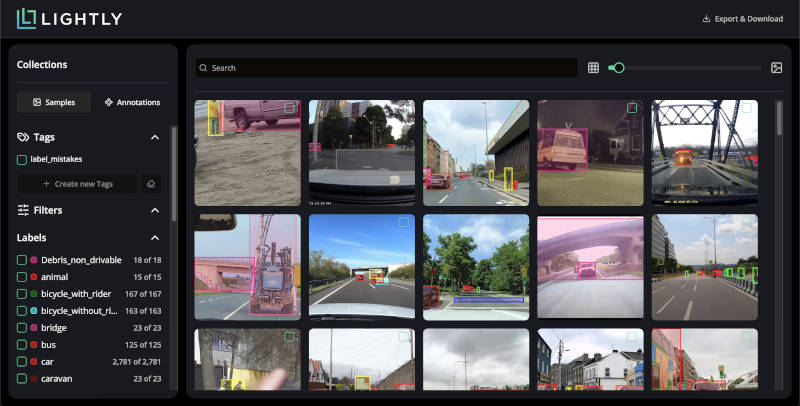
Visualize your dataset samples with annotations in the grid view.
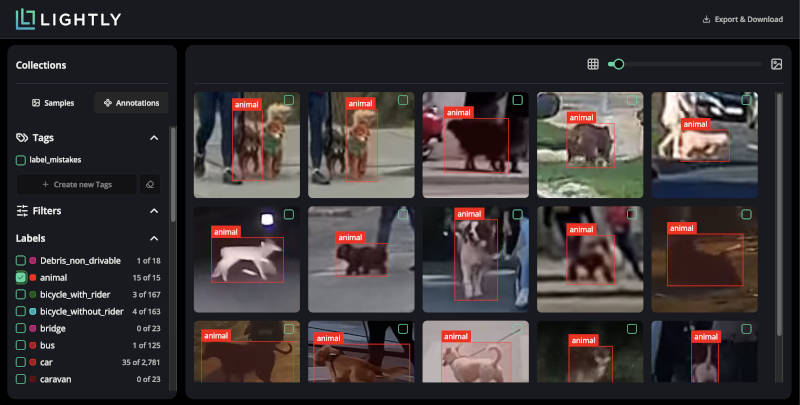
Switch to the annotation view to inspect individual object crops easily.
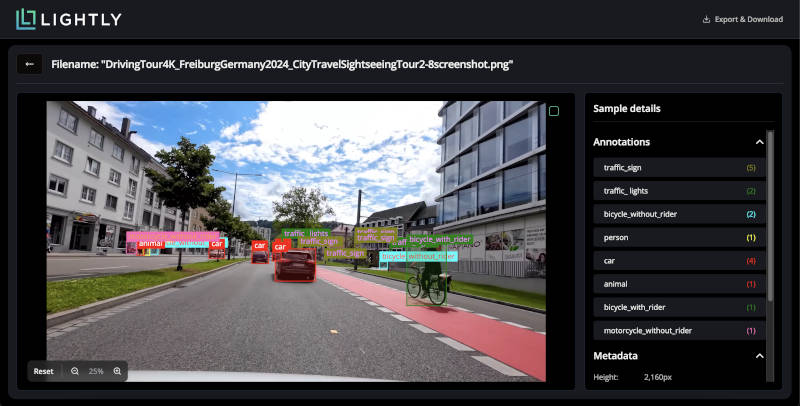
Inspect individual samples in detail, viewing all annotations and metadata.
💻 Installation
Ensure you have Python 3.8 or higher. We strongly recommend using a virtual environment.
The library is OS-independent and works on Windows, Linux, and macOS.
# 1. Create and activate a virtual environment (Recommended)
# On Linux/macOS:
python3 -m venv venv
source venv/bin/activate

# On Windows:
python -m venv venv
.\venv\Scripts\activate

# 2. Install Lightly Purple
pip install lightly-purple

# 3. Verify installation (Optional)
pip show lightly-purple
Quickstart
Download the dataset and run a quickstart script to load your dataset and launch the app.
YOLO Object Detection
Here is a quick example using the YOLO8 dataset
The YOLO format details:
dataset/
├── train/
│   ├── images/
│   │   ├── image1.jpg
│   │   ├── image2.jpg
│   │   └── ...
│   └── labels/
│       ├── image1.txt
│       ├── image2.txt
│       └── ...
├── valid/  (optional)
│   ├── images/
│   │   └── ...
│   └── labels/
│       └── ...
└── data.yaml
Each label file should contain YOLO format annotations (one per line):
<class> <x_center> <y_center> <width> <height>
Where coordinates are normalized between 0 and 1.
On Linux/MacOS:
# Download and extract dataset
export DATASET_PATH=$(pwd)/example-dataset && \
    bash <(curl -sL https://raw.githubusercontent.com/lightly-ai/gists/refs/heads/main/fetch-dataset.sh) \
 https://universe.roboflow.com/ds/nToYP9Q1ix\?key\=pnjUGTjjba \
        $DATASET_PATH

# Download example script
curl -sL https://raw.githubusercontent.com/lightly-ai/gists/refs/heads/main/example-yolo8.py > example.py

# Run the example script
python example.py
On Windows:
# Download and extract dataset
$DATASET_PATH = "$(Get-Location)\example-dataset"
[System.Environment]::SetEnvironmentVariable("DATASET_PATH", $DATASET_PATH, "Process")
Invoke-WebRequest -Uri "https://raw.githubusercontent.com/lightly-ai/gists/refs/heads/main/fetch-dataset.ps1" -OutFile "fetch-dataset.ps1"
.\fetch-dataset.ps1 "https://universe.roboflow.com/ds/nToYP9Q1ix?key=pnjUGTjjba" "$DATASET_PATH"

# Download example script
Invoke-WebRequest -Uri "https://raw.githubusercontent.com/lightly-ai/gists/refs/heads/main/example-yolo8.py" -OutFile "example.py"

# Run the example script
python.exe example.py
Quickstart commands explanation
- Setting up the dataset path:
export DATASET_PATH=$(pwd)/example-dataset
This creates an environment variable DATASET_PATH pointing to an 'example-dataset' folder in your current directory.
- Downloading and extracting the dataset:
bash <(curl -sL https://raw.githubusercontent.com/lightly-ai/gists/refs/heads/main/fetch-dataset.sh)
- Downloads a shell script that handles dataset fetching
- The script downloads a YOLO-format dataset from Roboflow
- Automatically extracts the dataset to your specified
DATASET_PATH
- Getting the example code:
curl -sL https://raw.githubusercontent.com/lightly-ai/gists/refs/heads/main/example-yolo8.py > example.py
Downloads a Python script that demonstrates how to:
- Load the YOLO dataset
- Process the images and annotations
- Launch the Lightly Purple UI for exploration
- Running the example:
python example.py
Executes the downloaded script, which will:
- Initialize the dataset processor
- Load and analyze your data
- Start a local server
- Open the UI in your default web browser
Example explanation
Let's break down the example.py script to explore the dataset:
# We import the DatasetLoader class from the lightly_purple module
from lightly_purple import DatasetLoader

# Create a DatasetLoader instance
loader = DatasetLoader()

# We point to the yaml file describing the dataset
# and the input images subfolder.
# We use train subfolder.
loader.from_yolo(
    data_yaml_path="dataset/data.yaml",
    input_split="train",
)

# We start the UI application on port 8001
loader.launch()
COCO Instance Segmentation
Here is an example using the COCO dataset in RLE format
The COCO format details:
dataset/
├── train/                   # Image files used to train
│   ├── image1.jpg
│   ├── image2.jpg
│   └── ...
└── _annotations.coco.json        # Single JSON file containing all annotations
COCO uses a single JSON file containing all annotations. The format consists of three main components:
- Images: Defines metadata for each image in the dataset.
- Categories: Defines the object classes.
- Annotations: Defines object instances.
On Linux/MacOS:
# Download and extract dataset
export DATASET_PATH=$(pwd)/example-dataset/train && \
    bash <(curl -sL https://raw.githubusercontent.com/lightly-ai/gists/refs/heads/main/fetch-dataset.sh) \
 https://universe.roboflow.com/ds/XU8JobBB7x?key=rpuS7P1Du4 \
        $DATASET_PATH

# Download example script
curl -sL https://raw.githubusercontent.com/lightly-ai/gists/refs/heads/main/example-coco.py > example.py

# Run the example script
python example.py
On Windows:
# Download and extract dataset

Invoke-WebRequest -Uri "https://raw.githubusercontent.com/lightly-ai/gists/refs/heads/main/fetch-dataset.ps1" -OutFile "fetch-dataset.ps1"
.\fetch-dataset.ps1 "https://universe.roboflow.com/ds/XU8JobBB7x?key=rpuS7P1Du4" "$(Get-Location)\example-dataset"

# Download example script
Invoke-WebRequest -Uri "https://raw.githubusercontent.com/lightly-ai/gists/refs/heads/main/example-coco.py" -OutFile "example.py"

$DATASET_PATH = "$(Get-Location)\example-dataset\train"
[System.Environment]::SetEnvironmentVariable("DATASET_PATH", $DATASET_PATH, "Process")
# Run the example script
python.exe example.py
Example explanation
Let's break down the example-coco.py script to explore the dataset:
from lightly_purple import DatasetLoader

# Create a DatasetLoader instance
loader = DatasetLoader()

# We point to the annotations json file and the input images folder.
# Defined dataset is processed here to be available for the UI application.
loader.from_coco_instance_segmentations(
    annotations_json_path="dataset/_annotations.coco.json",
    input_images_folder="dataset/train",
)

# We start the UI application on port 8001
loader.launch()
🔍 How It Works
- Your Python script uses the
lightly-purpleDataset Loader. - The Loader reads your images and annotations, calculates embeddings, and saves metadata to a local
purple.dbfile (using DuckDB). loader.launch()starts a local Backend API server.- This server reads from
purple.dband serves data to the UI Application running in your browser (http://localhost:8001). - Images are streamed directly from your disk for display in the UI.
📦 Supported Dataset Formats & Annotations
The DatasetLoader currently supports:
- YOLOv8 Object Detection: Reads
.yamlfile. Supports bounding boxes ✅. - COCO Object Detection: Reads
.jsonannotations. Supports bounding boxes ✅. - COCO Instance Segmentation: Reads
.jsonannotations. Supports instance masks in RLE (Run-Length Encoding) format ✅.
Limitations:
- Requires datasets with annotations. Cannot index image folders alone ❌.
- No direct support for classification datasets yet ❌.
- Cannot add custom metadata during the loading step ❌.
📚 FAQ
Are the datasets persistent?
Yes, the information about datasets is persistent and stored in the db file. You can see it after the dataset is processed. If you rerun the loader it will create a new dataset representing the same dataset, keeping the previous dataset information untouched.
Can I change the database path?
Not yet. The database is stored in the working directory by default.
Can I launch in another Python script or do I have to do it in the same script?
It is possible to use only one script at the same time because we lock the db file for the duration of the script.
Can I change the API backend port?
Currently, the API always runs on port 8001, and this cannot be changed yet.
Can I process datasets that do not have annotations?
No, we support only datasets with annotations now.
What dataset annotations are supported?
Bounding boxes are supported ✅
Instance segmentation is supported ✅
Custom metadata is NOT yet supported ❌
Release history Release notifications | RSS feed


Download files
Download the file for your platform. If you're not sure which to choose, learn more about installing packages.
Source Distribution
Built Distribution
Filter files by name, interpreter, ABI, and platform.
If you're not sure about the file name format, learn more about wheel file names.
Copy a direct link to the current filters
File details
Details for the file lightly_purple-0.2.17.tar.gz.
File metadata
- Download URL: lightly_purple-0.2.17.tar.gz
- Upload date:
- Size: 1.3 MB
- Tags: Source
- Uploaded using Trusted Publishing? No
- Uploaded via: uv/0.5.4
File hashes
| Algorithm | Hash digest | |
|---|---|---|
| SHA256 |
1a60aff7a51718d6bb51ababe8a3b8b2e0d89e019431507680153afe35766e0f
|
|
| MD5 |
00b4ab0edb4180f51b1b97c791140bec
|
|
| BLAKE2b-256 |
2aae565bb256707e6790ba25af86ff2edbfebfe11ed2d4c5a6dc24615d3234c6
|
File details
Details for the file lightly_purple-0.2.17-py3-none-any.whl.
File metadata
- Download URL: lightly_purple-0.2.17-py3-none-any.whl
- Upload date:
- Size: 1.3 MB
- Tags: Python 3
- Uploaded using Trusted Publishing? No
- Uploaded via: uv/0.5.4
File hashes
| Algorithm | Hash digest | |
|---|---|---|
| SHA256 |
1c3057b18c8aaa95c3307f2f08d93de27501e6d258447f220a6f2108bc7a1be9
|
|
| MD5 |
839ec79f5d335ccc502b220559ffa728
|
|
| BLAKE2b-256 |
3ff90cfb0662e0353908bd0bf23aa4020664612b3a4a03364e50867eb0c89581
|






