






lswifi is a CLI-centric Wi-Fi scanning tool for Windows, macOS, and Linux that provides more information about nearby Wi-Fi networks than built-in tools (e.g. netsh wlan show networks). Examples include Received Signal Strength Indicator (RSSI), showing security AKMs and ciphers, decoding 802.11 IEs, revealing 6 GHz Reduced Neighbor Reports, and more. With capable Wi-Fi adapters, lswifi can detect and show networks in 2.4 GHz, 5 GHz, and 6 GHz bands.
Note: Recent versions of Windows add OFDM rates, RSSI, AKMs and ciphers, QBSS, and limited RNR information to netsh wlan output. lswifi still offers additional information, parsing, filtering, and output options.
Installation
Note: The Python Scripts directory must be added to the PATH environment variable.
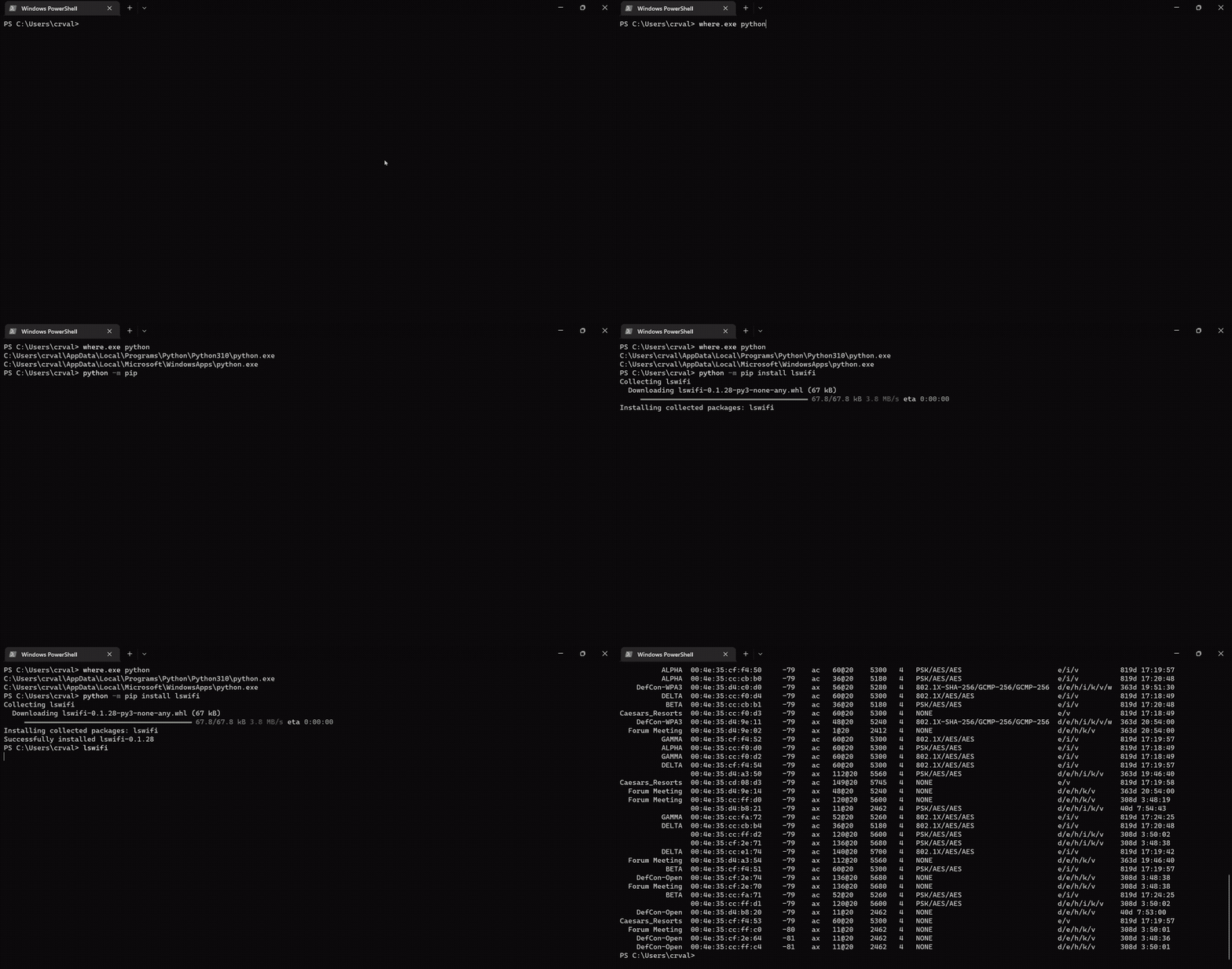
> python -m pip install lswifi
macOS (preview): same install, python3 -m pip install lswifi; the CoreWLAN and CoreLocation bindings come with it. macOS hides SSIDs, BSSIDs, and information elements unless Python has a Location Services grant. lswifi needs a code-signed Python, such as the python.org installer; uv, Homebrew, and pyenv builds can't be granted. Enable Python in System Settings > Privacy & Security > Location Services. If the prompt never appears, use the + button to add the Python interpreter lswifi runs under and turn it on. The warning prints that interpreter's path. Without a grant, one warning on stderr names the state. --get-interfaces prints Location Services: and the state.
Linux (preview): same install, python3 -m pip install lswifi; no extra packages. Scanning uses nl80211, so run sudo lswifi to trigger a fresh scan (CAP_NET_ADMIN); without it, lswifi shows the kernel's cached results. --supported is not available on Linux.
Usage
Output nearby Wi-Fi networks:
> lswifi
Output nearby Wi-Fi networks that have a detected signal of -60 dBm or stronger:
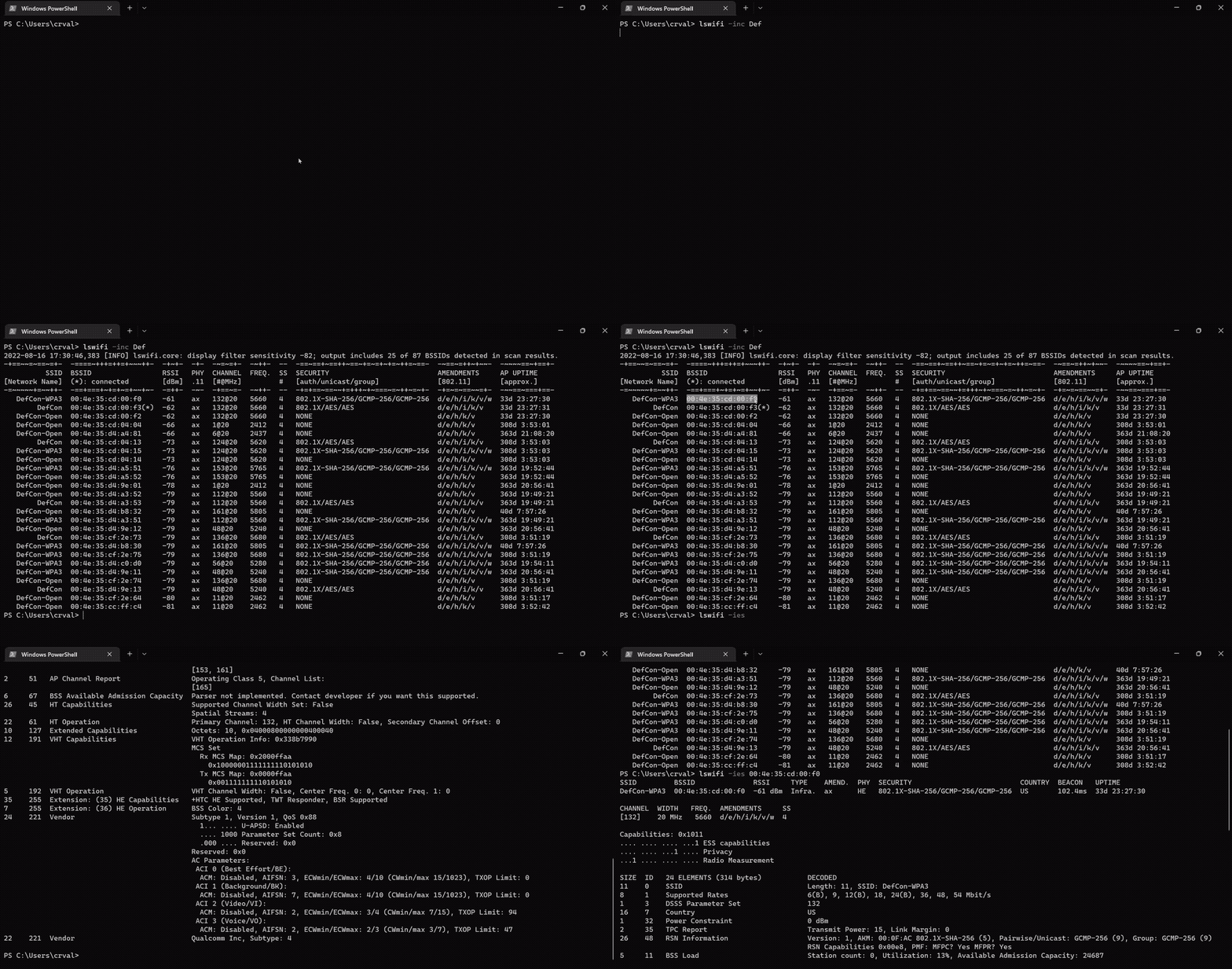
> lswifi -t -60
Output only networks that match SegaGenesis (partial match support):
> lswifi -include SegaGenesis
Output verbose information (including Information Elements) for BSSID 00:00:00:00:00:00 (exact match):
> lswifi -ies 00:00:00:00:00:00
Print help information:
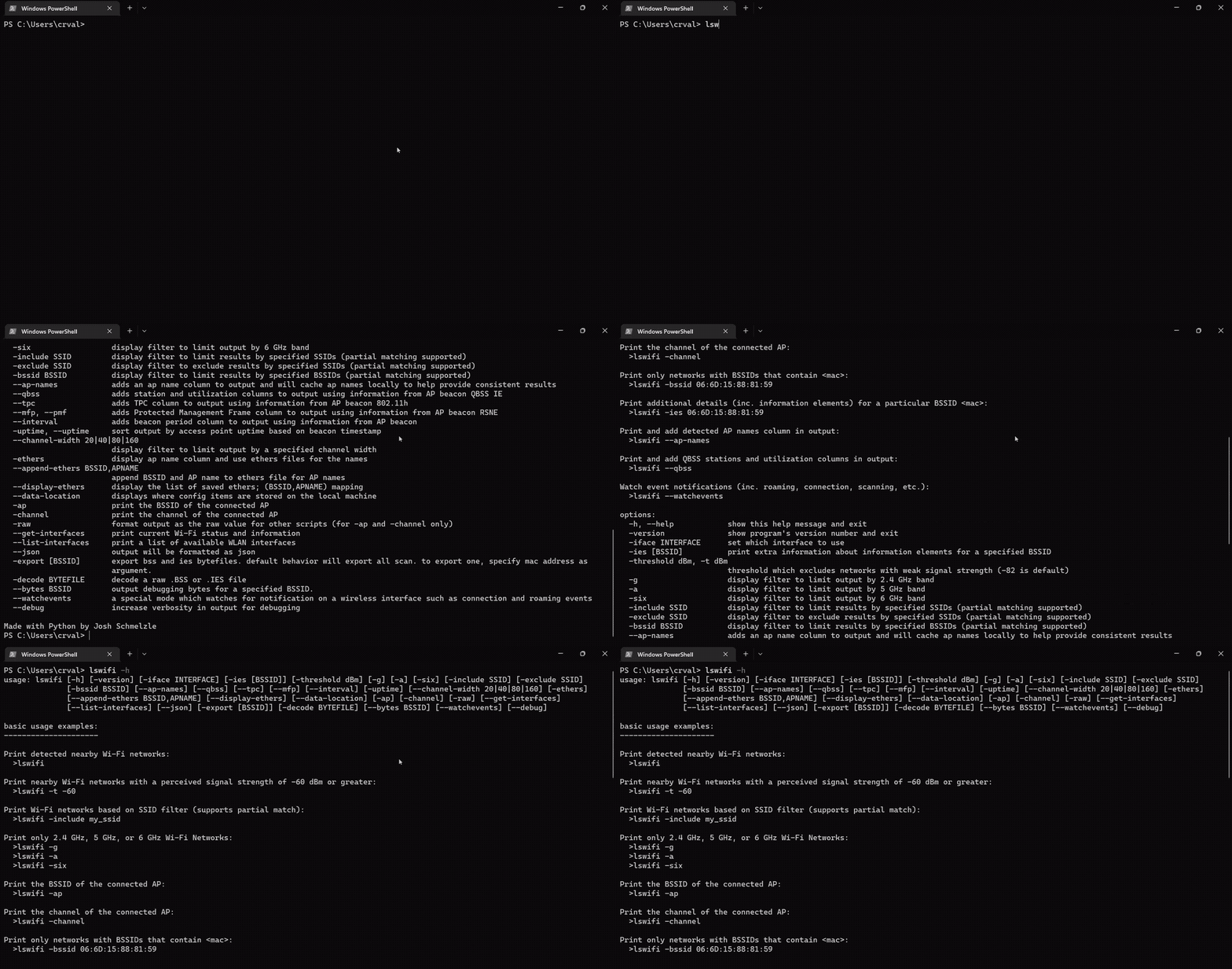
> lswifi -h
Print and add detected AP names column in output:
> lswifi --ap-names
Print and add detected AP names and QBSS column in output (try adding --mfp or --tpc too!):
> lswifi --ap-names --qbss
Print an alternative table for BSSes which may contain 6 GHz Reduced Neighbor Reports:
> lswifi -rnr
Watch event notifications (inc. roaming, connection, scanning, etc.):
> lswifi --watchevents
Measure how strong the link you're connected to is and how much it varies. Keep the device and AP still, then run:
> lswifi --rssi-stats
lswifi measures the connected BSSID on the band it's connected on. After the first scan it prints the target, so you can stop with Ctrl-C if it's the wrong one, then collects 10 samples. A run may take several minutes, because a sample only counts when the OS really scanned. Instead of the scan table it prints one line per scan, starting with the local time. Each sample after the first shows the time since the previous sample, and a scan that misses the BSSID says so. A miss doesn't use up a sample, so -n 10 gives 10 samples. Then it prints a summary:
waiting for the first scan to identify the AP...
target
  SSID       ExampleNet
  AP name    AP-12
  BSSID      00:00:5e:00:53:01
  band       6 GHz, channel 37, 80 MHz
  interface  en0 (00:00:5e:00:53:aa)
measuring 10 samples, Ctrl-C to stop
14:00:12 sample 1/10: -65 dBm
14:00:36 sample 2/10: -66 dBm (+24 s)
14:01:01 not heard in this scan (1 missed so far)
14:01:25 sample 3/10: -65 dBm (+49 s)
...
RSSI stats
  BSSID      00:00:5e:00:53:01
  band       6 GHz, channel 37, 80 MHz
  samples    10 of 12 scans, 2 missed
  time       14:00:12 to 14:04:24 (252 s)
  interval   about 28 s between samples
  mean       -65.2 dBm
  stdev      0.9 dB (sample, n-1)
  range      3 dB (min -67, max -64 dBm)
The summary repeats the BSSID and band so it still says what was measured when copied on its own; SSID, AP name and interface are in the target block above it and in --json. On macOS the first scan usually counts as sample 1. On other platforms the first scan only identifies the target and records when each BSSID was last heard, so sample 1 comes from the next scan.
stdev is the sample standard deviation of the dBm readings (divided by n-1). range is max minus min; --json keeps them as min_dbm, max_dbm and spread_db. Gaps and the time span are worked out from the whole-second clock times shown, so each gap matches the printed times and the gaps add up to the span. interval is the average gap between samples in this run (interval_s in --json), left out with fewer than 2 samples. The AP name comes from the beacon, from the cache with --ap-names, or from your ethers file with -ethers. Rows with no value are left out. Use -n or --time to change the run length and -i to change the gap between scan calls.
The OS can answer a scan request from its cache instead of scanning again; macOS does this for several seconds after each real scan. lswifi asks again every -i seconds (2 by default) and counts a reading only when the OS reports that it heard that BSSID again since the last counted reading. On macOS a scan call counts as a scan only when the OS actually scanned (the call blocked for at least a second); a call answered from the cache right after a scan is skipped, even if one BSSID in it was updated since. On other platforms a call counts as a scan when any network in it was heard again, and the first call only records what was last heard, so an old cached reading is never counted. A scan where the BSSID wasn't heard again is a miss. After 10 misses in a row, or 60 scan calls in a row with no new scan, lswifi stops and prints what it has. If the OS doesn't say when each BSSID was last heard, every scan counts as a reading, lswifi logs that, and --json adds "every_scan_counted": true. If no interface is connected, macOS hides BSSIDs before the first sample, or the BSSID is never measured, lswifi exits with code 2. If macOS hides BSSIDs later in the run, lswifi stops and prints the summary of what it collected.
To compare antennas, adapters or placements, run the same command once per setup, change one thing between runs, and compare the summaries. Add --json to keep each run:
> lswifi --rssi-stats -n 60 --json antenna-a.json
> lswifi --rssi-stats -n 60 --json antenna-b.json
--json writes the per-scan rows to scan_data as usual and adds an rssi_stats list with the summary values, including ssid, ap_name, band, channel and channel_width when known. completed_scans is the number of scans, missed how many of them missed the BSSID, scan_calls the number of scan requests (also logged with --debug), duration_s how long the run took, started and ended the local start and end time, and readings each sample with its timestamp and rssi_dbm. Timestamps are ISO 8601 with the UTC offset. The file is written once, at the end of the run. Keys with no value are left out, never set to null. If you stop the run with Ctrl-C, lswifi still prints the summary but doesn't add rssi_stats to the file. It isn't meant for a moving client or a roaming test. Movement or roaming doesn't stop the run, but it can mean fewer samples and a wider spread.
To measure a BSSID you aren't connected to, add -bssid with the full address:
> lswifi --rssi-stats -bssid 00:00:5e:00:53:01
With a static client, -bssid also takes a prefix of 1 to 6 octets, such as an OUI, and measures every BSSID that starts with it:
> lswifi --rssi-stats -bssid 00:00:5e
lswifi prints waiting for the first scan to find the matching BSSIDs..., then after the first scan one plan line (matched 12 BSSIDs on 2 bands; measuring 10 samples, Ctrl-C to stop), one line per sample (14:02:31 sample 6/10 seen 11/12 (+24 s), with the time since the previous sample from the second line on), then one table with a row per BSSID and band, strongest first by mean, with units in the column headers (mean dBm, stdev dB, range dB) and range dB as max minus min followed by min and max (3 (-67..-64)). Only scans where the OS really scanned count as samples, as in single mode. Under the table, samples, time, interval and interface rows describe the run. A row is marked * (possibly stale) when it was heard in fewer than 2 samples, or gave the same reading in every sample while heard in fewer than half the samples; those rows sort last and get "possibly_stale": true in --json. A prefix always gives the table, even with one match. A malformed prefix is an error.
To measure every BSSID of a network, pick it by SSID with -include. It uses the same partial match as the normal display filter, so -include Lab also matches Lab-IoT. You get the same plan line, progress lines and table as with a prefix:
> lswifi --rssi-stats -include Lab
With -bssid as well, a BSSID has to match both. -exclude still drops SSIDs that contain its text. Each band still gets its own row.
-bssid matches link BSSIDs, not the AP MLD address. Readings are kept per interface, BSSID and band. If an AP uses the same BSSID on two bands, each band gets its own row, and lswifi logs a warning that names the BSSID and the bands. With --json, each of those entries also gets bssid_bands, the list of bands that BSSID was seen on. Every band is measured, so band and width filters (-a, -g, -six and --channel-width) are an error with --rssi-stats. If the connection uses links on more than one band, each link gets its own summary.
--rssi-stats bypasses the signal threshold automatically, so weak readings are kept and the spread is not skewed. Passing -threshold or -t with --rssi-stats is an error.
Export scan results to pcap:
> lswifi -export
Tab Completion
lswifi completion <shell> prints a completion script for bash, fish, powershell, or zsh.
To enable bash tab completion for the current session:
source <(lswifi completion bash)
To make it permanent, add the script to your bash completion directory or source it from ~/.bashrc:
echo 'source <(lswifi completion bash)' >> ~/.bashrc
For zsh, either source the script from ~/.zshrc:
source <(lswifi completion zsh)
Or install it as a completion file. zsh only loads files on $fpath whose names start with an underscore, so name it _lswifi:
mkdir -p ~/.zsh/completions
lswifi completion zsh > ~/.zsh/completions/_lswifi
In ~/.zshrc, add that directory to fpath before compinit runs:
fpath=(~/.zsh/completions $fpath)
autoload -Uz compinit && compinit
Then start a new shell or run exec zsh.
For fish, write the script to the completions directory:
lswifi completion fish > ~/.config/fish/completions/lswifi.fish
To enable PowerShell tab completion for lswifi, run the following command in PowerShell:
lswifi completion powershell | Out-String | Invoke-Expression
To make this permanent, add the above command to your PowerShell profile. To find and edit your profile:
# View your profile location
$PROFILE

# Add the completion script to your profile
lswifi completion powershell | Out-String | Invoke-Expression >> $PROFILE

# Or edit manually
notepad $PROFILE
Then restart PowerShell or reload your profile:
. $PROFILE
Update check
lswifi checks PyPI for a newer release at most once a day and, when there is one, prints a note on stderr with the upgrade command. It never writes to stdout, so --json, --csv and -raw output are unchanged, and it stays quiet when PyPI can't be reached. To turn it off, pass --no-update-check or set the LSWIFI_NO_UPDATE_CHECK=1 environment variable.
CLI options
positional arguments:
  {completion}          commands
    completion          Generate shell completion script

CLI options
-----------

```ascii
positional arguments:
  {completion}          commands
    completion          Generate shell completion script

options:
  -h, --help            show this help message and exit
  -version, --version, -V
                        show program's version number and exit
  -n, --scans #         set how many scans to do before exiting
  --time #              set test in seconds to perform scans for
  -i, --interval #      seconds between scans
  -ies [BSSID]          print extra information about information elements for a specified BSSID
  -threshold, -t -82    threshold which excludes networks with weak signal strength from results (-82 is default)
  -all                  remove threshold filtering which excludes results with weaker signal
  -g                    display filter to limit output by 2.4 GHz band
  -a                    display filter to limit output by 5 GHz band
  -six                  display filter to limit output by 6 GHz band
  -include, -inc SSID   display filter to limit results by specified SSIDs (partial matching supported)
  -exclude, -exc SSID   display filter to exclude results by specified SSIDs (partial matching supported)
  -bssid, -bss BSSID    display filter to limit results by specified BSSIDs (partial matching supported)
  --rssi-stats          special mode to measure signal strength mean, stdev, and range of the connected BSSID over 10 samples, or of -bssid/-include matches. keep the device still; a run may take several minutes
  --ap-names            adds an ap name column to output and will cache ap names locally to help provide consistent results
  --qbss                adds station and utilization columns to output using information from AP beacon QBSS IE
  --tpc                 adds TPC column to output using information from AP beacon 802.11h
  --period              adds beacon period column to output using information from AP beacon
  --uptime, -uptime     sort output by access point uptime based on beacon timestamp
  -rnr, --rnr           special mode to create an alternate table based on RNR results
  --channel-width 20|40|80|160|320
                        display filter to limit output by a specified channel width
  -ethers               adds an ap name column to output and use an ethers file for the ap names
  --append-ethers BSSID,APNAME
                        append BSSID and AP name to ethers file for AP names
  --display-ethers      display the list of saved ethers; (BSSID,APNAME) mapping
  --data-location       displays where config items are stored on the local machine
  -ap                   print the BSSID of the connected AP
  -channel              print the channel, band, and frequency of the connected AP
  -raw                  format output as the raw value for other scripts (for -ap and -channel only)
  --get-interfaces      print current Wi-Fi status and information
  --list-interfaces     print a list of available WLAN interfaces
  --json [JSON]         output will be formatted as json
  --indent 4            JSON output will be formatted with pretty print with provided indent level
  --csv [CSV]           output will be formatted as csv
  -exportraw, -expraw [BSSID]
                        export raw bss and ies bytefiles. default behavior will export all from a scan. to export only one, provide full mac address of the BSSID as argument.
  -export, -exp [BSSID]
                        export scan results to pcapng file. default behavior will export all from a scan. to export only one, provide full mac address of the BSSID as argument.
  -path EXPORT_PATH     output path for -export, and directory for -exportraw (a .pcapng path uses its directory); defaults to the app data directory
  -decoderaw BYTE_FILE  decode a raw .BSS or .IES file
  -decode PCAP_FILE     parse scan results from pcap/pcapng file. by default shows all networks in the file, can be combined with filtering options.
  --bytes BSSID         output debugging bytes for a specified BSSID found in scan results.
  --watchevents         a special mode which watches for notification on a wireless interface such as connection and roaming events
  --syslog <server IP>  syslogs events from --watchevents to a remote syslog server
  --no-update-check     don't check PyPI for a newer lswifi (checked at most once a day); the LSWIFI_NO_UPDATE_CHECK=1 environment variable does the same
  --debug               increase verbosity for debugging
1 maintainer

Metadata
1 maintainer
Release files for lswifi 0.6.1
For a detailed explanation of source distributions (sdists) and built distributions (wheels), please see the package formats documentation.
Source distribution (sdist)
| File | Size | Uploaded | Provenance | Actions |
|---|---|---|---|---|
| lswifi-0.6.1.tar.gz | 297.1 kB | With provenance | Details for lswifi-0.6.1.tar.gz |
Built distribution (wheel)
| File | Interpreter | ABI | Platform | Actions Reset |
|---|---|---|---|---|
| lswifi-0.6.1-py3-none-any.whl | Python 3 | none | any | Details for lswifi-0.6.1-py3-none-any.whl |
Total release size: 494.9 kB
Release files / lswifi-0.6.1.tar.gz
| Download URL | lswifi-0.6.1.tar.gz |
|---|---|
| Size | 297.1 kB |
| Tags | Source |
|
SHA-256 checksum How to use checksums |
1ad2fc3f05c6ce0a26b7d3bd3f42df545f0fdeb8f7e01f394e3bde43ff073c86
|
|
BLAKE2b-256 checksum How to use checksums |
2127ba0d28df35da3ac93b7d67d3de8b75c16c01bc70a7c3cb2214f6b838f4e5
|
| Upload date | |
|
Uploaded using Trusted Publishing? What is trusted publishing? |
Yes |
| Uploaded via |
twine/7.0.0 CPython/3.13.16
|
Provenance
Provenance describes where a file came from. On PyPI, provenance is shared via attestations, which provide a verifiable record of the build or publishing details. View details, limitations and caveats.


PyPI Publish Attestation
PyPI verified that this artifact, at this checksum, originated from the publisher listed below.
Signed by GitHub Actions, verified by PyPI on Nov 14, 2026.
Transparency logRelease files / lswifi-0.6.1-py3-none-any.whl
| Download URL | lswifi-0.6.1-py3-none-any.whl |
|---|---|
| Size | 197.8 kB |
| Tags | Python 3 |
|
SHA-256 checksum How to use checksums |
569865ccc988ec806e9e2e964273d4a390f107b6889a21b08aee91a796ae821f
|
|
BLAKE2b-256 checksum How to use checksums |
63523f50db5012f6b03cfc5335caf322fa7fce6fe1008a1e25c178c2a98f13ad
|
| Upload date | |
|
Uploaded using Trusted Publishing? What is trusted publishing? |
Yes |
| Uploaded via |
twine/7.0.0 CPython/3.13.16
|
Provenance
Provenance describes where a file came from. On PyPI, provenance is shared via attestations, which provide a verifiable record of the build or publishing details. View details, limitations and caveats.
PyPI Publish Attestation
PyPI verified that this artifact, at this checksum, originated from the publisher listed below.
Signed by GitHub Actions, verified by PyPI on Nov 14, 2026.
Transparency logSecurity for lswifi 0.6.1
Provenance
Provenance describes where a file came from. On PyPI, provenance is shared via attestations, which provide a verifiable record of the build or publishing details. View details, limitations and caveats.
Full provenance
Both files in this release have been uploaded with provenance metadata.
Attestation for lswifi-0.6.1.tar.gz
PyPI Publish Attestation
PyPI verified that this artifact, at this checksum, originated from the publisher listed below.
Signed by GitHub Actions, verified by PyPI on Nov 14, 2026.
Transparency logA note on package security
PyPI is a repository for distributing packages, not a service for auditing them. While third-party security researchers and our staff do their best to detect and remove malicious packages, PyPI cannot guarantee the quality, security or suitability of any given package.
To learn more about protecting yourself from malicious actors, visit our package security documentation.














