

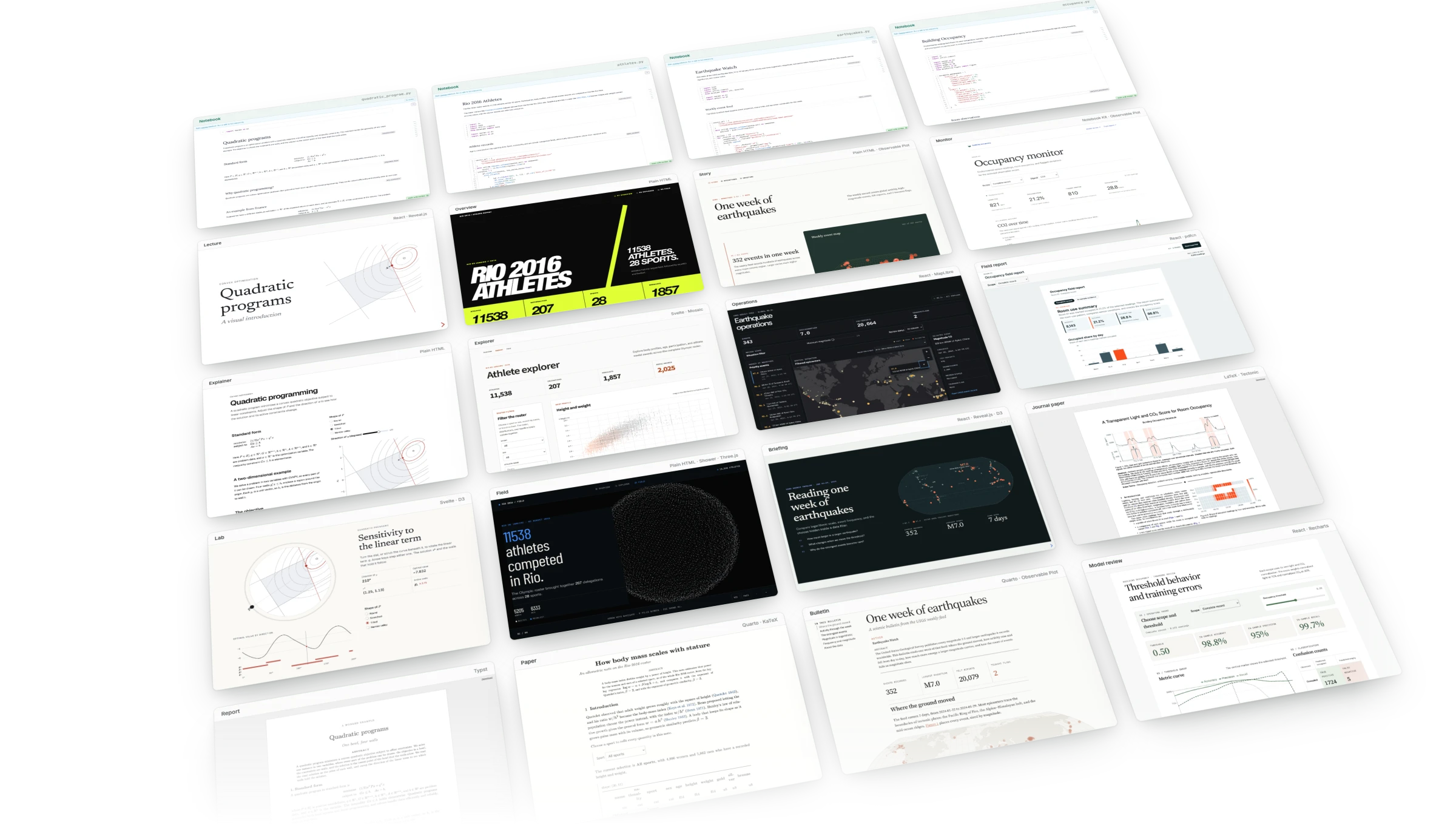



Turn your marimo notebook into any document. Use your marimo notebook's outputs as building blocks. Place a chart, a table, or a single number in a web page, a slide deck, or a paper, and keep all of your Python in the notebook.
Each document is a view: an ordinary project in its own folder beside the notebook, which you or a coding agent can edit with any tool. A view places a whole cell with its controls, one output such as a figure, or a value that you format yourself. Pages stay live, so changing a control updates every result that reads it, and PDFs compile again with the new values. Every result traces back to the notebook cell that computed it.
You can start from HTML, React, Svelte, Reveal.js, Observable Notebook Kit, Quarto, Typst, or LaTeX, and bring any other framework, template, or build tool with a view provider, a Python package.
Studio is experimental and changing rapidly. Pin marimo-studio and
third-party view providers in saved projects.
Outputs as building blocks
Two cells from a notebook that solves an optimization problem:
@app.cell
def solution(q, solve):
    solution = solve(q)
    return (solution,)


@app.cell
def level_curves(bowl, draw_problem, region, solution):
    problem_figure = draw_problem(region, bowl, solution)
    problem_figure
    return (problem_figure,)
An HTML page places the figure and the optimal value:
<marimo-output value="problem_figure"></marimo-output>
<p>The optimal value is <strong mo-value="solution.value"></strong>.</p>
A Typst report places the same two results in a PDF:
#import "marimo.typ": marimo_output, marimo_value

#marimo_output("problem_figure", width: 100%)
The optimal value is #marimo_value("solution.value", default: 0).
The notebook computes both results, and each view places them in its own format:
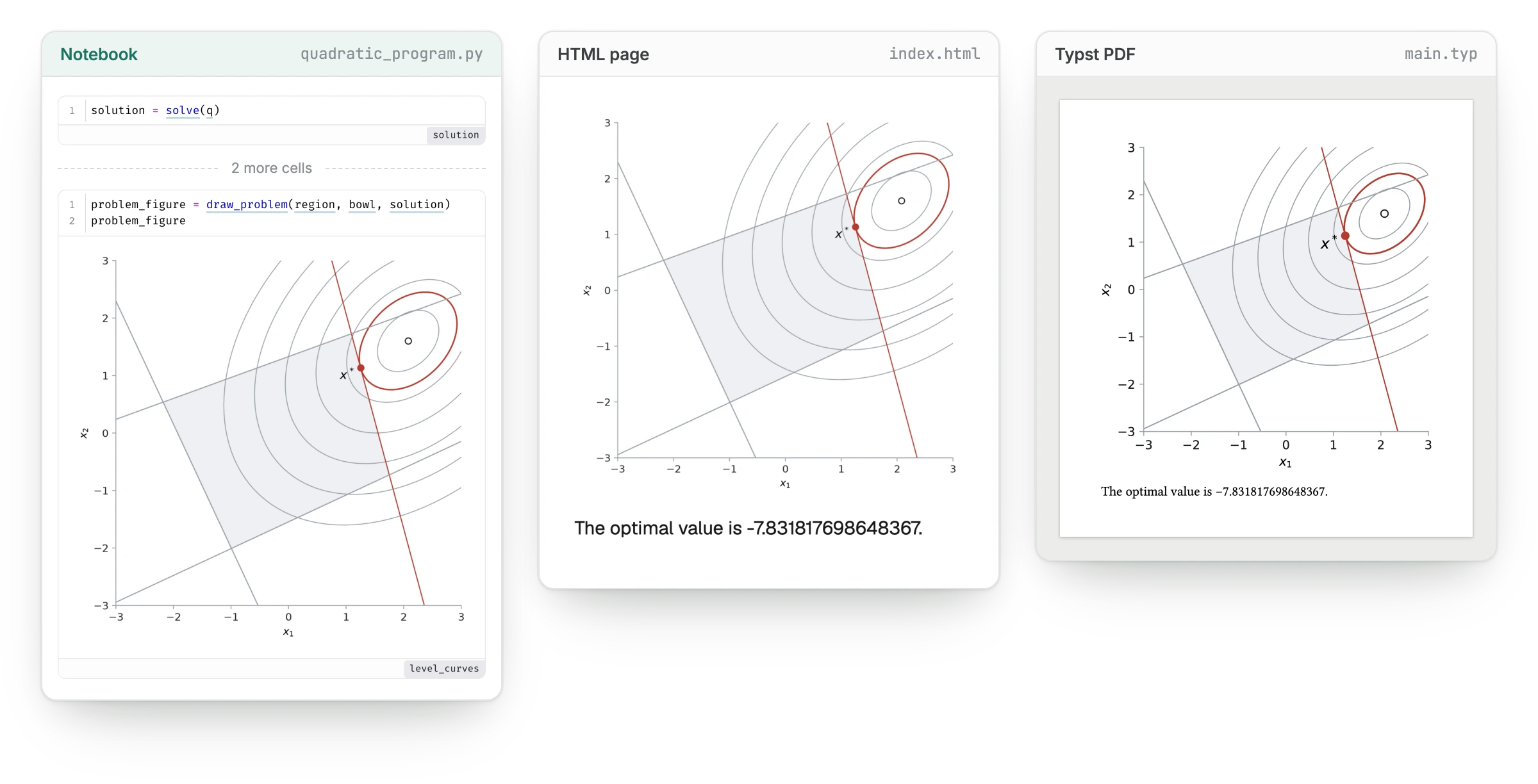
The page shows the figure as marimo renders it. The PDF draws it as a vector graphic at the width the Typst source places it.
What is Studio? explains the model, How Studio works shows how a page receives your notebook's results, and the Quadratic programs example shows both views next to the notebook.
Get started
Paste this request into Claude Code, Codex, or another terminal agent:
Run `uvx --with marimo-studio agent-plugins read marimo-studio` and create
a scrollytelling report and a slide deck explaining calculus basics.
The agent reads the instructions Studio ships for coding agents, starts a
notebook with Studio, writes the calculus in Python cells, then builds both
views and shows them beside the notebook. uv
supplies uvx.
To work by hand, open one of your marimo notebooks with Studio:
uvx --with marimo-studio marimo edit analysis.py --sandbox --watch
Click Add view in the toolbar, choose HTML document, and create the view. Notebook and Preview open side by side. Edit the view's files in Studio's Source pane or in your own editor, and Preview rebuilds when you save.
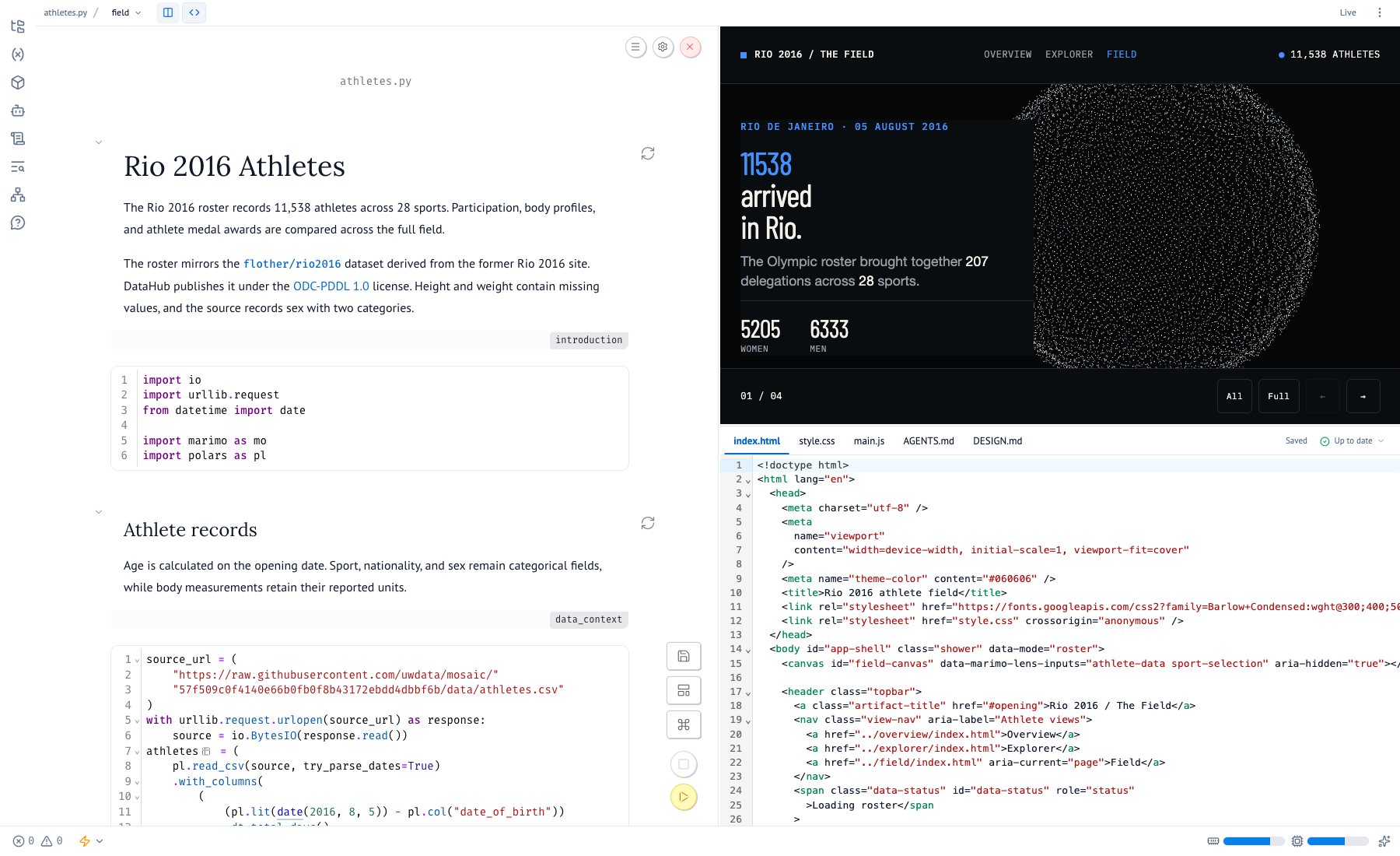
Getting started walks through a first view, Author with a coding agent covers working with an agent, and Select results with Lens points the agent at any part of a view, down to a figure inside a PDF.
Examples
Each example notebook backs four views:
- Quadratic programs: a Reveal.js lecture, an HTML explainer, a Svelte and D3 lab, and a Typst report.
- Rio 2016 athletes: an HTML overview, a Mosaic explorer, a Three.js presentation, and a Quarto paper.
- Earthquake watch: an Observable Plot story, a MapLibre operations map, a Reveal.js briefing, and a Quarto bulletin.
- Building occupancy: a Notebook Kit monitor, a PDF field report, a LaTeX journal paper, and a Recharts model review.
D3, Mosaic, Three.js, MapLibre, Observable Plot, and Recharts run in the views' own code and draw the values those views read from the notebook. A page can load any JavaScript library the same way.
Run or export a view
Serve the notebook's views as a live Python app:
uvx --with marimo-studio marimo run analysis.py --sandbox
Or export the dashboard view as a static site:
uvx marimo-studio view export dashboard --target analysis.py --output dist/dashboard
The export runs the notebook on your machine, saves the results for each state the view prepares, and leaves the notebook source out of the site. Views can also run Python in your reader's browser. Run or export a view compares the options.
Documentation
Guide · Examples · Reference · Compatibility · Troubleshooting
Report bugs through GitHub Issues. See the security policy for private reports.
License


Release files for marimo-studio 0.4.1
For a detailed explanation of source distributions (sdists) and built distributions (wheels), please see the package formats documentation.
Source distribution (sdist)
| File | Size | Uploaded | Provenance | |
|---|---|---|---|---|
| marimo_studio-0.4.1.tar.gz | 13.7 MB | Without provenance | Details |
Built distribution (wheel)
| File | Interpreter | ABI | Platform | Reset |
|---|---|---|---|---|
| marimo_studio-0.4.1-py3-none-any.whl | Python 3 | none | any | Details |
Total release size: 27.9 MB
Release files / marimo_studio-0.4.1.tar.gz
| Download URL | marimo_studio-0.4.1.tar.gz |
|---|---|
| Size | 13.7 MB |
| Tags | Source |
|
SHA-256 checksum How to use checksums |
7f2421294e89b1ac9af3525f6b837b9b7e583cb96d8e39e9e756ccaa9f73221d
|
|
BLAKE2b-256 checksum How to use checksums |
497aee018c0c1b146a18c289bc0637ae19750329dd3648304195f05bcd30e458
|
| Upload date | |
|
Uploaded using Trusted Publishing? What is trusted publishing? |
Yes |
| Uploaded via |
uv/0.12.23 {"installer":{"name":"uv","version":"0.12.23","subcommand":["publish"]},"python":null,"implementation":{"name":null,"version":null},"distro":{"name":"Ubuntu","version":"24.04","id":"noble","libc":null},"system":{"name":null,"release":null},"cpu":null,"openssl_version":null,"setuptools_version":null,"rustc_version":null,"ci":true}
|
Release files / marimo_studio-0.4.1-py3-none-any.whl
| Download URL | marimo_studio-0.4.1-py3-none-any.whl |
|---|---|
| Size | 14.2 MB |
| Tags | Python 3 |
|
SHA-256 checksum How to use checksums |
422391d96d8643c5d94cb5c04cdf23cd281dc597a3d28c6b7ddce60084d01a38
|
|
BLAKE2b-256 checksum How to use checksums |
91f86ad91e93ac5bc8e7fdb437ad48c99cdada6f2b2f41755eea427ba57232fe
|
| Upload date | |
|
Uploaded using Trusted Publishing? What is trusted publishing? |
Yes |
| Uploaded via |
uv/0.12.23 {"installer":{"name":"uv","version":"0.12.23","subcommand":["publish"]},"python":null,"implementation":{"name":null,"version":null},"distro":{"name":"Ubuntu","version":"24.04","id":"noble","libc":null},"system":{"name":null,"release":null},"cpu":null,"openssl_version":null,"setuptools_version":null,"rustc_version":null,"ci":true}
|
Security for marimo-studio 0.4.1
Provenance
Provenance describes where a file came from. On PyPI, provenance is shared via attestations, which provide a verifiable record of the build or publishing details. View details, limitations and caveats.
No provenance found
None of the files in this release were uploaded with provenance metadata.
A note on package security
PyPI is a repository for distributing packages, not a service for auditing them. While third-party security researchers and our staff do their best to detect and remove malicious packages, PyPI cannot guarantee the quality, security or suitability of any given package.














