
Full GUI control of Mathematica notebooks and kernel via Model Context Protocol

Project description
Mathematica MCP
Give your AI Agent the power of Wolfram Language.






Who This Is For
| Audience | Use Case |
|---|---|
| Researchers using LLM coding assistants | Run Mathematica from Claude/Cursor/VS Code without leaving your editor |
| Data scientists | Import, transform, and visualize data through natural language |
| Educators | Create interactive Mathematica notebooks through AI conversation |
| Not for | Production web services, untrusted multi-tenant environments |
What is this?
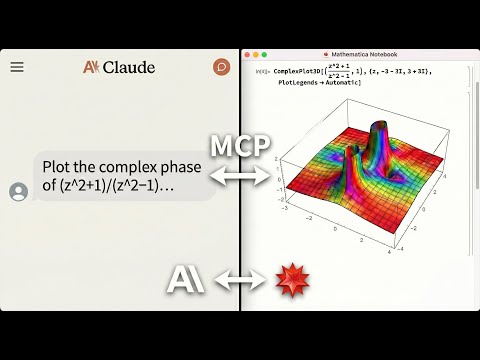
An MCP Server that gives AI agents a direct interface to your local Wolfram Engine. 79 tools across configurable profiles for symbolic reasoning, visualization, and notebook control.
Watch it in action
Quick Start
Prerequisites
Before installing, you need:
-
Mathematica 14.0+ with
wolframscriptin your PATH- Download Mathematica
- macOS: Add to
~/.zshrc:export PATH="/Applications/Mathematica.app/Contents/MacOS:$PATH"
-
uv package manager
curl -LsSf https://astral.sh/uv/install.sh | sh
One-Command Setup (Recommended)
# For Claude Desktop
uvx mathematica-mcp-full setup claude-desktop

# For Cursor
uvx mathematica-mcp-full setup cursor

# For VS Code (requires GitHub Copilot Chat extension)
uvx mathematica-mcp-full setup vscode

# For OpenAI Codex CLI
uvx mathematica-mcp-full setup codex

# For Google Gemini CLI
uvx mathematica-mcp-full setup gemini

# For Claude Code CLI
uvx mathematica-mcp-full setup claude-code

# Optional: select a tool profile (default is "full")
uvx mathematica-mcp-full setup claude-desktop --profile notebook
Then restart Mathematica and your editor. Done!
VS Code: Alternative setup via Command Palette
Prerequisite: GitHub Copilot Chat extension must be installed - MCP support is built into Copilot.
- Press
Cmd+Shift+P(Mac) /Ctrl+Shift+P(Windows) - Type "MCP" → Select "MCP: Add Server"
- Choose "Command (stdio)" — not "pip"
- Enter command:
uvx - Enter args:
mathematica-mcp-full - Name it:
mathematica - Choose scope: Workspace or User
Alternative: Interactive Installer
bash <(curl -sSL https://raw.githubusercontent.com/AbhiRawat4841/mathematica-mcp/main/install.sh)
Verify Installation
uvx mathematica-mcp-full doctor
Tip: If you encounter errors after updating, clear the cache:
uv cache clean mathematica-mcp-full && uvx mathematica-mcp-full setup <client>
Tool Profiles
Choose how many tools to expose: math (~25 tools), notebook (~45), or full (~79, default).
Pass --profile during setup or set MATHEMATICA_PROFILE env var. See the Technical Reference for details.
Manual Installation
Click to expand manual setup instructions
-
Clone & Install:
git clone https://github.com/AbhiRawat4841/mathematica-mcp.git
cd mathematica-mcp
uv sync
-
Install Mathematica Addon:
wolframscript -file addon/install.wl
Restart Mathematica after this step.
-
Configure your editor (replace path with your actual path):
Note: GUI apps like Claude Desktop may not inherit your shell
PATH. Use the absolute path fromwhich uvor letuvx mathematica-mcp-full setup <client>write it for you automatically.Claude Desktop (
~/Library/Application Support/Claude/claude_desktop_config.json):{ "mcpServers": { "mathematica": { "command": "/ABSOLUTE/PATH/TO/uv", "args": ["--directory", "/path/to/mathematica-mcp", "run", "mathematica-mcp-full"] } } }
Cursor (
~/.cursor/mcp.json):{ "mcpServers": { "mathematica": { "command": "/ABSOLUTE/PATH/TO/uv", "args": ["--directory", "/path/to/mathematica-mcp", "run", "mathematica-mcp-full"] } } }
VS Code (
~/.vscode/mcp.json):Note: VS Code MCP requires GitHub Copilot Chat extension.
{
  "servers": {
    "mathematica": {
      "type": "stdio",
      "command": "/ABSOLUTE/PATH/TO/uv",
      "args": ["--directory", "/path/to/mathematica-mcp", "run", "mathematica-mcp-full"]
    }
  }
}
📖 See the Installation Guide for troubleshooting and advanced setup.
What You Can Do
1. Solve and Verify a Calculus Problem
"Integrate x^2 sin(x) from 0 to pi, then verify by differentiating."
Agent calls: execute_code("Integrate[x^2 Sin[x], {x, 0, Pi}]")
=> -4 + Pi^2

Agent calls: verify_derivation(
  steps=["Integrate[x^2 Sin[x], {x, 0, Pi}]", "-4 + Pi^2"]
)
=> {"success": true, "report": "Step 1 → 2: ✓ VALID\n...\n**Summary**: All steps are valid!", "raw_data": {...}, "format": "text"}
2. Generate a 3D Plot
"Plot the sombrero function and export it."
Agent calls: execute_code("Plot3D[Sinc[Sqrt[x^2 + y^2]], {x, -4, 4}, {y, -4, 4}]")
=> [3D surface plot rendered as image]

Agent calls: export_graphics("Plot3D[Sinc[Sqrt[x^2+y^2]], {x,-4,4}, {y,-4,4}]", "/tmp/sombrero.png", "PNG")
3. Read and Analyze a Notebook
"Show me the outline of SinPlot.nb, then extract the code cells."
Agent calls: read_notebook("SinPlot.nb", output_format="outline")
=> {"success": true, "format": "outline", "section_count": 0, "sections": []}

Agent calls: read_notebook("SinPlot.nb", output_format="json")
=> {"success": true, "cell_count": 2, "code_cells": 1, "cells": [{"style": "Input", "content": "Plot[Sin[x], {x, 0, 2 Pi}]"}, ...]}
Beyond these workflows: symbolic computation, 2D/3D visualization, notebook operations, Wolfram Alpha queries, data import/export (250+ formats), and debugging tools. See the Technical Reference for the full tool list.
Execution Styles
For chat users — use keywords in your prompt
| Say this... | What happens |
|---|---|
| "calculate ...", "compute ...", "what is ..." | Result appears as text in chat |
| "plot ...", "show ...", "in notebook ..." | Executes in the current Mathematica notebook |
| "in new notebook: ..." | Creates a fresh notebook, then executes there |
| "interactive ...", "manipulate ...", "dynamic ..." | Live front-end evaluation (sliders, animations) |
For tool callers — use the style parameter
style= |
output_target |
mode |
Best for |
|---|---|---|---|
"compute" |
cli | kernel | Math, algebra, parsing results |
"notebook" |
notebook | kernel | Plots, visual artifacts |
"interactive" |
notebook | frontend | Manipulate, Dynamic, animations |
style is a high-level shortcut for output_target + mode. Individual params still work and override style.
Note: There is no
style="new_notebook". Creating a fresh notebook is a two-step workflow:create_notebook(title="...")thenexecute_code(style="notebook").
Examples
"Calculate the integral of x^3 from 0 to 1"
  → Result appears inline in chat

"Plot Sin[x] from 0 to 2π"
  → Plot appears in current Mathematica notebook

"In new notebook: integrate 1/x^5 + x^7 and plot the integration region"
  → Fresh notebook is created with the work

"Interactive: Manipulate a slider for Plot[Sin[n x], {x, 0, 2π}]"
  → Dynamic UI with sliders in notebook
If you don't include a keyword, the default mode depends on your tool profile: notebook profiles default to notebook output, math profile defaults to inline.
Built-in MCP Prompts
Some MCP clients (Claude Desktop, Cursor, etc.) can list prompts from the server — pre-built templates that fill in the right parameters for you. This server registers five prompts:
| Prompt | What it does |
|---|---|
calculate |
Pre-fills style="compute" for inline math results |
notebook |
Pre-fills style="notebook" for notebook execution |
new_notebook |
Creates a fresh notebook, then executes there |
interactive |
Pre-fills style="interactive" for Manipulate/Dynamic |
quickstart |
Shows the full execution styles reference table |
How to access them: In Claude Desktop, click the prompt icon (chat bubble with +) at the bottom of the input box. In Cursor, use the MCP prompt picker. Not all clients support prompt selection — if yours doesn't, just use the keywords above in your message instead.
Documentation
- Technical Reference — Architecture, tools, and configuration
- Security Model — Threat model, permissions, and vulnerability reporting
- Benchmarks — Performance data and reproduction steps
- Contributing — Development setup, testing, and PR process
- Changelog — Version history
- Examples — Polished agent session walkthroughs
License
MIT License
Release history Release notifications | RSS feed


Download files
Download the file for your platform. If you're not sure which to choose, learn more about installing packages.
Source Distribution
Built Distribution
Filter files by name, interpreter, ABI, and platform.
If you're not sure about the file name format, learn more about wheel file names.
Copy a direct link to the current filters
File details
Details for the file mathematica_mcp_full-0.8.1.tar.gz.
File metadata
- Download URL: mathematica_mcp_full-0.8.1.tar.gz
- Upload date:
- Size: 96.0 kB
- Tags: Source
- Uploaded using Trusted Publishing? No
- Uploaded via: uv/0.11.3 {"installer":{"name":"uv","version":"0.11.3","subcommand":["publish"]},"python":null,"implementation":{"name":null,"version":null},"distro":{"name":"Ubuntu","version":"24.04","id":"noble","libc":null},"system":{"name":null,"release":null},"cpu":null,"openssl_version":null,"setuptools_version":null,"rustc_version":null,"ci":true}
File hashes
| Algorithm | Hash digest | |
|---|---|---|
| SHA256 |
fb4fc8d95aae9d1f9749d71e7c2ae016aa692d7cd8a1578f94b3b28d6c0edbe4
|
|
| MD5 |
92b97bc92b699cb522de60a53352e0fe
|
|
| BLAKE2b-256 |
c0aa474b3722a54eb667e20c114554e4680ff2efda1c07ead73755e7f3f845b1
|
File details
Details for the file mathematica_mcp_full-0.8.1-py3-none-any.whl.
File metadata
- Download URL: mathematica_mcp_full-0.8.1-py3-none-any.whl
- Upload date:
- Size: 108.4 kB
- Tags: Python 3
- Uploaded using Trusted Publishing? No
- Uploaded via: uv/0.11.3 {"installer":{"name":"uv","version":"0.11.3","subcommand":["publish"]},"python":null,"implementation":{"name":null,"version":null},"distro":{"name":"Ubuntu","version":"24.04","id":"noble","libc":null},"system":{"name":null,"release":null},"cpu":null,"openssl_version":null,"setuptools_version":null,"rustc_version":null,"ci":true}
File hashes
| Algorithm | Hash digest | |
|---|---|---|
| SHA256 |
0abf555b62180522f75d1342923de0e81346d571e0f41bec83727a341a12bfec
|
|
| MD5 |
f79d6c21160315ed3d900c744c5dc560
|
|
| BLAKE2b-256 |
10203aa00931575b489b65b89a054e8b2d7424e77dd481cc8efac6bff076369a
|






