
MCP Virtual Computer
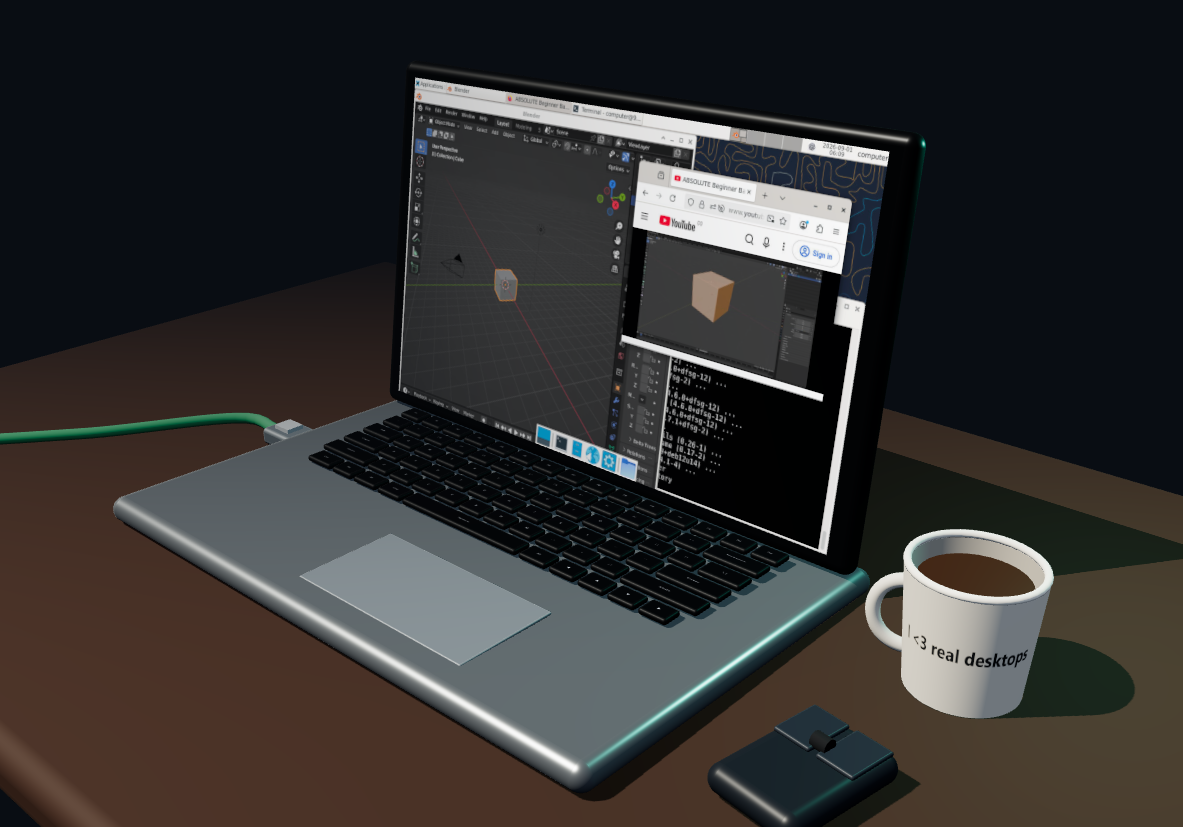
A VM for your agent. And for you.
- click the mug to switch between a virtual desktop or a real one
- unplug the network cable and cut network access
- use the computer screen like a normal screen
- copy and paste text between the host browser and the Xfce desktop
- model can use terminal, create/read/edit files, see the screen, click, type
- little fun thing: if either you or the llm types text, you see that on the keyboard; if one uses the cursor, you see the mouse move on the table.
- automatically installs Docker Desktop on Windows for local mode, or flyctl for Fly mode
MCP client example
Local Docker (default)
{
  "mcpServers": {
    "virtual-computer": {
      "command": "uvx",
      "args": ["mcp-virtual-computer"],
      "env": {
        "COMPUTER_ID": "agent-workstation",
        "DESKTOP_ENVIRONMENT": "true",
        "NETWORK_ACCESS": "true",
        "AUTO_INSTALL_DOCKER": "true",
        "EXPOSE_LIFECYCLE_TOOLS": "false"
      }
    }
  }
}
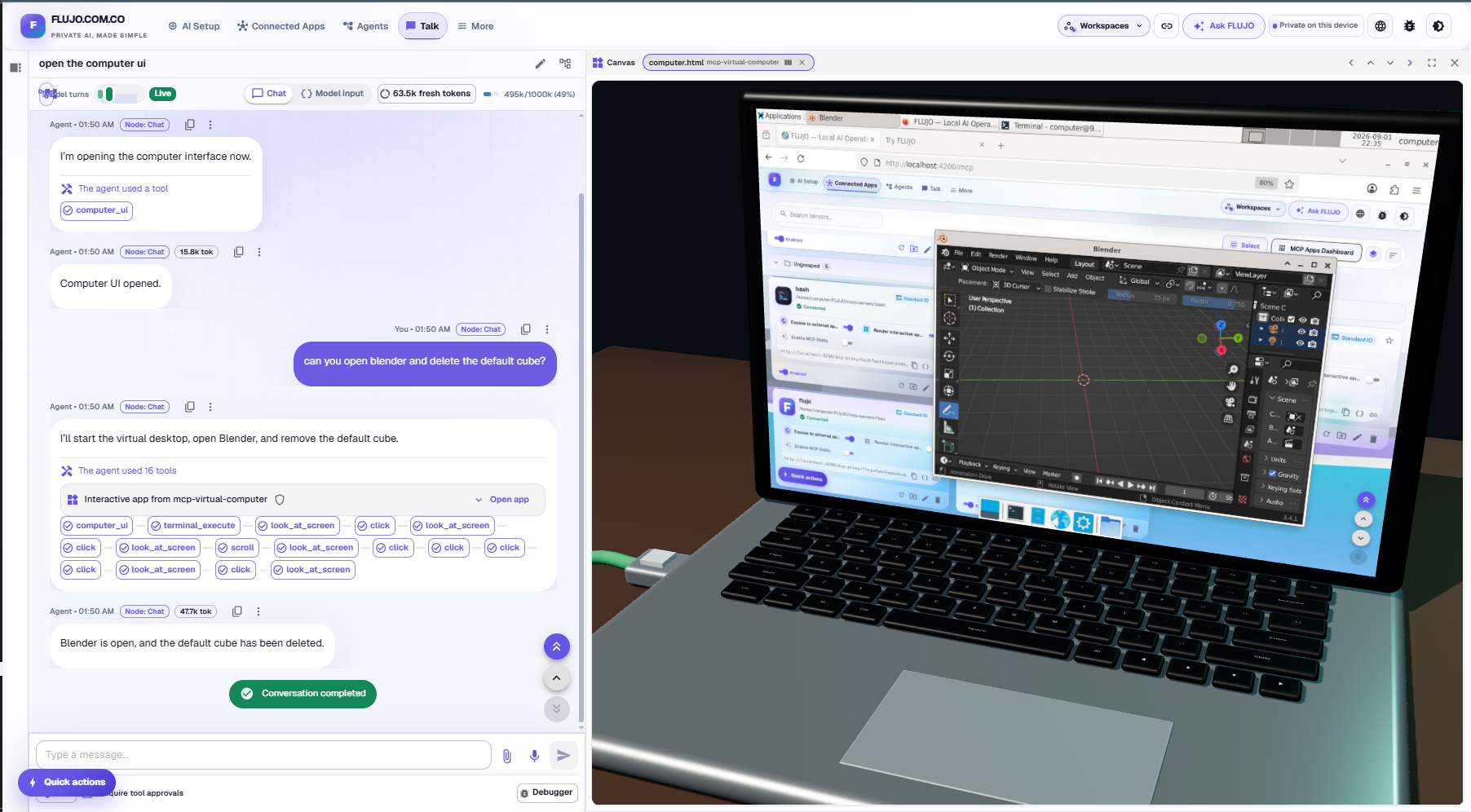
Demo: FLUJO
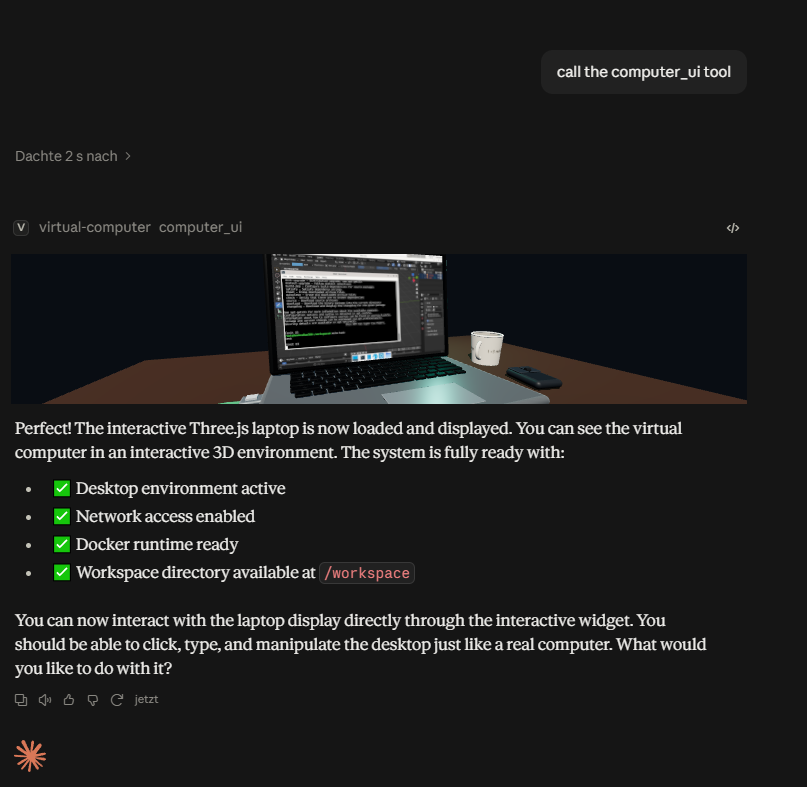
Demo: Claude Desktop
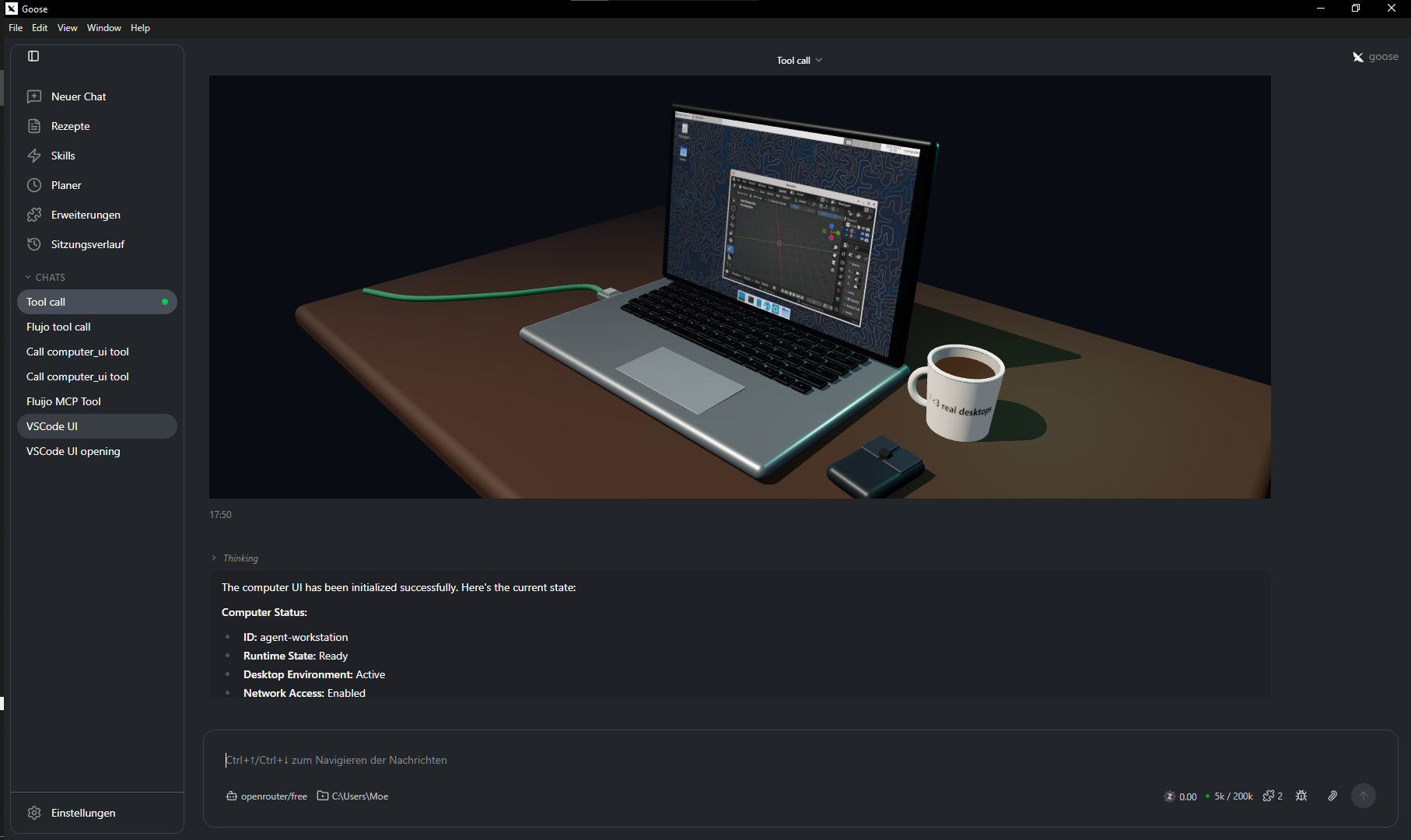
Demo: Goose
Permanent Fly Machine
Fly mode builds the bundled Xfce image with Fly's remote builder and deploys it as one permanent Machine. The root filesystem and /workspace survive MCP restarts, and the Three.js screen uses the same noVNC desktop through Fly's HTTPS/WebSocket proxy.
This is the Xfce framebuffer returned by look_at_screen from a deployed Fly Machine. The same live desktop appears on the rendered computer after computer_ui connects to VNC:

No app name, region, CPU size, memory size, Docker installation, or VNC configuration is required:
{
  "mcpServers": {
    "virtual-computer-fly": {
      "command": "uvx",
      "args": ["mcp-virtual-computer", "--backend", "fly"],
      "env": {
        "COMPUTER_ID": "agent-workstation",
        "DESKTOP_ENVIRONMENT": "true",
        "NETWORK_ACCESS": "true",
        "AUTO_INSTALL_FLYCTL": "true",
        "EXPOSE_LIFECYCLE_TOOLS": "false"
      }
    }
  }
}
The copy-paste client entry above is also available in .mcp.json. The package's MCP Registry declaration, including the docker and fly backend choices, is in server.json. See Fly setup for the complete first-run and authentication flow.
On first use, virtual-computer finds fly/flyctl or downloads the current official release to ~/.fly/bin. It uses a cached fly auth login session or FLY_API_TOKEN, selects the personal organization when available, creates and remembers a generated app, lets Fly choose the closest placement, and defaults to one shared CPU with 1 GB RAM.
Authentication is the only unavoidable account step. On a fresh machine, start the MCP once, run the exact flyctl auth login command shown by its error, and restart the MCP client. The first computer call can take several minutes while Fly remotely builds Xfce. Later starts attach to the same Machine.
The VNC and audio WebSockets are exposed only at a random per-Machine path stored in private Fly Machine metadata; the browser connects through the MCP server's loopback proxy and never receives that upstream URL. Fly allocates a free shared IPv4 and public IPv6 route for this protected transport.
Optional overrides remain available as FLY_ORG, FLY_APP_NAME, FLY_REGION, FLY_API_TOKEN, and the --fly-* flags. Set AUTO_INSTALL_FLYCTL=false to require a preinstalled CLI. Deleting or factory-resetting the computer destroys its persistent Fly root filesystem; ordinary MCP shutdown leaves the permanent Machine running. Stop or delete it from Fly when you no longer want it to incur usage.
What it exposes
terminal_execute— run a command in the configured Docker container or Fly Machine.read_file— read a UTF-8 text file relative to/workspaceor by absolute path.write_file— atomically write a UTF-8 text file.edit_file— replace one exact text match, or all matches when requested.computer_ui— open or attach the Three.js computer view. Its result includes both the MCP Appresource_uriand a real loopbackurl/dashboard_urlthat opens in an external browser, including for stdio clients.
DESKTOP_ENVIRONMENT defaults to true. With the real desktop enabled it
additionally exposes:
look_at_screen— return the current PNG framebuffer, AT-SPI snapshot, or both.click,type, andscroll— interact by AT-SPI element reference or coordinates.list_windowsandswitch_window— enumerate and activate real Xfce windows.move_window,maximize_window,restore_window,minimize_window, andclose_window— control a selected window by ID, title, or class.computer://screen/current.png— current live framebuffer resource.computer://screen/accessibility.json— Playwright-like AT-SPI tree with element refs, roles, names, actions, focus state, and screen bounds.
The MCP App can always call runtime_status, set_network_access, and set_desktop_environment. Set EXPOSE_LIFECYCLE_TOOLS=true to additionally expose those lifecycle controls to the model; they remain model-hidden by default.
License and origin
MIT licensed. This project is a persistent-computer fork of Kilntainers with Docker and Fly backends.
1 maintainer

Metadata
1 maintainer
Release files for mcp-virtual-computer 0.2.10
For a detailed explanation of source distributions (sdists) and built distributions (wheels), please see the package formats documentation.
Source distribution (sdist)
| File | Size | Uploaded | |
|---|---|---|---|
| mcp_virtual_computer-0.2.10.tar.gz | 494.7 kB | Details |
Built distribution (wheel)
| File | Interpreter | ABI | Platform | Reset |
|---|---|---|---|---|
| mcp_virtual_computer-0.2.10-py3-none-any.whl | Python 3 | none | any | Details |
Total release size: 1.0 MB
Release files / mcp_virtual_computer-0.2.10.tar.gz
| Download URL | mcp_virtual_computer-0.2.10.tar.gz |
|---|---|
| Size | 494.7 kB |
| Tags | Source |
|
SHA-256 checksum How to use checksums |
116df7e909e85ede3f2dc2a877cd56d4194e59f1a0966f00f3a13e4a3963072e
|
|
BLAKE2b-256 checksum How to use checksums |
a56f25f56d50abbee484619af3b5a1f5bab092027f64aec6d1d96653bb71c148
|
| Upload date | |
|
Uploaded using Trusted Publishing? What is trusted publishing? |
No |
| Uploaded via |
twine/7.0.0 CPython/3.13.14
|
Release files / mcp_virtual_computer-0.2.10-py3-none-any.whl
| Download URL | mcp_virtual_computer-0.2.10-py3-none-any.whl |
|---|---|
| Size | 513.9 kB |
| Tags | Python 3 |
|
SHA-256 checksum How to use checksums |
31e74a258b3b17fa78bb2db407909c5c75488e8fee035e5ad06b9ac6b383eb78
|
|
BLAKE2b-256 checksum How to use checksums |
a8608ae5f438c1177db69acde954d489ceb1026c33d5a733317c59dfca42998a
|
| Upload date | |
|
Uploaded using Trusted Publishing? What is trusted publishing? |
No |
| Uploaded via |
twine/7.0.0 CPython/3.13.14
|














