
Easy open tcp, http, https ports from localhost to internet.

Project description






• License • Source code • Donate • Issues •
with «make tunnel» you can easily open http and tcp ports to the internet.
Installation
Install the package from the PyPi:
pip install mtunn
Install the package from the GitHub:
git clone https://github.com/mishakorzik/mtunn
cd mtunn
python3 setup.py install
Want to learn more about the tunnel update? Then check out the details here
Config example's
In order to start the tunnel, you need to log in to your account and create a configuration file.
proto: tcp                # protocol type                   (https/http/tcp)
target: 127.0.0.1:25565   # target host
tunnel: 10000             # port that will be opened
domain: none              # domain to your tunnel
console: true             # for tunnel control              (true/false)
firewall:
  whitelist: ["UA", "PL"] # whitelist                       (asn, country, ip, cidr)
  blacklist: ["AS12345"]  # blacklist                       (asn, country, ip, cidr)
  services:
    vpn: allow            # connection to tunnel from vpn   (allow/deny)
    tor: deny             # connectiom to tunnel from tor   (allow/deny)
  protection:
    level: 3              # set anti ddos protection level  (0-5)
network:
  bandwidth: nolimit      # limit bandwidth                 (ex. 512 KB, 2 MB)
  data:
    compression: false    # use traffic compression         (true/false)
    algorithm: zlib       # set compression algorithm       (zlib/gzip)
  socket:
    buffer: 128 KB        # change socket buffer            (min 128 KB, max 2 MB)
ping:
  method: icmp            # ping method                     (icmp/tcp)
frequently asked questions
1) What to do if I don't have a domain?
- No need to worry, you can run tunnel without a domain just by specifying “none” in the “domain” field.
2) if I have a domain, how do i connect it?
-
Using a domain is quite simple, you just need to specify your domain in the "domain" field and specify the A and AAAA record in the ip address of the tunnel.
-
Please note that if the tunnel does not have IPv6, you do not need to specify an AAAA record for the tunnel's IP address.
3) What ping method is the best?
- Both options are best, we added the tcp method so that you can know the delay point without the ping command. If you are not sure about choosing icmp or tcp, you can simply not specify, the tunnel will choose automatically.
If you have the correct configuration, you will be able to start the tunnel and everything will work.
Tunnel commands
Instead of the name of the example.yml file, you can write your configuration name, but it must have the extension “.yml”.
# show tunnel help menu
python3 -m mtunn --help

# show tunnel current version
python3 -m mtunn --version

# register or login to account
python3 -m mtunn --account

# use console to control tunnel (if enabled on config)
python3 -m mtunn --console

# open a port to internet with config file
python3 -m mtunn --config example.yml

# open a port to internet and fully disable debug (not recommend)
python3 -m mtunn --nodebug --config example.yml

# fast open port to internet without config (buffer size 128 KB)
# Specify your ports instead of the ones provided, and choose the protocol — TCP, HTTPS, HTTP.
python3 -m mtunn --fastrun "from:8080 to:10000 proto:http"

# change system buffer size (in bytes)
# don't change this value just like that!
sudo python3 -m mtunn --bufsize 393216
If you need a faster tunnel speed then just increase the buffer size. But if the buffer size is too large then the speed may be low.
When you register you can run tunnels but only on ports in the range from 10000 to 11000. You can change it in your quota settings.
Api example's
Scan all active tunnels on localhost (if enabled console)
>>> from mtunn import scan
>>> scan()
[{'remote': 'he1zen-de1.hopto.org:10000', 'local': '127.0.0.1:25565', 'console': 7010}]
>>>
Execute commands on active tunnel (if enabled console)
>>> from mtunn import console
>>> s = console(7010)
>>> s.execute("latency")
{"status": "success", "address": "185.14.92.125", "method": "icmp", "time": "27.1ms"}
>>>
All api arguments and usage
>>> from mtunn import console
>>> s = console(port)
>>> s.execute(command, args1=None, args2=None, args3=None)
-
All commands that are in the console are also in the API and they are the same.
-
To execute the command you only need to know the port from the console. you can find it by scanning all consoles.
-
Also, the console is only available on the local network (127.0.0.1), you won't be able to launch it remotely.
Screenshots
Here are examples of how to run and how the tunnel will work.
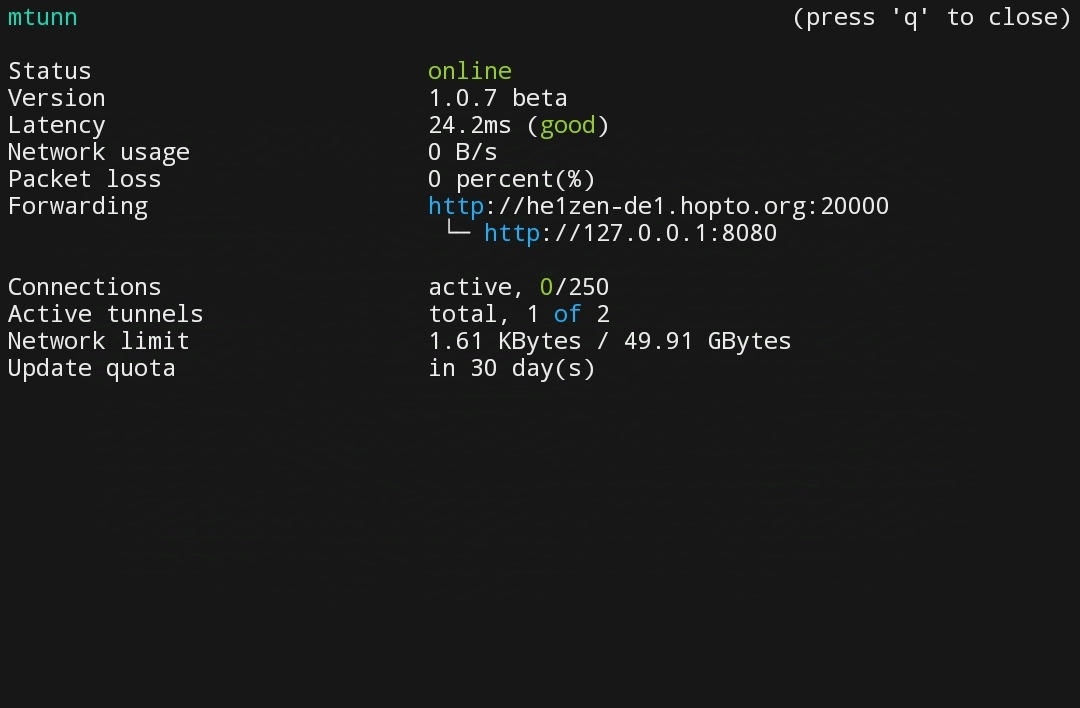
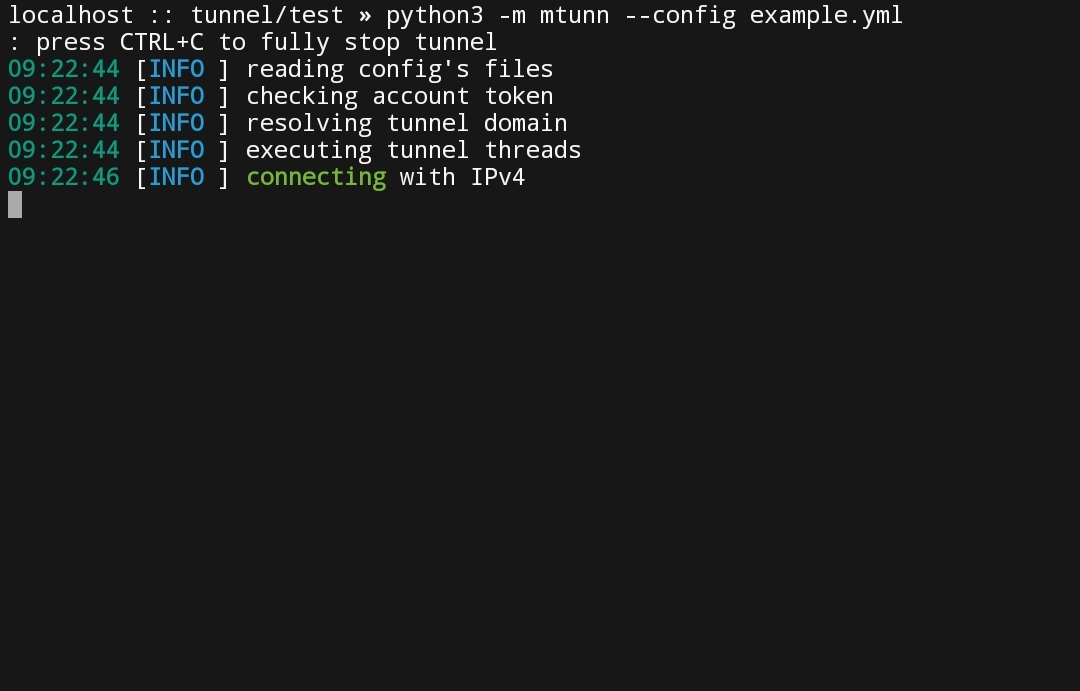
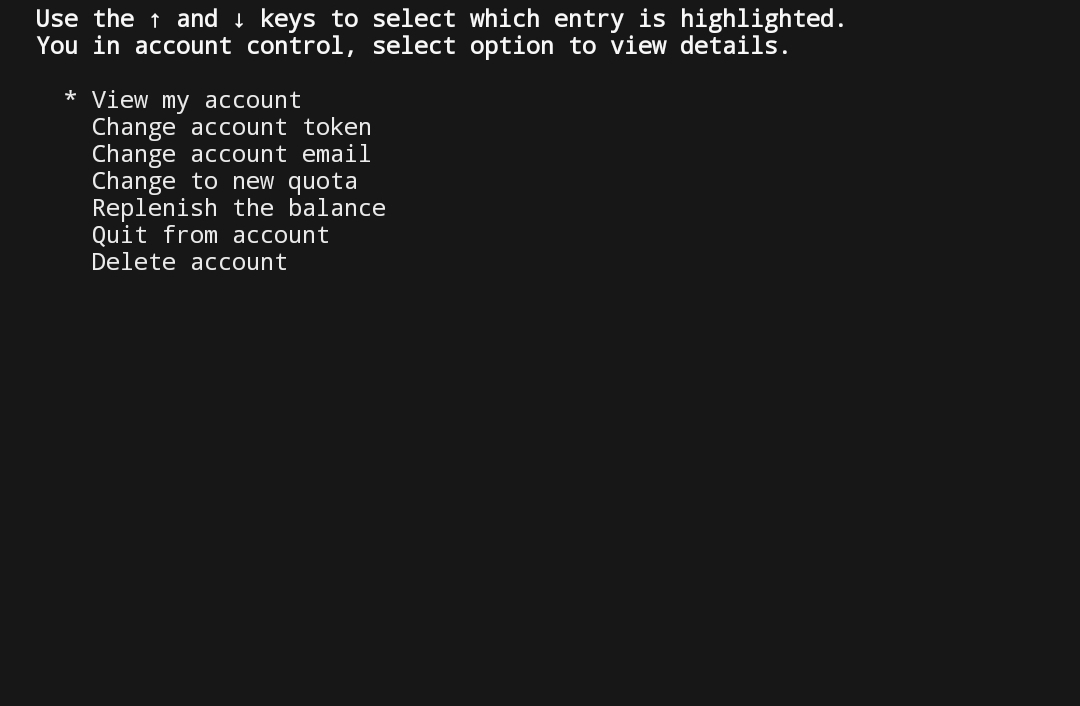
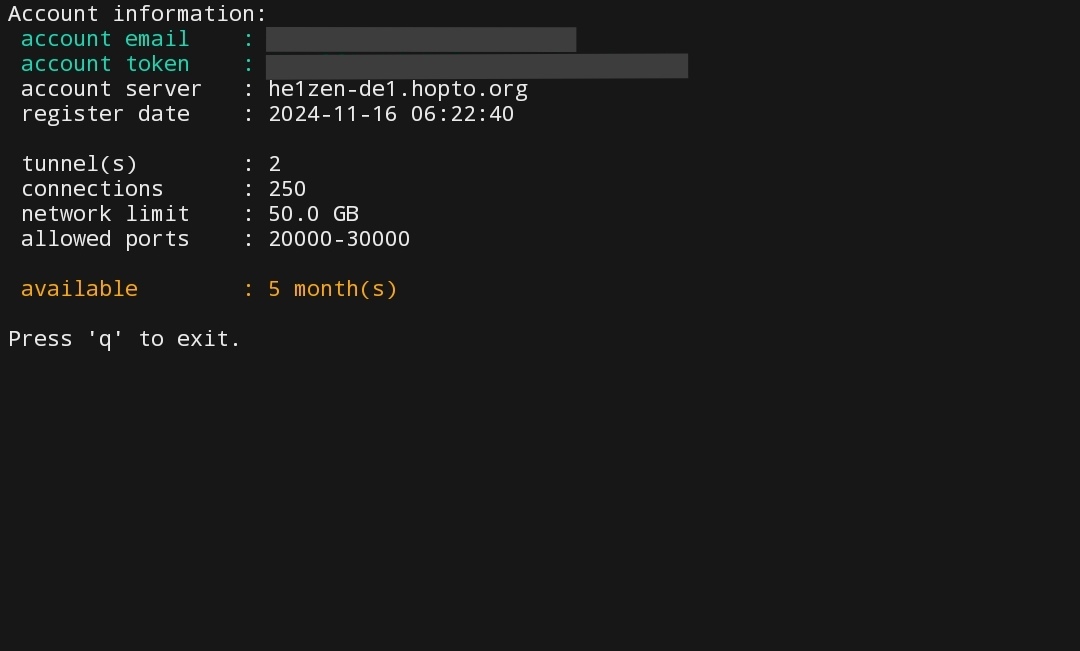
In order to open ports through the tunnel you need to create a configuration file.
Other


If you find a bug or have any questions about this project, write to us on discord.
Release history Release notifications | RSS feed


Download files
Download the file for your platform. If you're not sure which to choose, learn more about installing packages.
Source Distribution
File details
Details for the file mtunn-1.3.0.tar.gz.
File metadata
- Download URL: mtunn-1.3.0.tar.gz
- Upload date:
- Size: 34.7 kB
- Tags: Source
- Uploaded using Trusted Publishing? No
- Uploaded via: twine/6.0.1 CPython/3.12.8
File hashes
| Algorithm | Hash digest | |
|---|---|---|
| SHA256 |
63aadcd42ec0527d76febec6ecd03822a36e3be900c5447d481108b01575fae3
|
|
| MD5 |
f0a5106e7b7a616631c6d0b437cfda3e
|
|
| BLAKE2b-256 |
da24d9466aa1290280f16726ef8bbbcbd9228e4fa656620743898c1b259eab10
|






