
napari-plugin-manager





napari plugin manager to provide a graphical user interface for installing napari plugins.
You can read the documentation at napari.org/napari-plugin-manager.
Overview
The napari-plugin-manager used to be part of the napari codebase before the 0.5.x release
series. It's now maintained as a separate project and package to allow uncoupled iterations outside
of the napari release cycle.
Future work will allow other applications with a plugin ecosytem to customize and
use the plugin-manager. This package remains under active development and contributions
are very welcome. Please open an issue to discuss potential improvements.
This package currently provides:
- A package installer process queue that supports both pip and conda installs.
- An easy to use GUI for searching, installing, uninstalling and updating plugins that make part of the napari ecosystem. Each plugin entry provides a summary and information on the authors that created the package. The REST API used to query for plugins and plugin information is provided by the npe2api service.
- The ability to install other packages via URL of by dragging and dropping artifacts from PyPI.
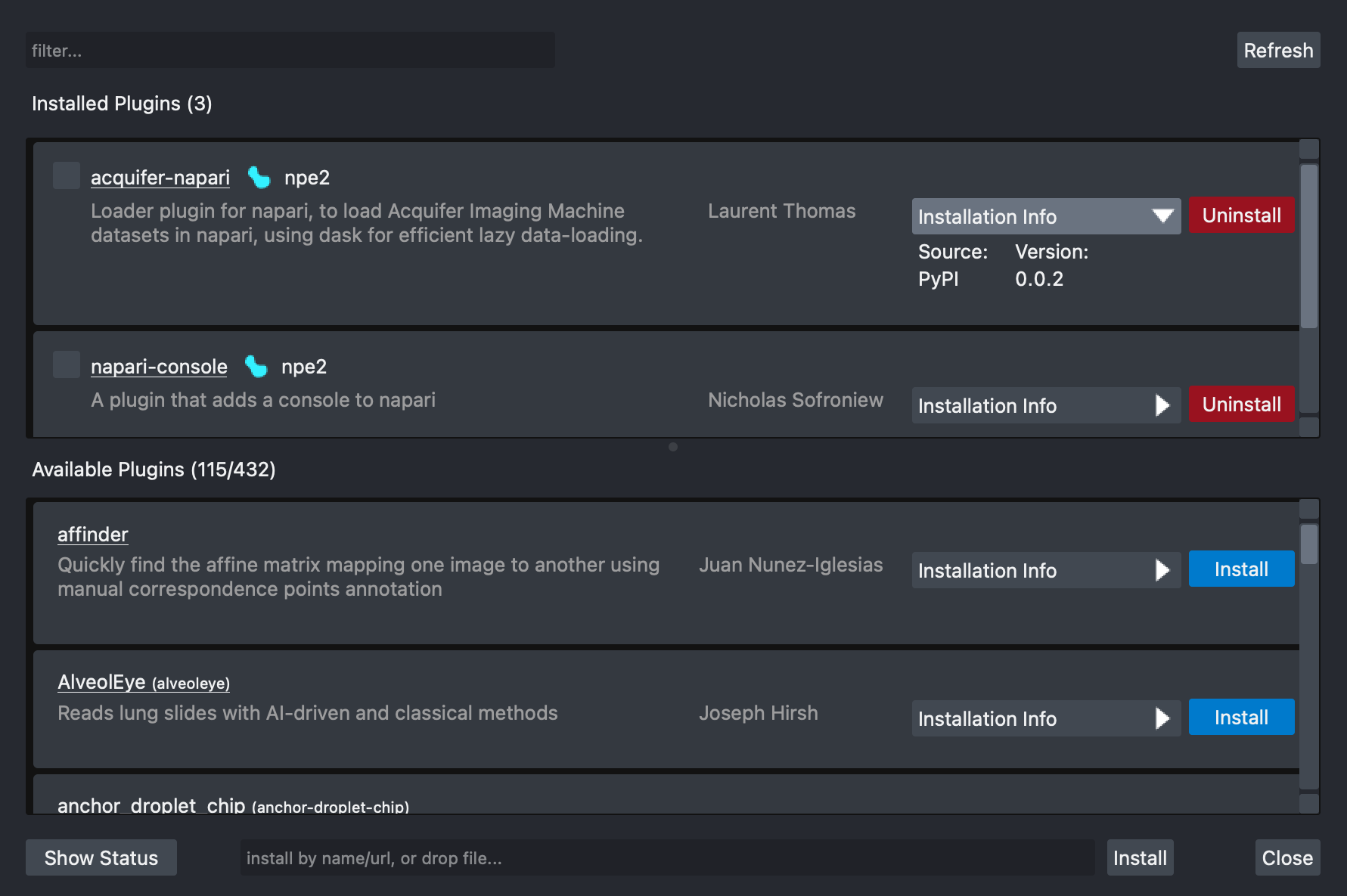
napari-plugin-manager knows how to detect if napari was installed using conda or pip and
provide the appropriate default installer tool on the Installation Info dropdown for each plugin.
conda provides an efficient dependency solver that guarantees the stability and correctness of
the napari installation and work environment. This is the reason why conda is the default tool
used for the napari
bundle, a 1-click
installer available for Mac, Linux and Windows. This installation method is best if you mainly want
to use napari as a standalone GUI app. However, certain plugins may not be supported.
Installation
PyPI
napari-plugin-manager is available through the Python Package Index and can be installed using pip.
pip install napari-plugin-manager
Conda
napari-plugin-manager is also available for install using conda through the conda-forge channel.
conda install napari-plugin-manager -c conda-forge
Using the napari plugin manager
Enabling/Disabling plugins
Installed plugins found on the current napari installation are displayed on the top list of the UI.
Users of napari can choose to enable/disable a specific plugin by checking/unchecking the checkbox to the left of each plugin item in the list.
Filtering
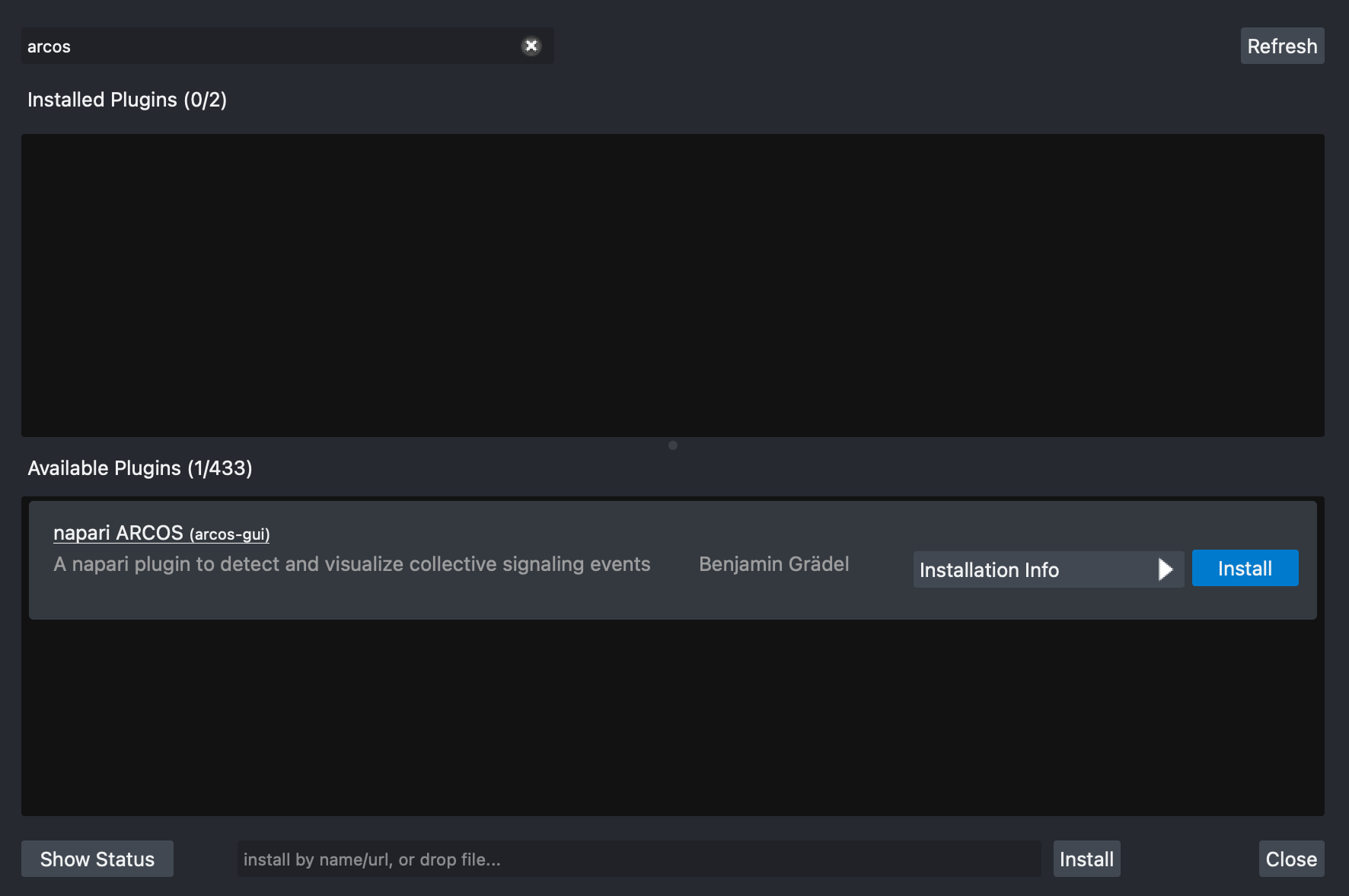
You can filter available plugins by name or description by typing on the search box on the top left corner of the UI. Only plugins that match the filter criteria will be shown.
In the image below filtering by the word arcos yields a single plugin, the
arcos-gui plugin. Notice that plugins that provide a display name, will show
the package name to the right in parenthesis.
Refreshing
If a new plugin has been released but it is not available on the list, you can click on the
Refresh button located at the top right corner, to clear the cache and load all newly
available plugins.
Installing a plugin
To install a plugin:
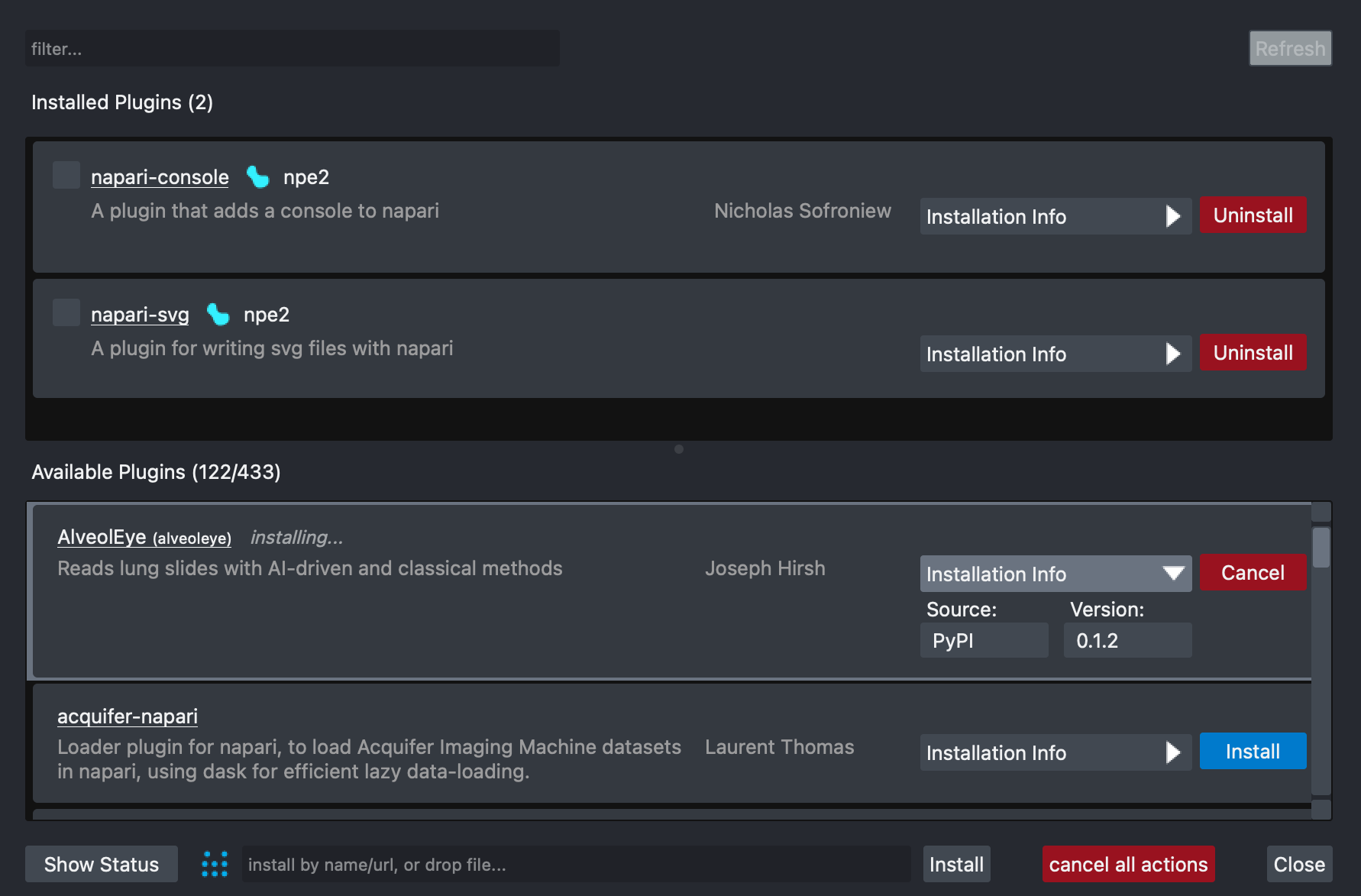
- Select it by scrolling the available plugins list on the bottom, or by directly filtering by name or description.
- Select the tool (
condaorpip) and version on theInstallation Infodropdown. - Start the installation process by clicking on the
Installbutton.
You can cancel the process at any time by clicking the Cancel button of each plugin.
Note: Not all napari plugins are currently available on conda via the conda-forge channel. Some plugins will require a restart to be properly configured.
Installing a plugin via direct entry
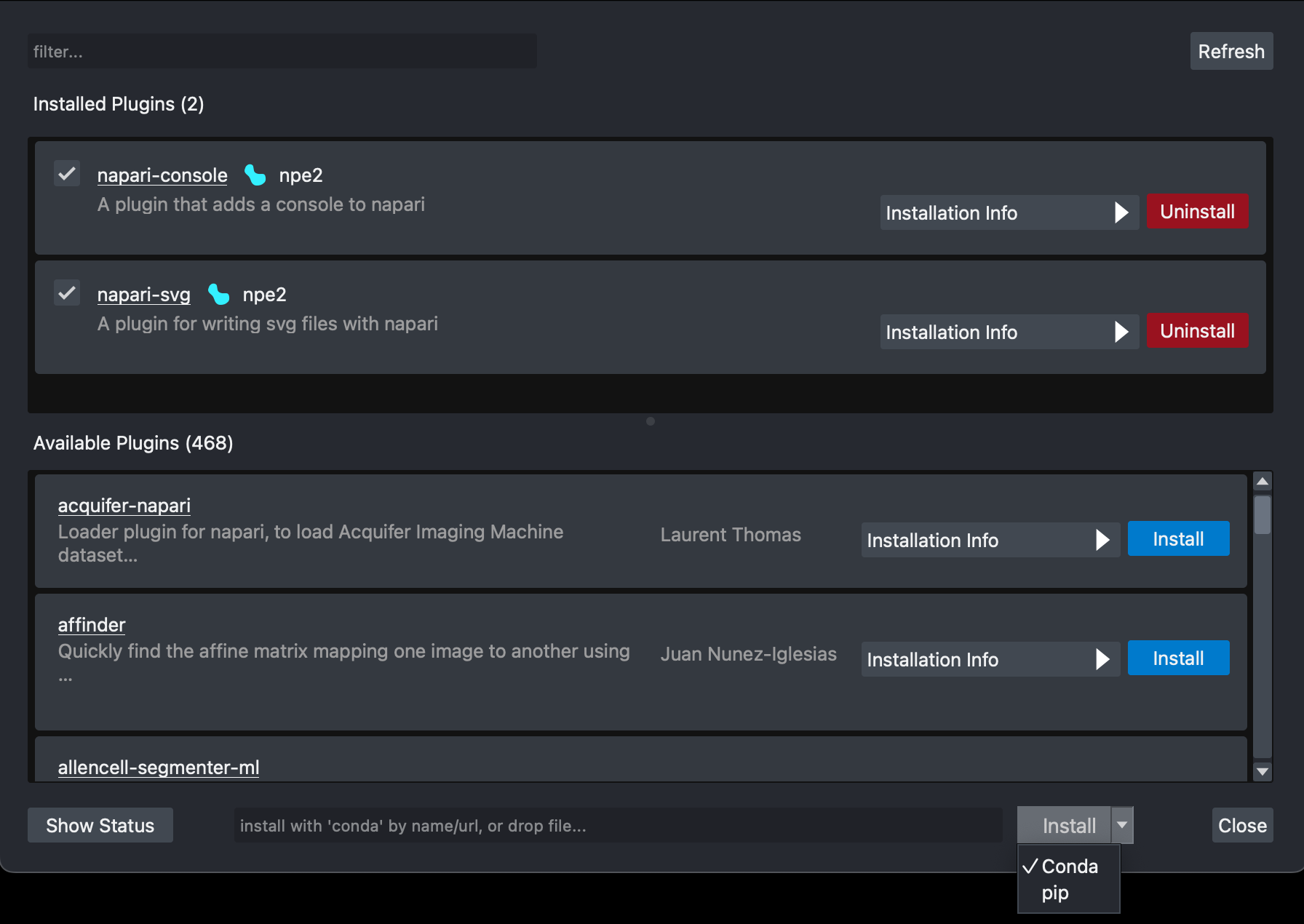
You can also install a napari plugin or any other package via the direct entry option. The following steps correspond to the options and buttons located at the bottom of the dialog.
- You can type either the name of the package, a url to the resource or drag and drop a compressed file of a previously downloaded package.
- Select the tool (
condaorpip) by clicking on the arrow dorpdown of theInstallbutton. - Start the installation process by clicking on the
Installbutton.
You can cancel the process at any time by clicking the Cancel all button.
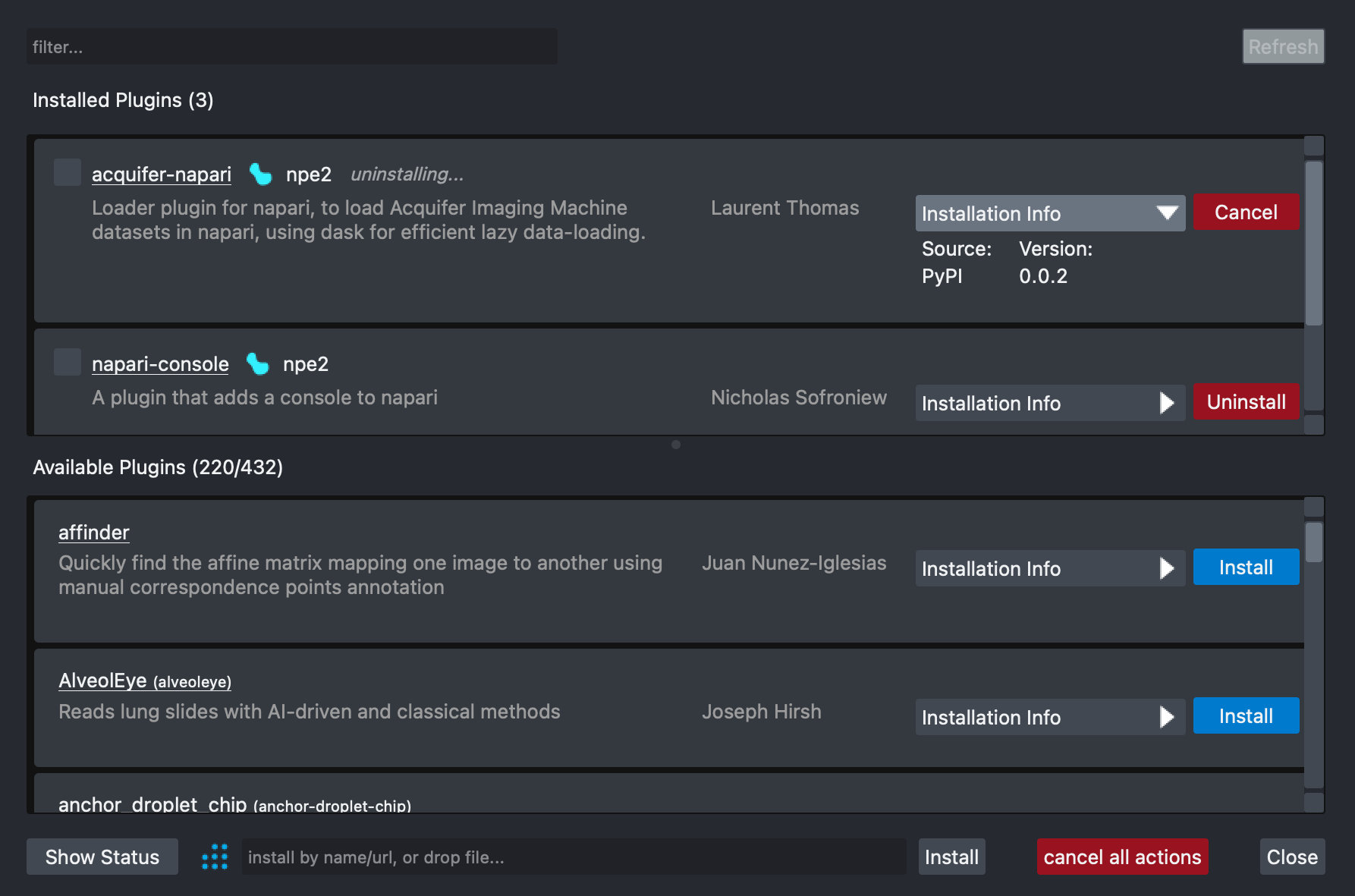
Uninstalling a plugin
To uninstall a plugin:
- Select it by scrolling the installed plugins list on the top, or by directly filtering by name or description.
- Start the removal process by clicking on the
Uninstallbutton.
You can cancel the process at any time by clicking the Cancel button of each plugin.
Note: Some plugins will require a restart to be properly removed.
Updating a plugin
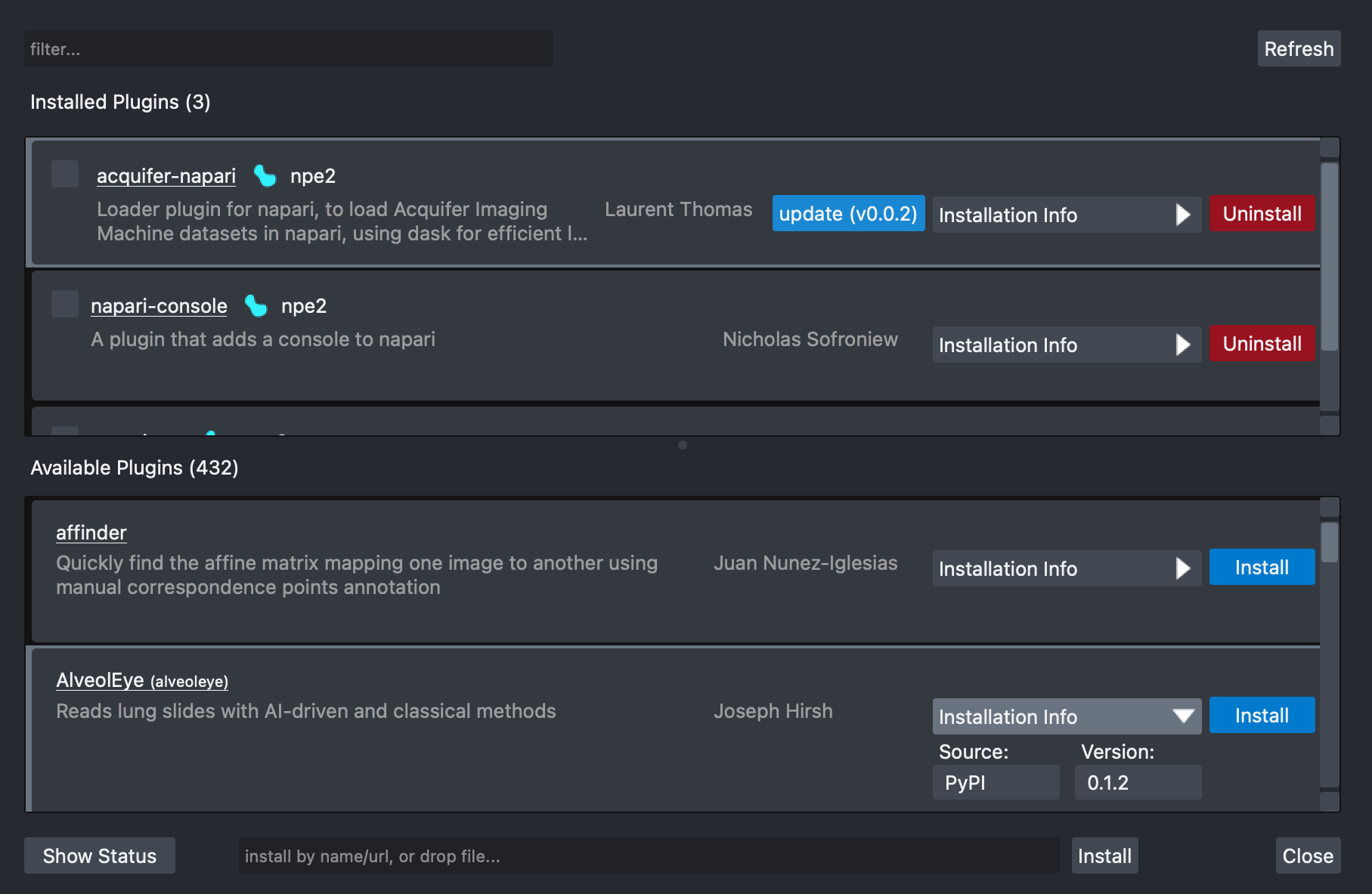
When a new version of an installed plugin is available, an Update (vX.Y.Z)
button will appear to the left of the Installation Info dropdown.
To update a plugin:
- Select it by scrolling the install plugins list on the top, or by directly filtering by name or description.
- Start the update process by clicking on the
Update (vX.Y.Z)button.
You can cancel the process at any time by clicking the Cancel button of each plugin.
Export/Import plugins
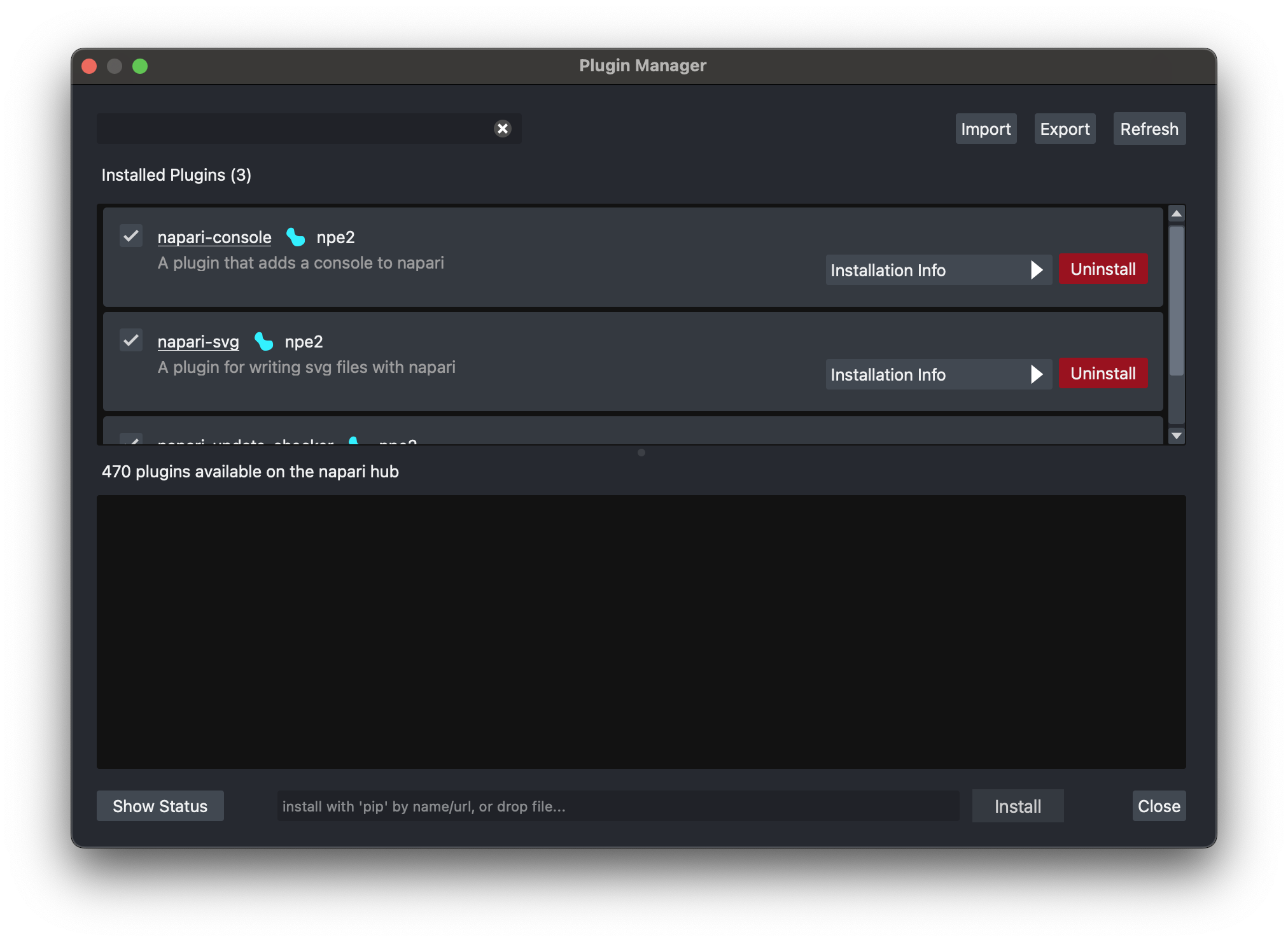
You can export the list of install plugins by clicking on the Export button located on the top right
corner of the UI. This will prompt a dialog to select the location and name of the text file where
the installed plugin list will be saved.
The file is plain text and plugins are listed in the requirements.txt format:
plugin_name==0.1.2
This file can be shared and then imported by clicking on the Import button located on the top right
corner of the UI. This will prompt a dialog to select the location of the text file to import.
After selecting the file, the plugin manager will attempt to install all the listed plugins using the auto-detected default installer.
Batch actions
You don't need wait for one action to finish before you can start another one. You can add more tasks to the queue (install/uninstall/update) by clicking on the corresponding action buttons plugin by plugin. The actions will be carried out sequentially and in the order in which you started them.
You can cancel all the started installer actions at any time by clicking Cancel all
button at the bottom of the UI.
Troubleshooting
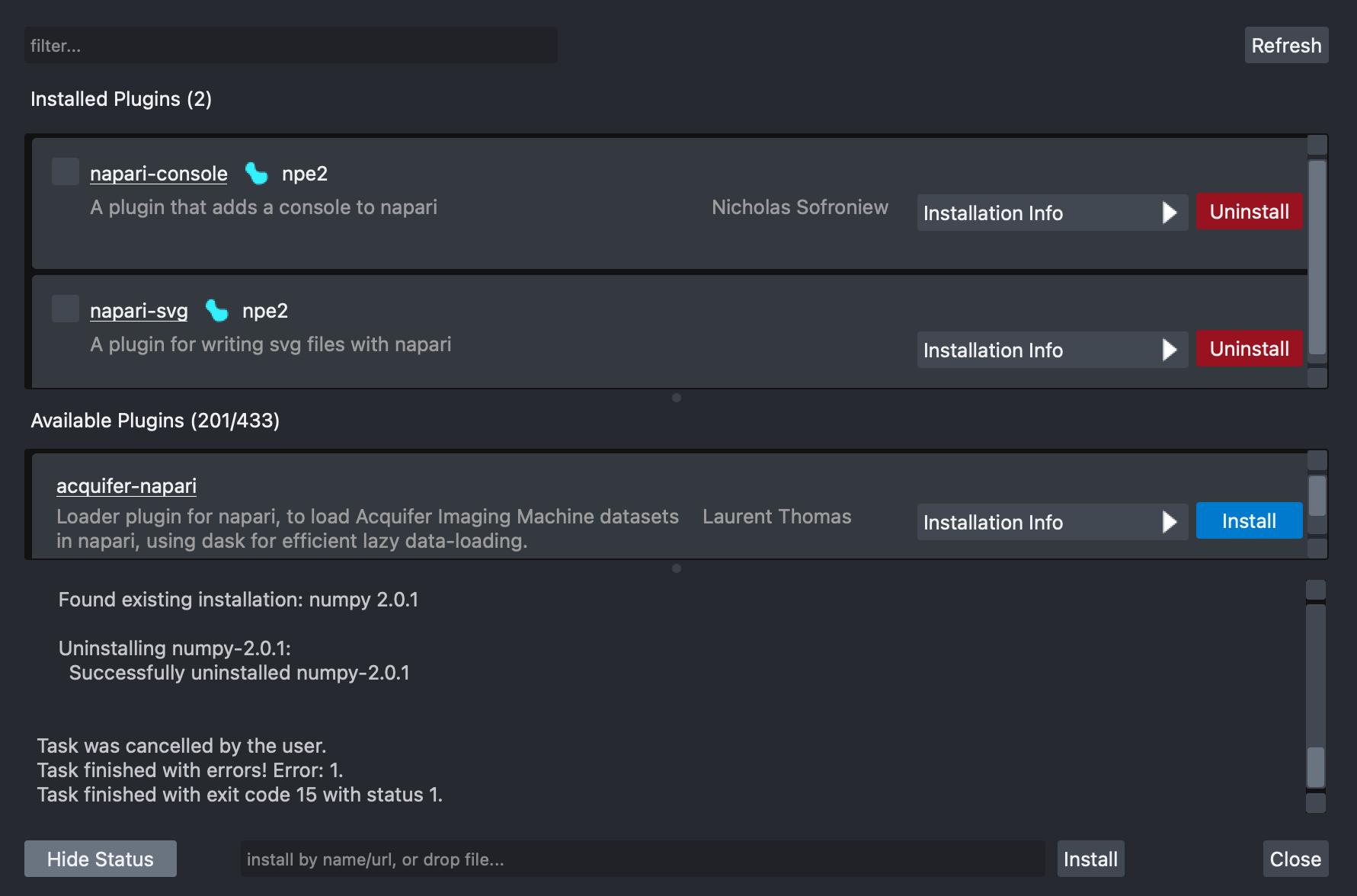
In order to visualize more detailed information on the installer process output, you can
click on the Show status button located at the bottom left corner of the UI. To hide
this detailed information you can click on the Hide status button.
Some issues that you might experience when using the installer include:
- Incompatible packages due to conflicting dependencies.
- Network connectivity errors.
License
Distributed under the terms of the BSD-3 license, "napari-plugin-manager" is free and open source software.
Issues
If you encounter any problems, please file an issue along with a detailed description.


Release files for napari-plugin-manager 0.1.11
For a detailed explanation of source distributions (sdists) and built distributions (wheels), please see the package formats documentation.
Source distribution (sdist)
| File | Size | Uploaded | |
|---|---|---|---|
| napari_plugin_manager-0.1.11.tar.gz | 1.8 MB | Details |
Built distribution (wheel)
| File | Interpreter | ABI | Platform | Reset |
|---|---|---|---|---|
| napari_plugin_manager-0.1.11-py3-none-any.whl | Python 3 | none | any | Details |
Total release size: 1.8 MB
Release files / napari_plugin_manager-0.1.11.tar.gz
| Download URL | napari_plugin_manager-0.1.11.tar.gz |
|---|---|
| Size | 1.8 MB |
| Tags | Source |
|
SHA-256 checksum How to use checksums |
aab4c7564b9a56400ab452712cb0efdb956e6b1cbcdd1396707fe93e59c75c84
|
|
BLAKE2b-256 checksum How to use checksums |
29ff0a8a2985d252aa229a5032ca2f595a0dcb41209218107adb0960f2cf5fff
|
| Upload date | |
|
Uploaded using Trusted Publishing? What is trusted publishing? |
Yes |
| Uploaded via |
twine/6.1.0 CPython/3.13.7
|
Provenance
Provenance describes where a file came from. On PyPI, provenance is shared via attestations, which provide a verifiable record of the build or publishing details. View details, limitations and caveats.


PyPI Publish Attestation
PyPI verified that this artifact, at this checksum, originated from the publisher listed below.
Signed by GitHub Actions, verified by PyPI on Mar 19, 2026.
Transparency logRelease files / napari_plugin_manager-0.1.11-py3-none-any.whl
| Download URL | napari_plugin_manager-0.1.11-py3-none-any.whl |
|---|---|
| Size | 48.2 kB |
| Tags | Python 3 |
|
SHA-256 checksum How to use checksums |
8d74909792726229144ecd4fa7226c2c5df495364fb71332850b5b2768b5fe92
|
|
BLAKE2b-256 checksum How to use checksums |
64268252279412e915d0161c7f826e0378cfd77b50ed634bf04288d822146850
|
| Upload date | |
|
Uploaded using Trusted Publishing? What is trusted publishing? |
Yes |
| Uploaded via |
twine/6.1.0 CPython/3.13.7
|
Provenance
Provenance describes where a file came from. On PyPI, provenance is shared via attestations, which provide a verifiable record of the build or publishing details. View details, limitations and caveats.
PyPI Publish Attestation
PyPI verified that this artifact, at this checksum, originated from the publisher listed below.
Signed by GitHub Actions, verified by PyPI on Mar 19, 2026.
Transparency log













