
A NetBox plugin for pinging and discovering IPs

Project description
NetBox Ping




A NetBox plugin for pinging, discovering, and monitoring IP addresses directly from your NetBox instance.
Other plugins: NetBox Map · Website · Demo
Features
- Ping individual IPs — one-click ping from any IP address detail page
- Scan prefixes — ping all existing IPs in a prefix at once
- Discover new hosts — scan entire subnets to find and add active IPs not yet in NetBox
- Bulk operations — select multiple prefixes from the list view and scan/discover in bulk
- Auto-scan scheduling — configure recurring scans and discovery globally or per-prefix
- Per-prefix schedule overrides — three modes: Follow Global, Custom On, or Custom Off
- DNS resolution — automatic reverse DNS lookups with configurable DNS servers
- DNS sync to NetBox — write resolved DNS names back to IPAddress records with change history
- Skip reserved IPs — optionally skip pinging IPs with "reserved" status during scans
- Email digest notifications — periodic summary emails with IP state changes, new discoveries, DNS changes, and high-utilization alerts
- Ping Status columns — sortable status columns injected into the core IP Address and Prefix tables
- Status panels — ping results shown on IP Address and Prefix detail pages
- Background jobs — all scan/discover operations run as NetBox background jobs
- Dark mode compatible
Requirements
- NetBox 4.5.0 or later
- Python 3.12 or later
pingcommand available on the NetBox server- NetBox background worker running (
netbox-rq)
Installation
From PyPI
source /opt/netbox/venv/bin/activate
pip install netbox-ping
From source
source /opt/netbox/venv/bin/activate
pip install git+https://github.com/DenDanskeMine/netbox-ping.git
Enable the plugin
Add netbox_ping to your NetBox configuration.py:
PLUGINS = [
    'netbox_ping',
]
Apply migrations
cd /opt/netbox/netbox
python3 manage.py migrate
Restart services
sudo systemctl restart netbox netbox-rq
INFO
If you are upgrading from V1 and getting migration errors, please run the following:
sudo -u postgres psql netbox -c "DELETE FROM django_migrations WHERE app = 'netbox_ping';"
sudo /opt/netbox/venv/bin/python manage.py migrate netbox_ping
Usage
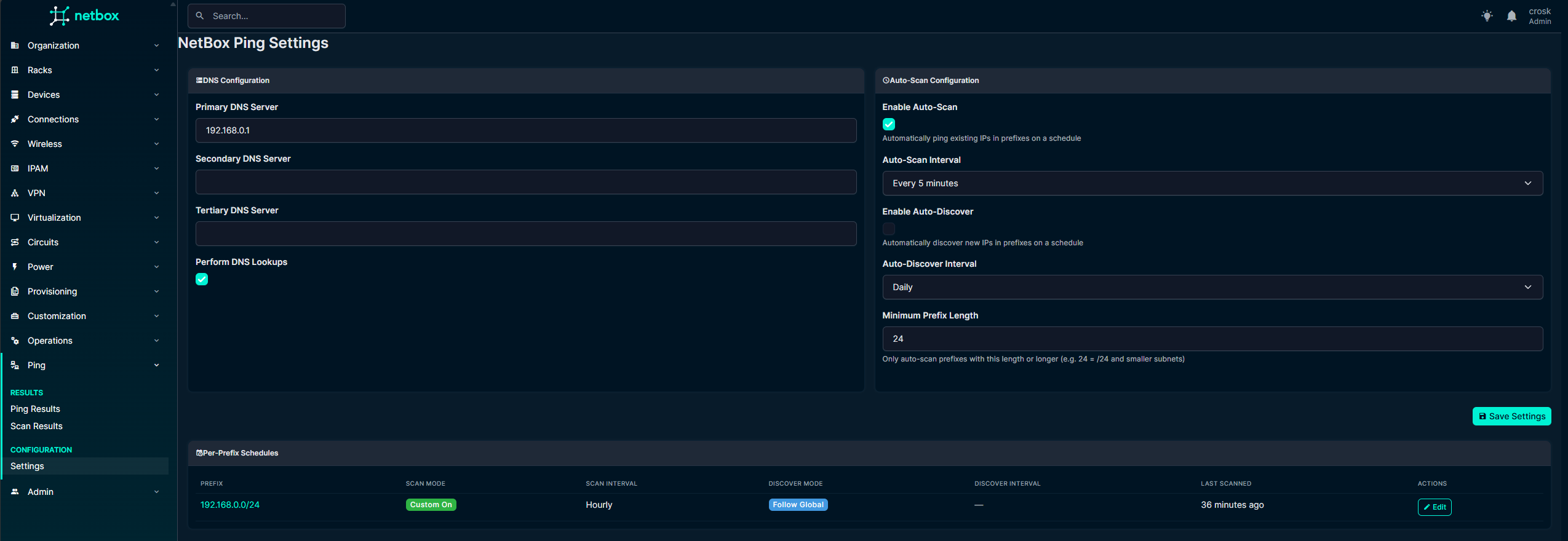
New settings Page
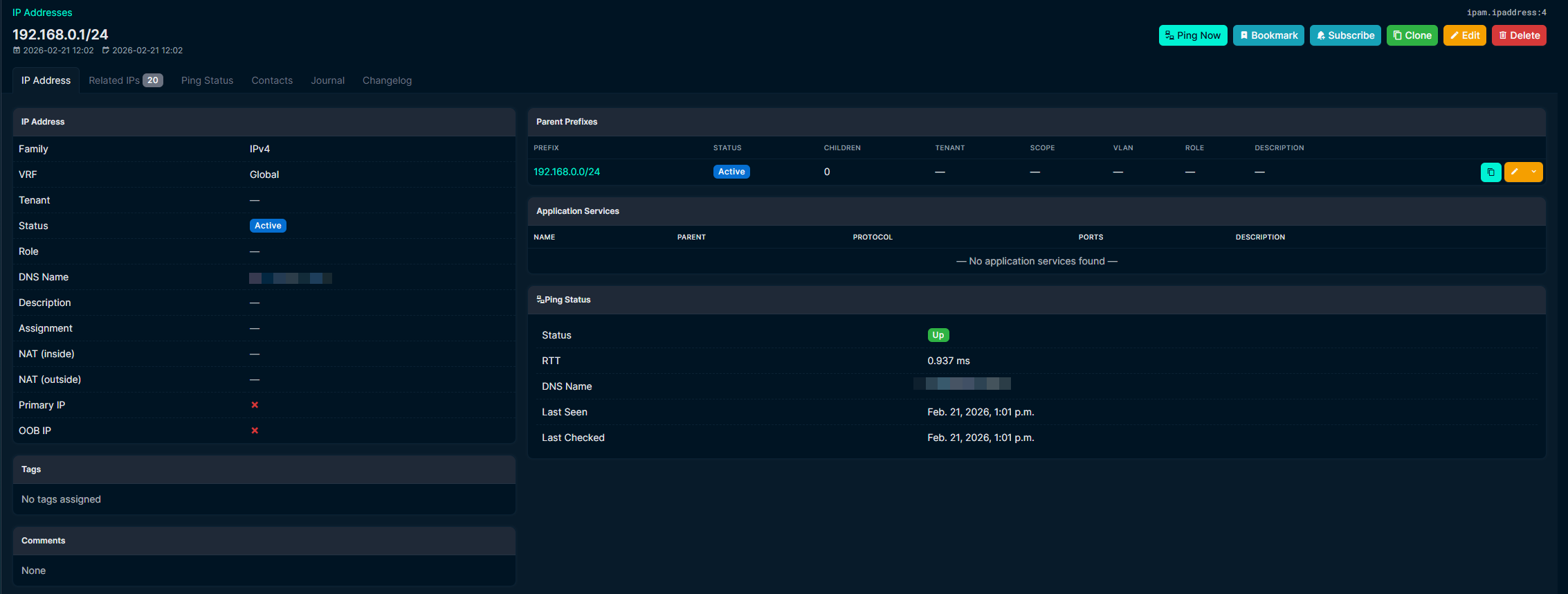
Ping a single IP
Navigate to any IP address in NetBox. Click the Ping Now button to ping it immediately. Results appear in the side panel showing reachability, response time, DNS name, and last seen time.
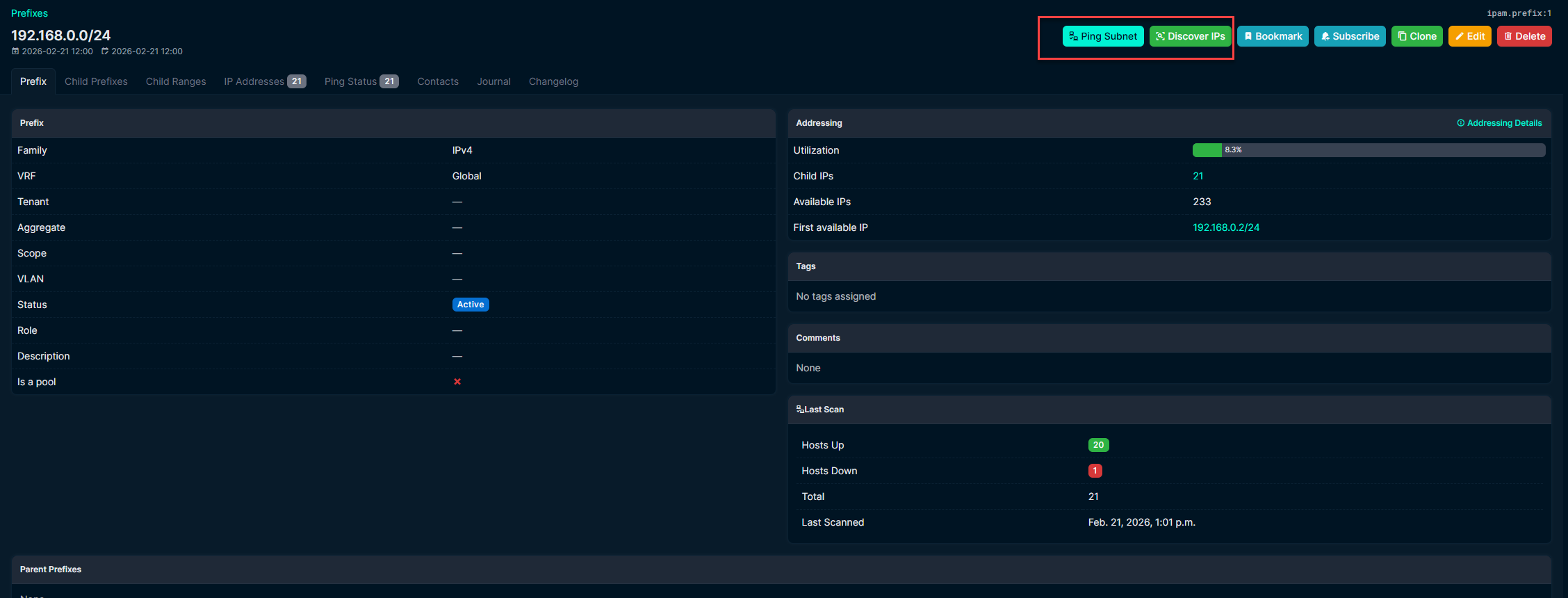
Scan a prefix
Navigate to a prefix and click the Ping Subnet button to ping all existing IPs in that prefix. Or click Discover IPs to scan the entire subnet range and automatically create new IP addresses for any responding hosts.
Bulk operations
From the prefix list view, select one or more prefixes using the checkboxes, then click Ping Selected or Discover Selected to scan them all.

Custom Status badge
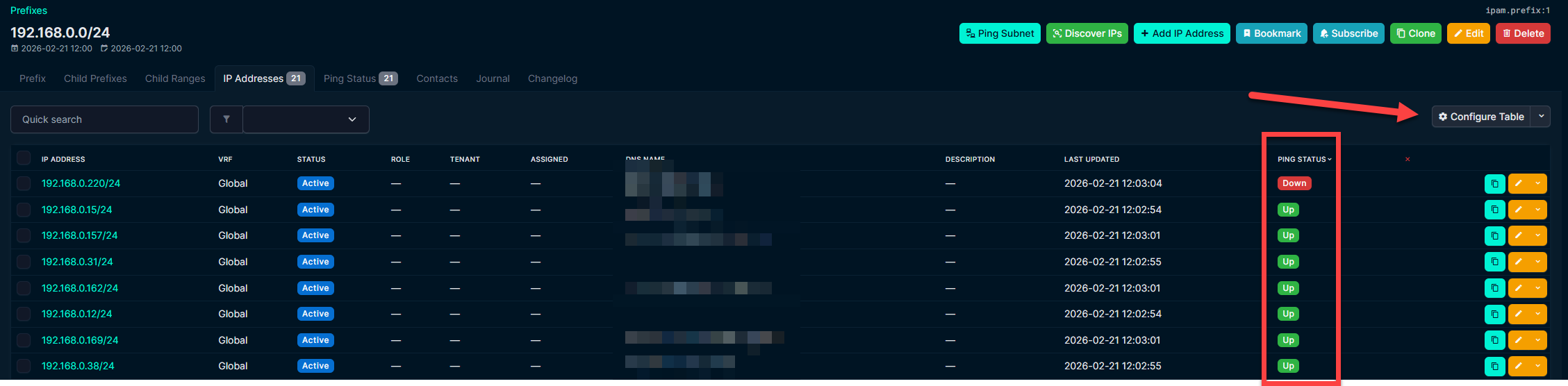
View results
- Plugins > Ping > Ping Results — table of all individual IP ping results
- Plugins > Ping > Scan Results — table of all prefix scan summaries
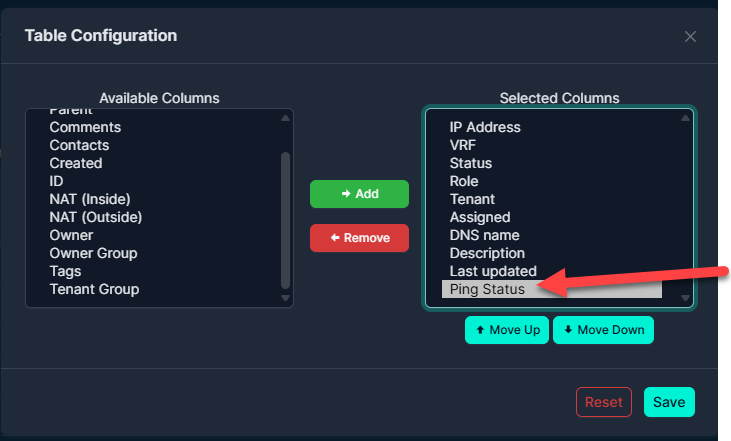
- Ping Status column — enable the "Ping Status" column in the IP Address or Prefix table column configuration
Auto-scan scheduling
- Go to Plugins > Ping > Settings
- Enable Auto-Scan and/or Auto-Discover and choose an interval
- Set the Minimum Prefix Length to control which prefixes are scanned (default: /24)
- The system job runs every minute and dispatches scans for prefixes that are due
Per-prefix schedule overrides
From a prefix's Ping Status tab, you can override the global schedule:
| Mode | Behavior |
|---|---|
| Follow Global | Uses whatever the global setting is (default) |
| Custom On | Always scans at a custom interval, regardless of global setting |
| Custom Off | Never auto-scans, even if global is enabled |
Configuration
DNS settings
Configure up to three DNS servers for reverse lookups in Plugins > Ping > Settings. DNS lookups are performed on reachable IPs to resolve their hostname.
DNS sync to NetBox
Writes resolved DNS names back to the built-in IPAddress.dns_name field. Enable in Plugins > Ping > Settings under the DNS Configuration card.
| Setting | Description |
|---|---|
| Sync DNS to NetBox | Master toggle — write resolved names back to IPAddress records |
| Clear DNS on Missing | Clear the DNS name field when reverse lookup returns empty |
| Preserve DNS if Alive | Keep existing DNS name if the host is alive but lookup fails (overrides clear) |
All changes are tracked in a DNS History log visible on each IP's Ping Status tab.
Skip reserved IPs
Enable Skip Reserved IPs in settings to exclude IPs with a "reserved" status from being pinged during scans. Skipped IPs are shown with a yellow "Skipped" badge instead of Up/Down.
Email digest notifications
Sends periodic summary emails with IP state changes, new discoveries, DNS changes, and high-utilization prefix alerts. Uses NetBox's existing EMAIL settings from configuration.py — no separate SMTP config needed.
- Go to Plugins > Ping > Settings
- Enable Email Notifications and add recipient addresses (comma-separated)
- Choose a Digest Interval (hourly, every 6/12 hours, daily, or weekly)
- Configure optional settings:
| Setting | Default | Description |
|---|---|---|
| Include Details | On | Show per-IP change tables grouped by prefix |
| Utilization Threshold | 90% | Alert on prefixes at or above this utilization (0 = disabled) |
| Send on Change Only | On | Skip sending if there are no events or high-utilization alerts |
Use the Send Test Email button to verify SMTP delivery, or Send Digest Now to send a real digest with current data without waiting for the next scheduled run.
Auto-scan intervals
Available intervals: 5 minutes, 15 minutes, 30 minutes, hourly, every 6 hours, every 12 hours, daily, weekly.
Performance Tuning
Concurrent pings per job
Each scan job pings multiple hosts in parallel. The thread count is configurable in Plugins > Ping > Settings under Concurrent Pings (default: 100).
To go above ~240, you need to raise the file descriptor limit for the netbox-rq service. Add LimitNOFILE=65535 to /etc/systemd/system/netbox-rq.service:
[Service]
LimitNOFILE=65535
Then reload, restart, and increase the setting in the UI:
sudo systemctl daemon-reload
sudo systemctl restart netbox-rq
Development
git clone https://github.com/DenDanskeMine/netbox-ping.git
cd netbox-ping
pip install -e .
License
This project is licensed under the Apache License 2.0 — see the LICENSE file for details.
Support
- Open an issue on GitHub
- Check existing issues for answers
Release history Release notifications | RSS feed


Download files
Download the file for your platform. If you're not sure which to choose, learn more about installing packages.
Source Distribution
Built Distribution
Filter files by name, interpreter, ABI, and platform.
If you're not sure about the file name format, learn more about wheel file names.
Copy a direct link to the current filters
File details
Details for the file netbox_ping-2.1.4.tar.gz.
File metadata
- Download URL: netbox_ping-2.1.4.tar.gz
- Upload date:
- Size: 40.1 kB
- Tags: Source
- Uploaded using Trusted Publishing? No
- Uploaded via: twine/6.2.0 CPython/3.12.12
File hashes
| Algorithm | Hash digest | |
|---|---|---|
| SHA256 |
d3ce2e6d3e9d82c94722d76b6e0a93b3dd7710e83b3fda3a4bb6ac4b82237a39
|
|
| MD5 |
301759a1bc4b8a407f8b3248888c3c29
|
|
| BLAKE2b-256 |
ff34ed33e942c1dfd594b4801ac748573847f5447ad89b690bc3b11b1f326654
|
File details
Details for the file netbox_ping-2.1.4-py3-none-any.whl.
File metadata
- Download URL: netbox_ping-2.1.4-py3-none-any.whl
- Upload date:
- Size: 51.9 kB
- Tags: Python 3
- Uploaded using Trusted Publishing? No
- Uploaded via: twine/6.2.0 CPython/3.12.12
File hashes
| Algorithm | Hash digest | |
|---|---|---|
| SHA256 |
ae79a50a761a2b40e97ab37952228f6bb100131b97bc4219449e945fd55150bf
|
|
| MD5 |
d57c657ec7ef758f5056ddac57aa8b69
|
|
| BLAKE2b-256 |
42362cd3646a39448541338c74d6276959fc196562136b00918b06145926e51a
|






