
Netwatch TUI (netwatchpy)


A TUI (Text-based User Interface) for monitoring network usage in real-time, with support for data limits and desktop notifications.
Features
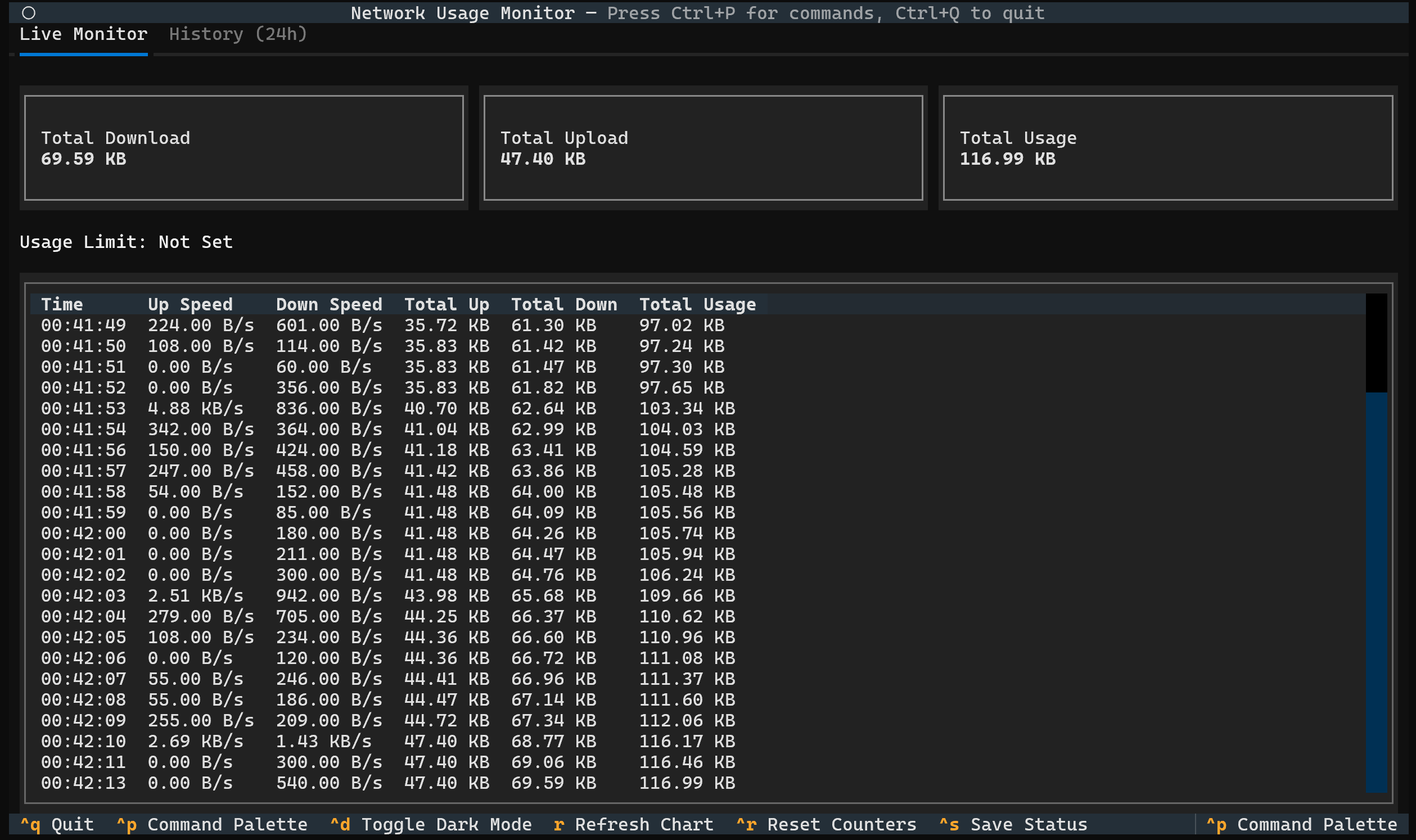
- Real-time Dashboard: A clean, terminal-based dashboard showing total download, upload, total usage, and live combined current speed.
- Smart Quota Dashboard & Burn-Rate ETA: Set data caps (e.g.,
-l 10GB) with a real-time progress bar, remaining balance, and live countdown (ETA) calculated from active burn rate. - Per-Interface Monitoring: Inspect bandwidth, upload/download speeds, and live 2D activity graphs segmented per active network adapter (e.g., Wi-Fi, Ethernet) with automatic loopback filtering.
- Universal Desktop Notifications: Native alerts across Windows (WinRT Toast with custom icon), macOS (AppleScript Notification Center), and Linux (D-Bus / notify-send) when reaching 80% and 100% data thresholds.
- Historical Analytics: View your usage trends for the last 24 hours with hourly breakdown, peak hour identification, and traffic statistics including download/upload percentages and average usage.
- Crash-Proof Database: Powered by SQLite with Write-Ahead Logging (WAL) to ensure your data is safe even if your PC loses power.
- Automated Data Retention & Downsampling: Automatically compresses older records into hourly averages (min, max, average speeds) and purges raw records older than the retention threshold (default: 7 days) to prevent database bloat.
- Smart Units: Toggle between Bits (Mbps) and Bytes (MB/s) instantly with Ctrl+B to match ISP speeds or file sizes.
- Optimized TUI Experience: Responsive, non-scrolling footer keybindings built for standard 80-column viewports and debounced top-bar status feedback.
- Command Palette & Dark Mode: A modern TUI experience with a built-in command palette (
Ctrl+P) and dark mode support (Ctrl+D). - Auto-Migration: Automatically detects and imports data from older versions (
quota.json) so you never lose history. - Cross-Platform: Runs seamlessly on Windows, macOS, and Linux.
Installation
Option 1: Standalone Binary (Easiest)
No Python required.
- Download
netwatch-windows.exefrom the Releases Page. - Basic Usage: Double-click the file to start monitoring immediately.
- Advanced Usage: To set limits (e.g.,
-l 10GB), open your terminal (PowerShell/CMD) in the download folder and run:.\netwatch-windows.exe -l 10GB
Option 2: Install via PyPI (Recommended for CLI)
Designed for Python 3.8+ and distributed on PyPI for simple installation with pip.
pip install netwatchpy
Usage
Once installed, the netwatch command will be available in your terminal.
To start the monitor (monitors all interfaces):
netwatch
To see all available options and help:
netwatch --help
Command-Line Arguments
You can control the monitor with these arguments:
-
-h,--help- Shows the help message and all options.
-
-i INTERFACE,--interface INTERFACE- Monitors a single, specific network interface (e.g., -i "Wi-Fi"). Defaults to "all".
-
-l LIMIT,--limit LIMIT- Sets a data cap and shows a progress bar (e.g., -l "10GB" or -l "500MB").
-
--log LOG- Saves all network activity to a specified CSV file (e.g., --log "usage.csv").
-
--retention-days RETENTION_DAYS- Sets the retention policy in days for granular 1-second records (default:
7). Records older than this are rolled up into hourly summaries before purging.
- Sets the retention policy in days for granular 1-second records (default:
Examples
Set a 10GB data limit:
netwatch -l "10GB"
Set custom data retention (e.g., 14 days):
netwatch --retention-days 14
Monitor a specific interface ("Wi-Fi") and log to a file:
netwatch -i "Wi-Fi" --log "my_usage.csv"
In-App Keybindings
Ctrl+P: Open the Command PaletteCtrl+D: Toggle Dark / Light ThemeCtrl+B: Toggle Unit format between Bits (Mbps) and Bytes (MB/s)R: Refresh the 24-hour history chart and analyticsCtrl+R: Reset all counters and database records to zeroCtrl+S: Show auto-save status (data is continuously auto-saved to SQLite)Ctrl+Q: Quit the application safely
Understanding the Interface
1. Live Monitor Tab
This is the default view. It shows:
- Summary Cards: Four live telemetry cards displaying Total Downloaded, Total Uploaded, Total Bandwidth (combining session usage and stored history), and Current Speed (live combined upload and download throughput).
- Smart Quota Dashboard & Burn-Rate ETA: When a data cap is configured (
-l), a compact 3-row dashboard appears above the activity log:- Usage Limit Header: Displays the target limit (e.g.,
Usage Limit: 10.00 GB). - Dynamic Progress Bar: Real-time visual progress bar tracking data consumption. Automatically shifts color to yellow at 80% and red at 100%.
- Live Telemetry Badge: A compact status badge reporting exact remaining data (e.g.,
1.2 GB remaining), percentage consumed ((88.0%)), active burn-rate speed (• 4.5 MB/s), and dynamic countdown ETA forecaster (• ETA: 4m 27s, or• ETA: Idlewhen no active traffic is flowing).
- Usage Limit Header: Displays the target limit (e.g.,
- Live Activity Table: A scrolling table recording second-by-second download and upload speeds.
2. Per-Interface Tab
A split-pane view displaying segmented metrics for each active network interface:
- Sidebar (Left): Selectable list of active interfaces (virtual and loopback connections are automatically filtered out).
- Metrics Cards (Right): Current download/upload speeds, session totals, and hardware adapter totals for the selected interface.
- Real-time Activity Graph: An uncluttered 2D waveform chart plotting live traffic trends (
█= Download,░= Upload).
3. History Tab (24h)
This tab visualizes your traffic over the last 24 hours.
- Traffic Summary: Displays total upload/download with percentages, peak hour, and average usage per hour.
- Hourly Breakdown: Each row represents a 1-hour block of time (e.g., 14:00 covers 2:00 PM to 2:59 PM).
- The Bar:
- Solid Block (█): Represents Download traffic.
- Shaded Block (░): Represents Upload traffic.
- Peak Hour: Marked with a
(PEAK)tag indicating the hour of highest traffic volume. - Total: The text on the right shows the exact data transferred during that hour.
Tip: Press
rat any time to refresh the history chart with the latest database records.
Desktop Notifications
Netwatch provides native, cross-platform notifications when monitoring data limits:
- 80% Quota Warning: Triggered once total traffic reaches 80% of your configured limit.
- 100% Quota Exceeded: Triggered immediately when your limit is reached.
- Platform Integration:
- Windows: Native WinRT Toast notifications with the Netwatch emblem icon embedded in the attribution banner via Windows Shell AppUserModelId registration.
- macOS: Native AppleScript (
osascript) Notification Center alerts. - Linux: Desktop notifications via D-Bus with automatic fallback to
notify-send.
Bug Reports & Feature Requests
Found a bug or have a great idea? Please open an issue on the GitHub repository.
License
This project is licensed under the MIT License.
1 maintainer

Metadata
1 maintainer
Release files for netwatchpy 1.5.3
For a detailed explanation of source distributions (sdists) and built distributions (wheels), please see the package formats documentation.
Source distribution (sdist)
| File | Size | Uploaded | Provenance | |
|---|---|---|---|---|
| netwatchpy-1.5.3.tar.gz | 1.0 MB | Without provenance | Details |
Built distribution (wheel)
| File | Interpreter | ABI | Platform | Reset |
|---|---|---|---|---|
| netwatchpy-1.5.3-py3-none-any.whl | Python 3 | none | any | Details |
Total release size: 2.0 MB
Release files / netwatchpy-1.5.3.tar.gz
| Download URL | netwatchpy-1.5.3.tar.gz |
|---|---|
| Size | 1.0 MB |
| Tags | Source |
|
SHA-256 checksum How to use checksums |
381f596e184c630cdc8dabf570af39b0b64cf4b9ae49f9b6139f737d43e139d0
|
|
BLAKE2b-256 checksum How to use checksums |
cfc76f2348f64b8736948c058636516363d33c0223d486bbf4b98eda9228e516
|
| Upload date | |
|
Uploaded using Trusted Publishing? What is trusted publishing? |
No |
| Uploaded via |
twine/7.0.0 CPython/3.13.16
|
Release files / netwatchpy-1.5.3-py3-none-any.whl
| Download URL | netwatchpy-1.5.3-py3-none-any.whl |
|---|---|
| Size | 1.0 MB |
| Tags | Python 3 |
|
SHA-256 checksum How to use checksums |
f70fd253671b48159ffdbcc2b3fcb5b82691de2fc7cde40376a4e9e0cd998a64
|
|
BLAKE2b-256 checksum How to use checksums |
438212d61b013e1d655410967397230736bad991d127607c37d00451c937fa85
|
| Upload date | |
|
Uploaded using Trusted Publishing? What is trusted publishing? |
No |
| Uploaded via |
twine/7.0.0 CPython/3.13.16
|
Security for netwatchpy 1.5.3
Provenance
Provenance describes where a file came from. On PyPI, provenance is shared via attestations, which provide a verifiable record of the build or publishing details. View details, limitations and caveats.
No provenance found
None of the files in this release were uploaded with provenance metadata.
A note on package security
PyPI is a repository for distributing packages, not a service for auditing them. While third-party security researchers and our staff do their best to detect and remove malicious packages, PyPI cannot guarantee the quality, security or suitability of any given package.














