
NOAA JetStream — Cloud Data Management Transfer System
A comprehensive web-based application for managing Google Cloud Storage uploads and Google Drive transfers, with features including job queuing, real-time analytics, and batch processing capabilities.
Features
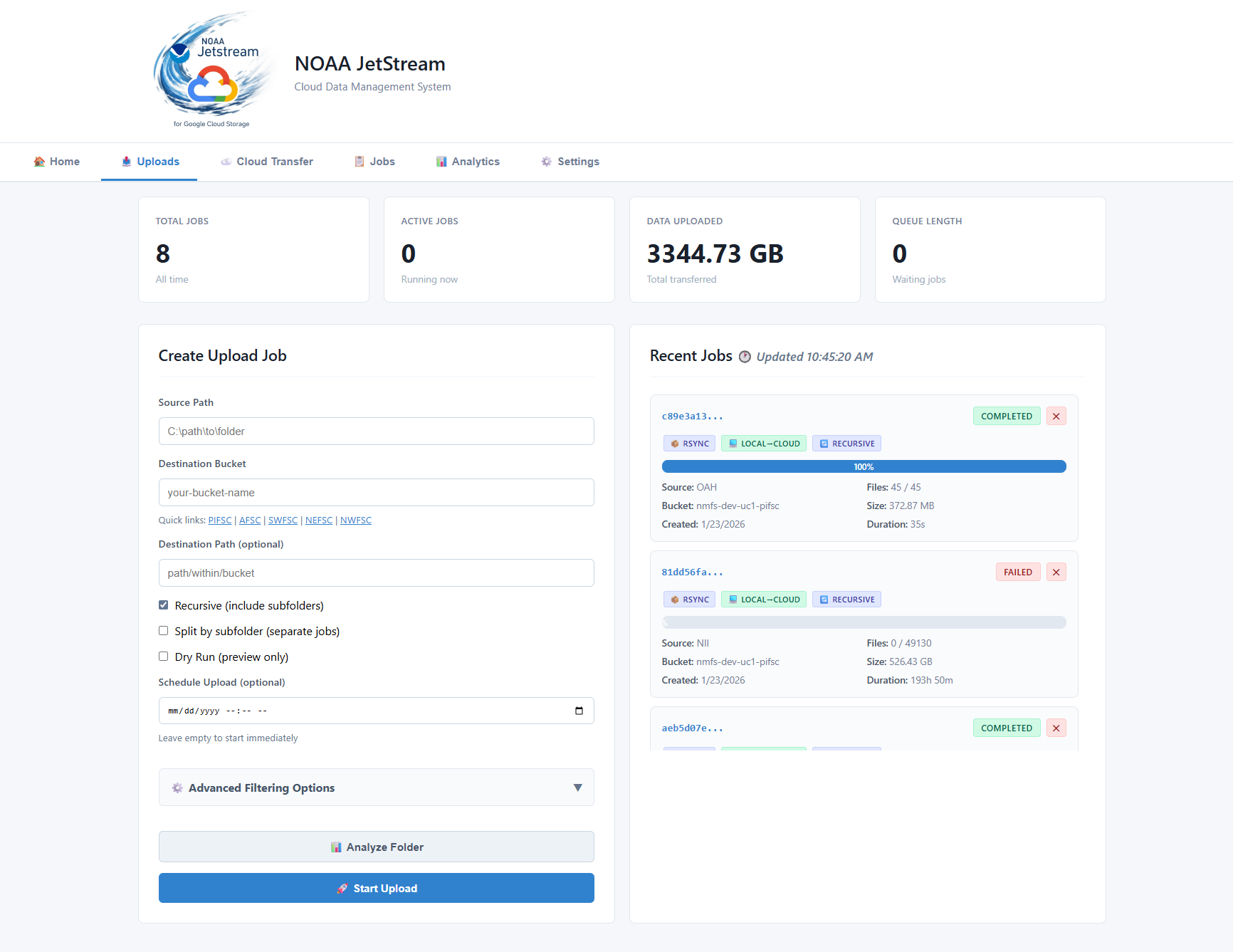
- Upload Management — queue-backed GCS uploads with retry, scheduling, and no-clobber support
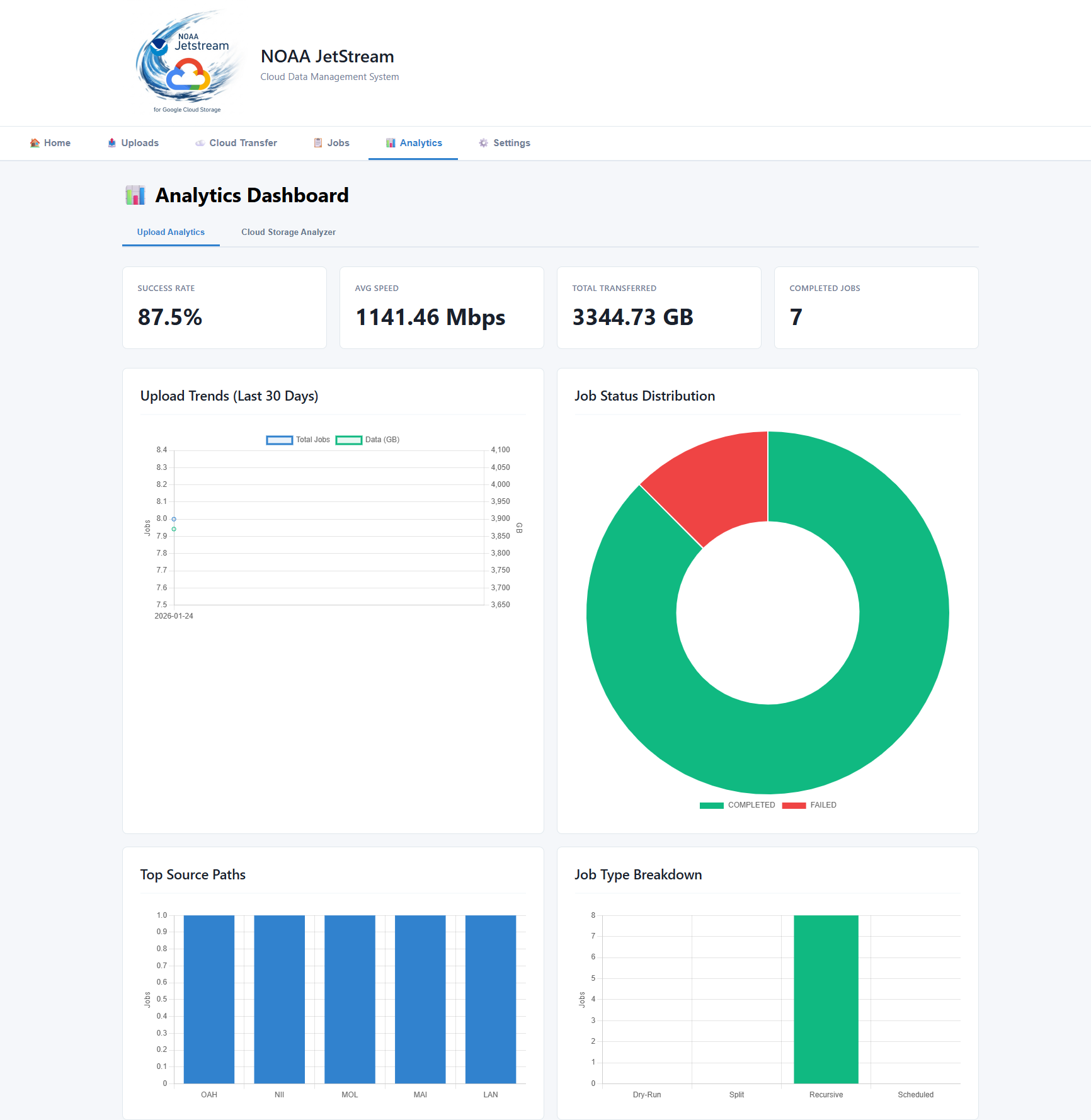
- Analytics & Monitoring — real-time job stats, file-type breakdown, activity timeline
- Cloud Bucket Analysis — browse and analyze GCS bucket contents
- Native Google Drive Upload — OAuth-authenticated upload and folder sync to Google Drive
- File Filtering — include/exclude patterns for uploads
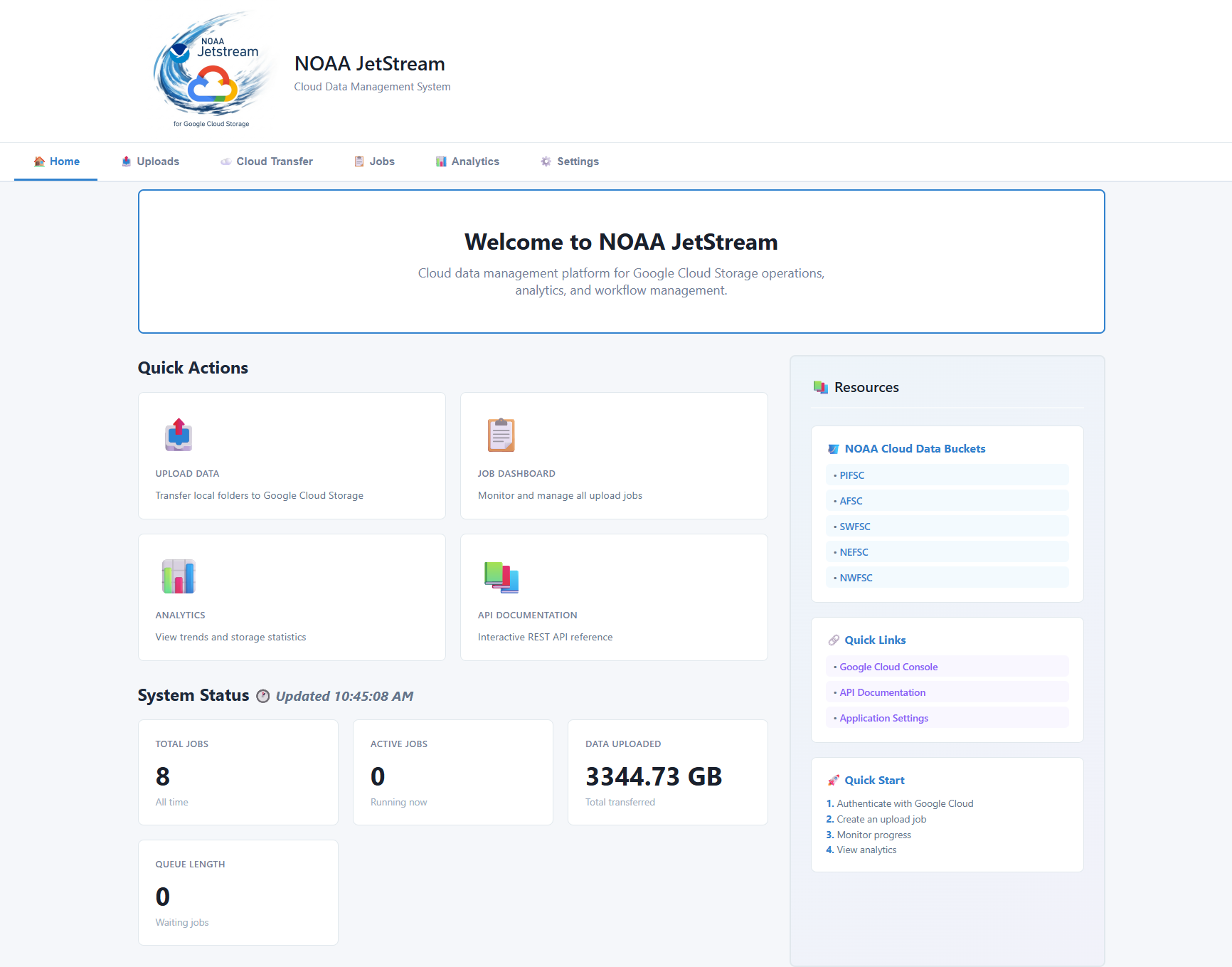
- Web Dashboard — browser-based UI
- Terminal UI (TUI) — full-featured htop-style dashboard for terminals and remote sessions
Screenshots
| Dashboard | Upload Jobs | Analytics |
|---|---|---|
 |
 |
 |
This guide is for first-time users. Advanced setup, development instructions, Google Drive OAuth, audit commands, environment variables, and detailed TUI controls are in the advanced user guide.
What you need (prerequisites)
For the basic web dashboard:
- Windows 10 or later, macOS, or Linux
- Python 3.9 or newer
- Note: On Windows, Anaconda Distribution is recommended, which includes Anaconda Navigator, Conda, and Anaconda Prompt
- Google Cloud SDK — for cloud upload features
- Permissions to target cloud buckets
Step 0: Google Cloud Setup
Install Google Cloud SDK
# Authenticate command
gcloud auth login
Step 1: Install Anaconda on Windows
The easiest Windows setup for new users is Anaconda Distribution. It includes:
- Anaconda Navigator, a graphical application for managing environments and launching tools
- Anaconda Prompt, a terminal that already knows how to use
condaand Python
During installation, the default options are usually appropriate. After installation, open Anaconda Navigator from the Start menu when you want a graphical overview, or open Anaconda Prompt when you want to paste commands.

Step 2: Quick Install Start on Windows
1. Open Anaconda Prompt
In Windows Start menu Search, type anaconda and launch Anaconda Prompt. Paste the commands below into that window, one command at a time.

2. Install JetStream in the base environment

pip install noaa-jetstream
The pip install command installs JetStream into Anaconda's active base environment. This is the simplest setup for getting started. A separate conda environment is optional and is covered in the advanced guide.
pip is Python's package installer. It downloads and installs JetStream and its required Python components. After pasting the command, press Enter to run it and wait for the installation to finish.
3. Start the Jetstream Dashboard
jetstream
After pasting the command, press Enter to start JetStream.
JetStream starts a local server and normally opens your browser automatically. If it does not, open http://localhost:8000 yourself.

Keep the Anaconda Prompt window open while you use the dashboard. Press Ctrl+C in that window to stop the server.
4. Authenticate with Google Cloud when needed
Before using GCS upload, bucket browsing, or cloud analysis features, install the Google Cloud SDK and authenticate:
gcloud auth login
Note: Your Google account must have permission to access the target bucket. If Google reports
Reauthentication required, run the login command again.
What to do next
Once the dashboard is open:
- Use Uploads to select a local folder and create an upload job.
- Use Jobs to monitor queued, running, completed, and failed work.
- Use Analytics to review activity and file types.
- Use Cloud or Cloud Audit after Google Cloud authentication is complete.
Create Desktop Shortcuts
To create optional Windows desktop and Start Menu shortcuts for JetStream and Google Cloud authentication:
jetstream-create-shortcuts
This creates a JetStream launcher plus a GCloud Auth Login shortcut that opens gcloud auth login in a terminal.
Updating JetStream
Run this command in the same environment where JetStream was installed:
pip install --no-cache --upgrade noaa-jetstream
Check the available server options with:
jetstream --help
Troubleshooting
conda or jetstream is not recognized
Open Anaconda Prompt instead of a regular Command Prompt. Then install JetStream into the active base environment:
python -m pip install --upgrade noaa-jetstream
If conda is not available, install Anaconda Distribution and reopen Anaconda Prompt.
Port 8000 is already in use
Start JetStream on another port and open the matching URL:
jetstream --port 8080
Open http://localhost:8080.
The dashboard starts but cloud operations fail
Confirm that the Google Cloud SDK is available and that the correct account is active:
gcloud auth list
gcloud projects list
Also verify that your account has permission to access the bucket and that the bucket name is correct.
JetStream will not start
From a source checkout, run the diagnostic script in the project folder:
python diagnose.py
The diagnostic script requires Python 3.10 or newer. For additional startup logging, run:
jetstream --log-level debug
Disclaimer
This repository is a scientific product and is not official communication of the National Oceanic and Atmospheric Administration, or the United States Department of Commerce. All NOAA GitHub project content is provided on an 'as is' basis and the user assumes responsibility for its use. Any claims against the Department of Commerce or Department of Commerce bureaus stemming from the use of this GitHub project will be governed by all applicable Federal law. Any reference to specific commercial products, processes, or services by service mark, trademark, manufacturer, or otherwise, does not constitute or imply their endorsement, recommendation or favoring by the Department of Commerce. The Department of Commerce seal and logo, or the seal and logo of a DOC bureau, shall not be used in any manner to imply endorsement of any commercial product or activity by DOC or the United States Government.
License
See the LICENSE.md for details
1 maintainer

Metadata
1 maintainer
Release files for noaa-jetstream 0.1.29
For a detailed explanation of source distributions (sdists) and built distributions (wheels), please see the package formats documentation.
Source distribution (sdist)
| File | Size | Uploaded | |
|---|---|---|---|
| noaa_jetstream-0.1.29.tar.gz | 3.2 MB | Details |
Built distribution (wheel)
| File | Interpreter | ABI | Platform | Reset |
|---|---|---|---|---|
| noaa_jetstream-0.1.29-py3-none-any.whl | Python 3 | none | any | Details |
Total release size: 6.5 MB
Release files / noaa_jetstream-0.1.29.tar.gz
| Download URL | noaa_jetstream-0.1.29.tar.gz |
|---|---|
| Size | 3.2 MB |
| Tags | Source |
|
SHA-256 checksum How to use checksums |
0660e91ac6b5a40db9be7a89ac93bca06c5f3db82ed6f8869cb632e286079345
|
|
BLAKE2b-256 checksum How to use checksums |
ab74b1e9446abd124828ba250c712e417375c418773ac3c456bde6e09dd2537e
|
| Upload date | |
|
Uploaded using Trusted Publishing? What is trusted publishing? |
Yes |
| Uploaded via |
twine/7.0.0 CPython/3.13.14
|
Provenance
Provenance describes where a file came from. On PyPI, provenance is shared via attestations, which provide a verifiable record of the build or publishing details. View details, limitations and caveats.


PyPI Publish Attestation
PyPI verified that this artifact, at this checksum, originated from the publisher listed below.
Signed by GitHub Actions, verified by PyPI on Sep 29, 2026.
Transparency logRelease files / noaa_jetstream-0.1.29-py3-none-any.whl
| Download URL | noaa_jetstream-0.1.29-py3-none-any.whl |
|---|---|
| Size | 3.3 MB |
| Tags | Python 3 |
|
SHA-256 checksum How to use checksums |
fea82dd23c642368949f2172b823483b6a0e5480249dee35fc09e8b0f7b77b83
|
|
BLAKE2b-256 checksum How to use checksums |
ec71758ad014a70b20de569754c69c38ae148a2700a5782f2459da4ce6a774f9
|
| Upload date | |
|
Uploaded using Trusted Publishing? What is trusted publishing? |
Yes |
| Uploaded via |
twine/7.0.0 CPython/3.13.14
|
Provenance
Provenance describes where a file came from. On PyPI, provenance is shared via attestations, which provide a verifiable record of the build or publishing details. View details, limitations and caveats.
PyPI Publish Attestation
PyPI verified that this artifact, at this checksum, originated from the publisher listed below.
Signed by GitHub Actions, verified by PyPI on Sep 29, 2026.
Transparency log













