
A Model Context Protocol (MCP) server for Norman Finance API

Project description
Norman Finance MCP Server
A Model Context Protocol (MCP) server that allows Large Language Models (LLMs) to interact with the basic Norman Finance API implementation. This server provides access to accounting, invoices, companies, clients, taxes, and more through a standardized protocol.
Features
- 🔐 Authentication: Securely authenticate with the Norman Finance API
- 💼 Company Management: View and update company details
- 📊 Accounting: Access and manage transactions
- 📝 (e-)Invoicing: Create, view, send, and manage compliant invoices. For example, create a recurring invoice based on the contract data
- 👥 Client Management: Create and manage clients
- 💰 Taxes: View tax information and reports, generate official Finanzamt PDF previews and file taxes
- 📄 Documents: Upload and manage attachments
Use Case Examples with Claude Desktop
Here are some examples of how to use Norman Finance MCP with Claude Desktop:
1. Creating Transactions Using Gmail Receipts

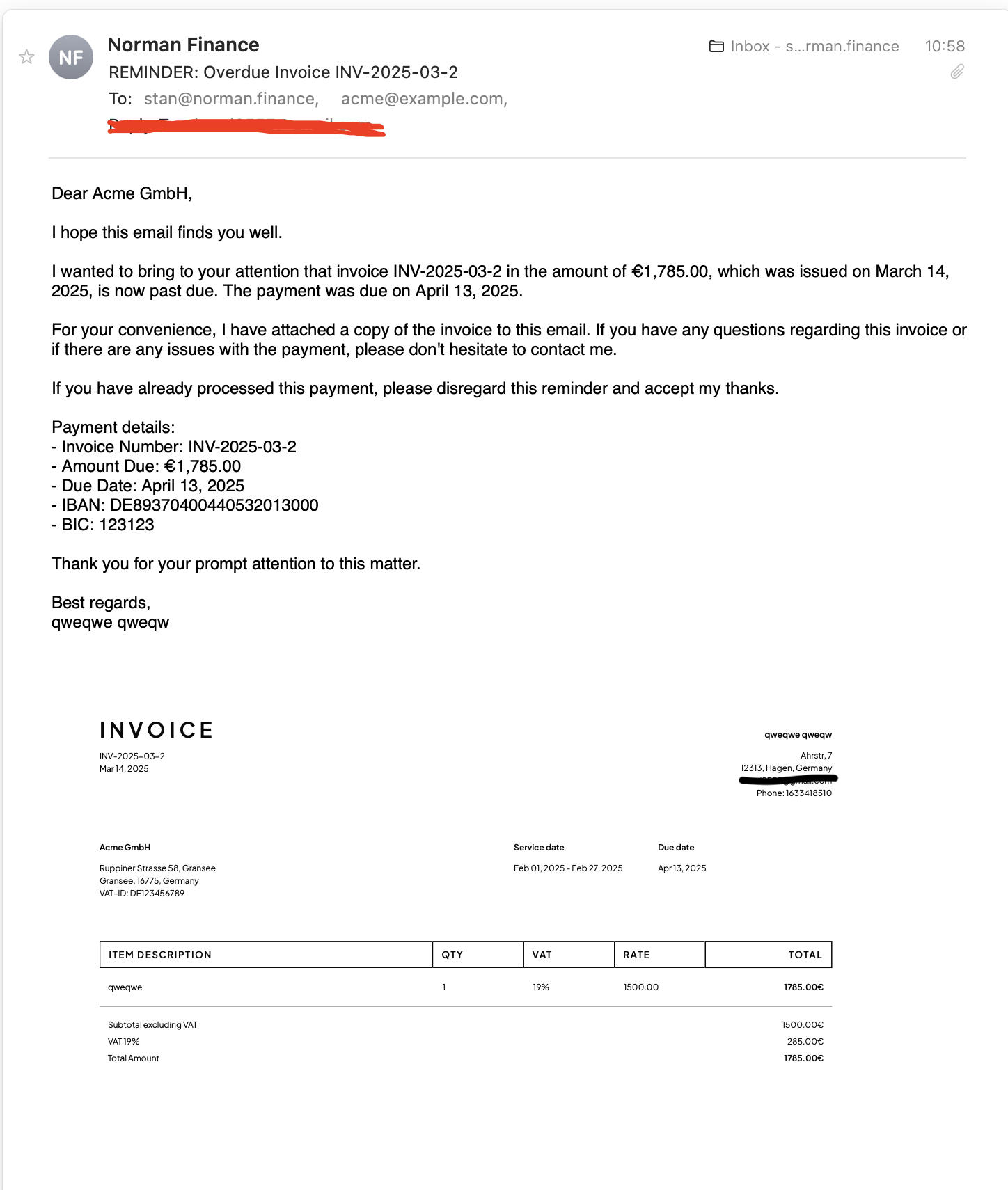
2. Managing Overdue Invoices

Prerequisites
Before using this MCP server, you need to:
- Create an account on Norman Finance (or dev.norman.finance for the sandbox environment)
- Have your email and password ready for authentication
Installation
From PyPI (Recommended)
pip install norman-mcp-server
From Source
git clone https://github.com/norman-finance/norman-mcp-server.git
cd norman-mcp-server
pip install -e .
Configuration
Environment Variables
The server requires authentication with your Norman Finance credentials. You can provide these through environment variables:
Create a .env file with:
# .env
NORMAN_EMAIL=your-email@example.com
NORMAN_PASSWORD=your-password
NORMAN_ENVIRONMENT=production  # or "sandbox" for the development environment
NORMAN_API_TIMEOUT=100  # Request timeout in seconds
Command Line Arguments
Alternatively, you can provide the credentials through command line arguments:
norman-mcp --email your-email@example.com --password your-password --environment production
Configuring with Claude
To use the Norman Finance MCP server with Claude, add it to your Claude configuration:
{
  "mcpServers": {
    "norman": {
      "command": "norman-mcp",
      "args": [],
      "env": {
        "NORMAN_EMAIL": "your-email@example.com",
        "NORMAN_PASSWORD": "your-password",
        "NORMAN_ENVIRONMENT": "production"
      }
    }
  }
}
If you've installed from source or are running in a local development environment, you should point to the Python module directory directly:
{
  "mcpServers": {
    "norman": {
      "command": "python",
      "args": ["-m", "norman_mcp"],
      "env": {
        "NORMAN_EMAIL": "your-email@example.com",
        "NORMAN_PASSWORD": "your-password",
        "NORMAN_ENVIRONMENT": "production"
      }
    }
  }
}
Usage
With Claude or Other MCP-Compatible LLMs
- Start the MCP server:
norman-mcp
- Add the server to your Claude configuration using stdio protocol.
Integration with Claude Desktop
You can install the server using the MCP CLI:
mcp install norman-mcp
Configure your Norman Finance credentials when prompted.
Direct Execution
You can also run the server directly with:
python -m norman_mcp
Resources
This MCP server exposes the following resources:
company://current- Details about your current companytransactions://list/{page}/{page_size}- List of transactions with paginationinvoices://list/{page}/{page_size}- List of invoices with paginationclients://list/{page}/{page_size}- List of clients with paginationtaxes://list/{page}/{page_size}- List of tax reports with paginationcategories://list- List of transaction categories
Tools
The MCP server provides the following tools for Norman Finance API interaction:
Company Management
get_company_details()- Get detailed information about your companyupdate_company_details(name, profession, address, etc.)- Update company informationget_company_balance()- Get the current balance of the companyget_company_tax_statistics()- Get tax statistics for the companyget_vat_next_report()- Get the VAT amount for the next report period
Transaction Management
search_transactions(description, from_date, to_date, min_amount, max_amount, etc.)- Search for transactions matching criteriacreate_transaction(amount, description, cashflow_type, etc.)- Create a new transactionupdate_transaction(transaction_id, amount, description, etc.)- Update an existing transactioncategorize_transaction(transaction_amount, transaction_description, transaction_type)- Detect category for a transaction using AI
Invoice Management
create_invoice(client_id, items, etc.)- Create a new invoicecreate_recurring_invoice(client_id, items, etc.)- Create a new recurring invoiceget_invoice(invoice_id)- Get details about a specific invoicesend_invoice(invoice_id, subject, body, etc.)- Send an invoice via emaillink_transaction(invoice_id, transaction_id)- Link a transaction to an invoiceget_einvoice_xml(invoice_id)- Get the e-invoice XML for a specific invoicelist_invoices(status, from_date, to_date, etc.)- List invoices with optional filtering
Client Management
list_clients()- Get a list of all clientsget_client(client_id)- Get detailed information about a specific clientcreate_client(name, client_type, address, etc.)- Create a new clientupdate_client(client_id, name, client_type, etc.)- Update an existing clientdelete_client(client_id)- Delete a client
Document Management
upload_bulk_attachments(file_paths, cashflow_type)- Upload multiple file attachments in bulklist_attachments(file_name, linked, attachment_type, etc.)- Get list of attachments with optional filterscreate_attachment(file_path, transactions, attachment_type, etc.)- Create a new attachmentlink_attachment_transaction(attachment_id, transaction_id)- Link a transaction to an attachment
Tax Management
list_tax_reports()- List all available tax reportsget_tax_report(report_id)- Retrieve a specific tax reportvalidate_tax_number(tax_number, region_code)- Validate a tax number for a specific regiongenerate_finanzamt_preview(report_id)- Generate a test Finanzamt preview for a tax reportsubmit_tax_report(report_id)- Submit a tax report to the Finanzamtlist_tax_states()- Get list of available tax stateslist_tax_settings()- Get list of tax settings for the current companyupdate_tax_setting(setting_id, tax_type, vat_type, etc.)- Update a tax setting
Prompts
The MCP server offers these guided prompts to help users interact with Norman Finance:
create_transaction_prompt(amount, description, cashflow_type)- Create a prompt for adding a new transactioncreate_client_prompt(name, client_type)- Create a prompt for adding a new clientsend_invoice_prompt(invoice_id)- Create a prompt for sending an invoice via emailsearch_transactions_prompt(date_range)- Create a prompt for searching transactions
Example Interactions
Here are some example interactions with the Norman Finance MCP server:
View Company Details
You can view your company details by accessing the company resource.
[LLM accesses company://current]
List Transactions
To see your recent financial transactions:
[LLM accesses transactions://list/1/10]
Create a Transaction
To create a new expense transaction:
[LLM calls create_transaction with amount=-129.99, description="Office supplies", cashflow_type="EXPENSE"]
Create an Invoice
To create a new invoice, I'll use the create_invoice tool.
[LLM calls create_invoice with client_id, items, etc.]
Development
This section is for contributors who want to develop or extend the Norman Finance MCP server.
Local Development Setup
-
Clone the repository:
git clone https://github.com/norman-finance/norman-mcp-server.git
cd norman-mcp-server
-
Create and activate a virtual environment:
# Using venv
python -m venv venv
source venv/bin/activate  # On Windows: venv\Scripts\activate

# Or using uv (recommended)
uv venv
source .venv/bin/activate  # On Windows: .venv\Scripts\activate
-
Install development dependencies:
# Using pip
pip install -e ".[dev]"

# Or using uv
uv pip install -e ".[dev]"
-
Create a
.envfile with your Norman Finance credentials:cp .env.template .env # Edit .env with your credentials
Running in Development Mode
To run the MCP server in development mode with the MCP Inspector:
mcp dev norman_mcp/server.py
This will start the server and open the MCP Inspector in your browser, allowing you to test resources and tools interactively.


Download files
Download the file for your platform. If you're not sure which to choose, learn more about installing packages.
Source Distribution
Built Distribution
Filter files by name, interpreter, ABI, and platform.
If you're not sure about the file name format, learn more about wheel file names.
Copy a direct link to the current filters
File details
Details for the file norman_mcp_server-0.1.3.tar.gz.
File metadata
- Download URL: norman_mcp_server-0.1.3.tar.gz
- Upload date:
- Size: 22.7 kB
- Tags: Source
- Uploaded using Trusted Publishing? No
- Uploaded via: twine/6.1.0 CPython/3.13.3
File hashes
| Algorithm | Hash digest | |
|---|---|---|
| SHA256 |
4b148910f3f73e8c1bd7e25ae304a9708bdd1aea4ff06b5758a9d1acd94bb7f3
|
|
| MD5 |
af9846f3a3c4dcb9ab68fd3014fb5aa9
|
|
| BLAKE2b-256 |
a5cb8719f03ddcb125b7923e4691cd0b3101a368cfa6aef31b9d9ce21bc160d5
|
File details
Details for the file norman_mcp_server-0.1.3-py3-none-any.whl.
File metadata
- Download URL: norman_mcp_server-0.1.3-py3-none-any.whl
- Upload date:
- Size: 20.0 kB
- Tags: Python 3
- Uploaded using Trusted Publishing? No
- Uploaded via: twine/6.1.0 CPython/3.13.3
File hashes
| Algorithm | Hash digest | |
|---|---|---|
| SHA256 |
3bd384d62733369ebe83909eb271dac10911c57177b2fdde24ff02d6d06f85ea
|
|
| MD5 |
e4aef4d56b1835c9bf53174d2d92b31e
|
|
| BLAKE2b-256 |
15edd10ac26172507806d58954b974a9e5951e68505d047d2d86abb6212a809d
|






