
optmux
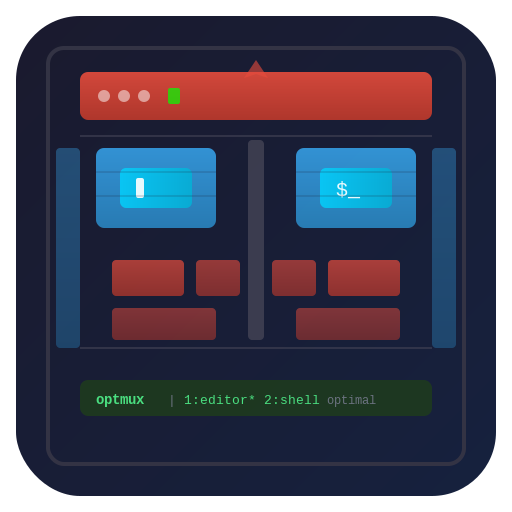
Optimal, opinionated, batteries-included TMUX that's neat and easy for any project.
A tmuxp wrapper that creates per-project tmux config directories with TPM and plugins pre-configured.
Quick Start
# run optmux anywhere (installs on first use via uv)
uvx optmux .

# strongly recommended: install wtcode + lazygit for the full experience
brew install netj/tap/optmux
brew install netj/tap/optmux pulls in tmux, wtcode, lazygit, delta, a recent less, fzf, universal-ctags, and gh as dependencies. See Git, diffs, and links.
New here? Read The optmux Way. It shows how to be an effective mentor and manager of AI coding agents like Claude Code: one worktree and window per task, with lazygit, your editor, and a shell a keystroke away in sibling panes.
Try the included example:
git clone https://github.com/netj/optmux.git && cd optmux
./example.optmux.yaml
On first run, optmux will:
- Create
.example.optmux.d/tmux/next to the YAML file - Seed a default
tmux.confwith TPM and plugins - Install TPM and all plugins (visible in window 0)
- Launch tmuxp with an isolated tmux server
Usage
With a tmuxp YAML file
Supports .optmux.yaml, .tmuxp.yaml, and .optmuxp.yaml extensions:
optmux myproject.optmux.yaml
optmux myproject.tmuxp.yaml
With a directory
optmux .
optmux /path/to/project
Opens plain tmux using .optmux.d/ in that directory (. for the current directory) — useful for a quick, isolated tmux session with the bundled config.
Without arguments
optmux
Prints usage and exits.
As a shebang
Write a tmuxp YAML config with the optmux shebang line and make it executable. This needs optmux on your PATH (e.g. brew install netj/tap/optmux):
#!/usr/bin/env optmux
session_name: myproject
windows:
- window_name: editor
  panes:
  - vim .
- window_name: shell
  panes:
  - ""
chmod +x myproject.optmux.yaml
./myproject.optmux.yaml
Stopping a session
optmux myproject.optmux.yaml stop
optmux . stop
Kills the tmux session tied to that YAML file or directory.
Warp sessions
optmux [DIR | YAML] warp [WORKDIR] [NAME]
Creates (or updates) a secondary session — named <main-session>//<workdir-name> unless you pass NAME — that links in only the windows from the main session whose panes are running in WORKDIR (defaults to the current directory). Handy when a project spans multiple git worktrees: run optmux warp from inside a worktree to get a session showing just that worktree's windows. Windows are linked, not copied, so they stay in sync with the main session.
Raw tmux access
optmux [DIR | YAML] tmux ARGS...
Runs tmux ARGS... directly against this project's isolated tmux server — no tmuxp bootstrapping, no session creation. Useful for one-off inspection or scripting without hand-rolling the -S <sock> path yourself, e.g. optmux . tmux ls or optmux . tmux kill-server.
Picking a project
optmux pick [--list] [--live] [-1] [QUERY]
Every project has its own TMUX server, so nothing shows what is running across projects. optmux remembers each project it was started in (${XDG_STATE_HOME:-~/.local/state}/optmux/projects.tsv), and optmux pick lists them with fzf (a numbered menu if fzf is missing): ● has a running session, ○ doesn't; running ones come first, most recently active on top. The preview shows the session's windows and their directories, with a [bell] on those that rang.
Enterattaches to the project's session, starting it if neededctrl-xstops the highlighted project's sessionctrl-dforgets the project (projects whose directory or YAML is gone are dropped automatically)QUERYpre-filters;-1picks without asking when exactly one project matches;--livehides projects that aren't running;--listprints TSV (state kind target session socket) for scripts
optmux pick is one action: it returns after you detach or exit (status 0), so a shell wrapper can offer to pick again. Exit status is 130 if you cancelled, and 1 if there was nothing to pick.
Running a command with optmux's settings
optmux [DIR | YAML] env COMMAND [ARGS...]
Runs the command with optmux's opinionated environment (delta as git's pager, less with the mouse and clickable links, the layered lazygit config, …). It's optmux-env as a subcommand, so it works in any shell, even where your rc has rebuilt PATH: optmux env git log -p, optmux env lazygit. Inside an optmux pane it uses that project's settings; elsewhere, give it the DIR or YAML (e.g. optmux . env git diff).
Example tmuxp YAML
Here's the included example.optmux.yaml showing shortcuts, tmux config, and window layout:
#!/usr/bin/env optmux
session_name: example
start_directory: .

optmux:
  shortcuts:
    C-M-b: gh browse .
    C-M-e:
      command: ${VISUAL:-${EDITOR:-vim}} README.md  # exec directly (default for str, no latency)
      new_window: true                              # in a new-window
    E:
      send_keys: ${VISUAL:-${EDITOR:-vim}} .        # send_keys (command is run in a new shell)
      zoom: false                                   # do not zoom (defaults to zoom when split-window)
  tmux_config:
    project-settings: |
      set -g status-style bg=blue

windows:
- window_name: editor
  panes:
  - vim .
- window_name: shell
  panes:
  - ""
- window_name: logs
  panes:
  - tail -f /var/log/system.log
Config directory
Each project gets its own .$NAME.optmux.d/ directory:
| Path | Purpose |
|---|---|
tmux/tmux.conf |
Main tmux config (editable after creation) |
tmux/tmux.*.conf |
Additional config files you can add |
tmux/tmux.sock |
Tmux server socket (isolates this project) |
tmux/plugins/ |
TPM plugin directory |
tmux/plugins-update.sh |
Run manually to update all plugins |
tmux/resurrect/ |
Saved session state (tmux-resurrect), isolated per project |
env.sh |
optmux's opinionated environment (env, git_config, lazygit), applied by optmux-env |
bin/ |
Helper scripts (optmux-*), on PATH for shortcuts (and in shells that source env.sh) |
lazygit/config.yml |
Generated from lazygit: |
env.sh, bin/, and lazygit/ are regenerated on every launch.
optmux YAML config
Add an optmux: section to your tmuxp YAML to configure shortcuts and tmux settings:
optmux:
  shortcuts:
    C-M-b: gh browse .                              # Ctrl+Alt+b (Control+Option+b on a Mac): run command directly
    C-M-e:
      command: ${VISUAL:-${EDITOR:-vim}} README.md  # exec directly (no shell)
      new_window: true                              # open in a new-window
    E:
      send_keys: ${VISUAL:-${EDITOR:-vim}} .        # send_keys (runs in a new shell)
      zoom: false                                   # do not zoom (default: true for splits)
  tmux_config:
    project-settings: |
      set -g status-style bg=blue
Shortcuts
Shortcuts bind tmux keys to commands:
C-M-*keys are bound globally (no prefix needed)- Other keys require the tmux prefix (
C-t)
What a shortcut's value can do — command:, send_keys:, new_window:,
etc. — is the action block, shared with menu: custom
items below.
Detached shortcuts
detached: true runs a command without moving your cursor — handy for things like open -R .git or gh browse . that do their real work elsewhere. It comes in three flavors:
| where it runs | when it finishes | |
|---|---|---|
detached: true |
a split pane in the current window | drops the window's zoom (see below) |
detached + float_window: true |
a floating pane over the current window | disappears, layout and zoom untouched |
detached + new_window: true |
a background window | nothing on screen changes |
remain controls what happens on exit: on-error (the default) closes silently on success and holds the pane open with a dismiss prompt on failure, false always closes, true always holds. Whenever a detached shortcut holds itself open it rings the bell, so tmux flags the window in the status line rather than leaving you to find it.
Known issue: a quick detached split loses your zoom. tmux unzooms a window whenever any pane in it dies, so a detached split pane drops the origin pane's zoom the moment the command finishes. The binding does re-zoom when it opens the split, and that holds for as long as the command runs — but nothing survives to re-apply it afterwards (a pane-exited hook fires before tmux fixes the layout, so it cannot help). Long-running commands are unaffected in practice; short ones like open -R .git unzoom you.
Workarounds, in order of preference:
float_window: true— a floating pane sits outside the layout, so opening and closing it never touches the zoom. Best fit for quick commands, and it works whatever state the window is in: because tmux 3.7b crashes if a float is created while the window is zoomed, the binding checks at press time and falls back to a background window in exactly that case, which leaves the zoom alone too. Requires tmux 3.7+; see TROUBLESHOOTING-tmux-floating-panes.md for the details.new_window: true— always safe, at the cost of the command living in a separate window you may be surprised to find later.remain: true— the pane never dies, so the zoom never drops; you dismiss it by hand. Note that each invocation leaves a pane behind, and once the window is full the split fails and the zoom is lost anyway.
Action block
shortcuts: values and menu: custom items describe an action the same
way — this is the shared vocabulary compiled by optmux/actions.py:
command:— shell command, run directly (default for a plain string value)send_keys:— sends the command to a fresh shell instead of running it directly (supports shell expansion; one line at a time)tmux:— a raw tmux command, run as-is (bypasses everything below)new_window: true— opens in a new window instead of a splitfloat_window: true— opens in a floating pane (tmux 3.7+) — see detached shortcuts abovezoom: false— disables auto-zoom on splits (default: true)detached: true— runs it without stealing focus, and holds it open on failure (seeremain)remain:—on-error(default when detached/new_window/float_window),true, orfalse— see detached shortcuts
One default differs between the two: a shortcut with none of
new_window/float_window set opens a split (it's a keybinding, so
you're usually mid-task in the current window); a menu custom item with
neither set opens a new window (a menu click is more often "go start
this over there"). Set either explicitly to override.
plugins
plugins: maps each TPM plugin to its options: a dict of option → value (rendered as set -g @option "value"; @ optional, $VAR expands, YAML on/off booleans are written as on/off), or a list of raw tmux config lines. Leave it empty for none. optmux installs them on launch and writes optmux-plugins.conf, sourced before TPM runs:
optmux:
  plugins:
    netj/claritmux:
      claritmux_status_hostname: 1          # same as: set -g @claritmux_status_hostname "1"
    tmux-plugins/tmux-resurrect:
    - set -g @resurrect-dir "$OPTMUX_DIR/tmux/resurrect"   # or raw tmux lines
    Morantron/tmux-fingers: false    # disable a bundled plugin
A dict entry may also carry _tip_url: (a string or a list) to showcase a great page or video; keys starting with _ are metadata, not options. The tips screen lists every plugin with its GitHub URL (derived from user/repo) plus any _tip_url links beneath it:
optmux:
  plugins:
    netj/claritmux:
      _tip_url: https://www.youtube.com/watch?v=VIDEO_ID
      claritmux_status_hostname: 1
Layers merge by plugin (bundled, then project, then ~/.optmux.yaml); a later entry replaces that plugin's lines whole (including _tip_url). See optmux/data/optmux-defaults.yaml for the bundled list.
tmux_config
Entries under tmux_config: are written as tmux.optmux-extras.{name}.conf files and auto-sourced by tmux.
Menu
tmux has no API for editing its built-in right-click menus (session, window,
pane) — the only way to change one is to redefine it whole. menu: lets you
do that from YAML: list the items you want, in order, and optmux compiles a
static bind/display-menu config for you. A bare "*" pulls in the rest
of tmux's own default items for that menu, unchanged, so you only spell out
what you're adding or reordering:
optmux:
  menu:
    pane:
      - key: w
        title: New Window (C-t c)
        new_window: true      # bundled default: adds "New Window" ahead of tmux's own items
      - "*"
The bundled defaults also add Find (C-M-f) and eXtract (C-M-x) to the pane and window menus, so they are one right-click away. Menu layers add up (yours come after the bundled items), so a key of yours that is also f or x loses its accelerator to them: pick another.
key:/title:— the accelerator and label for a custom item, plus the action block fields (command:,tmux:,send_keys:,new_window:,float_window:,zoom:,detached:,remain:)default: <name>(or a bare string) — reuses one of tmux's own items by name; addtitle:/key:alongside it to retitle or remap that item without changing what it doesseparator(or"") — a divider line- Supported contexts:
session,window,pane. A context left out ofmenu:keeps tmux's untouched default.
Reordering/retitling only touches items you name. "*" inserts unclaimed
defaults (in tmux's own order) wherever it appears — it doesn't replace a
default item you've already referenced by name, and it doesn't drop one just
because you added a same-key custom item ahead of it. To actually replace a
default item's behavior (not just its label or key), leave "*" out and
list every item you want, in order — see the session example below.
More examples:
optmux:
  menu:
    # Pane menu: a floating lazygit, a "run tests" that types into a split,
    # and a background clipboard copy -- then everything tmux ships by default.
    pane:
      - key: g
        title: lazygit
        command: lazygit
        float_window: true          # floats over the window; layout/zoom untouched
      - key: t
        title: Run tests
        send_keys: pytest -x        # types the command into a fresh split and runs it
      - key: y
        title: Copy path
        command: printf '%s' "$PWD" | pbcopy
        detached: true              # menu items default to new_window, so this is a
                                     # background window -- nothing on screen changes
      - "*"

    # Window menu: keep everything, just rename/remap Kill to something less
    # trigger-happy under the mouse.
    window:
      - default: Kill
        title: Close Window
        key: q
      - "*"

    # Session menu: replace Detach with a confirm-before version, and add
    # tmux's own window/pane picker (normally only reachable via prefix w).
    # No "*" here -- confirm-before *replaces* the item at 'd', so the rest
    # is spelled out in tmux's own order to keep Detach's original binding
    # from also showing up. 'T' avoids colliding with New Window's 'w'.
    session:
      - key: d
        title: Detach (confirm)
        tmux: confirm-before -p "detach? (y/n)" detach-client
      - key: T
        title: Windows/Panes
        tmux: choose-tree -Zw
      - Next
      - Previous
      - separator
      - Renumber
      - Rename
      - separator
      - New Session
      - New Window
A context left out of menu: entirely keeps tmux's untouched default. Supported contexts: session, window, pane.
env
Environment variables for commands run through optmux-env. $VAR expands at launch, and a null value unsets the variable. Layers merge by variable name.
optmux:
  env:
    EDITOR: nvim
    LESS: -R --mouse   # replaces the bundled -XRiMWSc --mouse
    PAGER:             # null: unset
optmux-env
env, git_config, and lazygit are all written to $OPTMUX_DIR/env.sh. They apply only to commands started through optmux-env, and to everything those commands start in turn. Your shells inside optmux behave exactly as they do outside it.
The bundled shortcuts use it, by absolute path ("$OPTMUX_DIR/bin/optmux-env"), since your shell startup files may rebuild PATH: C-M-g runs lazygit and C-M-d runs the PR diff through it. Inside those, optmux's settings override yours: lazygit runs git, git runs delta as its pager, delta runs less, and less runs the link handler, all with optmux's settings. Use it in your own shortcuts the same way:
optmux:
  shortcuts:
    C-M-l:
      command: |
        "$OPTMUX_DIR/bin/optmux-env" git log -p
Your shell rc may rebuild PATH and drop optmux-env; optmux env COMMAND... always works. To use optmux's settings in every shell inside optmux, add this to your shell rc. It also puts the optmux-* helpers back on PATH if your rc reorders it:
[ -n "$OPTMUX_DIR" ] && . "$OPTMUX_DIR/env.sh"
git_config
git config for commands run through optmux-env, passed through GIT_CONFIG_PARAMETERS (the env equivalent of git -c, which, unlike GIT_CONFIG_COUNT, delta also reads for its delta.* settings). It takes precedence over ~/.gitconfig and repo config without modifying either. Keys merge across layers. A pager setting (core.pager, interactive.diffFilter, pager.*) whose command isn't installed is skipped, so a missing delta falls back to your own pager.
optmux:
  git_config:
    delta.side-by-side: true
    delta.line-numbers: false
    core.pager:          # null: drop the bundled delta pager
lazygit
lazygit config, written to $OPTMUX_DIR/lazygit/config.yml and loaded after your own lazygit config via LG_CONFIG_FILE. Settings optmux doesn't mention keep your values, and the ones it does mention use optmux's. Layers deep-merge (lists replace). A git.diffRenderers entry whose command isn't installed is skipped.
optmux:
  lazygit:
    gui:
      nerdFontsVersion: "3"
    git:
      diffRenderers:
      - colorArg: always
        command: delta --paging=never --side-by-side
Personal config (~/.optmux.yaml)
Create ~/.optmux.yaml to define personal defaults that apply to all optmux sessions:
optmux:
  shortcuts:
    C-M-g: lazygit
  tmux_config:
    my-defaults: |
      set -g status-style bg=green
Personal config is merged with per-project config. When both define the same key, personal settings take precedence.
Customization
- Edit
tmux/tmux.confto change tmux settings - Drop
tmux/tmux.mysetup.conffiles for additional config (auto-sourced) - Run
tmux/plugins-update.shfrom inside tmux to update plugins - Press
prefix + Rto reload the config
Environment variables
optmux sets these before launching tmux/tmuxp:
| Variable | Value |
|---|---|
OPTMUX_DIR |
Absolute path to the .$NAME.optmux.d/ directory |
OPTMUX_NAME |
Name derived from YAML filename or cwd (e.g., myproject) |
TMUX_PLUGIN_MANAGER_PATH |
$OPTMUX_DIR/tmux/plugins |
PATH |
$OPTMUX_DIR/bin prepended (optmux-* helper scripts) |
optmux-env additionally sets, for the command it runs:
| Variable | Value |
|---|---|
anything under env: |
e.g. PAGER, LESS, LESS_OSC8_OPEN_ANY by default |
GIT_CONFIG_PARAMETERS |
from git_config: |
LG_CONFIG_FILE |
your own lazygit config, then optmux's from lazygit: |
Git, diffs, and links
optmux's shortcuts open git review tools with an opinionated setup. It's configured in optmux-defaults.yaml under env, git_config, and lazygit, and applied only to what the shortcuts start, through optmux-env. Your dotfiles and your shells are left alone. See The optmux Way for how it fits into working with coding agents.
- lazygit (
C-M-g): optmux's config is layered on top of yours. It addsCtrl-gto diff against the default branch (origin/HEAD). Diffs render with delta, and clicking a line number opens it in your editor. - Clickable diff (
C-M-d, same asCtrl-gin lazygit): what the branch changes against the default branch, rendered by delta in less, so you can scroll with the mouse and click a line number twice to edit it. - delta: becomes git's pager (
core.pager,interactive.diffFilter), with line numbers,n/Nfile navigation, moved-code coloring, and hyperlinked line numbers and commit hashes. - less: mouse mode (
--mouse) and an OSC 8 hyperlink handler. Click a link once to select it and again to open it:file://…#L<n>opens$VISUAL/$EDITORat that line, andhttp(s)links open your browser. Clicking links needs a recentless(Homebrew's; the formula depends on it).
Bundled helper scripts in $OPTMUX_DIR/bin, available in every pane:
| Script | What it does |
|---|---|
optmux-open-url URI |
Opens a hyperlink: files in your editor at the linked line, web links in the browser |
optmux-env CMD... |
Runs a command with optmux's settings. See optmux-env |
optmux-diff-base |
Diffs the branch against the default branch (origin/HEAD, else origin/main): a diffstat, then the patch, i.e. what a PR would contain (C-M-d, lazygit's Ctrl-g) |
optmux-find [PANE] |
Finds a file, a line (live git grep), a ctags tag, a language-server symbol, or tags and files ranked together (omni) and opens it in an editor split at that line (C-M-f). Resumes where you left off (mode, query, cursor). See optmux Find |
optmux-extract [PANE] |
Picks lines, styled spans, URLs/paths/hashes/versions or words from a pane's screen and types or copies them (C-t X, C-M-x). See optmux eXtract |
optmux-gh-open |
Opens the current branch's PR on GitHub, or the repo page (C-M-w) |
Session persistence
optmux ships tmux-resurrect:
C-t C-s— save the current session (windows, panes, working directories)C-t C-r— restore the last saved session
Because each project has its own .$NAME.optmux.d/tmux/resurrect/ folder (see Config directory), saves never mix between projects. Save project A, then project B — restoring either one brings back only its own layout.
Clipboard integration
optmux ships tmux-yank and sets set-clipboard on + allow-passthrough on, so yanking in copy-mode lands on your system clipboard. Locally that goes through pbcopy/xclip. Over SSH, OSC 52 is the only mechanism — the remote tmux emits an escape sequence and your local terminal writes it to the clipboard, with no relay, agent, or daemon in between.
macOS Terminal.app has no OSC 52 support
Local copying still works, but copying from a remote optmux session over SSH will not reach your pasteboard — Terminal.app discards the escape sequence, and no tmux configuration can change that. optmux deliberately doesn't ship a clipboard relay to work around it; that means a socket on your laptop accepting arbitrary bytes into your pasteboard, to replace what modern terminals already do natively.
Workaround: turn off View → Allow Mouse Reporting (⌘R), or hold Fn, to hand the mouse back to Terminal and drag-select with its own selection, then ⌘C. ⌘R again returns the mouse to tmux. You get only what's on screen, and the selection cuts across split panes — zoom first with prefix + z.
Better: use a terminal that supports OSC 52 — Ghostty, iTerm2, Warp, kitty, WezTerm, or Alacritty. The tips screen (window 0, or C-M-h) nags about this unless it can confirm your terminal, using the attached client's TERM_PROGRAM and terminal type — over SSH only the latter survives, so xterm-ghostty and friends are still recognized on remote hosts.
optmux Find: open a file, line or tag
C-M-f opens a picker over the project with five sources, and opens the pick in your editor ($VISUAL, $EDITOR, else vim) in a split beside the agent, at the matching line:
C-oomni (the default): tags, language-server symbols and file paths in one list, ranked together, so the stronger match is higher whichever it is (a file named for your query outranks a tag that only loosely contains it; a tag or symbol is matched on its name, a file on its path). A symbol the servers know replaces the tag for the same line. Rows are drawn alike in every source (see below); the best 100 are shown. Grep stays on its own key,C-g.C-ffiles:git ls-files(tracked and untracked) first, then every other filefindturns up, ignored ones included (scratch scripts, local notes), minus whatfind.ignore_filesnames (node_modules,.venv, caches, optmux's own.optmux.d; see below). Justfindoutside a repo.C-ggrep: livegit grep, re-run on every keystroke, smart-case.C-ttags: yourtagsfile at the repo root if there is one (then keeping it fresh is up to you, e.g. apost-commithook runningctags). Otherwise optmux builds its own, the way such a hook would (git ls-files | ctags -L -), the first time, and refreshes it in the background whenever the commit or the tracked files that changed differ, so opening the picker never waits for it (it keeps using the old tags until the new ones are ready). It needs universal-ctags (brew install universal-ctags, a dependency of the Homebrew formula; exuberant ctags should do too, minus line numbers it can find from patterns). macOS's own/usr/bin/ctagsdoes not: it takes no file list and only knows C-like languages. It is stored per project in.optmux.d/find/. To use the same tags in your editor,optmux-find --tags-pathprints the file (building it first if there is none yet, and exiting 1 when there is no project; for tags of its own it prints a copy with absolute paths, since an editor reads them relative to the tags file's directory): in vim,:let &tags .= ',' . escape(trim(system('optmux-find --tags-path 2>/dev/null')), ' ,'). It resolves the same way inside and outside optmux only where$OPTMUX_DIRis the same, so run it from a pane of the project's optmux session.C-llsp: symbols from the project's language servers, searched as you type (see Language servers below).
C-M-f again (the key that opened it) cycles the sources, or jump straight to one with its key. Switching carries the text you typed along, so what you searched in omni can be tried as grep, then as tags (the same text means different things in each: fuzzy for omni, files and tags, a regex or plain text for grep). Each source keeps its own record, since a fuzzy file name, a regex and a tag name are different kinds of query. Opening the picker afresh resumes the last source with its own last query and the cursor on the entry it was on; C-u clears the query for a new search, and M-p recalls that source's earlier queries (M-n goes forward; C-p and C-n still move the cursor; M-p/M-n need your terminal to send Option as Meta, e.g. "Use Option as Meta key" in macOS Terminal.app), including ones you left with Esc or a switch. Grep results are sorted by file and line.
Recency. What you open is remembered per project, and pulls those files and tags up: with an empty query the lists start with what you opened last (like ctrl-p's most-recently-used list). In omni the boost is bounded: the most recent file or tag may jump up to 20 places, the next one a place less, so a strong match still beats a weak recent one. Files and tags are matched by fzf itself, so there recency decides ties and the empty list, but cannot lift a weaker match over a stronger one. Grep order stays by file and line. State is per project and per source, in .optmux.d/find/ (SOURCE.last, SOURCE.history, recent.json, lsp.log; ~/.local/state/optmux/ outside optmux); the source is the tmux option @optmux-find-mode.
Language servers (C-l)
C-l asks your language servers for workspace/symbol, so it sees what the compiler sees: methods and classes in the right scope, not just what a regex or ctags could pick out. Nothing to set up if the server is installed:
- optmux looks at the files git tracks and picks the languages that have a few of them (python, typescript/javascript, go, rust, c/c++, lua, bash out of the box), then starts the first installed server of each. One hub process per project keeps them running between keystrokes (it exits after 30 idle minutes,
OPTMUX_LSP_IDLEseconds to change), and logs to.optmux.d/find/lsp.log. - Scripts without an extension count too: a tracked file whose first line is
#!/usr/bin/env python3(ornode,bash,lua, ...) is told to the server of that language, up to 50 per language. (Servers only look at files with the language's extension, so a script likebin/toolwould otherwise never show its classes and functions.) Files found not to be scripts are not read again for a day (unless they changed). - A language with files but no server installed shows a ⚠️ row with its install command, e.g.
go: no language server installed. Enter runs: brew install gopls. Enter on that row runs the install in a pane of its own (so you can watch it, answer a prompt), and the servers start within seconds of it finishing. The command offered is the first one whose installer is on the machine:installmay be a list of alternatives (brew,uv tool,npm, ...).optmux-lsp installdoes the same from a shell (asking first);optmux-lsp statusshows what runs;optmux-lsp stopstops the project's servers. ⏳ rows say a server is still starting, 💬 rows say what went wrong; Enter on those does nothing. - The first search after a server starts may say it is starting (rust-analyzer and the like take a while to index). Some servers need a project description: clangd needs a
compile_commands.json, and finds nothing without one.
Choose servers in your optmux.yaml (project or ~/.optmux.yaml), per language. servers replaces the preference list, the first installed one is used; command alone is a one-server shorthand; enabled: false turns a language off. open_first_file: true opens one file after the server starts, for servers that find their project from it (typescript and c do that by default):
optmux:
  find:
    lsp:
      python:
        servers:
        - command: ty server
          install: uv tool install ty
        - command: basedpyright-langserver --stdio
          install: brew install basedpyright
      ruby:
        extensions: [rb]
        command: ruby-lsp
        install: gem install ruby-lsp
      bash:
        enabled: false
find.ignore_files lists what the file list leaves out, as glob patterns matched against each name in a path (node_modules skips that directory, *.pyc the files), in groups. Setting a group replaces its list, [] drops it, and a new group adds to the rest; .git is always skipped:
optmux:
  find:
    ignore_files:
      dependencies:  # replaces the bundled list
      - node_modules
      - .venv
      - vendor
      caches: []  # look inside caches too
      scratch:  # a group of your own
      - "*.log"
      - tmp
The bundled defaults are under find.lsp in optmux-defaults.yaml. Omni asks the servers too, but only those already running, within a second, so typing never waits for a server that is still starting.
A preview of the selected row sits beside the list: the file around the matching line, marked (with bat, or batcat on Debian and Ubuntu, if you have it: it highlights syntax), or what an install row will do. C-/ (or ^_, which is what macOS Terminal.app sends for ctrl-/ and ctrl--) toggles it; while it is on, grep's list shows just path:line (the preview has the text); it is hidden when the terminal is under about 100 columns wide; find.preview: false turns it off (OPTMUX_FIND_PREVIEW=0 does so for one run). Long lines are cut, not wrapped, so the marked line stays in view.
How a row reads. The same for files, matches, tags and symbols: a dim letter for the source (F file, G grep match, T tag, L language-server symbol), an icon for what it is, the name, then where: file:line, and the directory in dim parens:
T⚡️ build_tags  optmux-find:172  (optmux/data/bin)
L⚡️ Gui.Layout  layout.go:12  (pkg/gui)
F📄 layout.go  (pkg/gui)
G🔍 layout.go:12  (pkg/gui)
The icon is the kind: ⚡️ function or method, 🧩 class, struct or interface, 📖 module or namespace, 📦 package, 🏷️ variable, constant or field, 🔖 anything else, 📄 file, 🔍 grep match. Tags and symbols share them (ctags is asked for full kind names, so a tag's kind is not a bare letter), and a language server's package qualifier is left off the name (gopls's github.com/org/repo/pkg/gui.Gui.Layout is shown Gui.Layout: the file is next to it). The first lines of the preview say it all again, in words: the name, its kind and source, and the full directory (and the container, if the server gave one).
Nerd Font glyphs are the default, so the terminal needs a Nerd Font (without one the icons show as boxes: set icons: emoji, text or none). icons (at the top of the optmux: section, for eXtract too) switches them: emoji renders in any terminal, also where optmux runs on a machine that cannot tell what font your terminal has (mosh, SSH), text uses letters in Find (f function, t type, m module, p package, v value, o other, d directory, - file, / match) and words in eXtract (url, path, line, ...), and none draws no icon at all:
optmux:
  icons: nerd
  find:
    preview: false
optmux eXtract: text from the screen
C-t X (or C-M-x, without the prefix) opens optmux eXtract, a picker over the pane's screen and scrollback. Tab selects several, Enter types them into the pane, C-y copies them. Lines keep their screen order and duplicates, so a multiline script survives (extrakto, which this replaces, dedups and reorders).
C-M-xagain (the key that opened the picker) cycles what is listed: lines, spans (runs of text the program colored or styled: the command, path or name worth copying; one the program wrapped onto the next line in the same style is joined back when it clearly filled the line), patterns (URLs, paths, file names with an optional:line:col, commit hashes, semver versions) and words. The last one used is remembered.C-ycopies by the methodC-tcycles:osc52(eXtract writes an OSC 52 escape to its own terminal and tmux relays it, so it reaches your local clipboard over SSH too),native(pbcopy,wl-copy,xcliporxsel) orbuffer(the tmux buffer only). Also remembered. Either way the tmux buffer holds the text afterwards.- Where you were is remembered, per filter: eXtract opens fresh (a new extract starts from an empty query), and
M-psteps back through that filter's earlier queries, each with the cursor on the item you last picked or stood on, so thebash,.tmp/or pattern you use often is a few keystrokes away (M-ngoes forward again to a fresh start). A recalled query that matches nothing on the screen now is dropped.C-uclears the query. The patterns filter draws each kind with an icon (🔗 URL, 📁 path, 📄 file name, #️⃣ commit hash, 🏷️ version), in the style oficons(nerdby default; shown here as emoji) like Find. C-f,C-g,C-M-flook the selection up in the project instead of typing it: the picks (or, with nothing matching, the text you typed in the filter) become the query of optmux Find, which continues in this same popup:C-fin the files,C-gby grep,C-M-fin omni (tags, symbols and files). Pick an error's path, a function name or a phrase from the screen, then jump to where it lives (a:line:colafter a path is left off, since a file name has none).- Several picks go on one line separated by spaces, except lines mode (always one pick per line) and picks that themselves contain whitespace, such as commands in spans mode, which each get their own line.
- Picks are pasted as a bracketed paste, so a shell (or Claude Code) takes several lines as one paste. A program that doesn't ask for bracketed paste (plain
cat, some REPLs) receives each newline asEnter. - Both are kept as tmux options on the project's server (
@optmux-extract-filter,@optmux-extract-copy), so they last until it stops.
Development
# install the latest main branch
uvx git+https://github.com/netj/optmux.git

# local editable install for development
uv tool install -e .

# test any local changes directly (best for testing branches)
uv run optmux ./example.optmux.yaml

# run tests
uv run pytest                  # all tests
uv run pytest -m "not e2e"     # skip E2E tests (no tmux needed)
uv run pytest -m e2e           # E2E only (requires tmux)
License
1 maintainer

Metadata
1 maintainer
Release files for optmux 0.14.1
For a detailed explanation of source distributions (sdists) and built distributions (wheels), please see the package formats documentation.
Source distribution (sdist)
| File | Size | Uploaded | Provenance | Actions |
|---|---|---|---|---|
| optmux-0.14.1.tar.gz | 100.7 kB | Without provenance | Details for optmux-0.14.1.tar.gz |
Built distribution (wheel)
| File | Interpreter | ABI | Platform | Actions Reset |
|---|---|---|---|---|
| optmux-0.14.1-py3-none-any.whl | Python 3 | none | any | Details for optmux-0.14.1-py3-none-any.whl |
Total release size: 193.7 kB
Release files / optmux-0.14.1.tar.gz
| Download URL | optmux-0.14.1.tar.gz |
|---|---|
| Size | 100.7 kB |
| Tags | Source |
|
SHA-256 checksum How to use checksums |
d44cb7dee324e7bf4e489d6e51b367a012e9907000d46bacb7ed12b2ce87d662
|
|
BLAKE2b-256 checksum How to use checksums |
940284e0e6330759b82ac43579359653e20f8ff67d08ec5d405fdb11dc50d70f
|
| Upload date | |
|
Uploaded using Trusted Publishing? What is trusted publishing? |
No |
| Uploaded via |
uv/0.13.6 {"installer":{"name":"uv","version":"0.13.6","subcommand":["publish"]},"python":null,"implementation":{"name":null,"version":null},"distro":{"name":"macOS","version":null,"id":null,"libc":null},"system":{"name":null,"release":null},"cpu":null,"openssl_version":null,"setuptools_version":null,"rustc_version":null,"ci":null}
|
Release files / optmux-0.14.1-py3-none-any.whl
| Download URL | optmux-0.14.1-py3-none-any.whl |
|---|---|
| Size | 93.0 kB |
| Tags | Python 3 |
|
SHA-256 checksum How to use checksums |
7f599f104ab90c80aefc84d8d253cf640419a7d90f144efbfc7d2546fcedeb5f
|
|
BLAKE2b-256 checksum How to use checksums |
d394f9c9a0cebdf6db17d3f67f3ed1ec757ef22053534ba9561ea30da0a79bef
|
| Upload date | |
|
Uploaded using Trusted Publishing? What is trusted publishing? |
No |
| Uploaded via |
uv/0.13.6 {"installer":{"name":"uv","version":"0.13.6","subcommand":["publish"]},"python":null,"implementation":{"name":null,"version":null},"distro":{"name":"macOS","version":null,"id":null,"libc":null},"system":{"name":null,"release":null},"cpu":null,"openssl_version":null,"setuptools_version":null,"rustc_version":null,"ci":null}
|
Security for optmux 0.14.1
Provenance
Provenance describes where a file came from. On PyPI, provenance is shared via attestations, which provide a verifiable record of the build or publishing details. View details, limitations and caveats.
No provenance found
None of the files in this release were uploaded with provenance metadata.
A note on package security
PyPI is a repository for distributing packages, not a service for auditing them. While third-party security researchers and our staff do their best to detect and remove malicious packages, PyPI cannot guarantee the quality, security or suitability of any given package.
To learn more about protecting yourself from malicious actors, visit our package security documentation.














