
OPTMUX
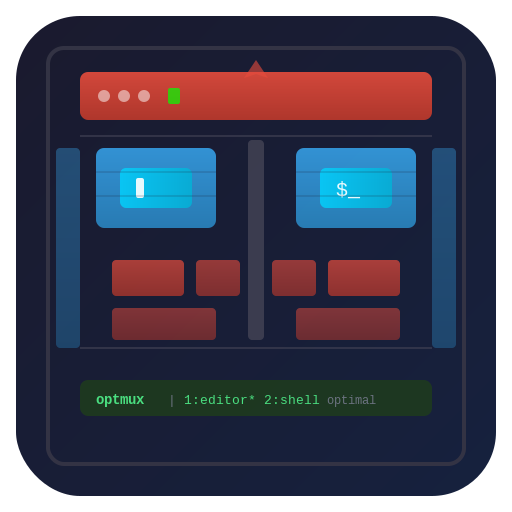
Optimal, opinionated, batteries-included TMUX that's neat and easy for any project.
Run optmux . in any project and get its own, fully loaded TMUX: plugins installed, mouse support everywhere, and keyboard shortcuts for review tools at your fingertips while AI coding tools like Claude Code do the bulk of code generation and editing. Run dozens of tasks side by side, each in its own git worktree and window. A bell flags the one that needs you, a key takes you there, and the diff, lazygit, a shell, and your editor are right beside the work: hands-on when a task needs you, hands-off when it doesn't. Learn the OPTMUX Way to keep a real sense of the code, with your eyes and hands on the key files, even at the incredible pace AI coding tools set.
What you can do
| Press | You get |
|---|---|
C-M-c |
A new task: a fresh git worktree, a new window, your coding tool running in it (wtcode) |
C-M-g |
lazygit beside your coding tool, on its uncommitted files or its branch's commits (review) |
C-M-d |
The PR diff against the default branch, in delta: scroll with the mouse, click a line number to edit it (review) |
C-M-f |
Find: files, live grep, tags, and language-server symbols in one picker, opened in your editor at the line (Find) |
C-M-x |
eXtract: pick a command, path, URL, or hash off the screen and type or copy it (eXtract) |
C-M-s |
A shell in the same workdir |
C-M-w |
The branch's PR (or the repo) on GitHub |
C-M-z |
Zoom the pane out and back in; most panes start zoomed |
C-M-o |
Cycle thru panes in the window, w/o losing zoom |
C-t n/p |
Jump to the next window that rang the bell |
C-M-h |
The tips screen: every key, plugin, and setting in one place |
optmux pick |
Jump to any project you've run OPTMUX in, running or not (pick) |
optmux warp |
A focused session with only one worktree's windows (warp) |
Two kinds of keys above. The C-M- shortcuts above need no prefix: hold Ctrl+Alt, or Control+Option on a Mac.
Everything else goes through OPTMUX's TMUX prefix, C-t (Ctrl+T), not TMUX's usual C-b, which stays free for readline: press it, let go, then the key.
And out of the box:
- Every project is isolated: its own TMUX server, config, plugins, and saved layouts, so nothing leaks between projects.
- Mouse everywhere: click panes, drag borders, scroll in TMUX, less, and lazygit.
- Copy reaches your clipboard, even over SSH (OSC 52).
- Your dotfiles stay yours: OPTMUX's git, delta, and lazygit settings apply only to what its shortcuts start.
Get started
brew install netj/tap/optmux
cd myproject
optmux .
The formula brings tmux, wtcode, lazygit, delta, a recent less, fzf, universal-ctags, and gh along. The first attach installs the plugins and shows the tips; press C-M-c to start your first task.
No Homebrew? uvx optmux . runs it straight from PyPI (bring your own tmux and tools).
Where to next
Using OPTMUX is the guide to the features above, and the reference for the optmux command. OPTMUX compiles the YAML you give it into a generated directory next to it, so there is nothing to maintain by hand.
Review changes across many tasks with ease: lazygit, the branch diff, and the PR open in the worktree you're in; diffs render in delta, and line numbers and commit hashes are links that open your editor or GitHub.
Extract what you see to repeat or copy it. A command in the tool's output, a path in an error, a URL: pick it from the screen and type it into a pane or copy it to your clipboard, locally or over SSH. It also covers which terminals support copying over SSH.
Find and open files, lines, tags, and symbols in your editor, beside your coding tool, ranked together and remembering where you left off.
Pick among many projects with optmux pick, the one command to remember on a host with several OPTMUX projects, and bring sessions back after a restart with tmux-resurrect.
Focus on one workdir with optmux warp: a session that links in only the windows of a single worktree, so an IDE or another terminal such as cmux can share a task's window.
Configure shortcuts, menus, plugins, and tool settings in the YAML under +optmux:, for one project or for all of them in ~/.optmux.yaml:
+optmux:
  +shortcuts:
    C-M-b: gh browse .
    C-M-t:
      +send_keys: pytest -x
  +env:
    EDITOR: nvim
transform.optmux.yaml shows what OPTMUX's plugins and tools can transform into: delete the # in front of the ones you like, or try the file as is with ./transform.optmux.yaml. A project's YAML is also a tmuxp config, if you'd rather start every session with the same windows and panes.
Something off? See troubleshooting. Hacking on OPTMUX itself? See developing OPTMUX.
License
1 maintainer

Metadata
1 maintainer
Release files for optmux 0.19.1
For a detailed explanation of source distributions (sdists) and built distributions (wheels), please see the package formats documentation.
Source distribution (sdist)
| File | Size | Uploaded | Provenance | Actions |
|---|---|---|---|---|
| optmux-0.19.1.tar.gz | 94.8 kB | Without provenance | Details for optmux-0.19.1.tar.gz |
Built distribution (wheel)
| File | Interpreter | ABI | Platform | Actions Reset |
|---|---|---|---|---|
| optmux-0.19.1-py3-none-any.whl | Python 3 | none | any | Details for optmux-0.19.1-py3-none-any.whl |
Total release size: 196.0 kB
Release files / optmux-0.19.1.tar.gz
| Download URL | optmux-0.19.1.tar.gz |
|---|---|
| Size | 94.8 kB |
| Tags | Source |
|
SHA-256 checksum How to use checksums |
79993cb3fbda4adddd6f7b50421fa7e03a2a4fe1006c148b4a34ac0114ef529b
|
|
BLAKE2b-256 checksum How to use checksums |
b04a6eba41d03ea35be50177f3c5e36a1814116eac456c5ec83c4b66a62d387c
|
| Upload date | |
|
Uploaded using Trusted Publishing? What is trusted publishing? |
No |
| Uploaded via |
uv/0.13.9 {"installer":{"name":"uv","version":"0.13.9","subcommand":["publish"]},"python":null,"implementation":{"name":null,"version":null},"distro":{"name":"macOS","version":null,"id":null,"libc":null},"system":{"name":null,"release":null},"cpu":null,"openssl_version":null,"setuptools_version":null,"rustc_version":null,"ci":null}
|
Release files / optmux-0.19.1-py3-none-any.whl
| Download URL | optmux-0.19.1-py3-none-any.whl |
|---|---|
| Size | 101.3 kB |
| Tags | Python 3 |
|
SHA-256 checksum How to use checksums |
7899d14b147b628c0379f8b721db4999c2b232e6ce2a9ad51f0a079bacf07139
|
|
BLAKE2b-256 checksum How to use checksums |
ab8a8f4d68158b7a0725d22a2e56b265fe17e76364c09124ce132cde339145a5
|
| Upload date | |
|
Uploaded using Trusted Publishing? What is trusted publishing? |
No |
| Uploaded via |
uv/0.13.9 {"installer":{"name":"uv","version":"0.13.9","subcommand":["publish"]},"python":null,"implementation":{"name":null,"version":null},"distro":{"name":"macOS","version":null,"id":null,"libc":null},"system":{"name":null,"release":null},"cpu":null,"openssl_version":null,"setuptools_version":null,"rustc_version":null,"ci":null}
|
Security for optmux 0.19.1
Provenance
Provenance describes where a file came from. On PyPI, provenance is shared via attestations, which provide a verifiable record of the build or publishing details. View details, limitations and caveats.
No provenance found
None of the files in this release were uploaded with provenance metadata.
A note on package security
PyPI is a repository for distributing packages, not a service for auditing them. While third-party security researchers and our staff do their best to detect and remove malicious packages, PyPI cannot guarantee the quality, security or suitability of any given package.
To learn more about protecting yourself from malicious actors, visit our package security documentation.














