
Remote desktop app for Windows computers on the same LAN, with autodiscovery. View other computers and optionally share this one — screen, keyboard, mouse, and clipboard, without RDP or Microsoft authentication.

Project description
Remote Desktop




Lossless, low-latency remote desktop for Windows computers on your LAN — one app, pure Python, zero configuration.
Run the same app on every computer. Turn on Screen sharing (view only or full control) in Preferences on the ones you want to reach, and they appear automatically in every other instance's Servers panel: the first connection is approved with one click on the shared computer, and from then on it reconnects instantly. View several computers at once — each in its own tab — while optionally sharing your own screen at the same time; closing the window while sharing keeps serving from the system tray. The screen stream is pixel-exact at full resolution — built for documents, code, and terminals rather than video — captured with DXGI desktop duplication and delta-compressed so only the parts of the screen that changed are sent. No Windows RDP, no Microsoft accounts, no cloud: just one app and your LAN.
See it in action
Viewing
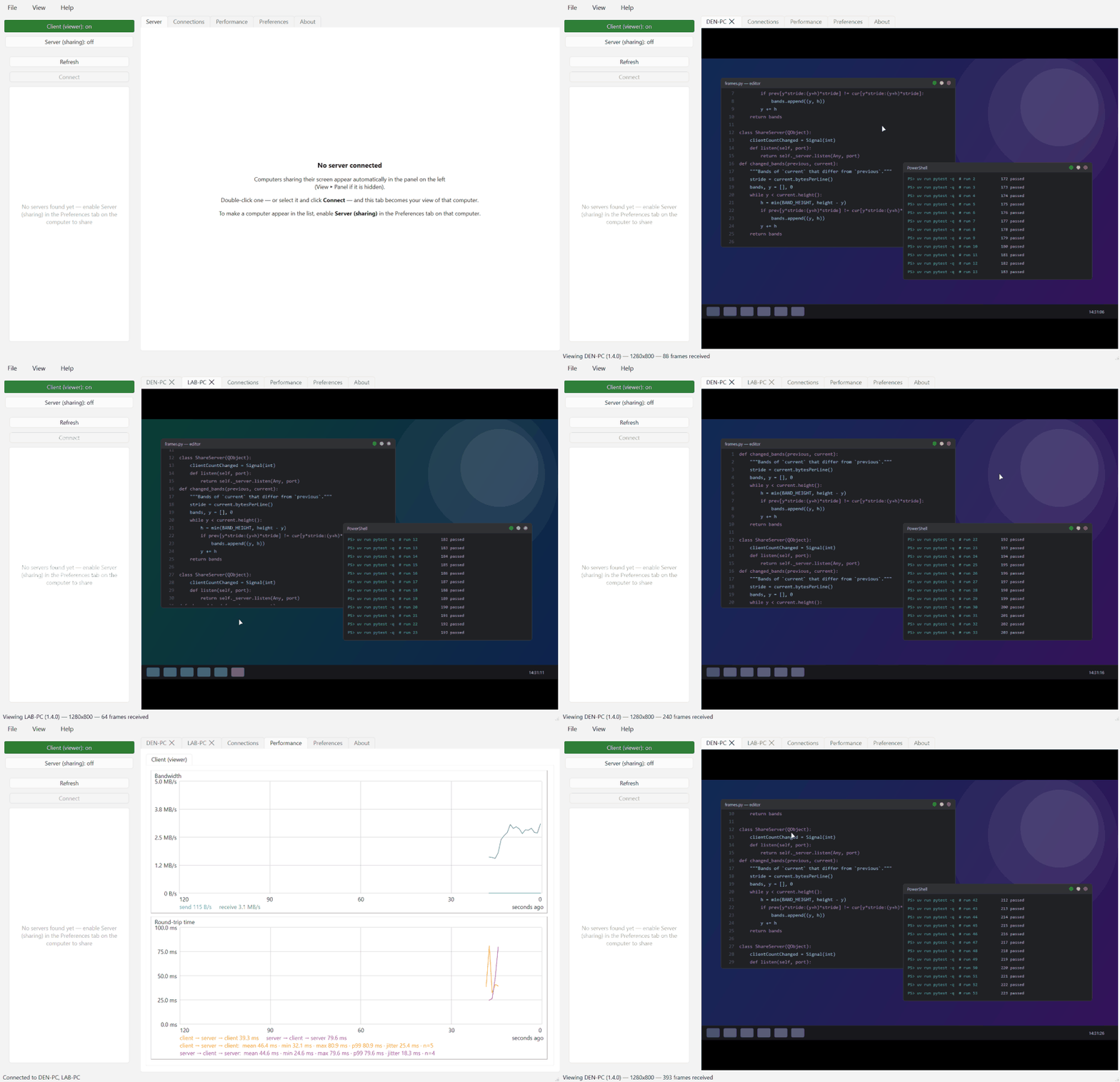
The app discovers sharing computers on the LAN, connects, and streams each desktop live in a tab named after that computer — click into the view and your mouse and keyboard control the remote machine. Connect to several computers at once and each gets its own tab; the window title lists every connected computer. The Performance tab graphs bandwidth and round-trip time with live statistics.
Sharing
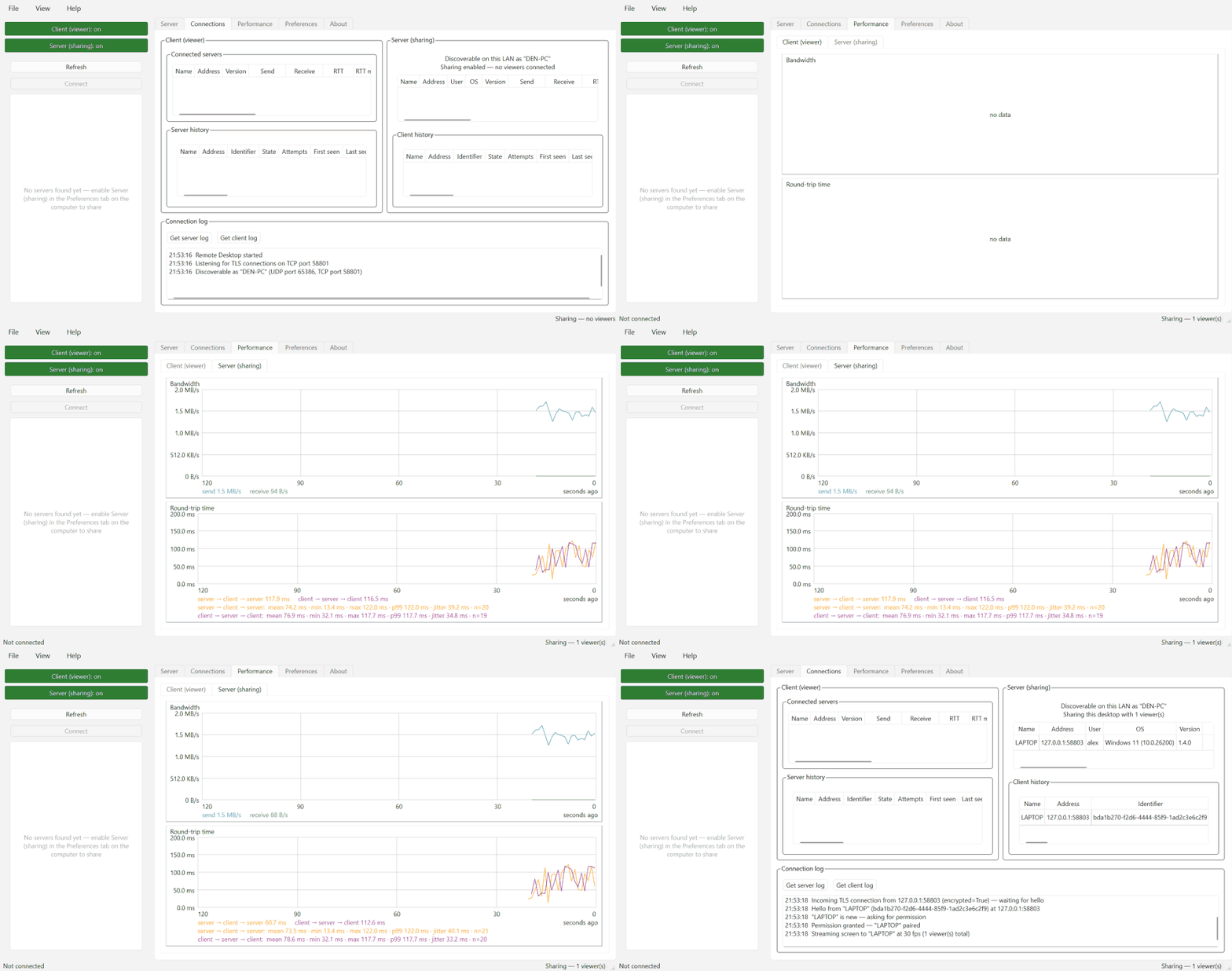
Sharing is turned on in Preferences (view only or full control). The Connections tab then shows everything in one place: every connected viewer — who they are (login name, computer, OS) and how the connection is doing (bandwidth, round-trip time with mean/min/max/p99/jitter over the recent window) — the history of servers seen and clients paired with one-click Forget / Revoke, and the live connection log.
Features
- 🧩 One app, both roles — every install can view other computers and share its own screen at the same time; sharing is a three-state choice in Preferences (Not shared / view only / full control), and only one instance runs per computer (launching it again just raises the existing window).
- 🔍 Autodiscovery — sharing computers announce themselves over UDP; the app lists every one on the LAN at startup, no addresses to type (press Refresh or F5 to rescan).
- 🗂️ Multiple computers at once — view and control several computers simultaneously, each in its own tab named for that computer; the window title shows who you're connected to, even minimized.
- 🖥️ Lossless screen sharing — pixel-exact at full resolution, DXGI desktop-duplication capture (~10 ms per 4K frame), and inter-frame delta compression: an unchanged screen sends nothing.
- ⌨️🖱️ Full input control — mouse, wheel, and keyboard forwarding that is safe against interruptions: anything still held down is released on the server if the viewer loses focus or disconnects, so no stuck keys. Prefer eyes-only? Choose Shared — viewers can watch only and sharing becomes view-only, switchable live.
- 🖼️ View your way — each connection scales to fit or shows the remote screen at 1:1 pixels with panning, and F11 goes full screen. While you type into a remote session every key is forwarded — F11 is the one key that stays local.
- 📋 Two-way clipboard — text and images copied on either machine appear on the other; a Preferences toggle turns syncing off entirely.
- 🔒 TLS + approve-once pairing — every connection is encrypted; the server user approves a new client once, after which it reconnects with a stored token and no prompt.
- 📊 Built-in performance monitoring — live bandwidth and round-trip-time graphs with window statistics (mean/min/max/p99/jitter), plus a per-viewer table on the server.
- 🔁 Robust connections — dead connections are detected within seconds, and dropped sessions reconnect automatically with backoff; a server restart heals by itself, no clicks needed. Connections that were open when the app closed are restored on the next start.
- 🚀 Hands-off operation — optional start-at-login (per-user, no admin rights), close-to-tray while sharing (the screen stays available with the window closed), and a Restart app button usable from the remote session itself, so you can update the software without visiting the machine.
- 🗃️ Persistent peer inventory — a SQLite-backed history of every peer seen on the LAN, with one-click Revoke / Forget.
- 🧭 Desktop-app niceties — a real menu bar with standard shortcuts, a status-bar sharing indicator, a confirmation before quitting with viewers connected, and window/panel layout that persists across restarts.
In scope: screen, keyboard, mouse, and clipboard. Out of scope: shared drives, devices, and audio — and smooth playback of fast-changing full-screen content (video, games) is a non-goal; the stream is optimized for mostly-static desktop work.
Installation
pip install remotedesktop
or, with uv:
uv tool install remotedesktop
Or run straight from a clone of this repository: double-click run.bat —
it prepares the environment on first use and launches the app.
Quick start
- Run
remotedesktopon both computers. - On the computer to share, open Preferences and set Screen sharing to one of the Shared modes.
- On the viewing computer, the shared computer appears in the Servers panel — double-click it.
- Approve the connection in the dialog that pops up on the shared computer. That's it — future connections from that computer need no approval.
From a terminal in a clone of this repo, the app runs with
uv run remotedesktop (or uv run python -m remotedesktop for console
output). While sharing, closing the window keeps the app serving from the
system tray; quit from the tray menu.
Security model
Connections are TLS-encrypted with a self-signed certificate the server generates once and keeps. The trust model is tuned for a trusted LAN: certificates are trusted on first use and a changed fingerprint is logged rather than blocking the connection, favoring reliable reconnection over strict certificate checking. Unapproved clients are limited to small handshake messages until the user at the shared computer admits them; access can be revoked at any time from the Connections tab. There is no dependency on Windows RDP or any Microsoft-based authentication.
How it works
All of this is pure Python — the GUI is PySide6 (Qt), and the two places
that need to talk to Windows directly (screen capture and input injection)
call the Win32/COM APIs through ctypes, so there are no native extensions
to compile.
Screen capture. The server grabs the desktop with the DXGI desktop
duplication API, driven directly through ctypes COM calls. Desktop
duplication is the mechanism Windows provides for exactly this job: the
compositor hands over a GPU texture of the screen and tells you whether
anything changed, so a changed 4K frame costs about 10 ms to read back and
an idle screen costs essentially nothing. When duplication is unavailable
or gets lost — the secure desktop (UAC/logon screen), an RDP session, a
display-mode change — the server transparently falls back to Qt's
QScreen.grabWindow (~96 ms per frame) and keeps retrying duplication in
the background.
Screen transfer. Frames are captured at up to 30 fps and compared with the previous capture in 64-row bands; only the bands that changed are encoded — losslessly, as PNG — and sent as a delta the client patches onto its last frame. An unchanged screen sends nothing at all. Full PNG keyframes go to clients that just connected, fell behind (a client whose socket backlog grows gets frames dropped, then a fresh keyframe once it catches up), or asked for one because a delta failed to apply — so a desynced stream heals itself. The frame always travels at the server's full resolution; scaling to the viewer window happens on the client.
Input injection. The client's viewer widget captures your mouse and
keyboard events, maps mouse positions to coordinates normalized 0..1 over
the displayed frame (so window size and letterboxing don't matter), and
sends them as small JSON messages. The server injects them with the Win32
SendInput API: normalized coordinates map onto SendInput's 0..65535
absolute coordinate space over the primary monitor, and keystrokes carry
the client's native virtual-key codes, which are injected as-is — both
ends are Windows, so no key translation is needed. The server only injects
input from clients that have passed the approval handshake, and anything
still held down (a dragged button, a modifier key) is released
automatically if the viewer disconnects or loses focus.
Clipboard. Both sides watch their local clipboard via Qt and forward copies (text, or images as PNG) over the same connection. Echo loops are prevented by content signature — an image is hashed by its canonical pixels, so a PNG that makes a round trip through the OS clipboard and comes back re-encoded is still recognized and not sent again.
Transport. Each client talks to the server over a single TCP connection: TLS via the Windows schannel backend with a self-signed certificate the server generates and keeps, then simple length-prefixed messages on top — JSON for control (hello/welcome, input, clipboard, ping/pong for the round-trip-time graphs, log exchange) and binary payloads for frames and deltas. Discovery is a UDP broadcast probe that every server answers with its name and port (see below).
Versioning
The apps follow semantic versioning: the major version is the client/server compatibility contract (same major → guaranteed to interoperate), minor versions add backward-compatible features, patch versions fix bugs. On every connection each side compares its major version with the peer's; a mismatch shows a strong warning in both GUIs — connecting is still allowed, but the experience is not guaranteed. Keep both computers on the same version for best results.
Requirements
- Windows
- Python 3.14+
How discovery works
The client broadcasts a small JSON probe over UDP (port 48653); each server on the LAN replies with its hostname and connection port. Windows Firewall must allow Python to receive inbound UDP on that port for a server to be discoverable from other machines.
Development
uv sync          # set up the environment
uv run pytest    # run the tests
Run the tests from PowerShell or cmd, not Git Bash: Git Bash puts Git's
MinGW OpenSSL DLLs on PATH, which Qt's TLS backend loads and crashes on.
From PowerShell, Qt uses the Windows schannel backend as intended.
The demo GIFs above are generated — entirely from synthetic data — by
uv run python tools/make_demo_gifs.py.
The badges branch
The coverage badge above is served from the badges branch
(raw.githubusercontent.com/.../badges/coverage.svg). CI regenerates the
SVG after each test run on master and force-pushes it there as a single
orphan commit. It lives on its own branch because master only accepts
pull requests (a repository ruleset), so CI cannot commit to it directly;
keeping the badge in the repo avoids depending on an external coverage
service. The branch is generated output — never branch from it or merge it.
Project details
Release history Release notifications | RSS feed


Download files
Download the file for your platform. If you're not sure which to choose, learn more about installing packages.
Source Distribution
Built Distribution
Filter files by name, interpreter, ABI, and platform.
If you're not sure about the file name format, learn more about wheel file names.
Copy a direct link to the current filters
File details
Details for the file remotedesktop-1.3.0.tar.gz.
File metadata
- Download URL: remotedesktop-1.3.0.tar.gz
- Upload date:
- Size: 3.5 MB
- Tags: Source
- Uploaded using Trusted Publishing? No
- Uploaded via: uv/0.11.23 {"installer":{"name":"uv","version":"0.11.23","subcommand":["publish"]},"python":null,"implementation":{"name":null,"version":null},"distro":null,"system":{"name":null,"release":null},"cpu":null,"openssl_version":null,"setuptools_version":null,"rustc_version":null,"ci":null}
File hashes
| Algorithm | Hash digest | |
|---|---|---|
| SHA256 |
bdae045dac25d554a4ba8dcc7c867190f566d67780959723690cb09e717a9e92
|
|
| MD5 |
bdebad5a1c098543d566eb910cb031d6
|
|
| BLAKE2b-256 |
0a5b16bfe1e9478faf05309839bd08d5eaf203cce693b3ea5bb89900743e0de0
|
File details
Details for the file remotedesktop-1.3.0-py3-none-any.whl.
File metadata
- Download URL: remotedesktop-1.3.0-py3-none-any.whl
- Upload date:
- Size: 86.7 kB
- Tags: Python 3
- Uploaded using Trusted Publishing? No
- Uploaded via: uv/0.11.23 {"installer":{"name":"uv","version":"0.11.23","subcommand":["publish"]},"python":null,"implementation":{"name":null,"version":null},"distro":null,"system":{"name":null,"release":null},"cpu":null,"openssl_version":null,"setuptools_version":null,"rustc_version":null,"ci":null}
File hashes
| Algorithm | Hash digest | |
|---|---|---|
| SHA256 |
e3eaf0a25f73fde42366006393946756f1bd7fbd7d59917836cb5b6b2a29d169
|
|
| MD5 |
e719f6b5ffbeabeebfc1200e850822fb
|
|
| BLAKE2b-256 |
9543b3e5b4fe461bbcad1857b2b239561379d9aa2a209e596ee45a34aae76cf6
|






