
Scientific Workspace Browser
Scientific Workspace Browser turns a file-backed scientific script into a local
browser application, served by Python or running Python entirely in the browser
on a static site. The Python package and command-line interface are named sigvue.
It does not impose separate processing and presentation stages.
If you can read and display your data, you already have the application:
def view(data, ui):
    products = analyze(data)
    with ui.tab("Results"):
        ui.plot(lambda: plot(products), key="results")
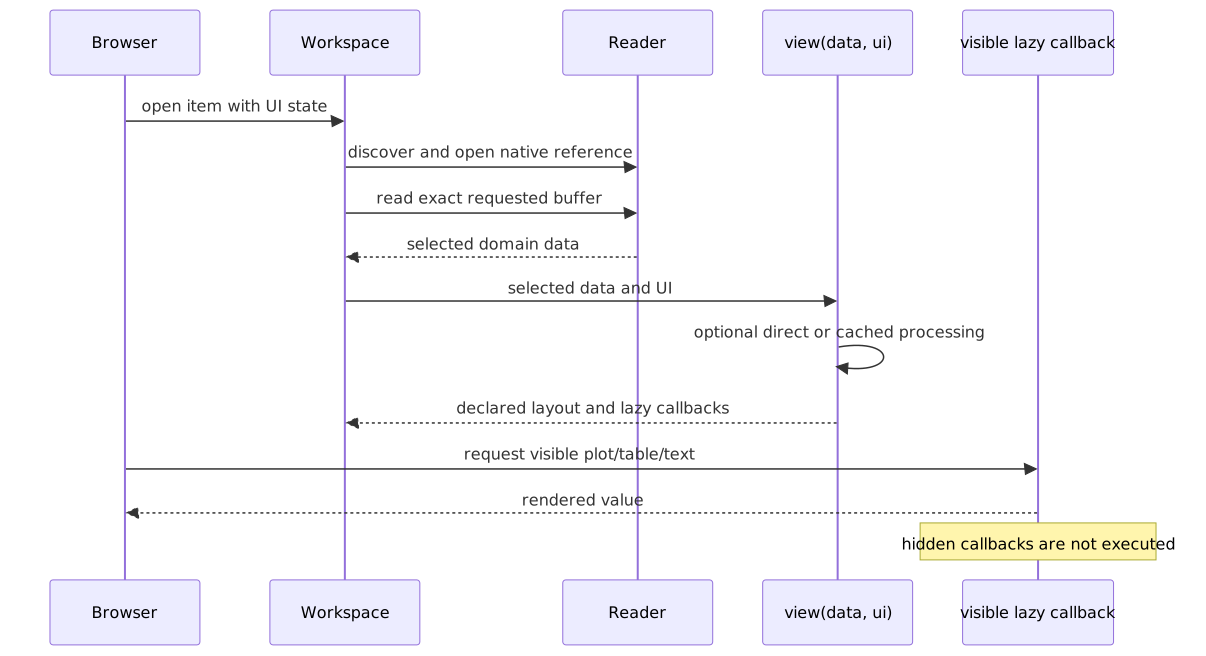
The author returns one Workspace. A reusable Reader handles discovery and
exact buffering; one unrestricted view(data, ui) callback does everything
after that.
Sigvue is intended to make signal viewing and repeatable batch processing simple to start and straightforward to extend. The same domain reader, processing functions, and plots work headlessly; the workspace adds discovery, buffer controls, lazy views, and optional durable batch actions without forcing the scientific pipeline into framework-specific stages.
Two standalone applications show the same core serving very different signal workflows:
- NOAA NEXRAD Viewer discovers Level III radar sequences, provides segmented scan playback, and renders full-resolution GIFs as durable batch results.
- SigMF Viewer discovers recordings and collections, reads exact moving windows, presents progressive waterfalls, and renders high-resolution per-channel PNGs in batch mode.
Install and run
python -m pip install sigvue
sigvue
Open http://127.0.0.1:8000.
Run sigvue --config /path/to/browser.toml to open an existing profile
directly.
For the same application in a native desktop window, install Sigvue's desktop extra and run the core desktop host:
python -m pip install "sigvue[desktop]"
sigvue-desktop --config /path/to/browser.toml
From a Sigvue source checkout, the equivalent editable installation is:
python -m pip install -e ".[desktop]"
sigvue-desktop --config examples/browser.toml
sigvue-desktop accepts the same workspace profile as the browser server.
It owns the local server and pywebview window, including native fullscreen and
the workspace wizard's folder picker. Workspace packages only provide readers,
views, and batch actions; they do not need their own desktop launcher.
Static hosting: GitHub Pages and GitLab Pages
The static build runs the same Python workspaces and request handlers in a Pyodide Web Worker. It includes NumPy, SciPy, Matplotlib, Pillow, Plotly, and the complete generated LTE and communications recordings. Analysis, controls, window navigation, plot interaction, annotations, and JSON/MAT exports run on the visitor's device; this is not a collection of pre-rendered demo screenshots. The server and desktop commands above are unchanged.
The Static demos on GitHub Pages workflow builds and tests the actual
browser application on pull requests and deploys main. In repository
Settings → Pages → Build and deployment, select GitHub Actions.
The project URL is https://briday1.github.io/sigvue/.
No Python server, API service, credentials, CDN, or cross-origin-isolation
headers are needed by the published application.
To build the same site yourself, from this checkout:
python -m pip install -e ".[examples]"
python -m examples.scripts.generate_all
curl --fail --location --retry 3 \
  https://github.com/pyodide/pyodide/releases/download/314.0.6/pyodide-314.0.6.tar.bz2 \
  --output /tmp/pyodide.tar.bz2
echo "fd25b21567f83f83b0b8bb1780a5458c6d4dd10bb07a22004424194022037f00  /tmp/pyodide.tar.bz2" | sha256sum --check
tar -xjf /tmp/pyodide.tar.bz2 -C /tmp
sigvue-static --root "$PWD" --config examples/browser.toml \
  --include examples --pyodide /tmp/pyodide --output _site
python -m http.server --directory _site 8000
Open http://localhost:8000. Publish the contents of _site to any HTTPS
static host, including a GitLab Pages public/ artifact. Hash-based links work
at a project subpath and survive refresh without a server rewrite or custom
404 page. The output must be absent or empty when building again.
For your own project, provide its root, profile, and explicit --include
files/directories; repeat --include as needed. Paths in the profile must be
relative and remain inside that root. Only selected files are published;
review them before deployment because every bundled file is public.
Hidden files, symlinks, caches, and tests are excluded. Extra native
dependencies must have a compatible Pyodide build; arbitrary installed desktop
extensions cannot be copied into WebAssembly.
Storage is local to the visitor. Writable files and annotations live in
IndexedDB, isolated by site path. Nothing is uploaded to GitHub, GitLab, or a
Sigvue backend. Use Local files to import files or folders, or download a
ZIP backup; exports download through the browser as ordinary files. Workspace
paths inside Python start at /project. Browser storage is not the host's
filesystem: changing the hosted source files or another person's annotations
is neither necessary nor possible. Clearing site data removes local changes;
private browsing and storage quotas follow browser policy. Storage failures
are reported rather than silently switching to nonpersistent storage.
Local profiles and data are preserved when a new version of the site is
deployed; deployed Python modules are refreshed.
To create a workspace using your own recordings:
- Open Local files, choose a destination such as
my-recordings, and import your files (or import a folder, preserving its folder name). - Open + Workspace, choose the LTE or communications workspace type, and
set Data directory to
/project/my-recordings. - Choose a name and identifier. Enable Save to a profile to retain the workspace after reload; the default profile is also browser-local.
Custom Python workspace repositories can be imported the same way. Include
their browser.toml or pyproject.toml workspace declarations, then select
the imported /project/... repository in + Workspace → Discover.
The normal Python installation continues to discover and read files on its
server; these browser file controls are specific to the static build.
Static mode requires a current browser with WebAssembly, workers, IndexedDB, and service workers, served over HTTPS (or localhost for development). The initial download includes Python and scientific libraries. Browser memory limits still apply. A Python callback runs to completion on its worker: the UI remains responsive, but native threads, subprocesses, direct device access, and interruption of a running synchronous batch callback are not provided by Pyodide. Workspaces needing those OS facilities should continue using the local server. Bundled image processing uses Pillow to encode generated arrays; do not deploy custom decoders for untrusted files without checking security updates for the selected Pyodide package set.
The API

There is one application object:
Workspace(
    identifier="my-data",
    name="My Data",
    description="Inspect recordings.",
    reader=reader,
    view=view,
)
Inside view, the author decides what is shared, what is deferred, and whether
processing and plotting are separate at all.
Minimal file-backed workspace
from pathlib import Path

import plotly.graph_objects as go

from sigvue import Files, Workspace


def open_samples(path: Path) -> tuple[float, ...]:
    return tuple(float(value) for value in path.read_text().split(","))


def view(samples, ui):
    gain = float(ui.number("gain", default=2.0, minimum=0.0))
    values = tuple(value * gain for value in samples)

    ui.stat("Samples", len(samples))
    with ui.tab("Values"):
        ui.plot(
            lambda: go.Figure(go.Scatter(y=values)),
            key="values",
        )


def create_workspace(config=None):
    return Workspace(
        identifier="values",
        name="Values",
        description="Inspect sample files.",
        reader=Files("data", "*.samples", open_samples),
        view=view,
    )
There is no framework boundary between multiplication and plotting. The callback can call one combined function just as easily:
def view(samples, ui):
    with ui.tab("Values"):
        ui.plot(lambda: process_and_plot(samples), key="values")
That lambda is lazy. Hidden tabs and switcher choices are not executed.
Headless data access
Reader.discover() returns native author-owned references. Paths stay Path
objects; grouped collections and database keys stay domain objects.
reader = Files("data", "*.samples", open_samples)
path = reader.discover()[0]
samples = reader.load(path)
figure = process_and_plot(samples)
The same reader used by the browser is useful in scripts, notebooks, tests, and batch jobs.
Windowed data
reader = Files(root, "*.bin", open_recording).windowed(
    read_window,  # read_window(recording, start, stop)
    duration=lambda recording: recording.duration_seconds,
    default=0.100,
    minimum=0.010,
    step=0.010,
    overview=power_overview,
    overview_heatmap=low_resolution_waterfall,
    overview_colormap_control="colormap",
    overview_limits_control="dbfs_limits",
    overview_label="Median power",
)
Headlessly:
window = reader.load(path, start=2.0, stop=2.1)
Opened recordings, recent exact buffers, and overviews are revision-aware
cached for repeated browser requests. Reader buffering never approximates
scientific data. overview remains the lightweight line drawn across the
window bar; overview_heatmap optionally adds a rectangular numeric raster
behind it without changing the bar's geometry. Heatmap columns run
left-to-right in recording-time order and rows run bottom-to-top, so a
conventional frequency-x/time-y waterfall should be transposed before it is
supplied. The bar's expand icon selects the complete recording extent on
demand. The optional control bindings make the compact heatmap follow an
existing ui.colormap() picker and ui.limits() dBFS range; changing either
redraws the bar and the main plot together.
Segmented data
from sigvue import Segment

reader = Files(root, "*.json", open_collection).segmented(
    read_segment,  # read_segment(collection, selected_segment)
    duration=lambda collection: collection.duration,
    segments=lambda collection: tuple(
        Segment(event.id, event.start, event.duration, event.label)
        for event in collection.events
    ),
)
The callback receives the selected Segment, so irregular events and scans
retain their identity.
Plot interaction and commit workflows
Plot selections and viewports are public request state. Bind either event directly
to a paired ui.limits() control, or read the selection in presentation code:
bounds = ui.limits(
    "frequency_bounds",
    default=(0.0, 100.0),
    minimum=0.0,
    maximum=500.0,
    commit="explicit",  # preview locally until an action is clicked
    resettable=True,
)
apply_bounds = ui.action("apply_bounds", label="Apply bounds")
selection = ui.plot_selection("spectrum")

with ui.tab("Spectrum"):
    ui.plot(
        make_spectrum(bounds, apply_bounds),
        key="spectrum",
        selection_controls={"xaxis": "frequency_bounds"},
        drag_mode="select",
        modebar_add=("select2d",),
    )
A string binding targets one ui.limits() control; a two-name tuple targets
separate scalar controls. viewport_controls has the same binding forms for
pan/zoom ranges. New plot events update the bound control, while a later manual
edit clears stale selection ownership. With commit="change" (the default),
updates refresh immediately. With commit="explicit", handles and overlays
can be previewed without rerunning analysis; clicking any ui.action() sends
all current control values and a momentary action flag in one request.
A resettable limits control resets to the default and bounds declared by the
current render, so authors can derive them from the active data window. Per-plot
modebar_add, modebar_remove, and drag_mode customize Plotly tools without
reaching into browser internals.
Seek and live playback
reader = Files(root, "*.bin", open_recording).playback(
    read_window,
    duration=lambda recording: recording.duration_seconds,
    default=0.020,
    minimum=0.001,
    maximum=0.100,
    buffer_step=0.001,
    mode="live",
    seek_step=0.010,
    refresh_interval=1.0,
)
This supplies an exact moving buffer. When maximum is given, the browser also
exposes its width.
Application-specific buffering
If a domain needs coupled controls that do not fit the regular helpers, the reader boundary stays open:
reader = Files(root, "*.collection", open_collection).buffered(
    read_buffer,       # ordinary headless read(opened, ...)
    select_buffer,     # select_buffer(opened, ui)
)
reader.load(reference, ...) calls read_buffer directly. The browser calls
select_buffer, which may declare buffer controls and then use that same exact
read. This does not introduce another processing or presentation stage.
Processing, caching, and lazy work
Sigvue does not decide how the callback is divided.
Direct processing is ordinary Python:
def view(data, ui):
    threshold = float(ui.number("threshold", default=3.0))
    events = detect_events(data, threshold)
    with ui.tab("Events"):
        ui.plot(lambda: plot_events(data, events), key="events")
For shared expensive work, ui.compute is an optional generic cache:
def view(data, ui):
    threshold = float(ui.number("threshold", default=3.0))
    events = ui.compute(
        "event-detection",
        lambda: detect_events(data, threshold),
    )
    with ui.tab("Events"):
        ui.plot(lambda: plot_events(data, events), key="events")
    with ui.tab("Table"):
        ui.table(lambda: event_rows(events), key="event-table")
By default, the cache key includes:
- the reader/source revision;
- the selected window, segment, or playback position;
- every control declared before
ui.compute.
The author may specify depends_on=(...) to narrow control dependencies, or
ignore ui.compute entirely.
Slow work needed by only one view belongs inside that view:
def view(data, ui):
    with ui.tab("Overview"):
        ui.plot(lambda: plot_overview(data), key="overview")

    with ui.tab("Slow diagnostics"):
        ui.plot(
            lambda: analyze_and_plot_diagnostics(data),
            key="diagnostics",
        )
Opening Overview does not run the diagnostics.
Exact complex layouts
The same callback supports all current layouts without another abstraction:
def view(data, ui):
    reference = str(ui.select(
        "phase_reference",
        default="Channel 1",
        options=channel_names(data),
    ))
    calibrated = ui.compute(
        "calibrated-radar",
        lambda: calibrate(data, phase_reference=reference),
    )

    ui.stat("Channels", calibrated.channel_count)

    with ui.tab("Waterfall"):
        ui.view_switcher(
            ("Domain", "Channel"),
            waterfall_views(calibrated, ui),
            key="waterfall-domain",
            selector=("buttons", "dropdown"),
            axis_navigation="bounded",
        )

    with ui.tab("Calibration", columns=(1, 1)):
        ui.plot(lambda: phase_plot(calibrated), key="phase")
        ui.table(calibrated.calibration_rows, key="calibration")
Tabs, weighted grids, nested groups, multidimensional switchers, display
controls, inline processing controls, tables, text, and deferred plots all stay
in the one nested ui API.
Custom discovery metadata
Paths receive useful defaults. Custom references may provide describe:
from sigvue import DataResource, Reader

reader = Reader(
    discover=discover_sequences,
    open=open_sequence,
    describe=lambda sequence: DataResource(
        identifier=sequence.id,
        title=sequence.title,
        source=sequence,
        timestamp=sequence.timestamp,
        tags=("radar", sequence.station),
        summary={"scan_count": sequence.scan_count},
    ),
)
Optional DiscoveryColumn values on Workspace define typed catalog columns.
Recursive readers preserve their relative directories as browser folders by
default. Set flatten_discovery=True on Workspace to show every discovered
item at the workspace root without changing its identifier, source, or reader.
Optional capabilities
Annotation, export, and batch support remain independent:
Workspace(
    ...,
    reader=reader,
    view=view,
    annotator=MyAnnotator(),
    exporter=MyExporter(),
    batch=MyBatchActions(),
    discovery_columns=MY_COLUMNS,
)
These contracts are imported directly from sigvue. Format-specific readers
and capabilities belong with the application or examples, not in Sigvue core.
Batch actions run independently of the current browser route. The notification
bell shows queued and running actions, follows them while the user browses other
workspaces or views, and retains their completed outputs for opening or path
copying. Reloading the page reconnects to jobs still owned by the server.
Workspace actions should use request.each(resources, render_one) when they
apply the same operation to discovered items. Sigvue then reports aggregate
progress, isolates an item failure so later items still run, and returns the
successful results. Long-running render functions can call
request.raise_if_cancelled() at safe boundaries; the same cancellation hook is
available to item actions.
BatchResult.assets can list nested support files for a primary HTML result,
such as image tiles. Sigvue serves those files to the report without adding
thousands of support paths to the notification UI.
Top-level BatchResult.files entries may also be directories. Sigvue opens
those results in a viewport-sized searchable file/image browser with independent
scrollback and expandable nested folders. The tree updates as a running batch
finishes files without resizing the image preview. PNG and GIF previews scale to
fit that pane in both dimensions without internal scrolling. Sigvue opens
individual images and HTML reports directly, and offers other file types as
downloads alongside their local copyable paths.
The persistent Browse menu can open all declared outputs for that workspace or item, or narrow the result browser to one batch action type. It is not limited to the most recently run action. A particular notification still links to its individual job, while All batch results shows finished outputs from every action sharing the same destination directory.

Configuration
A package exposes create_workspace(config):
[project.entry-points."sigvue.workspaces"]
my-analysis = "my_package.sigvue:create_workspace"
browser.toml chooses instances:
[browser]
title = "My data browser"

[[workspaces]]
use = "my-analysis"
id = "recordings"
name = "Recordings"
flatten_discovery = false

[workspaces.config]
data_root = "./data"
The profile is optional. Running sigvue without --config opens an empty
catalog with an Add workspace wizard. The wizard first discovers workspace
factories owned by the current project (including its browser.toml,
examples/browser.toml, and project entry points), falling back to installed
entry points only when the project has none. Selecting a different source
repository scopes discovery to that repository. The wizard pairs a factory
with a data directory and lets the user set the instance name,
identifier, description, category, tags, and additional factory
configuration. Flatten discovery can present all discovered items in one
list instead of retaining the reader's folder hierarchy. The new workspace
exists only in the running server unless
Save to a profile is selected; saving atomically creates or appends to the
chosen TOML file.
Applications can use the same profile-shaped spec without creating a file:
from pathlib import Path

from sigvue import create_app, workspace_launch_spec

workspace = workspace_launch_spec(
    {
        "use": "my-analysis",
        "id": "recordings",
        "name": "Recordings",
        "config": {"data_root": "./data"},
    },
    Path.cwd(),
)
app = create_app(workspace_specs=(workspace,))
app.configure_workspace(...) adds another instance later and optionally
accepts persist_path= to promote that session workspace to TOML. Profile
reloads preserve all other session-only workspaces.
The factory reads that location with
WorkspaceConfig(config).path("data_root"). The bundled examples deliberately
provide no code-level fallback, so browser.toml is their single source of
truth for data locations. The same factory may still be reused in several TOML
entries with different roots and metadata.
When a profile contains exactly one enabled workspace, the browser opens that
workspace's item discovery directly at /. Profiles with multiple workspaces
retain the searchable workspace catalog. Workspace code and configuration are
identical in both cases.
Runnable examples
Small examples live in the
examples/ directory.
The standalone examples
distribution covers communications, LTE waterfalls, calibrated multi-channel
radar, annotated ECG, weather radar, passive acoustics, seismology, stored
events, and native planetary data.
python -m pip install -e ".[examples]"
python -m examples.scripts.generate_all
sigvue --config examples/browser.toml
PyPI documentation
PyPI does not render Mermaid. The release workflow renders the diagrams:
python scripts/build_pypi_readme.py --ref "v$VERSION"
scripts/puppeteer-ci.json supplies Chromium's CI sandbox arguments.
Development
python -m pip install -e ".[test,release,examples]"
python -m pytest -q tests examples/tests
python -m build
python -m twine check dist/*
1 maintainer

Metadata
1 maintainer
Release files for sigvue 2026.80
For a detailed explanation of source distributions (sdists) and built distributions (wheels), please see the package formats documentation.
Source distribution (sdist)
| File | Size | Uploaded | Provenance | Actions |
|---|---|---|---|---|
| sigvue-2026.80.tar.gz | 193.7 kB | Without provenance | Details for sigvue-2026.80.tar.gz |
Built distribution (wheel)
| File | Interpreter | ABI | Platform | Actions Reset |
|---|---|---|---|---|
| sigvue-2026.80-py3-none-any.whl | Python 3 | none | any | Details for sigvue-2026.80-py3-none-any.whl |
Total release size: 340.2 kB
Release files / sigvue-2026.80.tar.gz
| Download URL | sigvue-2026.80.tar.gz |
|---|---|
| Size | 193.7 kB |
| Tags | Source |
|
SHA-256 checksum How to use checksums |
62a16d74f0f82e0e132b9b619f8fab1125c4e2f20ff5024c640f2b4bc8f9e49e
|
|
BLAKE2b-256 checksum How to use checksums |
4d8522713c52825569767fa566c449fb4b2fe6fe0b182f4e0e41f5848b477606
|
| Upload date | |
|
Uploaded using Trusted Publishing? What is trusted publishing? |
No |
| Uploaded via |
twine/7.0.0 CPython/3.13.14
|
Release files / sigvue-2026.80-py3-none-any.whl
| Download URL | sigvue-2026.80-py3-none-any.whl |
|---|---|
| Size | 146.5 kB |
| Tags | Python 3 |
|
SHA-256 checksum How to use checksums |
ef90ba95958f2c4675364ffdc9c22fac6aeeda001b3130aab2c5b54399e17449
|
|
BLAKE2b-256 checksum How to use checksums |
8a6849d7439e541dd4fb0d9bb2cc5445600408163c3a3114b395c3ef8903752b
|
| Upload date | |
|
Uploaded using Trusted Publishing? What is trusted publishing? |
No |
| Uploaded via |
twine/7.0.0 CPython/3.13.14
|
Security for sigvue 2026.80
Provenance
Provenance describes where a file came from. On PyPI, provenance is shared via attestations, which provide a verifiable record of the build or publishing details. View details, limitations and caveats.
No provenance found
None of the files in this release were uploaded with provenance metadata.
A note on package security
PyPI is a repository for distributing packages, not a service for auditing them. While third-party security researchers and our staff do their best to detect and remove malicious packages, PyPI cannot guarantee the quality, security or suitability of any given package.
To learn more about protecting yourself from malicious actors, visit our package security documentation.














