
sliveshow

A JupyterLab extension that turns Jupyter notebooks into live, animated Reveal.js slideshows — with scrollable slides, SVG and math (MathJax 4) animations that also play in the normal notebook view, and MyST directive support for Jupyter Book 2.
Install:
pip install sliveshow
PyPI: https://pypi.org/project/sliveshow/
Demo: https://alyanaamirahmedani.github.io/sliveshow/lab/index.html?path=sliveshow_demo.ipynb
(Run all cells before starting the slideshow to display animations correctly.)
Requirements
- JupyterLab >= 4.0.0
Install
pip install sliveshow
Uninstall
pip uninstall sliveshow
Usage
Slideshow
The slideshow uses the Reveal.js framework. Set the slide type of each cell via COMMON TOOLS > Slide Type. Available types: Slide, Sub-Slide, Fragment, Skip.
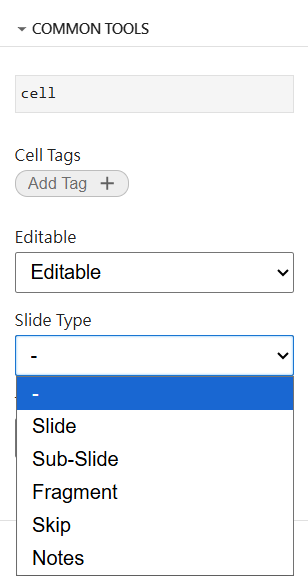
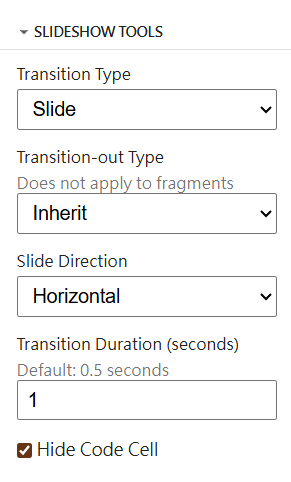
Transition type and duration are set per-cell in SLIDESHOW TOOLS. Available types: Slide, Fade, Zoom. The default can be changed in Settings.
For Slide transitions, direction is Horizontal (Slides) or Vertical (Sub-Slides) by default.
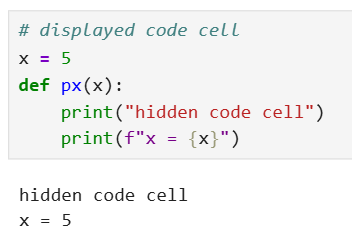
Code cell input can be hidden via Hide Code Cell, showing only the output.
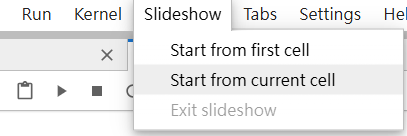
To start a slideshow, use the Slideshow menu → Start from first cell or Start from current cell. To exit, press Escape or use Exit slideshow.
SVG Animation
SVG animations use the Reveal.js Animate plugin by Asvin Goel. Animations load after the slideshow starts.
Method A — Raw HTML in a markdown cell
Add a <div data-animate> block containing your SVG and a JSON config comment directly in a markdown cell:
<div data-animate>
<svg xmlns="http://www.w3.org/2000/svg" width="300" height="300">
  <circle id="c1" cx="150" cy="150" r="60" style="fill:steelblue"/>
</svg>
<!--
{
  "setup": [{
    "element": "#c1",
    "modifier": "attr",
    "parameters": [{ "r": 100 }],
    "duration": 1500,
    "begin": 0
  }]
}
-->
</div>
Method B — {svg-animate} MyST directive (recommended)
Use the {svg-animate} directive in a markdown cell. The same cell works in both the live Reveal.js slideshow and a static Jupyter Book 2 / mystmd export:
:::{svg-animate} Circle animation
:height: 320px
:background: white
<svg xmlns='http://www.w3.org/2000/svg' width='300' height='300'>
  <circle id='c1' cx='150' cy='150' r='60' style='fill:steelblue'/>
</svg>
<!--
{
  "setup": [{ "element": "#c1", "modifier": "attr", "parameters": [{ "r": 100 }], "duration": 1500, "begin": 0 }]
}
-->
:::
Note for hubs with
jupyterlab-mystinstalled (e.g. DIVE): jupyterlab-myst parses:::blocks itself and shows “svg-animate — Unknown Directive” for directives it doesn’t know. sliveshow replaces that error block with the animation, so the cell still animates — but if you only care about the notebook and the slideshow, Method A (<div data-animate>) is the simpler choice. Method B exists so the same cell also renders in a static Jupyter Book 2 build.
To enable {svg-animate} in a mystmd/Jupyter Book 2 build, add the plugin to your myst.yml:
project:
  plugins:
    - svg-animate.mjs
The svg-animate.mjs plugin file is included in the Demo/ folder.
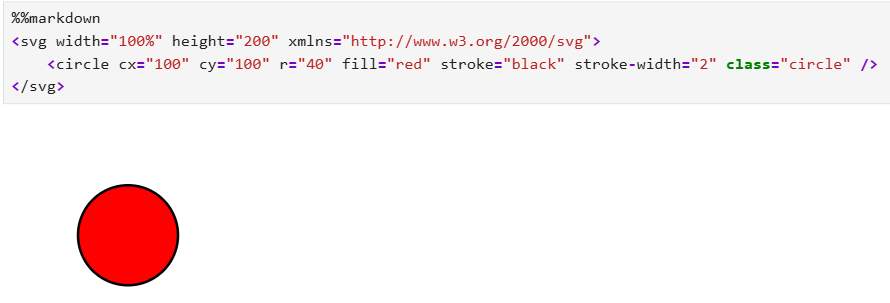
The JSON config controls the animation. setup runs on load; animation runs per fragment. See the Animate plugin README for full options.
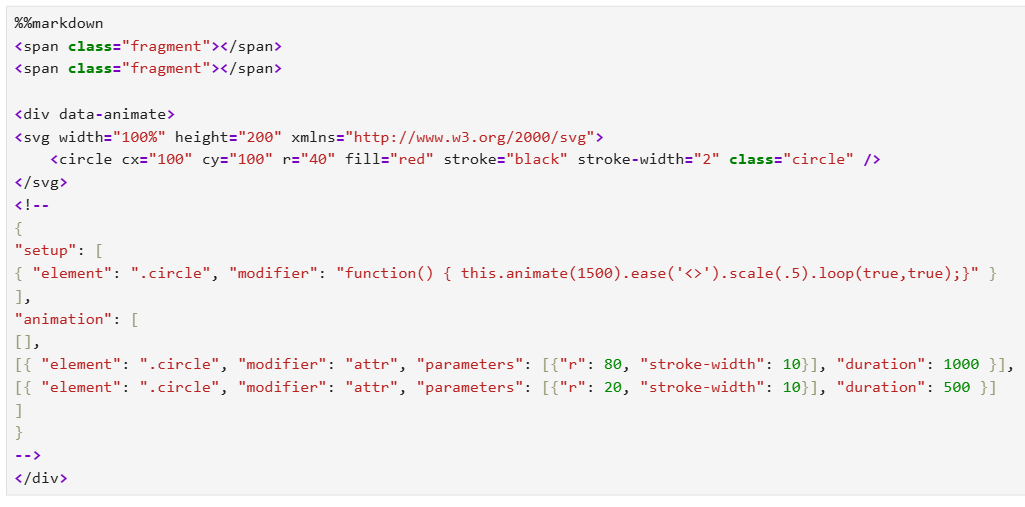
Animations in the notebook view
Since 0.1.8, the same data-animate / {svg-animate} cells also animate in the normal notebook view — no slideshow required. One source, works in both.
- Animations autoplay when the cell scrolls into view, and double-click replays them.
"loop": truein the config makes the animation cycle continuously (notebook and slideshow).- In the notebook, Reveal fragments don't exist, so all
animationstages play back-to-back on one timeline. - Tip: keep one animation block per markdown cell. Text before/after the block in the same cell is preserved.
Reveal.js plugins (chalkboard, ...)
sliveshow can load any Reveal.js plugin at runtime — no rebuild required. Add entries under Settings → Settings Editor → Sliveshow → Reveal.js plugins:
[
  {
    "name": "RevealChalkboard",
    "script": "https://cdn.jsdelivr.net/npm/reveal.js-plugins@latest/chalkboard/plugin.js",
    "css": [
      "https://cdn.jsdelivr.net/npm/reveal.js-plugins@latest/chalkboard/style.css"
    ],
    "config": { "chalkboard": { "theme": "whiteboard" } },
    "enabled": true
  }
]
name— the global the plugin registers (e.g.RevealChalkboard)script/css— where to fetch it from (a CDN, or a file served by Jupyter)config— merged into Reveal's configurationenabled— setfalseto keep an entry without loading it
A plugin that fails to load is reported in the browser console and skipped, so an unreachable CDN can never stop a lecture from starting.
Chalkboard is preconfigured (disabled by default): enable it and press C to annotate the current slide or B for a full chalkboard — ideal for working through an example live. Drag to draw, right-drag to erase, DEL to clear.
Animating math (MathJax 4)
sliveshow replaces JupyterLab's default math renderer with MathJax 4 SVG output, so every formula in a markdown cell is an SVG that can be animated like any other — in the slideshow and in the notebook view.
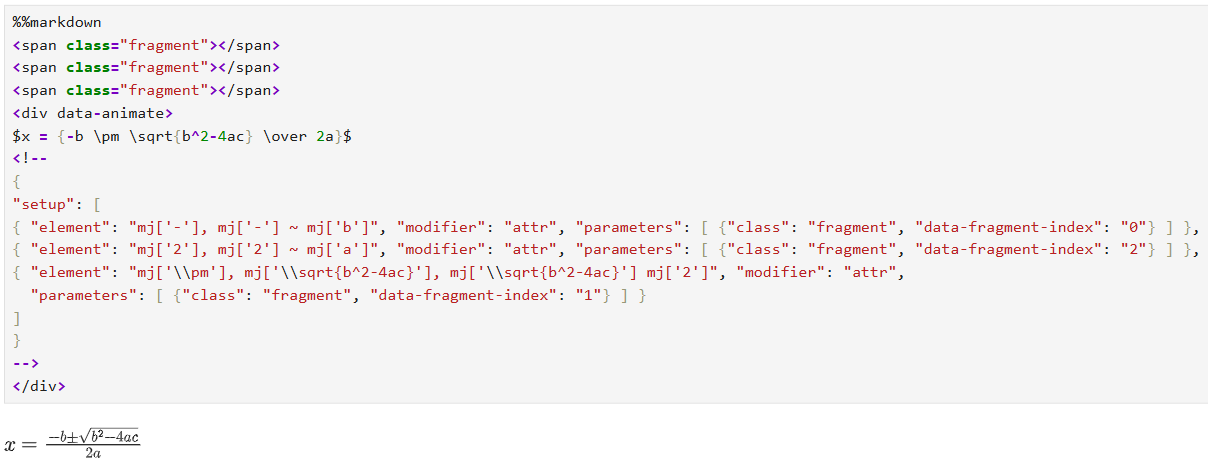
Select formula parts either by their TeX source via g[data-latex='x'] (shortened to mj['x']), or tag them explicitly with \class{name}{...} / \cssId{id}{...} and select with .name / #id:
## The Gaussian integral

<div data-animate>

$$\class{lhs}{\int_{0}^{\infty} e^{-x^2}\,dx} = \class{rhs}{\frac{\sqrt{\pi}}{2}}$$

<!--
{
  "animation": [
    { "element": ".lhs", "modifier": "opacity", "parameters": [0.15], "duration": 600 },
    { "element": ".lhs", "modifier": "opacity", "parameters": [1], "duration": 600 },
    { "element": ".rhs", "modifier": "opacity", "parameters": [0.15], "duration": 600 },
    { "element": ".rhs", "modifier": "opacity", "parameters": [1], "duration": 600 }
  ],
  "loop": true
}
-->
</div>
Math inside a data-animate block is typeset by MathJax 4 when the block is injected (both in the notebook and when the slideshow starts).
Note: sliveshow disables the built-in
@jupyterlab/mathjax-extension(MathJax 3) while installed, so its MathJax 4 SVG typesetter is the one JupyterLab uses. Uninstalling sliveshow restores the default renderer.
Contributing
Development install
You will need Node.js and JupyterLab installed.
# Clone the repo
git clone https://github.com/AlyanAamirAhmedani/sliveshow
cd sliveshow

# Install in development mode
pip install -e "."

# Link with JupyterLab
jupyter labextension develop . --overwrite

# Build TypeScript
jlpm build
Watch mode (auto-rebuild on save):
# Terminal 1
jlpm watch

# Terminal 2
jupyter lab
Development uninstall
pip uninstall sliveshow
Remove the symlink created by jupyter labextension develop:
jupyter labextension list  # find labextensions folder
# remove the sliveshow symlink from that folder
Packaging
See RELEASE.
1 maintainer

Metadata
1 maintainer
Release files for sliveshow 0.2.2
For a detailed explanation of source distributions (sdists) and built distributions (wheels), please see the package formats documentation.
Source distribution (sdist)
| File | Size | Uploaded | |
|---|---|---|---|
| sliveshow-0.2.2.tar.gz | 907.5 kB | Details |
Built distribution (wheel)
| File | Interpreter | ABI | Platform | Reset |
|---|---|---|---|---|
| sliveshow-0.2.2-py3-none-any.whl | Python 3 | none | any | Details |
Total release size: 2.1 MB
Release files / sliveshow-0.2.2.tar.gz
| Download URL | sliveshow-0.2.2.tar.gz |
|---|---|
| Size | 907.5 kB |
| Tags | Source |
|
SHA-256 checksum How to use checksums |
9c9f9a890e5de406ca7fb6d219aaed5e2fbc246cb2152f694fc584b37eb50fab
|
|
BLAKE2b-256 checksum How to use checksums |
6d6b78e580504aaa981e5ea5de2a8c8282e1042b148099f2c4e71e80c2cf02ab
|
| Upload date | |
|
Uploaded using Trusted Publishing? What is trusted publishing? |
No |
| Uploaded via |
twine/6.2.0 CPython/3.13.7
|
Release files / sliveshow-0.2.2-py3-none-any.whl
| Download URL | sliveshow-0.2.2-py3-none-any.whl |
|---|---|
| Size | 1.2 MB |
| Tags | Python 3 |
|
SHA-256 checksum How to use checksums |
a06044ab18601489133aee26e25a6646c49612f9da6202e9141b272c9d7ae166
|
|
BLAKE2b-256 checksum How to use checksums |
851ec3655f18450e144fc02465468b00f2404e7c7f25e55457b5c4dd26e45b2c
|
| Upload date | |
|
Uploaded using Trusted Publishing? What is trusted publishing? |
No |
| Uploaded via |
twine/6.2.0 CPython/3.13.7
|














