
spotify_monitor





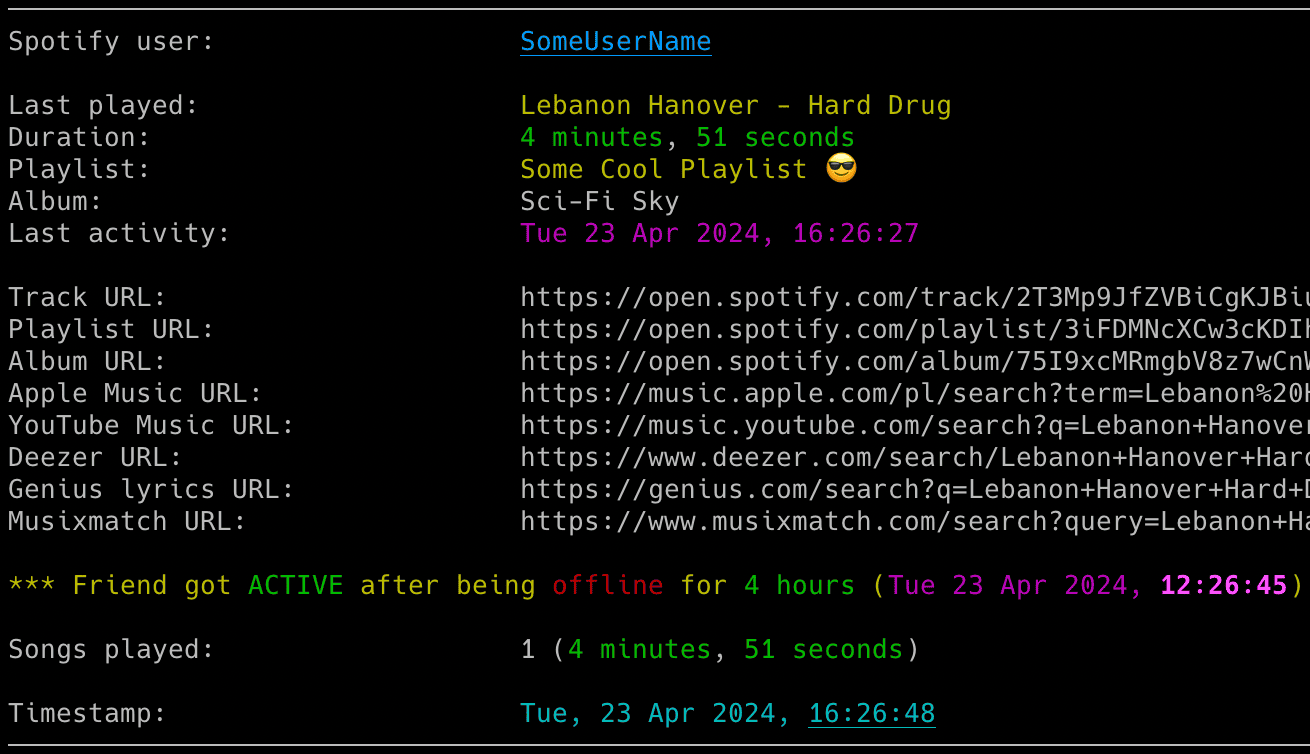
Powerful real-time tracker for Spotify friend music activity: monitor listening habits, auto-sync playback to your local client, detect skipped tracks and receive instant notifications for every beat your friends play.
🚀 Quick Install & Run
Python from PyPI
pip install spotify_monitor
Run setup by itself:
spotify_monitor --setup
Docker image - fastest container setup
macOS or Windows
Use a macOS shell or Windows PowerShell with a Docker-compatible runtime that provides the docker CLI.
docker run --rm --pull=always -it --init -v "${PWD}:/data:z" misiektoja/spotify-monitor:latest --setup
After setup finishes, start monitoring with the files created by the wizard:
docker run --rm -it --init -v "${PWD}:/data:z" misiektoja/spotify-monitor:latest --config-file /data/spotify_monitor.conf
The setup command pulls the current image. Both commands keep configuration, private values and output in the current directory.
In Windows Command Prompt replace ${PWD} with %cd%. Windows hosts must use Linux containers.
Linux
--user "$(id -u):$(id -g)" runs the container with your numeric user and group IDs. This lets the container write files that your host account can edit.
docker run --rm --pull=always -it --init --user "$(id -u):$(id -g)" -v "$PWD:/data:z" misiektoja/spotify-monitor:latest --setup
After setup finishes, start monitoring:
docker run --rm -it --init --user "$(id -u):$(id -g)" -v "$PWD:/data:z" misiektoja/spotify-monitor:latest --config-file /data/spotify_monitor.conf
Docker Compose - shorter recurring commands
Download the Compose file:
curl -fsSLO https://raw.githubusercontent.com/misiektoja/spotify_monitor/refs/heads/main/docker-compose.yml
Linux container engine requires to export your numeric user ID and group ID so files created in the current directory belong to you instead of root.
export SPOTIFY_MONITOR_UID="$(id -u)"
export SPOTIFY_MONITOR_GID="$(id -g)"
Docker-compatible runtimes on macOS and Windows normally do not need these values.
Run setup by itself:
docker compose run --rm --pull=always spotify_monitor --setup
After setup finishes, start monitoring with the shorter recurring command:
docker compose up --no-log-prefix
For the manual single-file method, optional extras and upgrade commands for every method, see Installation.
Features
🔍 Real-time Tracking
- Friend Activity: Monitor songs listened by Spotify users in real-time.
- Presence Detection: Detect when friends get online or offline.
- Session Stats: Display duration, track counts and songs on loop.
🎮 Playback Control
- Auto-Sync: Automatically play friends' songs in your local Spotify client.
- Smart Pause: Pause or switch tracks when the monitored user goes offline.
- Crossfade Support: Detect and annotate crossfaded songs during transitions.
📊 Rich Insights
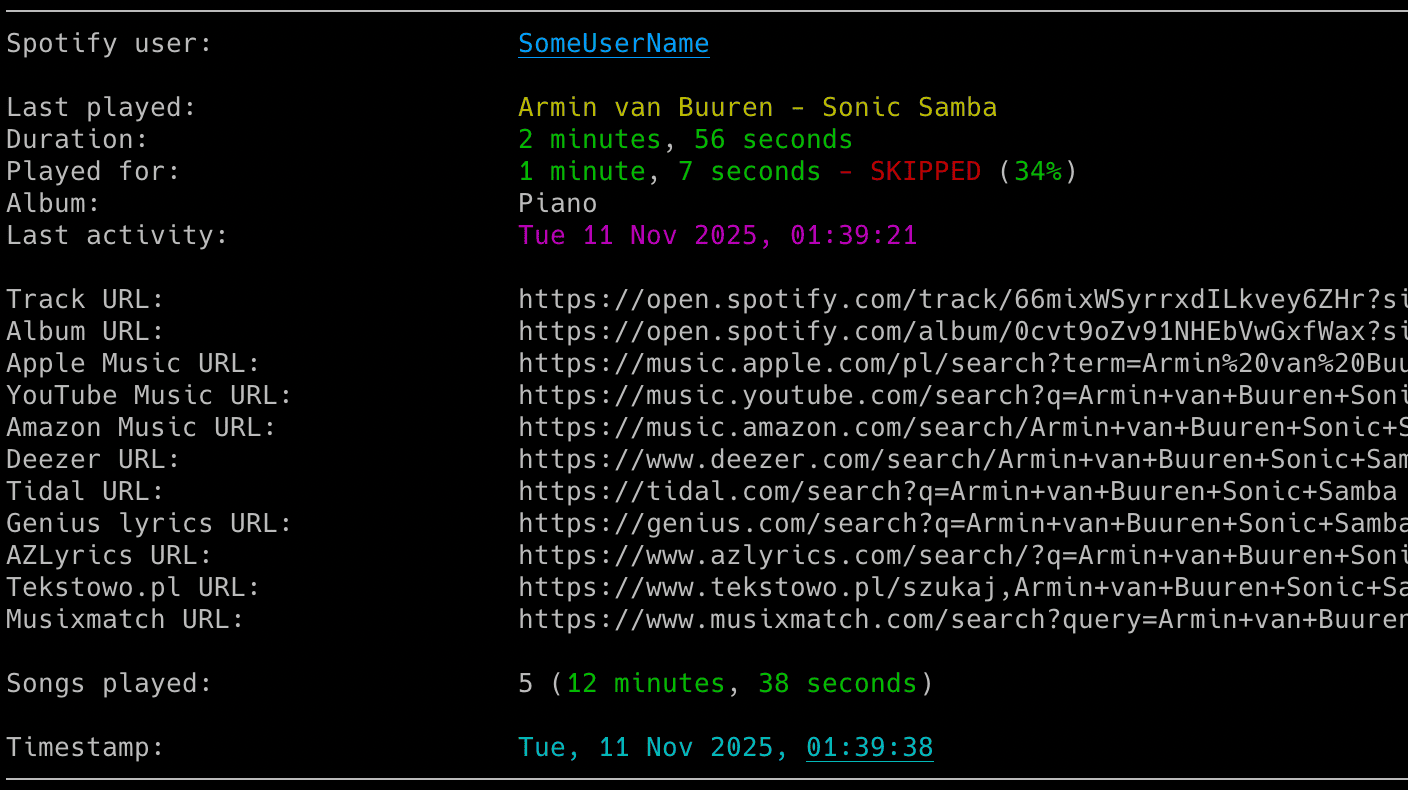
- Track Context: View playlist, artist and album info with clickable URLs.
- Skip Detection: Identify exactly when and how long a song was played.
- Global Search: Instant links to Spotify, YouTube Music, Apple Music, Tidal, lyrics and more.
🔔 Smart Notifications
- Multi-Channel: Instant alerts via Email and Webhooks (Discord, ntfy etc.).
- Detailed Alerts: Choose activity, tracked-song, every-song, loop and error alerts.
- Session Summaries: Receive detailed reports when a friend finishes a session.
- Error Reporting: Be notified if the monitoring process hits a snag.
⚙️ Power Features
- Auth Flexibility: Cookie or Desktop Client access with automatic web-player metadata fallback and optional legacy OAuth app support.
- CSV Logging: Save every listened song with full timestamps to a CSV file.
- Flexible Config: Support for files, dotenv and environment variables.
- Signal Control: Manage the running script via system signals (macOS/Linux).
- Docker Ready: Run through Docker Hub, Docker Compose or a local image with persistent configuration, secrets and output.
For pause and resume tracking, progress indicators and offline mode, see lastfm_monitor.
For Spotify profile and playlist change tracking, see spotify_profile_monitor.
For Spotify Web Player token and TOTP utilities, see Debugging Tools.
Documentation
Full documentation is available at misiektoja.github.io/spotify_monitor:
- Installation - PyPI, manual script, Docker installation and upgrades
- Quick Start - setup wizard, authentication and first run
- Configuration - Spotify login, targets, SMTP, webhooks and secrets
- Usage - command formats, monitoring, container operation, notifications, playback and output
- Troubleshooting - the
--doctorself-check and logging levels - Debugging Tools - TOTP token testing and secret extraction
Quick Start
New here? Run the setup wizard
The fastest way to get started is --setup. It asks who to monitor, how to connect to Spotify and which alerts you want then saves a ready-to-run configuration. Private values stay in .env.
If Spotify Monitor is not installed yet, use Quick Install & Run above or choose a method in the full Installation guide. Then use only the setup command that matches that installation.
# PyPI install
spotify_monitor --setup
# Manual Python script on macOS or Linux
python3 spotify_monitor.py --setup
# Manual Python script on Windows
python spotify_monitor.py --setup
# Docker image on macOS or Windows
docker run --rm --pull=always -it --init -v "${PWD}:/data:z" misiektoja/spotify-monitor:latest --setup
# Docker image on Linux
docker run --rm --pull=always -it --init --user "$(id -u):$(id -g)" -v "$PWD:/data:z" misiektoja/spotify-monitor:latest --setup
For Docker Compose, run setup from the directory that contains the downloaded docker-compose.yml. On a native Linux container engine, run these shell commands in the same terminal immediately before setup unless the variables are already set there or you saved the numeric values in the Compose .env file during installation. For permanent project values, use the numeric .env form in the full Installation guide. Docker-compatible runtimes on macOS and Windows should skip this export block.
# Docker Compose on native Linux only
export SPOTIFY_MONITOR_UID="$(id -u)"
export SPOTIFY_MONITOR_GID="$(id -g)"
# Docker Compose
docker compose run --rm --pull=always spotify_monitor --setup
Running the tool with no arguments offers the wizard if you have not saved a target. If a target is already saved, it starts monitoring that target. The wizard detects the installation method and shows matching commands.
Before monitoring
Spotify only shows a person's listening activity when both of these conditions are met:
- The Spotify account used by Spotify Monitor follows the person you want to monitor.
- That person has enabled listening activity sharing in Spotify.
The setup wizard checks whether the monitoring account follows the target. It can send the follow request after you confirm. To follow manually, open the target's profile in the Spotify desktop or mobile app. You can use Share > Copy link to profile and paste the complete link into the wizard. You do not need to extract the user ID. See Following the Monitored User.
Firefox import is the recommended login path for local and container installs. Docker setup asks for the host operating system then asks for the Firefox package or Windows shell when needed. It prints a matching one-time read-only import command for macOS, Linux, Windows PowerShell or Windows Command Prompt. Later runs reuse the cookie saved in .env. Hidden manual sp_dc entry remains available as a fallback. See Container Operation or the full Quick Start guide for details.
Not sure which command you need?
| I want to... | Run this |
|---|---|
| Set up Spotify Monitor for the first time | Use the setup command for your installation above |
| Start monitoring with existing authentication | spotify_monitor TARGET, where TARGET is a raw ID, spotify:user: URI or profile URL |
Start a target saved as TARGET_USER_URI_ID |
spotify_monitor --config-file spotify_monitor.conf or docker compose up --no-log-prefix |
| Check authentication, connectivity and one target | spotify_monitor --doctor TARGET |
| List Spotify friends visible to the configured account | spotify_monitor --list-friends |
| Import a Spotify login from Firefox | Open Spotify Web Player in Firefox, sign in then run spotify_monitor --import-browser-cookie --browser firefox |
Safely set or replace SP_DC_COOKIE |
Run spotify_monitor --set-sp-dc and enter sp_dc at the hidden prompt |
| Configure and test webhook alerts | Use the setup wizard or follow Webhook Settings |
The short docker compose up command uses the default config and dotenv paths. Setup prints an explicit docker compose run command when you choose another path.
For complete copy-paste commands for every installation method, see Run Individual Commands.
For browser profiles, manual cookie extraction, Docker authentication, email and webhook setup, see Configuration. For notification choices, playback controls and output files, see Usage.
Change Log
See RELEASE_NOTES.md for details.
Maintainers
- misiektoja (@misiektoja)
- tomballgithub (@tomballgithub)
License
Licensed under GPLv3. See LICENSE.
1 maintainer

Download files
Download the file for your platform. If you're not sure which to choose, learn more about installing packages.
Source Distribution
Built Distribution
Filter files by name, interpreter, ABI, and platform.
If you're not sure about the file name format, learn more about wheel file names.
Copy a direct link to the current filters
File details
Details for the file spotify_monitor-3.1.tar.gz.
File metadata
- Download URL: spotify_monitor-3.1.tar.gz
- Upload date:
- Size: 194.2 kB
- Tags: Source
- Uploaded using Trusted Publishing? Yes
- Uploaded via:
twine/6.1.0 CPython/3.13.14
File hashes
| Algorithm | Hash digest | |
|---|---|---|
| SHA256 |
166c78ed6da3495243f913f4b5df73eb659b00e0a0b2194635845698622dfc68
|
|
| MD5 |
bebefb8686b74f59cc4a67aec23c00f6
|
|
| BLAKE2b-256 |
247b2ee44bb537c40eb5c2ef5ed121e95bb2f3e97c3c8ab52c8e24001eaaee50
|
Provenance
The following attestation bundles were made for spotify_monitor-3.1.tar.gz:
Publisher:
publish.yml on misiektoja/spotify_monitor
-
Statement:
-
Statement type:
https://in-toto.io/Statement/v1 -
Predicate type:
https://docs.pypi.org/attestations/publish/v1 -
Subject name:
spotify_monitor-3.1.tar.gz -
Subject digest:
166c78ed6da3495243f913f4b5df73eb659b00e0a0b2194635845698622dfc68 - Sigstore transparency entry: 2228138421
- Sigstore integration time:
-
Permalink:
misiektoja/spotify_monitor@7e831a367c5a8a7759f56b19aaa211c2e13dde7a -
Branch / Tag:
refs/tags/v3.1 - Owner: https://github.com/misiektoja
-
Access:
public
-
Token Issuer:
https://token.actions.githubusercontent.com -
Runner Environment:
github-hosted -
Publication workflow:
publish.yml@7e831a367c5a8a7759f56b19aaa211c2e13dde7a -
Trigger Event:
release
-
Statement type:
File details
Details for the file spotify_monitor-3.1-py3-none-any.whl.
File metadata
- Download URL: spotify_monitor-3.1-py3-none-any.whl
- Upload date:
- Size: 124.6 kB
- Tags: Python 3
- Uploaded using Trusted Publishing? Yes
- Uploaded via:
twine/6.1.0 CPython/3.13.14
File hashes
| Algorithm | Hash digest | |
|---|---|---|
| SHA256 |
0b21ec79257f6d5614472f5bdba16b736ed355af7842bbd11b960a18356498ba
|
|
| MD5 |
c8dd043543669aa946b336546608dd51
|
|
| BLAKE2b-256 |
82d2ea0fab2b8bf0b404e8965a29592ddd157534e898ba57103e4f31a3e0d203
|
Provenance
The following attestation bundles were made for spotify_monitor-3.1-py3-none-any.whl:
Publisher:
publish.yml on misiektoja/spotify_monitor
-
Statement:
-
Statement type:
https://in-toto.io/Statement/v1 -
Predicate type:
https://docs.pypi.org/attestations/publish/v1 -
Subject name:
spotify_monitor-3.1-py3-none-any.whl -
Subject digest:
0b21ec79257f6d5614472f5bdba16b736ed355af7842bbd11b960a18356498ba - Sigstore transparency entry: 2228138454
- Sigstore integration time:
-
Permalink:
misiektoja/spotify_monitor@7e831a367c5a8a7759f56b19aaa211c2e13dde7a -
Branch / Tag:
refs/tags/v3.1 - Owner: https://github.com/misiektoja
-
Access:
public
-
Token Issuer:
https://token.actions.githubusercontent.com -
Runner Environment:
github-hosted -
Publication workflow:
publish.yml@7e831a367c5a8a7759f56b19aaa211c2e13dde7a -
Trigger Event:
release
-
Statement type:







