
A sleek tool that displays visually appealing progress bars and draws metric based curves in real-time.

Project description

TCurve
A sleek progress bar tool
For better experience of printing on the terminal.




🚀 Spotlight
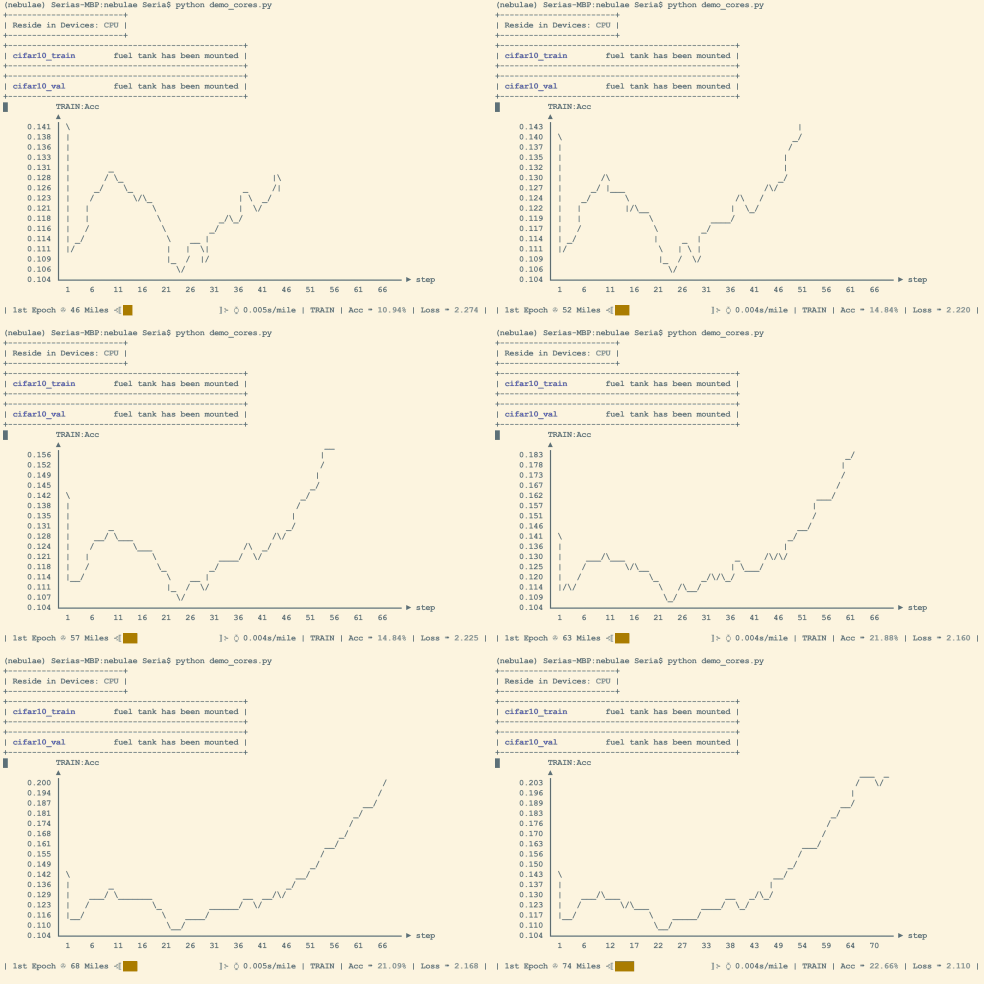
📈 Fascinating Dashboard
It shows visually appealing progress bars and draws metric based curves in real-time.
⚡ Quick Start
You can simply take it as a wrapper or help you plot curves.
import tcurve as tc
import time

# a simple wrapper
for i in tc.Dash(range(10)):
    time.sleep(0.5)

# wrap a generator
for i in tc.Dash(enumerate(range(30))):
    time.sleep(0.3)

# with keyword arguments
for i, n in tc.Dash(enumerate(range(30)), metrics={'number': ['d', tc.RAW]}, entry_fn=lambda idx, item: {'number': item[1]}, epoch=2, mpe=30, stage='COUNT', interv=1, wipe=False):
    time.sleep(0.3)

# in a complicated manner
tcd = tc.Dash(metrics={'Acc': ['.1f', tc.PERCENT]})
unit_acc = [0.012, 0.045, 0.134, 0.189, 0.234, 0.278, 0.345, 0.378, 0.456, 0.423, 0.51, 0.599, 0.623, 0.62, 0.7] # create a fake array for this tutorial
fake_acc = unit_acc + unit_acc[::-1] + unit_acc + unit_acc[::-1] + unit_acc + unit_acc[::-1]
for i, a in enumerate(fake_acc):
    time.sleep(0.1)
    tcd({'Acc': a}, 0, i, len(fake_acc))
The iterable wrapper accepts entry_fn(index, item) when an iterated value needs explicit mapping. For example:
for item in tc.Dash(
    enumerate(range(30)),
    metrics={'number': ['d', tc.RAW]},
    entry_fn=lambda index, item: {'number': item[1]},
):
    time.sleep(0.3)
The genre macros are listed below.
- RAW: display as it is
- PERCENT: shown as xx.yy% for example
- INVIZ: do not display but log to files
- IMAGE: to visualize the image using characters. usually collocated with lambda *x:1 (or lambda *x:0) to display on terminal (or not)
- CUSTOM: define your own function to process the content. the function is supposed to be like
def process_fn(value, epoch, mile, mpe, stage):
  # value: the loss/accuracy/generated image or anything else you get in this step
  # epoch: the current epoch
  # mile: the current step/iter within this epoch
  # mpe: how many steps/iters an epoch would go through
  # stage: the current stage, which is input by users

  # ----- do something here ----- #

  # return a string to display
🔥 Dive Deeper
Let's take the last example in previous part to show how could you use more arguments for delicate control.
# below is the common setting
unit_acc = [0.012, 0.045, 0.134, 0.189, 0.234, 0.278, 0.345, 0.378, 0.456, 0.423, 0.51, 0.599, 0.623, 0.62, 0.7] # create a fake array for this tutorial
flat_acc = [0.5, 0.5, 0.5, 0.5, 0.5, 0.5, 0.5, 0.5, 0.5, 0.5]
fake_acc = 10 * (unit_acc + unit_acc[::-1] + flat_acc)
We only take this for-loop to demonstrate. First, you can use is_global=True to plot the entire curve.
tcd = tc.Dash(metrics={'Acc': ['.1f', tc.PERCENT]})
for i, a in enumerate(fake_acc):
    time.sleep(0.1)
    tcd({'Acc': a}, 0, i, len(fake_acc), is_global=True)
Let is_global=False to view the recent changes of this curve.
tcd = tc.Dash(metrics={'Acc': ['.1f', tc.PERCENT]})
for i, a in enumerate(fake_acc):
    time.sleep(0.1)
    tcd({'Acc': a}, 0, i, len(fake_acc), is_global=False)
Make is_elastic=True to dynamically stretch or squeeze the vertical axis so that the fluctuation of curves is prominent enough to be observed.
tcd = tc.Dash(metrics={'Acc': ['.1f', tc.PERCENT]})
for i, a in enumerate(fake_acc):
    time.sleep(0.1)
    tcd({'Acc': a}, 0, i, len(fake_acc), is_elastic=True)
When you have several variables, set in_loop and last_for to switch among them.
e.g in_loop=(0, 1), last_for=5 means dashboard is going to show curves of var[0] and var[1] in turns. The displayed curve changes every 5 steps.
tcd = tc.Dash(metrics={'Acc': ['.1f', tc.PERCENT], 'Level': ['.d', tc.RAW]})
for i, a in enumerate(fake_acc):
    time.sleep(0.1)
    tcd({'Acc': a, 'Level': i*i}, 0, i, len(fake_acc), in_loop=(0, 1), last_for=5)
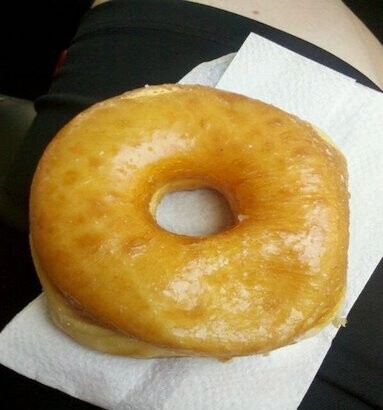
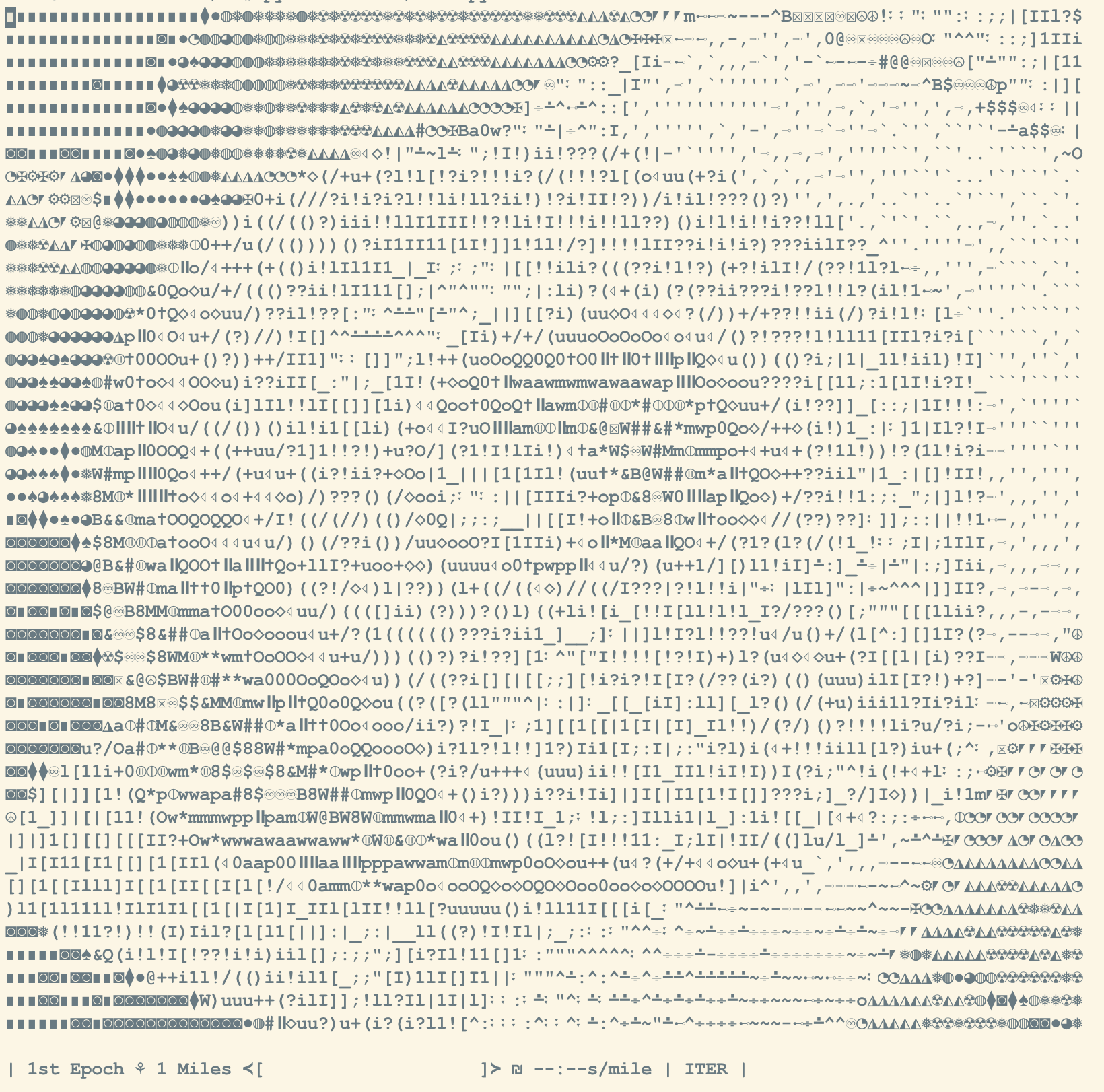
What's more, you can even draw the gray image on the terminal.
tcd = tc.Dash(metrics={'I': [lambda *x:1, tc.IMAGE]})
for i, img in enumerate(images):
    time.sleep(0.1)
    # read images here
    tcd({'I': img}, 0, i, len(images))
Try to squint at the right side. :D
🧭 Fullscreen Dashboard
TCurve starts in inline mode by default. In a large enough interactive terminal, press s to switch to fullscreen mode while the dashboard is running. Press s again to return to inline output.
Fullscreen mode keeps the curve, epoch summaries, image preview, events, and help panel in a single screen. The common keys are:
s: switch between inline and fullscreen modej/kor up/down arrows: move between metrics or rows in the focused paneg: switch between global and recent curve viewe: switch between fixed and elastic y-axisv: split the curve view into left and right panesr: turn resource monitoring on or off when enabledl: show or hide the event paneli: show or hide the image panelt: collapse or expand the focused panetab: move focus between panes?: show or hide help:: open actionsq: exit review mode after a run finishes
Actions opened by : can prepend previous history, compare a previous run, export CSV files, or save curve plots. Use j / k or up/down arrows to choose an action, enter to select, p to type a path manually, and esc to close.
Split view is a two-pane comparison view. When there are more than two metrics, use tab to focus the left or right curve pane, then use j / k or up/down arrows to choose which metric that pane shows.
TCurve raises a clear error when span or divisor does not fit in the current terminal. Split view is also blocked when span is wider than half of the terminal, with the reason shown in the event panel.
Resource monitoring is opt-in. Set resources=True, switch to fullscreen mode, then press r to start or stop CPU, memory, and NVIDIA GPU sampling. Sampling is cached and remains off until r is pressed. The panel labels each value clearly, for example CPU Util, Memory, T.Celsius, and VRAM.
dash = tc.Dash(metrics={'Loss': ['.3f', tc.RAW]}, resources=True)
When you use fullscreen mode with a manually called Dash, use with or call finalize() after the loop so the final review screen is closed cleanly. The iterable wrapper handles this automatically.
with tc.Dash(metrics={'Loss': ['.3f', tc.RAW]}, resources=True) as dash:
    for i, loss in enumerate(losses):
        dash({'Loss': loss}, 0, i, len(losses), stage='TRAIN')
🧾 Logs and History
By default, metric history is stored under ./logbook. You can change it with log_dir.
tcd = tc.Dash(log_dir='./logbook', metrics={'Loss': ['.3f', tc.RAW], 'Acc': ['.1f', tc.PERCENT]})
for i, (loss, acc) in enumerate([(1.2, 0.35), (0.8, 0.52), (0.4, 0.71)]):
    tcd({'Loss': loss, 'Acc': acc}, 0, i, 3, stage='TRAIN')

# Shortcut for plot_curves(subdir=...) + export_csv(subdir=...)
tcd.log(subdir='run_demo')
log(subdir='run_demo') saves both curve plots and CSV files under log_dir/run_demo. If you need only one kind of output, call plot_curves(subdir=...) or export_csv(subdir=...) directly.
CSV files are named by metric, stage, and unit, such as Loss_TRAIN_mile.csv and Loss_TRAIN_epoch.csv. Plot files are saved as .jpg.
You can load old CSV exports before or during a new run.
tcd = tc.Dash(metrics={'Loss': ['.3f', tc.RAW]})
tcd.prepend_history('./logbook/exports/run_demo')
tcd.compare_history('./logbook/exports/another_run')
prepend_history places old points before the current curve. compare_history overlays matching metrics from another run so the current trend can be compared in the terminal.
In fullscreen mode, press : to open actions for prepending history, comparing history, exporting CSV files, or saving plots without changing your training loop.
📦 Installation
TCurve supports Python 3.8+.
Install tcurve via pip
pip install tcurve
The following libs are installed as package dependencies.
- numpy
- pandas
- matplotlib
- seaborn
For terminal image preview, pass a 2D numpy array in float16, float32, or uint8.
Optional: install psutil for cross-platform CPU and memory usage. On Linux, TCurve can also read CPU and memory from /proc without psutil. NVIDIA GPU usage is read from nvidia-smi when available; driver/NVML errors are shown in the resource panel.
Release note: metrics is the metric configuration argument, and log_dir is the directory argument for metric logs and exports. Older examples using format or log_way should be updated.
Optional: if you cloned the repository and want to run the unit tests locally, use:
python -m unittest discover -s unit_tests -p 'test_*.py'
❤️ Support
If you find TCurve helpful, please give it a ⭐ on GitHub! ▶️ https://github.com/SeriaQ/TCurve
Release history Release notifications | RSS feed


Download files
Download the file for your platform. If you're not sure which to choose, learn more about installing packages.
Source Distribution
Built Distribution
Filter files by name, interpreter, ABI, and platform.
If you're not sure about the file name format, learn more about wheel file names.
Copy a direct link to the current filters
File details
Details for the file tcurve-0.2.0.tar.gz.
File metadata
- Download URL: tcurve-0.2.0.tar.gz
- Upload date:
- Size: 37.8 kB
- Tags: Source
- Uploaded using Trusted Publishing? No
- Uploaded via: twine/6.1.0 CPython/3.10.12
File hashes
| Algorithm | Hash digest | |
|---|---|---|
| SHA256 |
1530a7182bcde68d1ad91285df17cc288790cadf12c157f110e23544bbaa2c09
|
|
| MD5 |
d44306b35516dfdfa3552c236a3537a2
|
|
| BLAKE2b-256 |
3ff967aff2d31988166445494596b484336a078c785d7d937593bf39229c06bd
|
File details
Details for the file tcurve-0.2.0-py3-none-any.whl.
File metadata
- Download URL: tcurve-0.2.0-py3-none-any.whl
- Upload date:
- Size: 34.8 kB
- Tags: Python 3
- Uploaded using Trusted Publishing? No
- Uploaded via: twine/6.1.0 CPython/3.10.12
File hashes
| Algorithm | Hash digest | |
|---|---|---|
| SHA256 |
fae7f77cad6256788470559928cf1f09a49638b045e40d2fba862c6f8d7784b6
|
|
| MD5 |
d88d4316e6fd262475142119350057a1
|
|
| BLAKE2b-256 |
fc66900ea1d706d53fa8cd1e32993e91aeca1bde06ef5b13bb985e3f54b673a3
|






