

tex-mcp-web




Your coding agent already did the research. Let it write, review and fix the paper in the same session.
tex-mcp-web is an MCP server that adds a review page for LaTeX papers to Claude Code and Codex. You comment on the compiled PDF from a desktop, tablet or phone, and the agent edits the LaTeX source. It runs on Windows, macOS and Linux.

The agent session that produced your results already has the context needed to write about them, so nothing has to be copied into another tool. Ask the agent to write the paper, then select words in the PDF and write what should change. Comment on as many places as you like, then press Call agent, the bell above the comment list. The agent handles all the comments in one turn, drawing on the work it has already done: it edits the source, compiles the paper and replies in each thread. Where the wording is yours to decide, it proposes a change instead, which you can apply or reject. In the recordings on this page, the keys being pressed appear in the bottom right corner.
⭐ If this helps your writing, please give it a star. It helps others find the project.
Quick start
-
Paste this into Claude Code or Codex, and restart the agent when it is done:
Install tex-mcp-web by following https://raw.githubusercontent.com/MiiKiyoshi/tex-mcp-web/main/INSTALL.mdThe agent checks your machine, tells you what it will do, and installs once you agree. This works the same way on Windows, macOS and Linux.
-
In the session where you are working, say
do tex init. The paper can be in any folder, either one you already have or one you ask the agent to create. The agent finds the main.texfile and a free port, shows you the settings it proposes, and writes.tex-mcp-web.yamlonce you agree. -
Open the address the agent gives you, comment on the PDF, and press Call agent. If the agent runs on a server, see Open the page on another computer, tablet or phone.
In later sessions, Claude Code started in the same folder listens for Call agent on its
own. In Codex, say do tex listen after the agent starts.
Comment on figures and tables
A figure, a table or a page's layout often has no text you can select. For these, pick the box tool next to the pan and pointer tools in the PDF toolbar, draw a box over the area and describe the problem. The agent treats a box like any other comment.
Fit the page limit
The Problems tab lists the build's errors and warnings, and below them shows where the body
of the paper ends, just before the bibliography: the page, the column, and how many more lines
fit in that column. It also lists each paragraph, list item or caption whose last line is
shorter than a quarter of the column. Clicking an entry marks that line in the PDF. The
agent's compile() tool reports the same list, so the agent can carry out a request like
we are four lines over, pull up the short lines and check the result itself.
Work with co-authors on Overleaf
Press Connect Overleaf in the top bar. Settings opens and asks for the project's link and, the first time, your Overleaf session cookie. The project's comment threads then appear in a tab of their own, Comments with a leaf icon, next to the tab for the comments you write on the page. While the page is open, your co-authors appear in the top bar and their cursors show in the editor. Working with Overleaf covers this tab, your own cursor on Overleaf, and the ways to keep the paper's files in sync with Overleaf: through git, by hand or live.
Answer their comments with the agent
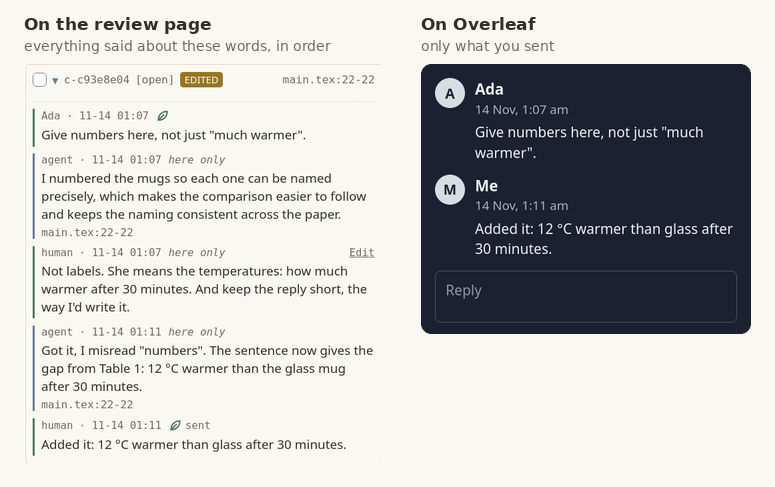
Within a thread you talk with the agent, which drafts the public reply in the box below the thread, and you send that reply once you are happy with it. Every entry in a thread is either private or public. A private entry stays on the page, between you and the agent. A public entry is on Overleaf, where everyone in the project can read it. Your conversation with the agent appears between your co-authors' messages, so the whole exchange reads in order, and only the replies you send reach Overleaf. A thread whose last message is a co-author's is marked unanswered, and the number on the tab counts these threads along with the suggested edits waiting for you.
Raise a point with them
Overleaf attaches each thread to source text, so a new thread starts in the source. Turn on the leaf button next to the comment button (the speech bubble) in the editor toolbar, select words and press the comment button. In the lower box of the dialog, a private note to the agent, describe roughly what you want to raise. The agent drafts the first message in wording suited to your co-authors, you send it, and your note stays private. If you write the first message yourself in the upper box, it is posted to Overleaf right away.
Accept or reject their suggested edits
Edits your co-authors make on Overleaf with track changes on arrive as suggested edits. Each
one appears as a card showing the removed and inserted text, and the editor marks it in the
source. Accept and Reject, or aa and dd, act on Overleaf for everyone in the
project.
Find a co-author's comment
When several co-authors comment on the same paper, the search narrows the list to the thread
you want, such as the one a co-author left on 2_main.tex on a particular morning. The search
box understands from:, file:, after: and before:, quoted phrases, - to exclude a
word, and OR.
Work through comments from the keyboard
You can move through the comment list with the keyboard, much as you move through the cells of a notebook. A ring marks the comment the keys act on, and the list scrolls beneath it so your eyes can stay in one place. The editor also has Vim keys, which you turn on in the ⋯ menu of the editor toolbar.
| Key | Action |
|---|---|
j k |
Next and previous comment |
| Space | Open the comment and show where it is in the PDF or the source |
K |
Jump to the comment's words in the source; press it there to come back |
r |
Reply privately to the agent |
R |
Resolve, or reopen a comment that is not open |
u |
Undo the last resolve, reopen or archive |
aa |
Apply the suggestion, or accept a suggested edit |
ss |
Send the reply to Overleaf |
/ |
Search the comments |
? |
Show every key |
nn rejects a suggestion and dd deletes; like aa and ss, they are pressed twice.
Reviewing in detail lists every key, including the editor's Vim keys.
Read the paper in your language
The page can show your paper in your own language as you read the PDF. With translation
set, as in the example under Configuration, Translation: Korean in the ⋯
menu at the top of the page shows each paragraph of the source in that language. The
translation runs through a command line you choose, set as translation.command in
.tex-mcp-web.yaml or, for every paper, in ~/.config/tex-mcp-web/config.yaml. If you ask
your agent to set up translation, it proposes a command and tests it.
Teach the agent your writing rules and terms
Rules you give an agent in conversation are lost once its context has been compacted a few times, and they do not carry over to your next paper. Rules and terms kept in files apply to every paper whose configuration points to them. In Claude Code, the agent cannot use tex-mcp's tools until it has read these files, and it reads them again after every compaction. Codex does not enforce this yet.
Put your writing rules in a GUIDELINE.md file, in a folder of its own under
~/.config/tex-mcp-web/guidelines/, and set guideline to that folder's name. One guideline
can extend another, which keeps the rules for every paper separate from those for a single
field:
~/.config/tex-mcp-web/guidelines/
├── plain-writing/GUIDELINE.md    rules for every paper
└── my-field/GUIDELINE.md         rules for one field, starting with the lines below
---
extends: plain-writing
---
With guideline: my-field, the agent reads plain-writing first and then my-field.
Left to itself, an agent also tends to describe a concept in its own words where the papers in
your field use an established term. Convert the papers your work builds on to Markdown with
marker, keep them in one folder, and set references
to that folder. The agent then reads the terms those papers use before it edits.
Open the page on another computer, tablet or phone
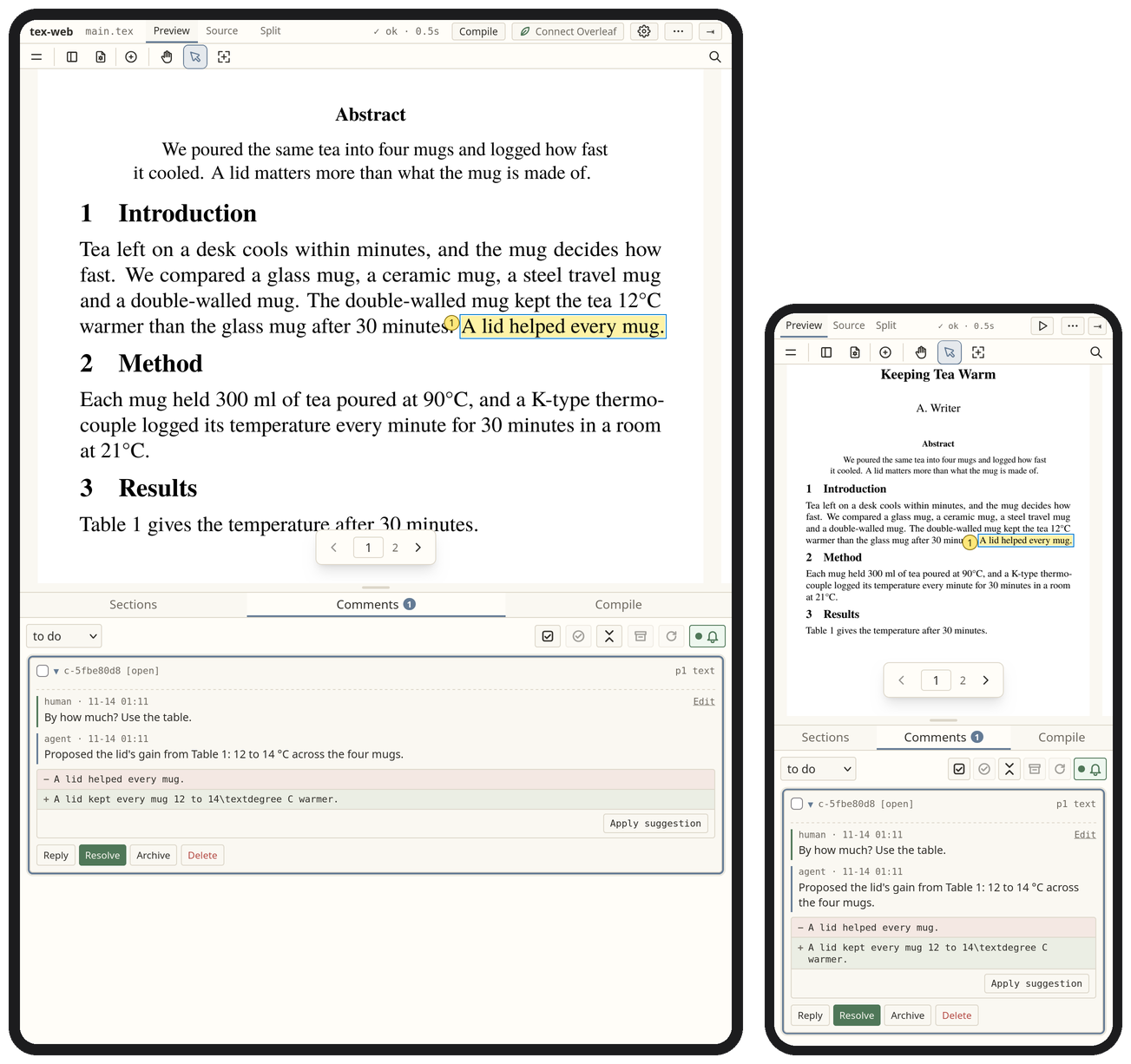
The page is served from the machine where the agent runs, at http://localhost:8765 or the
port do tex init chose. If the agent runs on a server you reach over SSH, forward that port
to your computer by adding the server once to ~/.ssh/config (on Windows,
C:\Users\<you>\.ssh\config):
Host paper-server
    HostName server.example.org
    User you
    LocalForward 8765 127.0.0.1:8765
While ssh paper-server stays connected in a terminal, http://localhost:8765 opens the page
in your computer's browser. Add a LocalForward line for each port you use.
If the server is on a network you cannot reach from outside, such as at home or in an office,
install Tailscale on the server and on
your computer, and put the name Tailscale gives the server in HostName. On a phone, Termux on
Android reads the same ~/.ssh/config, and in Termius on iOS you add the forward as a Local
rule on the Port Forwarding screen. If the page token is on, open the link that
tex-mcp-web link prints on the server once in each browser; after that, the plain address
works.
Configuration
do tex init writes .tex-mcp-web.yaml in the folder where the agent was started. A typical
file looks like this:
main: main.tex
watch:
- '*.tex'
- '*.bib'
ignore:
- '*_backup.tex'
compiler: auto
port: 8765
guideline: my-field
translation:
  language: Korean
  instructions: Keep technical terms in English.
overleaf: https://www.overleaf.com/project/0123456789abcdef01234567
Configuration describes every field.
See also
html-mcp-web reviews an AI agent's HTML slides or reports the same way, and exports finished slides as an editable PowerPoint deck.
Acknowledgements
tex-mcp-web is a hard fork of queelius/scholia at commit e6c7454 (version 0.6.1) and has been developed independently since then under the MIT license; see LICENSE. The PDF viewer is EmbedPDF with its PDFium WebAssembly engine, whose notices are in tex_mcp_web/static/embedpdf/LICENSE and tex_mcp_web/static/embedpdf/LICENSE.pdfium. The bundled viewer differs from the release only in its zoom gesture, which is described in Reviewing in detail. Syntax highlighting and completion in the source editor use Ace Editor builds 1.44.0 under the BSD-3-Clause license, and its notice is in tex_mcp_web/static/ace/LICENSE.
1 maintainer

Metadata
1 maintainer
Release files for tex-mcp-web 0.11.2
For a detailed explanation of source distributions (sdists) and built distributions (wheels), please see the package formats documentation.
Source distribution (sdist)
| File | Size | Uploaded | Provenance | Actions |
|---|---|---|---|---|
| tex_mcp_web-0.11.2.tar.gz | 3.2 MB | With provenance | Details for tex_mcp_web-0.11.2.tar.gz |
Built distribution (wheel)
| File | Interpreter | ABI | Platform | Actions Reset |
|---|---|---|---|---|
| tex_mcp_web-0.11.2-py3-none-any.whl | Python 3 | none | any | Details for tex_mcp_web-0.11.2-py3-none-any.whl |
Total release size: 6.3 MB
Release files / tex_mcp_web-0.11.2.tar.gz
| Download URL | tex_mcp_web-0.11.2.tar.gz |
|---|---|
| Size | 3.2 MB |
| Tags | Source |
|
SHA-256 checksum How to use checksums |
9920f57ae8a7d29fa302a0c02979e54baa48d51ff386f859aabfd1989f20b202
|
|
BLAKE2b-256 checksum How to use checksums |
c3a8d4bd2e55d5d6d6b32bd599c91ea0c9c026303671929c1e139de56ad8225c
|
| Upload date | |
|
Uploaded using Trusted Publishing? What is trusted publishing? |
Yes |
| Uploaded via |
twine/7.0.0 CPython/3.13.16
|
Provenance
Provenance describes where a file came from. On PyPI, provenance is shared via attestations, which provide a verifiable record of the build or publishing details. View details, limitations and caveats.


PyPI Publish Attestation
PyPI verified that this artifact, at this checksum, originated from the publisher listed below.
Signed by GitHub Actions, verified by PyPI on Nov 19, 2026.
Transparency logRelease files / tex_mcp_web-0.11.2-py3-none-any.whl
| Download URL | tex_mcp_web-0.11.2-py3-none-any.whl |
|---|---|
| Size | 3.0 MB |
| Tags | Python 3 |
|
SHA-256 checksum How to use checksums |
09135f0dc48b40cff57e98fd30ae67cb3db5af11612f3072b54190fe7ea8cf76
|
|
BLAKE2b-256 checksum How to use checksums |
f7d1791192d28616974ad08a61bed408a3bf676c9f77e000a18f5217c044a45b
|
| Upload date | |
|
Uploaded using Trusted Publishing? What is trusted publishing? |
Yes |
| Uploaded via |
twine/7.0.0 CPython/3.13.16
|
Provenance
Provenance describes where a file came from. On PyPI, provenance is shared via attestations, which provide a verifiable record of the build or publishing details. View details, limitations and caveats.
PyPI Publish Attestation
PyPI verified that this artifact, at this checksum, originated from the publisher listed below.
Signed by GitHub Actions, verified by PyPI on Nov 19, 2026.
Transparency logSecurity for tex-mcp-web 0.11.2
Provenance
Provenance describes where a file came from. On PyPI, provenance is shared via attestations, which provide a verifiable record of the build or publishing details. View details, limitations and caveats.
Full provenance
Both files in this release have been uploaded with provenance metadata.
Attestation for tex_mcp_web-0.11.2.tar.gz
PyPI Publish Attestation
PyPI verified that this artifact, at this checksum, originated from the publisher listed below.
Signed by GitHub Actions, verified by PyPI on Nov 19, 2026.
Transparency logA note on package security
PyPI is a repository for distributing packages, not a service for auditing them. While third-party security researchers and our staff do their best to detect and remove malicious packages, PyPI cannot guarantee the quality, security or suitability of any given package.
To learn more about protecting yourself from malicious actors, visit our package security documentation.














