
ActionDraw
Private plans. Encrypted projects. One canvas.
ActionDraw is a security-focused desktop planning app. Turn ideas into mindmaps,
visual task diagrams, and actionable plans while keeping saved project content
in encrypted .progress files. Choose a passphrase, a YubiKey, or both to
protect your work.
AES-256-GCM encryption · Argon2id key derivation · Optional YubiKey protection
Get started · Security · Mindmap walkthrough · Features · Development
| Plan with clarity | Protect your work | Keep moving |
|---|---|---|
| Map projects, focus on branches, and connect ideas on a visual canvas. | Save encrypted projects with passphrase and optional hardware-key protection. | Keep notes, priorities, completion marks, and reminders beside your tasks. |
Security at the core
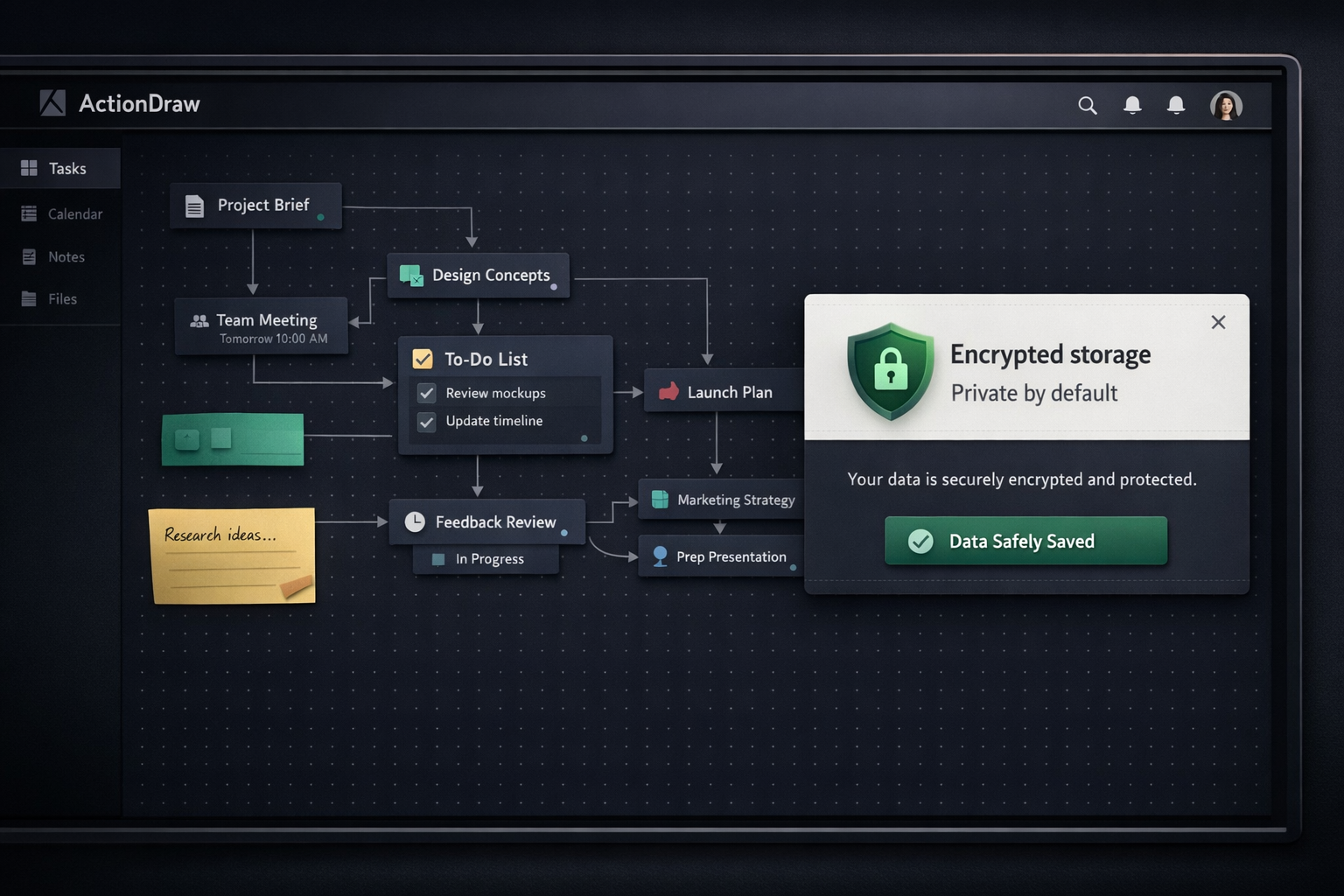
Encryption is part of the project save workflow. ActionDraw saves project
content locally in encrypted .progress files, with three protection modes:
Passphrase only, YubiKey only, and Passphrase + YubiKey.
| Protection | How ActionDraw uses it |
|---|---|
| Authenticated encryption | AES-256-GCM encrypts project content and detects changes to authenticated data when the file is opened. |
| Memory-hard key derivation | Argon2id derives the encryption key from your chosen credentials and a random salt. |
| Hardware-key support | Optional YubiKey HMAC challenge-response can be used on its own or combined with a passphrase. |
| Fresh encryption on save | Each save uses a fresh random nonce and an HKDF-derived subkey. |
On your first save, choose a protection mode and supply its credentials. Save As prompts for a protection mode again. Opening an encrypted project requires the credentials for that file; subsequent saves in the same session reuse cached key material.
Optional YubiKey support
Install the hardware-key dependency with:
pip install "actiondraw[yubikey]"
Use a YubiKey with HMAC challenge-response configured in slot 1 or 2. Choose Passphrase + YubiKey when you want both credentials required to open the project.
What encryption covers
Encryption protects the saved project content. The outer file includes format and encryption metadata so ActionDraw can decrypt it. While a project is open, its content and cached key material are available to the running application.
Optional ntfy notifications send reminder titles and tab or scope labels to
the configured server. Enable them only for content you intend to share with
that service. See Notifications for configuration.
Quick start
Requires Python 3.10+. Installation includes PySide6 (Qt) and the other required dependencies.
pip install actiondraw
actiondraw
To run the standalone priority plot:
priorityplot
Start a project, add your first tabs, and choose Mindmap to connect the plan. Save the project to select its encryption mode.
Follow the walkthrough · View keyboard shortcuts
Plan a project with the mindmap
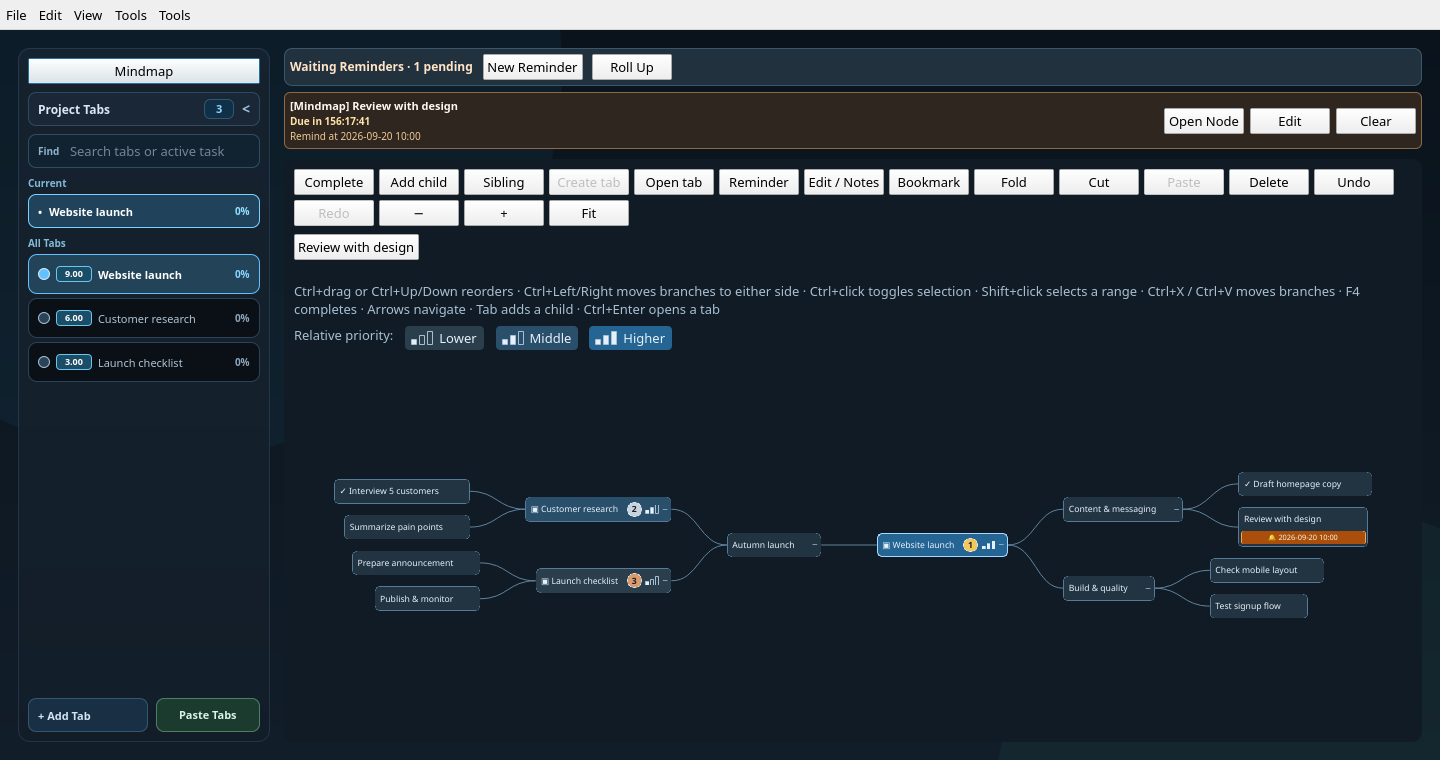
The screenshots use a fictional Autumn launch project. Each project tab is also a node in the map, so you can organize the big picture and open the work behind it from the same place.
1. Lay out the whole project
Choose Mindmap above the sidebar tabs to open the full project map. Start with tabs such as Website launch, Customer research, and Launch checklist, then select a node and choose Add child to break it into smaller steps. Use Sibling for another step at the same level.
In the overview above, the website branch contains content and quality checks, while research and the launch checklist sit on the left. Drag a node onto another node to nest it, or onto its top or bottom edge to reorder it. Use the right-click menu to place a branch on the left or right. Scroll to zoom, drag the background to pan, and choose Fit to see the whole map.
Click − on a node to fold its branch, or + to unfold it. The map toolbar also offers Fold all and Unfold all for the current view. Fold all keeps the view root and its immediate children visible; unfold all opens every nested branch. In a focused branch view these actions affect that branch. Each action can be undone with Ctrl+Z.
Blue shades and one, two, or three filled bars show lower, middle, or higher relative priority for tabs included in the priority plot. Numbered badges mark the top three; hover over a node for its score. The scale compares all included project tabs, so folding or focusing a branch does not change its priority. Tied scores share a level; a single task or all-equal scores use the middle level. Notes and excluded tabs have no priority indicator.
2. Open a branch and focus on the next steps
Click a tab node to open it. Tabs with children open their own mindmap branch; use Canvas to switch to that tab's diagram. The tab's Mindmap control opens or starts its branch, while the sidebar Mindmap returns to the full project map. Alt+Left returns to the previous view.
To reuse a tab's branch elsewhere, right-click a node, choose Add tab…, and search for the existing tab. The ↗ reference shows the same children, and edits made inside it appear everywhere that branch is used. Remove tab reference removes only that placement; deleting a child changes the shared branch. Circular references are rejected, including those introduced by moving branches.
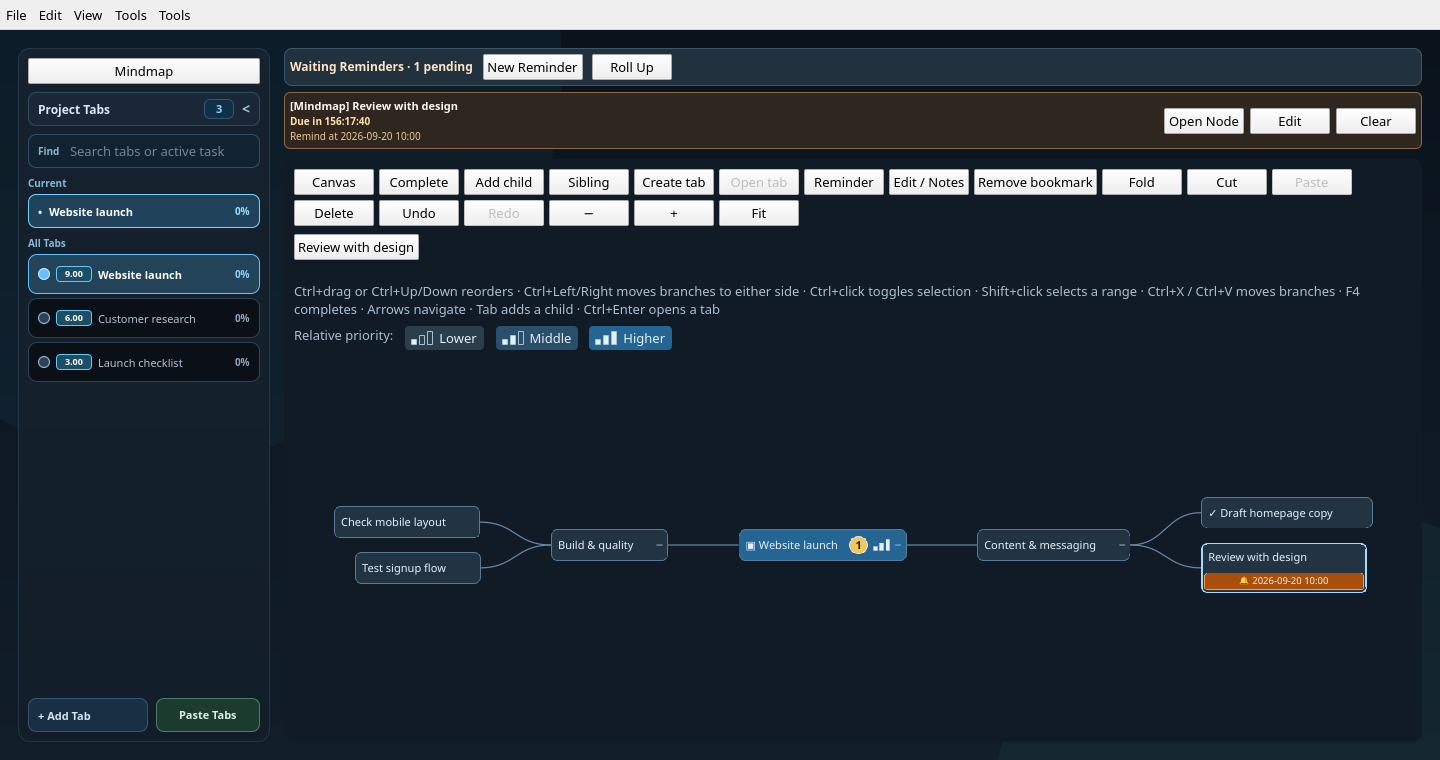
Here, Website launch is the branch root. The finished homepage draft has a check mark, and Review with design has a reminder. Both the full map and this focused view edit the same nodes and share undo/redo.
Select a thought and choose Create tab when it needs its own workspace. Use Bookmark to keep a frequently visited node within reach; its button appears above the map.
3. Keep context and reminders beside the work
Select a node and choose Edit / Notes (or press F2) to capture decisions, questions, and what it will take to finish. In this example, the design review has an agenda and a clear completion condition.
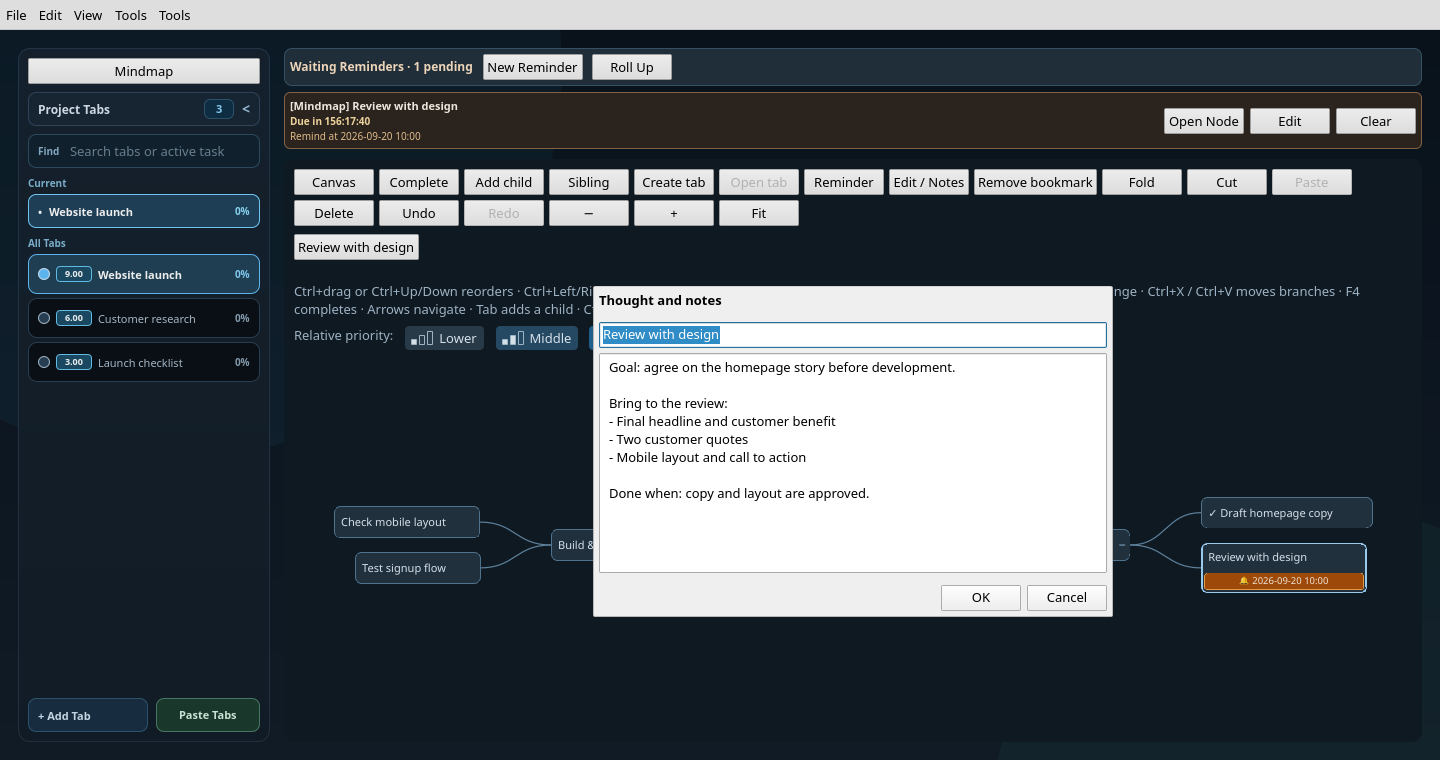
Choose Reminder for a selected node to set a date and time, with optional notifications. An orange bell and date appear beneath its title. Every node supports a reminder, including tab nodes and the project root.
Waiting Reminders stays visible above both the canvas and mindmap. Choose Open Node to reveal the relevant node, even inside a folded branch. The right-click menu lets you update or clear its reminder.
Use Complete or F4 to mark selected nodes with a ✓. If all selected nodes are complete, the same action clears the marks. Completing a node does not complete its descendants or canvas tasks. Completion marks, notes, and the map are saved with the project.
Completing or deleting a node cancels its reminder; undo restores it. Reminders that have already fired stay cleared through undo/redo. Use Renew in the due alert to schedule another one.
4. Reorganize as the plan changes
Ctrl+click toggles nodes in the selection without opening tabs. Shift+click selects a range, and Shift+arrow keys extend the selection. To move several branches, select them, press Ctrl+X, select a destination, and press Ctrl+V. The move preserves descendants and tab links and can be undone with Ctrl+Z.
Cut branches stay dimmed until pasted; Escape cancels the cut. Clicking a tab while a cut is pending selects it as the destination. Cut selections are local to the current project. Deleting a project tab keeps its map node as a thought.
With no cut pending, Ctrl+V adds clipboard text beneath the selected node. Plain text uses one node per non-empty line and indentation for nesting; OPML outlines retain their hierarchy.
Mindmap shortcuts
These shortcuts apply while the mindmap has focus, outside dialogs and menus.
| Action | Shortcut |
|---|---|
| Select a nearby visible node | Arrow keys |
| Extend the selection | Shift + arrow keys |
| Add a child / sibling | Tab / Enter |
| Open the selected tab | Ctrl + Enter |
| Edit title and notes | F2 |
| Fold or unfold | Space |
| Toggle completion | F4 |
| Move a node up / down | Ctrl + Up / Down |
| Place a branch left / right | Ctrl + Left / Right |
| Cut branches / paste branches or clipboard outlines | Ctrl + X / Ctrl + V |
| Cancel a pending cut | Escape |
| Undo / redo | Ctrl + Z / Ctrl + Y |
| Return to the previous view | Alt + Left |
Beyond the mindmap
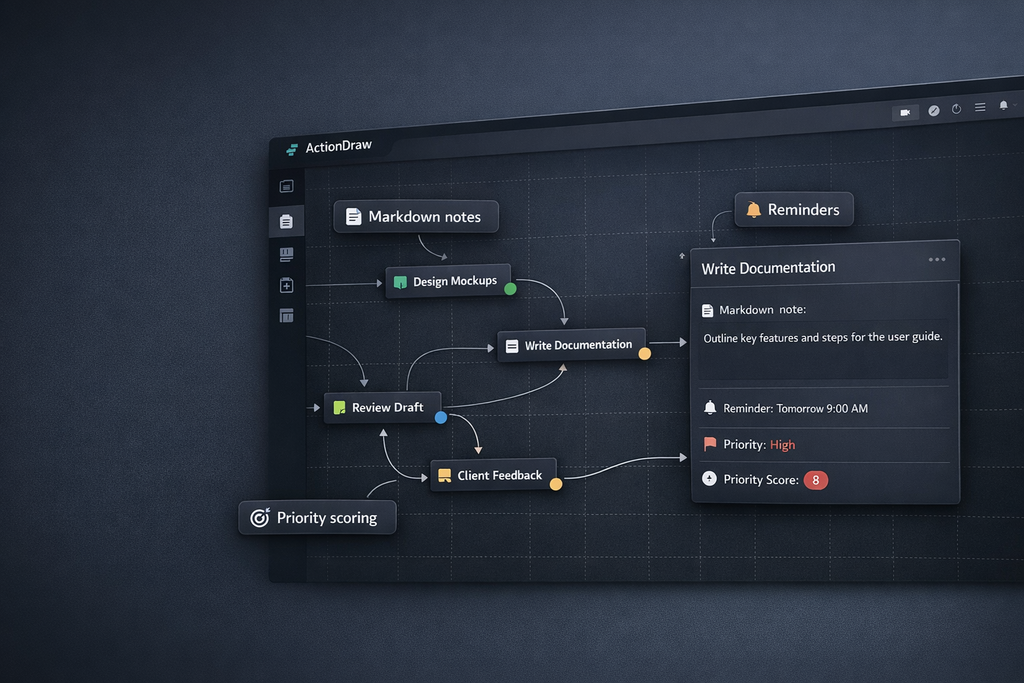
- Visual task diagrams — arrange boxes, databases, servers, clouds, and sticky notes; connect them with arrows that follow the nodes.
- Markdown notes — open a rich Markdown editor from a canvas node.
- Time tracking and reminders — track work and schedule follow-ups.
- Priority scoring — compare tasks by impact and effort in the integrated priority plot.
- Obstacles and wishes — use dedicated shapes for blockers and goals.
- Free drawing and images — sketch on the canvas and paste external graphics.
- Action Paint — sketch a scene, arrange numbered actions, then add them as a connected task chain in the diagram or as nodes in a tab's mindmap.
- Causal models — map causes and effects, record assumptions, and turn ordered actions into tasks.
Causal models
Open Causal Model beside Action Paint to build a causal diagram for the current tab. Double-click empty canvas space to add a variable, action, or outcome node there. Drag a node's → handle onto another node to connect the cause to its effect; a preview arrow follows the pointer. Drop on empty space or press Escape to cancel. Connections must form a directed acyclic graph; represent feedback with separate nodes for successive times.
Drag nodes to arrange the canvas. Double-click a node to edit its label, type, or notes; double-click an arrow to edit its optional likelihood (0–100%) and explanation. Click a node or arrow to select it, then press Delete (or use the toolbar's Delete button) to remove it. Deleting a node also removes its connections; Undo restores them together. Use Assumptions / conclusions to record the model's context. Undo and redo cover graph edits, node movements, and action ordering.
Use + Add action to create a task node directly, or select an existing node and choose Make action. Action nodes are yellow and numbered, and appear in the Action order list. Drag its ≡ handles (or use the up/down arrows) to choose execution order, then Add to ActionDraw or Add to mindmap to copy their titles in that order. These copies are independent of the model, and the causal edges stay in the causal editor. Each tab's model is saved with the project.
Edge percentages record your estimated likelihoods. They need not sum to 100%, and they do not calculate outcome probabilities. Numerical causal question answering is reserved for a later version with explicit probability rules.
Notifications
Configure ntfy under Tools > Notification Settings... for notifications.
PROGRESS_NTFY_TOPIC, PROGRESS_NTFY_SERVER, and PROGRESS_NTFY_TOKEN also work
as environment-variable fallbacks.
Run from source
git clone https://github.com/oyvinrog/progress.git
cd progress
python -m venv .venv
source .venv/bin/activate  # Windows: .venv\Scripts\activate
pip install -e ".[dev]"
actiondraw
Run the tests with python -m pytest.
The mindmap screenshots are captures of the actual QML interface with fictional sample data. Regenerate all three from a source checkout with:
python tools/capture_mindmap_screenshots.py
The script uses Qt's offscreen software renderer and writes PNGs to assets/.
It does not load or save project files.
Links and license
The mindmap reuses the MIT-licensed PyPlane core, bundled with its license and source revision.
1 maintainer

Metadata
1 maintainer
Release files for actiondraw 0.1.43
For a detailed explanation of source distributions (sdists) and built distributions (wheels), please see the package formats documentation.
Source distribution (sdist)
| File | Size | Uploaded | Provenance | |
|---|---|---|---|---|
| actiondraw-0.1.43.tar.gz | 329.2 kB | Without provenance | Details |
Built distribution (wheel)
| File | Interpreter | ABI | Platform | Reset |
|---|---|---|---|---|
| actiondraw-0.1.43-py3-none-any.whl | Python 3 | none | any | Details |
Total release size: 582.5 kB
Release files / actiondraw-0.1.43.tar.gz
| Download URL | actiondraw-0.1.43.tar.gz |
|---|---|
| Size | 329.2 kB |
| Tags | Source |
|
SHA-256 checksum How to use checksums |
28808d289d99e080119548d2170488b75a91935b4f3a2462fd0ebd2f75ebdc72
|
|
BLAKE2b-256 checksum How to use checksums |
a286fb5e50c4d8117eb808a1b7724fed5cd5073d5910d3743bc1197ab4b87389
|
| Upload date | |
|
Uploaded using Trusted Publishing? What is trusted publishing? |
No |
| Uploaded via |
twine/7.0.0 CPython/3.13.14
|
Release files / actiondraw-0.1.43-py3-none-any.whl
| Download URL | actiondraw-0.1.43-py3-none-any.whl |
|---|---|
| Size | 253.3 kB |
| Tags | Python 3 |
|
SHA-256 checksum How to use checksums |
8e75247c1da7737a482ac5be308e3424f0d097ec39a173e26182b7473147be62
|
|
BLAKE2b-256 checksum How to use checksums |
bb0b7ee2f7302582744a4d940f29cd511014a582345e8b2ba571f2aeedbb582d
|
| Upload date | |
|
Uploaded using Trusted Publishing? What is trusted publishing? |
No |
| Uploaded via |
twine/7.0.0 CPython/3.13.14
|
Security for actiondraw 0.1.43
Provenance
Provenance describes where a file came from. On PyPI, provenance is shared via attestations, which provide a verifiable record of the build or publishing details. View details, limitations and caveats.
No provenance found
None of the files in this release were uploaded with provenance metadata.
A note on package security
PyPI is a repository for distributing packages, not a service for auditing them. While third-party security researchers and our staff do their best to detect and remove malicious packages, PyPI cannot guarantee the quality, security or suitability of any given package.
To learn more about protecting yourself from malicious actors, visit our package security documentation.














