
Aquiles-Image

Self-hosted image/video generation with OpenAI-compatible APIs
🚀 FastAPI • Diffusers • Drop-in replacement for OpenAI









🎯 What is Aquiles-Image?
Aquiles-Image is a production-ready API server that lets you run state-of-the-art image and video generation models on your own infrastructure. OpenAI-compatible by design, switch from external APIs to self-hosted in under 5 minutes with zero code changes.
External image APIs are expensive, slow, and send your data to third parties. Aquiles-Image runs on your hardware, costs nothing per request, and works with the OpenAI client you already use.
Why Aquiles-Image?
| Challenge | Aquiles-Image Solution |
|---|---|
| 💸 Expensive external APIs | Run models locally with unlimited usage |
| 🔒 Data privacy concerns | Your images never leave your server |
| 🐌 Slow inference | Advanced optimizations for 3x faster generation |
| 🔧 Complex setup | One command to run any supported model |
| 🚫 Vendor lock-in | OpenAI-compatible, switch without rewriting code |
Key Features
- 🔌 OpenAI Compatible - Use the official OpenAI client with zero code changes
- ⚡ Intelligent Batching - Automatic request grouping by shared parameters for maximum throughput on single or multi-GPU setups
- 🎨 30+ Optimized Models - Image (FLUX, SD3.5, Qwen, Z-Image, GLM, Krea, Ideogram...) + video (Wan2.x, HunyuanVideo, LTX, MiniMax...) + unlimited via AutoPipeline (Only T2I)
- 🚀 Multi-GPU Support - Distributed inference with dynamic load balancing across GPUs (image models) for horizontal scaling
- 🛠️ Superior DevX - Simple CLI, dev mode for testing, built-in monitoring
- 🎬 Advanced Video - Text-to-video with Wan2.x and HunyuanVideo series (+ Turbo variants)
- 🧩 LoRA Support - Load any LoRA from HuggingFace or a local path via a simple JSON config file, compatible with all native models and AutoPipeline
- ⚙️ GGUF Support - Run quantized GGUF transformers (Q2_K, Q4_K, Q8_0…) via a curated registry — lower VRAM, same OpenAI-compatible API
- 📈 Built-in Benchmarking - Measure throughput and latency percentiles of your deployment with configurable load profiles
🚀 Quick Start
Installation
# From PyPI (recommended)
pip install aquiles-image

# From source
git clone https://github.com/Aquiles-ai/Aquiles-Image.git
cd Aquiles-Image
pip install .
Launch Server
Single-Device Mode (Default)
aquiles-image serve --model "stabilityai/stable-diffusion-3.5-medium"
Multi-GPU Distributed Mode (Image Models Only)
aquiles-image serve --model "stabilityai/stable-diffusion-3.5-medium" --dist-inference
Distributed Inference Note: Enable multi-GPU mode by adding the
--dist-inferenceflag. Each GPU will load a copy of the model, so ensure each GPU has sufficient VRAM. The system automatically balances load across GPUs and groups requests with shared parameters for maximum throughput.
Generate Your First Image
from openai import OpenAI

client = OpenAI(base_url="http://127.0.0.1:5500", api_key="not-needed")

result = client.images.generate(
    model="stabilityai/stable-diffusion-3.5-medium",
    prompt="a white siamese cat",
    size="1024x1024"
)

print(f"Image URL: {result.data[0].url}")
That's it! You're now generating images with the same API you'd use for OpenAI.
🎨 Supported Models
Text-to-Image (/images/generations)
stabilityai/stable-diffusion-3-mediumstabilityai/stable-diffusion-3.5-mediumstabilityai/stable-diffusion-3.5-largestabilityai/stable-diffusion-3.5-large-turboblack-forest-labs/FLUX.1-devblack-forest-labs/FLUX.1-schnellblack-forest-labs/FLUX.1-Krea-devblack-forest-labs/FLUX.2-dev*diffusers/FLUX.2-dev-bnb-4bitTongyi-MAI/Z-Image-TurboQwen/Qwen-ImageQwen/Qwen-Image-2512Qwen/Qwen-Image-2.1black-forest-labs/FLUX.2-klein-4Bblack-forest-labs/FLUX.2-klein-9Bzai-org/GLM-Image- (This model is usually the slowest to execute in relative terms)Tongyi-MAI/Z-Imageblack-forest-labs/FLUX.2-klein-9b-kvNucleusAI/Nucleus-Imagebaidu/ERNIE-Imagebaidu/ERNIE-Image-Turboideogram-ai/ideogram-4-nf4-diffuserskrea/Krea-2-Turbokrea/Krea-2-LoRA-retroanimekrea/Krea-2-LoRA-sunsetblurkrea/Krea-2-LoRA-vintagetarotkrea/Krea-2-LoRA-rainywindowkrea/Krea-2-LoRA-darkbrushkrea/Krea-2-LoRA-dotmatrixkrea/Krea-2-LoRA-kidsdrawingkrea/Krea-2-LoRA-softwatercolorkrea/Krea-2-Raw
Image-to-Image (/images/edits)
black-forest-labs/FLUX.1-Kontext-devdiffusers/FLUX.2-dev-bnb-4bit- Supports multi-image editing. Maximum 10 input images.black-forest-labs/FLUX.2-dev* - Supports multi-image editing. Maximum 10 input images.Qwen/Qwen-Image-EditQwen/Qwen-Image-Edit-2509- Supports multi-image editing. Maximum 3 input images.Qwen/Qwen-Image-Edit-2511- Supports multi-image editing. Maximum 3 input images.Qwen/Qwen-Image-2.1- Supports multi-image editing. Maximum 10 input images.black-forest-labs/FLUX.2-klein-4B- Supports multi-image editing. Maximum 10 input images.black-forest-labs/FLUX.2-klein-9B- Supports multi-image editing. Maximum 10 input images.black-forest-labs/FLUX.2-klein-9b-kv- Supports multi-image editing. Maximum 10 input images.zai-org/GLM-Image- Supports multi-image editing. Maximum 5 input images. (This model is usually the slowest to execute in relative terms)
* Note on FLUX.2-dev: Requires NVIDIA H200.
Text-to-Video and Image-to-Video (Only LTX-2/LTX-2.3/LTX-2.5 accept T2V and I2V, other models only accept T2V) (/videos)
Wan2.2 Series
Wan-AI/Wan2.2-T2V-A14B(High quality, 40 steps - start with--model "wan2.2")Aquiles-ai/Wan2.2-Turbo⚡ 9.5x faster - Same quality in 4 steps! (start with--model "wan2.2-turbo")
Wan2.1 Series
Wan-AI/Wan2.1-T2V-14B(High quality, 40 steps - start with--model "wan2.1")Aquiles-ai/Wan2.1-Turbo⚡ 9.5x faster - Same quality in 4 steps! (start with--model "wan2.1-turbo")Wan-AI/Wan2.1-T2V-1.3B(Lightweight version, 40 steps - start with--model "wan2.1-3B")Aquiles-ai/Wan2.1-Turbo-fp8⚡ 9.5x faster + FP8 optimized - 4 steps (start with--model "wan2.1-turbo-fp8")
HunyuanVideo-1.5 Series
Standard Resolution (480p)
Aquiles-ai/HunyuanVideo-1.5-480p(50 steps - start with--model "hunyuanVideo-1.5-480p")Aquiles-ai/HunyuanVideo-1.5-480p-fp8(50 steps, FP8 optimized - start with--model "hunyuanVideo-1.5-480p-fp8")Aquiles-ai/HunyuanVideo-1.5-480p-Turbo⚡ 12.5x faster - 4 steps! (start with--model "hunyuanVideo-1.5-480p-turbo")Aquiles-ai/HunyuanVideo-1.5-480p-Turbo-fp8⚡ 12.5x faster + FP8 optimized - 4 steps (start with--model "hunyuanVideo-1.5-480p-turbo-fp8")
High Resolution (720p)
Aquiles-ai/HunyuanVideo-1.5-720p(50 steps - start with--model "hunyuanVideo-1.5-720p")Aquiles-ai/HunyuanVideo-1.5-720p-fp8(50 steps, FP8 optimized - start with--model "hunyuanVideo-1.5-720p-fp8")
LTX-2/LTX-2.3/LTX-2.5 (Joint Audio-Visual Generation)
Lightricks/LTX-2(two-stage: 30 + 3 refine steps, up to 1536x1024 - start with--model "ltx-2")Lightricks/LTX-2.3(single-stage: 30 steps, 768x512 - start with--model "ltx-2.3")Lightricks/LTX-2.5(distilled two-stage: 8 + 3 steps, up to 1536x1024 - start with--model "ltx-2.5")
MiniMax-H3 (Joint Video-Audio Generation)
MiniMaxAI/MiniMax-H3(text-to-video + first-frame image-to-video with joint soundtrack, 24fps 5-15s - start with--model "minimax-h3")
Image-to-Video example:
curl -X POST "https://YOUR_BASE_URL_DEPLOY/videos" \
  -H "Authorization: Bearer dummy-api-key" \
  -H "Content-Type: multipart/form-data" \
  -F prompt="She turns around and smiles, then slowly walks out of the frame." \
  -F model="ltx-2" \
  -F size="1280x720" \
  -F seconds="8" \
  -F input_reference="@sample_720p.jpeg;type=image/jpeg"
VRAM Requirements: Most models need 24GB+ VRAM. All video models require H100/A100-80GB. FP8 optimized versions offer better memory efficiency.
📖 Full models documentation and more models in 🎬 Aquiles-Studio
🔍 Can't find the model you're looking for?
If the model you need isn't in our native list, you can still run virtually any architecture based on Diffusers (SD 1.5, SDXL, etc.) using our AutoPipeline implementation.
Check out the 🧪 Advanced Features section to learn how to deploy any Hugging Face model with a single command.
💡 Examples
Generating Images
https://github.com/user-attachments/assets/00e18988-0472-4171-8716-dc81b53dcafa
https://github.com/user-attachments/assets/00d4235c-e49c-435e-a71a-72c36040a8d7
Editing Images
| Input + Prompt | Result |
|---|---|
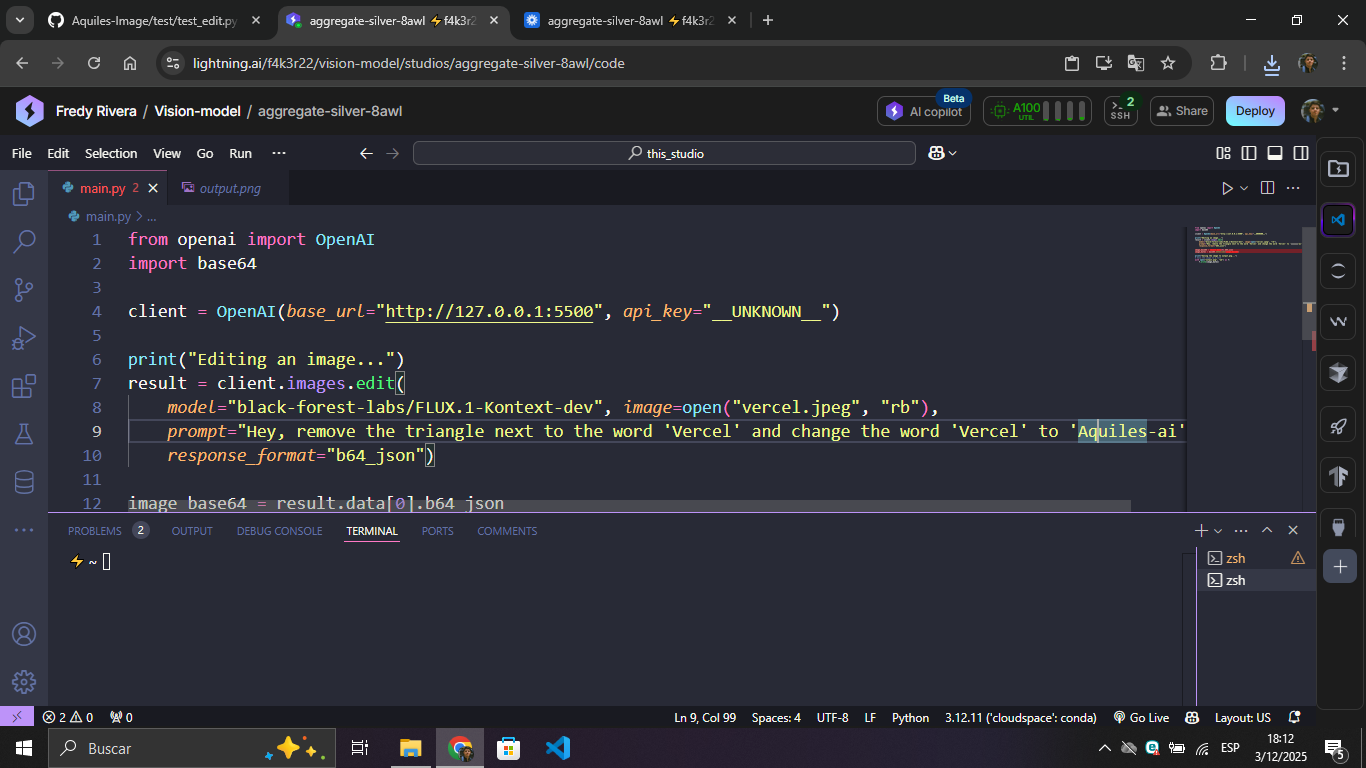 |
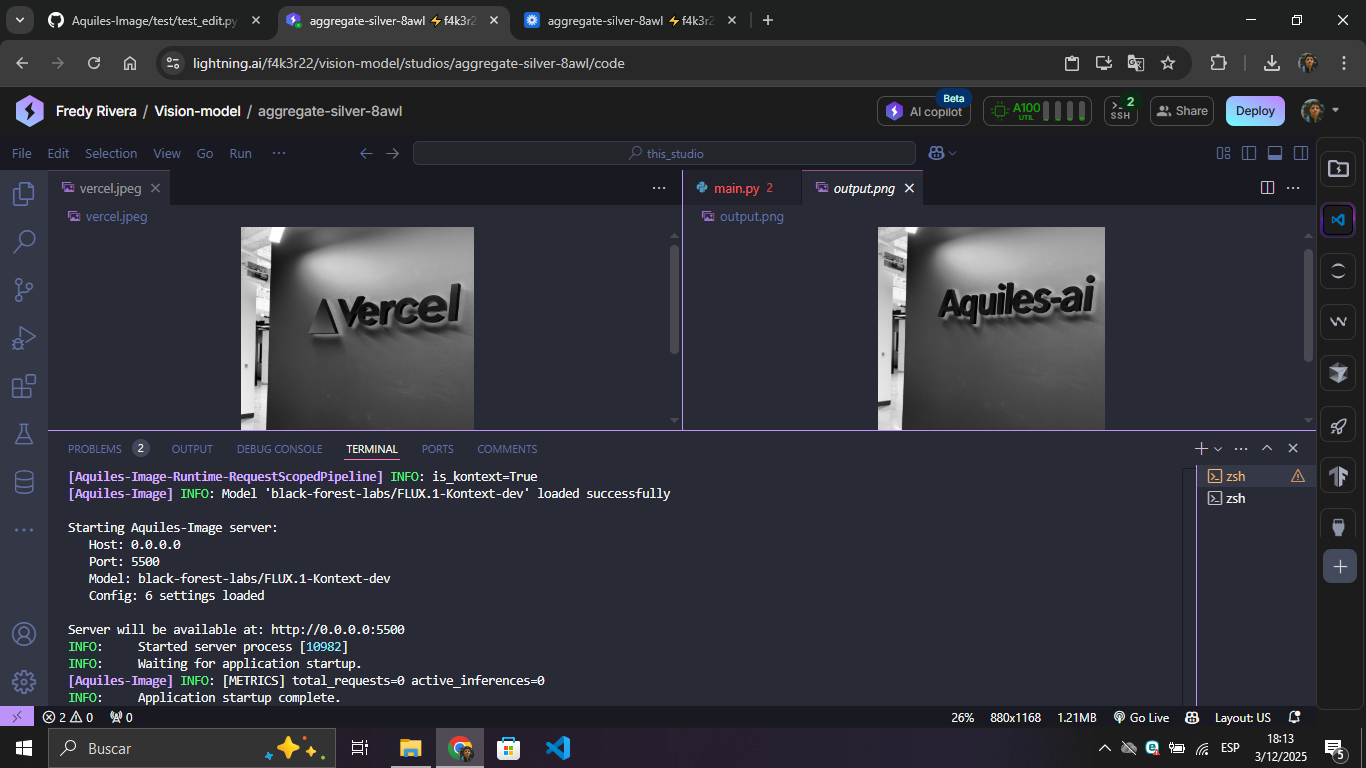 |
Generating Videos
https://github.com/user-attachments/assets/7b1270c3-b77b-48df-a0fe-ac39b2320143
Note: Video generation with
wan2.2takes ~30 minutes on H100. Withwan2.2-turbo, it takes only ~3 minutes! Only one video can be generated at a time.
Video and audio generation
https://github.com/user-attachments/assets/b7104dc3-5306-4e6a-97e5-93a6c1e73f54
Beyond the output examples shown above, you can check the Example folder where you'll find examples of how to deploy Aquiles-Image with Modal.
🐳 Docker Deployment
Aquiles-Image ships with ready-to-use Dockerfiles for GPU-backed self-hosted deployment
(CUDA 13.0), one for image models and one for video models. Prebuilt images are published
to Docker Hub, or you can build them yourself from source. Both Dockerfiles live in the
docker/ folder, along
with a dedicated README
covering build arguments, volumes, and environment variables in detail.
Pull (recommended)
Prebuilt images are published on Docker Hub:
- Image models:
f4k3r22/aquiles-image - Video models:
f4k3r22/aquiles-video
docker pull f4k3r22/aquiles-image:latest   # image models
docker pull f4k3r22/aquiles-video:latest   # video models
Build from source
# Image model, PyPI packages, default Python
docker build -f docker/Dockerfile.image -t aquiles-image .

# Video model, from source, extra deps
docker build -f docker/Dockerfile.video \
  --build-arg FROM_SOURCE=true \
  --build-arg EXTRA_DEPS="wandb" \
  -t aquiles-video .
Run
docker run -p 8000:5500 \
  --gpus all \
  -v hf_cache_vol:/root/.cache/huggingface \
  -v aquiles_data_vol:/root/.local/share \
  -e HF_TOKEN=hf_xxxxx \
  f4k3r22/aquiles-image:latest aquiles-image serve --host "0.0.0.0"
Note:
HF_TOKENis optional and only needed for gated Hugging Face models. Volumes keep the model cache and app data across container restarts. Replace the image name withf4k3r22/aquiles-video:latest(or your locally builtaquiles-image/aquiles-videotag) depending on which workload you're running.
See the Docker README for
the full list of build arguments (PYTHON_VERSION, FROM_SOURCE, EXTRA_DEPS,
TORCH_VERSION), volume layout, and runtime configuration.
🧪 Advanced Features
AutoPipeline - Run Any Diffusers Model
Run any model compatible with AutoPipelineForText2Image or AutoPipelineForImage2Image from HuggingFace:
aquiles-image serve \
  --model "stabilityai/stable-diffusion-xl-base-1.0" \
  --auto-pipeline \
  --set-steps 30 \
  --auto-pipeline-type t2i # or i2i for Image to Image
Supported models include:
stable-diffusion-v1-5/stable-diffusion-v1-5stabilityai/stable-diffusion-xl-base-1.0- Any HuggingFace model compatible with
AutoPipelineForText2ImageorAutoPipelineForImage2Image
Trade-offs:
- ⚠️ Slower inference than native implementations
- ⚠️ Experimental - may have stability issues
LoRA Support
Load any LoRA from HuggingFace or a local path by passing a JSON config file at startup. Compatible with all native image models and AutoPipeline.
1. Create a LoRA config file:
Manually:
{
  "repo_id": "brushpenbob/Flux-retro-Disney-v2",
  "weight_name": "Flux_retro_Disney_v2.safetensors",
  "adapter_name": "flux-retro-disney-v2",
  "scale": 1.0
}
Or programmatically using the Python helper:
from aquilesimage.utils import save_lora_config
from aquilesimage.models import LoRAConfig

save_lora_config(
    LoRAConfig(
        repo_id="brushpenbob/Flux-retro-Disney-v2",
        weight_name="Flux_retro_Disney_v2.safetensors",
        adapter_name="flux-retro-disney-v2"
    ),
    "./lora_config.json"
)
2. Start the server with LoRA enabled:
aquiles-image serve \
  --model "black-forest-labs/FLUX.1-dev" \
  --load-lora \
  --lora-config "./lora_config.json"
Works in both single-device and distributed mode:
aquiles-image serve \
  --model "black-forest-labs/FLUX.1-dev" \
  --load-lora \
  --lora-config "./lora_config.json" \
  --dist-inference
GGUF Support
Run quantized GGUF transformers natively via diffusers — lower VRAM, same API. Only the transformer is quantized; the text encoder, VAE, and tokenizer are still downloaded from the base HuggingFace repo.
⚠️
torch.compileandenable_sequential_cpu_offloadare not compatible with GGUF. CPU offload is applied automatically.
How it works: Aquiles-Image maintains a curated registry of tested GGUF checkpoints at Aquiles-ai/aquiles-gguf-registry on HuggingFace. The registry maps a short model ID to the GGUF source repo, the base diffusers repo, and the exact classes needed to load it. It does not host model weights — it points to third-party repos (city96, QuantStack, etc.) that have already been tested end-to-end. The registry is updated incrementally as new models and quant levels are validated.
1. Download a GGUF model from the registry:
aquiles-image gguf-download --model-id flux1-dev-q4k
This will fetch the local registry first (downloading it from HuggingFace if it doesn't exist yet), then download the .gguf checkpoint to the HuggingFace cache.
2. Start the server:
aquiles-image serve --model "gguf:flux1-dev-q4k"
The gguf: prefix tells Aquiles-Image to resolve the model from the registry instead of the standard model list.
3. Update the registry to pick up newly added models:
aquiles-image gguf-update
Generate images — the API is identical:
from openai import OpenAI

client = OpenAI(base_url="http://127.0.0.1:5500", api_key="not-needed")

result = client.images.generate(
    model="gguf:flux1-dev-q4k",
    prompt="a white siamese cat",
    size="1024x1024"
)
Currently supported architectures: FLUX.1, SD3.5 — more being added progressively. See the full list in registry.json. Want to add a model? See Contributing GGUF entries — no code required.
CPU Offloading - Run SD3/SD3.5 on Low VRAM
Run StableDiffusion3Pipeline models on GPUs with limited VRAM by keeping the model components on CPU and moving each one to GPU only when it needs to be executed. This fixes CUDA out-of-memory errors on 16 GB GPUs at the cost of slightly slower inference:
aquiles-image serve \
  --model "stabilityai/stable-diffusion-3.5-medium" \
  --cpu-offload
You can also explicitly disable CPU offloading (e.g. after having it enabled in the config):
aquiles-image serve --model "stabilityai/stable-diffusion-3.5-medium" --no-cpu-offload
What it does:
- Calls
pipeline.enable_model_cpu_offload()instead of moving the whole pipeline to CUDA - Reduces VRAM usage significantly for SD3/SD3.5 models
- Works in single-device and distributed mode
⚠️ Only compatible with SD3/SD3.5 models (
stabilityai/stable-diffusion-3-medium,stabilityai/stable-diffusion-3.5-medium,stabilityai/stable-diffusion-3.5-large,stabilityai/stable-diffusion-3.5-large-turbo). Other pipelines ignore this option.⚠️ For
stable-diffusion-3.5-largeon GPUs with 16 GB of VRAM, model offloading may not be enough since the full transformer is moved to GPU during execution. Use the-mediumvariant for that VRAM range.
Dev Mode - Test Without Loading Models
Perfect for development, testing, and CI/CD:
aquiles-image serve --no-load-model
What it does:
- Starts server instantly without GPU
- Returns test images that simulate real responses
- All endpoints functional with realistic formats
- Same API structure as production
API Key Protection & Playground
Securing Your Server with an API Key
You can protect your server by requiring an API key on every request. Simply pass --api-key when starting the server:
aquiles-image serve --model "stabilityai/stable-diffusion-3.5-medium" --api-key "your-api-key"
All requests must then include the key in the Authorization header:
curl -X POST "http://localhost:5500/images/generations" \
  -H "Authorization: Bearer your-api-key" \
  -H "Content-Type: application/json" \
  -d '{"model": "stabilityai/stable-diffusion-3.5-medium", "prompt": "a white siamese cat"}'
Built-in Playground
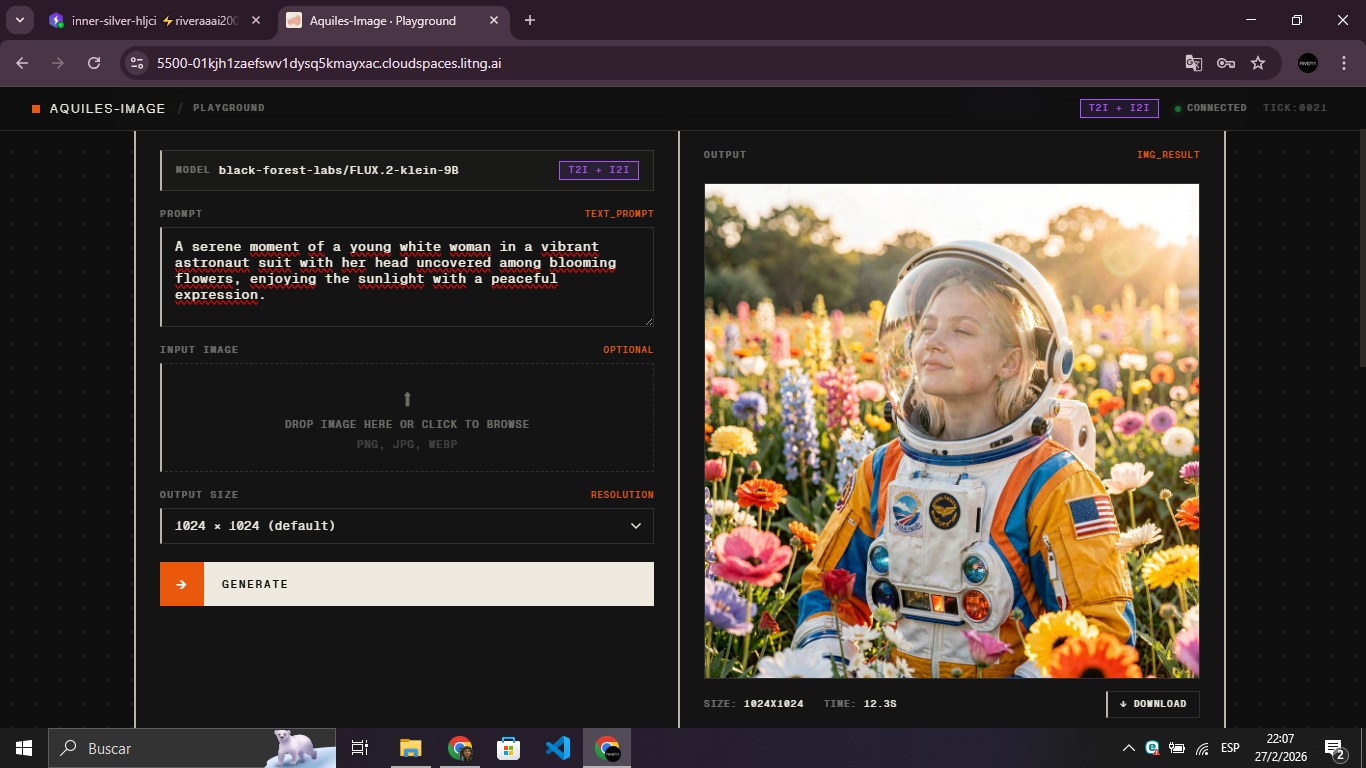
Aquiles-Image ships with a built-in interactive playground for testing image models and monitoring server stats — protected by login to prevent unauthorized access. Enable it with --username and --password:
aquiles-image serve --model "stabilityai/stable-diffusion-3.5-medium" \
  --api-key "your-api-key" \
  --username "root" \
  --password "root"
Once running, open http://localhost:5500 in your browser. The playground lets you:
- Generate images interactively using any loaded image model
- Visualize server stats in real time
Note: The playground is only available for image models.
Login
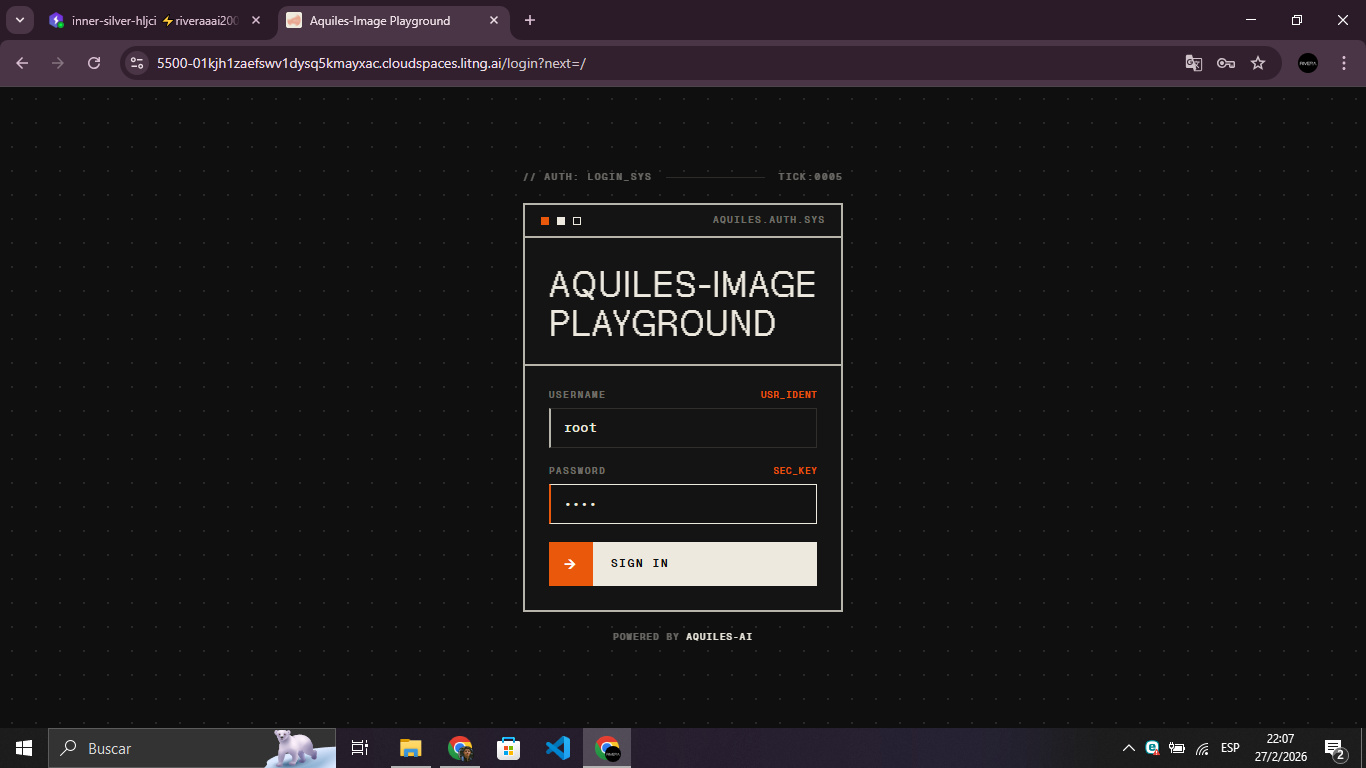
Playground
📊 Monitoring & Stats
/health - Server Health Check
A public endpoint (no API key required) designed for orchestrators like Kubernetes, Docker, Modal, etc.
- Returns
200 OKwhen the server is ready to accept requests - Returns
503 Service Unavailablewhile the model is still loading
curl http://localhost:5500/health
{
  "status": "ok",
  "model": "black-forest-labs/FLUX.1-dev",
  "mode": "single-device",
  "timestamp": 1745623410,
  "devices": [
    {
      "id": "cuda:0",
      "name": "NVIDIA H100 80GB",
      "vram_total_gb": 79.2,
      "vram_free_gb": 51.4
    }
  ]
}
/stats - Real-Time Inference Metrics
Aquiles-Image provides a custom /stats endpoint for real-time monitoring:
import requests

# Get server statistics
stats = requests.get("http://localhost:5500/stats",
                    headers={"Authorization": "Bearer YOUR_API_KEY"}).json()

print(f"Total requests: {stats['total_requests']}")
print(f"Total images generated: {stats['total_images']}")
print(f"Queued: {stats['queued']}")
print(f"Completed: {stats['completed']}")
Response Formats
The response varies depending on the model type and configuration:
Image Models - Single-Device Mode
{
  "mode": "single-device",
  "total_requests": 150,
  "total_batches": 42,
  "total_images": 180,
  "queued": 3,
  "completed": 147,
  "failed": 0,
  "processing": true,
  "available": false
}
Image Models - Distributed Mode (Multi-GPU)
{
  "mode": "distributed",
  "devices": {
    "cuda:0": {
      "id": "cuda:0",
      "available": true,
      "processing": false,
      "can_accept_batch": true,
      "batch_size": 4,
      "max_batch_size": 8,
      "images_processing": 0,
      "images_completed": 45,
      "total_batches_processed": 12,
      "avg_batch_time": 2.5,
      "estimated_load": 0.3,
      "error_count": 0,
      "last_error": null
    },
    "cuda:1": {
      "id": "cuda:1",
      "available": true,
      "processing": true,
      "can_accept_batch": false,
      "batch_size": 2,
      "max_batch_size": 8,
      "images_processing": 2,
      "images_completed": 38,
      "total_batches_processed": 10,
      "avg_batch_time": 2.8,
      "estimated_load": 0.7,
      "error_count": 0,
      "last_error": null
    }
  },
  "global": {
    "total_requests": 150,
    "total_batches": 42,
    "total_images": 180,
    "queued": 3,
    "active_batches": 1,
    "completed": 147,
    "failed": 0,
    "processing": true
  }
}
Video Models
{
  "total_tasks": 25,
  "queued": 2,
  "processing": 1,
  "completed": 20,
  "failed": 2,
  "available": false,
  "max_concurrent": 1
}
Key Metrics:
total_requests/tasks- Total number of generation requests receivedtotal_images- Total images generated (image models only)queued- Requests waiting to be processedprocessing- Currently processing requestscompleted- Successfully completed requestsfailed- Failed requestsavailable- Whether server can accept new requestsmode- Operation mode for image models:single-deviceordistributed
/configs - Server Configuration Snapshot
Returns the effective runtime configuration of the running server (requires API key). Useful to keep benchmark reports reproducible:
curl http://localhost:5500/v1/configs -H "Authorization: Bearer YOUR_API_KEY"
{
  "model_name": "stabilityai/stable-diffusion-3.5-medium",
  "mode": "eager",
  "steps": 30,
  "max_batch_size": 4,
  "batch_timeout": 0.5,
  "max_concurrent_infer": 4,
  "versions": {
    "aquiles_image": "0.7.6",
    "torch": "2.8.0",
    "cuda": "12.8",
    "diffusers": "0.38.0"
  }
}
📈 Benchmarking
Aquiles-Image ships with a built-in benchmarking tool that measures the real performance of your deployment. It works as a load generator against any running server, simulates production traffic patterns, and reports latency percentiles plus aggregate throughput.
Installation
The benchmark client requires httpx:
pip install "aquiles-image[bench]"
Generating a Bench Config
Benchmarks are driven by a JSON config file. Generate one programmatically with save_config():
from aquilesimage.bench import BenchConfig, MixedProfile

config = BenchConfig(
    base_url="http://127.0.0.1:5500",
    api_key="dummy-api-key",
    num_prompts=100,
    request_rate=5.0,
    profile=MixedProfile(
        sizes={
            "1024x1024": 0.6,
            "1536x1024": 0.25,
            "512x512": 0.15,
        },
        n=(1, 4),
    ),
    warmup=3,
    seed=42,
    label="production-mixed",
)

config.save_config("bench_production.json")
See example/aquiles_bench_config.py for more recipes, including an experiment comparing continuous vs partial batch formation.
Running the Benchmark
With your server already running:
aquiles-image bench serve --config-bench bench_production.json
Override single fields without editing the file:
aquiles-image bench serve --config-bench bench_production.json --label eager-run
Load Profiles
| Field | Behavior |
|---|---|
request_rate=None |
All requests fire at once (burst/saturation mode) |
request_rate=5.0 |
Requests arrive following a Poisson process at 5 req/s |
max_concurrency |
Caps in-flight requests, like a production gateway would |
UniformProfile |
Every request uses the same size, batches stay homogeneous |
MixedProfile |
Sizes and image counts vary per request, imitating production traffic |
Requests rejected by admission control (max_concurrent_infer) are counted separately as HTTP 429 instead of being retried, so the report reflects what real users would experience.
Results
Each run prints a summary and saves a self-contained JSON report including:
- Throughput in req/s and images/s
- End-to-end latency percentiles (p50/p95/p99)
- A snapshot of the server configuration and GPU info taken from
/v1/configsand/health - Per-request records when
save_detailed=True
Reports land in ./bench_results/ by default, ready to compare across runs.
🎯 Use Cases
| Who | What |
|---|---|
| 🚀 AI Startups | Build image generation features without API costs |
| 👨💻 Developers | Prototype with multiple models using one interface |
| 🔬 Researchers | Experiment with cutting-edge models easily |
| 🏢 Enterprises | Need a full private AI platform beyond image generation? Check out Ishikawa, deploy chat, agents, and multimodal AI entirely on your infrastructure. |
📋 Prerequisites
- Python 3.8+
- CUDA-compatible GPU with 24GB+ VRAM (most models)
- 10GB+ free disk space
📚 Documentation
🤝 Contributing
We welcome contributions! Whether you want to:
- 🐛 Report bugs and issues
- 🎨 Add support for new image models
- 📝 Improve documentation
Please read our Contributing Guide to get started.
⭐ Star this project • 🐛 Report issues • 🤝 Contribute
Built with ❤️ for the AI community, as part of the Aquiles-ai open source ecosystem.
1 maintainer

Metadata
1 maintainer
Release files for aquiles-image 0.8.1
For a detailed explanation of source distributions (sdists) and built distributions (wheels), please see the package formats documentation.
Source distribution (sdist)
| File | Size | Uploaded | |
|---|---|---|---|
| aquiles_image-0.8.1.tar.gz | 111.1 kB | Details |
Built distribution (wheel)
| File | Interpreter | ABI | Platform | Reset |
|---|---|---|---|---|
| aquiles_image-0.8.1-py3-none-any.whl | Python 3 | none | any | Details |
Total release size: 244.1 kB
Release files / aquiles_image-0.8.1.tar.gz
| Download URL | aquiles_image-0.8.1.tar.gz |
|---|---|
| Size | 111.1 kB |
| Tags | Source |
|
SHA-256 checksum How to use checksums |
3f2f7c1088200a6377b6093dd6d2ab01875721d6ce8781c4eac5ed21cc7ec175
|
|
BLAKE2b-256 checksum How to use checksums |
6d7980bda9812218f5bbbfd48970f92e547628df8962c12b4cb0e09c94c3e18d
|
| Upload date | |
|
Uploaded using Trusted Publishing? What is trusted publishing? |
No |
| Uploaded via |
twine/6.1.0 CPython/3.12.3
|
Release files / aquiles_image-0.8.1-py3-none-any.whl
| Download URL | aquiles_image-0.8.1-py3-none-any.whl |
|---|---|
| Size | 133.0 kB |
| Tags | Python 3 |
|
SHA-256 checksum How to use checksums |
f6e9b801655b6c4da5acd55e9eda9a5bd9a4015aa1d5280bad705faefd88148c
|
|
BLAKE2b-256 checksum How to use checksums |
6fa5633c55ad9ec70f651d8c3a308a1ed992b2f711afb58930ed21660fb1ac78
|
| Upload date | |
|
Uploaded using Trusted Publishing? What is trusted publishing? |
No |
| Uploaded via |
twine/6.1.0 CPython/3.12.3
|














