
 PenguinBurner — Automatic NVIDIA GPU Undervolting & Overclocking for Linux










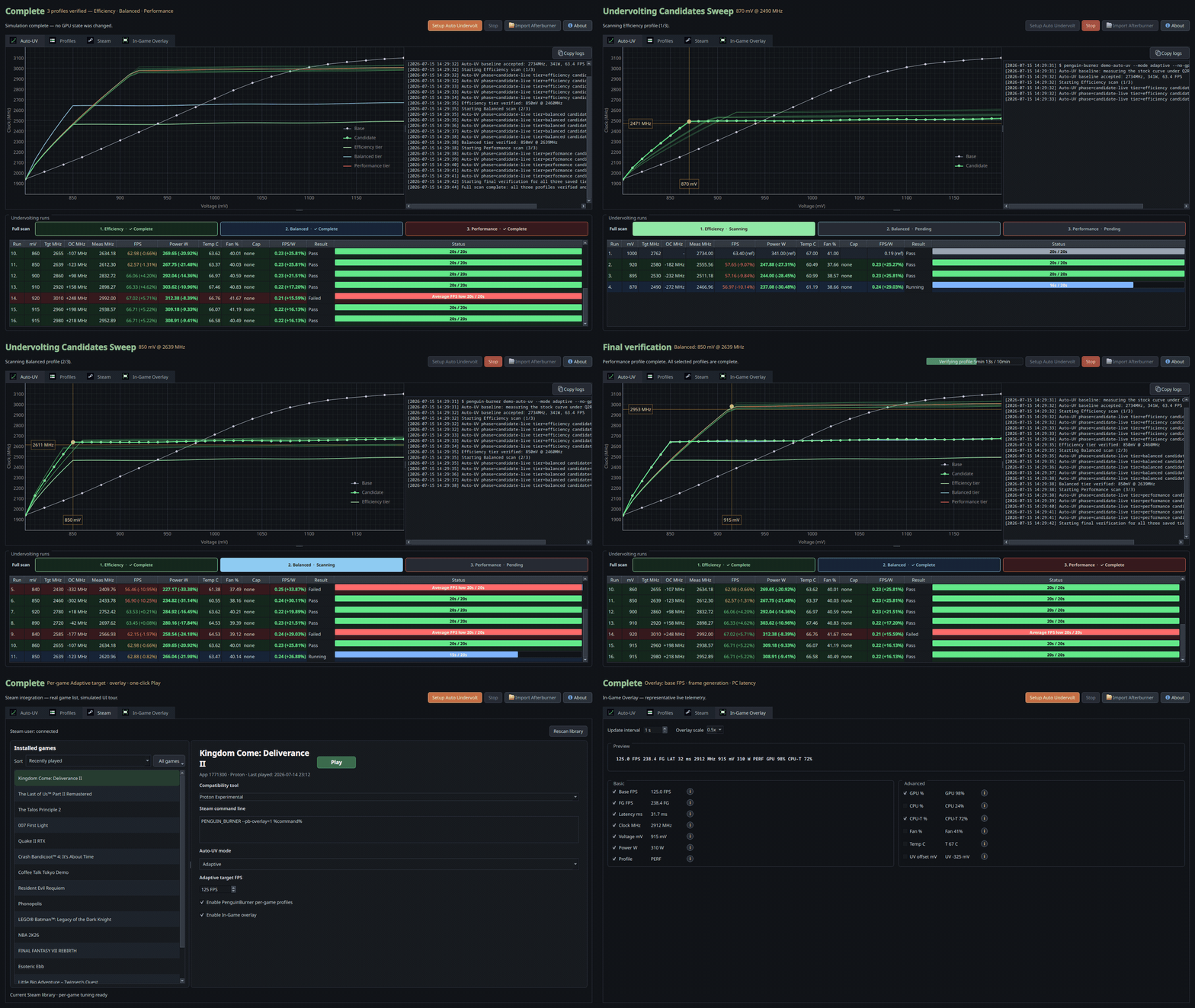
PenguinBurner is an open-source NVIDIA GPU tuning app for Linux with automatic undervolting & overclocking with adaptive per-game tuning targets.
One scan. Three verified GPU profiles.
- Efficiency — deepest savings. RTX 5080: 850 mV · 2800 MHz target / 2625 MHz loaded · 254 W.
- Balanced — maintain more loaded clock. RTX 5080: 860 mV · 2775 MHz target / 2745 MHz loaded · 272 W.
- Performance — undervolt and overclock. RTX 5080: 925 mV · 2980 MHz target / 2977 MHz loaded · 313 W.
For scale: the same RTX 5080 at stock uses about 341 W under the same load. Balanced held roughly the same loaded clock at 272 W — about 69 W less.
Verified RTX 5080 examples; every GPU differs. A requested target can exceed the loaded clock when voltage droop or the power governor intervenes. Pre-optimized targets are included for RTX 30, 40, and 50 series cards.
Install
python -m pip install --user --upgrade penguin-burner
On distros whose system Python is externally managed (Fedora 38+,
Ubuntu 23.04+, Debian 12+), pip refuses with externally-managed-environment;
use pipx install penguin-burner there — or a native package below.
Also packaged for Fedora (COPR), Arch / CachyOS (AUR), and Ubuntu (PPA) — commands in the Install guide.
A Flatpak is available from the PenguinBurner Flatpak repository, but a native install (pip / COPR / AUR / PPA) is strongly recommended over it: Steam launches, the in-game overlay's Vulkan layer, and the root daemon all live on the host, so the Flatpak must write and repair host-side files from inside its sandbox — more moving parts and more that can break. Use the Flatpak only when nothing else is practical (e.g. immutable distros), with the Flatpak install and update guide.
PyPI, Flatpak with wrappers, COPR, AUR, and PPA installs run the GUI with
penguin-burner (or pburn). Install the NVIDIA driver and CUDA first.
All privileged GPU work is done by a small root systemd service,
penguin-burnerd — a compiled Rust daemon that PenguinBurner installs once
(one admin prompt) the first time you set up hardware control. After that
one-time setup the GUI, CLI, and Auto-UV scans all run as your regular user
and talk to the service over a local socket, with no further password
prompts.
Quick start
- Install (above) with the NVIDIA driver and CUDA already set up.
- Launch PenguinBurner (
penguin-burnerorpburn). Flatpak users without wrappers should use the Flatpak guide. - Click Setup Auto Undervolt, choose a performance bias, and let the scan find and verify a stable curve. When it finishes, the verified profile is applied automatically.
- On the Profiles tab you can select any saved profile and click Apply to switch to it. Tick Apply on startup to also make the applied profile your boot profile — off by default, so a tuned curve is never re-applied at boot unless you opted in. Toggle Silent fan curve for the quiet fan profile, or Restore defaults to return the GPU to stock.
- For per-game tuning — including Adaptive, which switches tiers as your frame rate changes — use the Steam tab to pick a mode per game.
Automatic Undervolting & Overclocking
Tests your card under real load and finds the most efficient stable undervolt curve for you. The sweep runs PenguinBurner's managed headless Q2RTX benchmark plus a CUDA compute test, with stability and performance checks built in. If a scan crashes mid-probe, the next run records that voltage/clock band as unsafe and can resume from saved candidates for the same tier.
During Auto-UV, leave the GPU otherwise idle. Do not run games, renders, machine-learning jobs, video encoders, miners, or other GPU/VF/VRAM-heavy work while the scan is progressing. Auto-UV needs the whole card to itself so its FPS-per-watt and stability measurements reflect the candidate curve, not a second workload competing for power, clocks, memory bandwidth, or VRAM.
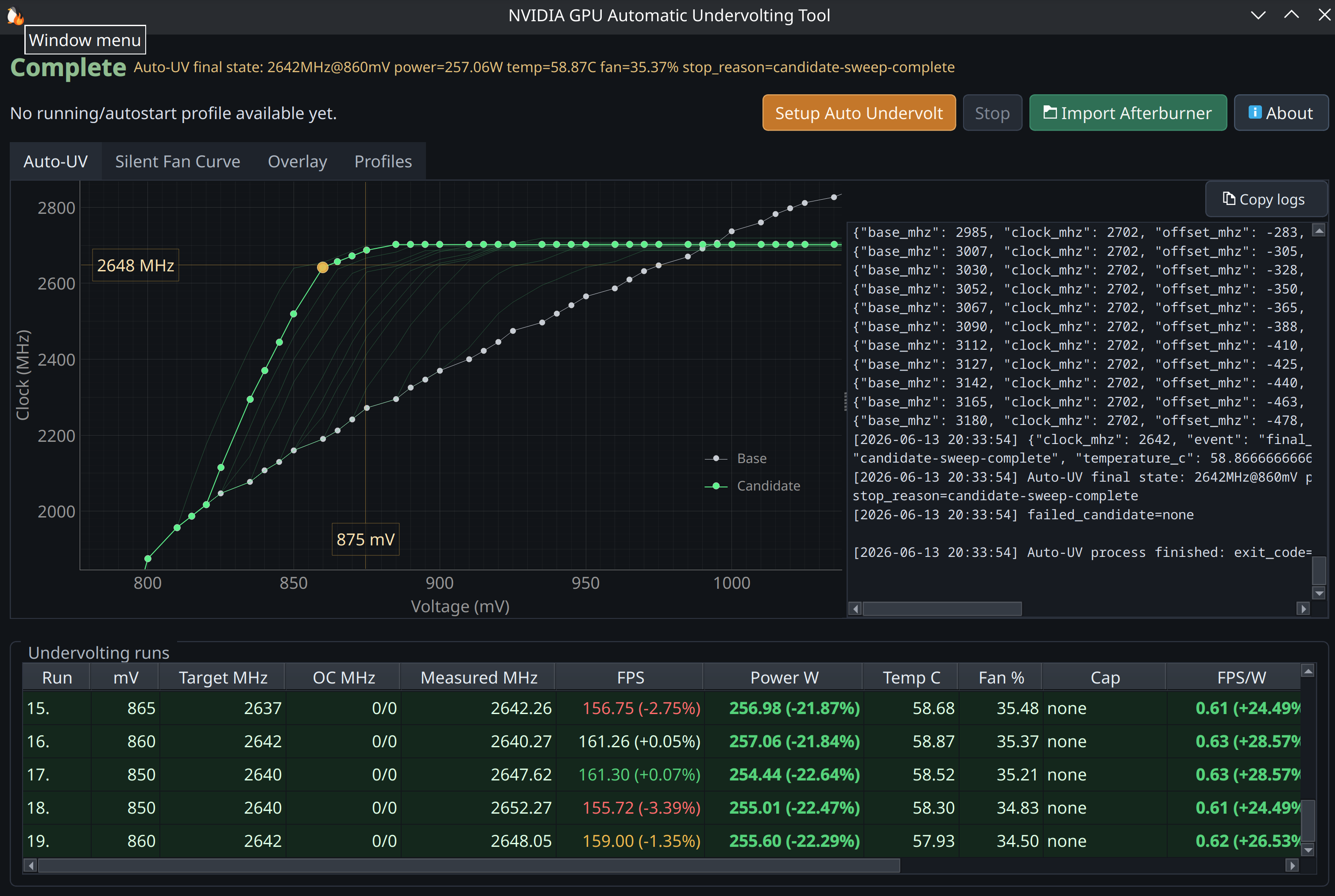
Pick a single bias (Efficiency, Balanced, or Performance), or run All tiers — one pass that discovers and verifies all three profiles in a single scan, sharing the sweep so you get a complete Efficiency/Balanced/Performance set (the green/blue/red curves above) ready for adaptive switching without three separate runs.
You can also set a GPU board power limit for the scan; PenguinBurner reads the selected card's NVML power-limit range, applies the cap during Auto-UV, and saves it with the final profile so runtime/profile application restores it. On laptop GPUs with a fixed board power limit the control is grayed out and scans run at the stock limit automatically.
Adaptive Undervolting
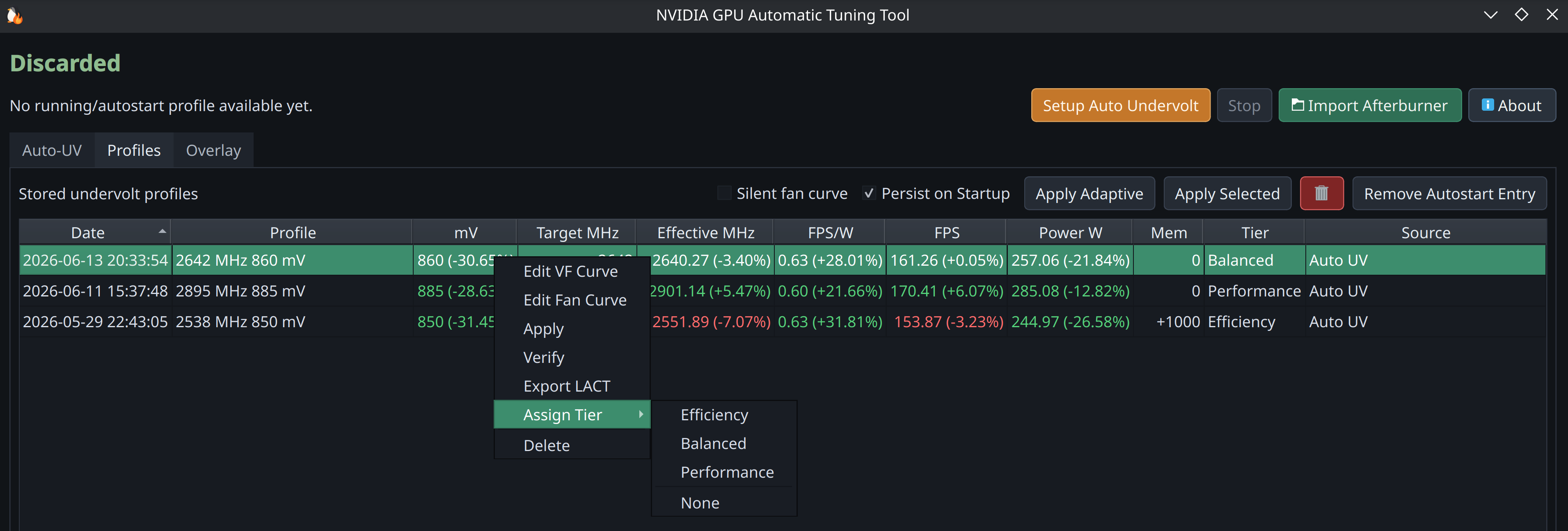
Tag your saved profiles as Efficiency, Balanced, or Performance, and PenguinBurner switches between them while you play: efficient and silent when you have headroom, more clock when frames start to drop.
Steam Integration
PenguinBurner discovers your installed Steam library and makes undervolting per-game. Pick a mode for each game — Adaptive, a fixed tier, or Stock — and PenguinBurner applies it automatically when the game launches and restores your standing profile when it exits, with no password prompt.
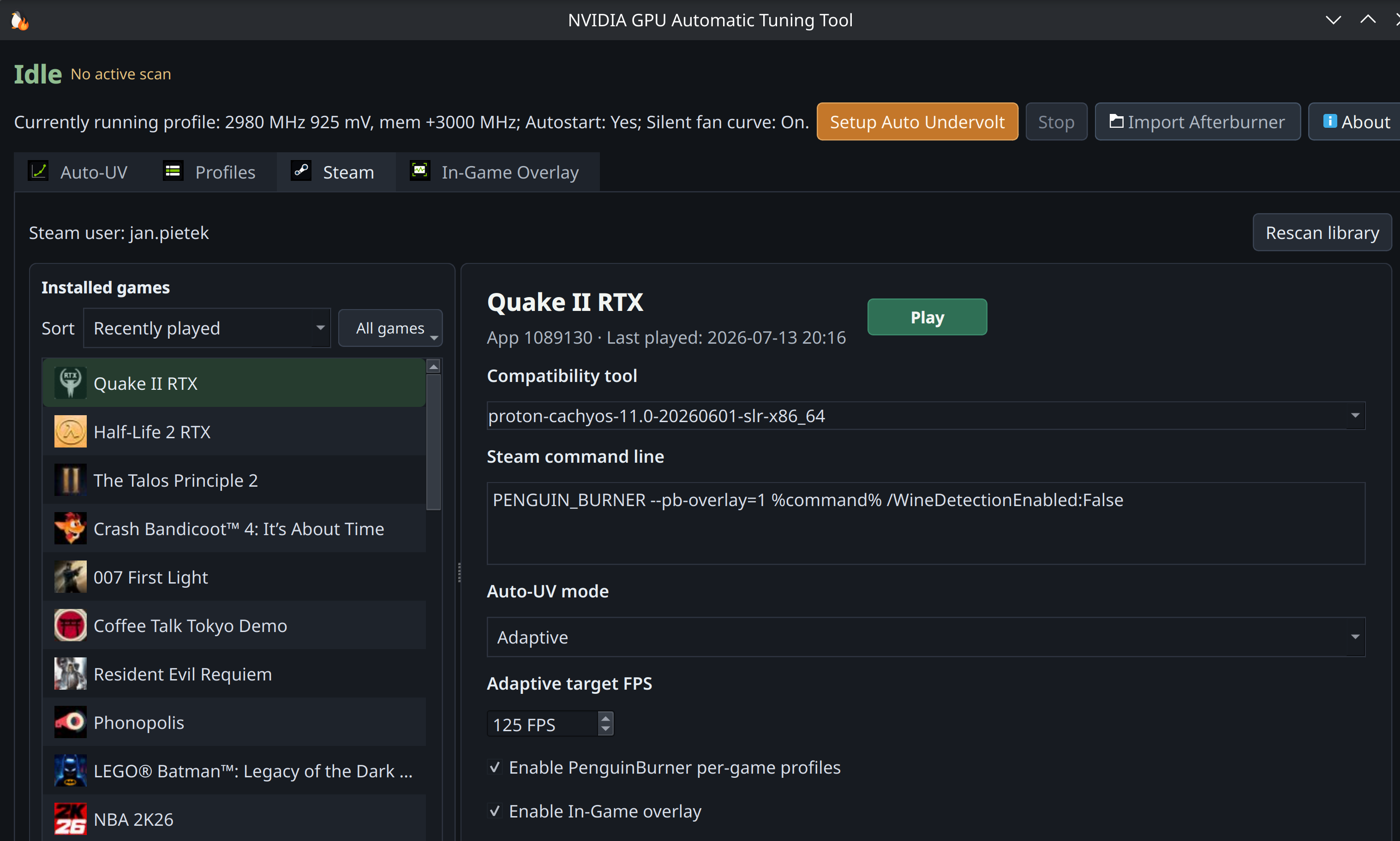
Steam integration is what unlocks the fully customizable, per-game setup:
- Per-game profiles — a different GPU behavior saved for each game.
- Per-game adaptive pre-frame-generation FPS target — the adaptive engine's promote/demote target, set individually per game (a 60 Hz story game and a 144 Hz shooter each get their own).
- In-game overlay and live launch/stop from the tab.
These per-game features require the Steam integration — they are delivered through the launch wrapper, so a game must be enabled on the Steam tab to get an adaptive per-game FPS target or the overlay. A one-click All games menu can enable or disable the wrapper across your whole library at once.
PenguinBurner vs LACT (NVIDIA)
LACT is the broader, more established Linux GPU app, and it landed a working Nvidia VF curve setter before we did. It supports more brands and has deeper monitoring than we do. PenguinBurner is narrower on purpose: automatic undervolting & overclocking, an in-game overlay, and adaptive switching. NVIDIA-only comparison, to the best of our knowledge:
| Capability (NVIDIA) | PenguinBurner | LACT |
|---|---|---|
| Automatic undervolt search (stability + perf verified) | ✅ Q2RTX + CUDA sweep | ❌ manual only |
| Rust hardware daemon | ✅ | ✅ |
| Adaptive undervolt (switches tiers by frame rate) | ✅ | ❌ |
| In-game performance overlay | ✅ | ❌ |
| PC latency meter | ✅ | ❌ |
| Pre-frame-generation FPS counter (base vs FG FPS) | ✅ | ❌ |
| Manual V/F curve editor | ✅ | ✅ |
| Fan curve control | ✅ auto silent curve + editor | ✅ custom curves |
| Power limit | ✅ Auto-UV + saved profiles | ✅ |
| Steam library import | ✅ auto-discovered library | ❌ |
| Per-game tuning profiles | ✅ per-game mode, adaptive FPS target, live launch | ❌ |
| Runtime profile switching | ✅ by present-frame FPS pacing | ✅ by running process / gamemode |
| MSI Afterburner import | ✅ | ❌ |
| Historical telemetry charts | 🚧 planned (live overlay today) | ✅ charts + CSV export |
| Detailed GPU info (VBIOS / VRAM / Vulkan / throttling) | ❌ tuning-focused | ✅ |
| Other GPU brands (AMD / Intel) | ❌ NVIDIA-native, for now | ✅ AMD · Intel · NVIDIA |
| systemd daemon · CLI / headless | ✅ · ✅ | ✅ · ✅ |
✅ available · ❌ not available · 🚧 planned/in progress
LACT monitors inside its own window (charts and CSV) and has no in-game overlay; on Linux that is usually a separate tool like MangoHud. PenguinBurner's overlay is built in.
The two interoperate via LACT export, so you can tune with PenguinBurner and run the resulting curve under LACT if you prefer.
Roadmap (planned, not yet shipped)
- Historical data plotting — power, clocks, and FPS over time.
Performance Overlay
A lightweight live on-screen readout over your game. It can visualize PC latency and pre-frame-generation FPS — things most Linux overlays can't — alongside frame-gen FPS, clocks, voltage, power, temperatures, and the active tier.
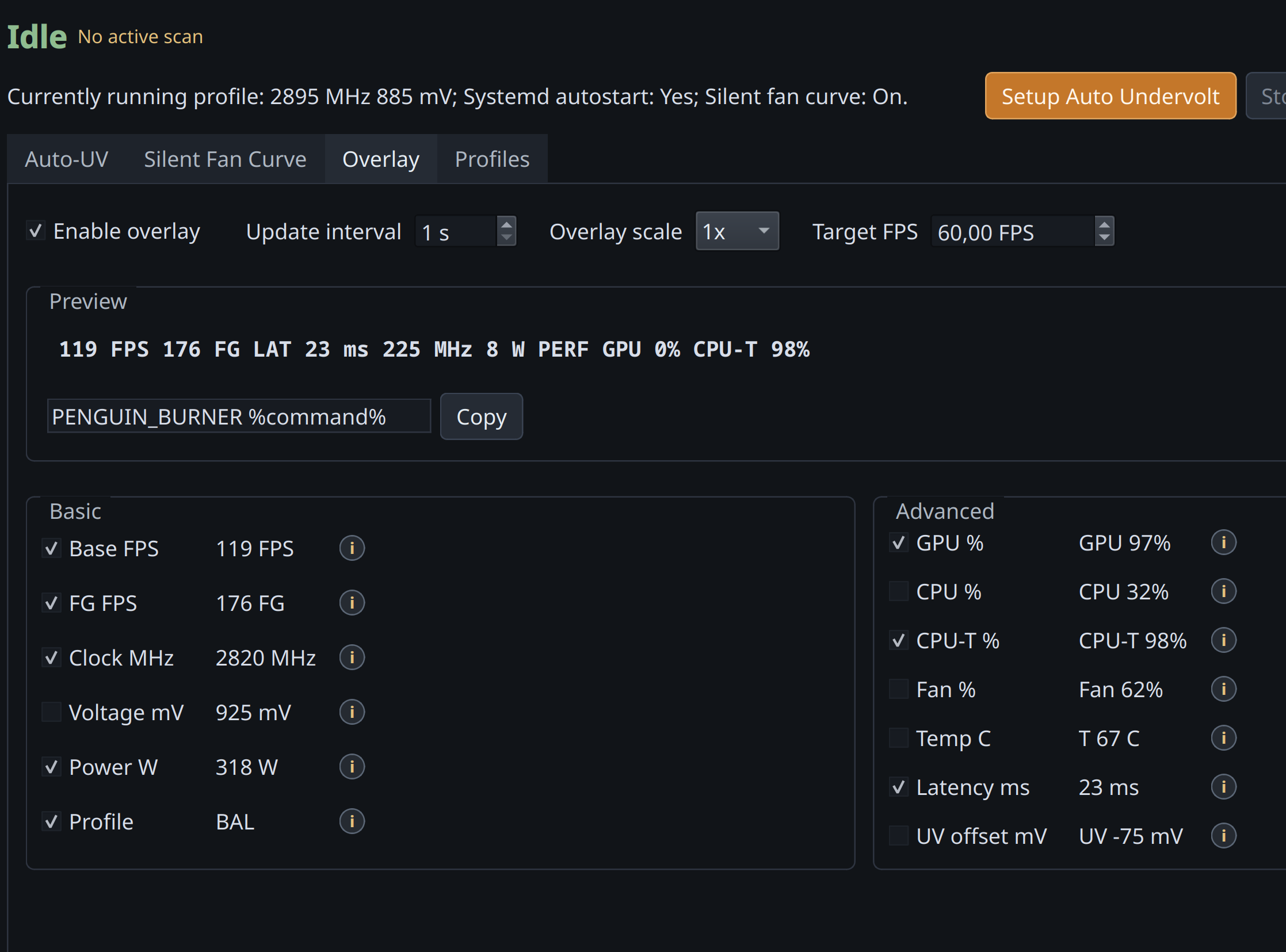
Launch the game through the wrapper, then toggle the fields you want:
PENGUIN_BURNER %command%
Add the overlay flag when you want the readout visible immediately:
PB_OVERLAY=1 PENGUIN_BURNER %command%
In-game latency turns on with the overlay — no extra flag. The NVAPI shim is
deployed into the Proton prefix automatically and streams Reflex markers (it
works under frame generation); native and prefix-less games fall back to the
Vulkan layer's marker tap. Opt out with PB_INGAME_LATENCY=0.
Some games do not expose usable latency markers at all. PenguinBurner can load the telemetry layer and parse marker streams when they exist, but it cannot force a game engine to emit real input/simulation/present markers. See Latency and frame-generation FPS for the full source and fallback model.
Any tuning change you make is reflected live in the overlay while you play, so you see the effect of an undervolt, clock, or fan change in real time without leaving the game.
Read the guide or the latency/FG details.
More features
- Profile management — apply, verify, tier, export, and clean up saved curves.
- Curve editors — Afterburner-style manual V/F and fan curve editors with full keyboard control.
- Silent fan curve — auto-generated quiet fan curve once the undervolt brings temperatures down.
MSI Afterburner Import
Bring your Windows MSI Afterburner profile over and import its V/F curve.
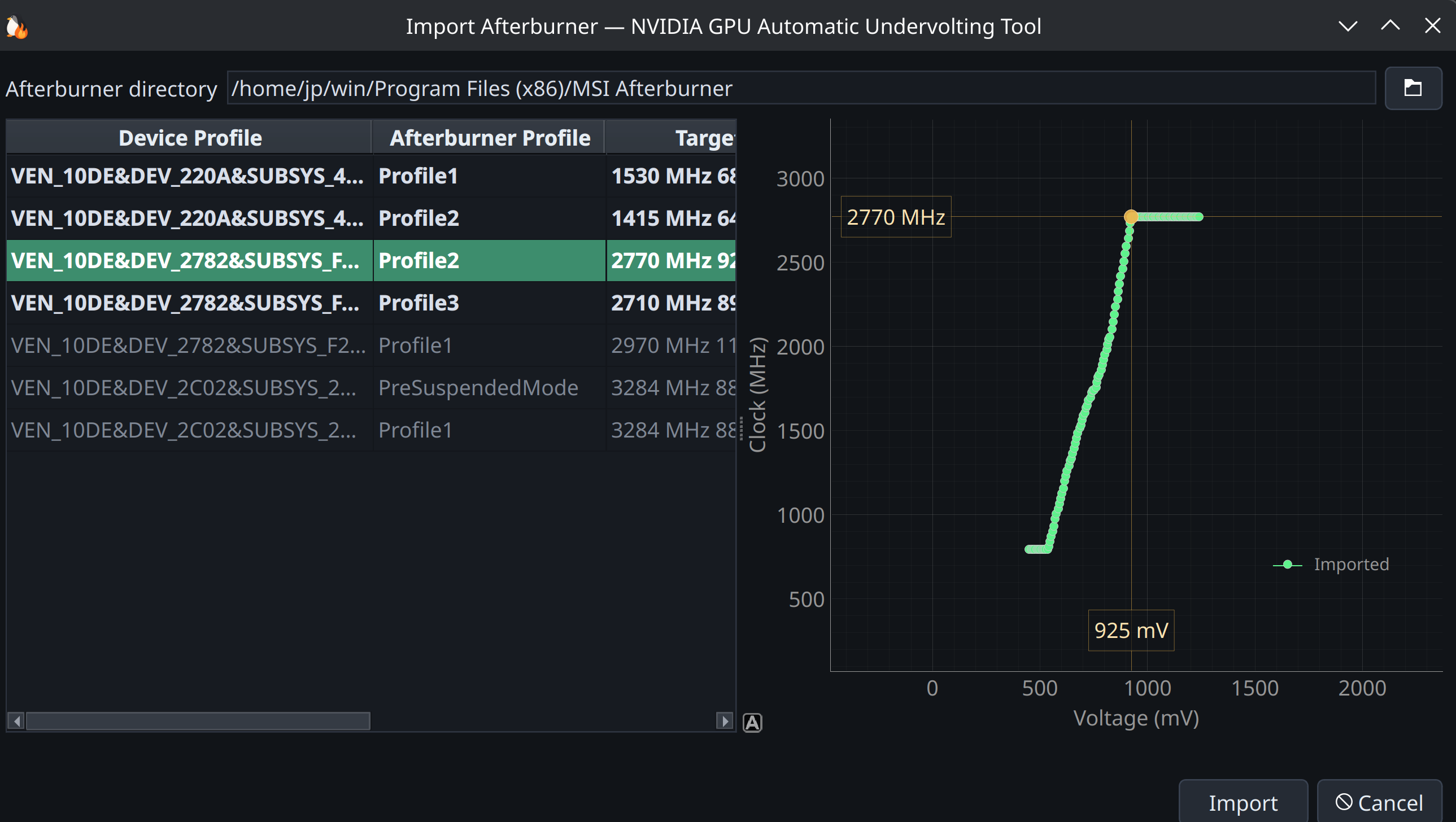
Point PenguinBurner at the real MSI Afterburner directory (no Afterburner binaries or profiles are bundled in this repo). Default Windows path:
C:\Program Files (x86)\MSI Afterburner
LACT Export
Export any saved V/F (and optionally fan) curve as a complete Nvidia LACT config from the Profiles view. See the Auto-UV guide for the workflow.
Run At Your Own Risk
Auto-UV makes real hardware changes — enabling persistence mode, setting board power limits, writing core/memory V/F offsets, and taking over fan control.
The Balanced and Efficiency Auto-UV profiles use conservative voltage floors and board-power caps. Efficiency accepts the deepest loaded-clock drop, then may reclaim stable clock without raising its proven voltage. Balanced keeps more loaded clock with a higher voltage and power budget.
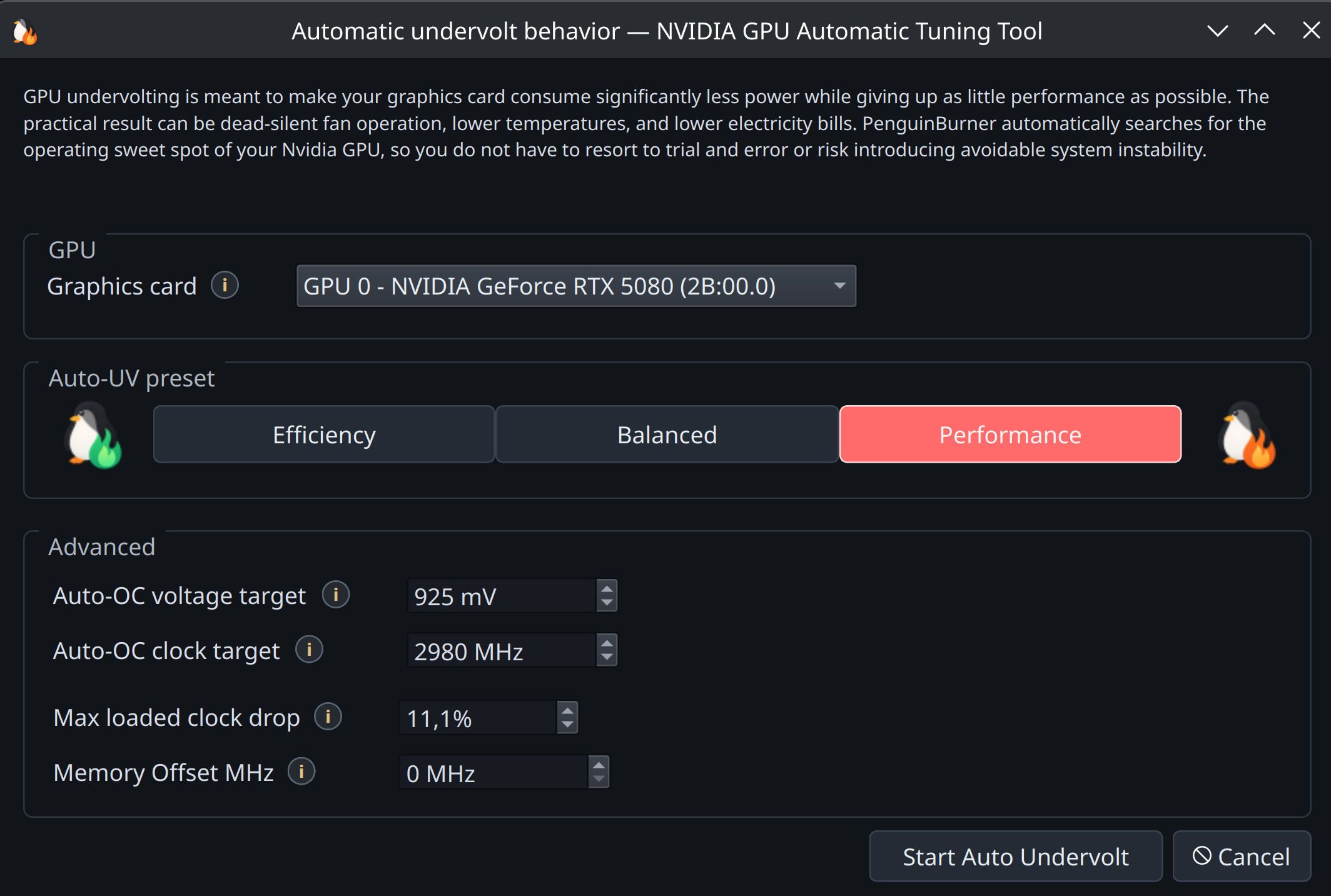
Performance is the profile that pushes past stock: it undervolts and then overclocks. On my RTX 5080, during the OC phase I sometimes get a "Vulkan device lost", which PenguinBurner catches and then reverts the problematic voltage/frequency point. Worst case is a hard system freeze and reboot — after which the blacklisted V/F point is persisted to the UV history file in your home directory, so it is not retried.
You can also define, in the Performance setup dialog, exactly which voltage/frequency point the card is pushed to over stock limits. The default is the suggested point for 30/40/50-tier GPUs, based on experiments with this and similar tools on Windows. Performance is optional anyway — OC is not mandatory.
Acknowledgements
PenguinBurner was built through agentic AI development, guided by human ideas and direction. The implementation, research, and reverse engineering were driven primarily by GPT 5.5 (OpenAI) and Claude Opus (Anthropic), recently most of the codebase (new Rust daemon!) was rewritten with Fable (Anthropic).
- NVIDIA — for the graphics technology that, unfortunately, lacks some features and polish on Linux.
- Qt Project — for the excellent Qt6 UI.
Special thanks to the LACT project and Ilya Zlobintsev for pushing Linux NVIDIA tuning forward — in particular LACT #957 (Nvidia VF curve editor), merged April 18, 2026.
Support
CLI Documentation
The CLI-focused README is archived in readme-cli.md.
Start clean
Reset PenguinBurner user state for a fresh run:
rm -rf ~/.config/PenguinBurner ~/.local/share/PenguinBurner ~/.cache/PenguinBurner
Installing from a local checkout? See the Install guide.
1 maintainer

Download files
Download the file for your platform. If you're not sure which to choose, learn more about installing packages.
Source Distribution
Built Distribution
Filter files by name, interpreter, ABI, and platform.
If you're not sure about the file name format, learn more about wheel file names.
Copy a direct link to the current filters
File details
Details for the file penguin_burner-0.7.7.tar.gz.
File metadata
- Download URL: penguin_burner-0.7.7.tar.gz
- Upload date:
- Size: 4.5 MB
- Tags: Source
- Uploaded using Trusted Publishing? No
- Uploaded via:
twine/7.0.0 CPython/3.14.6
File hashes
| Algorithm | Hash digest | |
|---|---|---|
| SHA256 |
243c728f21a9da3411352363e298364f8498182648f159cda5806a9d09a27fbc
|
|
| MD5 |
03dd527e79b8da050af63021ad1bc0a5
|
|
| BLAKE2b-256 |
5cb57ba9e8aae2f29735ced1b63d677dbb8ddb9151fd019f93c40266bc221214
|
File details
Details for the file penguin_burner-0.7.7-py3-none-manylinux_2_28_x86_64.whl.
File metadata
- Download URL: penguin_burner-0.7.7-py3-none-manylinux_2_28_x86_64.whl
- Upload date:
- Size: 1.7 MB
- Tags: Python 3, manylinux: glibc 2.28+ x86-64
- Uploaded using Trusted Publishing? No
- Uploaded via:
twine/7.0.0 CPython/3.14.6
File hashes
| Algorithm | Hash digest | |
|---|---|---|
| SHA256 |
878715ce561e0a2a93d7ad3b874ab9d1096e9d9e961aceb1563871b4996fe599
|
|
| MD5 |
b474a910fa8fe7fd050708c3ee4919c7
|
|
| BLAKE2b-256 |
da35cff3c4882d14c070679cefda577b7f2812ac3dcc827fcc7085155db56636
|







