
PyPowerwall Server






A high-performance FastAPI-based server for monitoring and managing Tesla Powerwall systems. Designed as the next-generation evolution of the pypowerwall proxy with multi-gateway support, real-time monitoring, and a built-in status console.
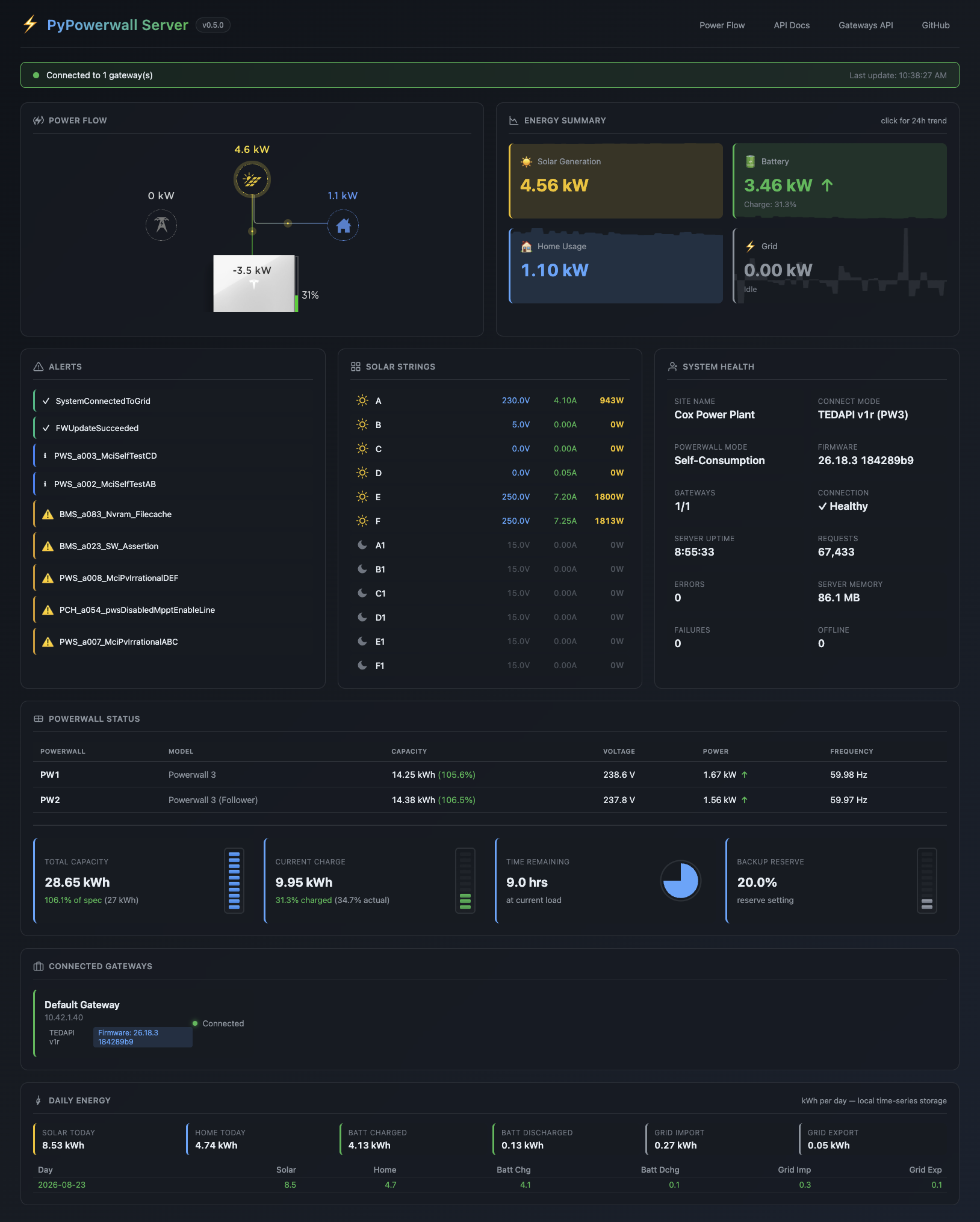
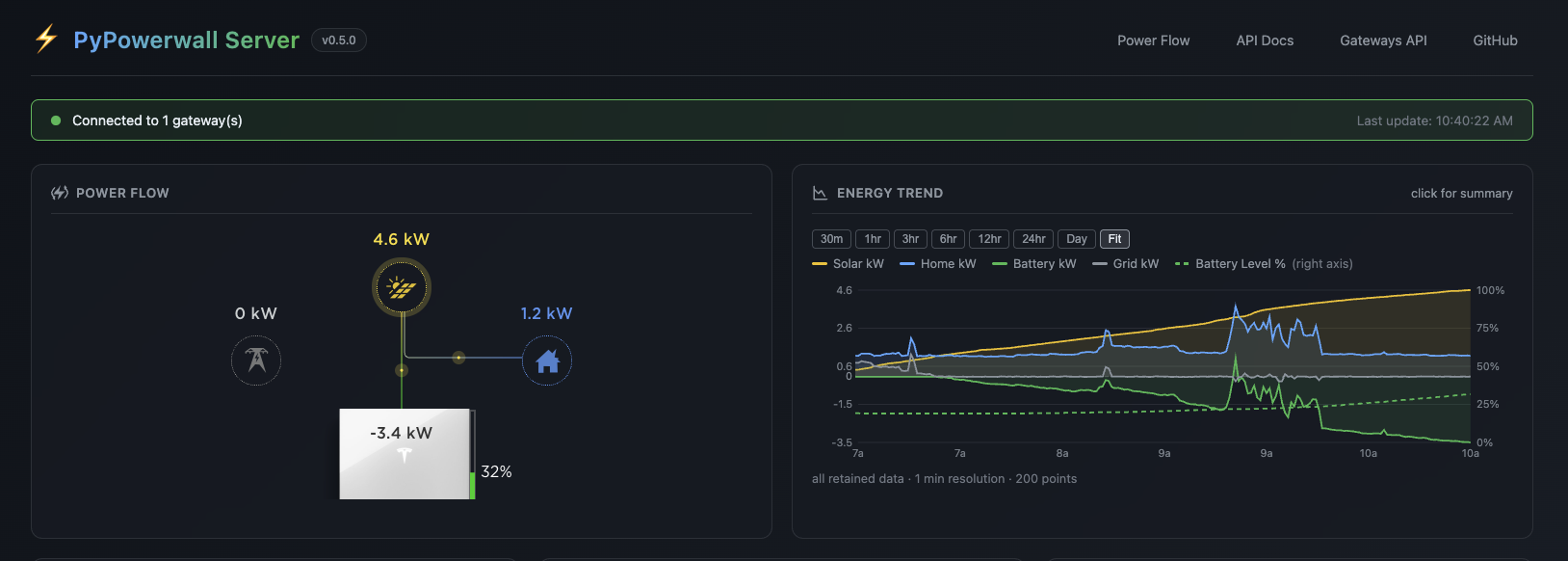
The Energy panel toggles between Energy Summary (current kW totals) and Energy Trend (raw kW data with battery level % overlay).
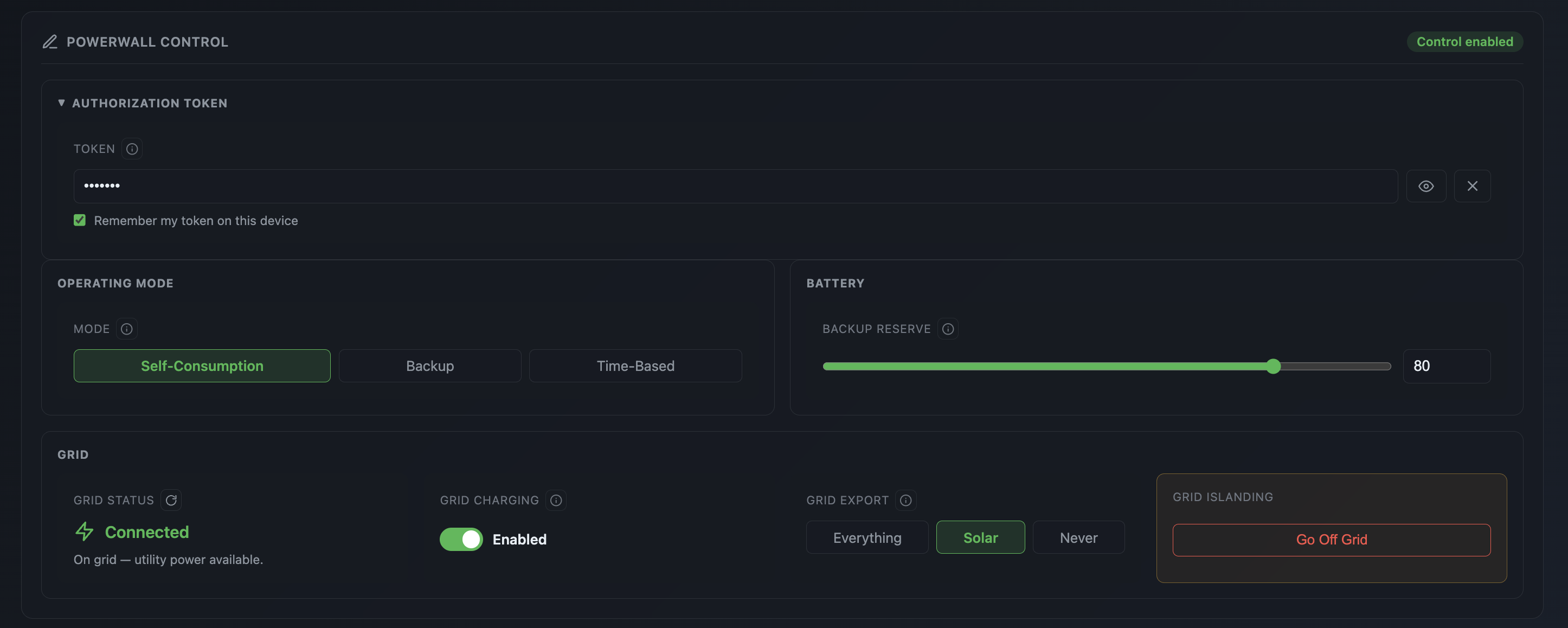
The Control panel allows you to manage the Powerwall's operation mode, reserve percentage, grid charging (with eligibility warnings) and grid export (with PTO confirmation). Requires setting the PW_CONTROL_SECRET environment variable.
The MQTT panel shows the live MQTT settings if the PW_MQTT_BROKER environment variable is set.

Features
- Multi-Gateway Support - Monitor multiple Powerwall installations from a single server with per-gateway configuration and aggregated metrics
- Connection Modes - TEDAPI (local), Basic LAN (PW3 wired LAN, core metrics), Cloud Mode (remote), and FleetAPI support with automatic failover and graceful degradation
- Real-Time Updates - WebSocket streaming with 1-second updates and background polling with intelligent caching
- Complete API - Full backward compatibility with pypowerwall proxy plus new multi-gateway and aggregate endpoints
- Console Web UI - Tesla Power Flow animation, management console, and auto-generated API documentation at /docs
- Optional Control Mode - Token-protected
/control/*API to set backup reserve and operating mode, plus a Powerwall Control card in the web Console (enabled byPW_CONTROL_SECRET; read-only by default) - MQTT Integration - Publish live Powerwall metrics to any MQTT broker; built-in Home Assistant auto-discovery; see mqtt-tools/README.md
Quick Start
Requirements
- TEDAPI Mode: For extended metrics you will need the Powerwall/Gateway Password (typically found on the QR sticker - behind front panel of PW3 - see picture). And you computer must be connected to the Powerwall WiFi Access point (it will be IP address 192.168.91.1)
- Basic LAN Mode (PW3): For core metrics over a wired connection, you only need the customer password (last 5 characters of the gateway password) and the Powerwall's wired LAN IP on the vendor subnet (e.g.
10.42.1.x). See Basic LAN Mode below. - Cloud Mode: For basic metrics, you will need your Tesla customer login credentials (email) and will need to run the cloud mode one-time setup below.
Docker (Recommended)
The easiest way to get started is using the provided Docker image. You can run in either TEDAPI Mode (local access) or Cloud Mode (remote access). Select the appropriate option below:
Choosing a Connection Mode
Not sure which mode to run? Pick the row that matches your setup — then follow its example below:
| Mode | Use when | Required settings | Data | Control |
|---|---|---|---|---|
| TEDAPI (default) | You can reach the gateway from your local network (192.168.91.1) |
PW_HOST + PW_GW_PWD |
Full local metrics — power flows, vitals, strings, per-Powerwall detail | Add PW_EMAIL + PW_AUTH_PATH for hybrid cloud control |
| TEDAPI v1r | Same, but connecting over wired LAN with a registered RSA key | PW_HOST + PW_GW_PWD + PW_RSA_KEY_PATH (add PW_WIFI_HOST for follower Powerwall data) |
Full local metrics | Authenticated local islanding with PW_CONTROL_SECRET; add PW_EMAIL + PW_AUTH_PATH for other hybrid cloud control |
| Basic LAN (Powerwall 3) | PW3 reachable on its wired vendor subnet — no gateway password or RSA key needed | PW_HOST + PW_PASSWORD (customer password = last 5 chars of the gateway password) |
Core metrics only — power flows, battery SoC, grid status | Add PW_EMAIL + PW_AUTH_PATH for hybrid cloud control (local reads + cloud writes) |
| Cloud | No local network access to the system | PW_EMAIL + PW_AUTH_PATH (one-time python -m pypowerwall setup) |
Standard cloud metrics | Yes |
| FleetAPI | Remote access via Tesla's official Fleet API | PW_GATEWAYS (or gateways.yaml) entry with email + authpath + fleetapi: true |
Standard cloud metrics | Yes |
Local v1r and Basic LAN modes can perform supported control operations when PW_CONTROL_SECRET is set. Without cloud credentials, /control/reserve, /control/mode, and /control/grid_charging use the gateway's local connection. With PW_EMAIL and PW_AUTH_PATH configured (hybrid mode), those operations use the cloud connection while monitoring remains local. POST /control/islanding is different: it is available only in TEDAPI v1r mode, requires a registered RSA key, always uses the local gateway connection, and does not fall back to cloud control.
TEDAPI Mode (Local Access)
# TEDAPI Mode requires host network to access gateway at 192.168.91.1
docker run -d \
  --name pypowerwall-server \
  --network host \
  -e PW_HOST=192.168.91.1 \
  -e PW_GW_PWD=your_gateway_password \
  -v pws-data:/data \
  jasonacox/pypowerwall-server
TEDAPI v1r Mode (RSA Key Auth)
# TEDAPI v1r uses an RSA-4096 private key for the encrypted channel,
# but still requires PW_GW_PWD to derive the customer password.
# Generate a key pair with pypowerwall, then mount it into the container.
docker run -d \
  --name pypowerwall-server \
  --network host \
  -e PW_HOST=192.168.91.1 \
  -e PW_GW_PWD=your_gateway_password \
  -e PW_RSA_KEY_PATH=/keys/tedapi_rsa_private.pem \
  -e PW_WIFI_HOST=192.168.91.1 \
  -v /path/to/keys:/keys \
  -v pws-data:/data \
  jasonacox/pypowerwall-server
Note:
PW_WIFI_HOSTis the IP address pypowerwall uses for the WiFi fallback path in v1r mode. It defaults to192.168.91.1. Only set it if your gateway is on a different IP (e.g. behind a travel router).Note: The
-v pws-data:/datamount persists the daily energy history (SQLite time-series store) across container upgrades. Omit it if you run withPW_TIMESERIES_RETENTION=-1(subsystem disabled).
Basic LAN Mode (Powerwall 3, No Gateway Password or RSA Key)
Powerwall 3 units expose a small set of local API endpoints over their wired LAN interface (vendor subnet, e.g. 10.42.1.x). With just the customer password (the last 5 characters of the gateway password), you can monitor core metrics without the gateway Wi-Fi password, an RSA key, or any cloud setup:
# Basic LAN Mode - connect directly to the Powerwall 3 over Ethernet
# PW_HOST is the Powerwall's wired LAN IP on the vendor subnet
# PW_PASSWORD is the customer password (last 5 chars of the gateway password)
docker run -d \
  --name pypowerwall-server \
  --network host \
  -e PW_HOST=<pw3-ip> \
  -e PW_PASSWORD=your_customer_password \
  -v pws-data:/data \
  jasonacox/pypowerwall-server
This mode serves power flows (/api/meters/aggregates), battery state of charge (/api/system_status/soe), and grid status (/api/system_status/grid_status). Most other local /api/* endpoints (vitals, strings, operation, firmware info, etc.) return 404 in this mode, so pypowerwall-server skips them automatically to keep the logs clean. Monitoring is read-only and limited to the core metrics — for full device-level data use TEDAPI mode above. Requires pypowerwall 0.17.0+.
Basic LAN + Cloud Control (Hybrid)
The local Basic LAN connection is read-only. To control your Powerwall from this mode (set reserve level, operating mode, grid charging), add Tesla cloud credentials — monitoring stays on the local connection, control writes go through the Tesla cloud:
docker run -d \
  --name pypowerwall-server \
  --network host \
  -e PW_HOST=<pw3-ip> \
  -e PW_PASSWORD=your_customer_password \
  -e PW_EMAIL="your@email.com" \
  -e PW_AUTH_PATH=/auth \
  -v ~/.pypowerwall:/auth \
  -v pws-data:/data \
  jasonacox/pypowerwall-server

# One-time setup (runs the Tesla auth flow to generate the token files)
docker exec -it pypowerwall-server python -m pypowerwall setup
Both pieces are required for control: PW_EMAIL identifies the Tesla account, and PW_AUTH_PATH points at the directory holding the .pypowerwall.auth / .pypowerwall.site token files created by the one-time setup (email alone is not enough — the cloud connection has no password to log in with). With both set, /control/reserve, /control/mode and /control/grid_charging route through the cloud connection while all monitoring data keeps coming from the local Basic LAN endpoints (no internet needed for reads). The Console shows Hybrid as the connect mode and tracks both links separately (Local / Cloud sub-rows): if the internet drops, the Connection card reads Degraded with Local: Healthy / Cloud: Unavailable instead of reporting plain health from the local link alone. If the cloud connection can't be established at all, monitoring is unaffected, control requests return an error, and the Console's Powerwall Mode shows -- (unavailable) rather than a made-up value; when the cloud link drops after having been up, the last known mode/reserve are shown marked (stale) with their fetch time exposed via /api/operation.
Cloud Mode (Remote Access)
# Cloud Mode requires one-time setup using Tesla login step below
docker run -d \
  --name pypowerwall-server \
  -p 8675:8675 \
  -v ~/.pypowerwall:/auth \
  -v pws-data:/data \
  -e PW_EMAIL="your@email.com" \
  -e PW_AUTH_PATH=/auth \
  jasonacox/pypowerwall-server

# One-time setup (runs auth flow to generate token files)
docker exec -it pypowerwall-server python -m pypowerwall setup
The PyPowerwall Server will be running at: http://localhost:8675 (if not running local, replace "localhost" with the IP of the host running the container).
Option: Multiple Powerwalls
# Multiple local gateways - requires host network
docker run -d \
  --name pypowerwall-server \
  --network host \
  -v pws-data:/data \
  -e PW_GATEWAYS='[
    {"id": "home", "name": "Home Gateway", "host": "192.168.91.1", "gw_pwd": "gateway_password_1"},
    {"id": "cabin", "name": "Cabin Gateway", "host": "192.168.91.2", "gw_pwd": "gateway_password_2"},
    {"id": "garage", "name": "Garage (travel router)", "host": "192.168.1.50", "port": 8443, "gw_pwd": "gateway_password_3"}
  ]' \
  jasonacox/pypowerwall-server
Option: Command Line Test
# Install
pip install pypowerwall-server

# TEDAPI Mode
pypowerwall-server --host 192.168.91.1 --gw-pwd your_gateway_password

# Multiple Powerwalls
pypowerwall-server --config gateways.yaml

# Cloud Mode
pypowerwall-server --setup # one-time setup
pypowerwall-server --email "your@email.com"
Configuration
Note: Most users will use TEDAPI to connect to their Powerwall gateway, which is accessible at the standard IP address
192.168.91.1on your local network. You'll need your gateway password (found in the Tesla app under your gateway settings).
Cloud Authentication Setup (Optional, for Control Operations)
If you want to control your Powerwall (set reserve level, operating mode, etc.), you'll need Tesla Cloud authentication:
One-time setup:
pip install pypowerwall-server
pypowerwall-server --setup
This will:
- Open your browser to authenticate with Tesla
- Generate
.pypowerwall.authand.pypowerwall.sitetoken files - Store them in the default location or a specified directory
Environment Variables
Single Gateway Mode (Read-Only via TEDAPI):
PW_HOST=192.168.91.1
PW_GW_PWD=your_gateway_password
PW_TIMEZONE=America/Los_Angeles
PW_PORT=8675              # Default port (proxy-compatible)
PW_BIND_ADDRESS=0.0.0.0  # Listen on all interfaces
PROXY_BASE_URL=/pypowerwall  # Optional: serve under a sub-path (see Reverse Proxy)
Single Gateway Mode (TEDAPI v1r — RSA Key Auth):
PW_HOST=192.168.91.1
PW_GW_PWD=your_gateway_password                  # Gateway password (last 5 chars used as customer password)
PW_RSA_KEY_PATH=/path/to/tedapi_rsa_private.pem  # RSA-4096 private key for v1r encrypted channel
PW_WIFI_HOST=192.168.91.1                         # WiFi fallback IP for v1r mode (default: 192.168.91.1)
PW_TIMEZONE=America/Los_Angeles
Single Gateway Mode (With Cloud Control):
PW_HOST=192.168.91.1
PW_GW_PWD=your_gateway_password          # For TEDAPI data reads
PW_EMAIL=your-tesla-account@email.com
PW_AUTH_PATH=/path/to/auth/files            # Directory with .pypowerwall.auth/.site
PW_TIMEZONE=America/Los_Angeles
Multi-Gateway Mode:
PW_GATEWAYS='[
  {
    "id": "home",
    "name": "Home System",
    "host": "192.168.91.1",
    "gw_pwd": "gw_pwd_1",
    "email": "tesla@email.com",
    "authpath": "/auth"
  },
  {
    "id": "cabin",
    "name": "Cabin System",
    "host": "192.168.91.1",
    "gw_pwd": "gw_pwd_2",
    "email": "tesla@email.com",
    "authpath": "/auth"
  }
]'
TEDAPI SolarOnly Fallback Recovery:
PW_TEDAPI_RECOVERY=yes                     # Enable auto-recovery (default: yes)
PW_TEDAPI_PROBE_INTERVAL=30                # Seconds between TEDAPI health probes (default: 30)
When TEDAPI drops mid-session (firmware update, route loss), the server
tracks SolarOnly fallback as a distinct state and retries reconnection with
exponential backoff (60s → 300s max). Fallback state is exposed in /health
and /stats. POST /health/reset clears fallback state (requires
PW_CONTROL_SECRET). Only active in TEDAPI mode — no overhead for Cloud/FleetAPI.
Logging & Diagnostics:
PW_DEBUG=no # Enable debug logging (default: no)
HTTP access logs (one line per request) are only emitted when PW_DEBUG is
enabled — production logs stay quiet. The gateway firmware version is
logged at the first successful poll and again on every change
(Gateway <id> firmware changed: X -> Y), so docker logs pypowerwall-server
answers "when did my Powerwall firmware update?" without extra tooling.
Timeouts:
PW_TIMEOUT=10 # Local gateway request timeout in seconds (default: 10)
PW_TIMEOUT is the HTTP timeout pypowerwall uses for local gateway
connections (local, hybrid, TEDAPI full/v1r). Cloud and FleetAPI connections
use the library default (5 s). Each poll step waits max(5, PW_TIMEOUT + 2)
seconds (aggregates, vitals and strings: max(10, PW_TIMEOUT + 2)), so the
library times out before the server gives up on the worker thread, and a whole
poll is capped at max(30, 3 × PW_CACHE_EXPIRE, 4 × (PW_TIMEOUT + 2)) seconds.
Raise it if a slow local gateway logs poll timeouts.
Time-Series Storage (Daily Energy Stats):
PW_TIMESERIES_RETENTION=24h            # Raw 5s sample retention (default: 24h)
PW_TIMESERIES_DAILY_RETENTION=0        # Daily kWh aggregate retention (default: 0 = unlimited)
PW_TIMESERIES_PATH=/data/timeseries.db  # SQLite path (default: /data/timeseries.db if /data exists)
The server records every poll cycle's power readings to a local SQLite
store (WAL mode) and derives daily energy totals per gateway via trapezoidal
integration: solar, home consumption, battery charge/discharge, grid
import/export — each tracked directionally (never netted). Totals reset at
local midnight using each gateway's configured timezone, survive restarts,
and show in the web console's Daily Energy panel plus the
/api/timeseries/* endpoints. Raw samples also capture battery level
(state of charge) per poll — kept for the raw retention window only, never
downsampled into daily aggregates. Clicking the console's Energy Summary
panel toggles it into an Energy Trend view: the last 24 hours of raw
data charted as Solar/Home/Battery/Grid kW (shared left axis) plus Battery
Level % (dashed, right axis), using the standard color coding. Raw samples
are pruned to the retention
window (keeping the last hour for troubleshooting); daily aggregates are one
tiny row per gateway per day (~100 B/day) so unlimited retention is the
sensible default. Intervals longer than 1 hour (outage/gap) are never
integrated — no fabricated energy. Set PW_TIMESERIES_RETENTION=-1 to
disable the subsystem entirely for headless proxy deployments (no SQLite
file, no writes, UI panel hidden). Retention accepts 90s, 48h, 7d,
30d, 365d style values; 0 = unlimited.
Configuration File (gateways.yaml)
Pass a YAML (or JSON) config file with --config gateways.yaml or
PW_CONFIG=/path/to/gateways.yaml. A template ships as
gateways.yaml.example — copy it to gateways.yaml (which is gitignored,
since it holds gateway passwords) and edit:
server:
  host: 0.0.0.0
  port: 8675
  cors_origins:
    - http://localhost:3000

gateways:
  - id: home
    name: Home System
    host: 192.168.91.1
    gw_pwd: gw_pwd_1
    email: tesla@email.com
    authpath: /auth
    timezone: America/Los_Angeles

  - id: cabin
    name: Cabin System
    host: 192.168.91.1
    gw_pwd: gw_pwd_2
    email: tesla@email.com
    authpath: /auth
    timezone: America/Denver

  - id: garage
    name: Garage (travel router)
    host: 192.168.1.50   # travel router IP
    port: 8443           # non-standard HTTPS port forwarded to 192.168.91.1
    gw_pwd: gw_pwd_3
    timezone: America/Los_Angeles

  - id: south-inverter
    name: South Array Inverter
    host: 192.168.91.1
    gw_pwd: gw_pwd_4
    type: inverter       # solar-only; suppresses battery panels in console
    timezone: America/Los_Angeles

  - id: cloud-site
    name: Cloud Mode Site
    email: user@example.com
    authpath: /auth
    cloud_mode: true

  - id: v1r-gateway
    name: TEDAPI v1r Gateway
    host: 192.168.91.1
    gw_pwd: your_gateway_password                # Required even in v1r mode (used to derive customer password)
    rsa_key_path: /keys/tedapi_rsa_private.pem  # RSA-4096 private key (TEDAPI v1r mode)
    wifi_host: 192.168.91.1                     # WiFi fallback IP (optional, defaults to 192.168.91.1)
    timezone: America/Los_Angeles
Authentication:
gw_pwd: For TEDAPI local gateway access (standard mode)rsa_key_path: Path to RSA-4096 private key PEM file for TEDAPI v1r LAN access (requiresgw_pwd— the RSA key handles the encrypted channel, butgw_pwdis still needed to derive the customer password)email+authpath: For Tesla Cloud API (control operations)- Run
pypowerwall-server --setupto authenticate and generate auth files - Specify directory containing
.pypowerwall.authand.pypowerwall.sitefiles
- Run
TEDAPI connection modes:
host+gw_pwd→ TEDAPI (standard, uses gateway Wi-Fi password)host+gw_pwd+rsa_key_path→ TEDAPI v1r (RSA-4096 encrypted channel + customer password from gw_pwd; shown as "TEDAPI v1r" in console)wifi_host→ Optional WiFi fallback IP for v1r mode (default192.168.91.1; only needed when your gateway is on a non-standard IP)
Optional fields:
port: Non-standard HTTPS port (e.g.8443) — use when the gateway is behind a travel router that forwards a custom port to192.168.91.1:443type: Gateway device type —powerwall(default, has batteries) orinverter(solar-only; suppresses battery panels in the console)rsa_key_path: RSA-4096 private key PEM path for TEDAPI v1r LAN authentication (requiresgw_pwd— see above)wifi_host: WiFi host IP for TEDAPI v1r WiFi fallback (default192.168.91.1; set this when your gateway's WiFi AP is on a different subnet, e.g. behind a travel router)
Reverse Proxy / HTTPS Proxy
You can serve pypowerwall-server from a sub-path alongside other services (e.g. Grafana on /) using PROXY_BASE_URL. This is the recommended setup for HTTPS via nginx.
Environment variable:
PROXY_BASE_URL=/pypowerwall # Serve everything under /pypowerwall/
With this set, all UI pages, static assets, and API calls are rendered with the correct prefix so the browser resolves them through the proxy. No changes to API clients are needed.
Example nginx configuration:
server {
    listen 443 ssl;
    server_name lab.lan;

    # Grafana at root
    location / {
        proxy_pass http://grafana:3000/;
    }

    # PyPowerwall at /pypowerwall/
    location /pypowerwall/ {
        # Strip the /pypowerwall prefix before forwarding (trailing slash is required)
        proxy_pass http://pypowerwall:8675/;

        proxy_set_header Host              $http_host;
        proxy_set_header X-Forwarded-Host  $http_host;
        proxy_set_header X-Forwarded-Proto $scheme;
        proxy_set_header X-Forwarded-Port  $server_port;

        # Strip CORS headers added by pypowerwall so nginx can set its own
        proxy_hide_header Access-Control-Allow-Origin;
        proxy_hide_header Access-Control-Allow-Credentials;
        proxy_hide_header Access-Control-Allow-Methods;
        proxy_hide_header Access-Control-Allow-Headers;

        # Using "*" is suitable for trusted LAN deployments where API data is not sensitive.
        # For stricter setups, replace "*" with your specific trusted origin, e.g.:
        #   add_header Access-Control-Allow-Origin "https://pypowerwall.lan" always;
        add_header Access-Control-Allow-Origin  "*" always;
        add_header Access-Control-Allow-Methods "GET, POST, OPTIONS" always;

        # WebSocket upgrade support
        proxy_http_version 1.1;
        proxy_set_header Upgrade    $http_upgrade;
        proxy_set_header Connection "upgrade";
    }
}
Note: nginx's trailing slash in
proxy_pass http://pypowerwall:8675/;strips the/pypowerwallprefix before forwarding requests to pypowerwall. ThePROXY_BASE_URLsetting is only used to generate correct browser-side URLs (asset paths, API URLs, redirects) — pypowerwall itself receives all requests without the prefix.
URL mapping with this configuration:
| Browser URL | Forwarded to pypowerwall as |
|---|---|
https://lab.lan/pypowerwall/ |
GET / — Power Flow animation |
https://lab.lan/pypowerwall/console |
GET /console — Management console |
https://lab.lan/pypowerwall/api/... |
GET /api/... — API endpoints |
https://lab.lan/pypowerwall/static/... |
GET /static/... — Static assets |
Rate Limiting
Optional per-client-IP request throttling, disabled by default. Most deployments sit behind Powerwall-Dashboard, Grafana, or Home Assistant, which poll many of the 113+ endpoints every 1-5 seconds — that's the primary use case, not something to be throttled away.
Environment variables:
| Variable | Default | Description |
|---|---|---|
PW_RATE_LIMIT_ENABLED |
no |
Enable per-IP rate limiting |
PW_RATE_LIMIT_MAX_REQUESTS |
1000 |
Requests allowed per window, per client IP |
PW_RATE_LIMIT_WINDOW_SECONDS |
60 |
Length of the rate limit window, in seconds |
PW_RATE_LIMIT_MAX_BUCKETS |
10000 |
Max tracked client IPs before stale/oldest entries are pruned |
export PW_RATE_LIMIT_ENABLED=yes
export PW_RATE_LIMIT_MAX_REQUESTS=1000   # ~16 req/s per IP, well above normal dashboard polling
export PW_RATE_LIMIT_WINDOW_SECONDS=60
Or via CLI: pypowerwall-server --rate-limit --rate-limit-max-requests 1000 --rate-limit-window 60
The default budget (1000 requests / 60s per IP) is set well above a normal dashboard's polling load, so it should not affect typical usage even when enabled. Requests over the limit receive HTTP 429 {"detail": "Rate limit exceeded"}.
Caveats:
- Reverse proxies: if pypowerwall-server sits behind a reverse proxy (see above), every client shares the proxy's IP address, so one rate-limit bucket applies collectively to all users behind that proxy. Size the limit accordingly, or rely on the proxy's own per-client rate limiting instead.
- Internet-exposed deployments: this server is designed to be bound to a LAN interface (
PW_BIND_ADDRESS) behind your firewall — that's the default and recommended setup. If you do expose it to the internet, pairPW_CONTROL_SECRET(control endpoint auth) with rate limiting at a real reverse proxy (nginxlimit_req, Traefik, Caddy) in front of pypowerwall-server. This in-process limiter runs after a connection is already accepted, so it does not protect against connection-level resource exhaustion.
Console
The management console is at /console (the Power Flow animation is at /).
Card Visibility and Kiosk Mode
Use Cards in the console header to show or hide individual cards; the remaining cards in a row widen to fill the space. Kiosk hides the header and status banner for a wall display or tablet. The status banner reappears if the server loses its gateway connection, so stale data is never shown without a warning. In kiosk mode, faint Cards and Exit kiosk buttons sit in the top-right corner (hover, tap or tab to them), and Esc exits. These choices are saved in the browser.
A kiosk browser can be configured by URL instead. URL parameters override the saved choices and are not saved:
http://<server>:8675/console?kiosk=1&hide=alerts,gateways,mqtt
| Parameter | Effect |
|---|---|
kiosk=1 |
Start in kiosk mode (kiosk=0 forces it off) |
hide=<ids> |
Comma-separated cards to hide: power-flow, energy, alerts, strings, health, control, powerwall, gateways, mqtt, daily-energy |
With PROXY_BASE_URL set, include the prefix, e.g. https://lab.lan/pypowerwall/console?kiosk=1&hide=gateways (see Reverse Proxy / HTTPS Proxy).
For a Raspberry Pi display:
chromium-browser --kiosk --noerrdialogs --disable-infobars \
  "http://localhost:8675/console?kiosk=1&hide=gateways,mqtt"
MQTT Integration
Set MQTT_HOST to enable publishing. All other variables are optional.
export MQTT_HOST=192.168.1.100       # broker IP — required to enable MQTT
export MQTT_PORT=1883                # default: 1883
export MQTT_USERNAME=mqttuser        # optional
export MQTT_PASSWORD=mqttpassword    # optional
export MQTT_HA_DISCOVERY=true        # auto-configure Home Assistant sensors (default: true)
| Variable | Default | Description |
|---|---|---|
MQTT_HOST |
(none) | Broker hostname/IP. Required to enable MQTT. |
MQTT_PORT |
1883 |
Broker port |
MQTT_USERNAME |
(none) | Username for authentication |
MQTT_PASSWORD |
(none) | Password for authentication |
MQTT_TLS |
false |
Enable TLS/SSL |
MQTT_TLS_CA_CERT |
(none) | Path to CA certificate |
MQTT_TLS_INSECURE |
false |
Disable cert verification (testing only) |
MQTT_TOPIC_PREFIX |
pypowerwall |
Root topic prefix |
MQTT_RETAIN |
true |
Retain messages on broker |
MQTT_QOS |
1 |
MQTT QoS level (0, 1, or 2) |
MQTT_HA_DISCOVERY |
true |
Publish Home Assistant auto-discovery payloads |
MQTT_HA_PREFIX |
homeassistant |
HA discovery prefix |
MQTT_CLIENT_ID |
pypowerwall-server |
MQTT client identifier |
MQTT_KEEPALIVE |
60 |
Connection keepalive in seconds |
Topics are published under {MQTT_TOPIC_PREFIX}/{gateway_id}/ — e.g. pypowerwall/default/battery, pypowerwall/default/solar, etc. See mqtt-tools/README.md for the full topic list, broker setup guide, Home Assistant integration steps, and the live monitor GUI.
API Endpoints
Legacy Proxy Compatibility
All existing proxy endpoints work unchanged:
Core Data Endpoints:
GET /vitals- Detailed system vitalsGET /aggregates- Power meter aggregatesGET /soe- State of energy (battery %)GET /freq- Grid frequency dataGET /pod- Battery pod detailsGET /strings- Solar string dataGET /battery- Battery informationGET /json- Combined metrics and status (JSON)
Temperature & Environment:
GET /temps- All temperature sensorsGET /temps/pw- Powerwall temperatures only
Alerts & Status:
GET /alerts- System alertsGET /alerts/pw- Powerwall alerts only
Fan Information:
GET /fans- All fan statusGET /fans/pw- Powerwall fans only (FANn_actual/FANn_targetRPM; Powerwall 3 addsFANn_duty%, withFANn_targetnull)
Data Export:
GET /csv- CSV format for Telegraf/InfluxDBGET /csv/v2- Enhanced CSV format
TEDAPI Raw Access:
GET /tedapi- TEDAPI endpoint listGET /tedapi/config- Gateway configurationGET /tedapi/status- System statusGET /tedapi/components- Component detailsGET /tedapi/battery- Battery informationGET /tedapi/controller- Controller data
Tesla API Endpoints:
GET /api/system_status/soe- State of energyGET /api/system_status/grid_status- Grid connection statusGET /api/system_status/grid_faults- Grid fault logGET /api/sitemaster- Sitemaster informationGET /api/meters/aggregates- Power metersGET /api/status- System statusGET /api/site_info- Site informationGET /api/site_info/site_name- Site nameGET /api/customer/registration- Customer registration infoGET /api/troubleshooting/problems- Problem listGET /api/auth/toggle/supported- Auth toggle supportGET /api/networks- Network configurationGET /api/system/networks- System networksGET /api/powerwalls- Powerwall device list
Server Status:
GET /version- Server and firmware versionsGET /stats- Server statistics (uptime, requests, errors)
Control Operations (requires authentication):
GET /control/status- Control availability for the Console ({"enabled": bool}, unauthenticated)POST /control/{path}- Control operations (reserve, mode, etc.)
Tesla Tariff (server-only, not in the pypowerwall proxy):
GET /api/tesla/tariff_rate- The site's utility tariff from the Tesla cloud (code,name,utility,seasons,energy_charges, ...). Cached for 5 minutes; if a refresh fails, the last good tariff is served.POST /api/tesla/time_of_use_settings- Update the Time-of-Use tariff (requiresAuthorization: Bearer <PW_CONTROL_SECRET>). Body:{"tou_settings": {"optimization_strategy": "economics", "tariff_content_v2": {...}}}. Onlytou_settingsis sent to Tesla.tariff_content_v2uses Tesla's v2 tariff schema, which differs from what the GET returns, so a read result can't be posted back unchanged. Returns e.g.{"Message": "Updated", "Code": 201}.
Both need a Tesla cloud connection: hybrid mode (a local gateway with
PW_EMAIL cloud control), or a cloud or FleetAPI gateway. Otherwise they
return 503; a Tesla-side error returns 502, and an invalid POST body 400.
Multi-Gateway Endpoints
Gateway Selection:
GET /api/gateways- List all configured gatewaysGET /api/gateways/{id}- Gateway detailsGET /api/gateways/{id}/vitals- Gateway-specific vitalsGET /api/gateways/{id}/aggregates- Gateway-specific power data
Aggregated Data:
GET /api/aggregate/power- Combined power across all gatewaysGET /api/aggregate/soe- Total battery capacity and chargeGET /api/aggregate/status- Health status of all gateways
Time-Series Endpoints (Daily Energy):
GET /api/timeseries/today- Today's running kWh totals per gatewayGET /api/timeseries/daily?days=7- Daily kWh totals (per gateway/category)GET /api/timeseries/trend?hours=24- Bucketed kW + battery level for charting (per-gateway mean, summed across gateways)GET /api/timeseries/samples- Raw samples (troubleshooting; filters:gateway,start,end,limit) — includes battery level (soe)GET /api/timeseries/status- Subsystem status, retention settings, DB size
All report {"enabled": false, ...} when disabled (PW_TIMESERIES_RETENTION=-1).
WebSocket Endpoints:
WS /ws/gateway/{id}- Real-time data stream for specific gatewayWS /ws/aggregate- Real-time aggregated data stream
Interactive API Documentation
- Swagger UI: http://localhost:8675/docs
- ReDoc: http://localhost:8675/redoc
- OpenAPI JSON: http://localhost:8675/openapi.json
Design
Cloud Authentication with Auth Tokens
The server supports Tesla Cloud authentication for control operations:
TEDAPI (Local): For fast data reads from 192.168.91.1
- Requires:
host+password(gateway password) - Fast response times (local network)
- No internet dependency
- Used for monitoring metrics
Cloud (Control): For control operations via Tesla API
- Requires:
email+authpath - Setup: Run
pypowerwall-server --setupto authenticate - Generates:
.pypowerwall.authand.pypowerwall.sitetoken files - Used for: Setting reserve level, operating mode, etc.
Configuration:
# TEDAPI only (monitoring)
PW_HOST=192.168.91.1
PW_GW_PWD=gateway_password

# TEDAPI + Cloud (monitoring + control)
PW_HOST=192.168.91.1
PW_GW_PWD=gateway_password
PW_EMAIL=tesla@email.com
PW_AUTH_PATH=/path/to/auth  # Directory with .pypowerwall.auth/.site files
Async + Sync Library Integration
FastAPI is async, but pypowerwall is synchronous. This is handled using asyncio.run_in_executor() to run blocking pypowerwall calls in thread pools, preventing event loop blocking.
Stateless Server Architecture
The server maintains no persistent state or historical data. All historical data for graphs is stored in browser localStorage, allowing:
- Server restarts without data loss (data persists in browser)
- Horizontal scaling (no shared state required)
- Minimal server resource usage
- Simple deployment model
Control Features & Security
Default: Read-only - The server operates in monitoring mode by default.
Optional Control Mode: Enable by setting the control secret:
PW_CONTROL_SECRET=your-secure-random-token
When control is enabled:
- All control operations require authentication via token
- Token must be sent in the
Authorizationheader (plain orBearer <token>) - Applies to
/control/*and the per-gateway POST proxy (POST /api/gateways/{id}/api/*) - When
PW_CONTROL_SECRETis not set, all write endpoints return 403
Calling the control API:
TOKEN=$PW_CONTROL_SECRET

# Set backup reserve to 20%
curl -X POST http://localhost:8675/control/reserve \
  -H "Authorization: Bearer $TOKEN" -H "Content-Type: application/json" \
  -d '{"value": 20}'

# Set operating mode (self_consumption, backup, autonomous)
curl -X POST http://localhost:8675/control/mode \
  -H "Authorization: Bearer $TOKEN" -H "Content-Type: application/json" \
  -d '{"value": "self_consumption"}'

# Set mode + reserve in one call (companion parameter)
curl -X POST http://localhost:8675/control/mode \
  -H "Authorization: Bearer $TOKEN" -H "Content-Type: application/json" \
  -d '{"value": "self_consumption", "level": 20}'
Note on reserve 0: changing the operating mode together with a reserve level of
0is applied by Tesla's cloud API as two separate commands, and the mode change can be silently dropped (HTTP 200, but the mode doesn't stick). If you need mode + reserve 0, set the mode with the current reserve level first, then set the reserve to0in a separate call.
Islanding (local PW3 v1r/TEDAPI): POST /control/islanding uses the same
control token and targets the default gateway (the gateway named default,
otherwise the first configured gateway). It requires a registered v1r RSA key
and pypowerwall 0.17.3 or later. It uses the gateway's local connection even in
hybrid mode; it does not fall back to cloud control. Other control routes are
unchanged.
| JSON body | Library call |
|---|---|
{"value": "off_grid", "confirm": true} |
go_off_grid(confirm=True) |
{"value": "on_grid"} |
reconnect_grid() |
value must match exactly. Off-grid requires the JSON boolean true for
confirm, not a string or number. If supplied for either operation, confirm
must be a boolean. Invalid values return HTTP 400; malformed JSON or a body
that is not an object returns FastAPI's HTTP 422 validation error.
The response preserves the library's mode, force, and result fields.
HTTP 200 requires result: 1, the acknowledgement observed on real PW3
hardware. Other or missing result codes return HTTP 502 with the library
response in detail.response; unavailable/unsupported connections, exceptions,
or no response within the existing control timeout return HTTP 503.
Server-side cooldown: islanding commands are rate limited per gateway —
after any dispatch (including failures and timeouts, since the gateway may
still have acted), further islanding commands return HTTP 429 with a
Retry-After header until PW_ISLANDING_COOLDOWN seconds have passed
(default: 30; 0 disables). A command still in flight returns HTTP 409.
This is enforced for all clients — curl, automations, and the Console
alike — so a misbehaving script cannot rapidly toggle the grid contactor.
⚠️ WARNING — Grid island control physically operates your home's grid contactor. Use with extreme care. Going off-grid can interrupt power and temporarily interrupt solar production. While islanded, Powerwall may raise the home's electrical frequency to limit or stop solar production, particularly when the battery is near full or available charging capacity is limited. This can cause lights to flicker and affect frequency-sensitive equipment.
Your home depends on available battery and solar power while disconnected from the grid; if those cannot support the load, your home can lose power. Do not assume that a nearly full battery guarantees a seamless transition.
Do not automate these commands without understanding the failure modes; test
only when someone is present. An acknowledgement is not confirmation that the
home changed grid state: check GET /api/system_status/grid_status after the
transition, allowing for the configured polling interval. After an error or
timeout, the outcome may be unknown and the command may still complete; do not
automatically retry or send the opposite command.
Web Console (/console): when PW_CONTROL_SECRET is set, the Console shows
a Powerwall Control card (after System Health) grouped into bordered
sub-panels: Authorization Token (kept in the tab by default; optional
“Remember my token on this device” persists it in localStorage; sent as
Authorization: Bearer <token> per request), Operating Mode and Battery
side by side (a mode radio group—Self-Consumption/Backup/Time-Based—and the
backup reserve slider + number, 0–100), and Grid (grid connection status, a
grid charging toggle, a grid export radio group—Everything/Solar/Never, labeled
to match the Tesla app; the API values remain battery_ok/pv_only/never—
and the Go Off Grid/Reconnect Grid action in the same row, kept in its own
highlighted panel since it is the one destructive control). Each control always
reflects the live state — there is no separate "Now:" readout — and a control
the user just changed stays highlighted until the next poll confirms the
gateway applied it.
Availability is checked via unauthenticated GET /control/status
({"enabled": bool}); current values come from GET /api/operation (which
also reports grid_charging and grid_export, null when unavailable e.g.
TEDAPI-only without
cloud). One Save
button sends a single combined POST /control/mode {"value": mode, "level": reserve} when both changed (reserve 0 + mode change is auto-split into two
calls, see note above), otherwise a single /control/reserve or /control/mode
call, plus separate POST /control/grid_charging {"value": true/false} and
POST /control/grid_export {"value": "battery_ok"|"pv_only"|"never"} calls when
grid charging or export changed. Controls the default gateway.
Grid charging / export eligibility: enabling grid charging, or moving grid export from Never to an exporting option, pops a confirmation dialog and has an info icon for reference. Enable grid export only when your utility has approved your system to export electricity — often called Permission to Operate (PTO). Only enable grid charging if your utility rate plan and local rules allow it. If you claim the U.S. federal Investment Tax Credit (ITC): batteries placed in service before 2023 were required to charge exclusively from solar, and the Inflation Reduction Act removed that restriction for systems placed in service from 2023 on — verify how grid charging affects your credit before enabling it. Rules for residential battery storage — grid charging, grid export, and system operation — also differ between countries and regions (for example, between EU Member States and their local grid-connection requirements). pypowerwall-server does not determine or enforce regulatory compliance: you are responsible for ensuring that your configuration and use of these controls complies with the regulations applicable to your installation and jurisdiction. Reference links: IRS Residential Clean Energy Credit and DSIRE for state/local incentives and rules.
For a local PW3 v1r/TEDAPI gateway, the card also shows the cached grid state and enables exactly one islanding action: Go Off Grid while connected or Reconnect Grid while islanded. The islanding section is hidden entirely on gateways without a local v1r connection. Each action requires a browser confirmation. After any request, both islanding controls are locked for one minute, including after an error or timeout, because the outcome may be unknown. Use Refresh Grid Status and verify the reported state after the polling interval; an acknowledgement is not proof that the contactor changed state.
Data Aggregation Strategy
Multi-gateway aggregation uses smart aggregation that will evolve over time:
Current implementation (v0.1.x):
- Battery %: Simple average (TODO: weighted by capacity)
- Power flows: Simple sum (works for independent systems)
- Grid power: Calculated as site - solar
Future considerations documented in code:
- Capacity-weighted averages
- Different strategies per metric type
- Handling mixed local/cloud gateways
- Time synchronization across gateways
- Outlier detection
This area is expected to need tuning as real-world multi-gateway deployments provide feedback.
Performance & Caching
- Polling interval: 5 seconds (configurable)
- WebSocket updates: Real-time to UI (1-second interval)
- No server-side caching: Fresh data on every request
- Browser caching: Historical data in localStorage
UI Framework
Vanilla JavaScript - lightweight, no build step, fast loading. Charts and advanced features can be added incrementally without framework overhead.
Architecture
pypowerwall-server/
├── app/
│   ├── main.py                 # FastAPI application entry point
│   ├── config.py               # Configuration management
│   ├── api/
│   │   ├── __init__.py
│   │   ├── legacy.py           # Legacy proxy endpoints
│   │   ├── gateways.py         # Multi-gateway endpoints
│   │   ├── aggregates.py       # Aggregated data endpoints
│   │   └── websockets.py       # WebSocket handlers
│   ├── core/
│   │   ├── __init__.py
│   │   └── gateway_manager.py  # Connection manager with caching
│   ├── models/
│   │   ├── __init__.py
│   │   └── gateway.py          # All data models
│   ├── utils/
│   │   ├── __init__.py
│   │   └── transform.py        # UI data transformations
│   └── static/
│       ├── index.html          # Management console
│       ├── example.html        # iFrame demo
│       └── powerflow/          # Power flow UI assets
├── tests/
│   ├── conftest.py
│   ├── test_api_aggregates.py
│   ├── test_api_gateways.py
│   ├── test_api_legacy.py
│   ├── test_basic.py
│   ├── test_config.py
│   ├── test_edge_cases.py
│   └── test_gateway_manager.py
├── Dockerfile
├── docker-compose.yml
├── requirements.txt
├── requirements-dev.txt
└── README.md
Development
Setup
# Create virtual environment
python -m venv venv
source venv/bin/activate

# Install dependencies
pip install -r requirements-dev.txt

# Run development server with auto-reload
#
#   Local TEDAPI Mode
PW_GW_PWD=ABCDEFGHIJ ./run.sh uvicorn app.main:app --reload --port 8675
#
#   Cloud Mode
pypowerwall-server --setup # create .pypowerwall.auth
PW_EMAIL="your@emal.com" PW_HOST= uvicorn app.main:app --reload --port 8675
Running Tests
# Run all tests
pytest

# Run with coverage
pytest --cov=app --cov-report=html

# Run specific test file
pytest tests/test_api.py -v
CI (GitHub Actions) runs the pytest suite on Python 3.10–3.12 and a
js-syntax job that extracts every inline <script> block from
app/static/**/*.html and validates it with node --check, so a syntax
error in the Console's inline JavaScript fails the build instead of silently
breaking the web UI.
Building Docker Image
docker build -t pypowerwall-server .
docker run -p 8675:8675 pypowerwall-server
Performance
The server is designed for efficiency with background polling and caching:
- Cached Responses - API endpoints return instantly from cache (no pypowerwall blocking)
- Background Polling - Default 5-second interval (configurable via PW_CACHE_EXPIRE)
- Thread Pool - Sized dynamically: max(10, num_gateways * 3) workers
- WebSocket Updates - Push data every 1 second to connected clients
- Graceful Degradation - Serves last known good data when gateways are offline
- Concurrent Gateway Polling - All gateways polled in parallel using asyncio
Technology Stack
- FastAPI - Modern, fast web framework
- Uvicorn - Lightning-fast ASGI server
- Pydantic - Data validation and settings management
- pypowerwall - Core Powerwall communication library
- aiohttp - Async HTTP client for concurrent gateway polling
- WebSockets - Real-time data streaming
- Modern UI - HTML5, CSS3, Vanilla JavaScript
Contributing
Contributions are welcome! Please feel free to submit a Pull Request.
License
MIT License - See LICENSE for details.
Support
1 maintainer

Metadata
1 maintainer
Release files for pypowerwall-server 0.7.0
For a detailed explanation of source distributions (sdists) and built distributions (wheels), please see the package formats documentation.
Source distribution (sdist)
| File | Size | Uploaded | |
|---|---|---|---|
| pypowerwall_server-0.7.0.tar.gz | 2.5 MB | Details |
Built distribution (wheel)
| File | Interpreter | ABI | Platform | Reset |
|---|---|---|---|---|
| pypowerwall_server-0.7.0-py3-none-any.whl | Python 3 | none | any | Details |
Total release size: 4.9 MB
Release files / pypowerwall_server-0.7.0.tar.gz
| Download URL | pypowerwall_server-0.7.0.tar.gz |
|---|---|
| Size | 2.5 MB |
| Tags | Source |
|
SHA-256 checksum How to use checksums |
dec8e70f2fa33ce983bfd9b064d1d76c8f59ba67b9f7b82952922ae9cfa6123c
|
|
BLAKE2b-256 checksum How to use checksums |
c2a2013dfea589ac2b22240cd6dd2627fe81baaeb77c9e3430708a78823188a8
|
| Upload date | |
|
Uploaded using Trusted Publishing? What is trusted publishing? |
No |
| Uploaded via |
twine/7.0.0 CPython/3.13.13
|
Release files / pypowerwall_server-0.7.0-py3-none-any.whl
| Download URL | pypowerwall_server-0.7.0-py3-none-any.whl |
|---|---|
| Size | 2.4 MB |
| Tags | Python 3 |
|
SHA-256 checksum How to use checksums |
477b1f28fff5d76882f816afded78eac59cb69d0e74f2aa0d1b69cf5cc35b06c
|
|
BLAKE2b-256 checksum How to use checksums |
af1524c3ef1573abf6cdf2372172f61dcf6d218dd06ac675733916019b4d9ecf
|
| Upload date | |
|
Uploaded using Trusted Publishing? What is trusted publishing? |
No |
| Uploaded via |
twine/7.0.0 CPython/3.13.13
|














