
Text User Interface (TUI) for Pytest, with optional auto-launch and HTML export

Project description
pytest-tui
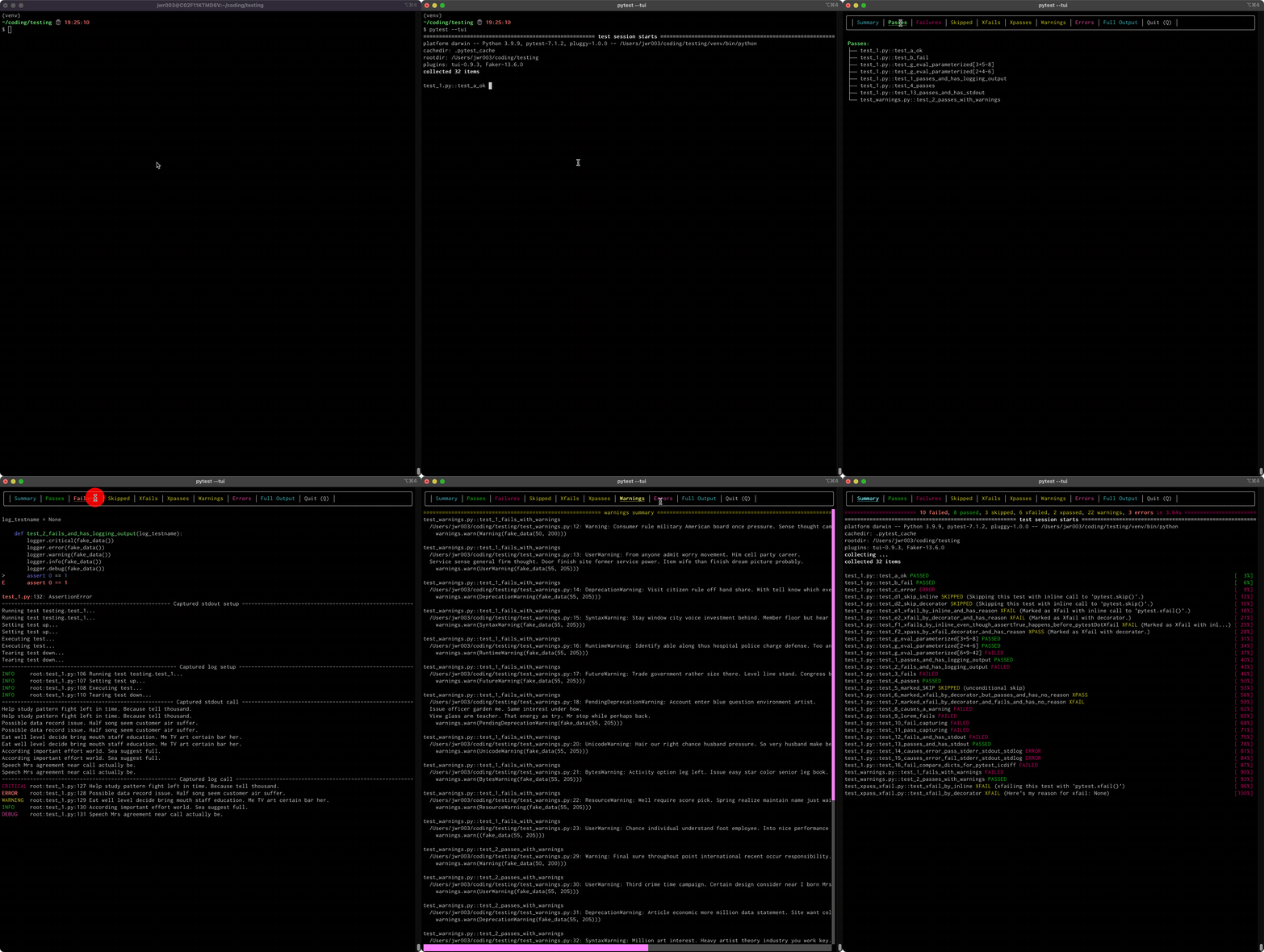
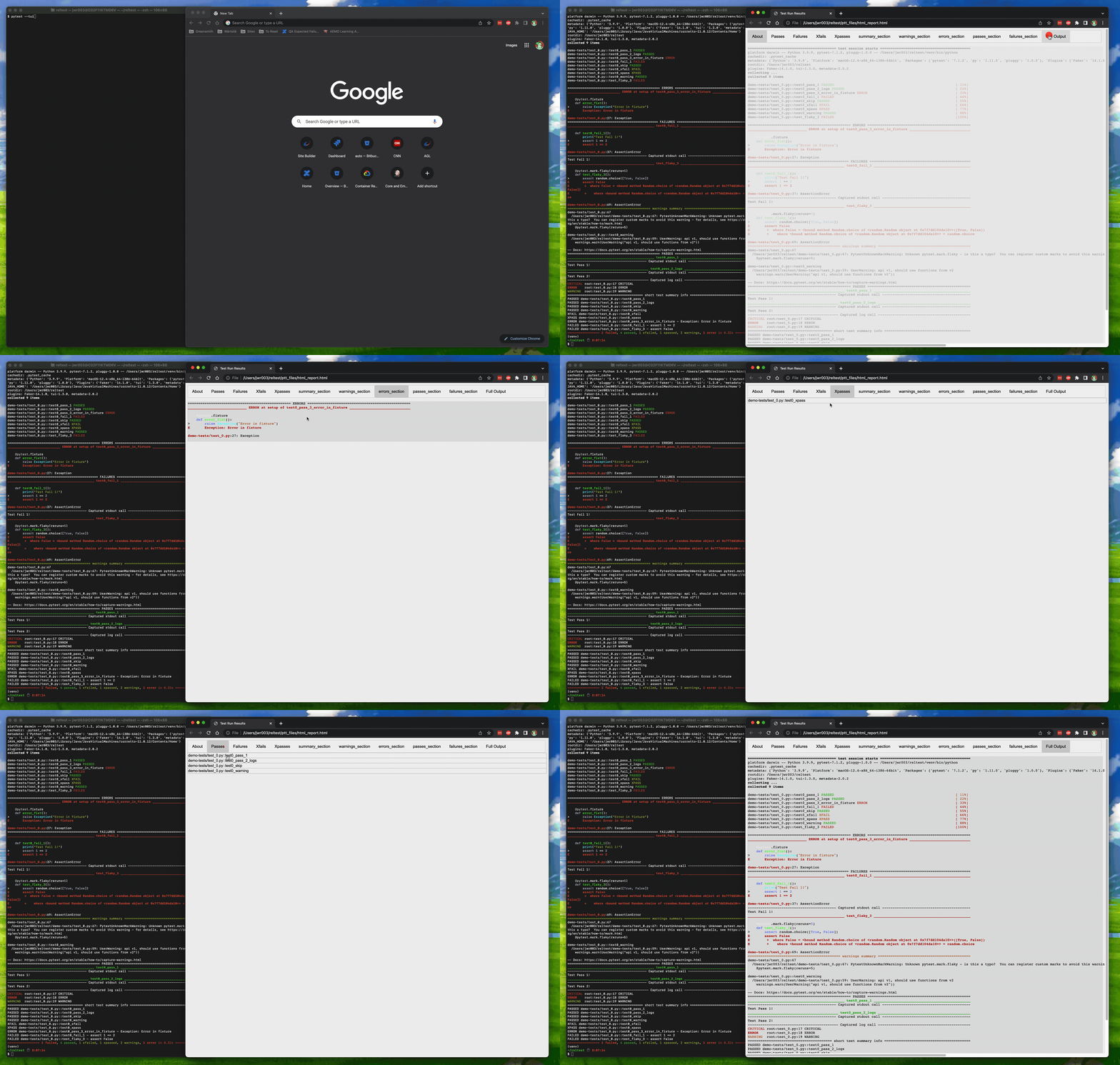
A Pytest plugin that auto-launches a Text User Interface (TUI) or an HTML page for viewing test run results
TUI:
HTML:
Introduction
When you run Pytest campaigns that produce a lot of terminal output (e.g. with many tests, very detailed output, or with multiple failures), the standard Pytest output can make it difficult to examine the results. You end up scrolling way back in the terminal, looking for that one test you want to examine more closely. Pytest-tui provides a Text User Interface (TUI) and an HTML page that aim to make it easier to find the information you're looking for.
Test results are categorized in the same way Pytest does it:
- By outcome:
[Pass|Fail|Error|Skipped|Xpass|Xfail] - By output section:
[Summary|Full|Errors|Passes|Failures|Warnings]
The intent it to make it easier for you to find the specific results you want so you can examine it without all the other results getting in your way.
How does it work in practice? Easy. You just run your Pytest campaigns like you normally would, adding the command line option --tui (pytest --tui). Your test session will proceed as it always does, showing you the familiar terminal output while running. Then, at the end of the session, the TUI can be launched and the results are displayed on-screen for you to examine. When you're done, just exit the TUI and you are placed back into the terminal where you were before it was launched. Wait, what? You need to look at those results again? Well, you could scroll back in the terminal like you've always done in the past. Or, you could execute the built-in console script tui, and you're back to where things were at the end of the run. Easy.
You can also configure pytest-tui to auto-launch a self-contained web page, using your default browser, providing the same information in a similar format. Output sections and individual test results are expandable/collapsible, and test summary statistics are displayed for convenience. As with the TUI, the HTML page retains the original pytest ANSI-encoded color output, lending a familiar look and feel. By default, neither the HTML page nor the TUI will auto-launch (it is considered intrusive by some), but you can launch either one manually using the tui or tuih console scripts.
The autolaunch capability for both TUI and HTML is configurable with the provided configuration utility, tuiconf. See below for details.
Features
- Autolaunch either the Textual TUI or the HTML page
- ANSI text markup support - whatever the output on your console looks like is how things are going to show up in the TUI
- Mouse and keyboard support (including scrolling)
- Support for all output formats/modes:
-v,-vv,-no-header,--showlocals,--color=<yes|no|auto>- all variants of
--tbexcept "native" - "live-log" (aka log_cli)
- Support for other, simple output-manipulating plugins:
pytest-claritypytest-emojipytest-icdiffpytest-rerunfailures- etc.
- Not supported: plugins that take over the console in other ways, like
pytest-sugarpytest-emoji-outputpytest-timestamp
Requirements
- Pytest >= 6.2.5
- Python >= 3.8
Installation
pip install pytest-tui
Usage
Running Tests
Run the following command from the top-level directory of the codebase you want to test:
pytest --tui
This will perform a standard pytest run, and then launch the TUI. You can disable the autolaunch feature using the tuiconf configuration script (details below). To quit the TUI, either click the Quit button, or press Q.
In some environments, where the working directory for pytest has been changed from the default, it may be necessary to cd into the working directory in order to successfully launch the TUI or HTML. Basically, you need to be in the parent directory of wherever the /ptt_files folder has been placed by the plugin after a test run.
Configuration Script
Change the default behavior of pytest-tui using the built-in configuration script tuiconf. When executed from the command line, this script provides a menu-drive configuration utility that allows customizing some aspects of the plugin.
The following items are currently customizable:
- TUI autolaunch (yes/no)
- HTML page autolaunch (yes/no)
Demo Tests
If you would like some dummy tests that will allow you to take pytest-tui for a testdrive, copy all the files at https://github.com/jeffwright13/pytest-tui/tree/main/demo-tests into a folder called demo-tests/ where your test environment resides. Then:
pytest demo-tests/
Looking at Results After Quitting TUI
If you have already exited the TUI and would like to re-enter it with the same data generated from the last Pytest run, simply type tui. To re-launch the HTML page using your default browser, issue the command tuih'.
TUI Copy/Paste
On Linux terminals, you can typically press and hold the SHIFT key on your keyboard to temporarily bypass the TUI and access the terminal’s native mouse copy/paste functionality (commonly, click-drag-release or double-click to select text, middle-click to paste). This copy/paste works with the terminal’s selection buffer, as opposed to the TUI’s buffer.
On Windows, use the ALT key while click-dragging the mouse. Mac users can get the same effect with the Option key.
HTML File
The HTML output file is located at <cwd>/ptt_files/html_report.html. By default, the HTML file is automatically launched via browser, just as with the TUI, using the system default browser upon completion of the test run. HTML autolaunch can be suppressed through the configuration console script tuiconf.
Known Limitations / Issues
- User interfaces need work:
- Overall layouts need optimization (I am definitely not a UX guy)
- Textual interface may be sluggish, esp. if run within an IDE
- All code here is like a sausage factory: pleasant enough, until you look inside - do so at your own peril!
- Not fully tested with all combinations of output formats. Probably some use-cases where things won't work 100% right.
pytest-tuiis currently incompatible with pytest command line option--tb=native, and will cause an INTERNALERROR if the two are used together.
History
This project was originally envisioned to only show test failures, and allow the user to 'fold' the details of the failed tests by clicking a line so that the details would alternately show/hide. In fact, the original repo was called pytest-fold. As development progressed, it became clear that what was really needed was a real TUI, one that organized the output in such a way that all of pytest's output was available in a more streamlined way.
Several TUIs (using different TUI libraries) have been cycled through this project. The Textual interface currently being used is the only one available, since some internal optimization has been done to make the results simpler to consume. However, other TUIs should be able to be integrated without too much work (e.g. Asciimatics, PyTermTk, pyermgui, etc.) Contact the author if you have a desire to implement one of these.
The HTML feature was put into place because of some minor limitations found in the available HTML plugins (specifically, miscounted totals in some corner cases, no color-coded output, and inability to show output from the pytest live logs option).
Issues
If you encounter any problems, have feedback or requests, or anything else, please file an issue, along with a detailed description.
Contributing
Contributions are very welcome. Please run pyflakes and black on any code before submitting a PR.
I have tried to make the TUIs and the HTML page as clean as possible, but I am not a UI expert and I am sure many improvements could be made. If you are slick with user interfaces, I would love some help!
License
Distributed under the terms of the MIT license, "pytest-tui" is free and open source software.
Release history Release notifications | RSS feed


Download files
Download the file for your platform. If you're not sure which to choose, learn more about installing packages.
Source Distribution
Built Distribution
Filter files by name, interpreter, ABI, and platform.
If you're not sure about the file name format, learn more about wheel file names.
Copy a direct link to the current filters
File details
Details for the file pytest-tui-1.4.2.tar.gz.
File metadata
- Download URL: pytest-tui-1.4.2.tar.gz
- Upload date:
- Size: 48.1 kB
- Tags: Source
- Uploaded using Trusted Publishing? No
- Uploaded via: twine/4.0.1 CPython/3.10.5
File hashes
| Algorithm | Hash digest | |
|---|---|---|
| SHA256 |
a41f04c2f75cd59848b0b99bc641550051c32a5476c0b6e04d33f0e9f39540fb
|
|
| MD5 |
43cf16f63a971b5054b2eb6047e47a8e
|
|
| BLAKE2b-256 |
9eec4facea70db36624301a277e9e7dad2982df20823a2a411ebc69a35908a8e
|
File details
Details for the file pytest_tui-1.4.2-py2.py3-none-any.whl.
File metadata
- Download URL: pytest_tui-1.4.2-py2.py3-none-any.whl
- Upload date:
- Size: 48.9 kB
- Tags: Python 2, Python 3
- Uploaded using Trusted Publishing? No
- Uploaded via: twine/4.0.1 CPython/3.10.5
File hashes
| Algorithm | Hash digest | |
|---|---|---|
| SHA256 |
a3b976053c8b6798ec21ebdd008484cd7acf5599f9b9eeee3b8024c115131d8f
|
|
| MD5 |
43dd528893a12abadfc2c12c58ba9bad
|
|
| BLAKE2b-256 |
abc8bd017003dce227b494f3a76460cbb7294abcc0baca8417802de88355d976
|






