
xleda is a Microsoft Excel powered EDA tool for Python data
Verified details
These details have been verified by PyPIProject links
GitHub Statistics
Maintainers

Project description





xleda is a Microsoft Excel powered EDA tool for Python data.
-
Produces a Microsoft Excel workbook from a pandas dataframe that is highly optimized to both perform and document the activity of Exploratory Data Analysis .
-
Visually explore your data, navigate with your keyboard, take field or record notes, create lists of fields/records for editing, round-trip your edits/analysis back into python, share your workbook with other contributors.
-
There are some amazing EDA tools for Python. You shouldn't have to start from scratch to include Microsoft Excel among them.
-
xleda provides a good start to a robust EDA.

An xleda workbook made with diamond data.
Requirements/Compatibility
-
Requires Microsoft Excel to create the workbook.
-
It has been tested on Windows though it should also work on MacOS.
-
xleda workbooks should work in anything that reads Microsoft Excel workbooks.
Quick Start
from xleda import FieldAnalysis
import seaborn as sns

# < your dataframe goes here >
df = sns.load_dataset("titanic")


# Configure xleda
xleda = FieldAnalysis(input_df=df,
                      name="Titanic")

# Create workbook
xleda.create_workbook()
Basic xleda Components
Field Metadata
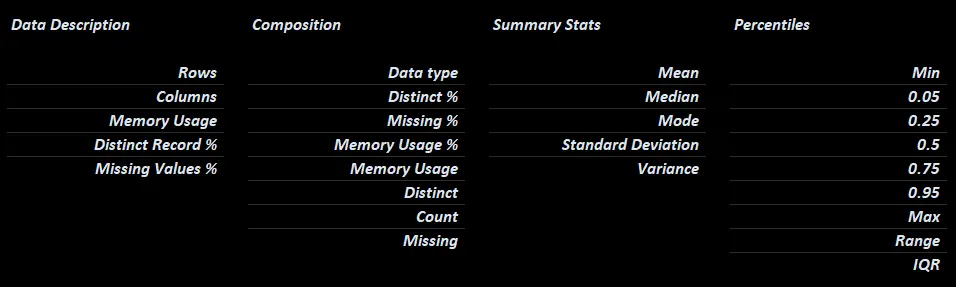
Basic Metadata.
Overview
- The
Overviewworksheet rotates the field metadata 90 degrees so that you can sort/filter fields by their name, metadata, or notes/definitions/etc.

Sorting fields from MLB data by memory usage.
Per Field Charts
Two charts are produced for each column in your dataframe.
- A composition table showing the top 5 values per column and their percentages.
- A histogram/KDE showing min/max, distribution, and mean
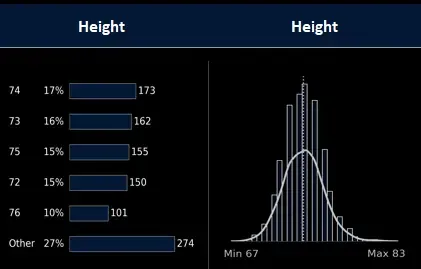
Default charts for MLB player height.
Source Data Table
-
A copy of your source data is included as an Excel table so you can visually inspect it, sort/filter it, etc.
-
Includes a way to make lists of individual records. More on that below.
-
Includes a way to round-trip your source data back into Python so that you can use Excel to replace values, delete records/columns/etc. More on that below.

Source Data Table for MLB player data.
xleda Configuration
input_df | Mandatory
- A pandas dataframe of any size
name | Mandatory
- Name of the dataset. Also used for the file name of the created workbook
theme_color | Optional
- Sets the primary color of the charts and the color of the headings in the workbook to a hex color of your choice.
theme_color="random"sets a random theme - Defaults to a neutral color
# Configure xleda
xleda = FieldAnalysis(input_df=df,
                      name=Theme Example Name,
                      theme_color="#031835")
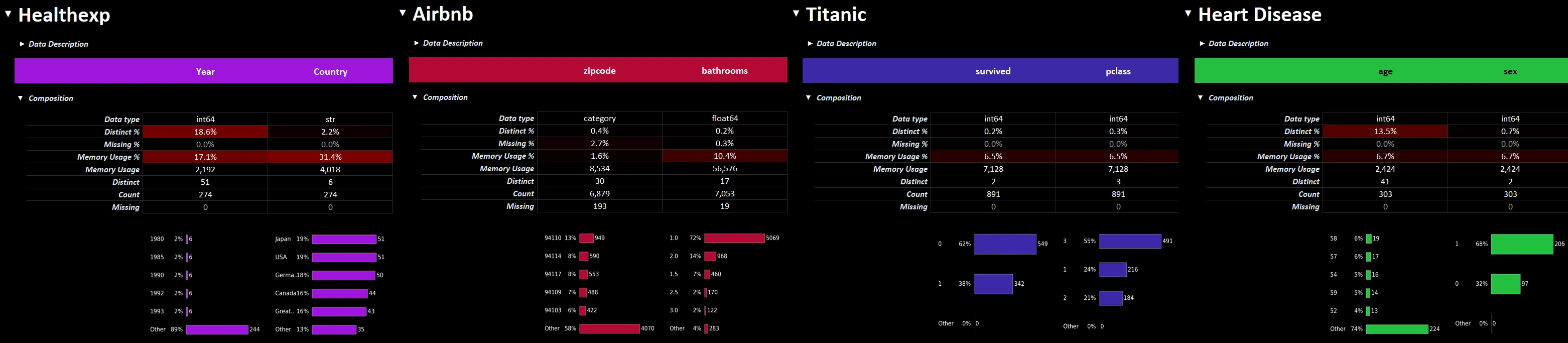
theme_color affects the workbooks and default charts.
add_plots | Optional
-
add_plots={'plotname': Figure, ...}will add additional worksheets with plots of your choosing.-
No styling/sizing of additional plots is performed.
-
The example below adds two additional plot worksheets, one from seaborn and another from missingno. The workbook can be found here.
-
from xleda import FieldAnalysis

import matplotlib.pyplot as plt
import seaborn as sns
import missingno as msno


# < your dataframe goes here >
df = penguins = sns.load_dataset("penguins")


# Style the additional plots | optional
plt.style.use("dark_background")


# Create additional plots
pair_plots = sns.pairplot(df, hue="species").figure
null_matrix = msno.matrix(df).get_figure()


# Resize the null matrix  | optional
null_matrix.set_size_inches(9.35, 4.5)


# Configures xleda
xleda = FieldAnalysis(input_df=df,
                      name="Penguins",
                      theme_color="#4C4C4C",
                      add_plots={'Pair Plots': pair_plots,
                                 'Null Matrix': null_matrix})

# Creates the workbook
xleda.create_workbook()
wb_path | Optional
- Sets the target folder for the xleda workbook.
- Uses a pathlib Path object.
- Defaults to current working directory
from pathlib import Path

xleda = FieldAnalysis(input_df=df,
                      name="Penguins",
                      wb_path=Path(r"c:\my_target_folder"))

# Creates "Penguins.xlsm" in the "c:\my_target_folder" directory
xleda.create_workbook()
overwrite | Optional
- Whether to overwrite existing workbooks of the same name.
- Defaults to False
large_report | Optional
- Raises the default dataframe size limits of 100,000 rows/100 columns to Excel's limits of 1,000,000 rows and 16,000 columns.
- The closer your are to this limit, the longer it will take to produce.
- See additional details in the performance section below.
- Defaults to False
Usage Notes
Field/Record Lists
-
The
Field Listssection helps you create lists of the fields in your data.-
Anything not marked as
Falsewill be included in each list. -
The
Record Listfield added to your source data works the same way except it creates a list of records instead of a list of fields. More on that below. -
You can see your lists in the
Compiled Listssection. -
You can rename
Record Listor anyField ListtoAnything You Wantand the list will be renamed toanything_you_want. -
The Compiled Lists section formats your lists as python lists for easy copy/pasting.
-
You can use
export_analysis()to get your lists, and other things, back into Python. See details below. -
Adding/deleting rows or columns on the Field Analysis worksheet may offset the formulas which compile your lists. Spot check them before using them if you have.
-

Easily create lists of fields in your data.
Record List Details
-
Two additional columns are added to your data to support being able to create a list of records for further processing.
-
Record Hash: Uses a built-in pandas feature hash_pandas_object to uniquely identify records. If two records share all column values they also share aRecord Hash. -
Record List: Used to create a list ofRecord Hashvalues.
-
Exporting back into Python
- At some point, you'll likely need to get some of your analysis back into Python.
export_analysis()exports your definitions, notes, lists, and more back into Python.
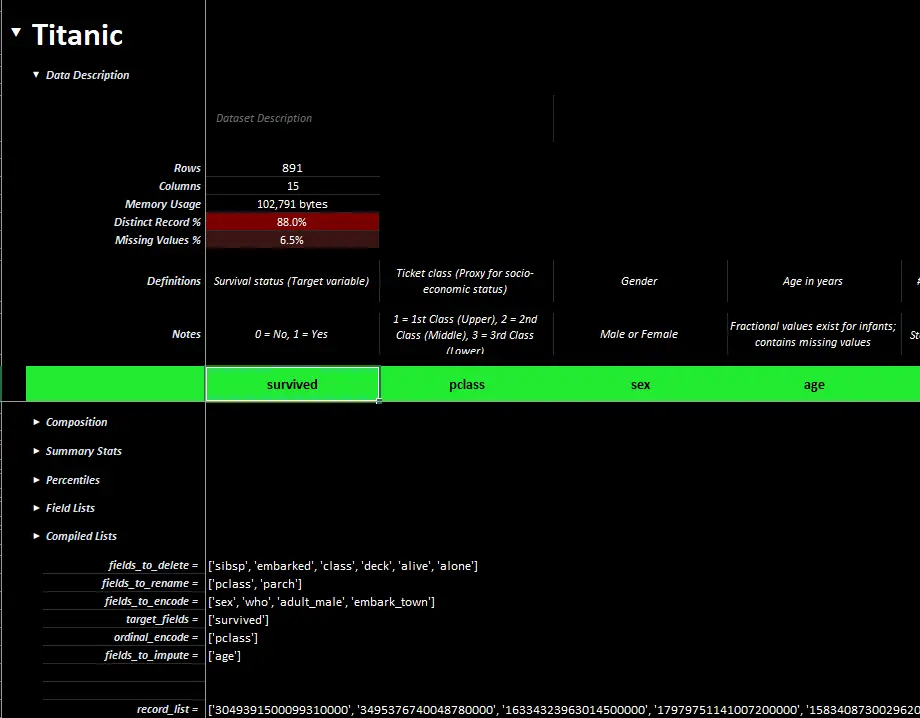
A completed xleda workbook of Titanic passenger showing definitions, notes, lists, etc.
Export Details
-
All exported data comes from the Field Analysis worksheet.
-
The export dictionary includes:
-
description: Dataframe description if you've added one -
definitions: Any field definitions you've added. -
notes: Any field notes you've added -
lists: Any lists showing in the compiled lists section -
source_data: A copy of your unaltered source data that includesRecord Hash/Record Listcolumns. -
altered_source_data:Source Data Tablefrom the workbook that includes any manual edits you've made such as removing records, renaming fields, replacing values, etc. **** Note that data types will likely change in the round-trip translation. **
-
Example Export Code
from xleda import FieldAnalysis

# After editing your workbook


# If you created your workbook somewhere else, configure xleda before export
xleda = FieldAnalysis(input_df=df,
                      name="Titanic")

# Export notes, definitions, data, etc from an xleda workbook
xleda_dict = xleda.export_analysis()
Example Export Dictionary
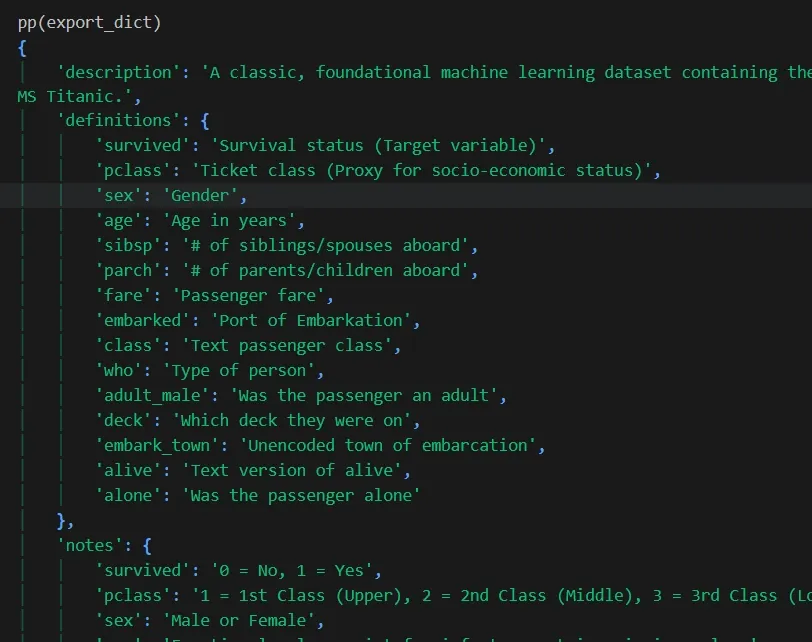
An example export from a completed field analysis on Titanic passenger data.
Exporting Cautions
Spot Check your Lists
-
Most of the few formulas in an xleda workbook are used to compile your lists.
-
If you've added/deleted rows/columns, double-check that your lists show correctly in the
Compiled Listssection before using them downstream.
Round-Tripping Source Data Edits
-
altered_source_datawill likely change the field data types vs what was in the original dataframe. -
The Source Data table shouldn't be renamed in Excel. Any other edits such as deleting rows/columns, editing values, etc. are fine.
Performance
xleda creates workbooks for most data sets less than 20 seconds.
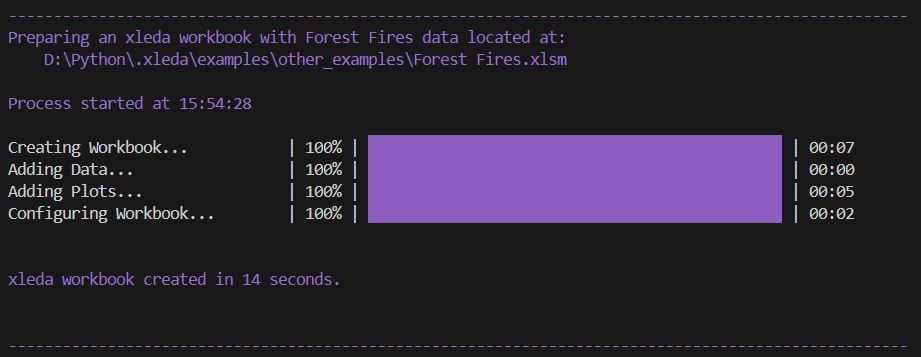
The Penguin example from above that includes extra plots took only 7 seconds to create.
Limits with Large Data Sets
- To ensure workbooks are created quickly, defaults limit data to the first 100 columns and a random sample of 100,000 records. You'll see a warning banner if you hit a limit.

-
One of the more complex data sets tested was a 600 column/1,200 row dataframe.
-
It took ~5 minutes to create, in part because most values are unique for all 600 columns and xleda give you a top 5 members composition chart per column.
-
It is still snappy to use even though it has 1,200 charts on a single worksheet. That example is here.
-
VBA Code
- There is a small amount of VBA code in the template that makes the sections expand/collapse when you select them as pictured above. If you can't or don't want to enable VBA, use row groupings as pictured below.

Use row groupings to navigate if you can't use VBA.
Extensible
- Because it's an ordinary workbook, you can use any tool that works with Microsoft Excel workbooks to do more. xlwings is recommended if you need more.
Project details
Verified details
These details have been verified by PyPIProject links
GitHub Statistics
Maintainers
Release history Release notifications | RSS feed


Download files
Download the file for your platform. If you're not sure which to choose, learn more about installing packages.
Source Distribution
Built Distribution
Filter files by name, interpreter, ABI, and platform.
If you're not sure about the file name format, learn more about wheel file names.
Copy a direct link to the current filters
File details
Details for the file xleda-0.8.179.tar.gz.
File metadata
- Download URL: xleda-0.8.179.tar.gz
- Upload date:
- Size: 50.8 kB
- Tags: Source
- Uploaded using Trusted Publishing? Yes
- Uploaded via: uv/0.11.16 {"installer":{"name":"uv","version":"0.11.16","subcommand":["publish"]},"python":null,"implementation":{"name":null,"version":null},"distro":{"name":"Ubuntu","version":"24.04","id":"noble","libc":null},"system":{"name":null,"release":null},"cpu":null,"openssl_version":null,"setuptools_version":null,"rustc_version":null,"ci":true}
File hashes
| Algorithm | Hash digest | |
|---|---|---|
| SHA256 |
0cb914747f81415f0b12f0de6031e8430591b23ab07cacb21351160ae3c2e7f0
|
|
| MD5 |
0316d796e5e82bb761d24a07be95af9f
|
|
| BLAKE2b-256 |
9675675dfa1588f8236eeef306341d0b0ee66865d09afcda69bbab2f11c25ca3
|
File details
Details for the file xleda-0.8.179-py3-none-any.whl.
File metadata
- Download URL: xleda-0.8.179-py3-none-any.whl
- Upload date:
- Size: 50.5 kB
- Tags: Python 3
- Uploaded using Trusted Publishing? Yes
- Uploaded via: uv/0.11.16 {"installer":{"name":"uv","version":"0.11.16","subcommand":["publish"]},"python":null,"implementation":{"name":null,"version":null},"distro":{"name":"Ubuntu","version":"24.04","id":"noble","libc":null},"system":{"name":null,"release":null},"cpu":null,"openssl_version":null,"setuptools_version":null,"rustc_version":null,"ci":true}
File hashes
| Algorithm | Hash digest | |
|---|---|---|
| SHA256 |
6de6fa3b05027a7370b1d24cc182c2ca4b6aaf0a0f9d780c000d0a854857e9e7
|
|
| MD5 |
48c9e14c8bb129a5be2ecfa9f4b16f68
|
|
| BLAKE2b-256 |
59811b12a0faf7fe33cd2076695bd512fb22cfefa77dc6cafc855eae557c7700
|






