
xleda is a Microsoft Excel powered EDA tool for Python data
Verified details
These details have been verified by PyPIProject links
GitHub Statistics
Maintainers

Project description







A Microsoft Excel powered EDA tool for Python data.
-
Produces Microsoft Excel workbooks from pandas dataframes that are highly optimized to both perform and document the activity of Exploratory Data Analysis.
-
Visually explore your data, navigate with your keyboard, take field or record notes, create lists of fields/records for editing, round-trip your edits/analysis back into python, share your workbook with other contributors.
-
There are some amazing EDA tools for Python. You shouldn't have to start from scratch to include Microsoft Excel among them.
-
xleda provides a good start to a robust EDA.

An xleda workbook made with diamond data.
Requirements/Compatibility
-
Requires the full version of Microsoft Excel to create workbooks.
-
Once created, xleda workbooks should work in anything that reads Microsoft Excel workbooks.
-
It has been developed and tested on Windows and MacOS.
- See MacOS section below for additional details on MacOS support.
- See MacOS section below for additional details on MacOS support.
Installation
-
Install with
uv add xleda
or
pip install xleda
Quick Start
-
Use
wb()to quickly create an xleda workbook of a dataframe. -
See the configuration section below for how to name the workbook, set a theme, add additional dataframes/plots etc.
 from xleda import wb
 import seaborn as sns

 # < your dataframe goes here >
 df = sns.load_dataset("titanic")

 # Creates xleda.xlsm in the current directory
 wb(df)
xleda Components
Field Metadata
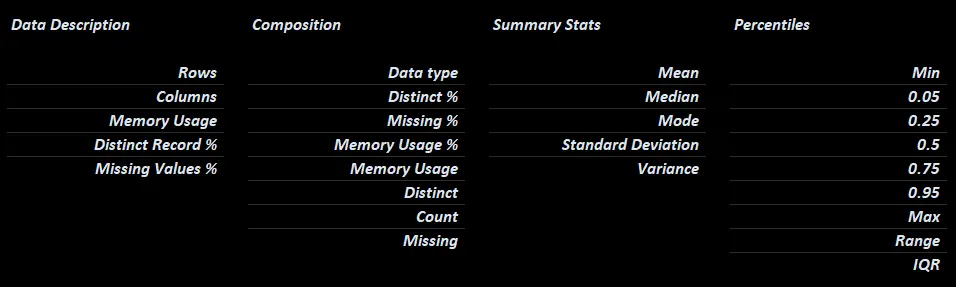
Included Field Metadata
Overview
- The
Overviewworksheet rotates the field metadata 90 degrees so that you can sort/filter fields by their name, metadata, or your notes/definitions/etc.

Sorting fields from MLB data by memory usage.
Per Field Charts
Two charts are produced for each column in your dataframe.
- A composition table showing the top 5 values per column and their percentages.
- A histogram/KDE showing min/max, distribution, and mean
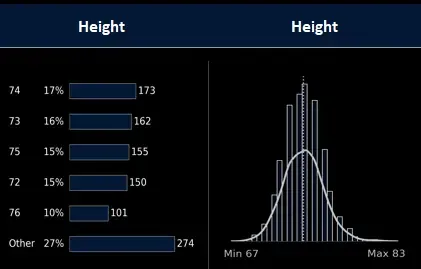
Default charts for MLB player height.
Source Data Table
-
A copy of your source data with it's index as an Excel table so you can visually inspect it, sort/filter it, etc.
-
Includes a way to make lists of individual records.
-
Includes a
HasBlankfield for isolating incomplete records. -
Includes a way to round-trip your source data back into Python so that you can use Excel to replace values, delete records/columns/etc.
-
More on how to use these features below.

Source Data Table for MLB player data.
Pivot
- A bare-bones pivot table ready to be configured.
- Defaults to include:
- The first 10 fields of the source data
- Measures to to identify blanks/dataset composition.

Bare-bones pivot table for Titanic survivor data.
Debug
- A worksheet that includes details on configuration, environment, and how the time spent to produce an xleda workbook was allocated.
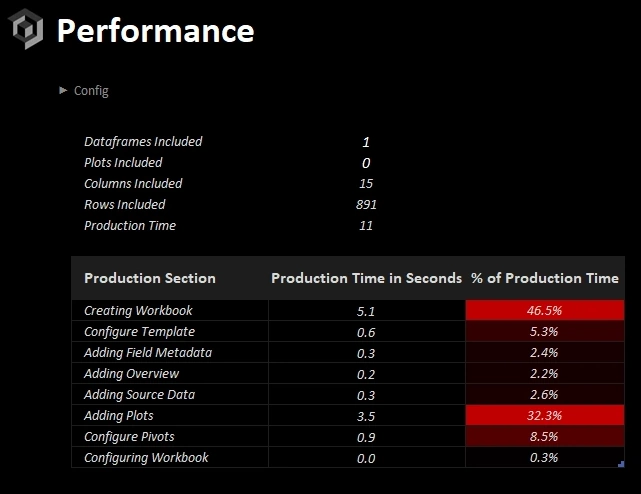
Debug worksheet for troubleshooting.
xleda.wb() Configuration
input_df | Dataframe | Mandatory
- A pandas dataframe of any size
name | str | Optional
-
Name of the dataset/file name of the created workbook.
-
Punctuation will be removed to prevent issues with file name/workbook object names.
-
Defaults to
xleda
theme_color | str | Optional
-
Sets the primary color of the charts and the color of the headings in the workbook to a hex color of your choice.
-
theme_color="random"sets a random theme -
Defaults to a neutral color
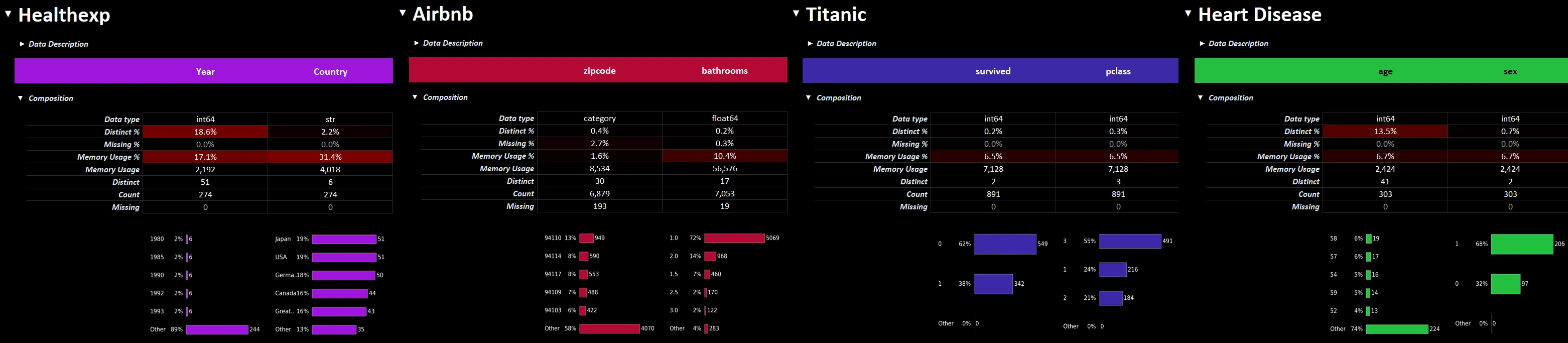
theme_color affects the workbooks and default charts.
add_plots | dict | Optional
-
add_plots={'plotname': Figure, ...}will add additional worksheets with plots of your choosing. -
No styling/sizing of additional plots is performed by xleda.
-
The example below adds two additional plot worksheets, one from seaborn and another from missingno. The workbook can be found here.
Example: Including additional plots
from xleda import wb

import matplotlib.pyplot as plt
import seaborn as sns
import missingno as msno


# < your dataframe goes here >
df = penguins = sns.load_dataset("penguins")


# Style the additional plots | optional
plt.style.use("dark_background")


# Create additional plots
pair_plots = sns.pairplot(df, hue="species").figure
null_matrix = msno.matrix(df).get_figure()


# Resize the null matrix  | optional
null_matrix.set_size_inches(9.35, 4.5)


# Creates an xleda workbook named Penguins.xlsm with two extra plot sheets
wb(input_df=df,
   name="Penguins",
   theme_color="#4C4C4C",
   add_plots={'Pair Plots': pair_plots,
              'Null Matrix': null_matrix})
add_dfs | dict | Optional
add_dfs={'dataset_name': dataset_df, ...}will add Field Analysis/Overview worksheets for each additional dataframe provided into the same workbook.- Useful for grouping related data together.
Example: Including additional dataframes
import seaborn as sns
import pandas as pd
from xleda import wb


og_penguins = pd.read_csv("https://raw.githubusercontent.com/allisonhorst/palmerpenguins/refs/heads/main/inst/extdata/penguins_raw.csv")
penguins = sns.load_dataset('penguins')
seaice = sns.load_dataset('seaice')


# Creates "OG Penguins.xlsm" in the current directory with worksheets included for each of the OG Penguins/Sea Ice/Seaborn Penguins dataframes.
wb(input_df=og_penguins,
   name="OG Penguins",
   add_dfs={'Sea Ice': seaice,
           'Seaborn Penguins': penguins})
wb_path | Path or string | Optional
- Uses a string or Pathlib path of a directory or file
- Sets the target folder or workbook name of an xleda workbook.
- If a file name ending in ".xlsm" or ".xlsx" is provided:
- It will either create that file or export from that file depending on whether export=True is also selected.
- It will either create that file or export from that file depending on whether export=True is also selected.
- Defaults to current working directory
Example: Using wb_path
from xleda import wb
from pathlib import Path

# Creates "c:\my_target_folder\Penguins.xlsm"
wb(input_df=df,
	name="Penguins",
   wb_path=Path(r"c:\my_target_folder"))

# Creates "c:\my_awesome_workbook.xlsx"
wb(input_df=df,
	name="Penguins",
   wb_path=r"c:\my_awesome_workbook.xlsx")
overwrite | bool | Optional
-
Whether to overwrite existing workbooks of the same name.
-
Existing workbooks are sent to Trash/Recycle Bin
-
Defaults to False
large_report | bool | Optional
-
Raises the default dataframe size limits of 25,000 rows/50 columns to Excel's limits of 1,000,000 rows and 16,000 columns.
-
The closer your are to this limit, the more RAM and patience you'll need to produce a workbook.
-
See additional details in the performance section below.
-
Defaults to False
no_vba | bool | Optional
-
Creates the workbook as an xlsx file without VBA.
-
An alternative to using this option is to include a file name ending in
.xlsxforwb_path -
Defaults to False
Example: Using no_vba to get an xlsx file
from xleda import wb
import seaborn as sns

df = sns.load_dataset('penguins')

# Creates "Penguins.xlsx" in the current directory
wb(input_df=df,
   name="Penguins",
   no_vba=True)


# Also creates "Penguins.xlsx" in the current directory
wb(input_df=df,
   wb_path="Penguins.xlsx")
open_wb | bool | Optional
-
Opens the workbook after creating.
-
Setting this to
Falseis useful when creating multiple workbooks -
Defaults to True.
export | bool | Optional
-
Performs an export from an xleda workbook instead of creating one.
-
Replaces the
export_analysismethod. -
See details below.
-
Defaults to False.
Usage Notes
Performance
Performance
-
On an average machine, xleda creates workbooks for most data sets less than 20 seconds on Windows/1-2 minutes on MacOS
-
Performance is largely dependent on how powerful of a machine you have and how large/complex your dataframes are.
-
The
debugworksheet will show you how the time spent to produce your workbook was allocated. -
There is a detailed output provided when creating an xleda workbook that does a pretty good job of letting you know what it's doing.
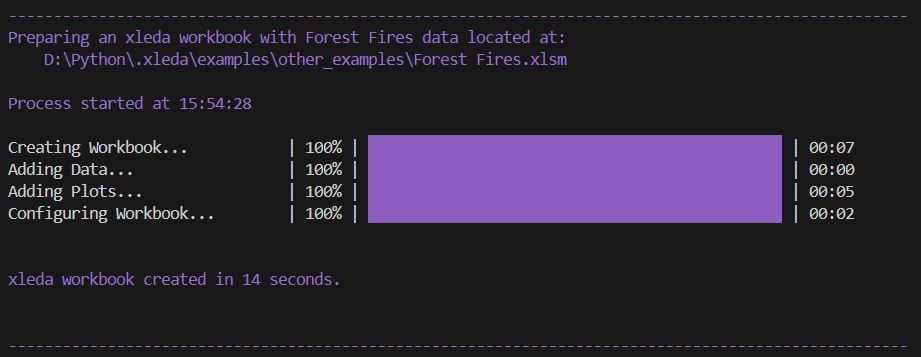
Console output of a Planets workbook
Limits with Large Data Sets
Limits with Large Data Sets
-
To ensure workbooks are created quickly, defaults limit data to the first 50 columns and a random sample of 25,000 records.
-
You can optionally override this to Excel's limits (see
large_report=Trueabove) -
You'll see a warning banner if you hit a limit.

-
One of the more complex data sets tested was a 600 column/1,200 row dataframe.
-
It took ~5 minutes to create, in part because nearly all values are unique for all 600 columns.
-
It is still snappy to use even though it has 1,200 charts on a single worksheet.
-
That example is here.
-
Field/Record Lists
Field/Record Lists
-
The
Field Listssection helps you create lists of the fields in your data.- e.g. lists of fields to rename, delete, standard scale, encode, impute, investigate, etc.
-
Anything not marked as
Falsewill be included in each list. -
You can rename any list to
Anything You Wantand the list will be renamed toanything_you_want. -
The
Record Listfield added to your source data works the same way except it creates a list of records instead of a list of fields. More on that below. -
The Compiled Lists section formats your lists as python lists for easy copy/pasting.

Easily create lists of fields in your data.
Columns Added to Source Data
Columns Added to Source Data
-
Although the source data is unchanged before it goes into Excel, there are some columns added to support an EDA workflow.
-
HasBlank: If any field in a record has a missing value, this will show 1 otherwise 0 -
Record Hash: Uses a built-in pandas feature hash_pandas_object to uniquely identify records. If two records share all column values they also share aRecord Hash. -
Record List: Used to create a list ofRecord Hashvalues. LikeField Listsabove, anything not marked false gets added to a list. -
index: This is a copy of the index from the provided dataframe as a column.
-
Exporting Metadata to Python
Exporting Metadata to Python
Default Metadata
-
Metadata from all
xleda.wb()objects is collected into a list of dictionary objects, one for each dataframe, accessible throughxleda.wb().export_dicts -
The following metadata is available without using
export=True-
field_metadata: A basic metadata dataframe, combining information from pandas info/describe/quantile. -
overview_metadata: A transposed copy of the field_metadata. -
source_data: A copy of your unaltered source data that includesRecord Hash/Record List/HasBlank/indexcolumns.
-
Example: Accesssing basic metadata
# Creates "Titanic.xlsm" and exports the metadata dictionaries
export_dicts = wb(input_df=df,
           	   name="Titanic").export_dicts

# Returns the field metadata df from the primary dataframe
export_dicts[0]['field_metadata']
Expanded Metadata
-
Using
xleda.wb(export=True)reads an xleda workbook instead of creating one. -
It expands the available metadata within
xleda.wb().export_dictsto include the following for each provided dataframe:-
description: Dataframe description if you've added one -
definitions: Any field definitions you've added. -
notes: Any field notes you've added -
lists: Any lists showing in the compiled lists section -
altered_source_data: Reads the Source Data table named from the workbook and will include any manual edits you've made such as removing records, renaming fields, replacing values, etc. **** Note that data types will likely change in the round-trip translation.
-
Example: Exporting from a completed workbook
-
The xleda workbook pictured here is used in for the export code example below .
-
It can be found here..
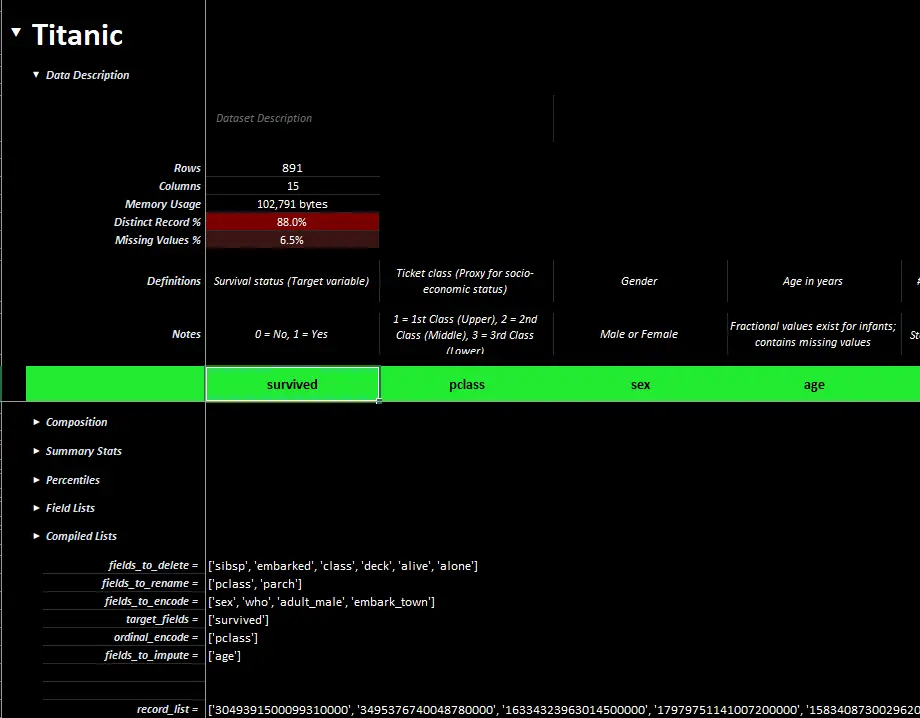
A completed xleda workbook of Titanic passenger showing definitions, notes, lists, etc.
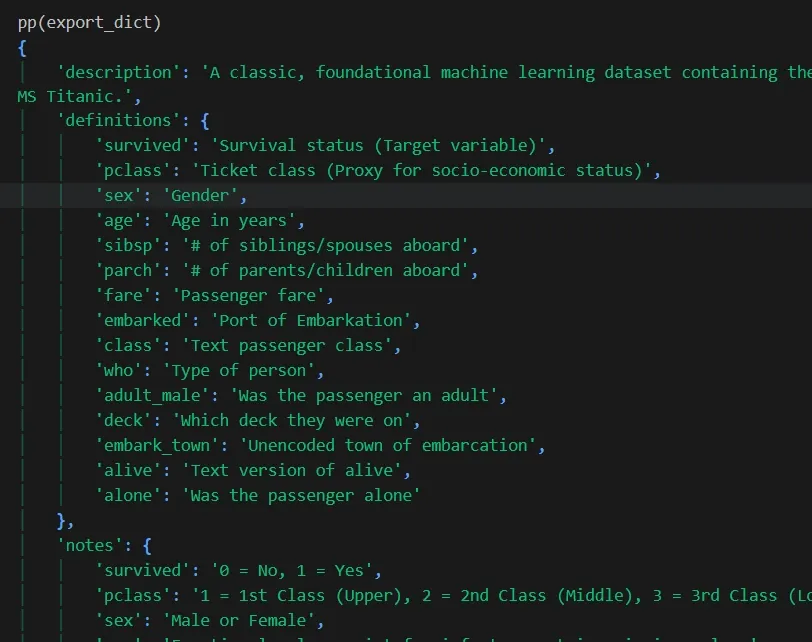
An example export dictionary from a completed field analysis on Titanic passenger data.
from xleda import wb

# Performs a full export from "Titanic Completed.xlsm"
export_dicts = wb(input_df=df,
					path="Titanic Completed.xlsm",
					export=True).export_dicts


# Returns dict_keys(['description', 'definitions', 'notes',
# 'lists', 'field_metadata', 'overview_metadata', 'source_data',
# 'altered_source_data'])
print(export_dicts[0].keys())
MacOS Support
MacOS Support
xleda will create the same workbooks in MacOS though creating them is signficantly slower and you may get two different types of prompts that require your attention. Look for the bouncing Excel icon.
| To Access Files | To Enable Macros | |
|---|---|---|
| Source | MacOS | Excel |
| Details | Prompts to Allow Excel to access the file it's creating. If you get these prompts, you'll potentially get one for each unique file you create. |
Prompts to "Enable Macros". If you get these prompts, you'll get two when creating a workbook: 1. When opening the blank template 2. When opening your created workbook. |
| Example | 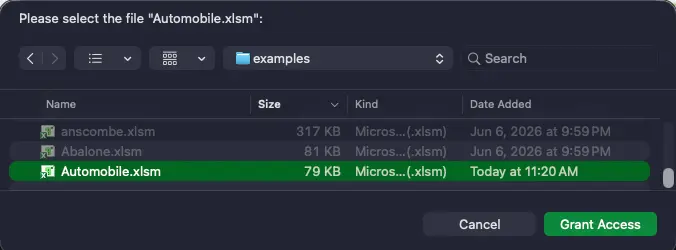 |
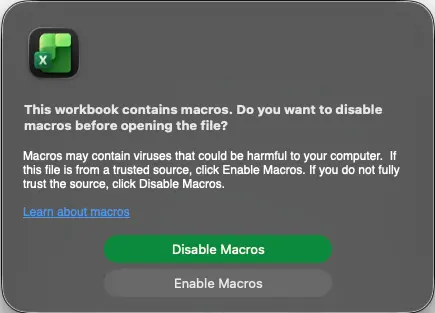 |
| Remedy | There's not a reliable remedy to this. MacOS doesn't permit applications like Microsoft Excel real access to the file system, even after explicitly granting Excel Full Disk Access under Settings > Privacy & Security > Full Disk Access. |
You can either: 1. Create a VBA free workbook (see the next section for details). 2. Change Excel's default macro settings (shown) to one of the other two options. 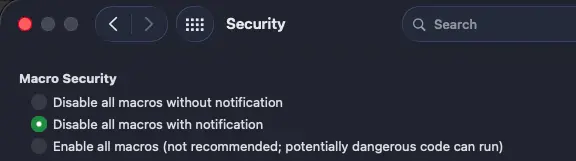 |
VBA Code
VBA Code
-
If you can't or don't want to enable VBA, you may want create a VBA-free, xlsx workbook.
-
You can do this by either setting
no_vba=Trueor providing awb_pathending in.xlsx. -
The VBA code in xleda workbooks is short, simple, and does two optional things.
- Makes the sections expand/collapse when you select them as pictured above.
- You can use row groupings to navigate without VBA as pictured below.
- You can use row groupings to navigate without VBA as pictured below.
- Adds two UDFs, PythonList and PythonDict, that format cell values as lists/dicts.
- Makes the sections expand/collapse when you select them as pictured above.

Use row groupings to navigate if you can't use VBA.
Extensibility
Extensibility
-
xleda is only meant to give a good start to EDA.
-
If it accomplishes one thing it will be to give you a way to quickly get data into Excel so that you can see and make sense of it...without making you do everything from scratch.
-
Where you go from there is up to you.
-
Because it's an ordinary workbook, you can use any tool that works with Microsoft Excel workbooks to do more.
-
xlwings, is recommended if you do.
Troubleshooting
Troubleshooting
xleda is slow
- Try reducing the amount of data you're sending to it, and let it finish.
- After production, refer to the debug worksheet for how the time to produce your workbook is being spent.
- Note that on MacOS,
xledais much slower by default and the timings in the debug worksheet may be inflated from missed permission prompts during production.
If you receive the "Error: The workbook cannot be overwritten while open!" and don't see any open workbooks:
If you receive the "Exception: Could not activate App!" error:
- The Excel app may have crashed or is otherwise disconnected from Python.
- Close all Excel windows and try running the command again.
If you can't get xleda to run at all and are using Windows/MacOS with a full Office Installation:
- Try getting the following script to run using xlwings (not xlwings-lite).
- All it does is open Excel and create a new workbook.
- You should be able to
pip install xlwingsand run the script successfully. - If that doesn't work, see their installation instructions for details on how to get it set up.
- Be aware that xlwings has a ton of functionality and that for xleda to work, it only requires communication with Excel and not the addin, xlwings lite, udfs, or many of the other things xlwings can potentially do.
- If you can get the script below to run successfully, xleda has a good chance of working reliably.
import xlwings as xw

app = xw.App()
Built With:
Built With
- This was primarily built with Python, xlwings, Pandas, and of course, Microsoft Excel
Roadmap:
Roadmap
- Create a way to quickly view dataframe data that is editable, shareable, and presentation ready.
- Add a way to include extra plots for a dataset.
- Add a barebones pivot that is ready to configure
- Make xleda even more accessible by simplifying the API and making it easier to remember.
- Add a way to include multiple xleda analyses in a single workbook.
- Develop for MacOS
- Add a way to use on desktop files e.g. by right-clicking csv/parquet files/other tabular data files.
- Your idea here.
Changelog
Version 0.8.185 New simplified API, simplified export, general polish
Simplified basic usage to make it quicker to use and easier to memorize.
- Changed the default entry point to
xleda.wb()fromxleda.FieldAnalysis(). xleda.wb()now creates and automatically opens workbooks.- The only argument needed to create a workbook is now a dataframe.
wb(df) - Workbook name now defaults to
xledaif no name is given. - Protected backwards compatibility while providing guidance to use the new API.
- Subclassed the new API to create plugs for the old one.
- Subclassed the new API to create plugs for the old one.
Simplified export functionality
- Changed
export_analysisfunctionality from a class method to a class argumentwb(df, export=True). - All wb() objects now include a export_dict metadata collection that is accessible using dot notation.
- Added field_metadata, and overview_metadata to export_dict.
- using wb(export=True) reads a workbook instead of creating one and adds the metadata from the workbooks to export_dict.
- Added file exists checks for
export=Truewith messaging that the export will be limited if the file isn't found.
Template updates
- Recreated the template, moved formatting to cell styles for simplicity/consistency in maintenance where appropriate.
- Pivot was removed and Blanks was renamed Pivot.
% of Recordsfield was added to the new Pivot- Added dataframe index to source data by default.
- Added dataframe level metadata to the Data Description section.
- Added two UDFs to the template, PythonList/PythonDict to create Python formatted strings from cell values
- Adjusted the named range to support being able to delete almost any column without affecting lists or navigation.
- General polish.
Other updates
- Default limits were reduced to 25,000 rows/50 columns
- Good deal of refactoring to support new entry point, minimize errors, reduce redundancy.
- Removed clipboard usage in all except one place which is formatting instead of data.
- Added
open_wbargument to prevent automatically opening the workbook. Useful if creating many workbooks.
- Replaced rich progress bars with TQDM for better support in notebooks/vs code notebook/console environments.
- When using overwrite=True, overwritten files now go to the recycle bin/trash. Console output includes messaging about these files.
- Clarified/organized readme to support the new API/template.
- Added production logging metrics so you can see how the time required to create a workbook was utilized.
- This is useful if you're trying to find a good size to subsample to.
- You can find it at
wb().performancefor now.
Version 0.8.186: Create xleda workbooks of multiple dataframes, module refactoring into classes, logging, general polish
Implemented add_dfs
- Adds Field Analysis/Overview reports for each additional dataframe.
- Pivot is only provided for primary dataframe.
- Useful for supporting or related data.
- Worksheet names now include the dataframe name.
- Each dataframe's worksheet set gets a greyscale gradient so they can be visually distinguished among worksheet tabs.
Export adjustments
- Implemented an ExportDict class to add structure to export functionalities
- To support the additional dataframes from
add_dfsfunctionality,export_dicthas been renamed toexport_dictsand now provides a list of ExportDict objects, one for each provided dataframe. - ExportDict allows access to metadata through both dot notation and
dict[key]. - Reinforced handling of modified export workbook.
- If a workbook is found but that the expected worksheets aren't found, i.e. they've been deleted or renamed, it will export what it can and return a list of what wasn't found.
- If a workbook is found but that the expected worksheets aren't found, i.e. they've been deleted or renamed, it will export what it can and return a list of what wasn't found.
Reinforced wb_path/name handling
wb_pathnow accepts strings, or pathlib Path objects.- Also accepts full/partial paths with/without correct extensions
- Providing a path ending in
xlsxor.xlsmwill setno_vbatoTrue/Falserespectively - Illegal characters are now properly stripped from provided names before using in file/object names
Added production logging/debug worksheet
- The
debugworksheet details how the time it took to produce the workbook was allocated on both field and workbook levels. - Also includes configuration and system details
Other Updates
- Tests, examples, readme updated to reflect new functionality
- In the template, the
Field Notessection of theField Analysisworksheet was merged intoData Descriptionsection. - Refactored the primary module into more specialized classes.
- Configuration/environment/plotting/logging/theme all have their own classes
- Also implemented new Blueprint class
- Workbooks are now constructed from config object that includes a list of Blueprints
- Each provided dataframe gets it's own Blueprint
- Improved handling of datatypes that are unsupported in Excel/xlwings such as TimeDelta
- Reinforced system configuration checks with more informative offramps for:
- Unsupported system configurations
- Situations where necessary template components have been removed/renamed.
- Adjusted Github Action script to remove all but last changelog and convert the details/summary to standard markdown.
Version 0.8.193: Added MacOS support
Added MacOS support
- Used xlwings when possible, appscript/AppleScript/subprocess otherwise
- Reduced OS branching when possible
- Documentation/test/tools/examples updated to be cross platform.
Other Updates
- Removed field logging from logging/template
- Simplified some of the pivot configuration where possible.
- Added multi-threading for the progress bar which keeps the time elapsed ticking during longer iterations.
Template Adjustments
- Moved the xlsx conversion to a pre-commit hook instead of an on-demand end-user task.
- Adjusted expand/collapse icons to use a more reliable cross-platform character
- Removed navigation shapes from the xlsx template.
Version 0.8.194: Readme/pyproject.toml polish/minor fixes
- Moved code examples/troubleshooting/usage notes into details/summary blocks to reduce clutter in README.
- Fixed a cross-platform formatting issue with the debug worksheet
- Updated a few older screenshots to use the current template.
- Adjusted "type: ignore" lines where possible
- Organized pyproject.toml, added "required-environments" section
Project details
Verified details
These details have been verified by PyPIProject links
GitHub Statistics
Maintainers
Release history Release notifications | RSS feed


Download files
Download the file for your platform. If you're not sure which to choose, learn more about installing packages.
Source Distribution
Built Distribution
Filter files by name, interpreter, ABI, and platform.
If you're not sure about the file name format, learn more about wheel file names.
Copy a direct link to the current filters
File details
Details for the file xleda-0.8.194.tar.gz.
File metadata
- Download URL: xleda-0.8.194.tar.gz
- Upload date:
- Size: 329.4 kB
- Tags: Source
- Uploaded using Trusted Publishing? Yes
- Uploaded via: uv/0.11.19 {"installer":{"name":"uv","version":"0.11.19","subcommand":["publish"]},"python":null,"implementation":{"name":null,"version":null},"distro":{"name":"Ubuntu","version":"24.04","id":"noble","libc":null},"system":{"name":null,"release":null},"cpu":null,"openssl_version":null,"setuptools_version":null,"rustc_version":null,"ci":true}
File hashes
| Algorithm | Hash digest | |
|---|---|---|
| SHA256 |
5ac02d37af246d8a52d3ae3e208902c3dfee0a0be24835e6b92867a74da0522c
|
|
| MD5 |
dfbba4f31b74023ad891a2d9f43decfc
|
|
| BLAKE2b-256 |
6a2d4749df8e38bc525a5836db3a425d008a3ef36bb4f3d17e6a105b3e0c8e15
|
File details
Details for the file xleda-0.8.194-py3-none-any.whl.
File metadata
- Download URL: xleda-0.8.194-py3-none-any.whl
- Upload date:
- Size: 328.8 kB
- Tags: Python 3
- Uploaded using Trusted Publishing? Yes
- Uploaded via: uv/0.11.19 {"installer":{"name":"uv","version":"0.11.19","subcommand":["publish"]},"python":null,"implementation":{"name":null,"version":null},"distro":{"name":"Ubuntu","version":"24.04","id":"noble","libc":null},"system":{"name":null,"release":null},"cpu":null,"openssl_version":null,"setuptools_version":null,"rustc_version":null,"ci":true}
File hashes
| Algorithm | Hash digest | |
|---|---|---|
| SHA256 |
ccdb72db7069405a35f8fe12bace529530d79bf3e170691300190bb1665a94b7
|
|
| MD5 |
5e5190e479e01d1c8ff63e19d184ba5d
|
|
| BLAKE2b-256 |
f8196cca8ad0dab98a2c1cbfe257fd269b31ac2e1ceca977123dc371c5b75ca5
|






