
Shell and coding agent on claude and chatgpt

Project description
Shell and Coding agent for Claude and Chatgpt
- Claude - An MCP server on claude desktop for autonomous shell, coding and desktop control agent. (mac only)
- Chatgpt - Allows custom gpt to talk to your shell via a relay server. (linux or mac)



Updates
-
[01 Dec 2024] Removed author hosted relay server for chatgpt.
-
[26 Nov 2024] Introduced claude desktop support through mcp
🚀 Highlights
- ⚡ Full Shell Access: No restrictions, complete control.
- ⚡ Desktop control on Claude: Screen capture, mouse control, keyboard control on claude desktop (on mac with docker linux)
- ⚡ Create, Execute, Iterate: Ask claude to keep running compiler checks till all errors are fixed, or ask it to keep checking for the status of a long running command till it's done.
- ⚡ Large file edit: Supports large file incremental edits to avoid token limit issues. Faster than full file write.
- ⚡ Interactive Command Handling: Supports interactive commands using arrow keys, interrupt, and ansi escape sequences.
- ⚡ REPL support: [beta] Supports python/node and other REPL execution.
Top use cases examples
- Solve problem X using python, create and run test cases and fix any issues. Do it in a temporary directory
- Find instances of code with X behavior in my repository
- Git clone https://github.com/my/repo in my home directory, then understand the project, set up the environment and build
- Create a golang htmx tailwind webapp, then open browser to see if it works (use with puppeteer mcp)
- Edit or update a large file
- In a separate branch create feature Y, then use github cli to create a PR to original branch
- Command X is failing in Y directory, please run and fix issues
- Using X virtual environment run Y command
- Using cli tools, create build and test an android app. Finally run it using emulator for me to use
- Fix all mypy issues in my repo at X path.
- Using 'screen' run my server in background instead, then run another api server in bg, finally run the frontend build. Keep checking logs for any issues in all three
- Create repo wide unittest cases. Keep iterating through files and creating cases. Also keep running the tests after each update. Do not modify original code.
Claude Setup
First install uv https://docs.astral.sh/uv/getting-started/installation/#installation-methods
Then update claude_desktop_config.json (~/Library/Application Support/Claude/claude_desktop_config.json)
{
  "mcpServers": {
    "wcgw": {
      "command": "uv",
      "args": [
        "tool",
        "run",
        "--from",
        "wcgw@latest",
        "--python",
        "3.12",
        "wcgw_mcp"
      ]
    }
  }
}
Then restart claude app.
If there's an error in setting up
- Make sure
uvin the system PATH by runninguv --versionand also ensureuv tool run wcgw --versionworks globally. Otherwise, re-install uv and follow instructions to add it into your .zshrc or .bashrc - If there's still an issue, check that
uv tool run --from wcgw@latest --python 3.12 wcgw_mcpruns in your terminal. It should have no output and shouldn't exit. - Debug the mcp server using
npx @modelcontextprotocol/inspector@0.1.7 uv tool run --from wcgw@latest --python 3.12 wcgw_mcp
[Optional] Computer use support using desktop on docker
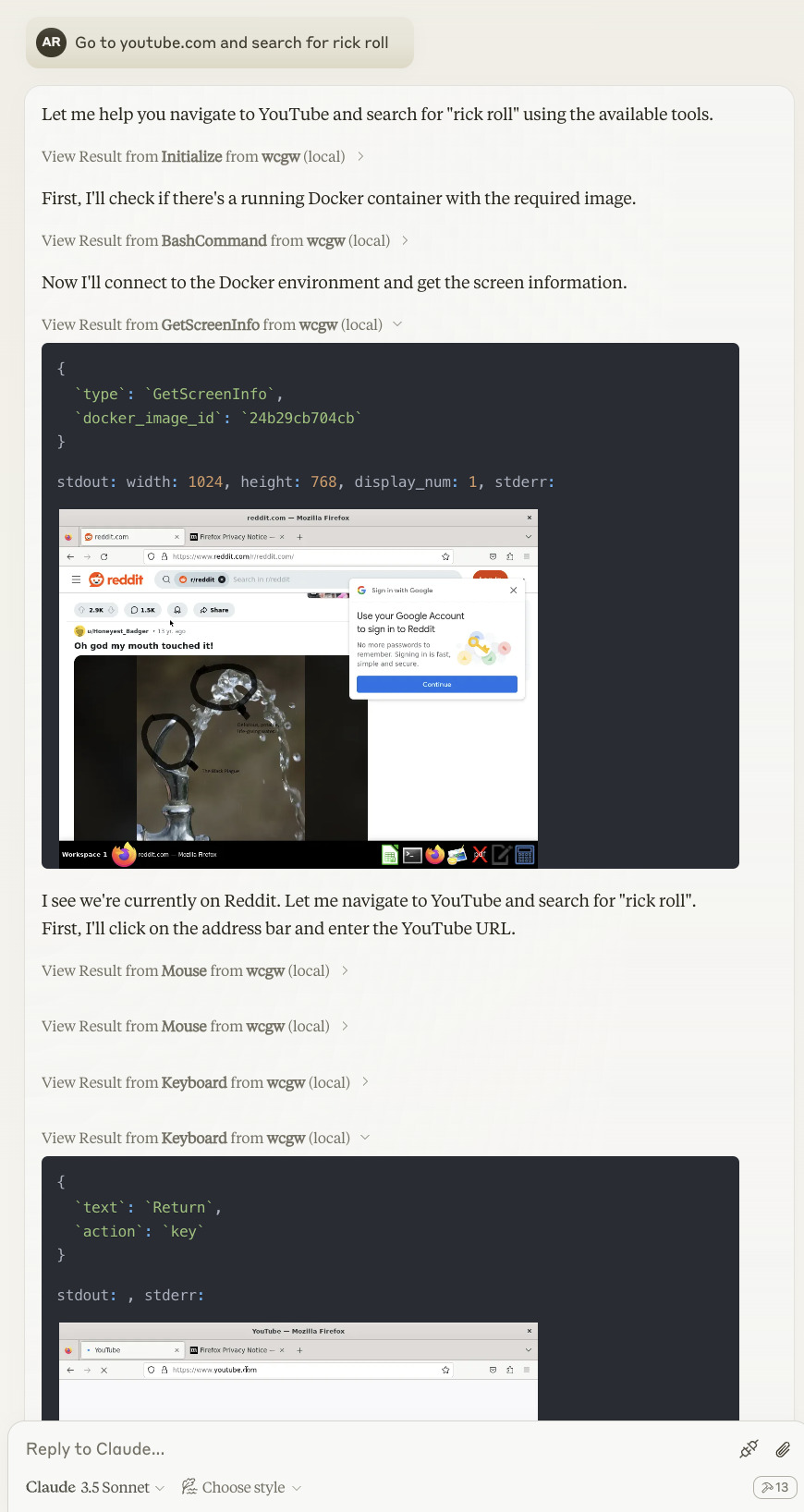
Computer use is disabled by default. Add --computer-use to enable it. This will add necessary tools to Claude including ScreenShot, Mouse and Keyboard control.
{
  "mcpServers": {
    "wcgw": {
      "command": "uv",
      "args": [
        "tool",
        "run",
        "--from",
        "wcgw@latest",
        "--python",
        "3.12",
        "wcgw_mcp",
        "--computer-use"
      ]
    }
  }
}
Claude will be able to connect to any docker container with linux environment. Native system control isn't supported outside docker.
You'll need to run a docker image with desktop and optional VNC connection. Here's a demo image:
docker run -p 6080:6080 ghcr.io/anthropics/anthropic-quickstarts:computer-use-demo-latest
Then ask claude desktop app to control the docker os. It'll connect to the docker container and control it.
Connect to http://localhost:6080/vnc.html for desktop view (VNC) of the system running in the docker.
The following requirements should be installed and working in the linux docker image:
- Needs
xdotoolto execute commands on the desktop. - Needs
scrotto take screenshots. - Needs
convertfrom imagemagick to convert images.
Usage
Wait for a few seconds. You should be able to see this icon if everything goes right.

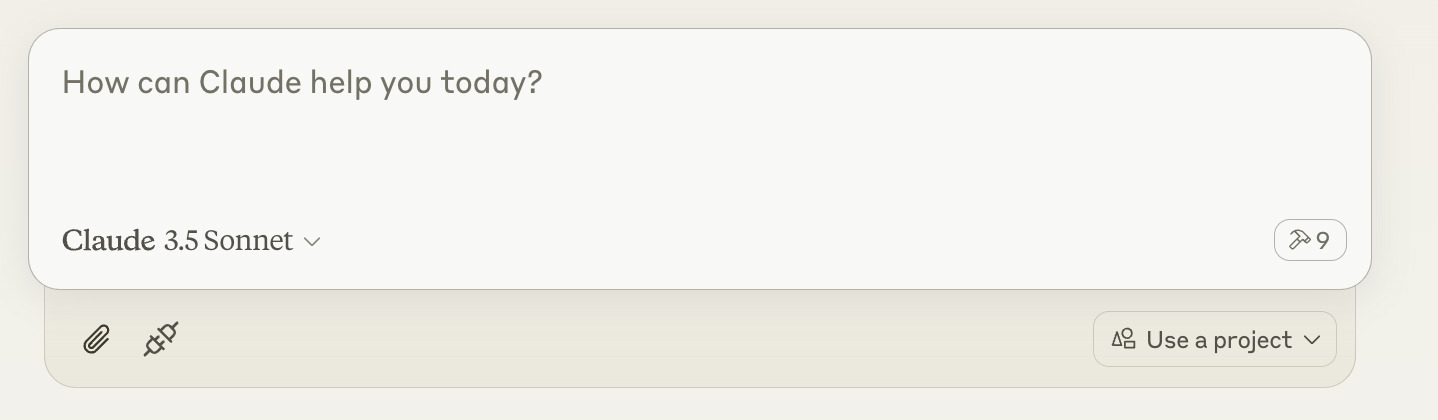
Then ask claude to execute shell commands, read files, edit files, run your code, etc.
If you've run the docker for LLM to access, you can ask it to control the "docker os". If you don't provide the docker container id to it, it'll try to search for available docker using docker ps command.
Chatgpt Setup
Read here: https://github.com/rusiaaman/wcgw/blob/main/openai.md
Examples
Computer use example
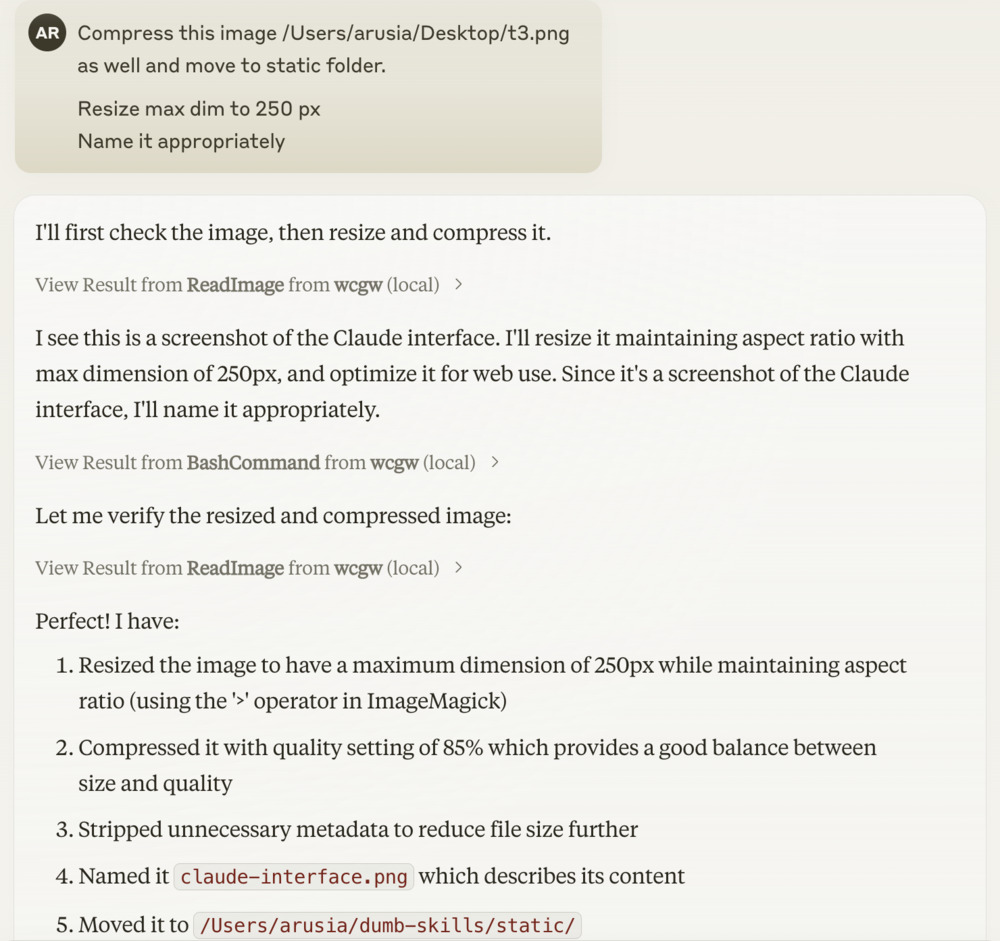
Shell example
[Optional] Local shell access with openai API key or anthropic API key
Openai
Add OPENAI_API_KEY and OPENAI_ORG_ID env variables.
Then run
uvx --from wcgw@latest wcgw_local --limit 0.1 # Cost limit $0.1
You can now directly write messages or press enter key to open vim for multiline message and text pasting.
Anthropic
Add ANTHROPIC_API_KEY env variable.
Then run
uvx --from wcgw@latest wcgw_local --claude
You can now directly write messages or press enter key to open vim for multiline message and text pasting.
Release history Release notifications | RSS feed


Download files
Download the file for your platform. If you're not sure which to choose, learn more about installing packages.
Source Distribution
Built Distribution
Filter files by name, interpreter, ABI, and platform.
If you're not sure about the file name format, learn more about wheel file names.
Copy a direct link to the current filters
File details
Details for the file wcgw-2.1.1.tar.gz.
File metadata
- Download URL: wcgw-2.1.1.tar.gz
- Upload date:
- Size: 598.8 kB
- Tags: Source
- Uploaded using Trusted Publishing? No
- Uploaded via: twine/6.0.1 CPython/3.9.21
File hashes
| Algorithm | Hash digest | |
|---|---|---|
| SHA256 |
0b8b8e58239ef1fd28e679360ad619eb3da4a0370c3ea79c294d117234bddcb1
|
|
| MD5 |
df8628861606bfdcebc5eb44105e188b
|
|
| BLAKE2b-256 |
3a7fb258d9df15d01f12d79cf5902039add6417559b885f84f3a1ab0ae95bcfc
|
File details
Details for the file wcgw-2.1.1-py3-none-any.whl.
File metadata
- Download URL: wcgw-2.1.1-py3-none-any.whl
- Upload date:
- Size: 41.2 kB
- Tags: Python 3
- Uploaded using Trusted Publishing? No
- Uploaded via: twine/6.0.1 CPython/3.9.21
File hashes
| Algorithm | Hash digest | |
|---|---|---|
| SHA256 |
674f77d6796456e4ed6fa5c3e861ac8a77deca2113d98b08dad45ec9df5c220b
|
|
| MD5 |
eece5a1c34df8739c2a3555bb376c160
|
|
| BLAKE2b-256 |
a0d349e764af52e3fde3cc735a0ff37f230c1c4fd2ab25fddd14a002cc8a0a9e
|






